How to Create and Sell Course Bundles Using Tutor LMS
Ready to take your online course business to the next level? Course bundles are the ultimate strategy to make it happen! By combining related courses into one fantastic learning package, you’ll offer your students a more comprehensive and irresistible experience. Not only will they love the convenience of having everything they need in one place, but you’ll also see the benefits in terms of attracting more learners and boosting your revenue.
So, let’s unlock the magic of course bundling with Tutor LMS and watch your online course business soar to new heights!
Why Offer Course Bundles?
If you’re wondering how to offer more value to your students and grow your course revenue? Course bundles are a fantastic way to do both. A course bundle is simply a package of related courses sold together, often at a discounted price.
When you bundle courses, you create a cohesive learning path. This helps students master a subject more deeply. For you, it’s a powerful strategy for your online school.
Here’s why creating a course bundle is a great move:
- Increased Value for Students: Bundles provide a complete, well-rounded learning journey. This makes your offerings much more attractive to potential learners who want a comprehensive education on a topic.
- Higher Revenue Potential: By encouraging students to buy several courses at once, you can significantly boost your earnings per transaction. A great bundle deal is often hard to resist!
- Improved Student Retention: A clear learning path keeps students engaged and motivated. When they see the full scope of what they can learn, they are more likely to stay with you longer.
- Simpler Marketing: Promoting one valuable bundle can be much easier than marketing several individual courses. It simplifies your message and saves you time and resources.
Creating Your First Course Bundle in Tutor LMS
The Course Bundle feature in Tutor LMS lets you package multiple courses and sell them as a single product. It’s a smart way to guide your learners through a complete curriculum. The process for creating a Tutor LMS course bundle is now streamlined into a single, easy-to-use course builder.
Let’s walk through the steps together.
1. Activate the Course Bundle Addon
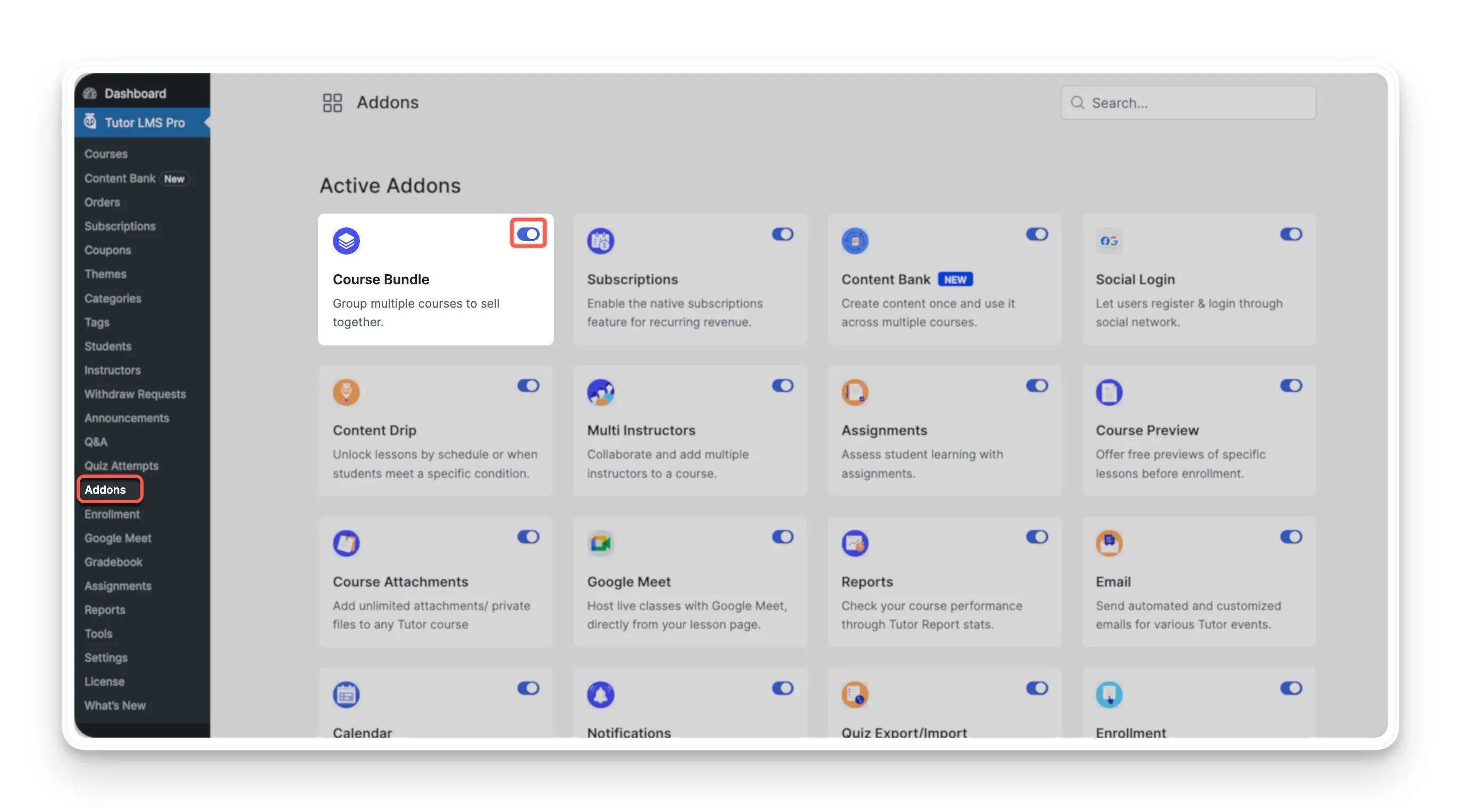
First, you need to turn on the feature. From your WordPress dashboard, navigate to Tutor LMS Pro > Addons. Find the Course Bundle addon and enable it.
2. Create a New Course Bundle
With the addon active, you can now create your bundle. Go to Tutor LMS Pro > Courses. Here, you will see a New Bundle button next to the familiar +New Course button for regular courses. Click on New Bundle.
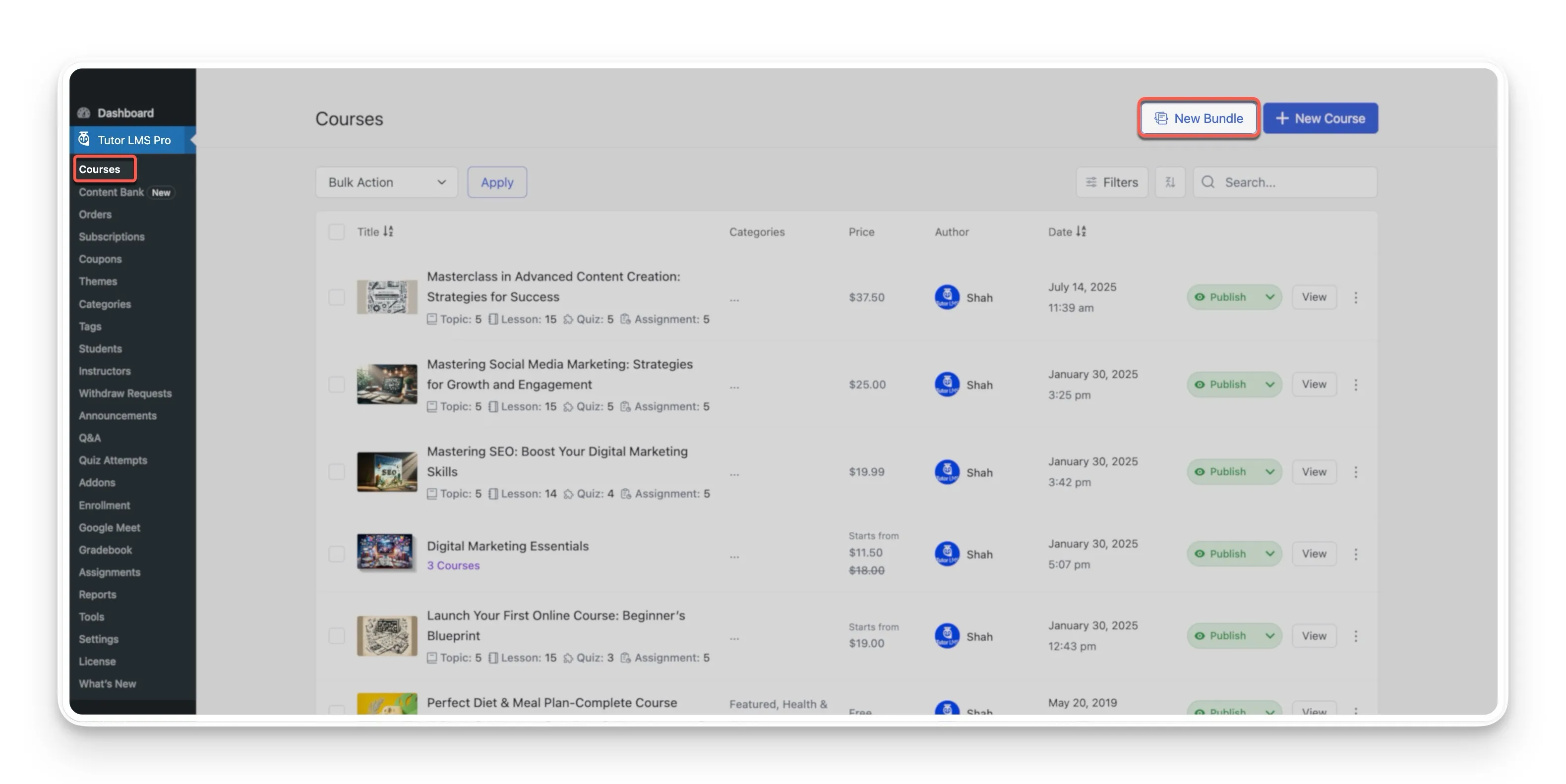
This action opens the new Course Bundle builder, which is your main workspace for putting the bundle together.
3. Configure Your Bundle Details
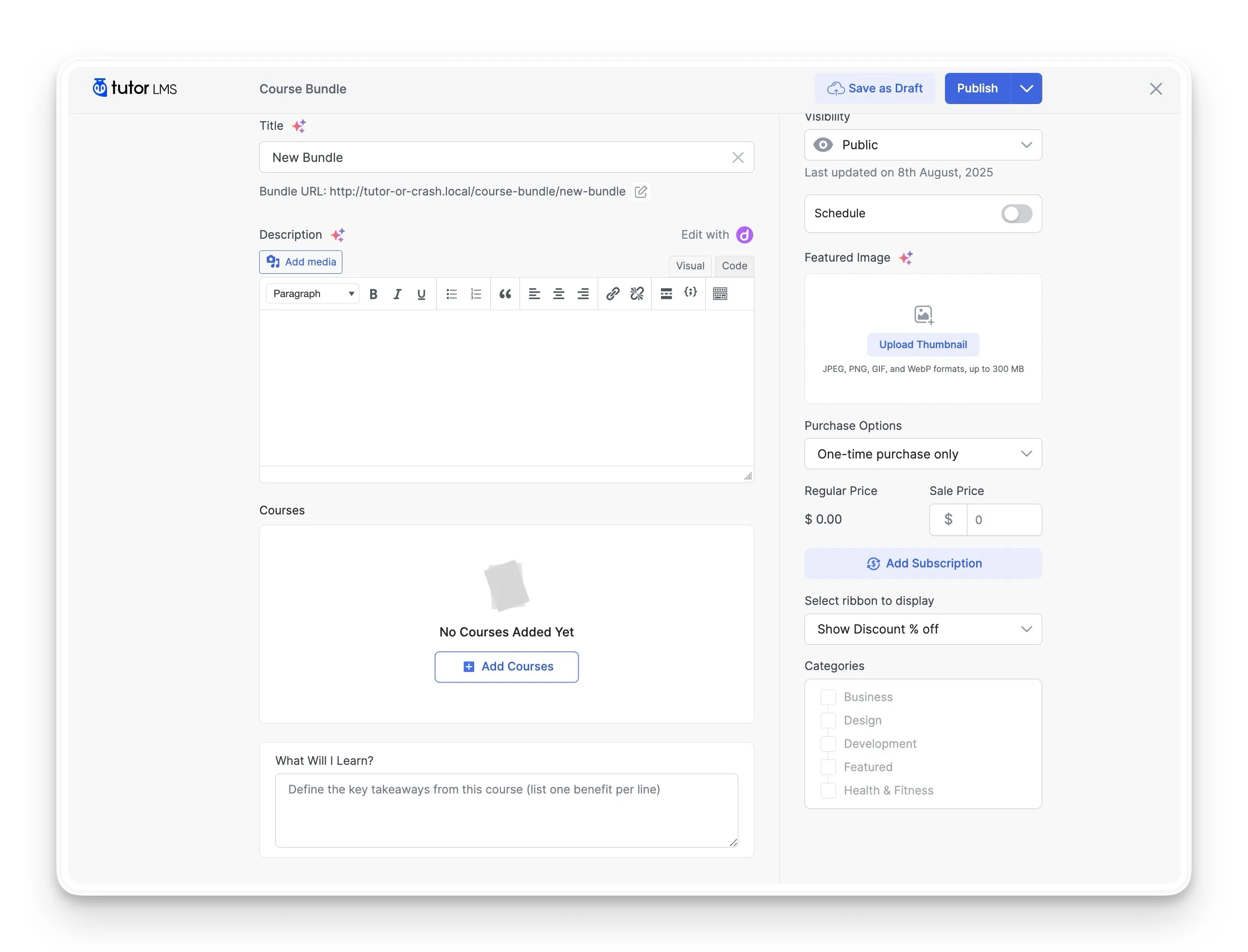
In the builder, you’ll see several fields to fill out. Giving these your full attention will help make your bundle a success.
- Title and Description: Create a clear and catchy Title for your bundle. In the Description, explain what students will learn and why the bundle is valuable. This is your chance to sell the benefits!
- Bundle URL: You can customize the web address for your bundle here. A clean, descriptive URL is good for both users and search engines.
- Visibility: You have three options for who can see your bundle:
- Public: Anyone can see and enroll in the bundle.
- Private: The bundle won’t appear on your course listing page. You must enroll students manually. This is great for corporate training or special cohorts.
- Password Protected: The bundle is visible, but students need a password to access it.
- Featured Image: Choose an attractive image that represents the entire bundle. This image will act as the cover on your course catalog.
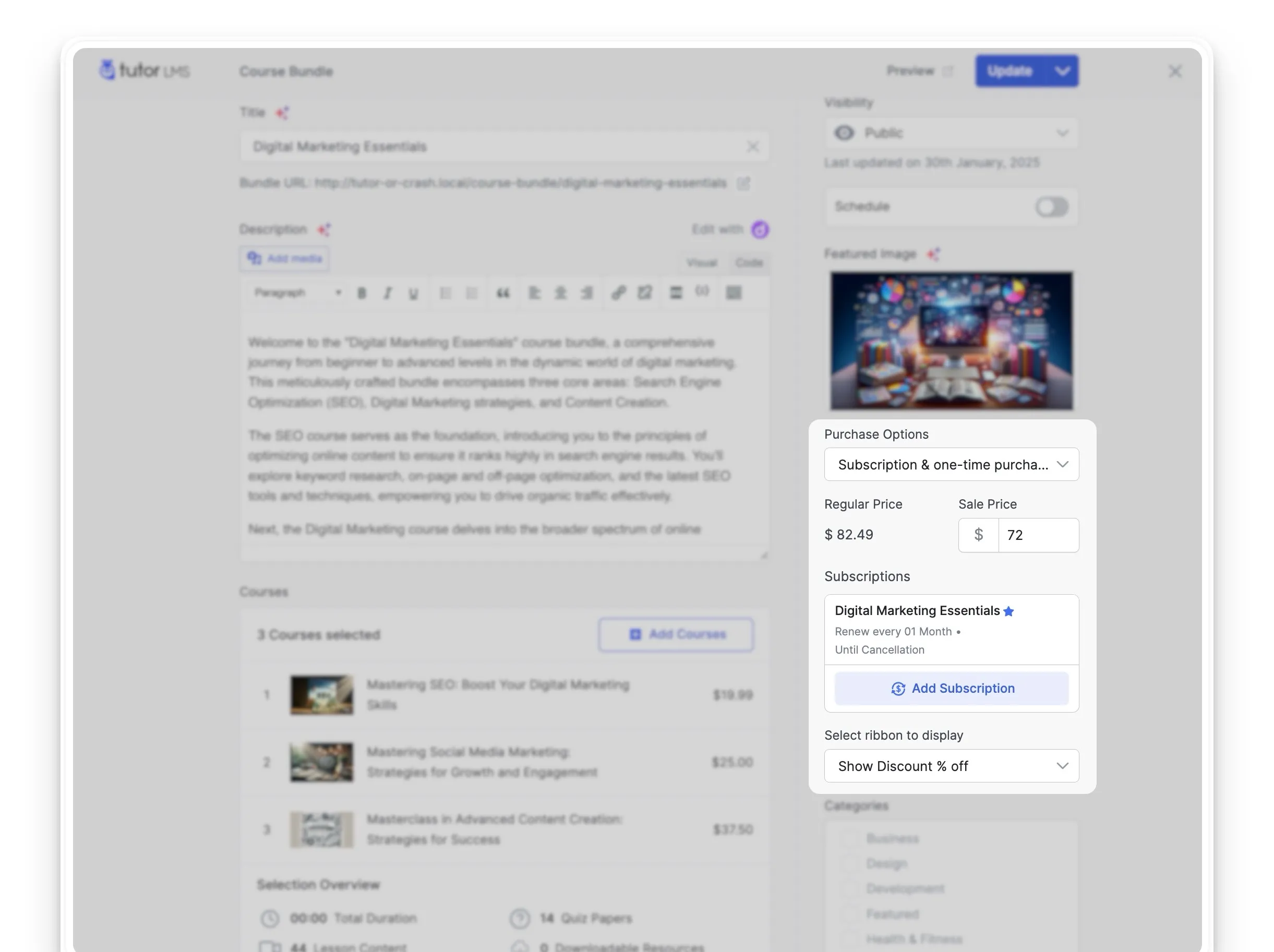
- Select Ribbon to Display: If you offer a discount, you can display a ribbon on the course image. You can choose to show either the discount percentage (e.g., “20% OFF”) or the exact amount saved (e.g., “Save $50”).
4. Add Courses to Your Bundle
Now for the fun part! Scroll down to the Courses section and click the Add Course button.
A window will pop up showing all the courses on your site. You can search for specific courses or browse the list. Select all the courses you want to include in this package. Additionally, you can always edit the course bundle and add or remove courses later.
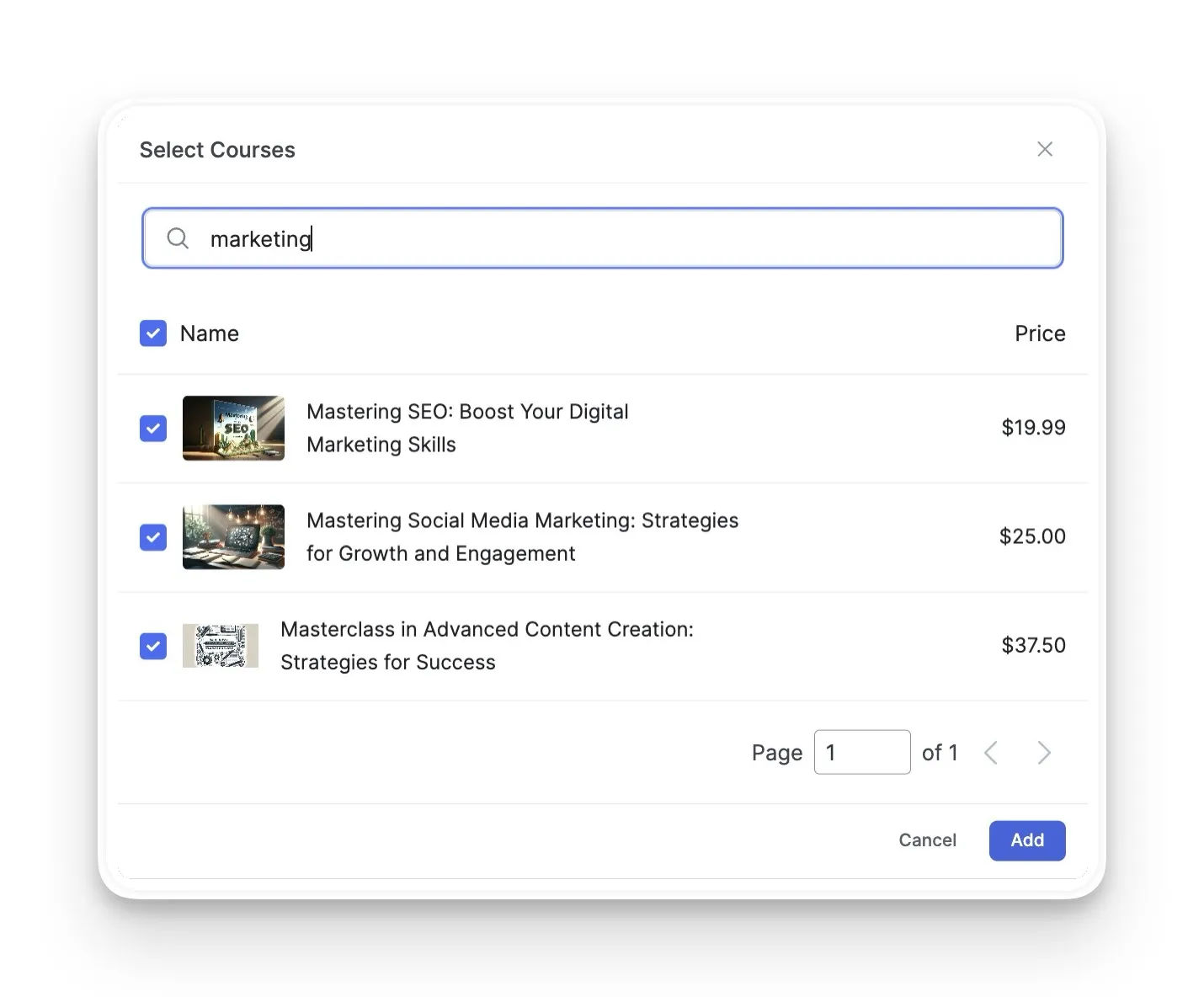
Note: Prerequisites and enrollment expiration are not applicable for course bundles. Additionally, once a student has enrolled in a course bundle, you cannot add or remove courses from it.
Once you’ve added them, you’ll see an overview of the included content, total duration, and much more.
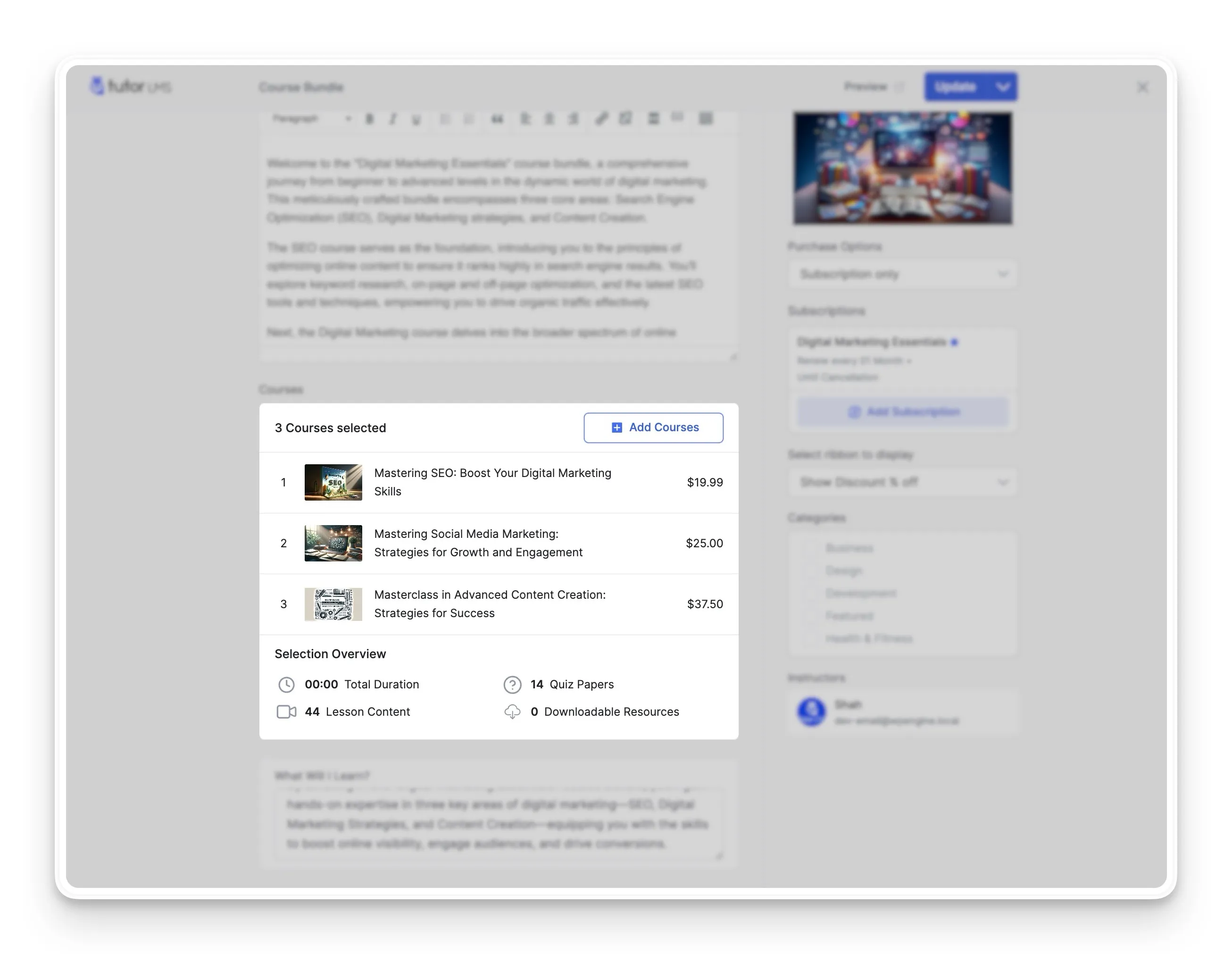
5. Set Your Price and Purchase Options
On the right side of the builder, you will find all the settings to price your bundle. A key point here is the ability to offer flexible ways for students to buy your bundle.
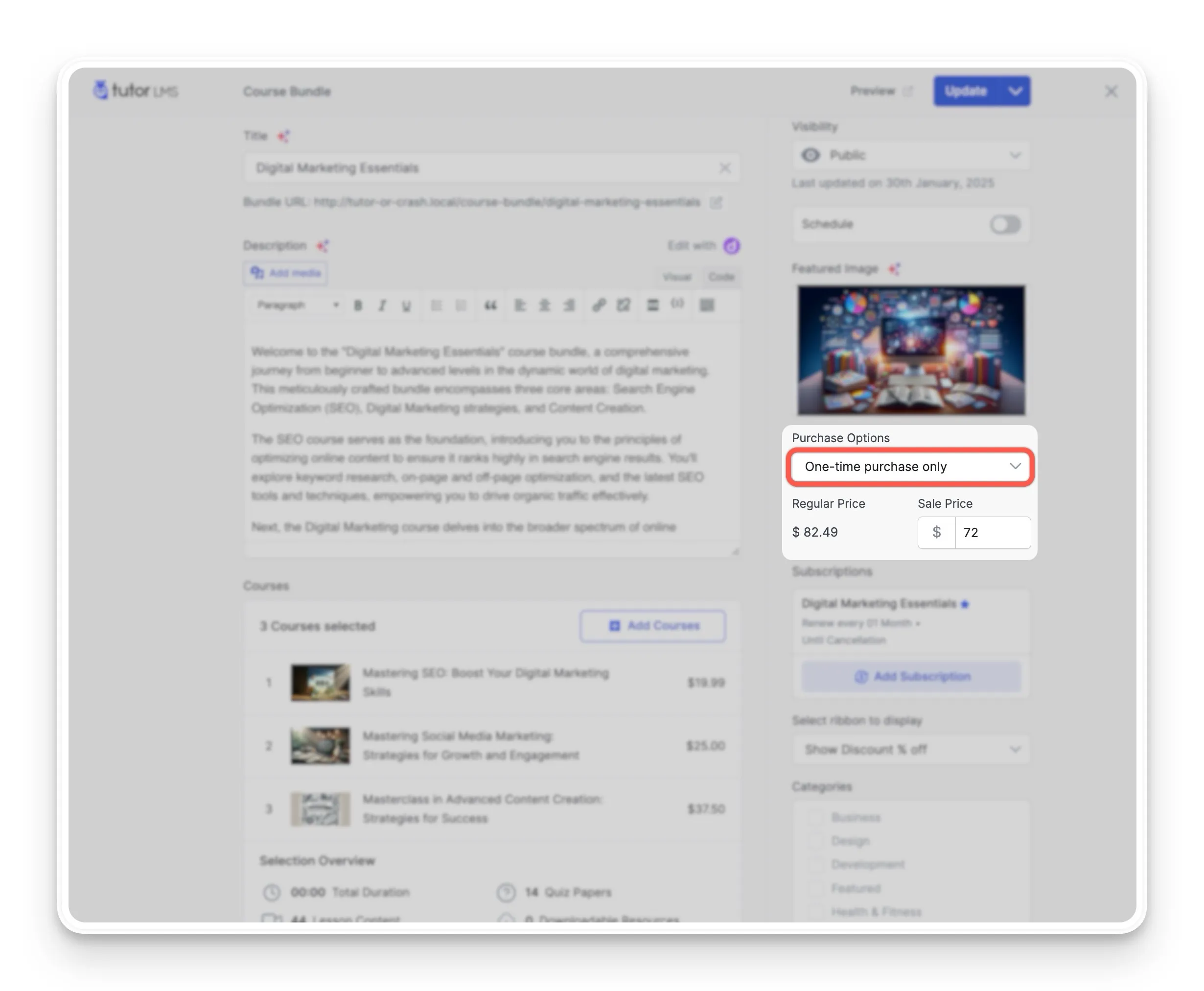
First, look for the Purchase Options dropdown menu. This lets you decide how your bundle can be sold. You have three choices:
- One-time purchase only: Students can only buy the bundle with a single payment.
- Subscription only: This makes your bundle exclusive to subscribers, which is great for building a recurring revenue model.
- Subscription & one-time purchase: This is the most flexible option, allowing students to choose between paying a single, one-time fee or joining a recurring subscription plan.
Configuring a One-Time Purchase
If you offer a one-time purchase, the Regular Price field will be automatically calculated by adding up the prices of the individual courses you selected. To offer a special deal, you can enter a lower price in the Sale Price field. This discounted price is what students will pay.
Adding a Subscription Plan
To make this bundle available through a subscription, you first need to have a subscription plan. Start creating your plan simply by clicking the Add Subscriptions button.
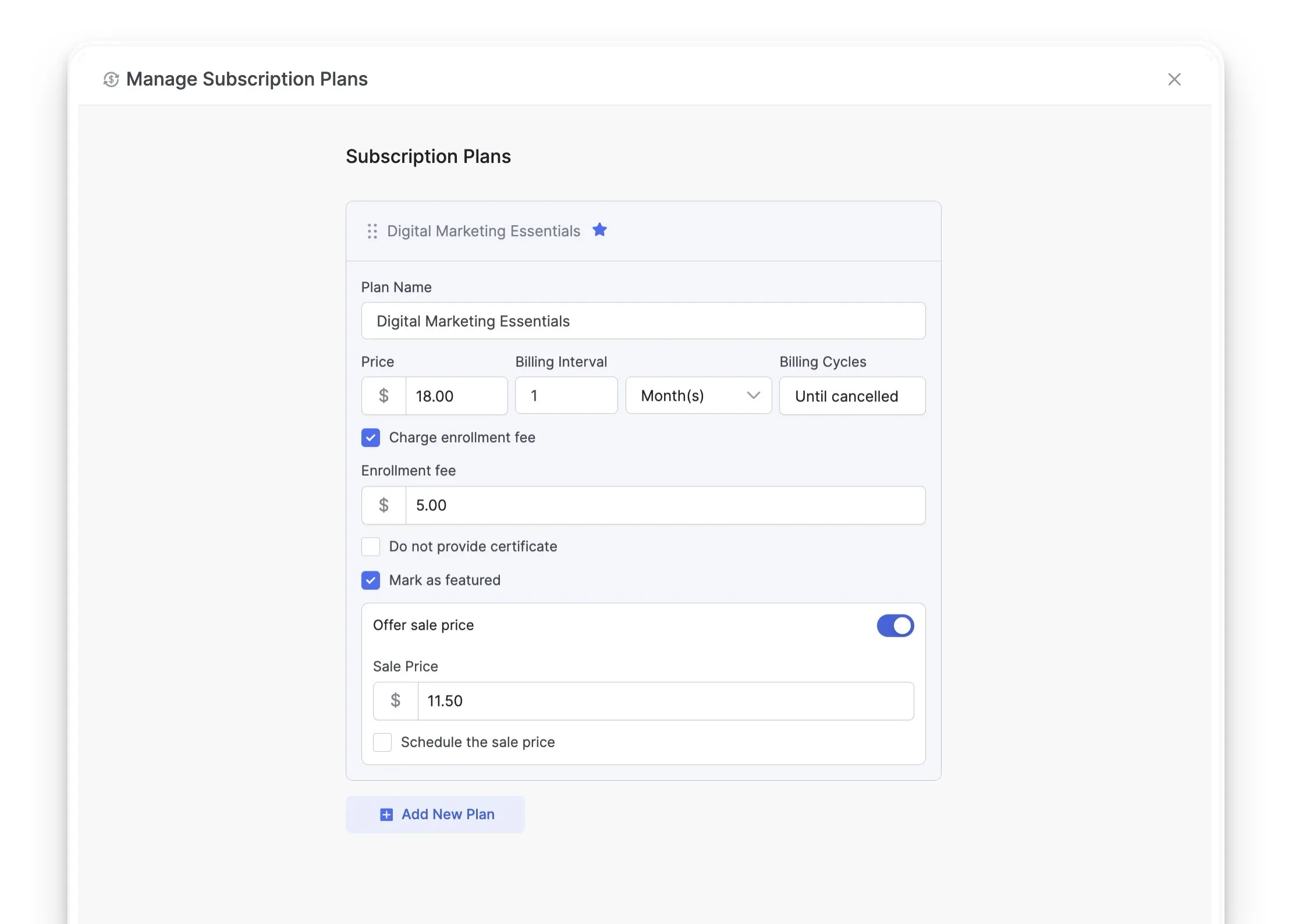
Subscriptions in Tutor LMS are a powerful feature for creating predictable, recurring income. To get a full walkthrough of setting up subscription plans, you can refer to our dedicated guide on Tutor LMS Subscriptions.
After configuring your purchase options and pricing, review all the details one last time. When everything looks good, click the Update or Publish button to make your course bundle live for students!
Tips for a Successful Course Bundle
Creating the bundle is just the first step. Here are a few extra tips to make sure your bundles are effective and reach the right audience.
- Offer Real Value: Ensure the courses in your bundle are logically connected and provide a complete skill set.
- Price It Right: The discount needs to be attractive enough to make the bundle a better deal than buying the courses separately. A good bundle price makes the decision easy for students.
- Write Compelling Descriptions: Use the description area to tell a story. Explain who the bundle is for, what problems it solves, and what transformation students can expect after completing it.
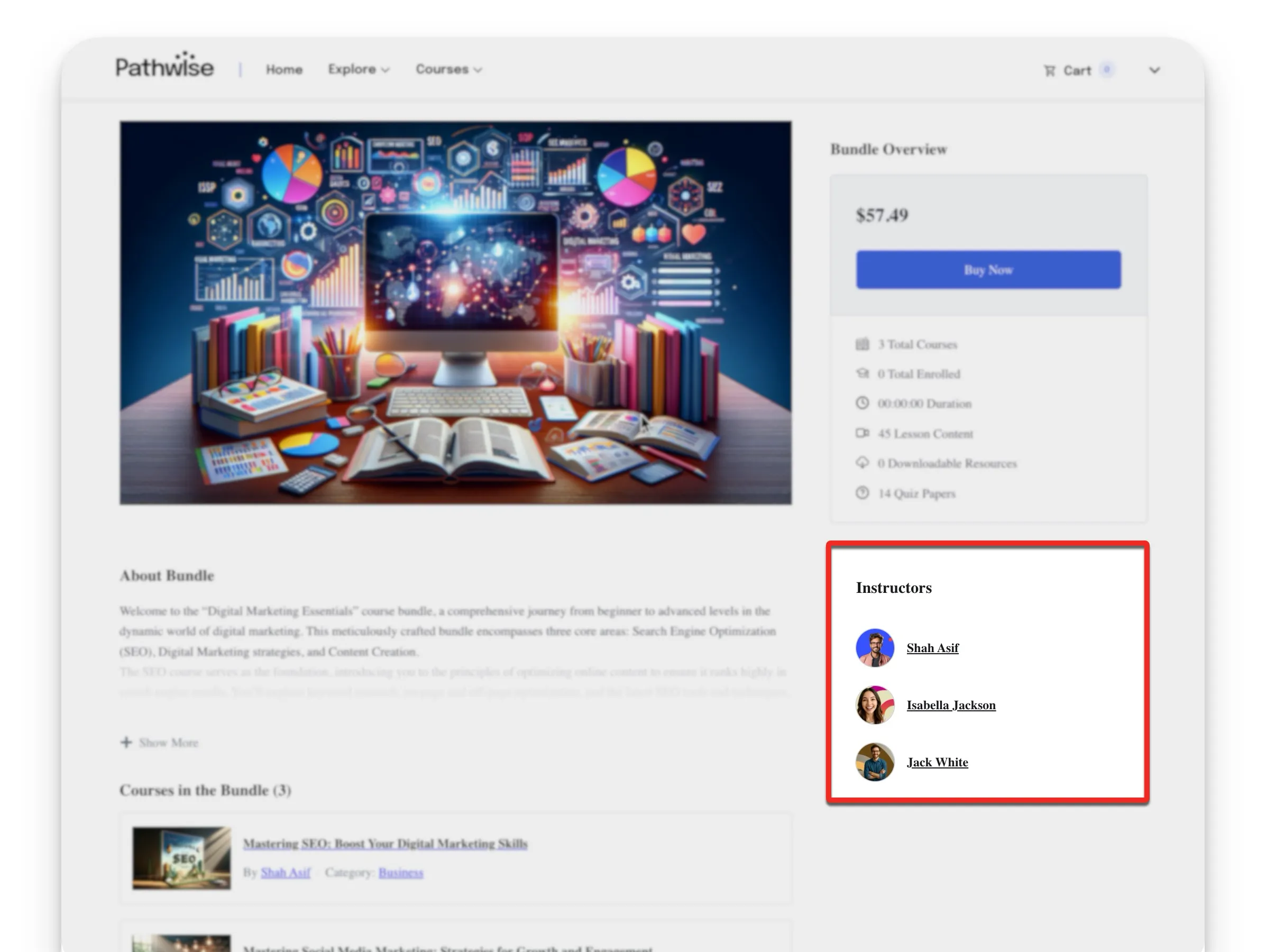
- Collaborate with Other Instructors: If you have multiple instructors on your site, use the Multi-instructor feature to create powerful bundles. Combining expertise from different instructors can create a unique, high-value package that no single instructor could offer alone.
- Promote Your Bundle: Don’t forget to market your new creation! Share it on social media, write a blog post about the benefits of the learning path you’ve created, and mention it in your email newsletters.
Conclusion
And there you have it, everyone! You’re now ready to create amazing course bundles with Tutor LMS Pro. These tips and insights will make learning more enjoyable for your peers and help grow your online course business like a true professional. So, go ahead and let your creativity shine, and watch your course bundles become a hit among your fellow students. Good luck, and happy bundling!

Comments 9
Why i can't edit the course bundle page design using Elementor like the course page!
Your comment is awaiting moderation. Only you can see it until it is approved.
Hello, This plugin support to change course bundles permarklink, course bundles single template page and course bundles archive template page ?
Your comment is awaiting moderation. Only you can see it until it is approved.
Hi Edmond,
Thanks for your question! Currently, Tutor LMS only allows permalink changes for courses, lessons, and quizzes, not course bundles. For more detailed support on the issue, please contact our tech support team.
Your comment is awaiting moderation. Only you can see it until it is approved.
Hi there,
I hope you are doing well. I recently installed a plugin and encountered an issue. I would like to sell courses in a bundle (for example, creating an educational path with six courses). I am able to do this using course bundling, but I want to prevent direct access to the individual courses unless the entire package is purchased. Currently, when I bundle courses, they can still be accessed by purchasing them individually. How can I achieve this?
Your comment is awaiting moderation. Only you can see it until it is approved.
While course bundling lets you sell multiple courses together, it's currently not possible to prevent direct access to individual courses.
However, you can use custom CSS to hide the enrollment button for a specific course.
Your comment is awaiting moderation. Only you can see it until it is approved.
Hi!!
I have installed TutorLMS pro version v2.7.4
I activated the course bundles extension
I made my first bundle with two courses
When I show the preview I can see the individual page with the content of both courses.
The problem is that when I try to access the live page it appears as if it does not exist.
Does anyone have this problem? How do I solve it? I cannot find the solution in the tutor documentation
Your comment is awaiting moderation. Only you can see it until it is approved.
You can resolve this issue by updating the permalink settings.
Simply go to <strong>WordPress > Settings > Permalinks</strong>, select <strong>Post Name</strong>, and click on the Save Changes button. Even if 'Post Name' was already selected, just click 'Save Changes' again, and this should fix the problem.
Thank you!
Your comment is awaiting moderation. Only you can see it until it is approved.
Eres el mejor Islam, gracias por tu ayuda esto si me funciono. You are the best
Your comment is awaiting moderation. Only you can see it until it is approved.
No comments yet. Be the first to share your thoughts.