Choosing to migrate from LearnDash to Tutor LMS is an exciting step toward growing your online education platform. You are likely looking for new features and capabilities to enhance your courses and better serve your students. We understand that a successful move means bringing all of your hard work, your courses, users, and data with you safely.
That is why we created the Tutor LMS Migration Tool. Think of it as the official bridge between your old platform and your new one. It is designed to make the entire LMS migration process as smooth as possible by carefully transferring your valuable content over to its new home in Tutor LMS.
Prerequisites and Technical Requirements
A successful migration always starts with smart preparation. Before you begin, it is helpful to review two key areas: the essential safety measures to protect your work and the technical requirements needed for the tools to function correctly.
Safety First: Backup and Staging
For complete peace of mind, taking a couple of safety steps first is highly recommended:
- Create a Full Site Backup. This step acts as your safety net. Having a complete backup of your website provides total peace of mind before you start the process.
- Test on a Staging Environment. A staging site is a private clone of your live platform. Running the migration here first lets you work out any issues without any risk to your active online school.
Technical Requirements
The migration tool works best when your software is up to date. Your site should have the following minimum versions installed and active for a successful data transfer:
- WordPress Version: 5.3 or later (tested up to WordPress 7.1.2; WordPress 7.0+ compatibility added in v2.5.4)
- PHP Version: 7.4 or later
- Tutor LMS: Version 4.0 or later installed and active
- LearnDash LMS: Version 4.0 or later installed and active (updating to the latest version is recommended)
- Tutor LMS – Migration Tool: Version 2.6.0
- Required Tutor LMS Pro Addons (if using these features in LearnDash):
- Assignments addon (Tutor LMS Pro) — required to manage migrated assignments
- Subscriptions addon (Tutor LMS Pro) — required to migrate LearnDash recurring plans and active subscribers to Tutor Native subscriptions
- Certificate addon (Tutor LMS Pro) — required to auto-generate certificates for completed courses
- Optional eCommerce Plugins (if migrating from WooCommerce):
- WooCommerce: Version 10.0 or later
- WooCommerce Subscriptions: Version 7.8 or later
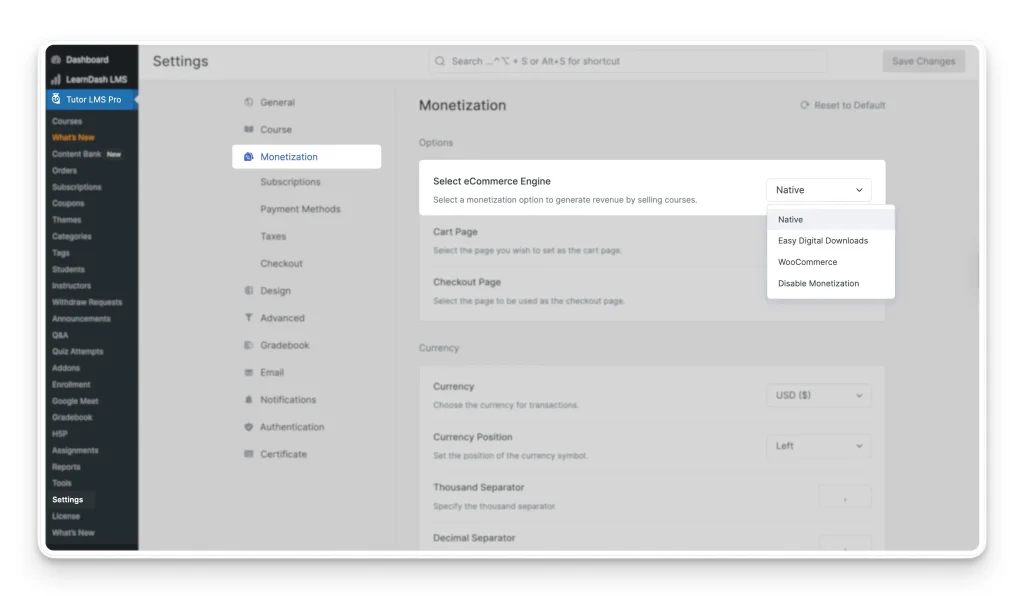
Note on Default eCommerce Migration: If you do not configure a third-party monetization method (such as WooCommerce or Easy Digital Downloads) in Tutor LMS > Settings > Monetization before starting the migration, the tool automatically moves all of your sales data into Tutor LMS Native eCommerce.
Installing the Migration Tool
Once your website meets all the prerequisites, the next step is to install the tool that will handle the migration. The Tutor LMS Migration Tool is a free plugin, and you can find it directly within your WordPress dashboard.
The installation process follows the standard WordPress plugin setup, which should feel very familiar.
- From your WordPress admin panel, navigate to Plugins > Add New.
- In the search field on the top right, type Tutor LMS Migration Tool to find the plugin and click the Install Now button.
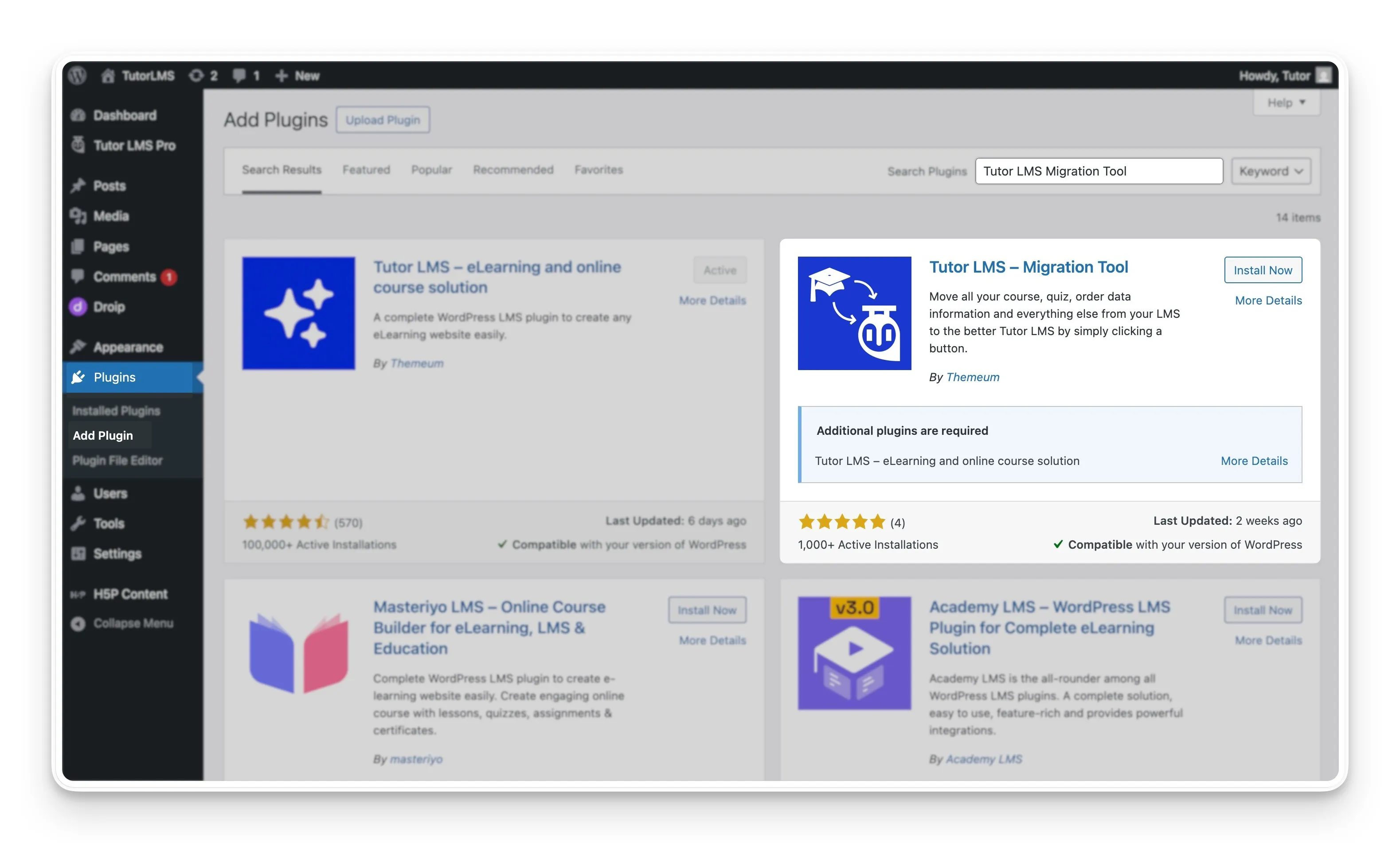
- After WordPress finishes the installation, you can complete the setup by selecting the Activate button.
With the migration tool now installed and active on your site, you are ready to look at what data will be transferred to your new Tutor LMS platform.
What Data Will Be Migrated?
A common concern during any LMS migration is knowing exactly what information will be transferred. The good news is that the Tutor LMS Migration Tool is designed to be comprehensive.
It carefully moves all the key components of your LearnDash site over to Tutor LMS. Below is a complete list of the data that will be included in the migration process.
| Migration Section / Data Type | What Transfers to Tutor LMS |
|---|---|
| Courses | Transfers courses, lessons, topics, quizzes, quiz attempts, assignments, and course taxonomies (categories and tags) in batches. |
| Media Files | Videos, images, and PDFs already linked inside your lessons are mapped to the new structure. You do not re-upload anything. |
| Enrollments | Migrates student and instructor profiles, student enrollments, course completions, and learning progress (lessons, assignments, and quiz attempts) in student batches. |
| Sales Data | Migrates revenue and sales history (including LearnDash Native Orders and “Buy Now” or priced “Closed” courses) to your active Tutor LMS monetization engine (Native eCommerce, WooCommerce, or Easy Digital Downloads) and reflects them in Reports. |
| Subscriptions | Migrates LearnDash recurring plans and active subscribers directly to Tutor Native subscriptions. |
| Reviews | Carries over all course reviews and ratings from the LearnDash Course Review addon to Tutor LMS. |
| Certificates | Automatically generates certificates for eligible students after migration if the Tutor LMS Pro Certificate addon is active and configured. |
Step-by-Step Process to Migrate From LearnDash to Tutor LMS
Now that you know what data the tool will transfer, you are ready for the migration itself. The process is designed to be as clear as possible, and this guide will walk you through each stage, from locating the tool to verifying your completed migration.
Step 1: Configure Pre-Migration Settings
Before starting the data transfer, a couple of settings should be reviewed to ensure everything goes to the right place.
- eCommerce Data: This is an important step if you sell your courses. The migration tool will automatically send your sales data to the monetization engine that is currently active in your Tutor LMS settings. Your options include plugins like WooCommerce and Easy Digital Downloads, or you can use the built-in Tutor LMS native monetization engine. The key is to ensure your chosen engine is fully configured before you migrate.
- Automatic Certificate Generation: If you use the Certificate addon for Tutor LMS, the tool can automatically generate new certificates for your students. For this time-saving feature to work, the Certificate addon should be active and fully configured before you start the migration.
Step 2: Locate the Migration Tool
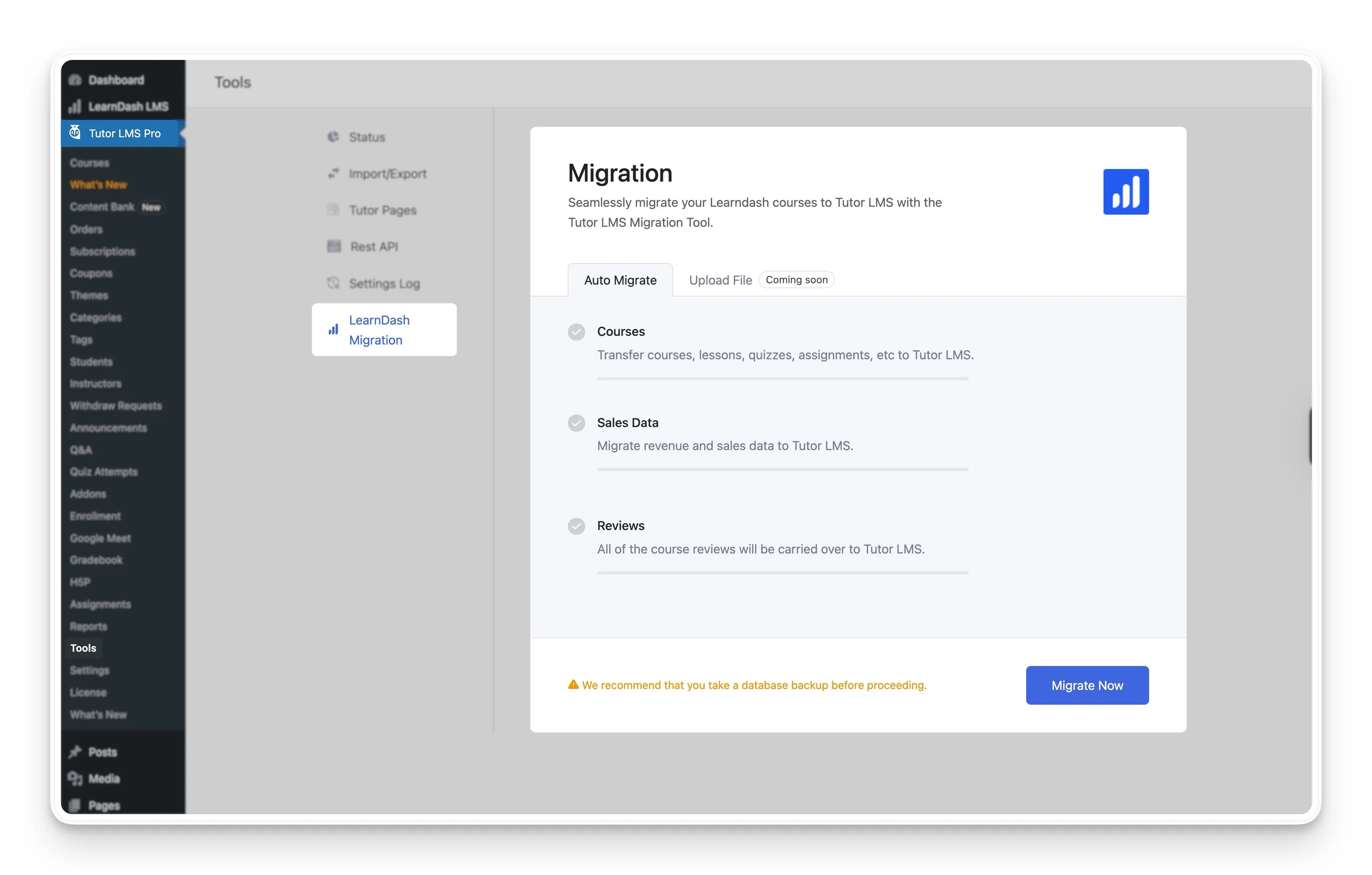
First, you will need to access the migration dashboard. You can find this by navigating from your WordPress admin panel to WP Admin > Tutor LMS > Tools, and then selecting the LearnDash Migration tab.
Step 3: Run the Migration
Important Note on Your LearnDash Data: Once the migration finishes, your transferred courses, lessons, quizzes, course orders, metadata, and reviews will no longer be accessible in LearnDash. Always take a full site and database backup before proceeding.
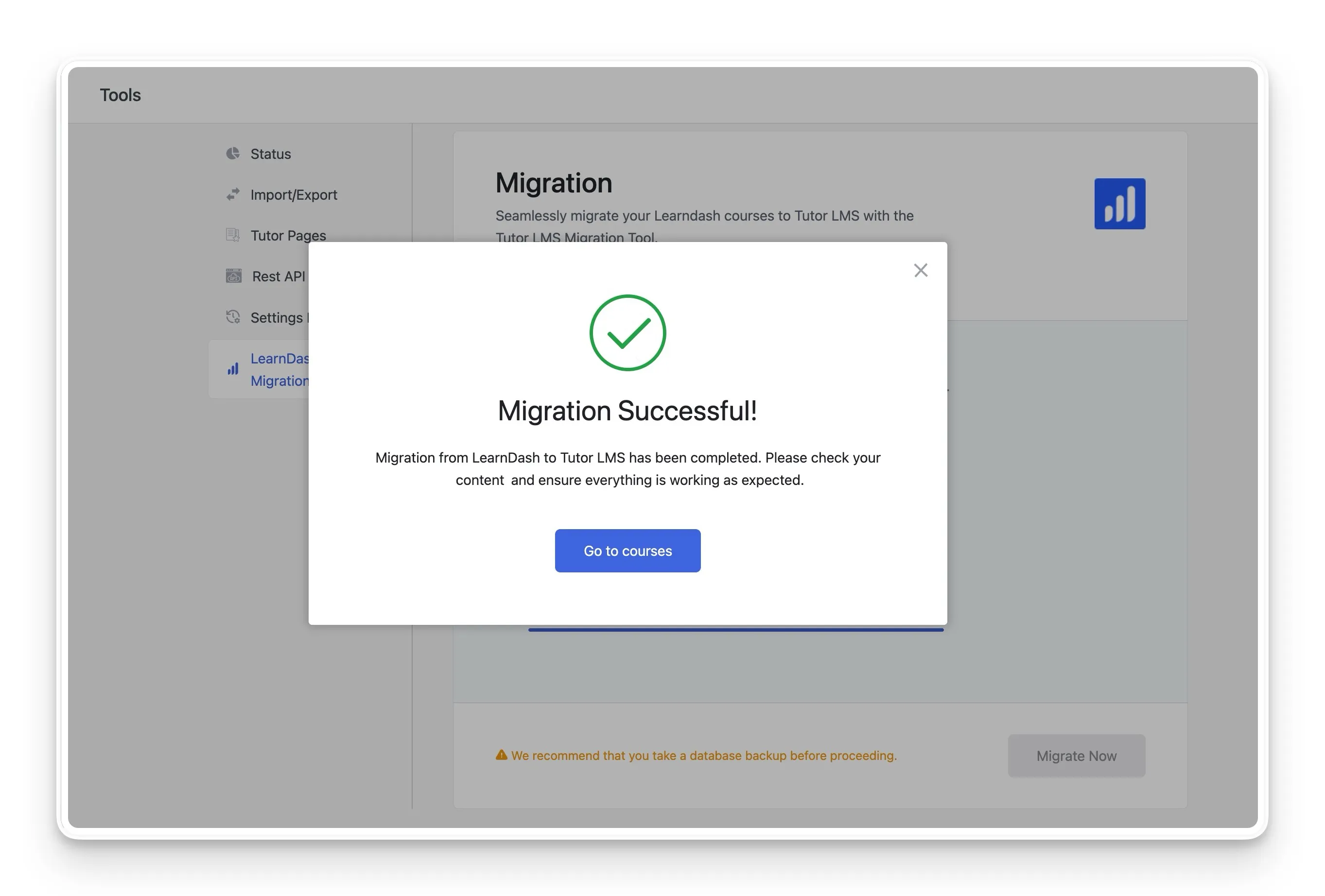
With all your preparations in place, you can now start the core migration process. On the migration dashboard, you will see a Migrate Now button. Selecting this button will initiate the transfer. The tool will show you a real-time progress bar, so you can see your data moving over. Once it is finished, a success message will pop up to let you know the migration is complete.
Step 4: Verify Your Migrated Content
After you see the success message, it is a good practice to check that everything has been transferred correctly. You can verify the migration by visiting the different sections within Tutor LMS. A good place to start is by checking Tutor LMS > Courses, Enrollments, and Reviews to see your newly migrated content.
Reviewing Your Migration History
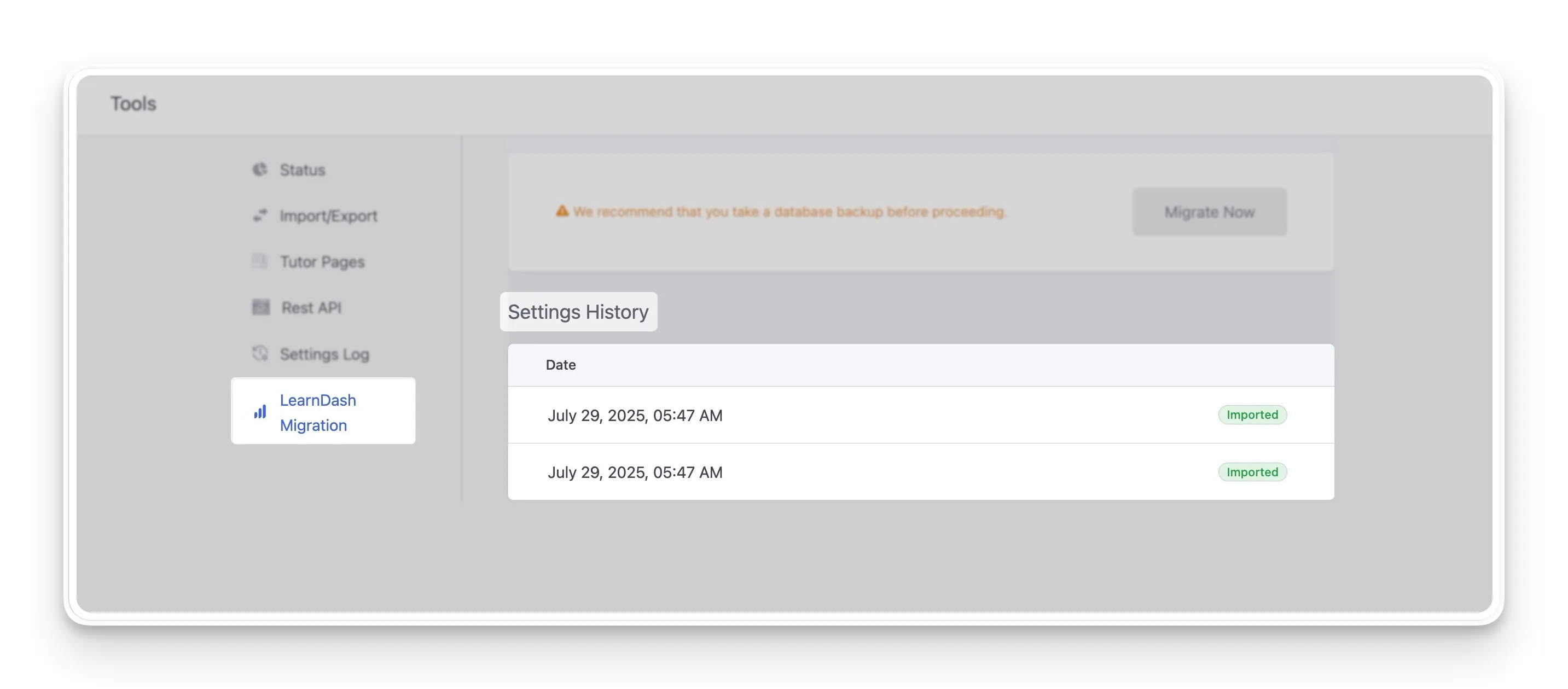
After you perform a migration, you might want a simple record of that action for your reference. The migration tool helps with this by automatically keeping a log of all related activities on your site. This feature provides a clear history of your migration events.
This log is found within the Settings History section of the tool. It is designed to give you a straightforward list of every migration-related event that has occurred. The history is generated automatically after the first event is triggered.
Your Migration is Complete: What’s Next?
Successfully completing the migration from LearnDash to Tutor LMS is a major accomplishment. All of your valuable courses, student data, and sales history now have a new home, ready for you to build upon. By following the steps and using the Tutor LMS Migration Tool, you have set a strong foundation for the future of your online school.
Now the exciting part begins: exploring what your new platform can do. This is a great time to discover the powerful features within Tutor LMS, from the advanced quiz builder to the intuitive course creation process. You can start enhancing your existing courses or begin creating new learning experiences for your students.
Should you have any questions as you get started, or if you want to learn more about specific features, our resources are always available to help. A great next step is to explore our other Tutor LMS tutorials and Documentation. For any specific queries, our support portal is an excellent place to find answers and connect with the community.

Start Using Tutor LMS Today
Ready to take your online courses to new heights? Download Tutor LMS now and enjoy a journey of eLearning excellence.