Grading a quiz usually feels simple: a right answer earns full marks, a wrong one earns nothing. This binary approach works fine for a casual quiz tucked inside a hobby course, where the only goal is reinforcing a lesson. The moment the stakes rise, though, this system starts to show real limitations of binary grading.
Certification programs and competitive exams need something more nuanced than a flat right-or-wrong scoreboard. A learner who gets three out of four parts correct on a multi-step question deserves more credit than someone who answered nothing correctly, yet traditional grading treats both the same way.
Tutor LMS addresses this gap with its advanced grading engine, built around negative and partial marking. This guide walks through how to grade quizzes in Tutor LMS using these tools, so your assessments reward real understanding, and your certifications stay credible from start to finish.
TL;DR: Tutor LMS Pro introduced negative and partial marking for quizzes in version 4.1. Negative marking deducts points for an incorrect answer, while partial marking awards credit when a learner answers some parts of a supported question correctly. Admins can enable the features under Tutor LMS > Settings > Grading. Instructors can then configure the scoring options in the quiz’s Quiz Builder > Settings. This guide explains which question types are supported, how penalty settings work, and how to test your scoring rules before using them in an assessment.
What Is Negative Marking in an Online Quiz?
Instead of awarding zero points for a wrong answer, negative marking applies a deduction. It attaches a tangible cost to incorrect submissions, turning blind guesswork into a calculated risk.
Here’s how it works in practice: on a 1-point multiple-choice question with a 0.25 penalty, a correct response yields +1.0, skipping awards 0, and an incorrect guess results in -0.25. This can reduce the advantage of blind guessing, particularly when the penalty is calibrated to the question format.
When to use it:
- High-stakes evaluations: Negative marking can be useful for certification, licensing, aptitude, and competitive assessments where accurate answers matter more than simply attempting every question.
When to skip it:
- Formative and low-stakes practice: During early coursework, mistakes serve as essential feedback loops. Penalizing wrong answers here only induces test anxiety and discourages active problem-solving.
What Is Partial Marking in Tutor LMS?
While negative marking discourages guessing, partial marking solves the opposite challenge of recognizing genuine, incomplete knowledge. In an all-or-nothing system, missing one element of a multi-part question can result in a zero. Partial marking allows the learner to receive credit for the parts they answered correctly.
For example, a matching question may contain five pairs. A learner who correctly matches four of them has demonstrated more understanding than someone who gets none correct. Partial marking can reflect that difference in the score.
In Tutor LMS, partial marking is purpose-built for multi-component question types like matching, ordering, or multiple-choice questions.
Negative Marking vs. Partial Marking: Key Differences and When to Combine Them
Negative and partial marking pull scores in opposite directions, but they are complementary tools in modern assessment design. One protects test integrity; the other validates learner effort.
| Criteria | Negative Marking | Partial Marking |
|---|---|---|
| Purpose | Deduct points for incorrect answers | Award credit for correct parts |
| Effect | Reduces the score | Increases the score |
| Useful for | Assessments where guessing should carry a cost | Multi-part questions |
| Main Consideration | Penalties can discourage risk-taking | Partial credit should reflect meaningful progress |
These two settings are especially powerful when you combine them. On multiple-choice questions with multiple correct options, you can award partial credit for correct choices while penalizing incorrect selections. This setup prevents the common trick where students select every checkbox to guarantee full points.
How to Enable Negative and Partial Marking in Tutor LMS
Configuring advanced scoring is a two-tier workflow: set platform defaults at the admin level, then fine-tune rules inside the quiz builder.
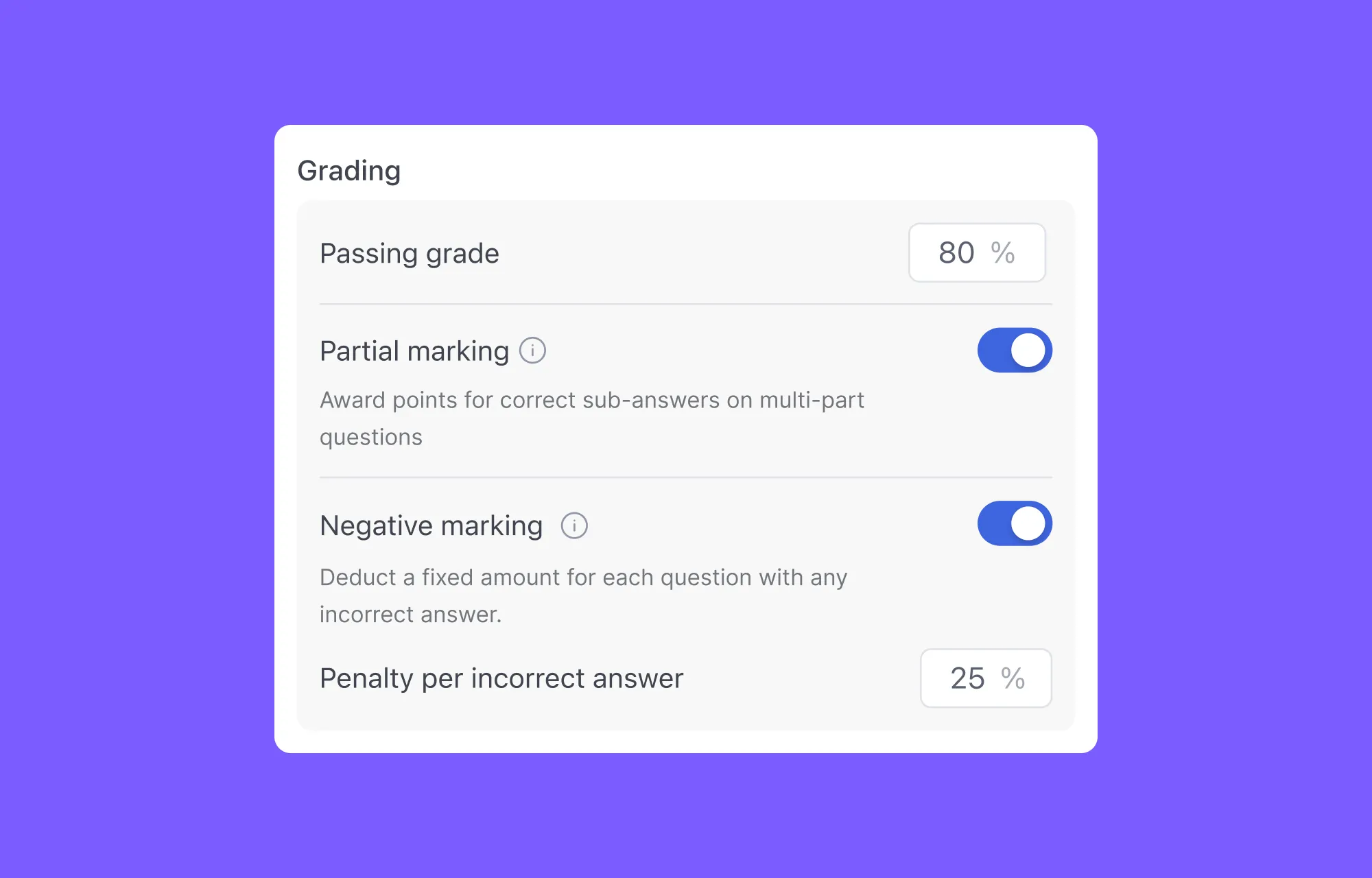
- Access Global Grading Settings: From your WordPress dashboard, go to Tutor LMS Pro > Settings > Grading and locate the Automatic Assessment section.
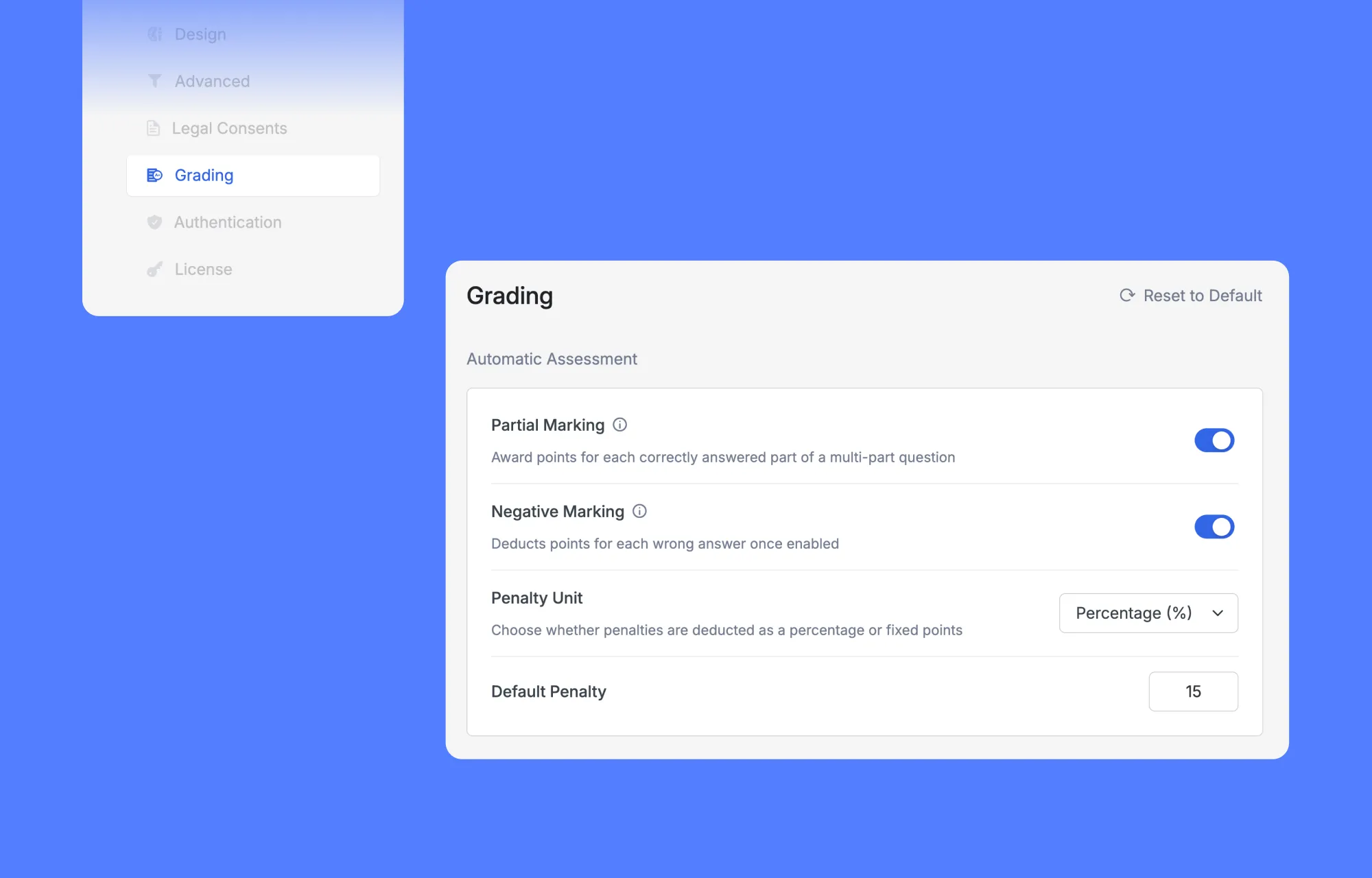
- Toggle Partial Marking: Switch on Partial Marking to enable proportional scoring across multi-part questions site-wide.
- Configure Negative Penalties: Enable Negative Marking, choose your Penalty Unit (Percentage or Points), and define a Default Penalty (e.g., 15%). The Default Penalty provides the value that populates the quiz’s negative-marking setting when instructors enable the feature.
- Fine-Tune at the Quiz Level: Global settings make the options available, but you keep full control over each exam. Inside any specific quiz, you can open Quiz Builder > Settings to turn partial or negative marking on or off as needed.
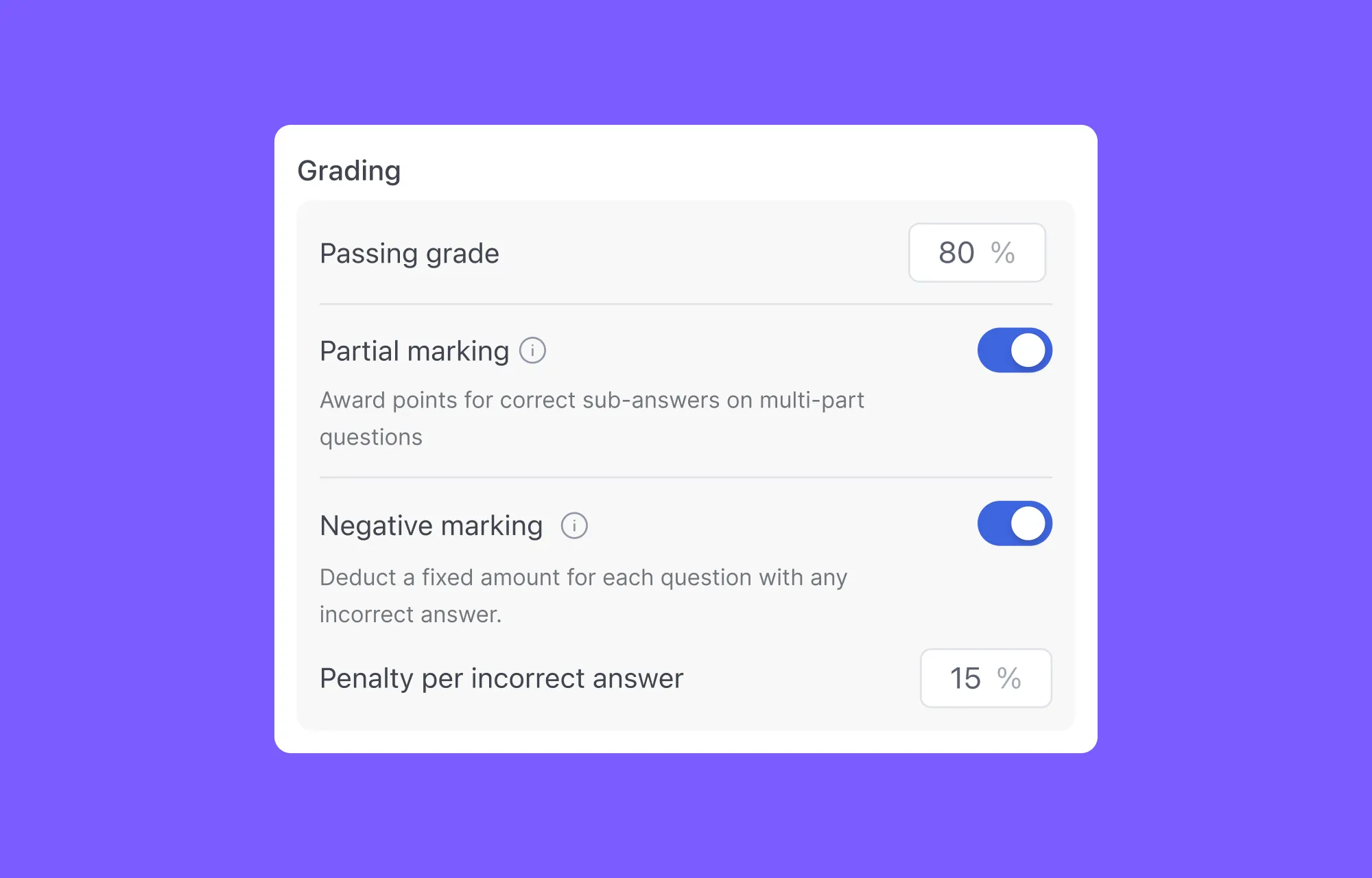
This setup makes it possible to use different scoring approaches for different assessments. A practice quiz can remain focused on learning and feedback, while a final certification assessment can use stricter scoring rules.
How Negative Marking Works in Tutor LMS
Tutor LMS gives course creators flexible control over penalty calculations through two distinct Penalty Unit options:
- Percentage (%): Scales dynamically with the question’s total value. For example, a 15% penalty on a 2-point question triggers a 0.30-point deduction (20.15).
- Points (pts): Applies an absolute, flat penalty regardless of question weight. A 0.30-point penalty deducts exactly 0.30 points, whether the item is worth 1 point or 10 points.
What Happens When You Change the Global Settings?
Tutor LMS separates global penalty settings from the configuration already stored in existing quizzes.
Changing the Penalty Unit applies the new unit to newly created quiz questions. Existing quizzes retain their current penalty settings until an instructor updates them.
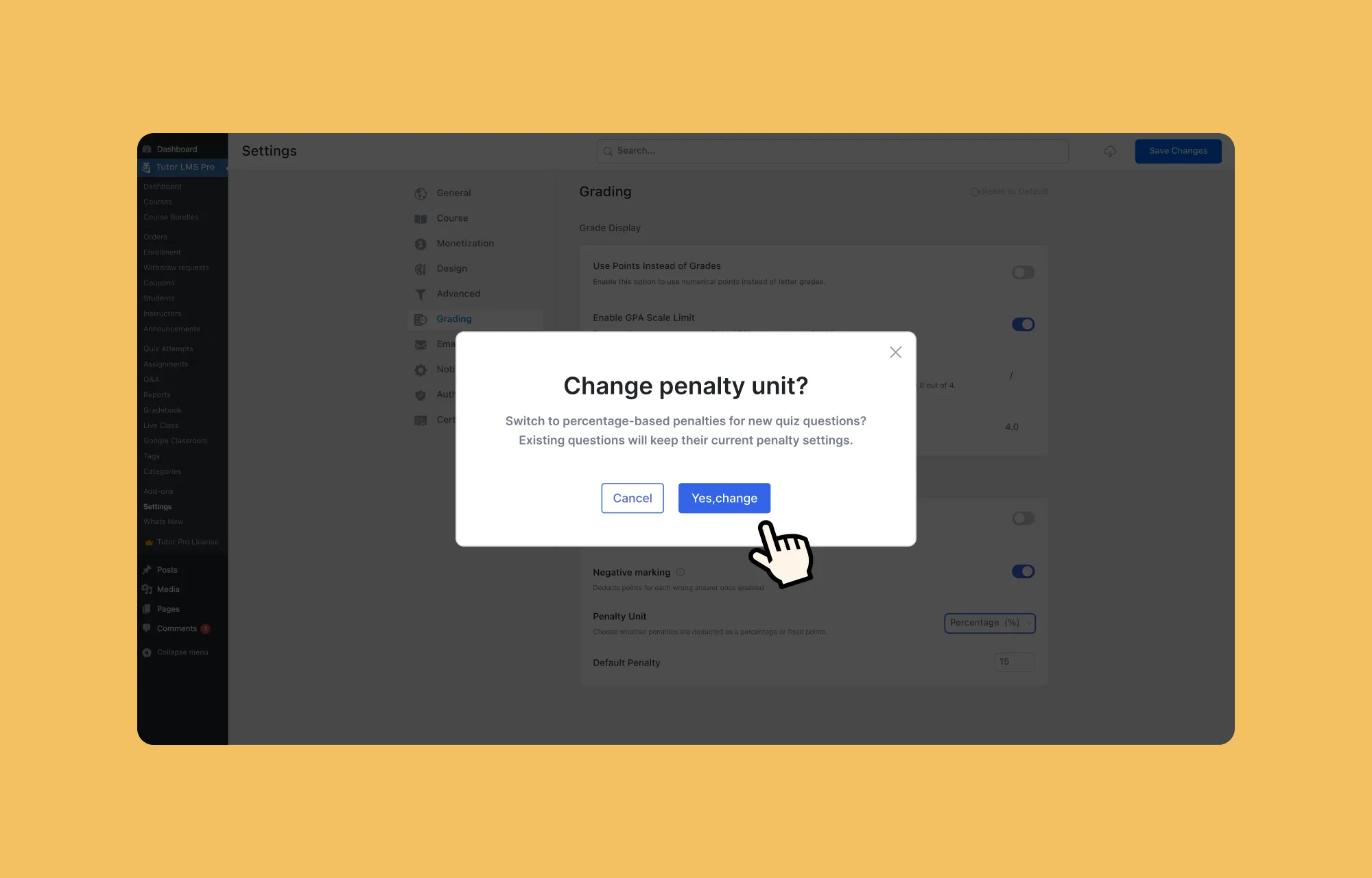
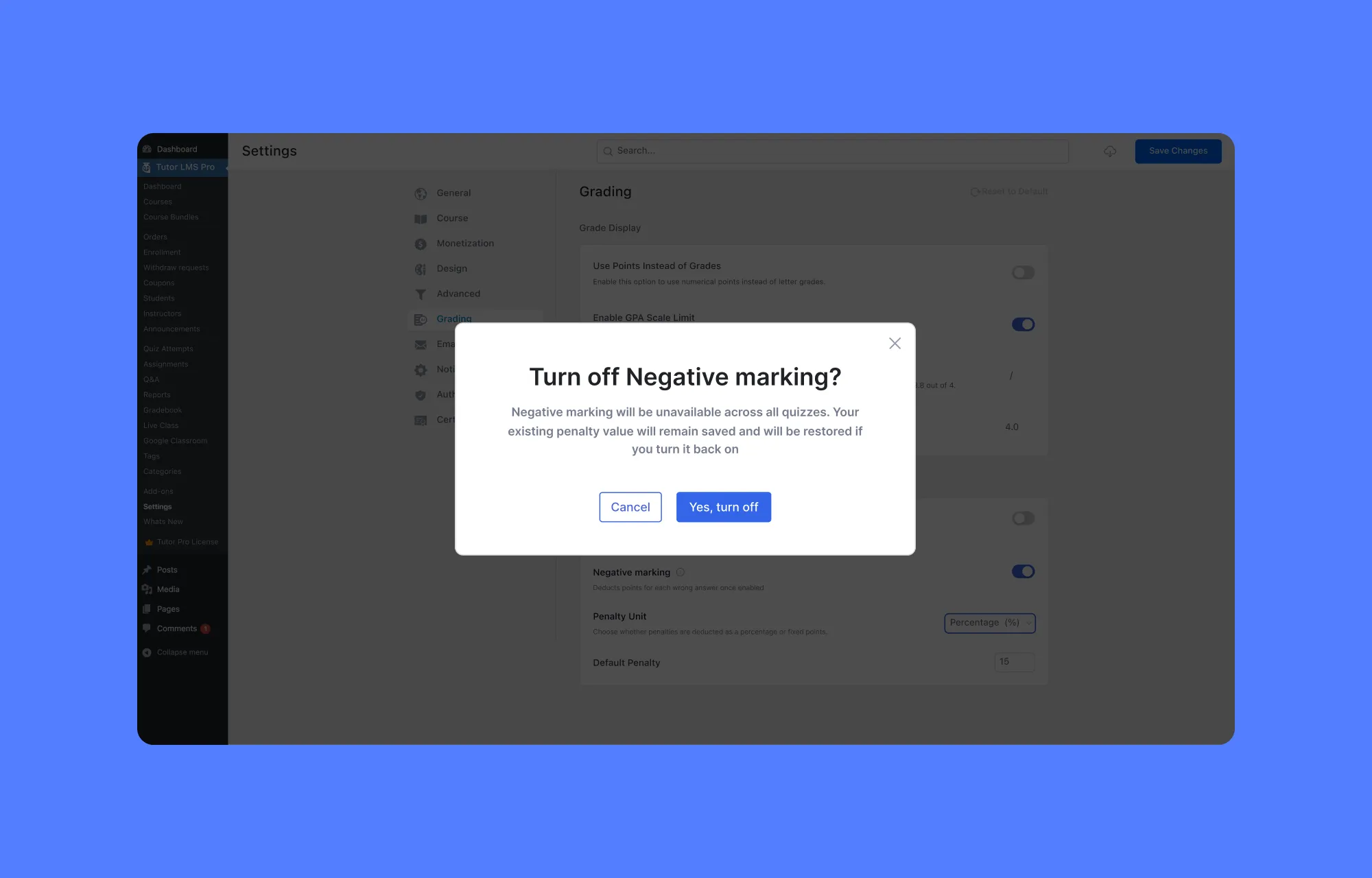
Similarly, disabling Negative Marking triggers a confirmation message when customized penalty values exist. Tutor LMS keeps those values saved so they can be restored if Negative Marking is enabled again.
Which Tutor LMS Question Types Support Partial Marking?
Automated partial grading requires clear, multi-part question structures. Open-ended questions like essays require personal instructor review, so they remain outside the automated scoring engine.
Tutor LMS supports automated partial marking across five core objective question formats:
| Question Type | How the System Calculates Partial Credit |
|---|---|
| Matching | The engine divides total points evenly across each correct pair. |
| Ordering | Points are awarded for each item placed into its correct sequence slot. |
| Image Matching | Credit is earned for every correct visual target selected. |
| Fill in the Blanks | Each text blank is evaluated on its own, granting points per valid entry. |
| Multiple Choice | Points are distributed across correct answers when multiple selections are enabled. |
Negative marking applies to all quiz question types, except open-ended questions such as Short Answer and Essay remain outside the automated negative-marking system.
How to Choose a Fair Negative Marking Penalty
There is no single penalty that works for every assessment. The right value depends on the question format, number of answer choices, assessment purpose, and consequences of an incorrect response.
For a standard multiple-choice question with one correct answer, a common formula is:
Penalty=1n-1
Where n is the total number of answer choices:
- Four-choice questions (n=4): A deduction of 14-1=0.33 points (or 33%) offsets the statistical benefit of pure guessing.
- Three-choice questions (n=5): A deduction of 15-1=0.25 points (or 25%) is necessary because random guessing offers a higher chance of success.
This approach makes the expected score of a purely random guess approximately zero under the basic assumptions of the model.
It is a useful starting point, not a universal rule. A practice quiz designed to encourage exploration may need no penalty at all, while a high-stakes examination may justify stricter scoring.
A Practical Scoring Example
A practical classroom example shows how the scoring engine combines these rules on a multi-part question.
In an Astronomy quiz, a 10-point Ordering question features 5 planets, giving 2.0 points per correct spot. The quiz has partial marking enabled alongside negative marking.
A student correctly places Venus, Earth, and Mars in the first three slots, but swaps Saturn and Jupiter in the last two positions:
- Earned Partial Points: +6.0 points (3 correct planets2.0)
- Negative Penalty Deduction: -2.5 points for the misplaced planets
- Net Question Score: 3.5 out of 10 points ($35\%$)
Because the question awards partial credit, the student gets points for their real knowledge of the inner planets. At the same time, the negative deduction penalizes the misplaced outer planets, resulting in a badge of 3/5 correct.
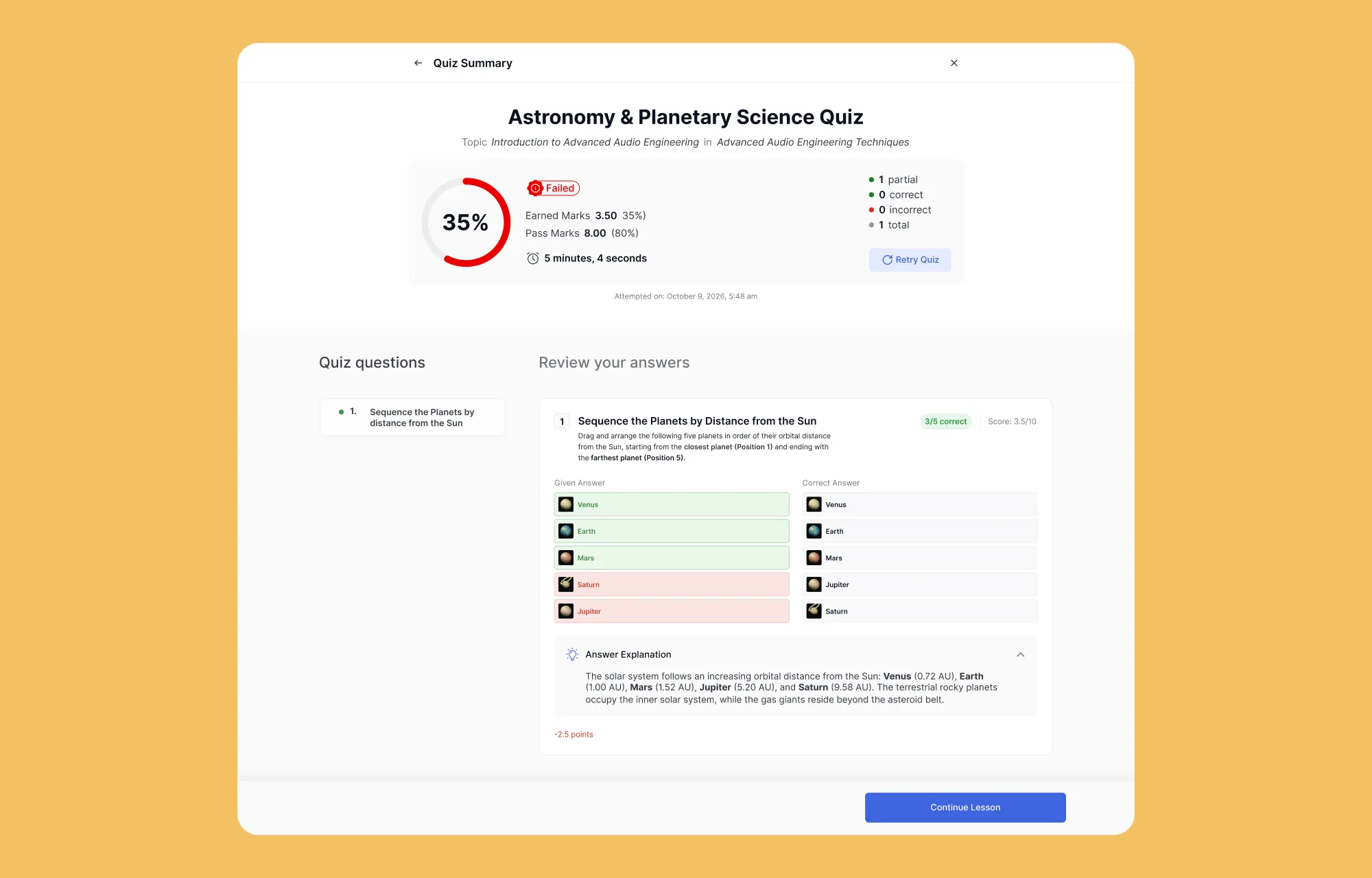
Tutor LMS displays this exact point deduction on the student’s Quiz Summary screen and inside the teacher dashboard. When learners see the math behind their grades, they understand how their effort was scored, building trust in your grading system.
Best Practices for Course Creators
A few practical guidelines will help you roll out these grading methods smoothly:
- Alignment with Course Stages: Introductory quizzes work best without deductions so students can experiment without fear. Advanced exams and credentialing checkpoints benefit from strict grading to verify true proficiency.
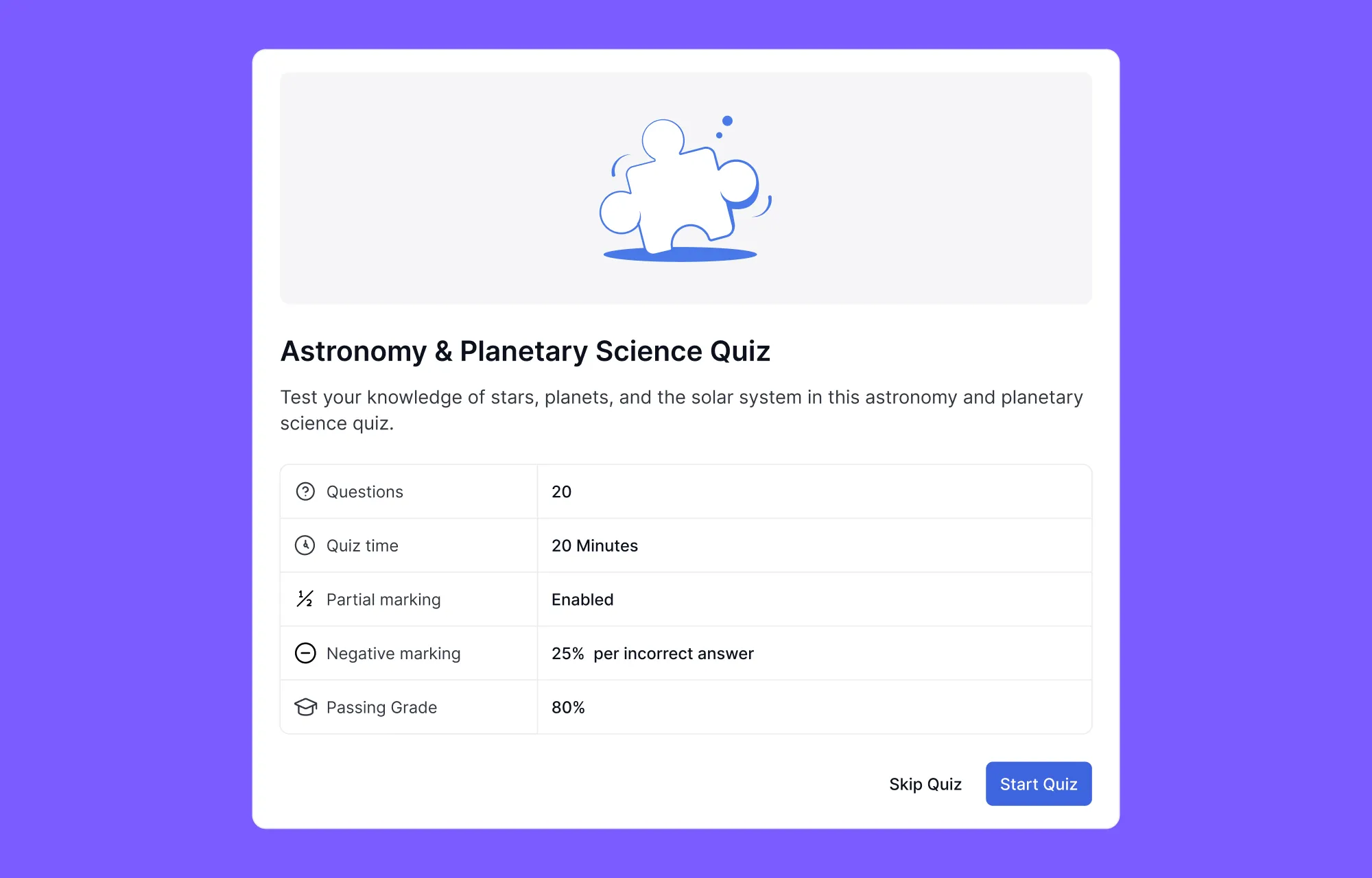
- Clear Communication Upfront: Penalties change how people approach tests. Tutor LMS automatically lists active scoring rules on the Quiz Start screen so students understand the stakes before they begin.
- Manual Review for Edge Cases: Automated scoring handles the bulk of grading, but instructors can review visual responses like Image Matching. Tutor LMS holds back the quiz grading emails until any pending manual reviews are finished.
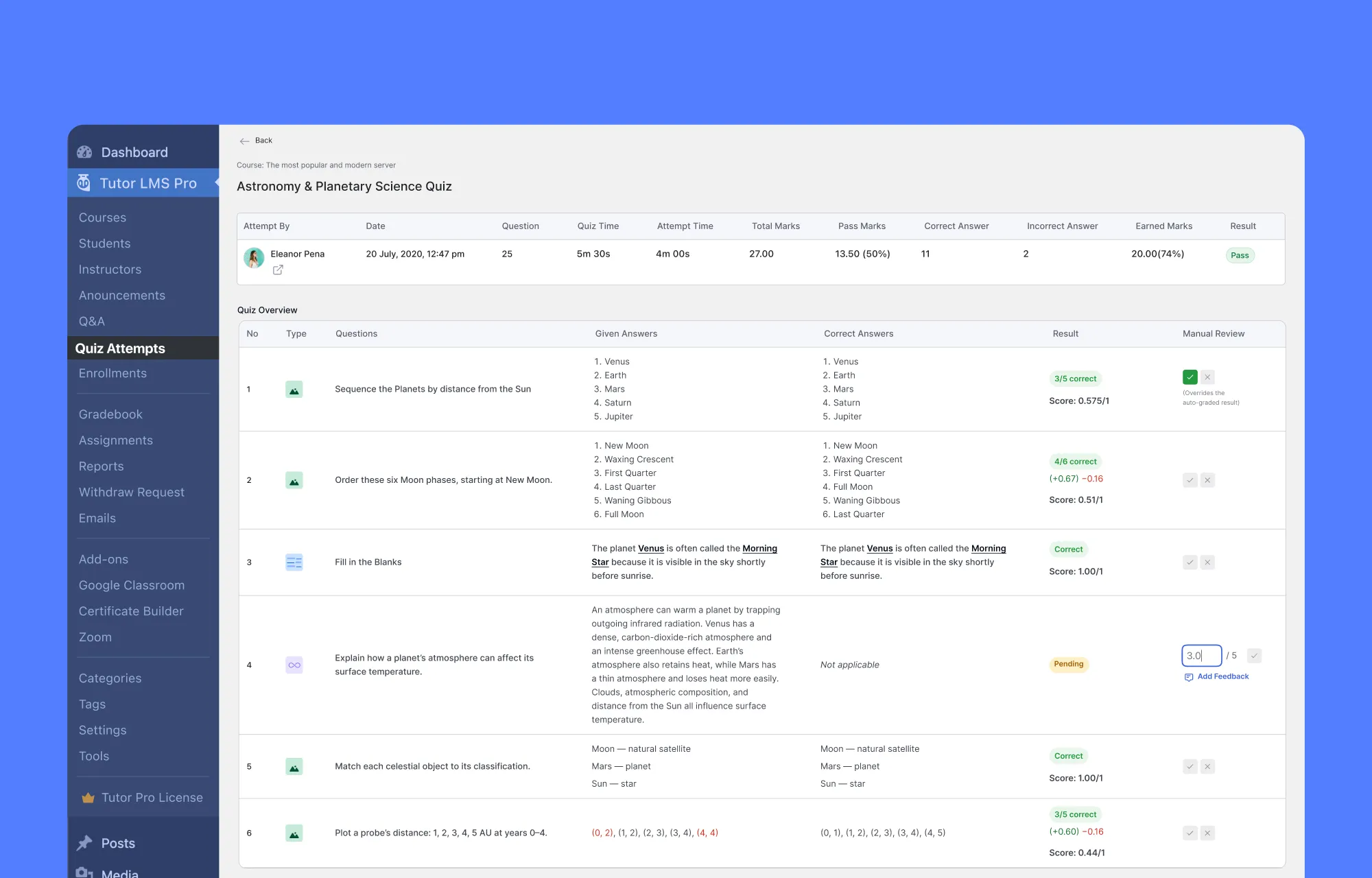
- Test the quiz before publishing: A few sample attempts can reveal unexpected scoring outcomes. Testing correct, partially correct, incorrect, and unanswered responses can help confirm that the rules behave as intended.
Conclusion
Moving beyond binary grading marks an important step forward for online learning. By combining partial and negative marking in Tutor LMS Pro, you create assessments that mirror real-world problem solving. Your students receive recognition for genuine progress, while your certificates retain their credibility. You can review your current course assessments and introduce these settings to build an evaluation system that is fair, rigorous, and transparent.
Frequently Asked Questions
An automated rule that deducts points or a percentage for wrong answers, removing the statistical edge of random guessing.
A scoring option that awards proportional credit on multi-part questions, instead of a flat zero for one small mistake.
Five formats: Matching, Ordering, Image Matching, Fill in the Blanks, and Multiple Choice.
Yes. You can set the penalty as a fixed point value or as a percentage of the question’s total weight.
No. While individual questions can yield negative values, the engine’s Score Floor Rule ensures an overall quiz score never falls below zero.
Enable them platform-wide under Tutor LMS Pro > Settings > Grading, then activate or override them per assessment inside the Quiz Builder.

Table of Contents
- What Is Negative Marking in an Online Quiz?
- What Is Partial Marking in Tutor LMS?
- Negative Marking vs. Partial Marking: Key Differences and When to Combine Them
- How to Enable Negative and Partial Marking in Tutor LMS
- Which Tutor LMS Question Types Support Partial Marking?
- How to Choose a Fair Negative Marking Penalty
- Best Practices for Course Creators
- Conclusion
- Frequently Asked Questions
Start Using Tutor LMS Today
Ready to take your online courses to new heights? Download Tutor LMS now and enjoy a journey of eLearning excellence.