



Managing separate API keys across a handful of WordPress plugins turns a simple security rotation into an afternoon of hunting through dashboard tabs. With Tutor LMS AI Studio now connected to the WordPress AI Connector, you manage your AI credentials in one central screen instead of inside the LMS settings.
Tutor LMS AI Studio drafts course outlines, titles, descriptions, featured images, and quizzes from a prompt. Starting in Tutor LMS 4.1.0, the plugin uses the WordPress AI Connector rather than asking for an API key inside Tutor’s own menus.
This guide covers how the connector works, how to connect your provider in four easy steps, and Tutor’s AI Studio capabilities.
TL;DR: Tutor LMS Pro has overhauled its AI integration process. API keys for OpenAI, Gemini, and Claude are now managed globally under Settings > Connectors. After enabling AI Studio and saving your keys, you must authorize Tutor LMS under Tools > Connector Approvals to make the AI features functional. Once approved, you can instantly generate complete course layouts, images, and quizzes to accelerate your drafting and human review workflow.
How the WordPress AI Connector Fits In
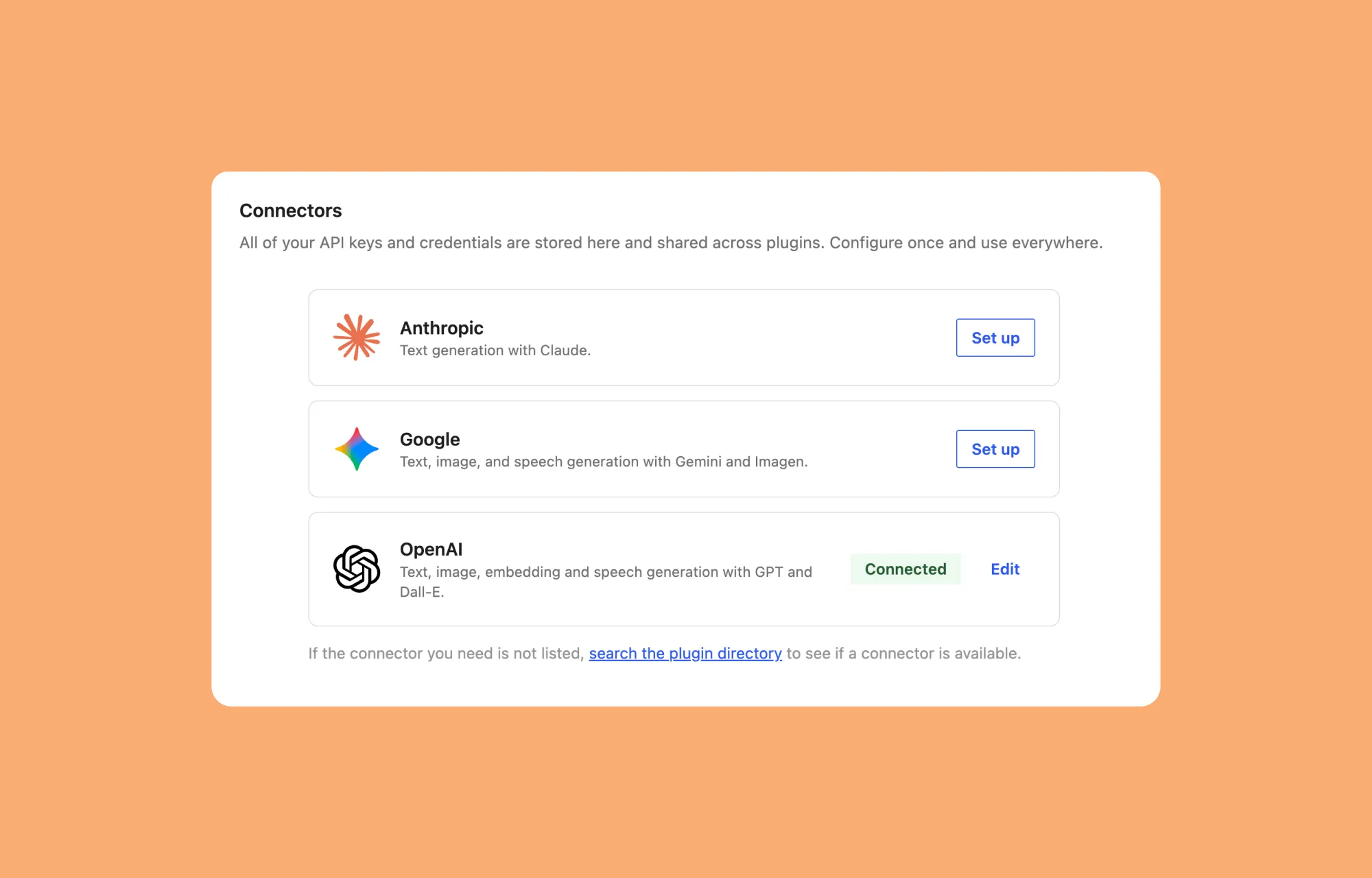
The WordPress AI Connector is a shared hub in WordPress core for storing AI service credentials. Think of it as a central switchboard for AI providers. It lives under Settings -> Connectors and ships with built-in support for three providers: Anthropic, Google, and OpenAI.
Connectors do not write course content on their own. They store your credentials and give compatible plugins a single standard interface (the WP AI Client) for talking to language and image models. Tutor LMS AI Studio uses this shared channel to send your prompts to OpenAI, Google, or Anthropic, and to build quiz questions from your course topics, then returns everything to the Course Builder.
What This Means for Tutor LMS Users
Your daily workflow inside the Course Builder and Quiz Builder stays the same. Every Tutor LMS WordPress AI feature still runs right where you build courses; only the initial connection setup has moved.
What moved is the connection setup, and that small shift carries a real practical benefit. One connection can now serve other compatible plugins on the same site, so you stop pasting the same key into every single tool.
If you used Tutor LMS before, you probably remember entering an OpenAI key directly in Tutor’s own settings. That step now works differently, which we will talk about in detail further on.
What It Costs
Tutor LMS AI Studio is included with Tutor LMS Pro, but API usage costs are separate. Your AI provider bills each generation against your account balance. Check current rates on the OpenAI, Google, and Anthropic pricing pages.
Keep in mind that a consumer subscription does not pay for API calls. For instance OpenAI’s API usage is billed separately from ChatGPT Plus. To keep costs predictable,
What You Need Before Connecting
Before connecting a provider, it helps to confirm a few things are already in place. Review these AI Studio requirements and what you need to connect OpenAI (or Google and Anthropic) to Tutor LMS :
- Tutor LMS (Free) and Tutor LMS Pro version 4.1.0 or later.
- WordPress Version: WordPress 7.0 or later.
- Administrator access to manage connectors, approvals, and plugin installations.
- External Accounts & Keys: An active account and API key from at least one supported provider, with billing or prepaid credits active:
- OpenAI: “https://platform.openai.com/api-keys” (supports text and image generation)
- Google Gemini: “https://aistudio.google.com/app/apikey” (supports text and image generation)
- Anthropic Claude: “https://console.anthropic.com/settings/keys” (supports text generation only; cannot generate featured images)
How to Connect an AI Provider
Follow these five steps to connect an AI provider to Tutor LMS and verify that your site is ready to generate content.
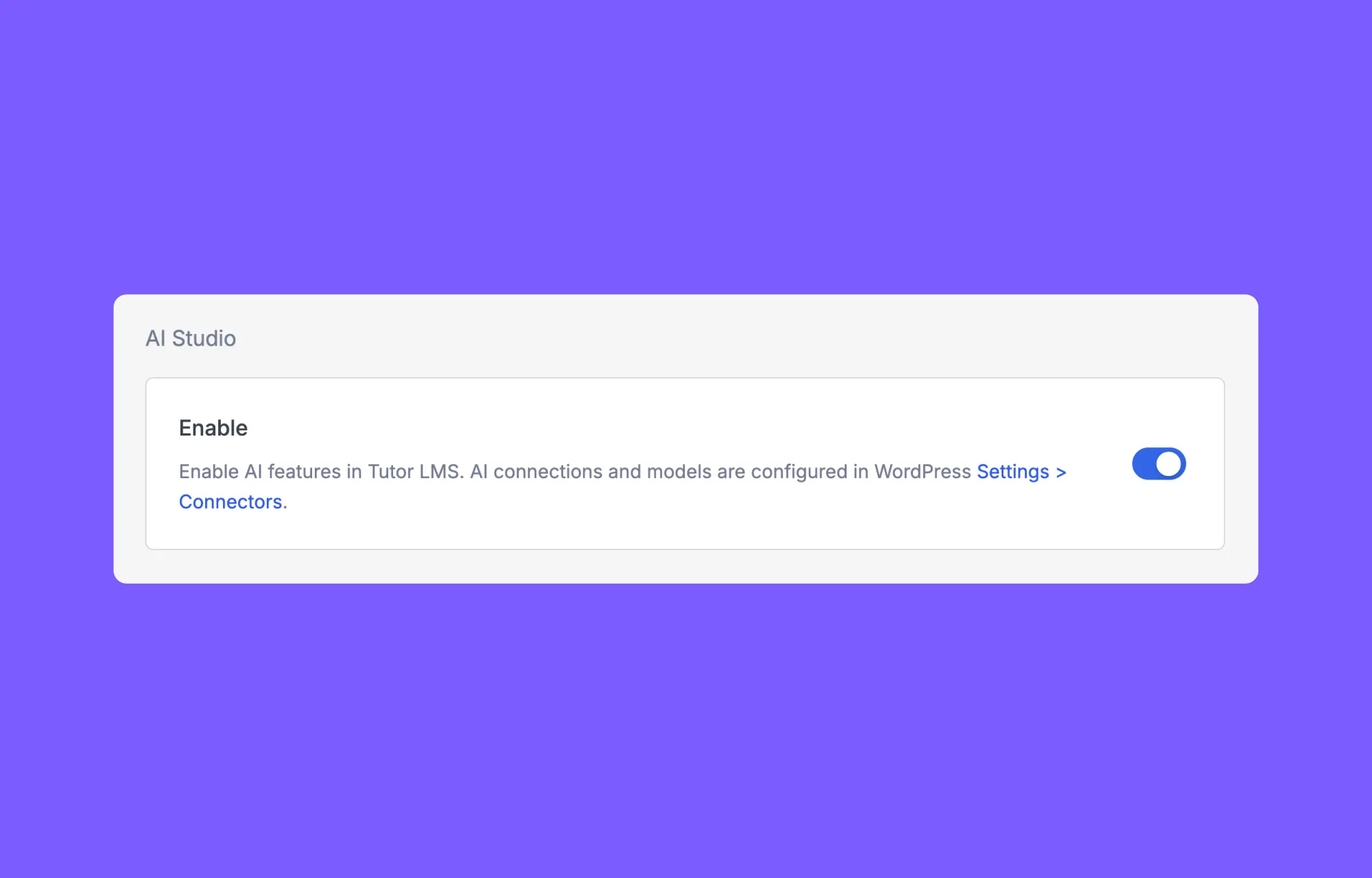
Step 1: Enable AI Studio in Tutor LMS
Go to WP Admin > Tutor LMS Pro > Settings > Advanced > AI Studio, toggle Enable on, and click Save.
Step 2: Open WordPress Connectors and Set Up the AI Plugin
Navigate to WP Admin > Settings > Connectors to configure WordPress AI Connectors. The AI framework is the underlying connection system in WordPress, while a connector is the specific link to a single provider (Anthropic, Google, or OpenAI).
- Install the AI plugin: If the core AI framework is missing, click Install the AI plugin in the top banner. Once you see the “AI plugin installed and activated successfully” toast notification, the banner button changes to Control features in the AI plugin.
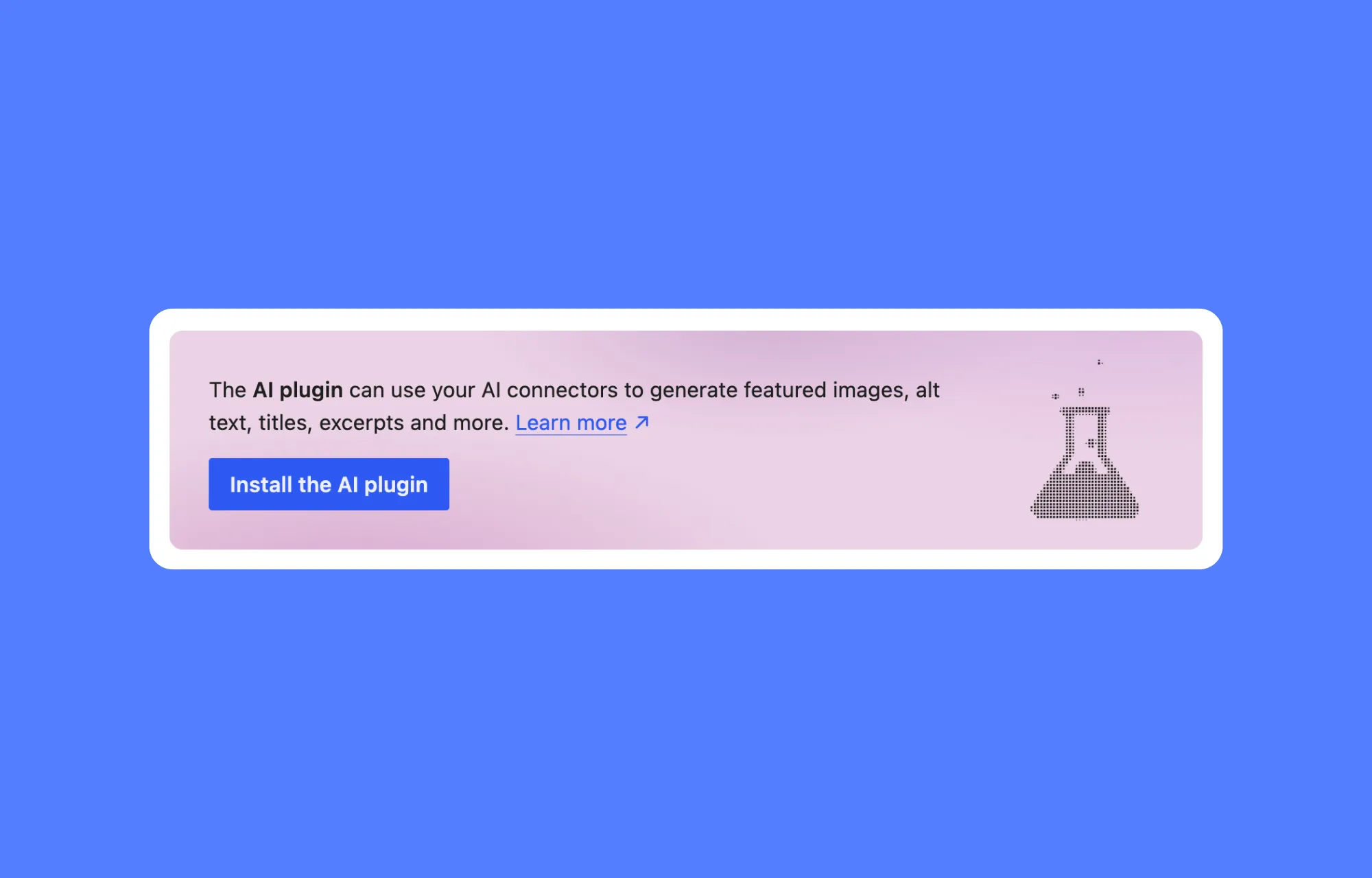
- Enable Image Generation and Editing: Click Control features in the AI plugin (or go to WP Admin > Settings > AI). If the master Enable AI toggle in the top-right corner is off, switch it on, then turn on Image Generation and Editing. You can leave all other Editor Experiments and Admin Experiments turned off.
Step 3: Install a Provider Connector and Save Your API Key
On the WP Admin > Settings > Connectors screen, choose Anthropic, Google, or OpenAI. If you want to generate course featured images, choose OpenAI or Google.
- Install or open the provider card: If this is your first time using a provider, click Install beside the provider card (or click Set up if the provider plugin is already installed). WordPress installs and activates the provider plugin automatically and opens the API KEY input field.
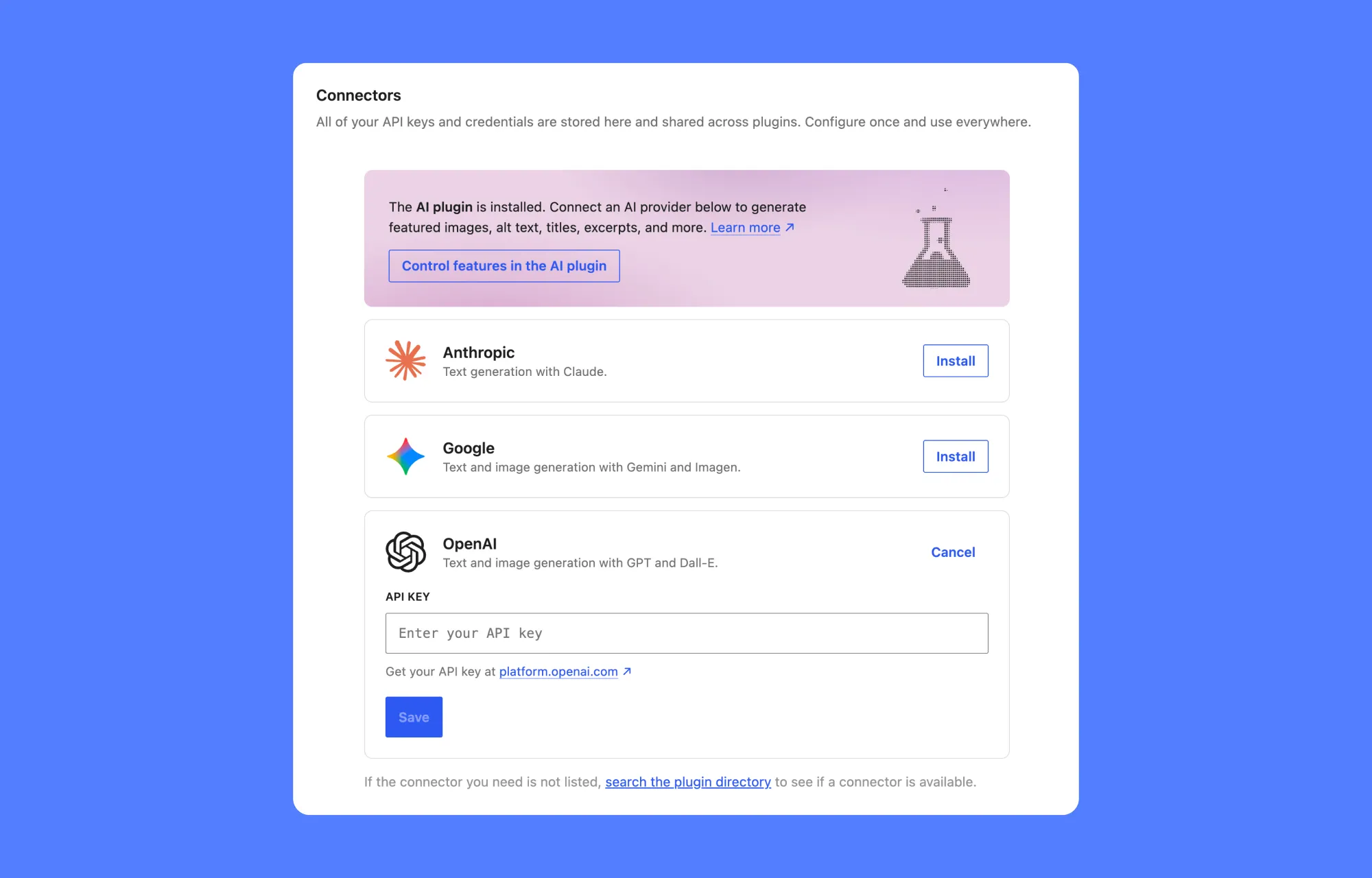
- Generate and save your key: Click the link below the input field (platform.claude.com, aistudio.google.com, or platform.openai.com) to get your key. Paste your key into the Enter your API Key box and click Save. A toast notification confirms “OpenAI connected successfully” (or your chosen provider), and the card displays a green Connected badge alongside an Edit button.
Step 4: Test With a Small Task
Open a course in the Course Builder and click the AI icon beside the Title field. Generate a sample title, confirm that it appears in the modal, and test one refinement option such as shortening or rephrasing. Test featured image generation separately beside the Featured Image field, since images require an image-capable provider.
What Can You Create with Tutor LMS AI Studio?
Staring at a blank course builder is one of the most common bottlenecks in building an online course, and it’s exactly where Tutor LMS AI Studio earns its keep. Rather than one single do-everything tool, AI Studio is really five focused generators built into different parts of the course creation workflow, one for outlines, one for titles and descriptions, one for images, and one for quiz questions. Each hands back a draft you can review, edit, or discard, so nothing goes live without your final say.
Full Course Outlines
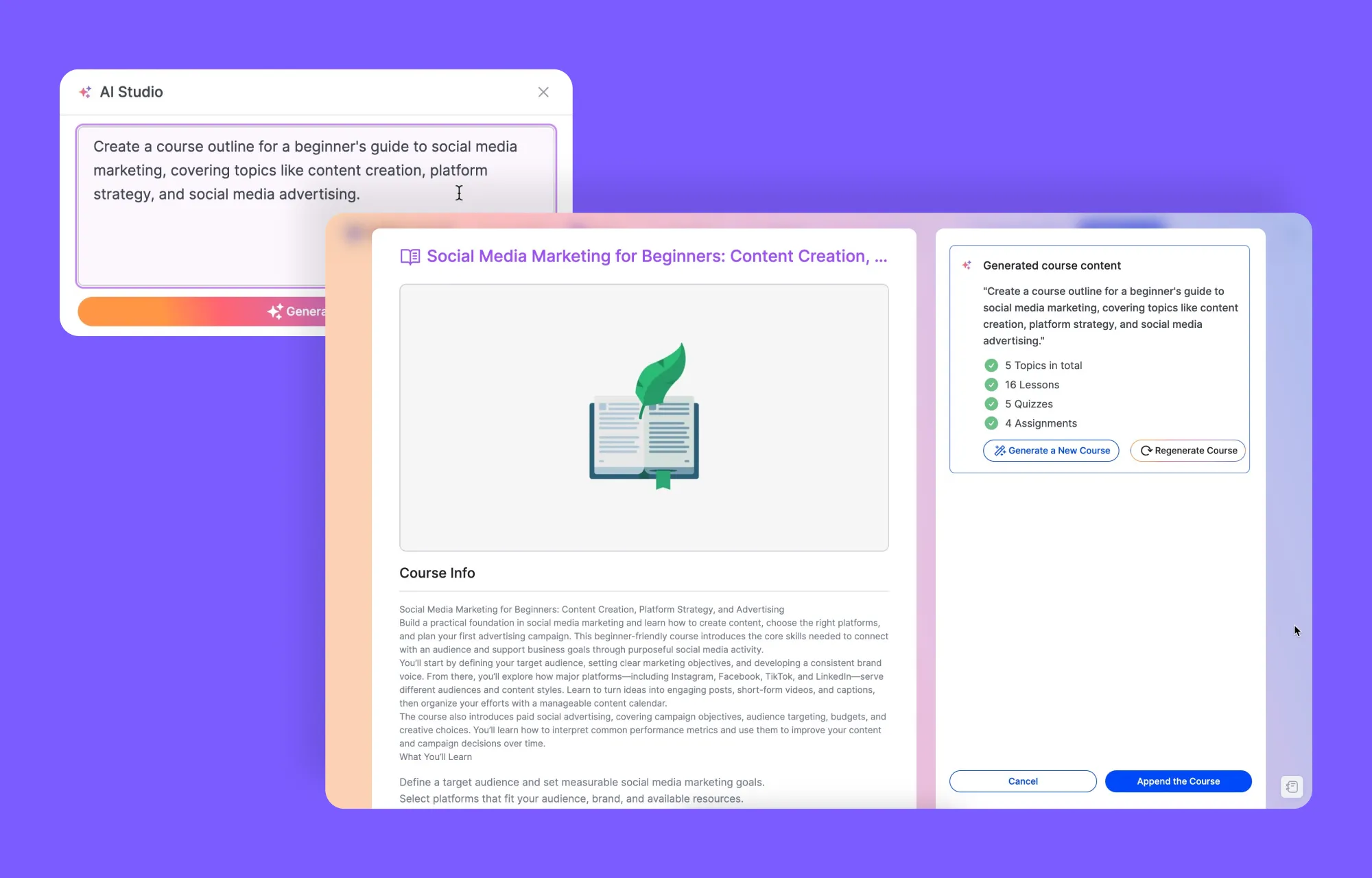
The AI course outline generator takes a short description of your topic, audience, and learning goals and turns it into a complete course structure, topics, lessons, assignments, and quizzes included. It’s less a finished product than a strong starting skeleton, one that saves hours of staring at an empty Course Builder. Multiple versions can be generated side by side, so comparing a few directions before committing to one is always an option.
Titles and Descriptions
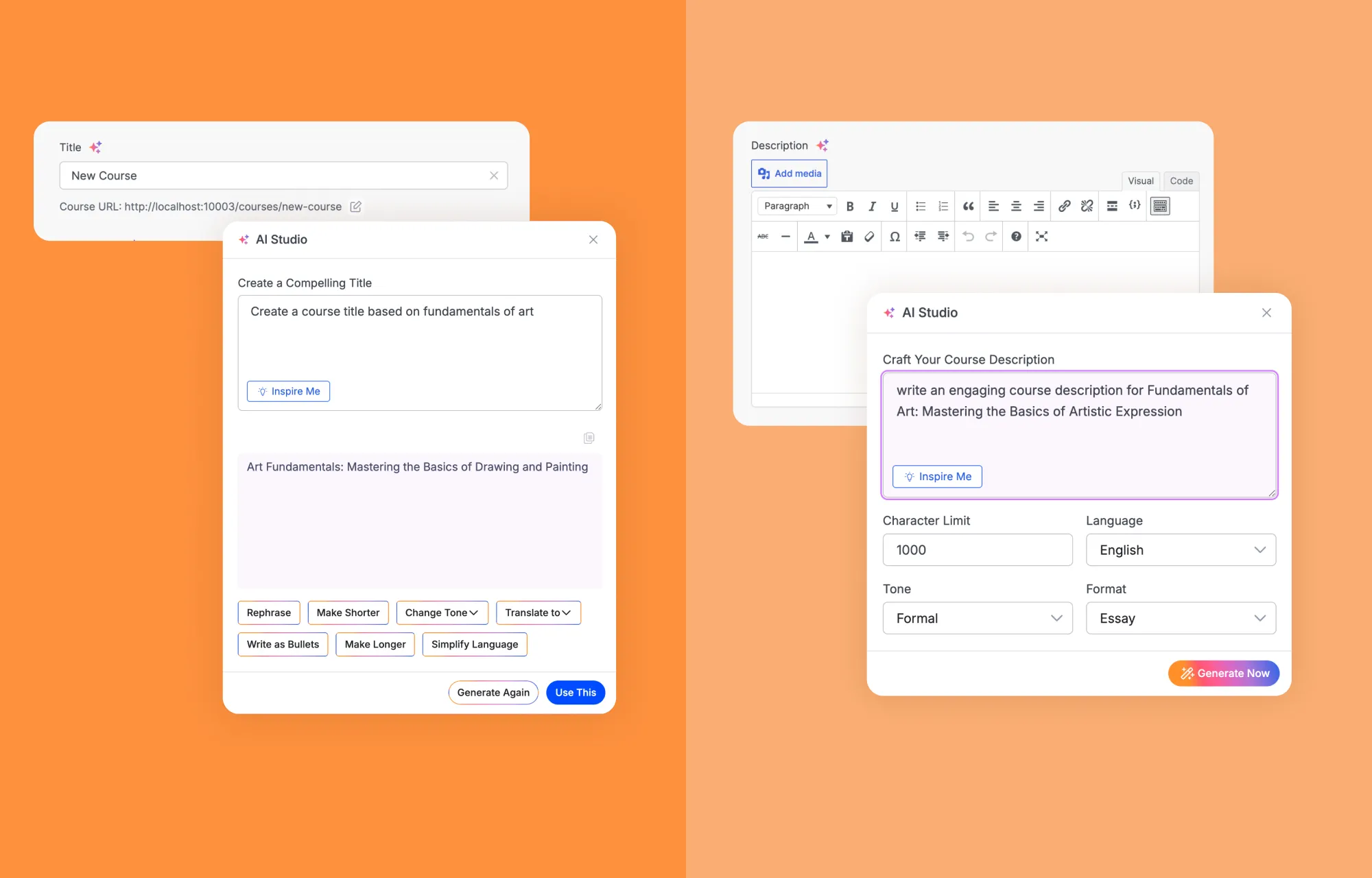
For the smaller but still time-consuming pieces, title and description generation works to a set character limit, language, tone, and format you choose upfront. The output isn’t locked in either: it can be rephrased, shortened, expanded, translated, simplified, or reshaped into bullet points until it actually sounds like your course. That flexibility matters more than it seems, since a title that reads well in isolation doesn’t always match how the rest of the course actually sounds.
Featured Images
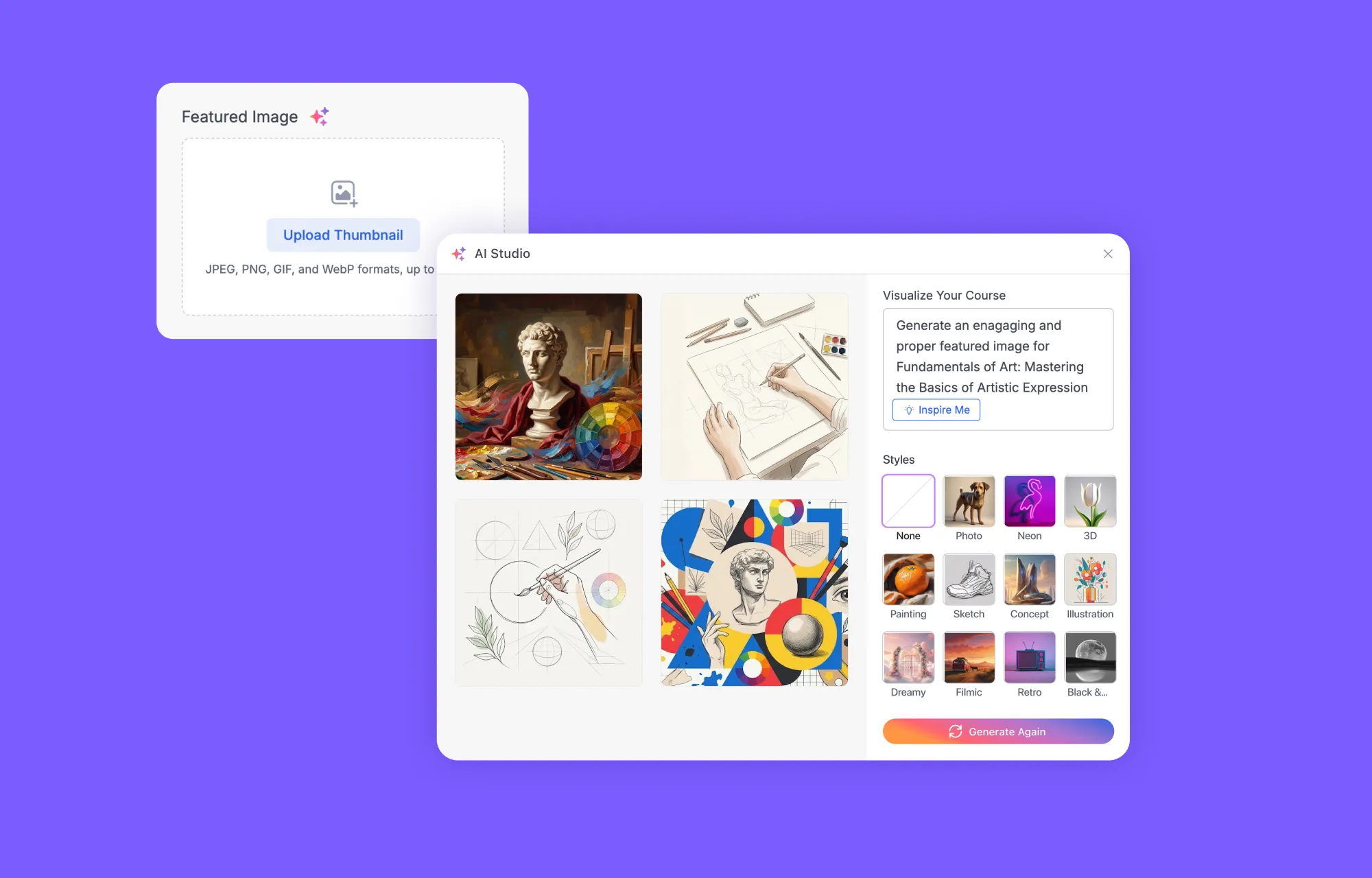
Image generation works from a short description of subject, style, and mood, with style choices like Photo, Painting, or Sketch shaping the result. Beyond a first draft, Magic Fill can remove elements, add new ones, or swap out the background without starting over, and generating alternatives is always an option if the first version isn’t quite right. The one firm requirement here is a connected, image-capable provider; OpenAI or Google, since text-only connectors can’t produce images at all.
Quiz Questions
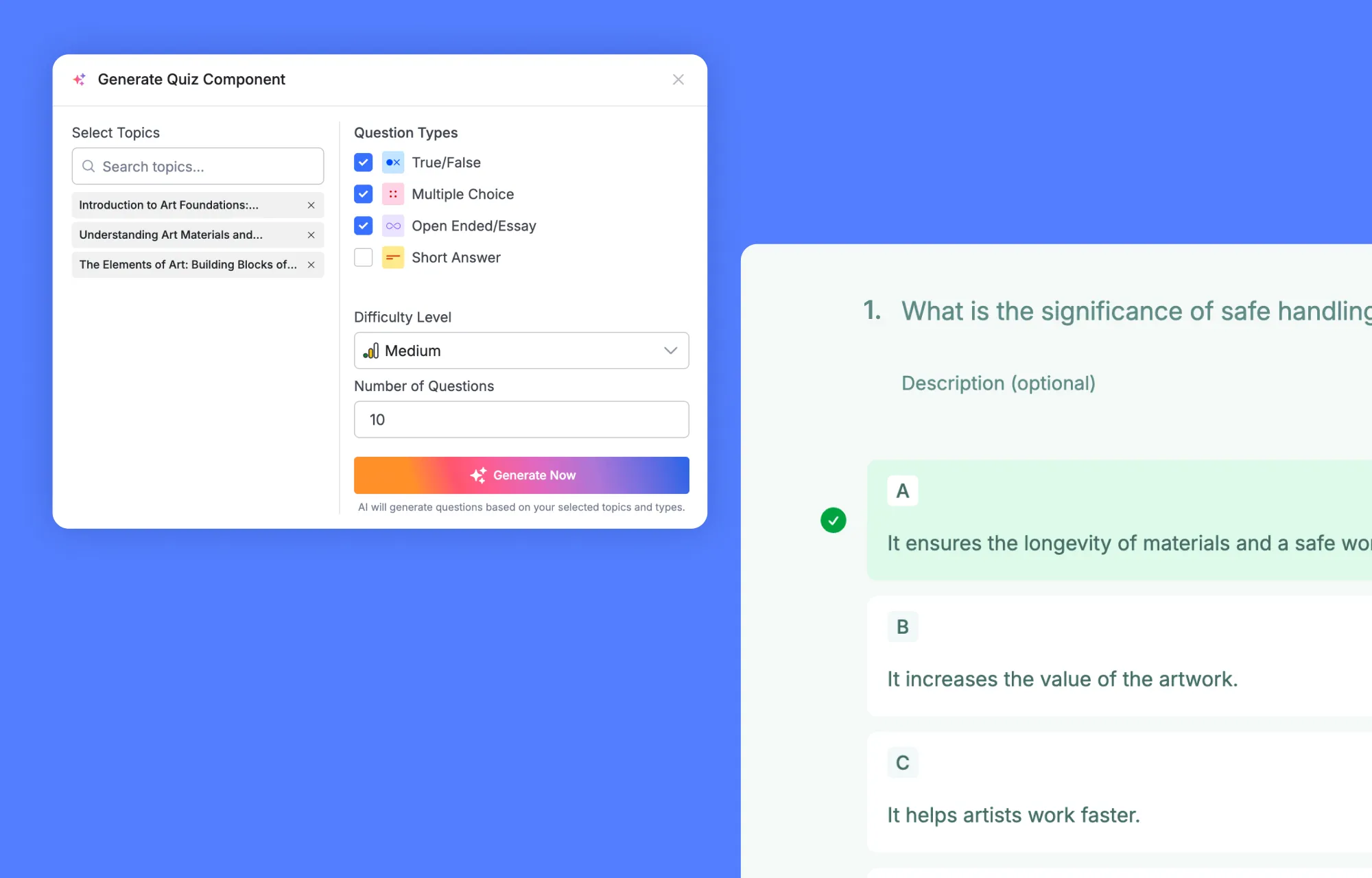
Quiz writing tends to eat up more time than any other part of course creation, and this is the one AI Studio tool that skips prompt-writing entirely. The Tutor LMS AI quiz generator works from direct selections instead:
- Topics pulled from your existing course content, with more topics widening the question range
- Question types, including True/False, Multiple Choice, Short Answer, and Open Ended/Essay
- Difficulty level, defaulting to Medium
- Number of questions, defaulting to 10
Because the tool draws on the topic titles and course context already written, rather than a typed prompt, clear and descriptive topic names tend to produce noticeably more relevant questions. Every generated question still passes through a review step before saving, so quality control stays firmly in the course creator’s hands.
Conclusion
Moving your AI credentials into the WordPress AI Connector solves one of the most annoying parts of running a modern WordPress site: pasting and rotating the same API key across all your plugins. You configure OpenAI, Google, or Anthropic once, and your entire Tutor LMS AI Studio toolkit is ready to go.
From there, the workflow stays right inside the Course Builder and Quiz Builder. Let AI Studio handle the heavy lifting on first drafts, mapping out course outlines, testing title variations, writing outcome-driven descriptions, generating custom featured images, and building quizzes from your topics.
Frequently Asked Questions
No. OpenAI is just one of three supported providers. You can also connect Google or Anthropic through the same WP Admin > Settings > Connectors screen without needing just an OpenAI account.
Yes, both providers are supported for text tasks. However, image generation depends on your chosen provider’s capabilities, so you must use OpenAI or Google to generate course featured images.
You need a WordPress version that includes the Settings > Connectors screen. Always check the minimum WordPress version that Tutor LMS supports in the official documentation before upgrading your live site.
No. OpenAI bills API usage separately from a consumer ChatGPT Plus subscription. To run Tutor LMS AI Studio, you must set up billing or prepaid credits directly on your provider’s API account.
Yes. Outlines and quizzes are core features alongside titles, descriptions, and featured images, provided your connected model supports each task. Note that quiz questions use topic titles and course context, not lesson text.
An error modal occurs if you are connected to a text-only provider like Anthropic Claude. To generate featured images, connect an image-capable provider such as OpenAI or Google Gemini.
AI Studio features are included with Tutor LMS Pro, but external API usage costs are billed separately by your chosen provider (OpenAI, Google, or Anthropic) based on generation usage against your API account balance.

Start Using Tutor LMS Today
Ready to take your online courses to new heights? Download Tutor LMS now and enjoy a journey of eLearning excellence.