
Writing a good quiz question takes more effort than it looks. A single multiple-choice item needs one correct answer and three wrong ones that still sound believable. Multiply that across forty questions and ten lessons, and quiz writing turns into the slowest part of building a course. That bottleneck is often the real reason a finished course misses its launch date.
The AI quiz generator in Tutor LMS removes this delay by drafting full question sets directly inside the Quiz Builder. Instead of writing complex prompts, this automated quiz generation tool creates questions using the lesson text you already wrote.
TL;DR: The AI Studio quiz generator in Tutor LMS is a built-in Quiz Builder tool that drafts quiz questions from your existing course topics. You choose topics, question types, difficulty, and question count instead of typing a prompt, and AI Studio returns a ready-to-review question set in seconds. It requires Tutor LMS Pro and an OpenAI API key with paid credits.
Prerequisites: Setting Up AI Studio in Tutor LMS
Connecting the artificial intelligence engine takes only a few minutes, but three prerequisites must be in place before you can build your first assessment:
- An active Tutor LMS Pro installation, since AI Studio ships with the Pro plan.
- An OpenAI account with a topped-up API credit balance. A ChatGPT Plus subscription won’t cover this (OpenAI bills API access separately).
- A saved OpenAI API key. Under Tutor LMS > Settings > Advanced, you can enable AI Studio by connecting your OpenAI account and pasting that key in.
Once your credentials are saved, your Tutor LMS is fully prepared to generate questions from your lessons.
Note: Our OpenAI integration guide walks through every click with screenshots, including the full key-generation steps.
How to Automatically Generate Quizzes from Your Course Topics
With AI Studio connected, automatically generating quizzes comes down to a few short steps, and none of them involve writing a single question yourself.
Step 1: Create the quiz and give it a title.
Create the quiz and give it a title: Open a course and go to the Curriculum section. Create a new quiz, or open an existing one, and add a title. Once that title is saved, an AI Studio button appears in the Questions area.
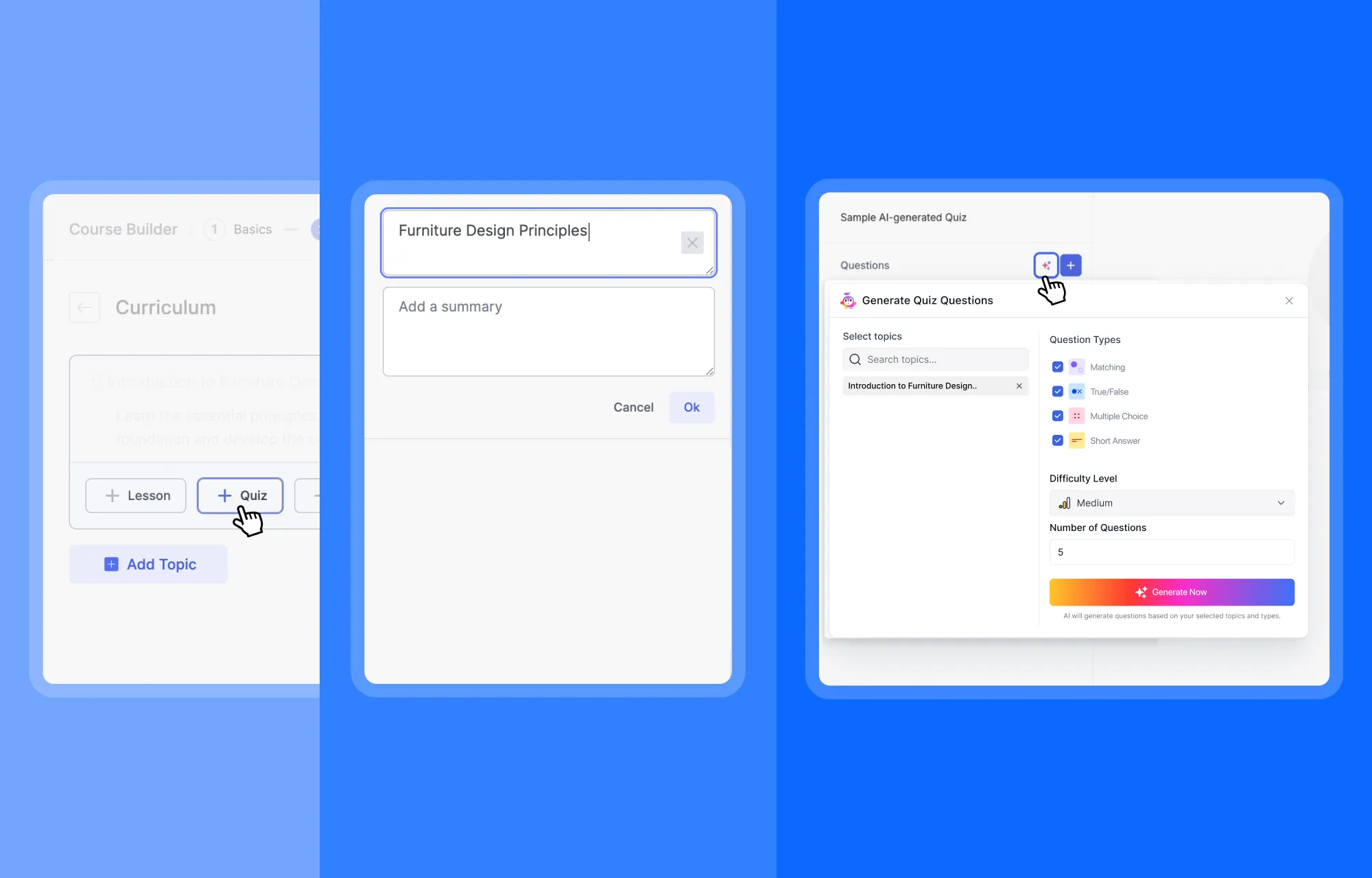
Step 2: Choosing what the quiz covers
Clicking the AI Studio icon opens the Generate Quiz panel, where a few settings shape the output:
- Select Topics. The topic holding your quiz is pre-selected, and you can search and add more from the same course. The generator uses topic titles and course content as its reference. So detailed content and well-named topics beat vague placeholder ones. The more topics you add, the wider the variety of questions AI Studio generates.

- Question formats: Four checkboxes are on by default: True/False, Multiple Choice, Short Answer, and Open-Ended/Essay. The AI mixes the selected types across your set, so unticking boxes lets you force a pure multiple-choice quiz or a True/False and MCQ blend. These four formats are the only ones AI Studio can utilize. Tutor LMS’s other question types, like Fill in the Blanks, Matching, Ordering, and the interactive quiz questions, are needed to be added manually.
- Difficulty and Number of Questions: Choose between Easy, Medium, or Hard, paired with however many questions you want.
Step 3: Generating the batch
Clicking Generate Now drops fully editable questions straight into your question list, ready to reorder or rewrite like anything you’d written by hand. Running the generator again on the same quiz adds a fresh batch on top of the last one, so filling gaps after a first read-through takes one more click, not a restart.
Note: If a topic is too thin, or the number of questions is set too high, the panel may return an “insufficient source content” message. Adding more content or lowering the output number of questions generated clears the problem.
Fine-Tuning & Quality Control in the Unified Quiz Builder
Treat the generated set as a strong first draft, not a finished assessment. Some questions will be broader than what you actually taught, an answer option may be too easy to spot, and wording occasionally needs to match your course’s tone. You can edit AI quiz questions to fix all of this inside the unified Quiz Builder, across three areas:
- Question details: Selecting any question of the generated questions opens its text fields. You can modify phrasing, add plausible distractors, mark correct answers, and write helpful feedback explanations.
- Question conditions: The Conditions panel lets you set point values per question, making question answers mandatory, randomize question order, display or hide points, and enable multiple correct answers for multiple-choice questions.
- Global quiz settings: Clicking the Next button leads to quiz settings configuration. You can set passing scores, establish time limits, pick page layouts, and limit characters for written answers.
One more grading detail for Short Answer and Open-Ended/Essay questions have no automatic answer key, so they wait for your manual review after students submit.
Storing and Reusing Questions in the Content Bank
A polished set of quiz questions does not have to stay locked inside one course. Tutor LMS’s Content Bank is an LMS content library that turns each refined question into part of a reusable question bank for everything you teach later.

The routine is simple. You can create a named collection, such as “Design Fundamentals,” to group questions by subject. The Import from Courses option then pulls AI-generated questions from your courses into that central store, and saved items can be re-linked into future quizzes in any course on the site. Questions you review and improve once can serve every cohort that follows.
Conclusion & Next Steps
Writing quiz questions used to be the slowest mile of launching an online course, often pushing launch dates back by weeks. The AI quiz generator now drafts those assessments in seconds directly from your topics, keeping you in full control of academic standards. This feature works alongside broader tools where AI Studio speeds up course development by outlining curricula and drafting lesson summaries. You regain the hours once spent staring at blank forms without sacrificing pedagogical quality. You can start by generating a single test quiz in your curriculum, refining the first few questions, and publishing when they feel right.
Frequently Asked Questions
AI Studio assists with your entire curriculum development workflow rather than just assessment drafting. Beyond building quizzes, the system supports full AI course creation by generating course outlines, module structures, and lesson summaries from basic prompts. You can also produce targeted learning objectives and syllabus foundations directly inside the Course Builder. This integrated toolset helps you map out complete training programs in minutes while keeping your editorial judgment central.
Yes, the topic selector allows multi-topic selection, which makes it easy to build a comprehensive review quiz that spans an entire module rather than a single lesson.
This message appears when the AI needs more contextual lesson text inside the selected topic to work from. Adding a bit more detail to that topic’s content resolves the issue right away.
Yes, saving them into the Content Bank turns one-off questions into a shared resource. From there, they can be deployed across any curriculum without retyping a single word.
Each generation draws from the connected OpenAI API balance, so cost scales with the number of questions and their complexity. Smaller batches of five to ten questions are usually the most budget-friendly way to test the feature.
It currently supports True/False, Multiple Choice, Short Answer, and Open-Ended/Essay formats. Selecting or deselecting types before generating lets the mix match exactly what a given assessment needs.

Start Using Tutor LMS Today
Ready to take your online courses to new heights? Download Tutor LMS now and enjoy a journey of eLearning excellence.