Tutor AI Studio uses the centralized WordPress AI Connectors infrastructure to securely manage your API credentials. This unified system allows Tutor LMS to communicate directly with models from OpenAI, Google, and Anthropic to automate course content creation, quiz generation, and image processing.
Generating Your Provider API Keys (Prerequisite)
Before configuring the connector in WordPress, you must obtain an active API key from your preferred artificial intelligence provider. This key acts as a secure bridge, authorizing Tutor LMS to perform tasks on your behalf. Follow the links below to generate your keys and read the official documentation for managing your account limits:
OpenAI: Log in to your developer dashboard and navigate to platform.openai.com/api-keys to create a new secret key. For step-by-step instructions on key generation and project limits, refer to the OpenAI API Key Help Article.
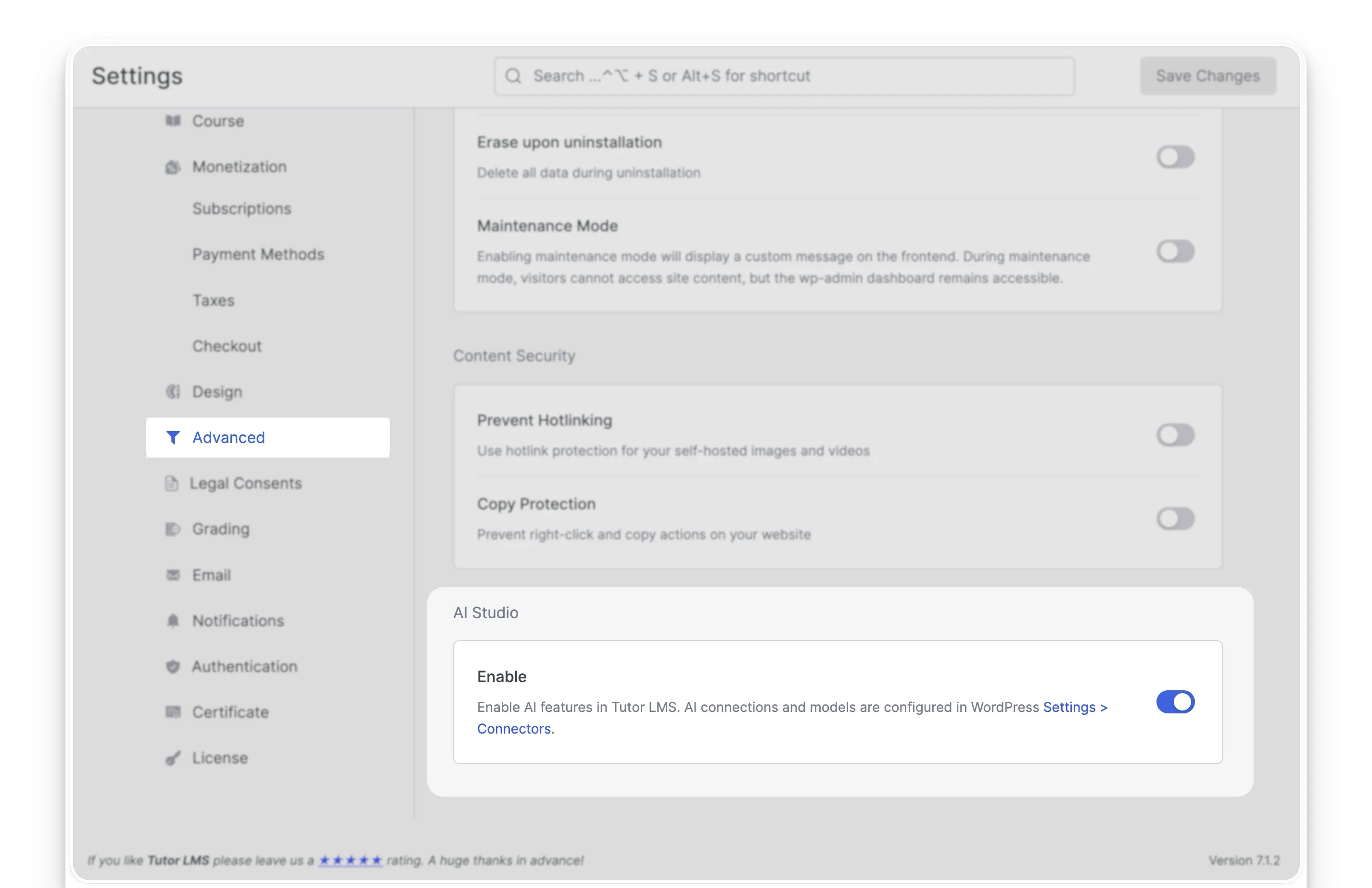
Navigate to WP Admin > Tutor LMS Pro > Settings > Advanced.
Scroll down to the AI Studio section and toggle Enable to the ON position.
Click Save Changes at the top right. A notice will appear confirming that AI connections are now managed via the WordPress Connectors settings.
Step 2: Install and Configure an AI Connector
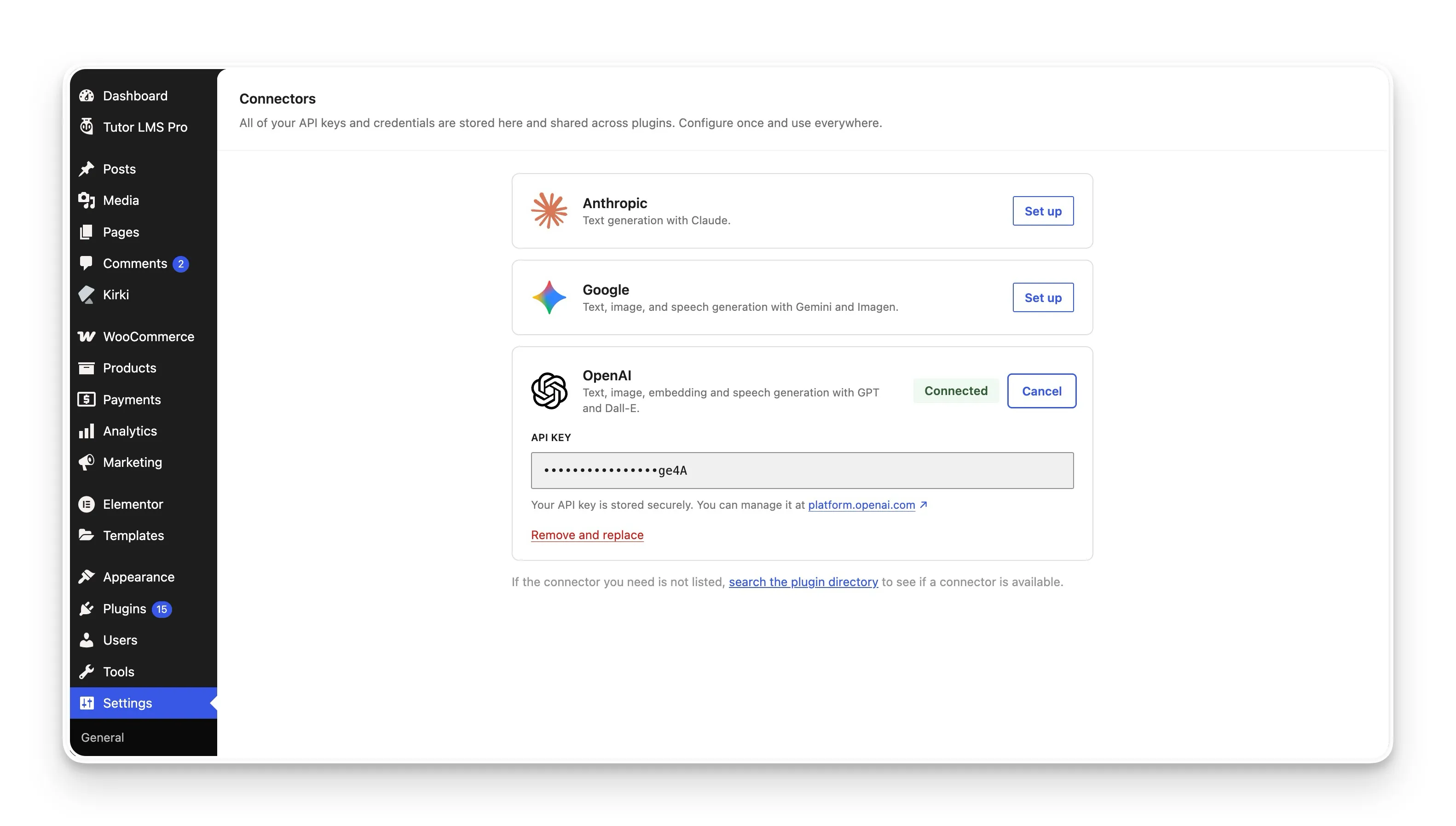
Navigate to WP Admin > Settings > Connectors (or click the Connectors link directly from the AI Studio settings panel).
If the core AI framework is not yet installed on your site, click the blue Install the AI plugin button located in the top banner and wait for the installation to finish.
Locate your preferred AI provider (OpenAI, Google, or Anthropic) from the Connectors list and click Setup.
Paste your active API key into the designated field and click Save. The provider will update to display a green Connected status.
Step 3: Approve Connector Access for Tutor LMS
Step 3: Approve Connector Access for Tutor LMS Before Tutor LMS can utilize your configured API key, you must explicitly grant the plugin permission to access the connector.
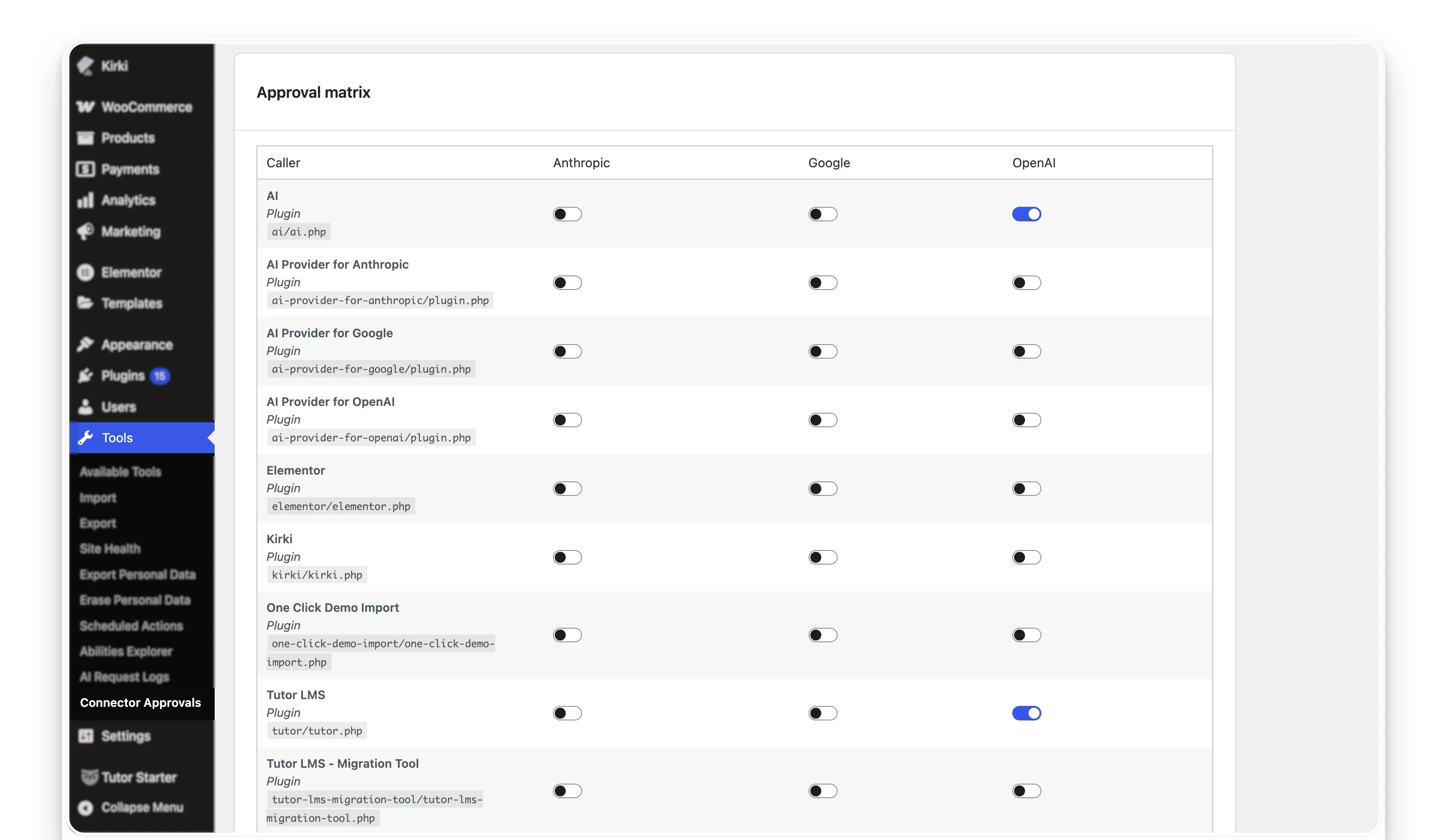
Navigate to WP Admin > Tools > Connector Approvals.
Under the Pending requests section, locate the access request from the Tutor LMS, Tutor LMSPro, and AI caller.
Click the blue Approve button next to the request.
The request will move to the Approval matrix below, confirming that Tutor LMS Pro now has active, authorized access to your specified AI model.
Using AI Studio in the Course Builder
Once connected and approved, AI Studio features are seamlessly integrated throughout your Course Builder workflow:
Course Outlines & Descriptions: Click the AI Studio icon near the Course Builder text editors to instantly draft course summaries, target audience profiles, and structured curriculum outlines.
Quiz Generation: Inside the Quiz Builder, click the AI Studio icon under the Questions tab to automatically generate True/False, Multiple Choice, Open Ended/Essay, and Short Answer questions based on your existing course topics.
Featured Image Generation: Use the AI generation tool inside the Featured Image panel to create custom course thumbnails. If you attempt to generate an image using a text-only connector, an error modal will appear instructing you to configure an image-capable connector (like OpenAI or Google) via the WordPress settings.



 HALLOWEEN SALEHALLOWEEN SALEHALLOWEEN