You spent months filming, editing, and perfecting your online course videos. And then someone screenshots the URL, shares it in a Telegram group, and suddenly hundreds of people are watching your paid content for free.
Sounds familiar? You’re not alone.
Video is the most valuable AND the most vulnerable asset in any online course. Unlike text or PDFs, videos are large, engaging, and incredibly shareable. They’re also the #1 content pirates target.
The good news? Tutor LMS Pro packs serious firepower to lock down your video content. In this guide, we’re going beyond the basics and diving deep into video-specific protection strategies that most course creators completely overlook.
Why Video Content Is Your Biggest Security Risk
Before we get into the how, let’s understand the why.
Your videos are at risk on multiple fronts:
- Direct URL theft: Someone finds the raw video URL and shares it externally, bypassing your paywall entirely.
- Screen recording: A paying student records your videos and redistributes them.
- Account sharing: One person buys a course and shares their login with 10 friends.
- Embedding on external sites: Someone embeds your self-hosted video on another website without permission.
Each of these attack vectors requires its own line of defense. Tutor LMS equips you with the tools to tackle every one of them, but only if you know where to find them and how to configure them effectively.
1. Lock Down Video Access with Course Enrollment Restrictions
The simplest way to protect your video content is to make sure only paying, enrolled students can ever reach it.
Tutor LMS lets you gate every single lesson, including video lessons, behind enrollment. This means no enrollment, no video. Period.
But here’s where most creators slip up, they leave course preview enabled too broadly. The preview feature is great for marketing, letting potential students sample a lesson before buying, but if you enable preview on your key video lessons, you’ve essentially made them free.
To use this option, make sure the Course Preview addon is enabled in Tutor LMS.
To review your lesson access settings:
- Open your course in the Tutor LMS Course Builder
- Click on any video lesson
Under the lesson settings, check the Lesson Preview toggle, disable it for all lessons except your intentional preview content
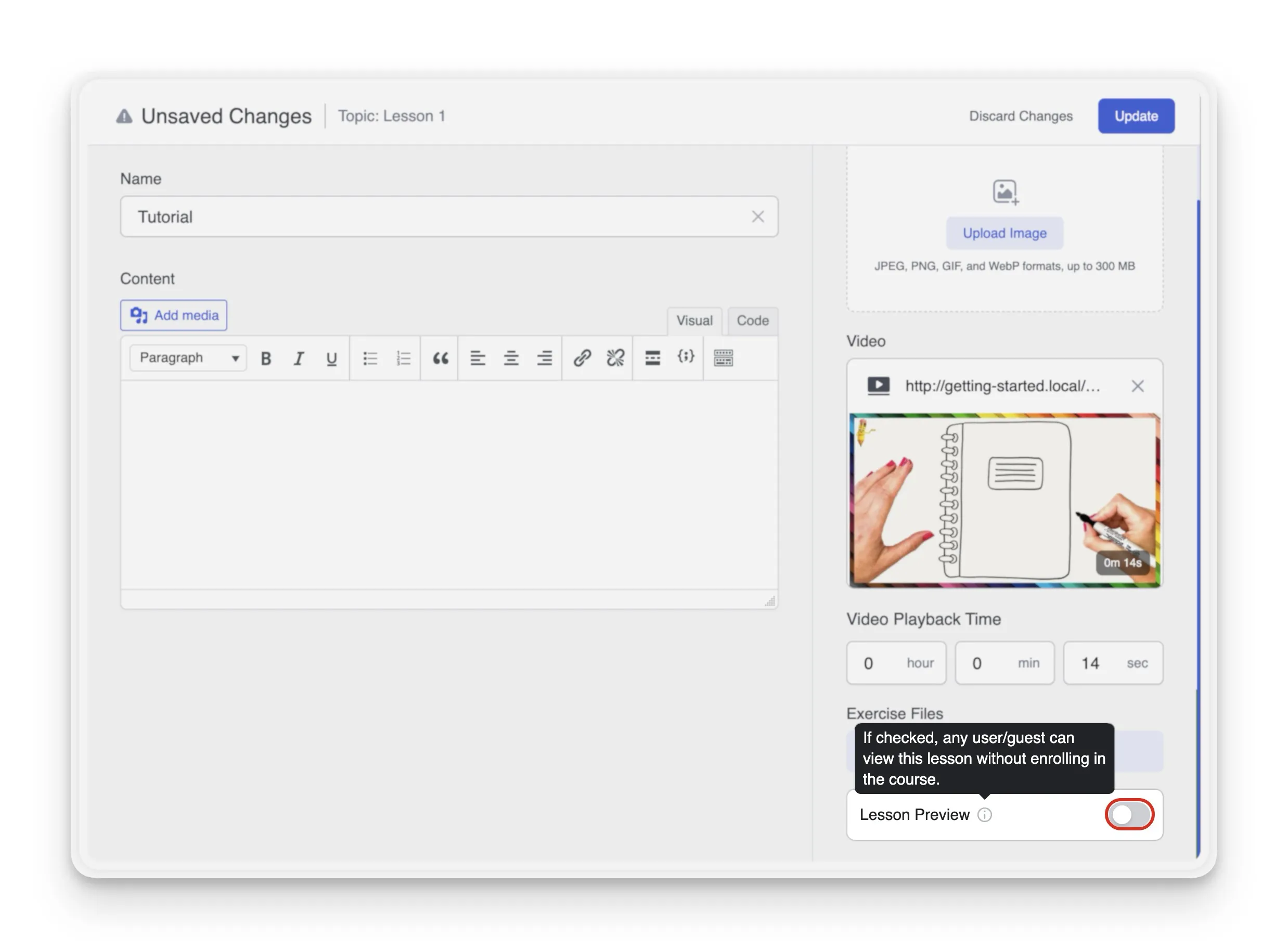
This one setting alone closes a huge gap that many course creators don’t realize they’ve left open.
Tip: Only enable free preview on introductory or low-value lessons. Keep your core video content strictly enrollment-gated.
2. Use Content Drip to Control When Videos Unlock
Here’s a security angle most people don’t think about. Even enrolled students shouldn’t necessarily have access to all your videos at once.
Content Drip in Tutor LMS lets you release video lessons on a schedule, either based on enrollment date, specific dates, or after a student completes prior lessons.
Why does this matter for security?
Because a common piracy pattern goes like this: someone buys your course, bulk downloads or records every video within 24 hours, and then requests a refund. With Content Drip enabled, they can only access videos as they unlock, making this kind of smash-and-grab much harder to pull off.
To enable Content Drip:
- Navigate to Tutor LMS > Add-ons
- Activate the Content Drip add-on
- Open your course settings and configure unlock schedules per lesson
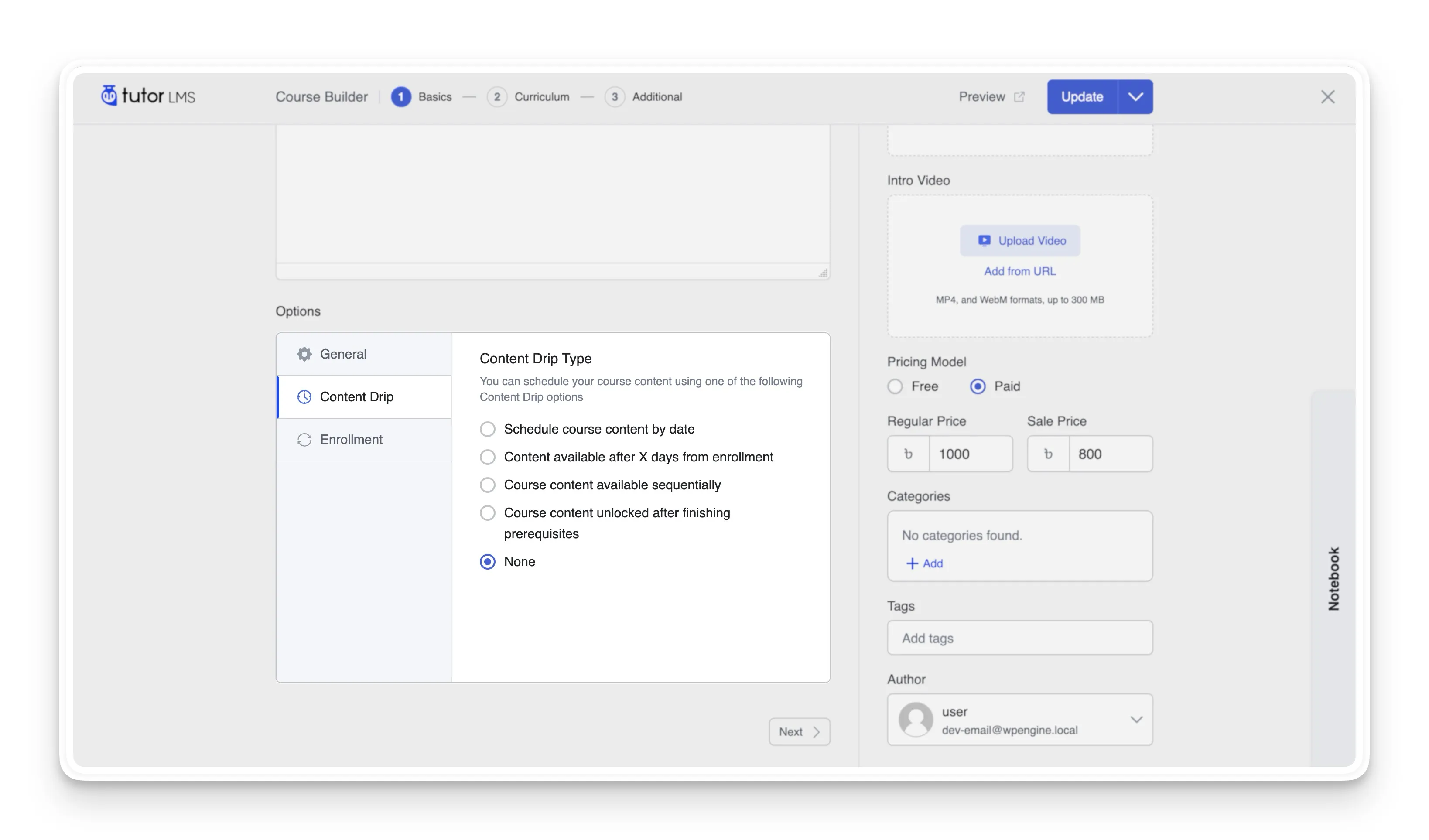
Pair this with a clear refund policy, and you’ve significantly reduced your exposure to the record-everything-then-refund attack.
3. Prevent Video Hotlinking at the Source
If you’re self-hosting your videos rather than using YouTube or Vimeo, this one is critical.
Hotlinking means someone takes the direct URL to your video file and either embeds it on their own website or shares it publicly. Every time someone watches via that stolen link, it eats your server bandwidth, and your content gets consumed for free.
Tutor LMS has a built-in solution:
- Go to Tutor LMS > Settings > Advanced
- Scroll to Content Security
- Enable Prevent Hotlinking
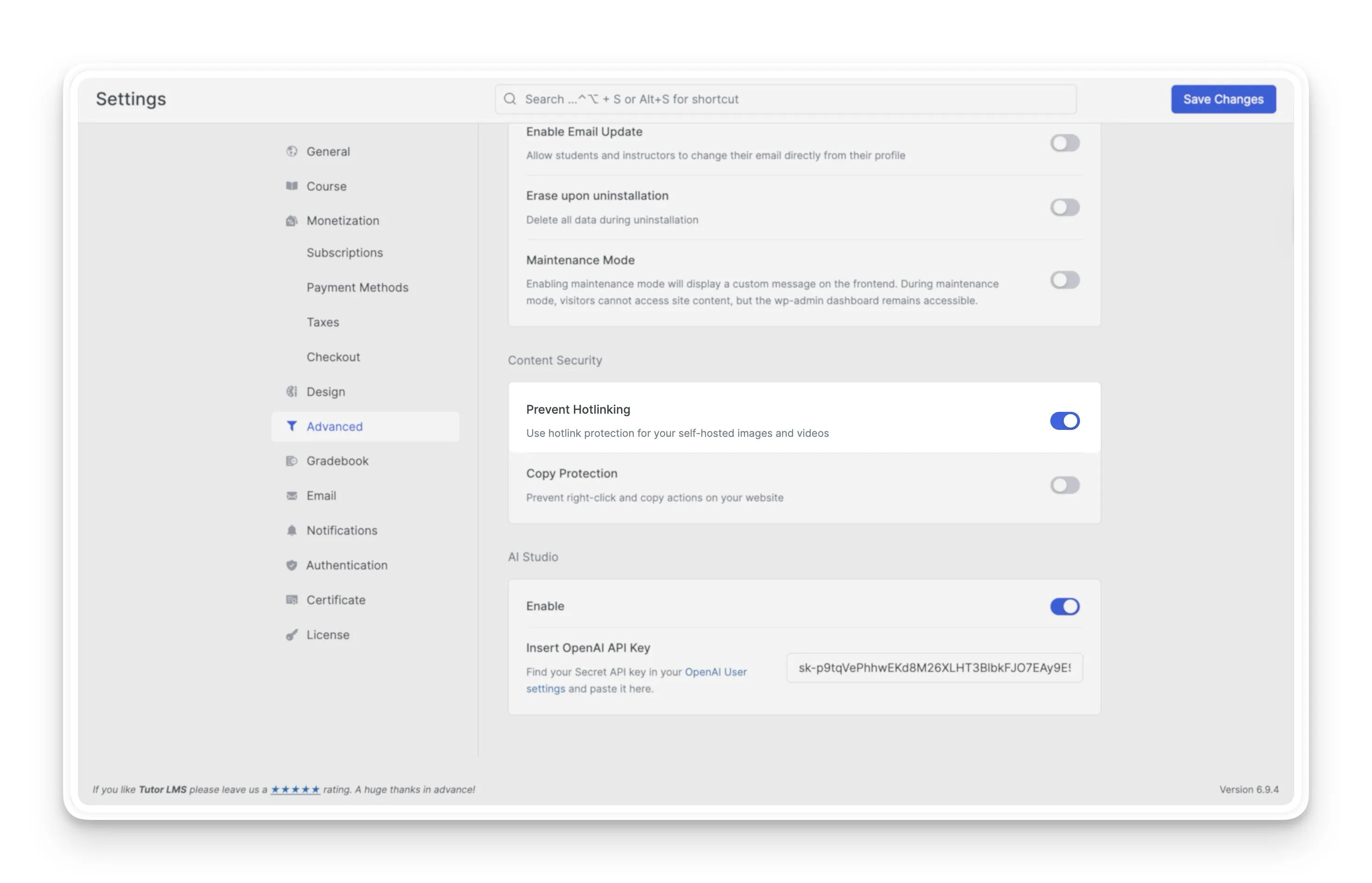
Once active, your self-hosted videos can only be played from within your own domain. Anyone trying to access the raw video URL directly or embed it elsewhere will be blocked.
Technical note: This feature works by modifying your .htaccess file and works best on Apache-based hosting environments. After saving, if you see a warning about .htaccess access, check that Tutor LMS has write permissions to that file.
For course creators using Bunny.net or other video CDNs, make sure you also enable domain-restricted playback on the CDN side. Tutor LMS’s hotlink protection covers your WordPress layer, but your video CDN has its own access controls that need to be configured separately.
4. Disable Right-Click on Your Video Pages
This won’t stop determined pirates, but it raises the friction enough to deter casual theft.
When Copy Protection is enabled in Tutor LMS, right-clicking is disabled across your entire site, including on pages with embedded videos. This means users can’t easily:
- Right-click and Save video as…
- Copy the video source URL from a context menu
- Open media in a new tab directly from the video player
To enable this:
- Go to Tutor LMS Pro > Settings > Advanced
- Scroll to Content Security
- Toggle on Copy Protection
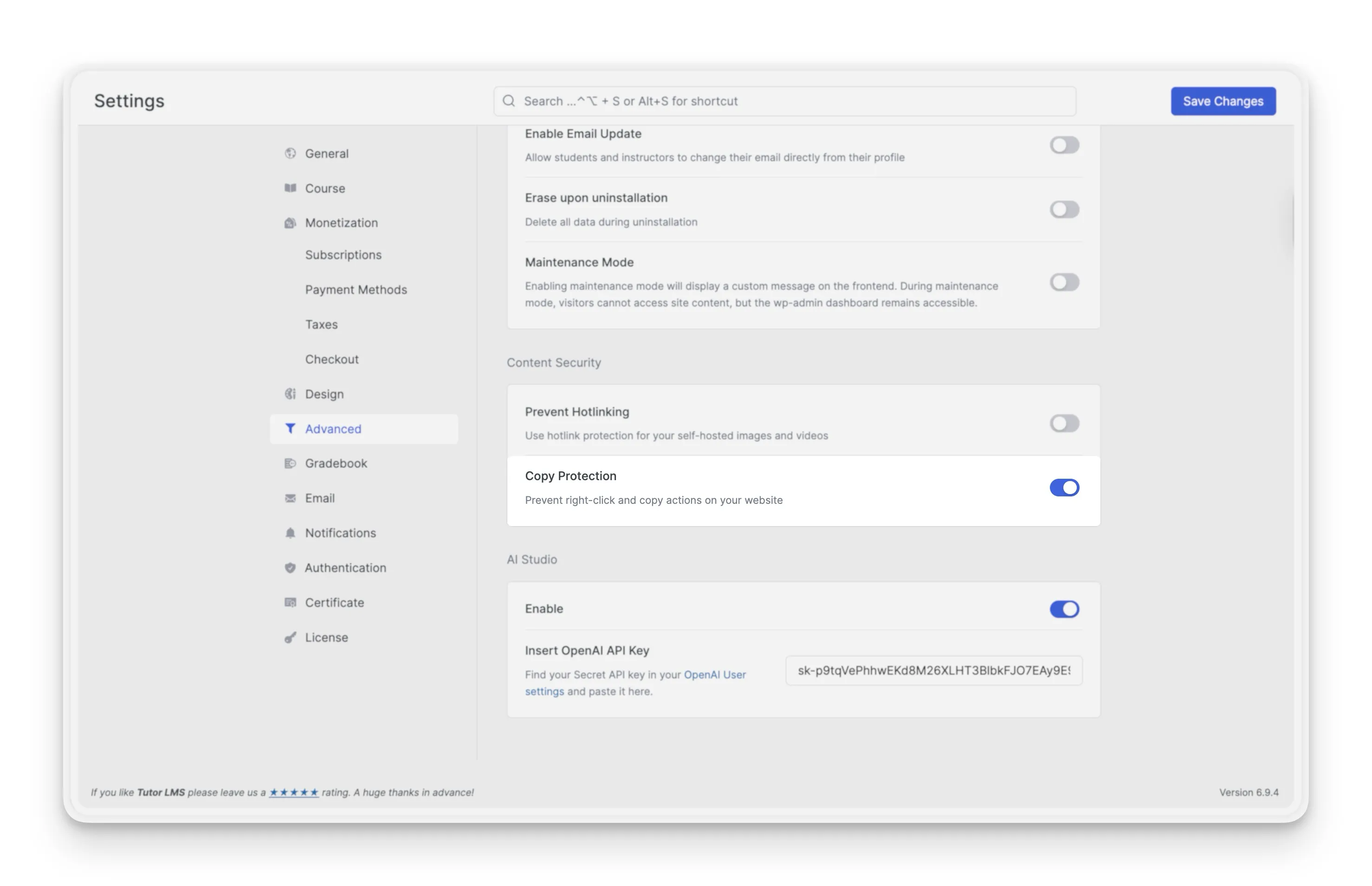
Think of this as your first line of friction. Combined with the other layers in this guide, it makes unauthorized access meaningfully harder.
5. Limit Simultaneous Video Streaming with Active Login Controls
Here’s the Netflix problem: one account, multiple screens, multiple households.
Course creators face the same issue. A student buys access, shares their credentials, and suddenly five people are watching your course content simultaneously, and you’ve only been paid once.
Tutor LMS’s Limit Active Login Sessions feature solves this directly:
- Head to Tutor LMS Pro > Settings > Authentication
- Scroll to Manage Active Logins
- Enable Limit Active Login Sessions
- Set the Maximum Active Sessions to your preferred number (typically 1 or 2)
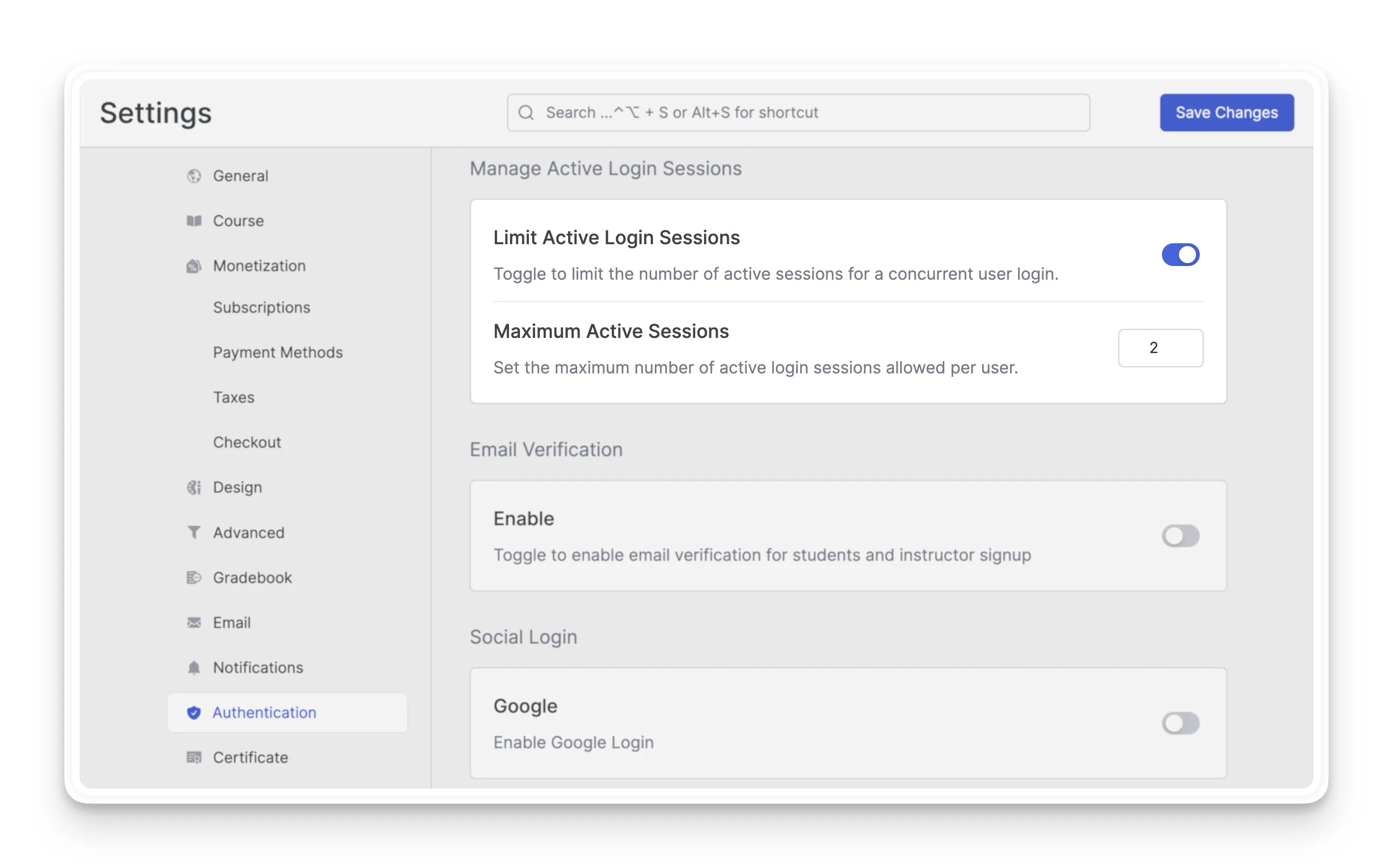
Once the session limit is hit, any new login attempt is blocked, prompting the user to clear their existing sessions first. This helps reduce credential sharing and keeps account access controlled across devices.
6. Add Video Watermarking for Accountability
Video watermarking is one of those protective layers that’s easy to overlook but genuinely worth setting up. However, Tutor LMS doesn’t natively support dynamic watermarking. To use this feature, instructors need to integrate their videos with third-party video hosting platforms. Once set up, videos display a personalized identifier tied to each viewer, making content traceable if it ever gets leaked.
Bunny.net Stream is a solid choice for secure video delivery, thanks to its official Tutor LMS integration. It also supports dynamic watermarking through viewer tokens, adding a personalized layer of protection that discourages unauthorized sharing.
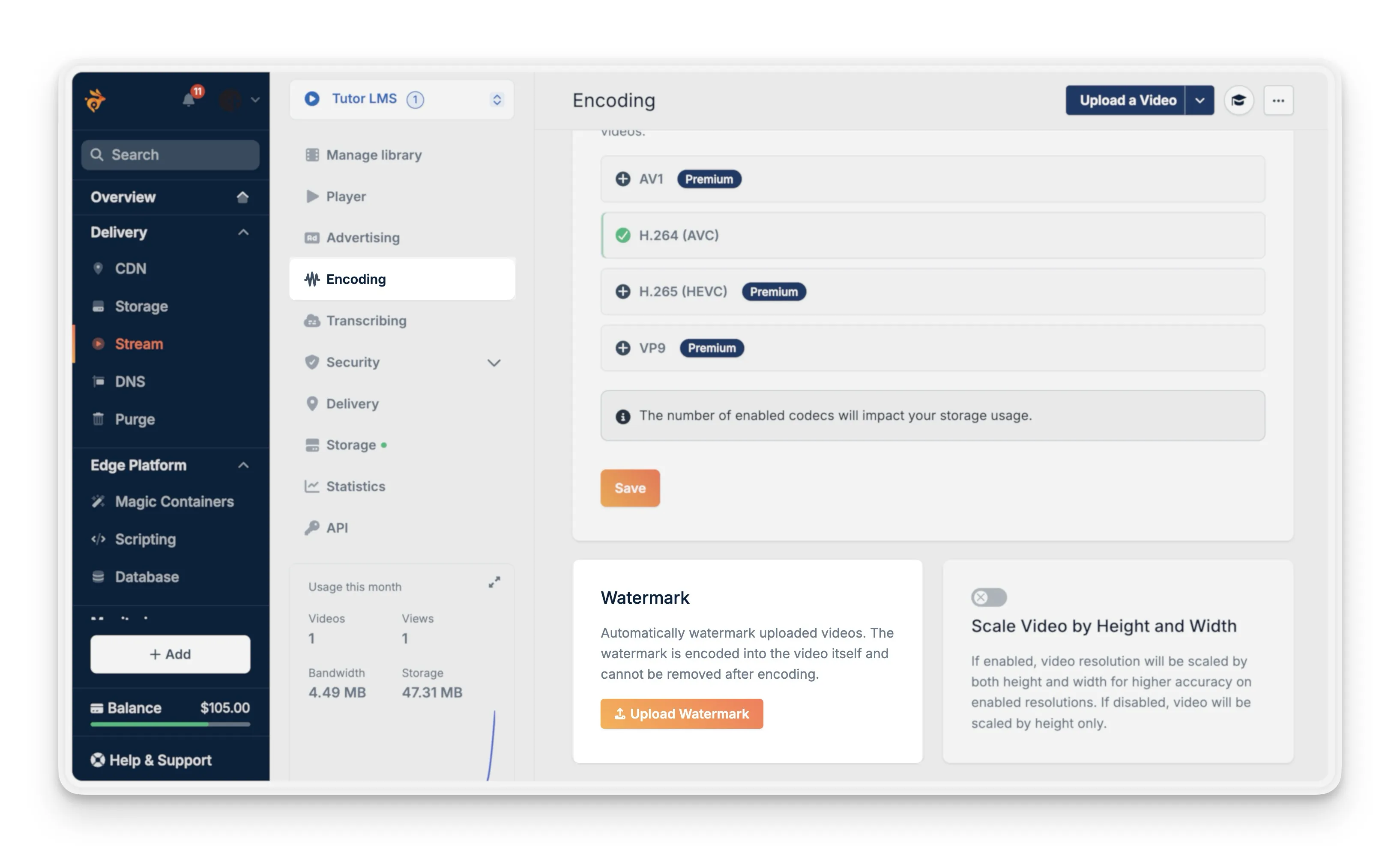
Other than Bunny.net, the following can be usable options:
- Vimeo Pro/Business: Allows static text-based watermarking
- VdoCipher: Purpose-built video DRM with watermarking, integrates with WordPress LMS setups
Configure watermarking in your chosen video host, then embed the protected video player URLs in your Tutor LMS video lessons as usual.
7. Require Email Verification Before Video Access
Fake accounts are a real problem. Bots and bad actors create throwaway accounts to test your access controls, scrape content, or exploit free trial periods.
Tutor LMS’s Email Verification feature ensures that every new account is tied to a real, confirmed email address before the user can access anything, including your videos:
- Navigate to Tutor LMS > Settings > Authentication
- Toggle on Email Verification
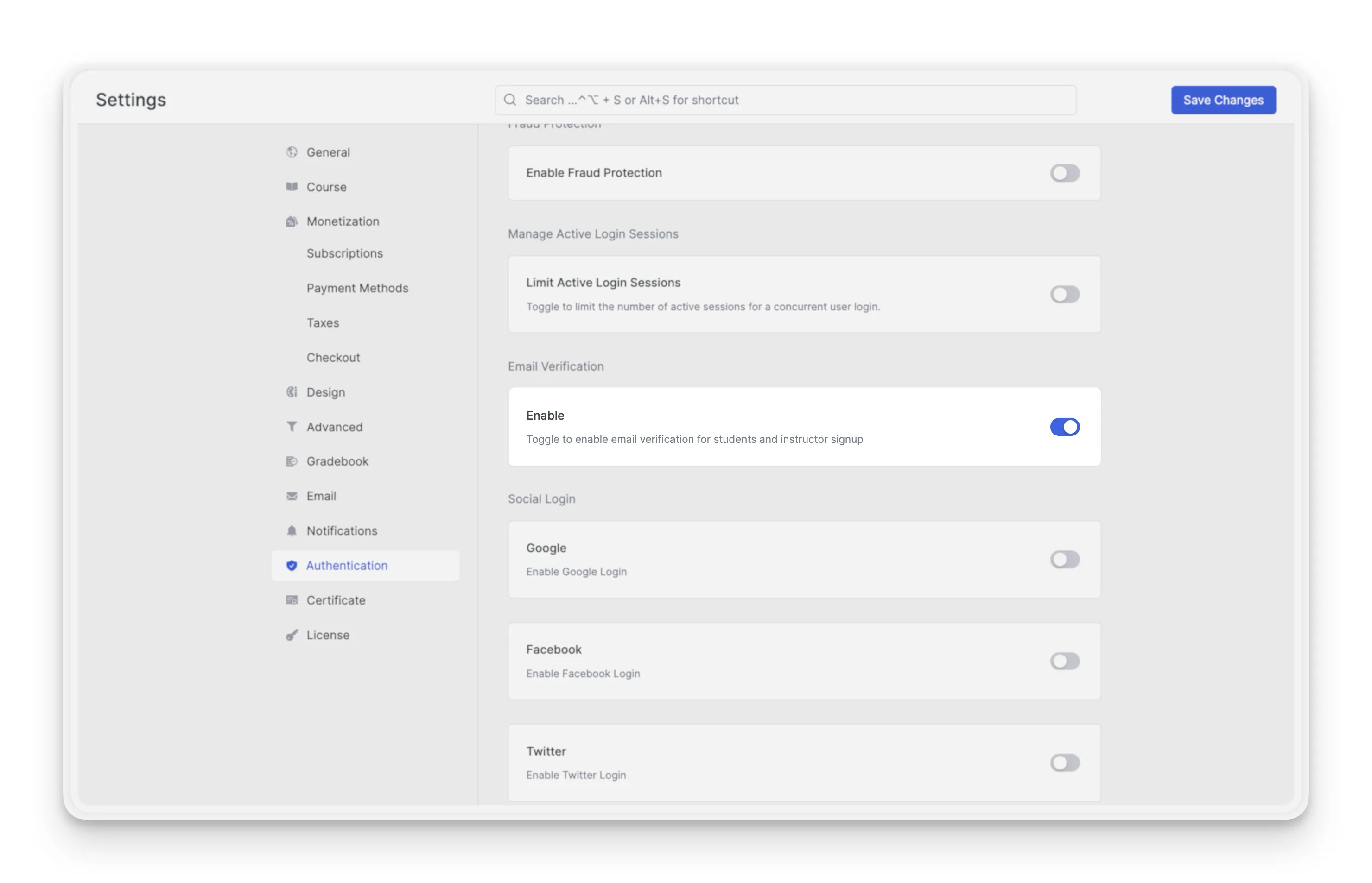
New registrants receive a verification code in their inbox. Until they verify, they can’t enroll in or access course content.
Important: Email Verification requires SMTP to be properly configured in your WordPress settings. Without SMTP, verification emails won’t be sent. Check the Tutor LMS documentation for SMTP setup guidance.
This is a lightweight step that has an outsized impact on the quality of your student base. Fewer fake accounts means fewer unauthorized access attempts.
While this guide focuses on protecting your video content, your eLearning platform is worth much more to secure. For a comprehensive look at safeguarding other types of course content, check out our in-depth guide: Tutor LMS Guide to Content Security.
Putting It All Together: Your Video Security Stack
No single feature protects everything. Real video security is about layering defenses so that even if one layer fails, others catch what slips through.
Here’s how a fully locked-down Tutor LMS setup looks:
| Threat | Defense |
|---|---|
| Accessing videos without paying | Enrollment gating + preview controls |
| Bulk recording before refund | Content Drip scheduling |
| Direct video URL sharing | Prevent Hotlinking |
| Casual copying and saving | Copy Protection (right-click disable) |
| Credential sharing | Limit Active Login Sessions |
| Redistribution of recordings | Video watermarking via a hosting platform |
| Fake account creation | Email Verification |
Enable all of these, and you’ve built a genuinely formidable defense around your course video content. You won’t stop every determined pirate; no system does. But you’ll make unauthorized access difficult, traceable, and costly enough that most bad actors will simply move on.
Your videos represent real work and real value. They deserve real protection.

Start Using Tutor LMS Today
Ready to take your online courses to new heights? Download Tutor LMS now and enjoy a journey of eLearning excellence.