More than 1 in 6 people worldwide live with a disability, and for many, that shapes how they read, focus, or move through a screen. When an online course platform isn’t built with that in mind, it quietly shuts people out. In Tutor LMS, accessibility isn’t an admin-only setting or a paid add-on; it’s a set of controls learners adjust themselves, instantly, from their own dashboard. No plugins, no support tickets, no waiting on an instructor. Here’s exactly what’s available, and how to turn it on
TL;DR: Tutor LMS gives learners self-service accessibility controls under Profile Avatar> Settings> Preferences. Built-in options include font scaling (60%–200%), a high-contrast toggle, four color-vision filters for color blindness (Protanopia, Deuteranopia, Tritanopia, Achromatopsia), Light/Dark/System theme switching, and reduced-motion settings. Every change applies instantly to that learner’s profile only.
Why Accessibility Matters in Online Learning
Not every barrier to learning is visible. Some live inside the interface itself:
- Low vision or color blindness that makes text or graphics hard to read
- Dyslexia that slows down reading and comprehension
- Motion sensitivity triggered by autoplay and animation
- Cognitive load from cluttered, overwhelming interfaces
When a platform ignores these differences, learners disengage. Eye strain builds, focus slips, and completion rates quietly drop. Tutor LMS solves this challenge with a learner-first philosophy. Instead of one fixed design for everyone, it puts the controls in the learner’s own dashboard, so each person shapes the interface around how they read, see, and focus.
Where to Find Tutor LMS Accessibility Settings
Giving students control over their environment only works when the tools are simple to locate. In Tutor LMS, your learners can open their personal settings in three quick clicks:
- Click the profile avatar in the top-right corner of the dashboard.
- Select Settings from the drop-down menu.
- Select the Preferences tab on the left sidebar to reveal the full control panel.
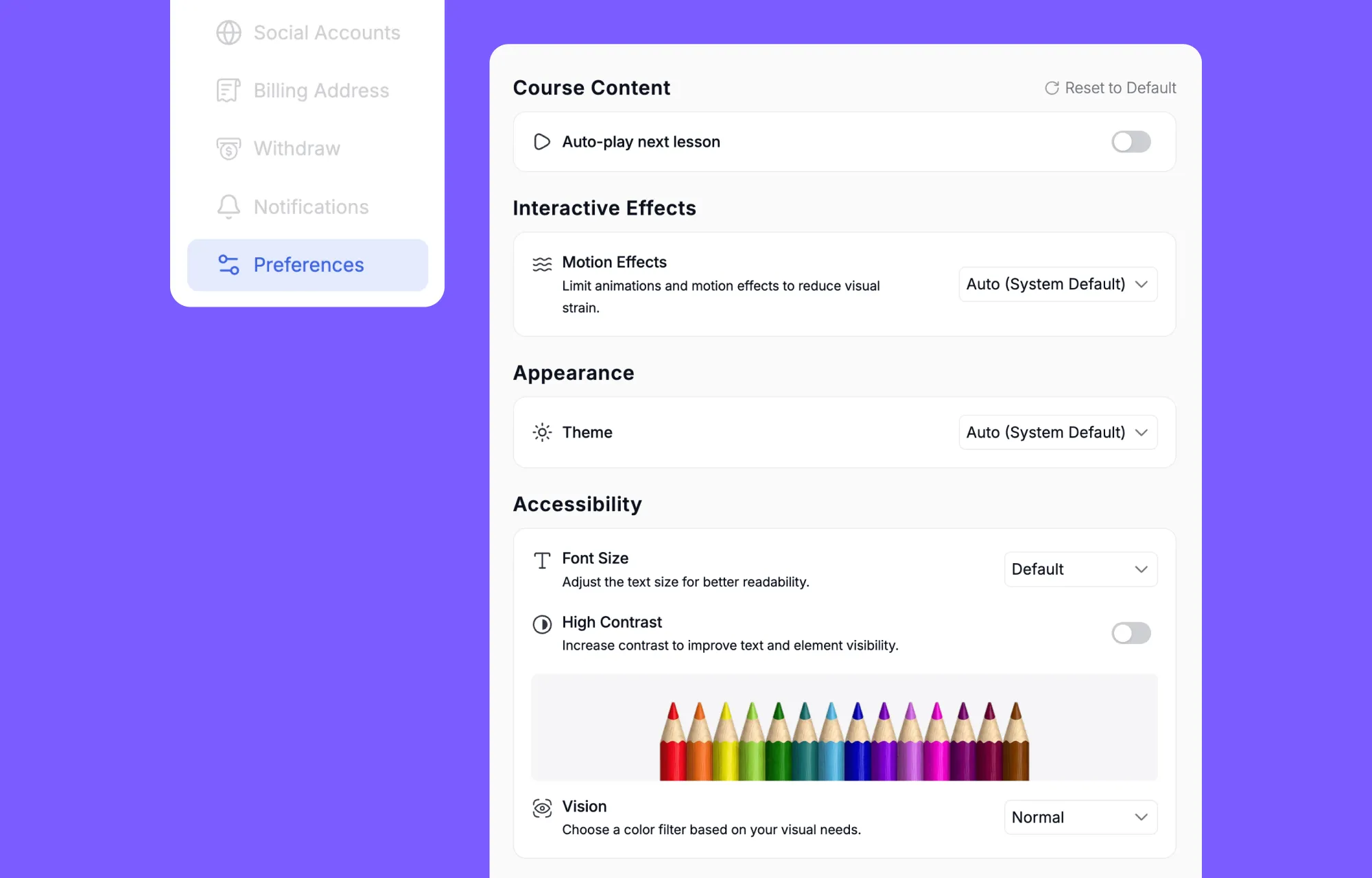
The screen organizes features into four clear categories: Course Content, Interactive Effects, Appearance, and Accessibility. Every adjustment applies instantly to that individual profile without extra plugins or administrator approval. When a learner wants a fresh start, the Reset to Default button restores standard settings right away.
Core Tutor LMS Accessibility Features
1. Font Size Scaling (60% to 200%)
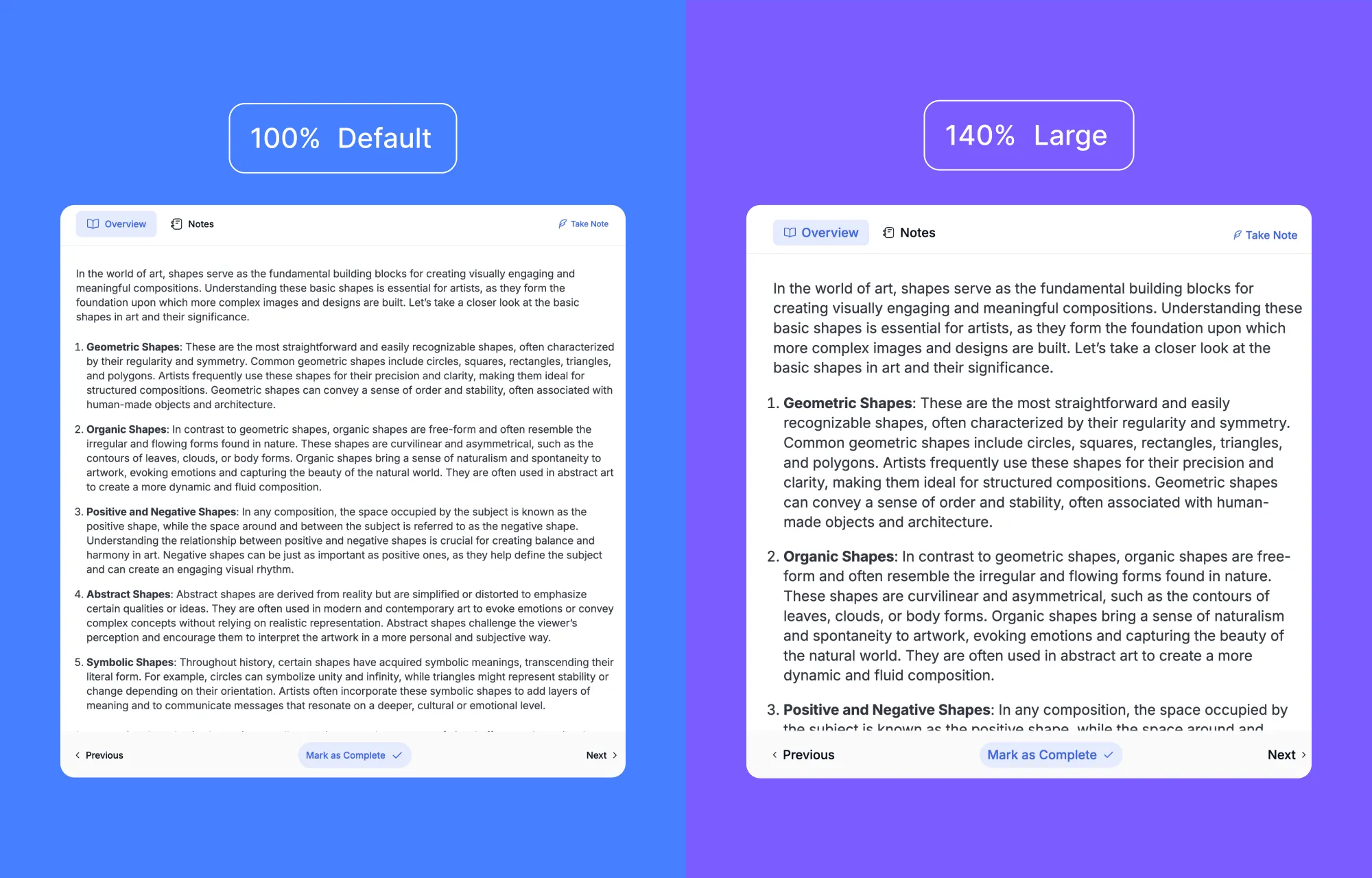
Reading small course text causes quick eye strain for students with low vision or dyslexia. The Tutor LMS font size control lets learners scale typography from 60% up to 200% of standard size, chosen from a drop-down menu inside the Accessibility tab.. The interface resizes text across every lesson without breaking page layouts or hiding buttons. This adjustment keeps lessons readable on both small laptops and large monitors.
2. High Contrast Mode
Pale gray text on a white background sounds harmless, until your eyes start aching an hour into a course. High Contrast Mode sharpens the edges between text, buttons, and backgrounds, so everything is easier to pick out at a glance. It helps most with low vision, though most learners report less strain on long sessions too. One toggle turns it on.
3. Color Vision Filters
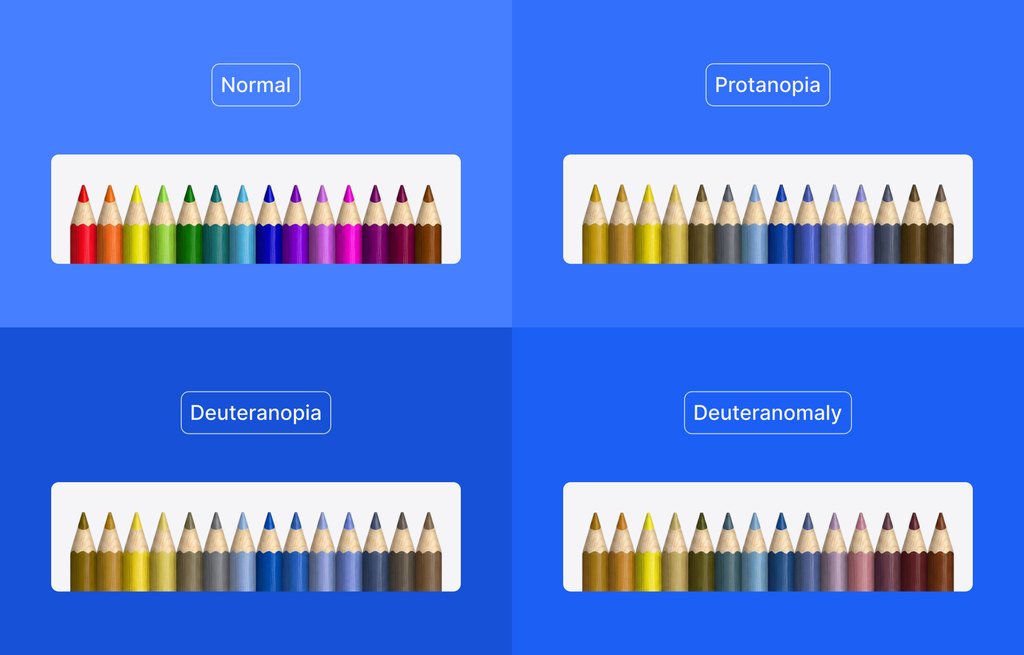
Color blindness affects roughly 1 in 12 men and 1 in 200 women worldwide, yet many online courses still lean heavily on color to convey meaning. Tutor LMS addresses this with four dedicated color vision filters.
- Protanopia and Deuteranopia adjust for red-green confusion, the most common forms of color blindness.
- Tritanopia corrects blue-yellow perception issues, a rarer but real challenge for some learners.
- Achromatopsia supports learners who see no color at all, rendering the interface in clear grayscale.
4. Dark Mode & Theme Control
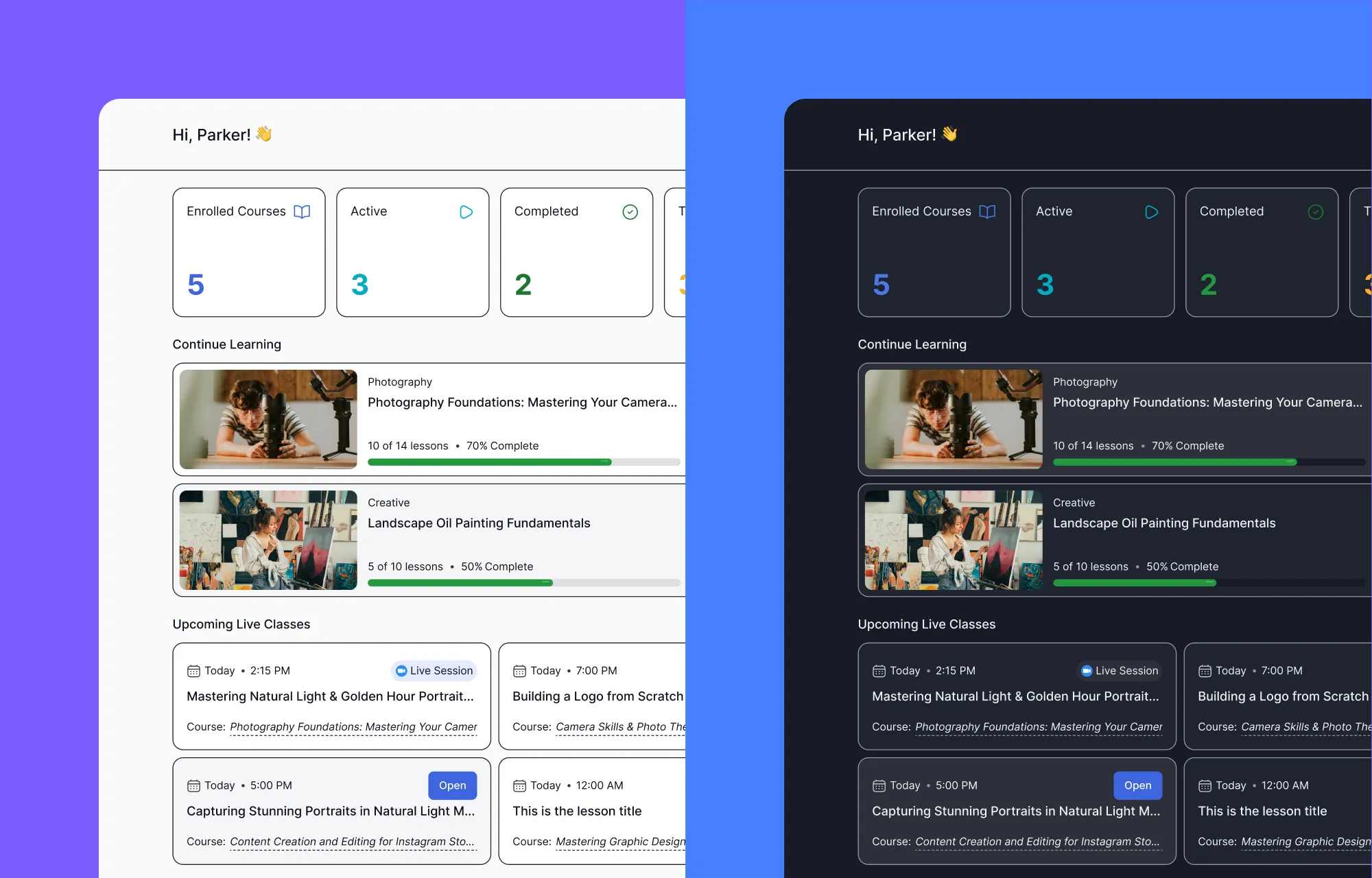
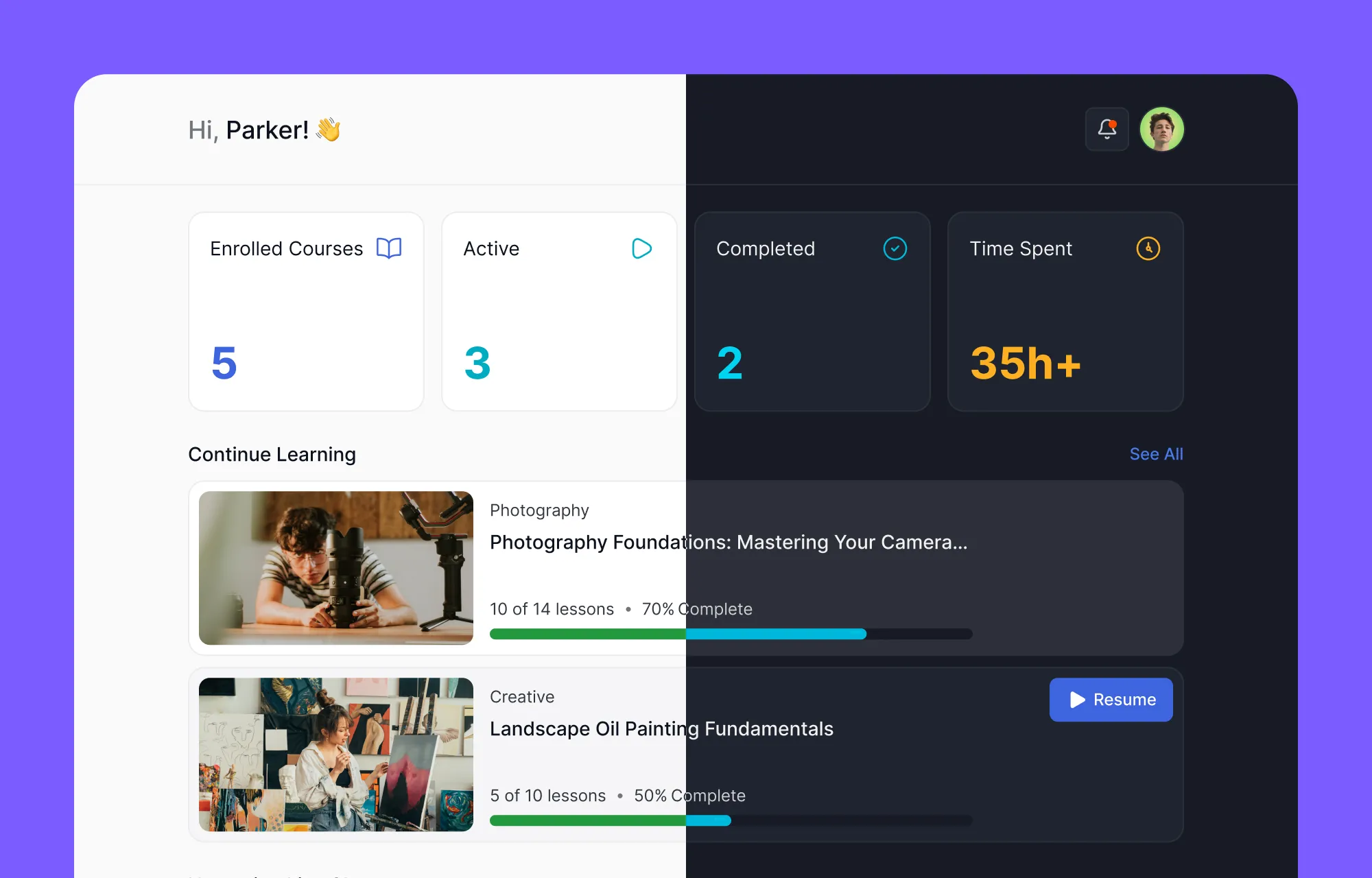
Bright white screens are tough on tired eyes and impossible to sit with for learners with photophobia (a painful sensitivity to bright light). Tutor LMS offers Light, Dark, and System Default themes, so a student can flip to a darker palette when the room does.
5. Reduced Motion
Constant animation can do more than annoy: for learners with motion sensitivity or vestibular disorders, it can trigger migraines and dizziness. The Motion Effects setting offers Auto, Reduced, and Standard options, so each learner dials movement down until the dashboard feels steady.
More Support Features for Special Needs Learners
Accessibility in Tutor LMS doesn’t stop at the Preferences panel. A few smaller features work quietly alongside it, making the whole experience gentler for learners who need extra support.
- Auto-play next lesson: Switching on auto-play saves learners with physical mobility challenges from making repetitive clicks between lessons.
- Granular notifications: Choosing exactly which alerts arrive, and when, keeps the dashboard calm. A calmer dashboard means less cognitive overload for learners with ADHD or autism.
- Kids Mode: This mode swaps in a simplified, brighter dashboard with bigger visuals, built for younger learners who benefit from a less cluttered layout.
- Video Captions and Media Flexibility: Course creators can upload personal media files directly through HTML5 or connect external sources like YouTube, Vimeo, BunnyNet, and embedded links. These supported video platforms make it easy to supply closed captions, subtitles, and transcripts for hard-of-hearing students.
- H5P and WPML add highly customizable interactive content and multilingual support, two extras that can further support diverse learning needs.
Every accommodation makes online education more inviting for diverse audiences. These thoughtful options help educational businesses welcome students of all learning abilities while supporting high completion rates.
Accessibility Benefits Every Learner
The people who use these settings most often don’t need a diagnosis. Dark mode helps someone with light sensitivity, but it also protects the eyes of anyone studying late at night. Captions support learners who are deaf or hard of hearing, and they work just as well on a noisy commute.
This is universal design in practice. When you design for the edge cases, everyone in the middle benefits too. Comfortable learners stick around longer, finish more lessons, and rate their experience higher. Accessible design isn’t a favor to a few learners; it boosts satisfaction for everyone in your course.
Conclusion
Supporting diverse learning styles does not require complicated technical maintenance. Tutor LMS gathers visual, motion, and cognitive controls into one clear menu. This design gives each student immediate ownership over their study space. When learners can personalize text sizes, screen contrast, and color filters independently, course completion becomes much easier. You can explore these features firsthand by testing the Tutor LMS live demo. Creating an accessible academy has never been simpler.
Frequently Asked Questions
You’ll find these settings under your profile avatar in the top right corner, inside Settings, on the Preferences tab.
Yes. Tutor LMS includes four color vision filters, Protanopia, Deuteranopia, Tritanopia, and Achromatopsia, plus a high contrast toggle.
Yes. The Accessibility tab lets you scale text anywhere from 60% to 200% of the default size, which helps with low vision and dyslexia.
Yes. You can switch between Light, Dark, and System Default themes from the Appearance section.
These settings are part of the learner dashboard for every account. If you don’t see them on your site, updating to the latest version of Tutor LMS should make them available.
Changes made in the Preferences panel apply only to that specific learner’s profile, without altering anyone else’s view.
Yes. Tutor LMS includes System Default and Auto settings that automatically detect and mirror OS-level accessibility configurations.

Start Using Tutor LMS Today
Ready to take your online courses to new heights? Download Tutor LMS now and enjoy a journey of eLearning excellence.