The Tutor LMS Learning Experience: A Complete Guide for Students and Admins
Every LMS promises a better learning experience. But very few actually design it from the student’s point of view. Most updates focus on what instructors can build, not on how students feel while learning.
Tutor LMS 4.0 is different. This version was rebuilt from the ground up with a learner-first design philosophy, evaluated through four critical lenses: cognitive load, attention flow, discoverability, and emotional experience. The result is a WordPress LMS learning experience that feels cleaner, smarter, and more rewarding at every step.
This guide walks you through exactly what the Tutor LMS 4.0 student learning experience looks like, from your very first lesson to the moment you earn your certificate.
Inside the Tutor LMS Learning Interface
Once a student enters a course, the entire experience shifts into a clean, focused space. The outside world fades away, and what remains is everything a learner needs, nothing more.
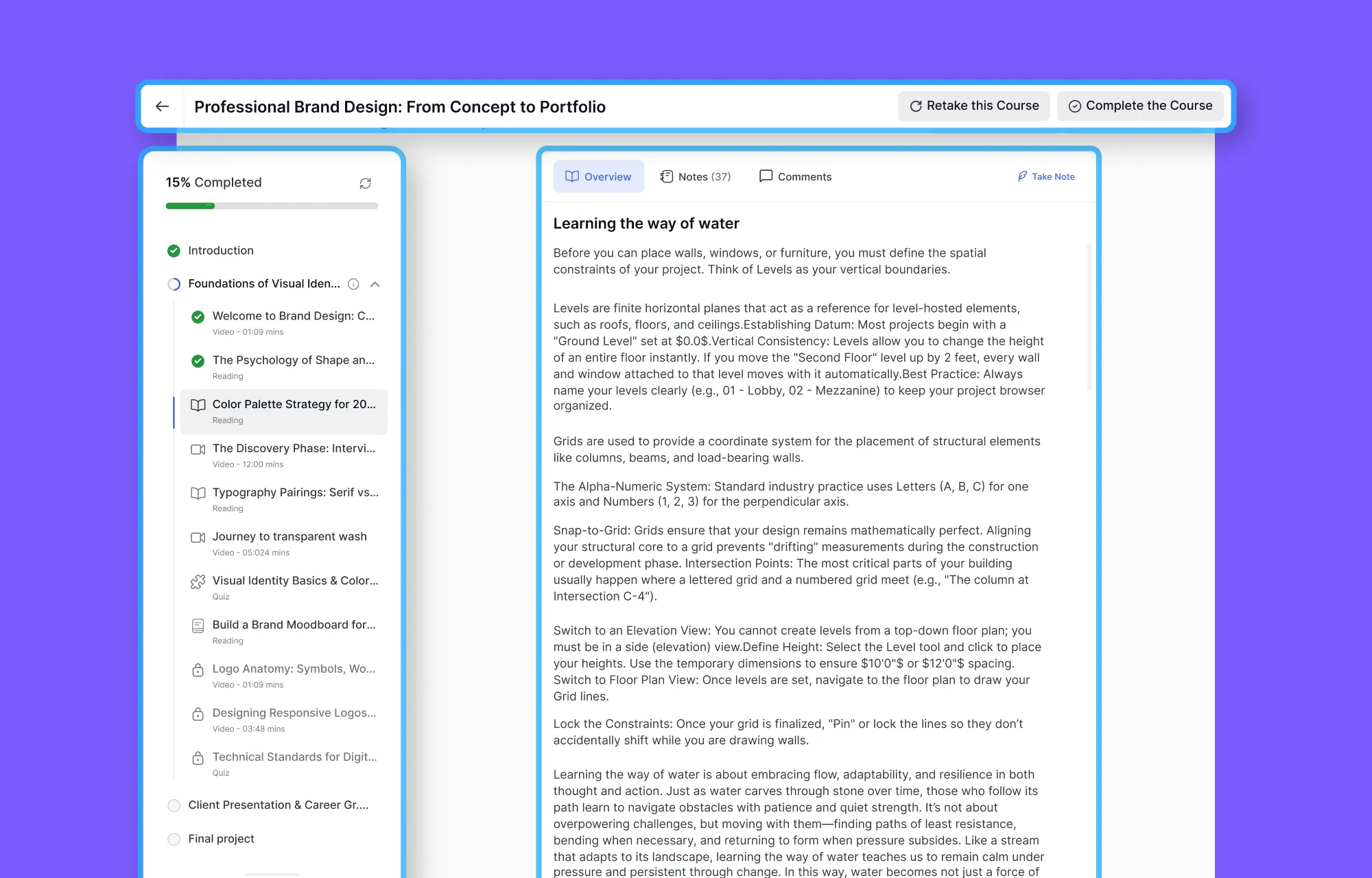
The Tutor LMS learning interface is organized into three key areas:
- Top Header: Displays the course title along with action buttons like “Complete the Course” or “Retake,” giving students a clear sense of where they are and what comes next
- The Curriculum Sidebar: The left sidebar is the student’s navigation hub for the entire course. It shows:
- All topics and lessons in order, with content type labels (Video, Reading, Quiz, Assignment, Live Class)
- Estimated duration for each lesson
- A green checkmark next to every completed lesson
- A blue left border marking the currently active lesson
- A progress bar at the top showing the overall completion percentage
- Main Content Area: This is where all the actual learning happens. The main content area displays the lesson content, whether that is a video player, a block of reading text, a quiz screen, or an assignment submission form.
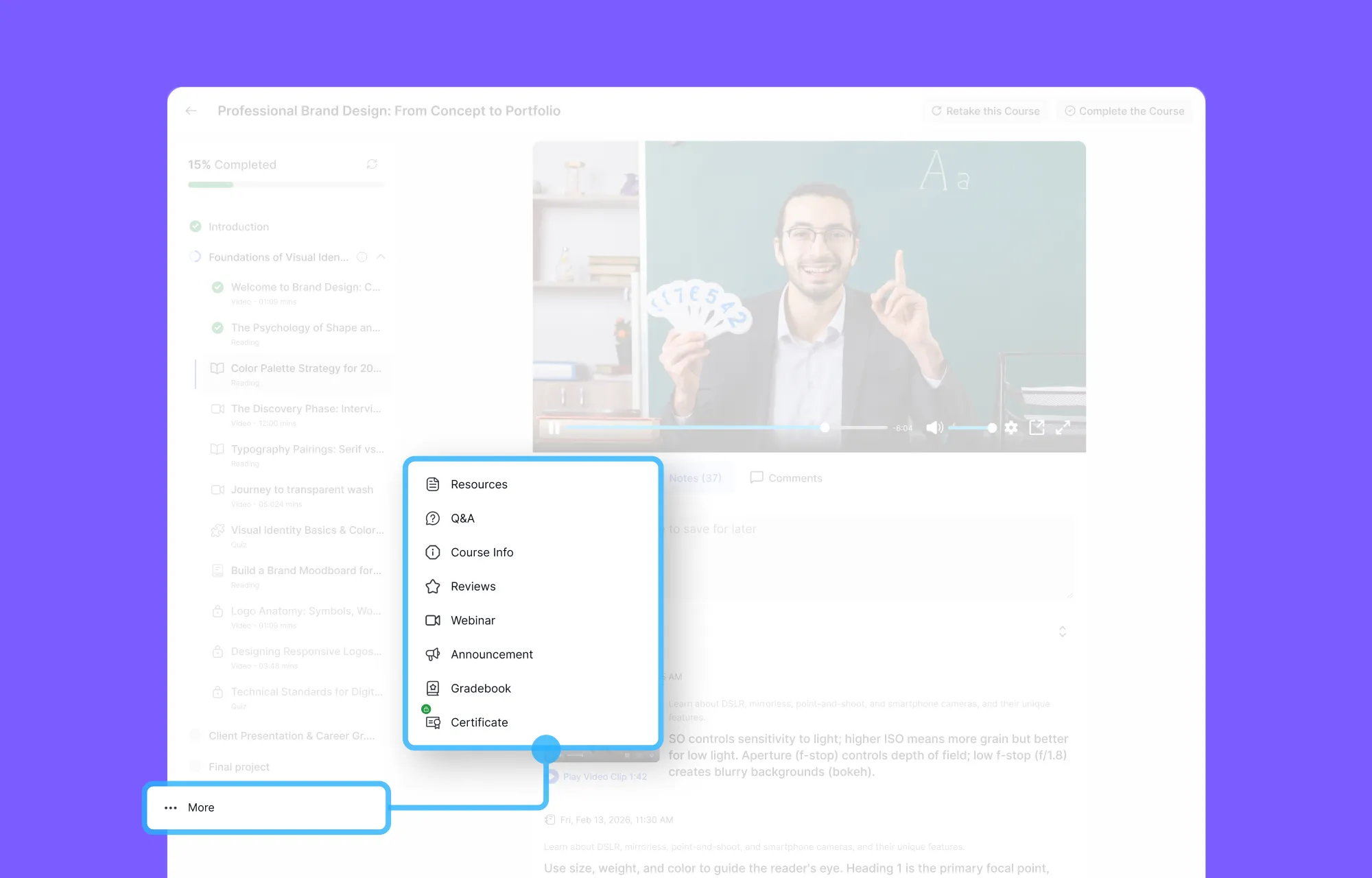
At the bottom of the sidebar sits the “More” section, which houses additional course tools, including Resources, Q&A, Announcements, Reviews, Live Classes, Gradebook, Certificate, and Course Info. Everything is in one place, so students never have to leave the course to find what they need.
A Closer Look at Video and Reading Lessons
Most online courses live or die by the quality of their lesson experience. A great video means nothing if the player is clunky, the controls are buried, or students have to open five browser tabs just to take a note. Tutor LMS thought carefully about this problem, and the result is a lesson environment that genuinely respects how people actually learn.
The Tutor Player
Tutor player includes everything a modern learner expects: play/pause, a progress scrubber, elapsed and remaining time, volume control, playback speed and quality settings, a picture-in-picture button, and a full-screen mode. Students can move through lessons at the pace that suits them.
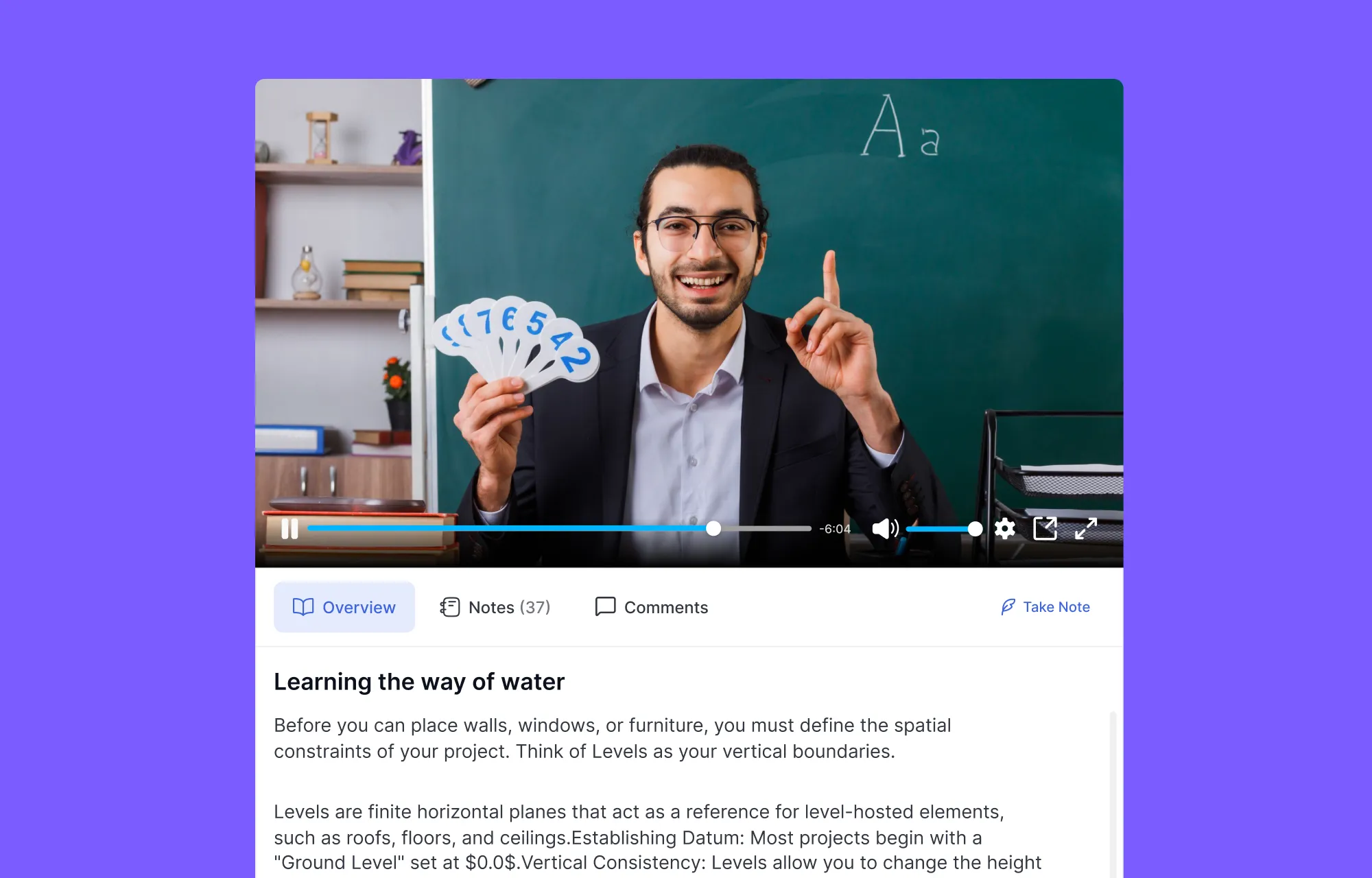
Below the player, three tabs appear: Overview, Notes, and Comments, plus an Exercise Files tab when downloadable files are attached.
Taking Notes While You Watch
The Notes tab gives students a personal text editor linked to their account. Notes are saved automatically and accessible across the entire course.
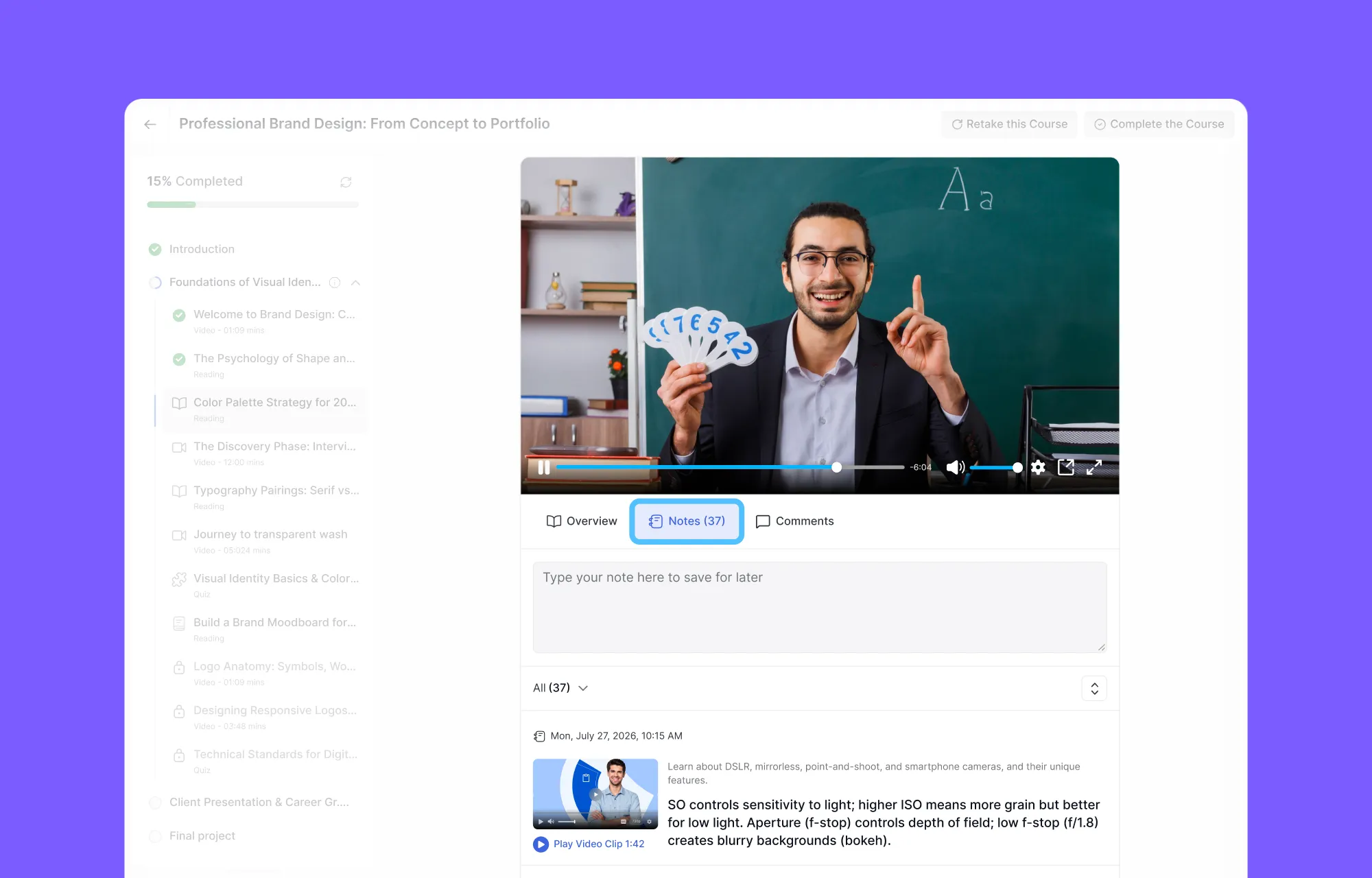
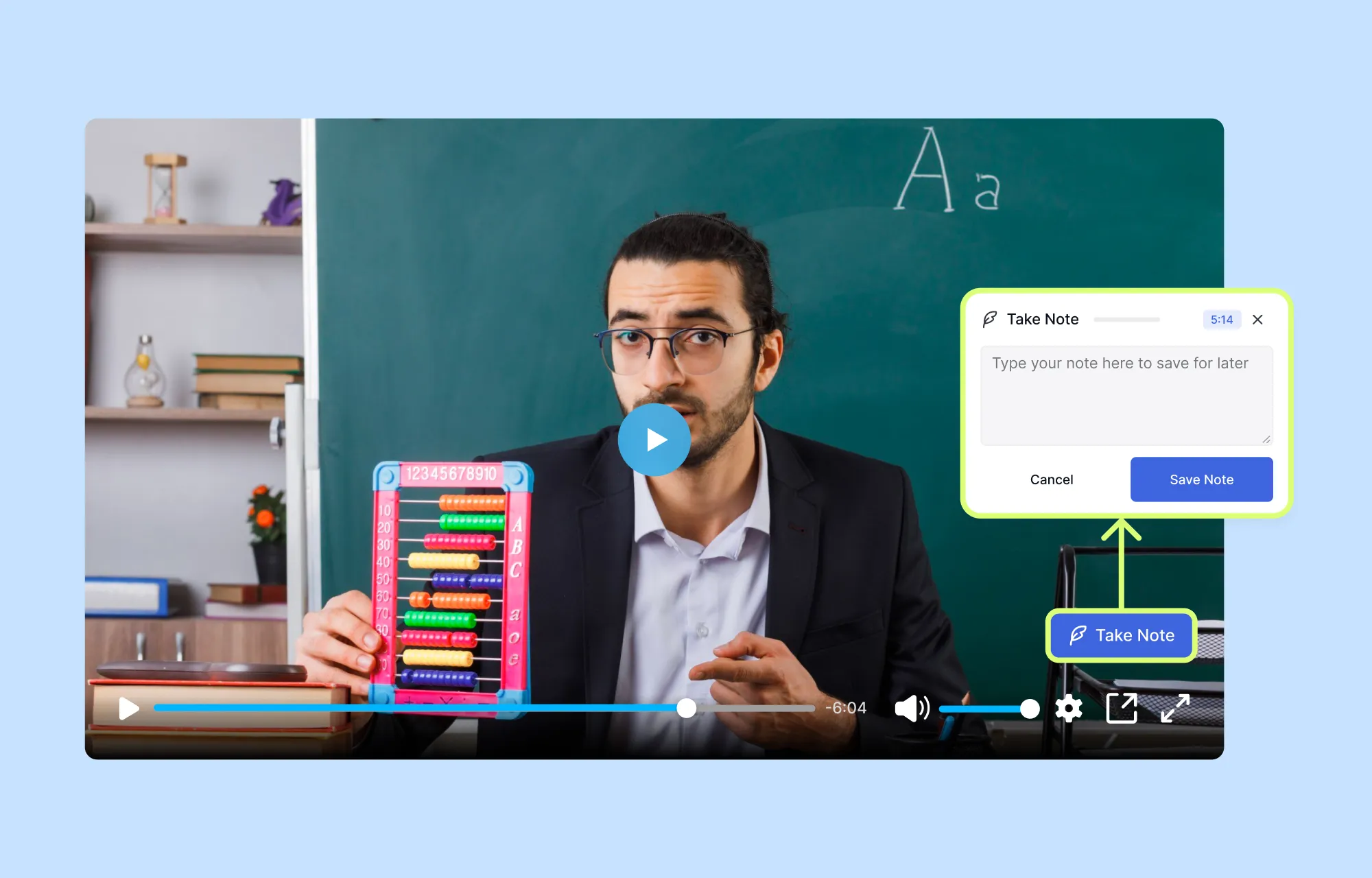
There is also a Take Note shortcut shortcut button which appears when the video is running in fullscreen, so students can jot something down without switching tabs mid-video. For learners who study with intention, this is a small but meaningful feature.
Lesson Comments and Community
Learning is rarely a solo activity. Questions come up mid-lesson. Insights are worth sharing. The Comments tab gives students a dedicated space to engage with each other and with the instructor around the specific content of that lesson.
The comment editor supports basic formatting, so students can write clearly without struggling to express themselves in plain text. Existing comments from other students appear below the input field, making each lesson feel like an ongoing conversation rather than a one-way broadcast.
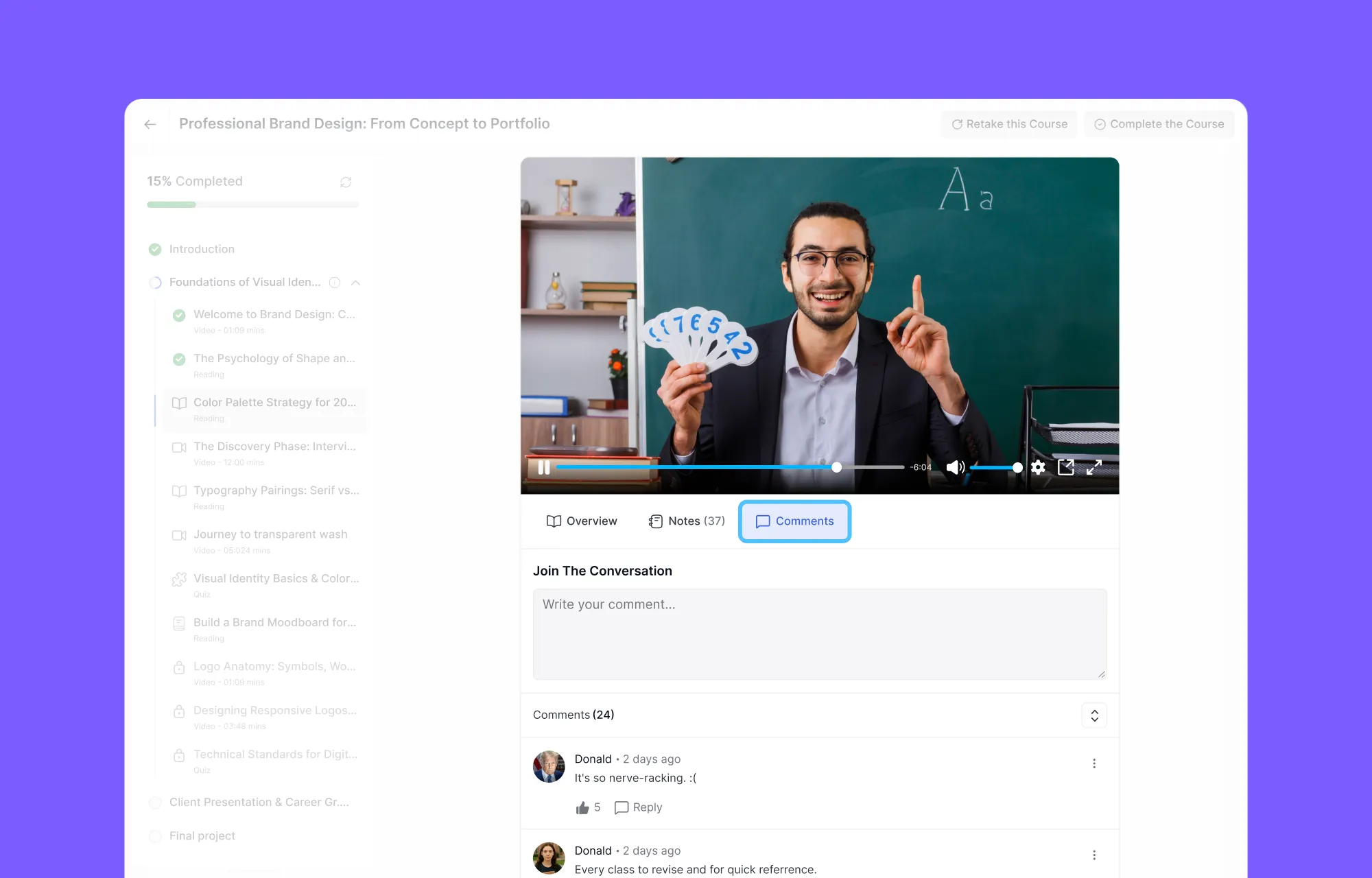
For instructors, this per-lesson discussion is far more useful than a single course-wide forum. Questions are naturally organized by the content they relate to, which makes them easier to answer and easier for other students to find.
Exercise Files: Supporting Materials, Right Where You Need Them
The Exercise Files tab appears automatically when an instructor has attached downloadable files to a lesson. It is even labeled with the file count, for example, “Exercise Files (4)”, so students know immediately that downloadable content is available.
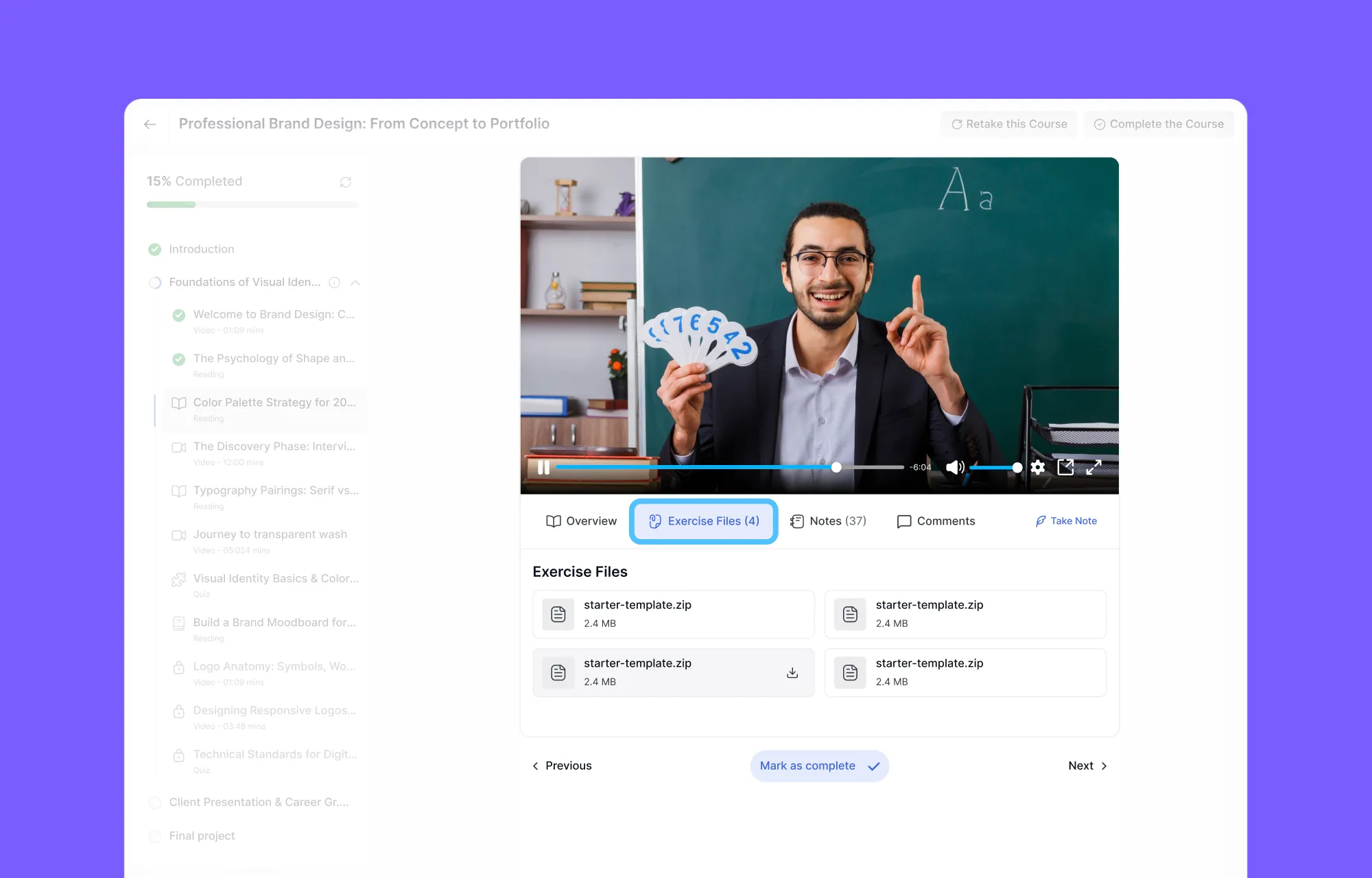
The key benefit of eLearning attachments living inside the lesson itself, rather than in a separate resources section, is proximity. Students do not have to leave the lesson, hunt through a sidebar, or remember where a file was uploaded. The file is exactly where the context for it exists.
Reading Lessons in Tutor LMS
Not every lesson needs a video. Reading lessons in Tutor LMS deliver text-based content directly in the main content area, without any extra navigation or friction.
The layout mirrors the video lesson experience. Students get the same four tabs below the content: Overview, Notes, Comments, and Exercise Files. This consistency is global. Students should not have to relearn the interface every time the lesson type changes.
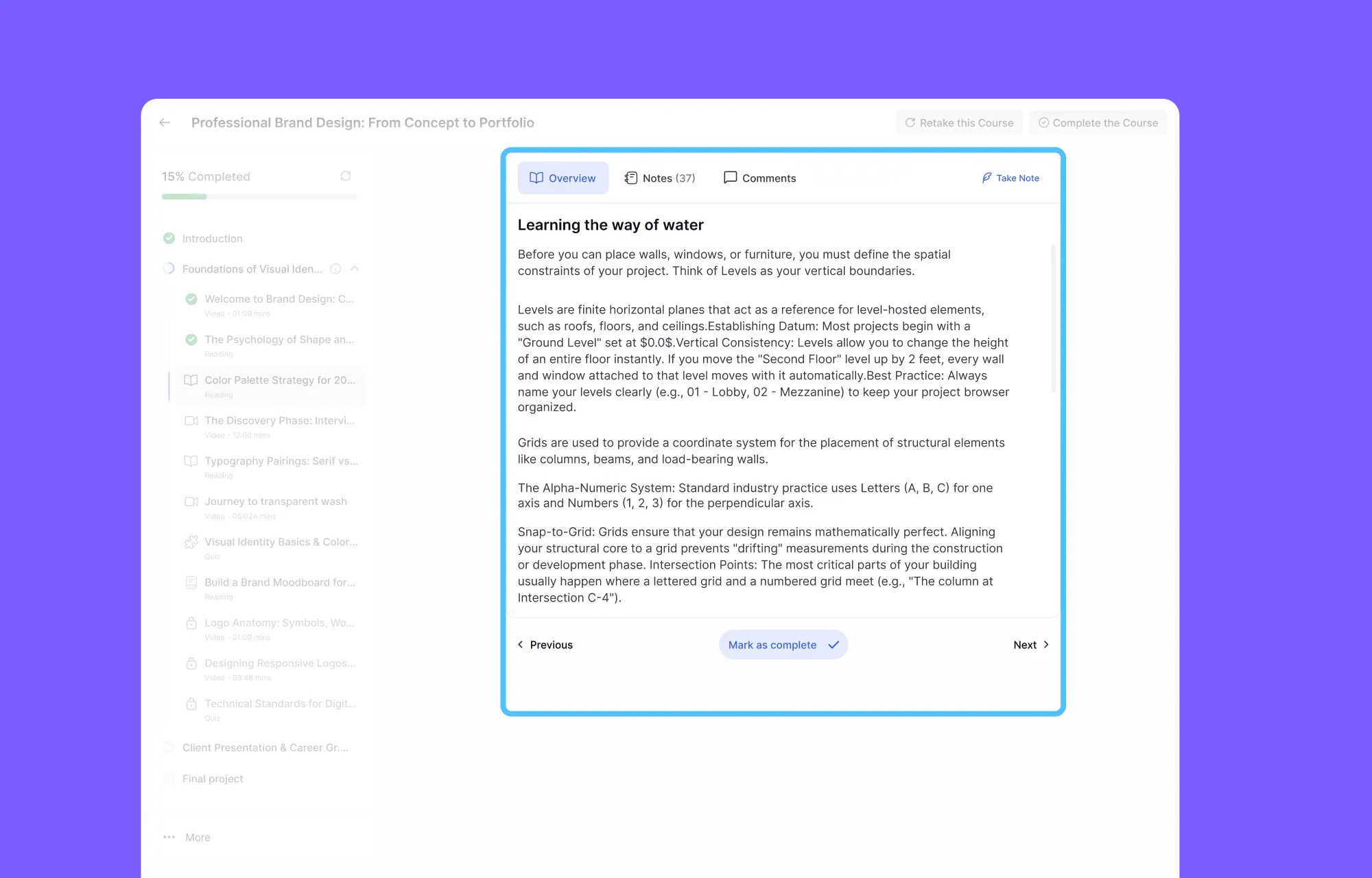
Once a student has finished reading, they can click Mark as Complete to log their progress, or simply click Next to move forward. The choice is theirs, and the progression is seamless either way.
Interactive Quizzes and Streamlined Assignments
Assessments are the point where most students feel the LMS working against them. Unclear instructions, surprise time limits, and no feedback after submission. Tutor LMS takes a different approach, and students notice the difference immediately.
The Quiz Landing Page
Before any quiz begins, students see a dedicated introduction screen. It is transparent by design, showing exactly what to expect:
- Total number of questions
- Passing marks percentage required
- Time limit, if one applies
- Previous attempt history with dates
Two buttons sit at the bottom: Skip Quiz (available only in Flexible mode) to move on, or Start Quiz to begin. Students make an informed choice rather than stumbling into an assessment unprepared.
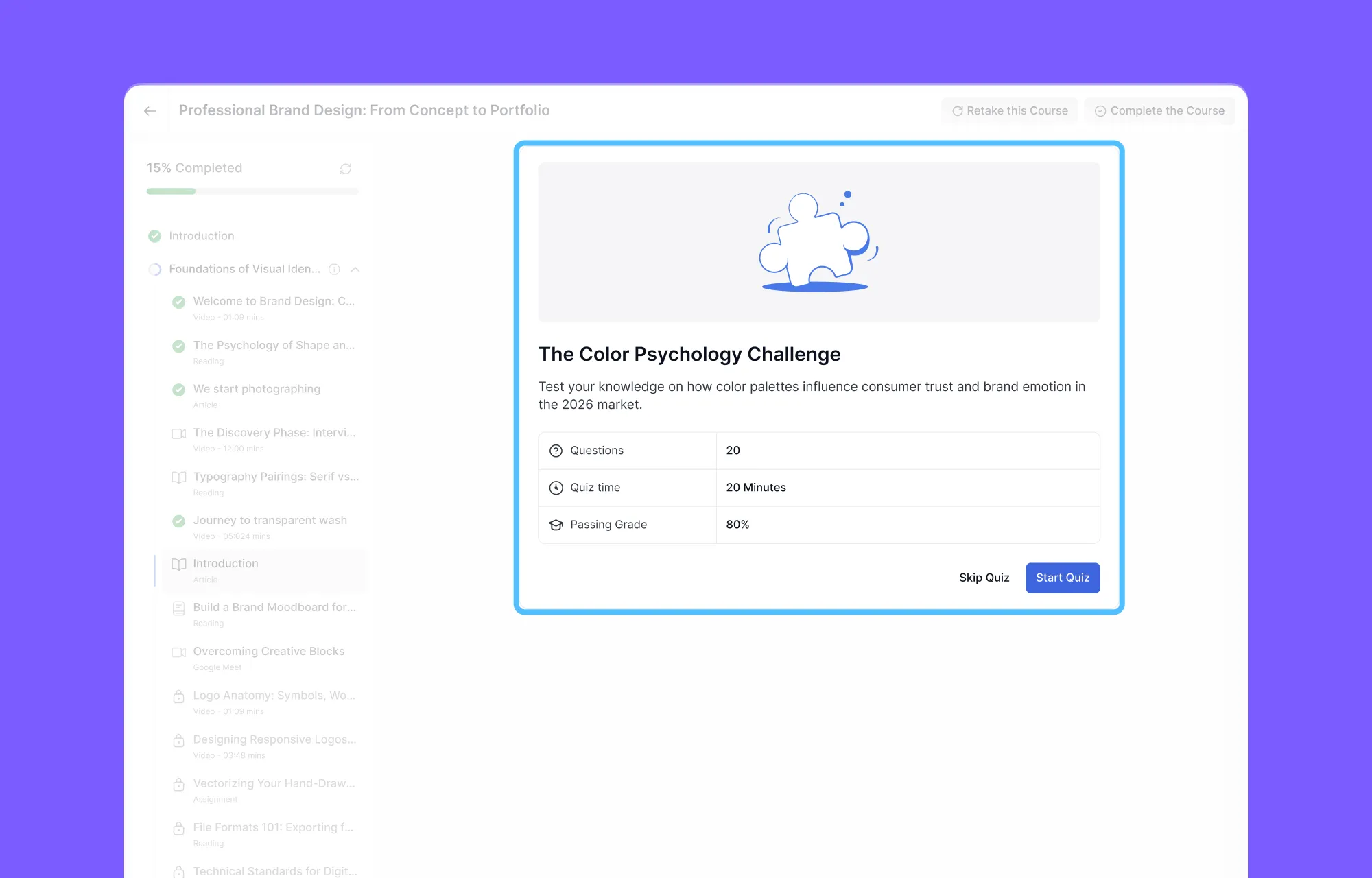
Taking a Quiz
Once a quiz starts, it opens in a dedicated full-screen view. The course title, a live countdown timer, and a clean progress bar are the only things competing for attention. Each question shows its point value clearly, so students always know what is at stake.
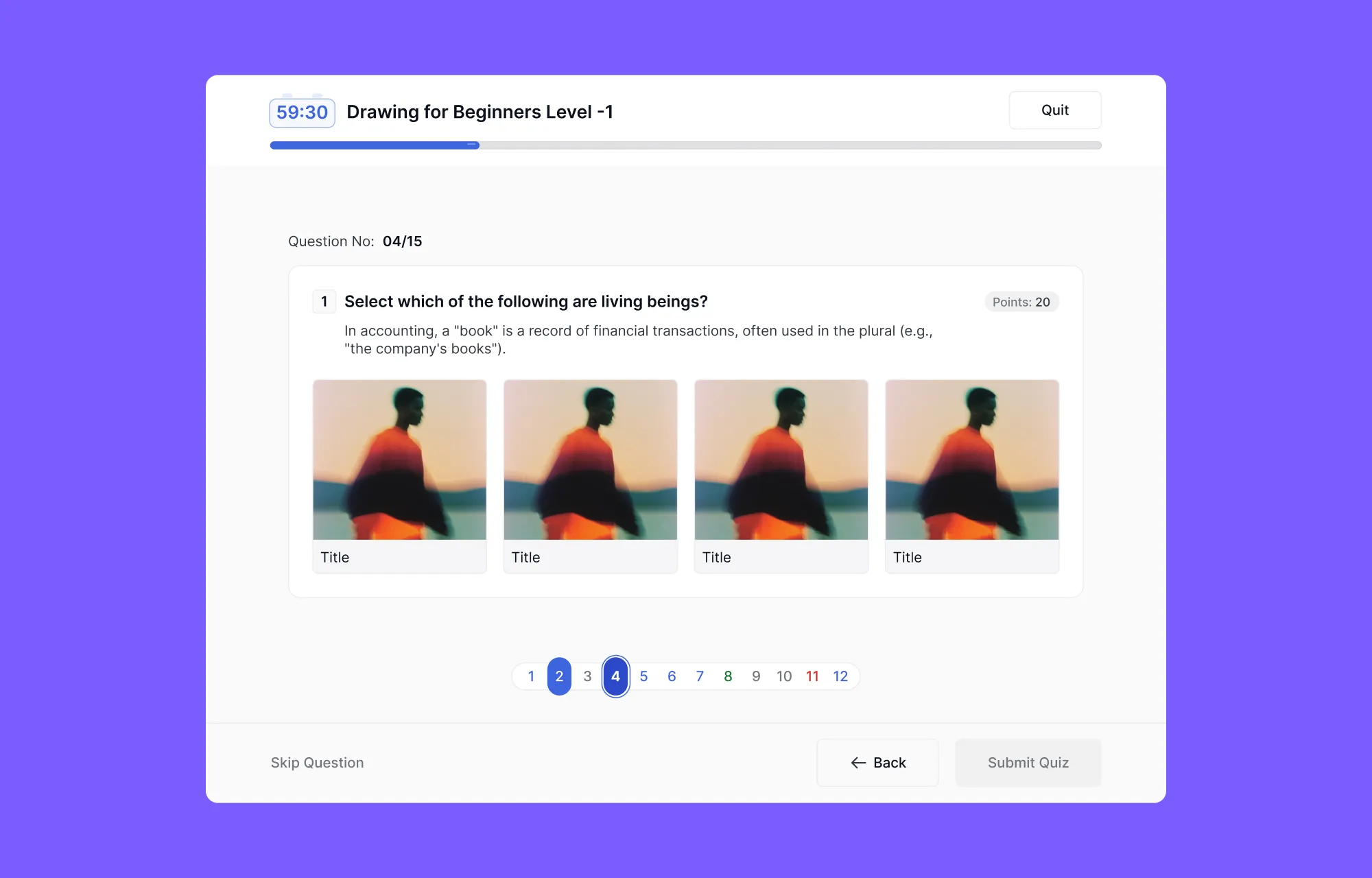
Pagination dots at the bottom of the screen show answered, unanswered, and flagged questions in different colors at a glance. Students can navigate freely between questions, skip, and return. If the instructor has enabled the “Reveal answers after submission” option, a correct or incorrect indicator appears immediately after each response, turning the quiz into a genuine interactive LMS assessment rather than just a grading exercise.
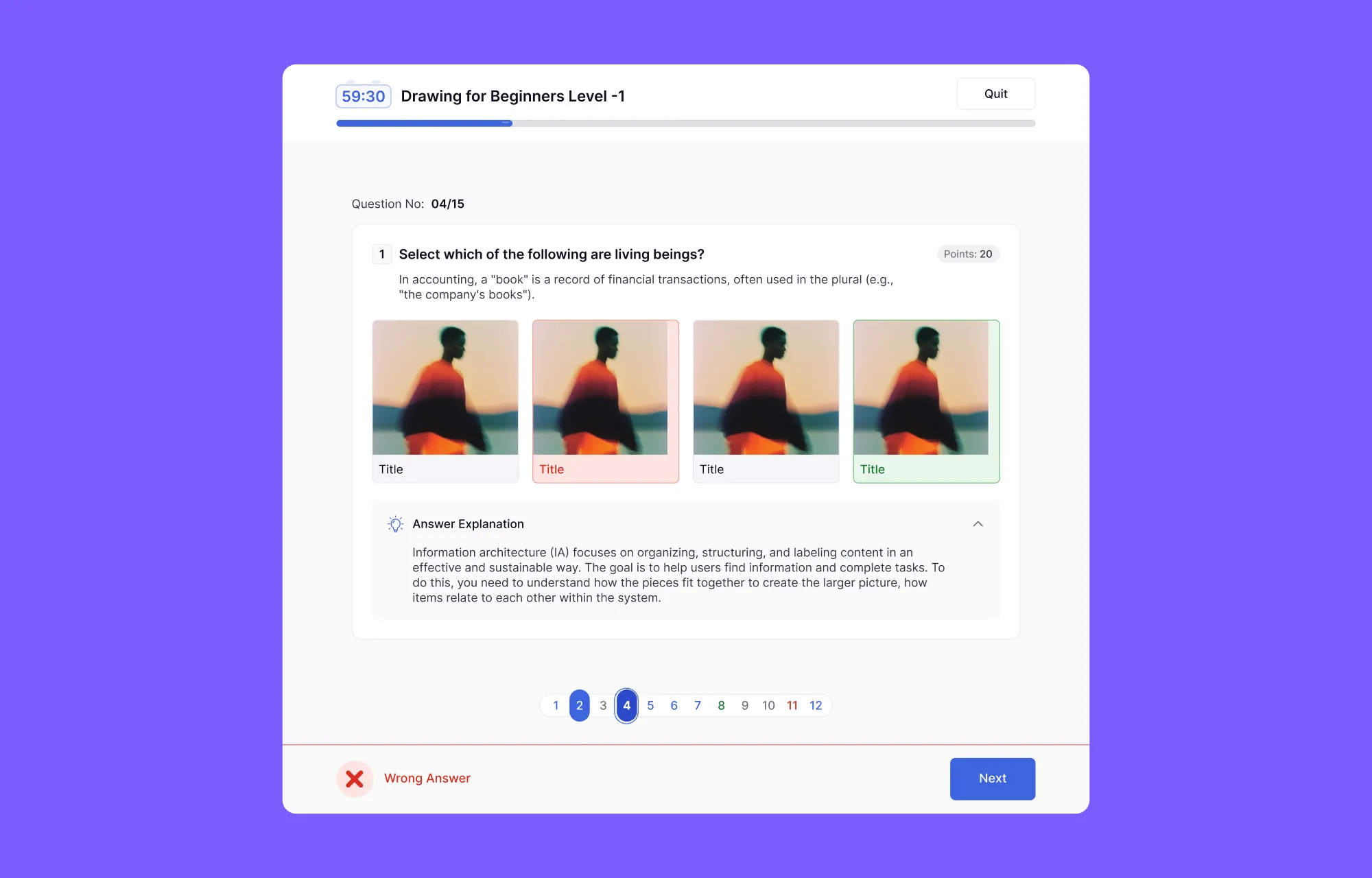
If the instructor added an Answer Explanation to a question, it appears in an expandable section directly below that question.
After the Quiz: Results and Feedback
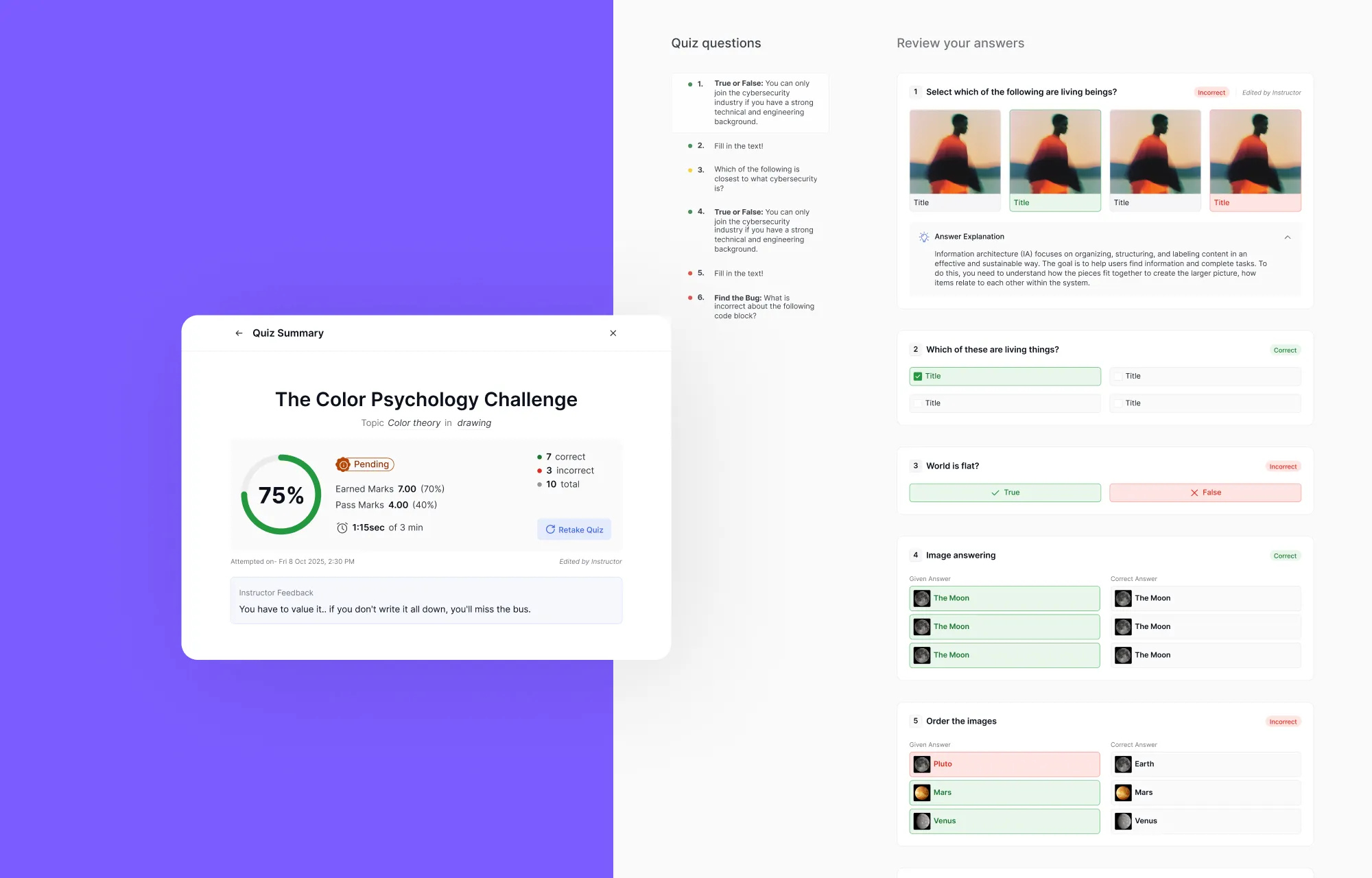
After submission, a confirmation modal appears. Clicking View Results takes students to a detailed Quiz Sumary page showing each question, the student’s answer, and whether it was correct.
Returning to the lesson page, a quick glance at the left curriculum sidebar reveals the immediate status of the quiz. A green checkmark indicates a successful passing grade, while a red ‘X’ clearly highlights a failed attempt.
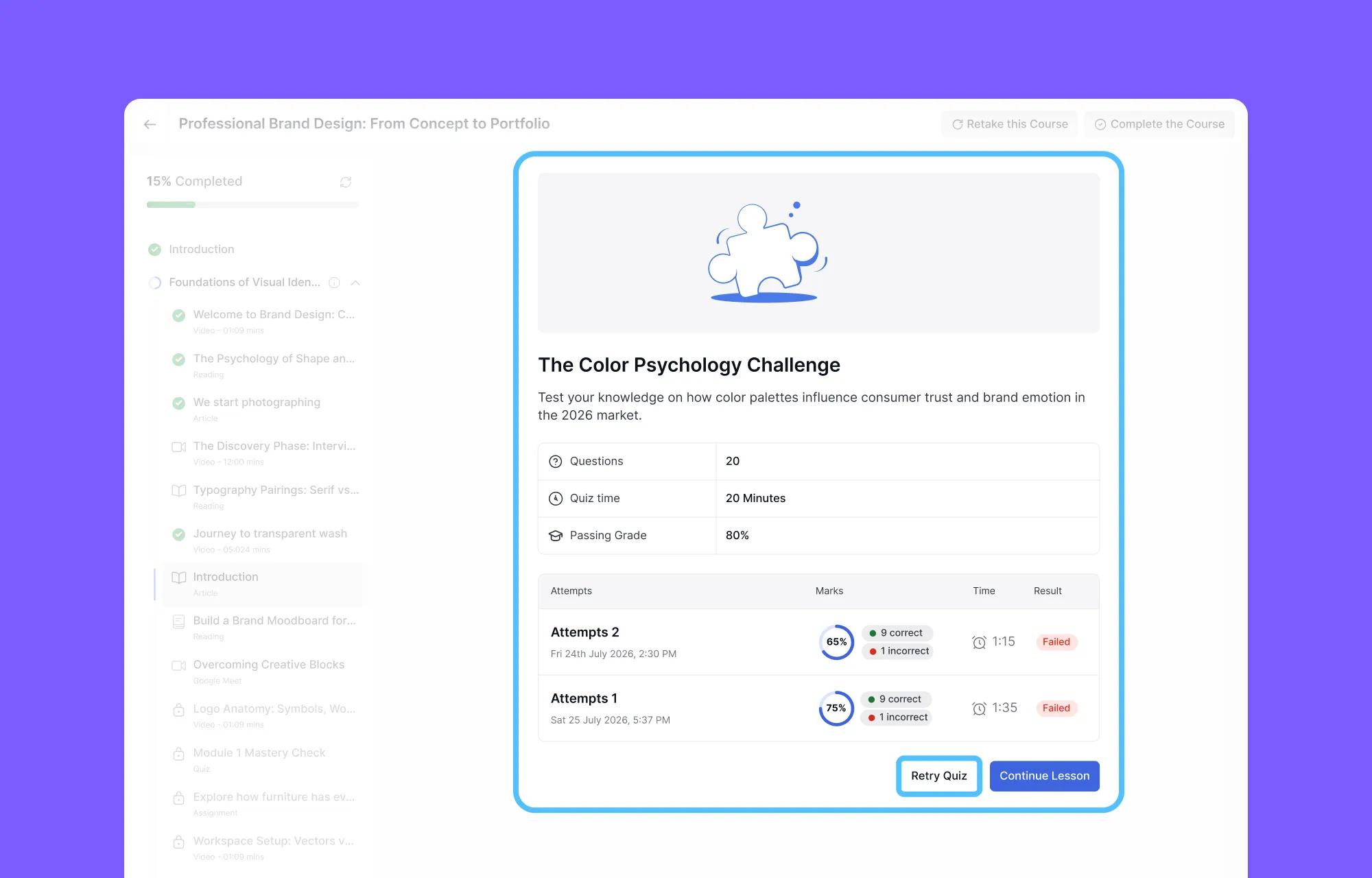
The main content area also updates to display a comprehensive attempt history table. This section provides learners with a transparent breakdown of their past performance. At the bottom of this screen, a Retry Quiz button (if the option is enabled) is readily available so they can try again.
How the Assignment Experience Works in Tutor LMS
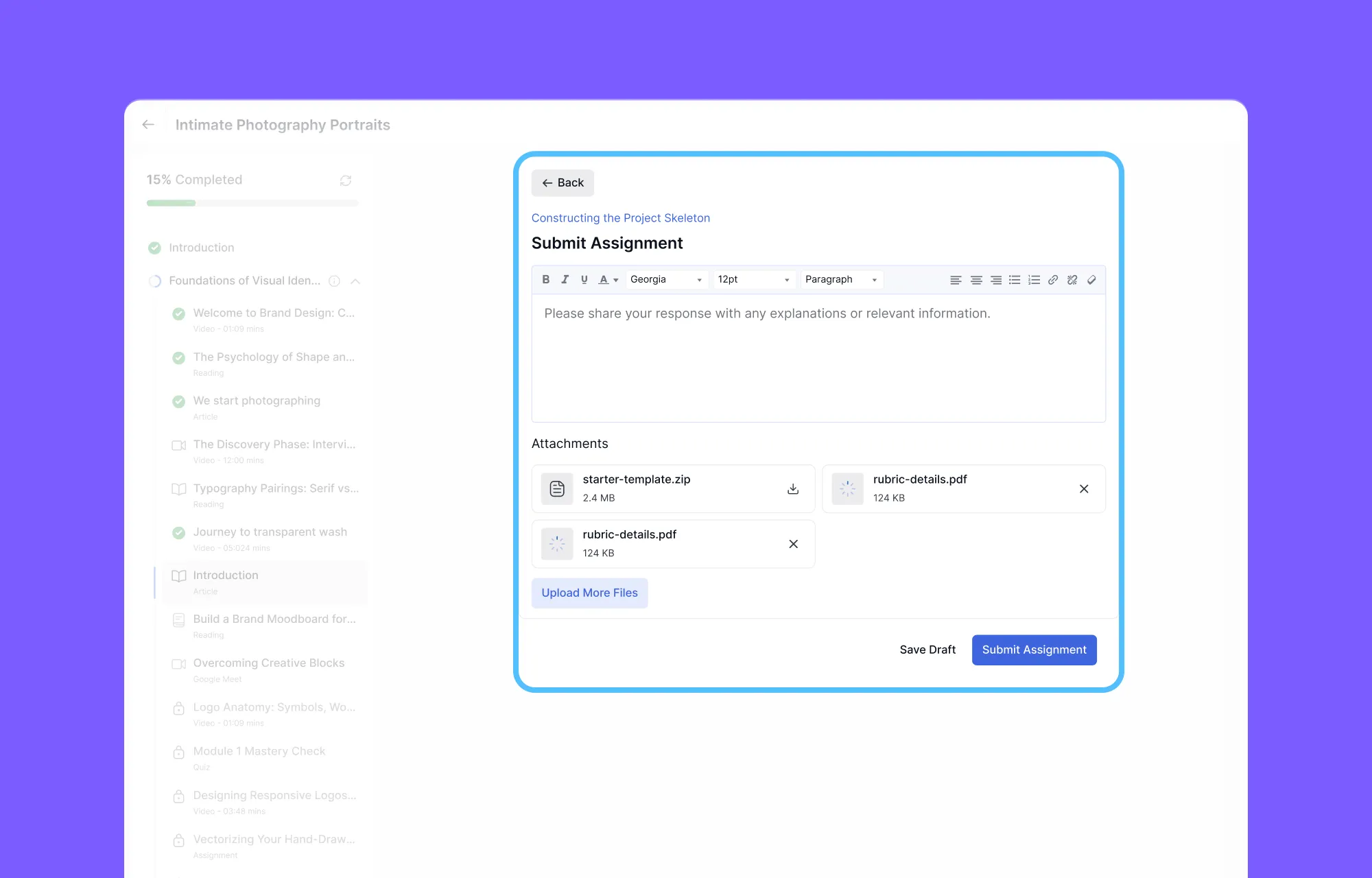
The online course assignment experience in Tutor LMS uses a dual-input method. Students submit work through a rich text editor for written responses, combined with a file upload area that accepts PDF, DOC, DOCX, JPG, and PNG files via drag-and-drop.
After submission, a history table tracks every attempt with a clear status: Pending, Passed, or Failed. If an attempt is still pending, students can edit their submission before it gets graded. If it is marked as failed, a blue Resubmit button appears for a fresh attempt.
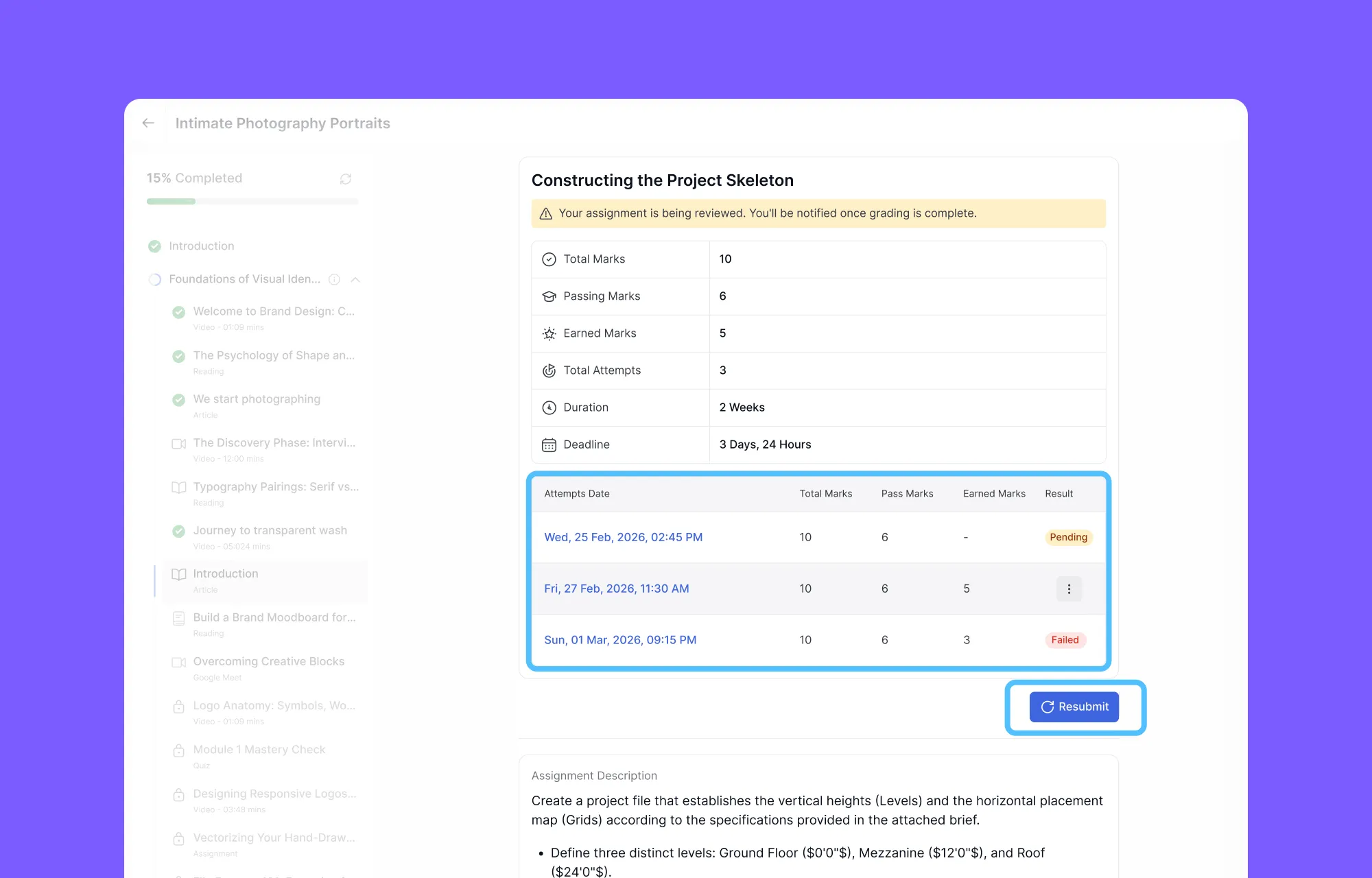
This transparency, being able to see every past attempt, the marks earned, the instructor’s comments, and the option to try again, sets Tutor LMS apart from platforms where the assignment process feels like a black box.
Structured Learning Paths: Content Drip and Course Prerequisites in Tutor LMS
Not every course should be fully open from day one. Some content works better when it is released gradually. That is exactly what Content Drip and Course Prerequisites are designed for in Tutor LMS.
Content Drip: Unlocking Lessons Over Time
Content Drip gives instructors control over when specific lessons, quizzes, and assignments become available to students. Once the addon is active, four distinct delivery modes are available:
- Schedule by Date
- X Number Days After Enrollment
- Sequential
- After Completing Prerequisites
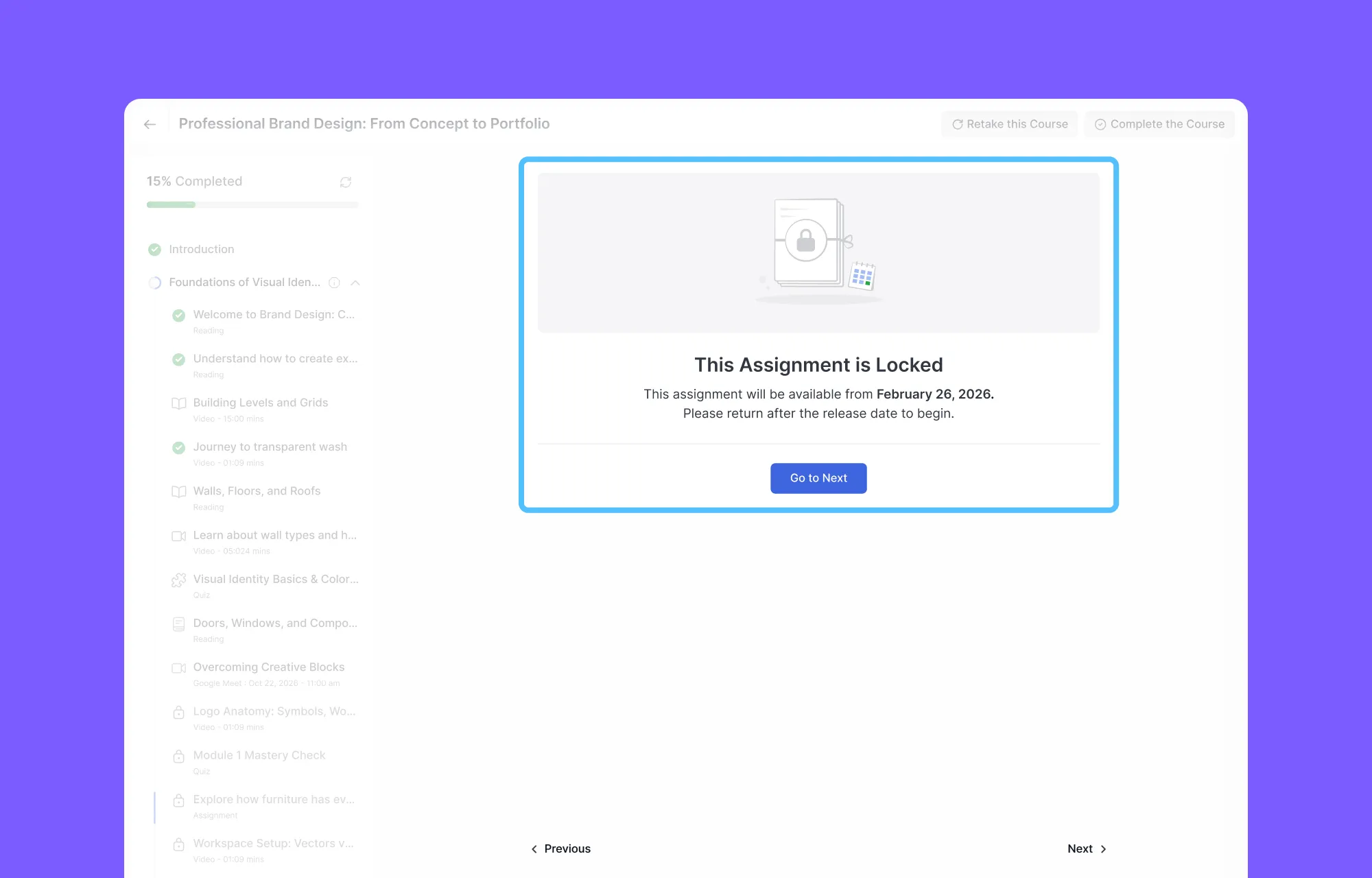
From the student’s perspective, locked lessons appear differently in the curriculum sidebar, clearly indicating that certain content is not yet accessible. This removes confusion and gives learners a sense of structure and progression.
Course Prerequisites
The Prerequisites addon takes structured learning a step further. It allows instructors to build custom learning gates, where a student must complete specific courses or content items before they can access something new.
Students who hit a prerequisite gate see a clear message explaining what needs to be completed first, along with links to the required content. There is no guesswork.
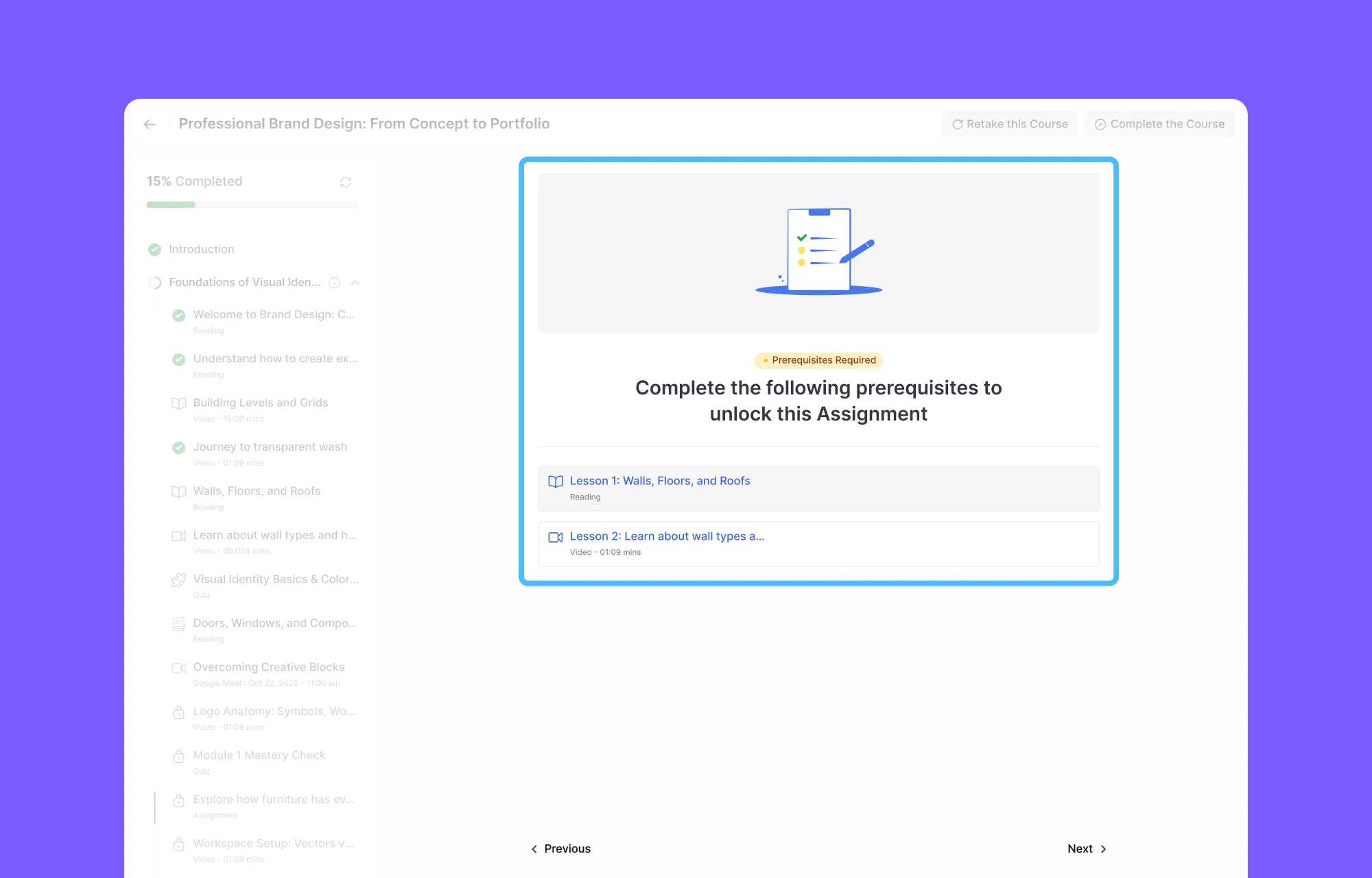
This feature is particularly useful for certification programs, skill-based learning paths, and any course series where foundational knowledge matters.
Joining Live Classes in Tutor LMS (Zoom and Google Meet)
Live classes bring a real-time teaching dimension to Tutor LMS courses. When a course includes a live session, it appears directly in the curriculum sidebar as a lesson item, just like a video or quiz. Students do not need a separate app or link to find the class.
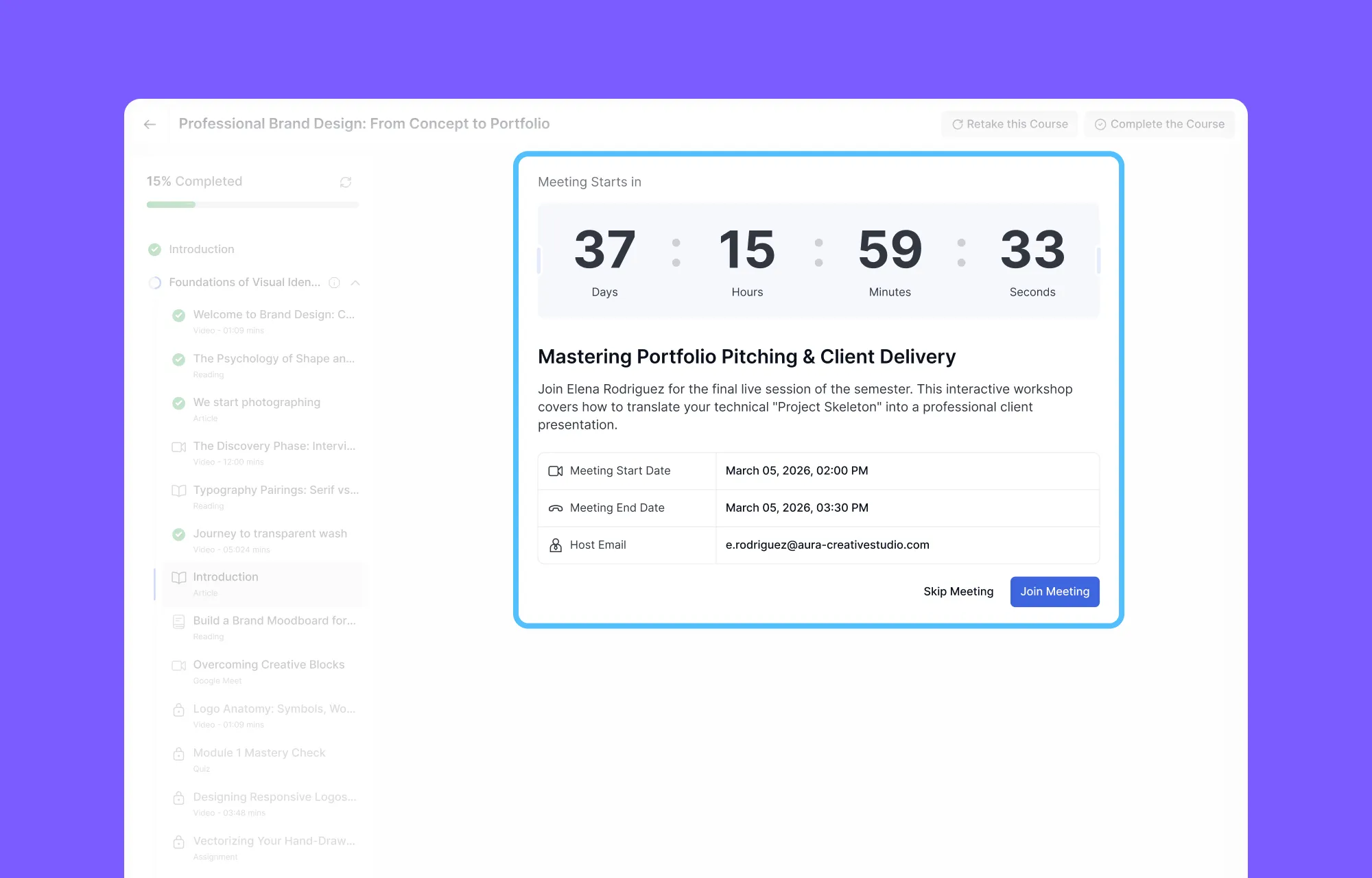
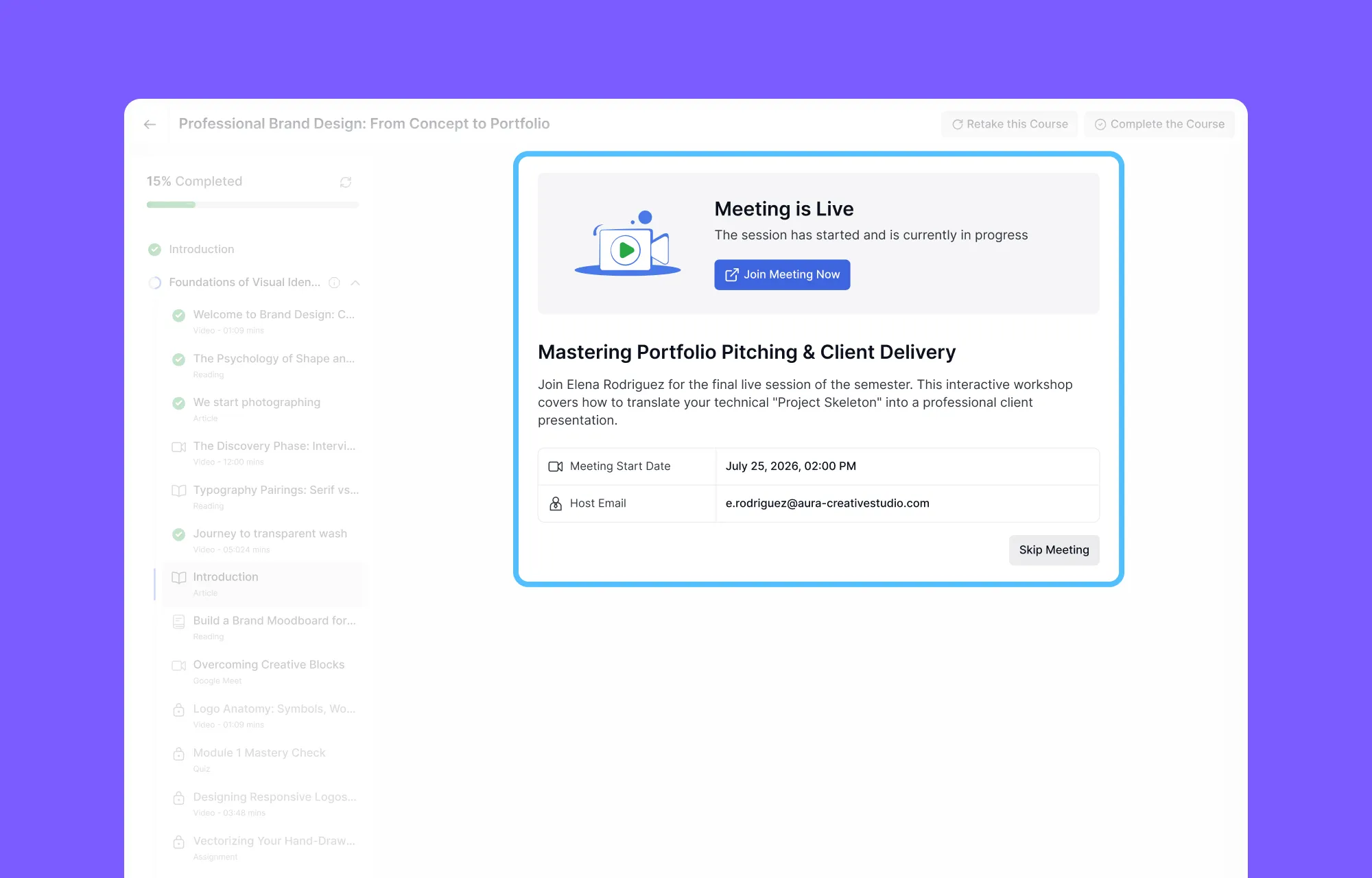
Once the session is live, the screen updates to show a “Meeting is Live” status, and the Join Meeting button becomes active. Students can join with a single click.
If a session has already ended, the screen shows an expired state with a notice and guidance to contact the instructor if further support is needed.
Live classes in Tutor LMS support both the Zoom Integration and Google Meet Integration addons, giving platform administrators flexibility in choosing their preferred live class tool.
Everything in the Tutor LMS Sidebar: Resources, Q&A, Announcements, and Reviews
The curriculum sidebar does more than just list lessons. The More section at the bottom expands to reveal a rich set of course tools, all accessible without ever leaving the learning interface.
Course Resources
While Exercise Files are attached to individual lessons, your instructor can also add broader materials at the course level. These might include a full syllabus, reference guides, project templates, or any files that apply to the course as a whole rather than a single lesson.
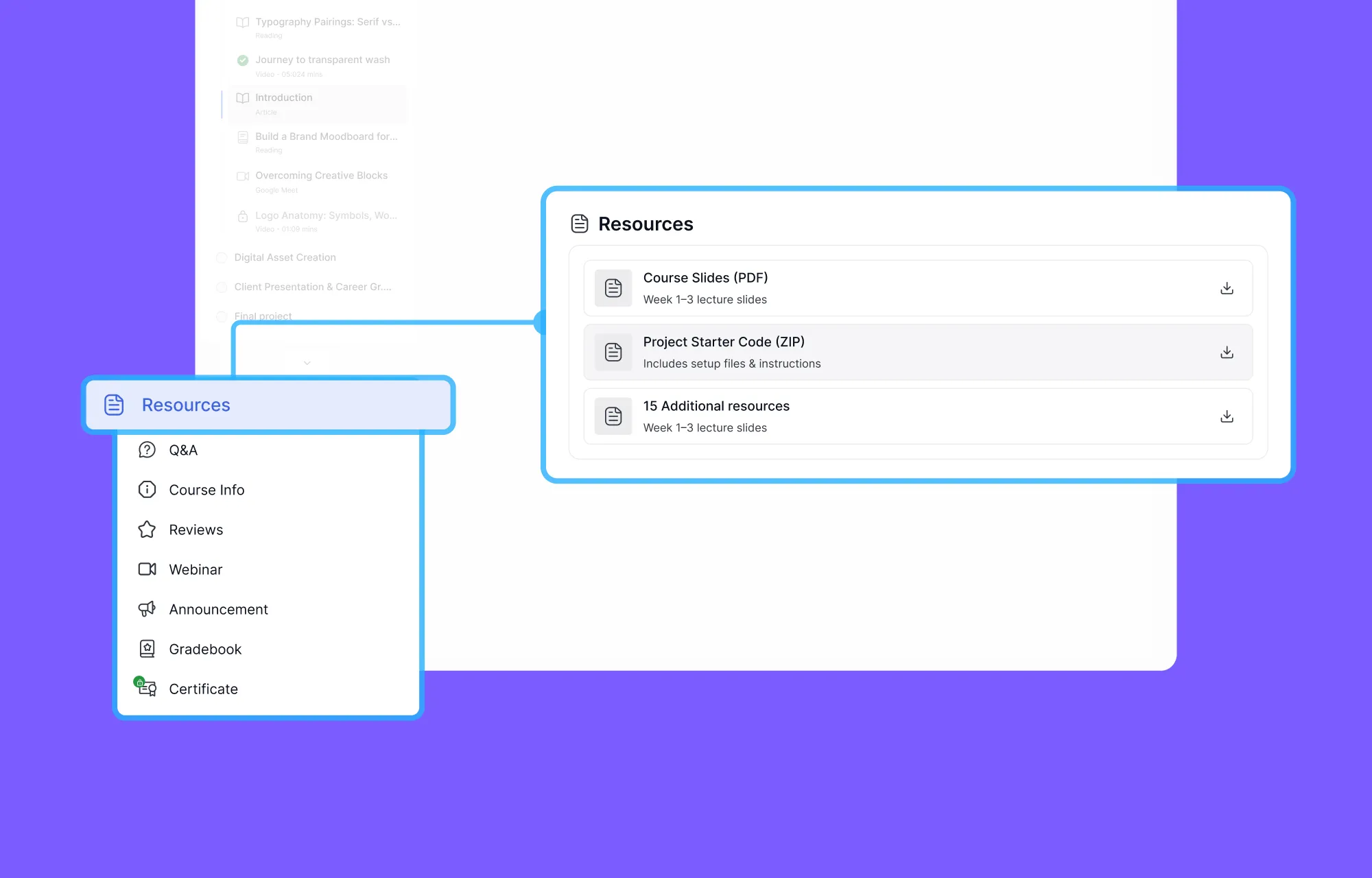
The Resources tab in the sidebar is where all of these live. Each file is listed with its name, a short description, and a download button. If your instructor has not added any course-level files, the section simply shows a “No attachments” message.
Q&A: Ask Questions, Get Answers
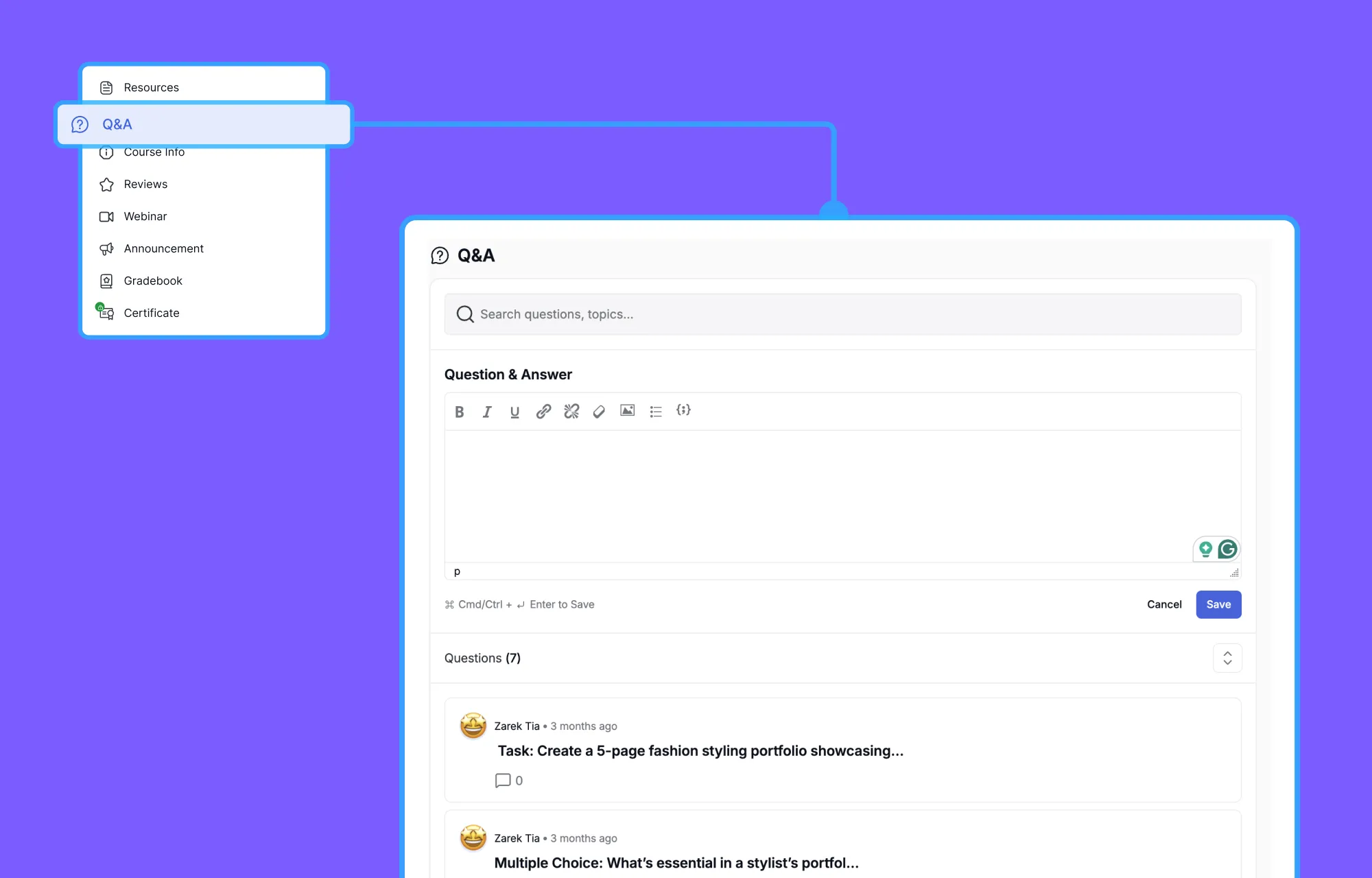
The Q&A section is one of the most practical features in the sidebar. Students can search existing questions using a keyword search bar, ask new questions, and reply to threads started by others.
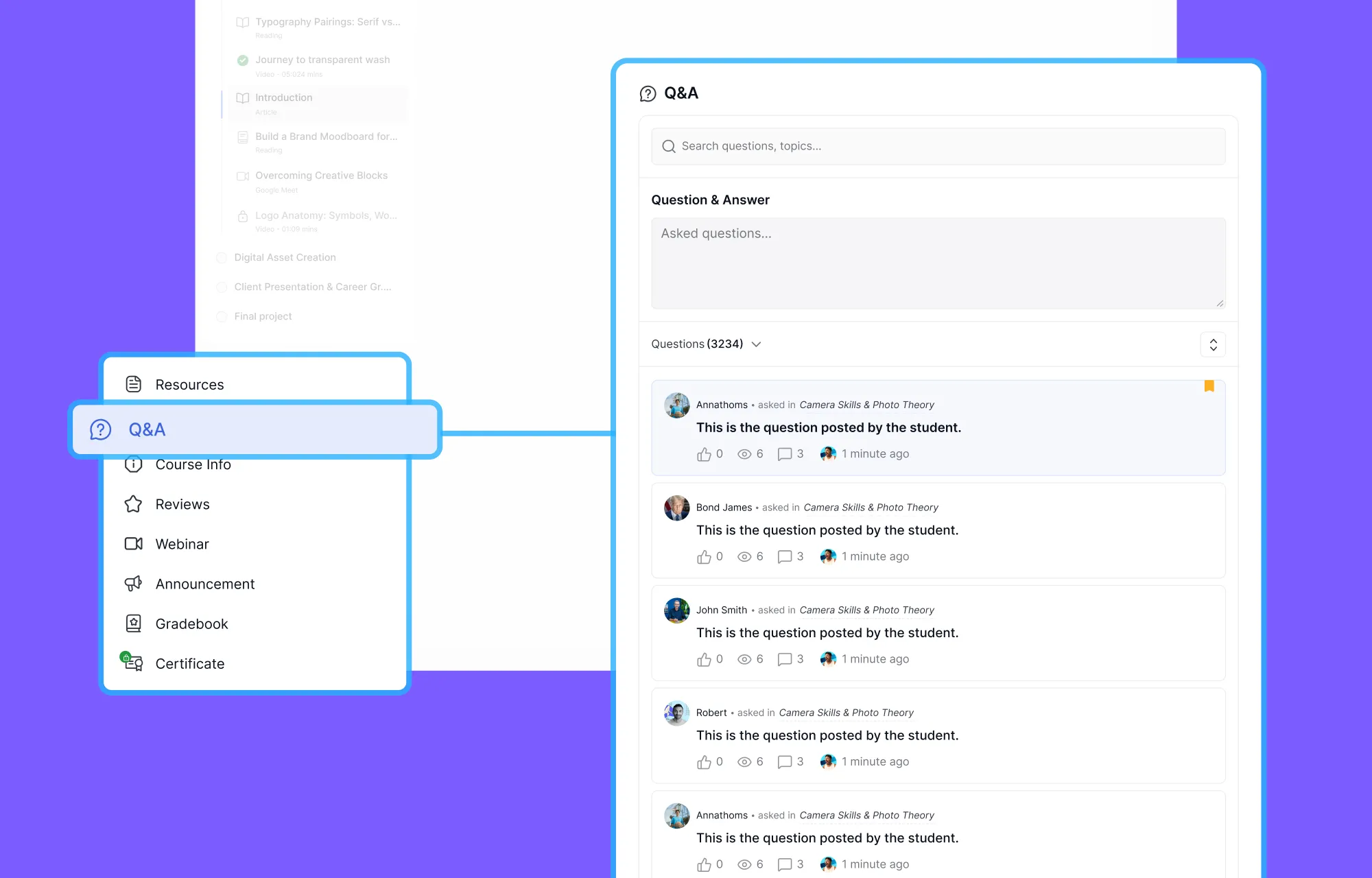
The rich text editor in Q&A supports formatting, links, images, and code, which makes it genuinely useful for technical courses where students might need to share code snippets or screenshots.
Announcements
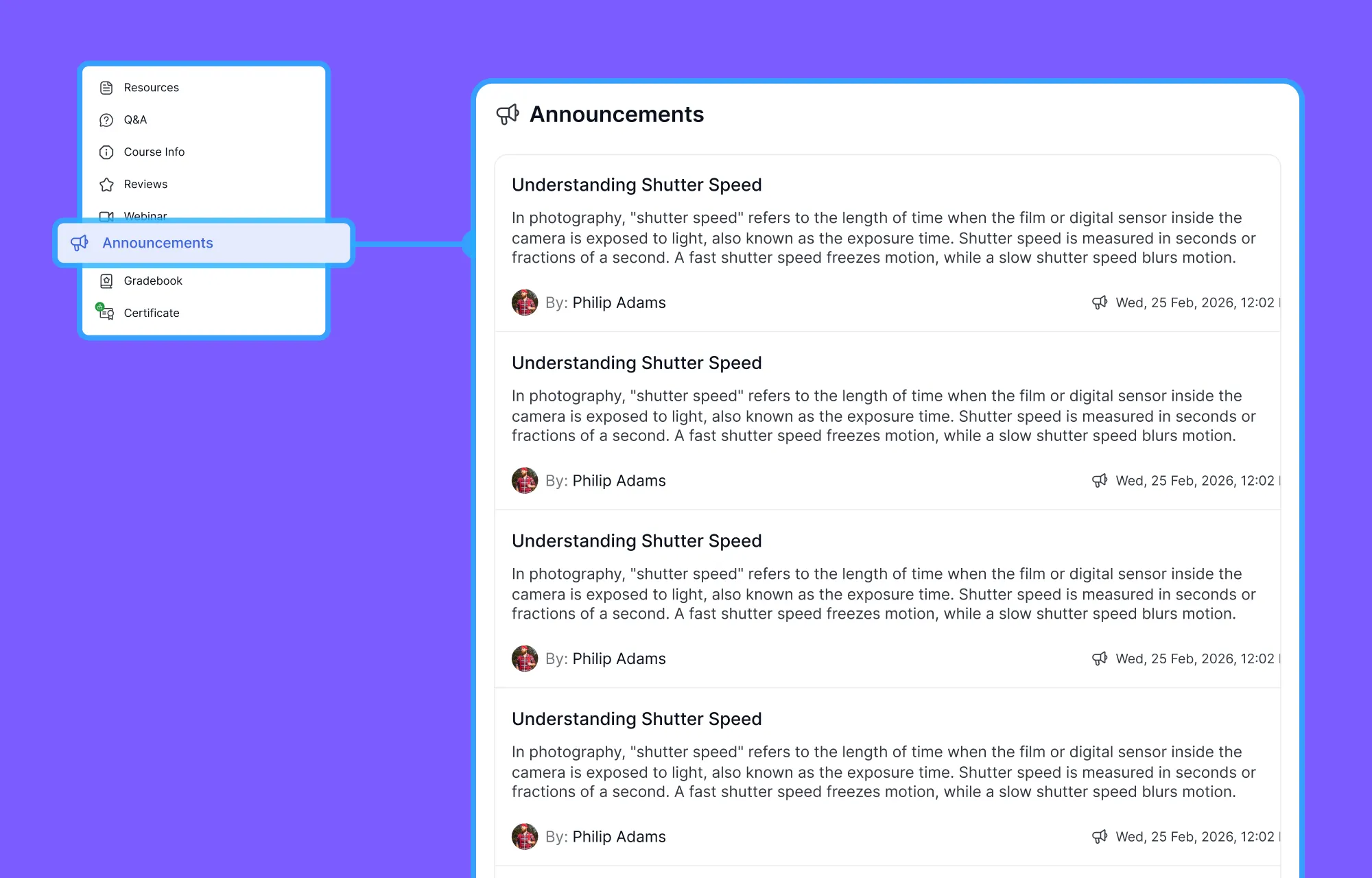
The Announcements section displays course-wide messages posted by the instructor. This is where students find important updates, schedule changes, and information about new materials added to the course.
Each announcement shows:
- The announcement title
- The full message body
- The instructor’s name and avatar
- The date and time it was posted
Course Reviews
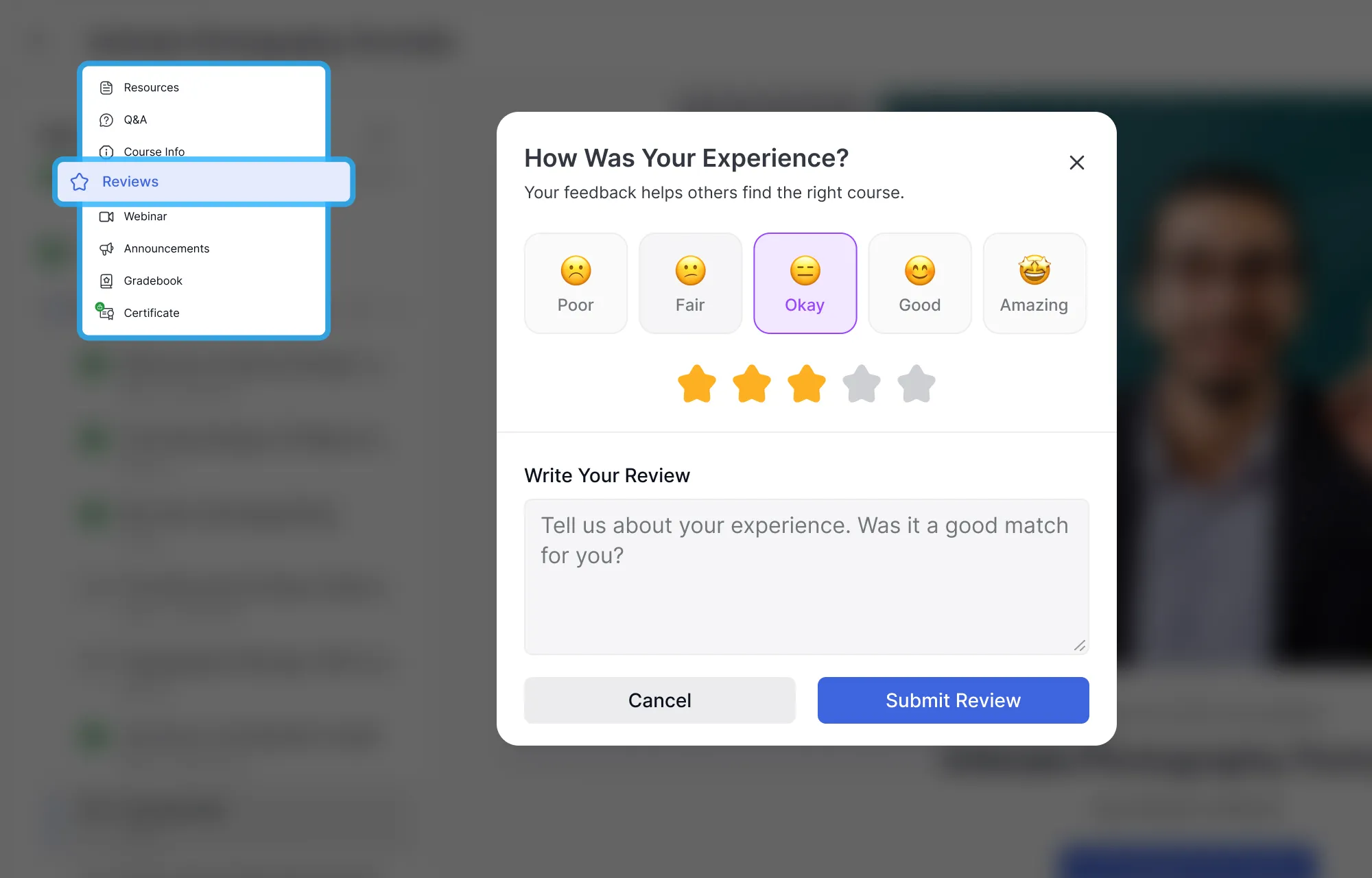
Students can leave a course review at any time through the Reviews section, not just after completion. A Write a Review button is always visible inside the sidebar.
When writing a review, a modal titled “How Was Your Experience?” appears. It offers:
- An emoji-based sentiment rating. Selecting one automatically sets a corresponding star rating.
- A written text area for a more detailed review
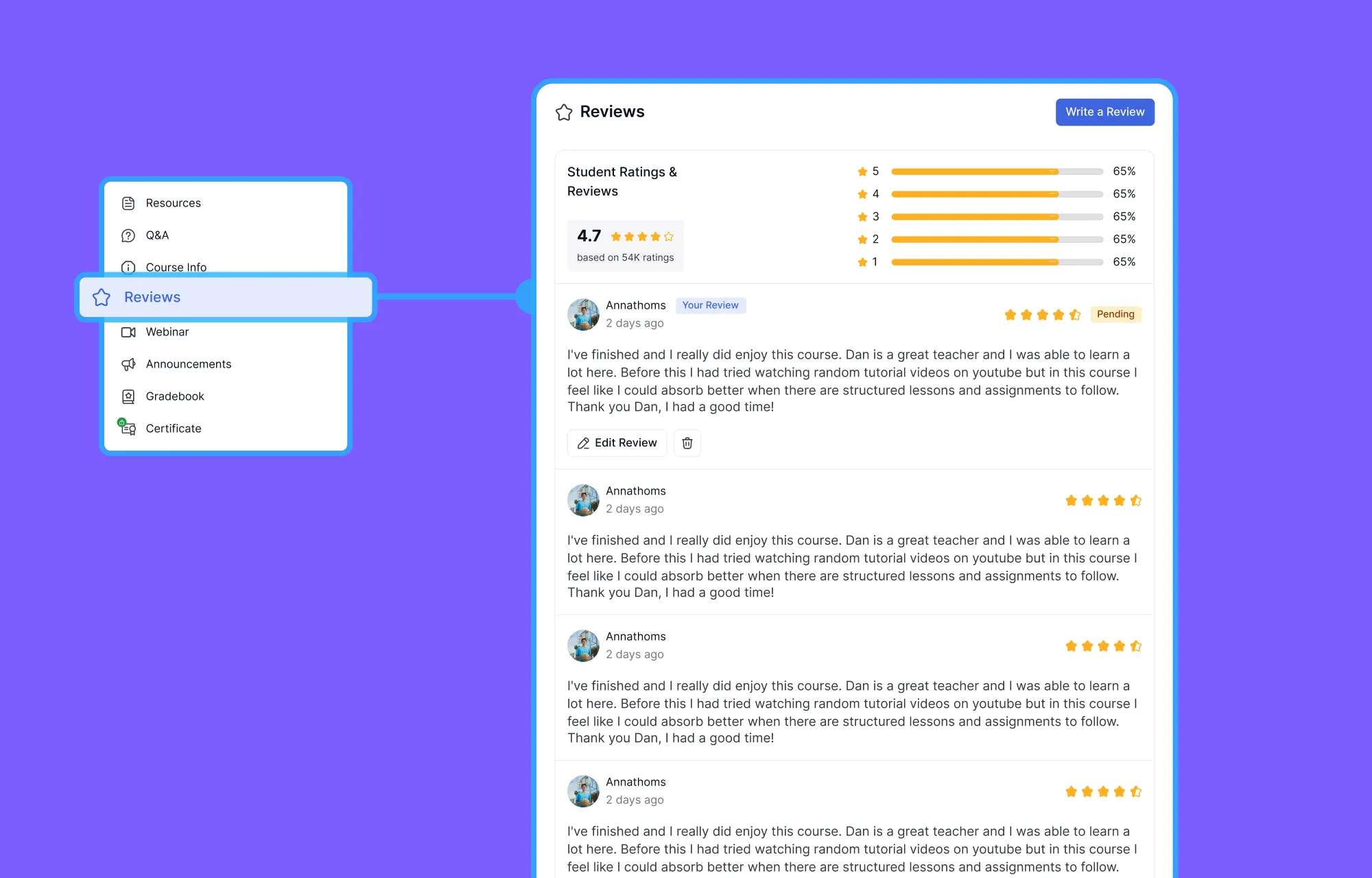
After submitting, the review appears in the Reviews section with a Pending badge until an instructor or administrator approves it. The Reviews page itself shows the overall course rating, a breakdown by star level, all approved reviews from other students, and the student’s own review with options to edit or delete it.
The Student Gradebook in Tutor LMS
For students who are tracking their overall performance across a course, the Gradebook section provides a clear and consolidated view. It is accessible from the sidebar at any time during the course, not just at the end.
At the top of the Gradebook, students see two key pieces of information:
- Final Grade: displayed as a letter grade (for example, A+)
- Overall Performance: a summary such as “7 A+, 3 fail, 10 total”
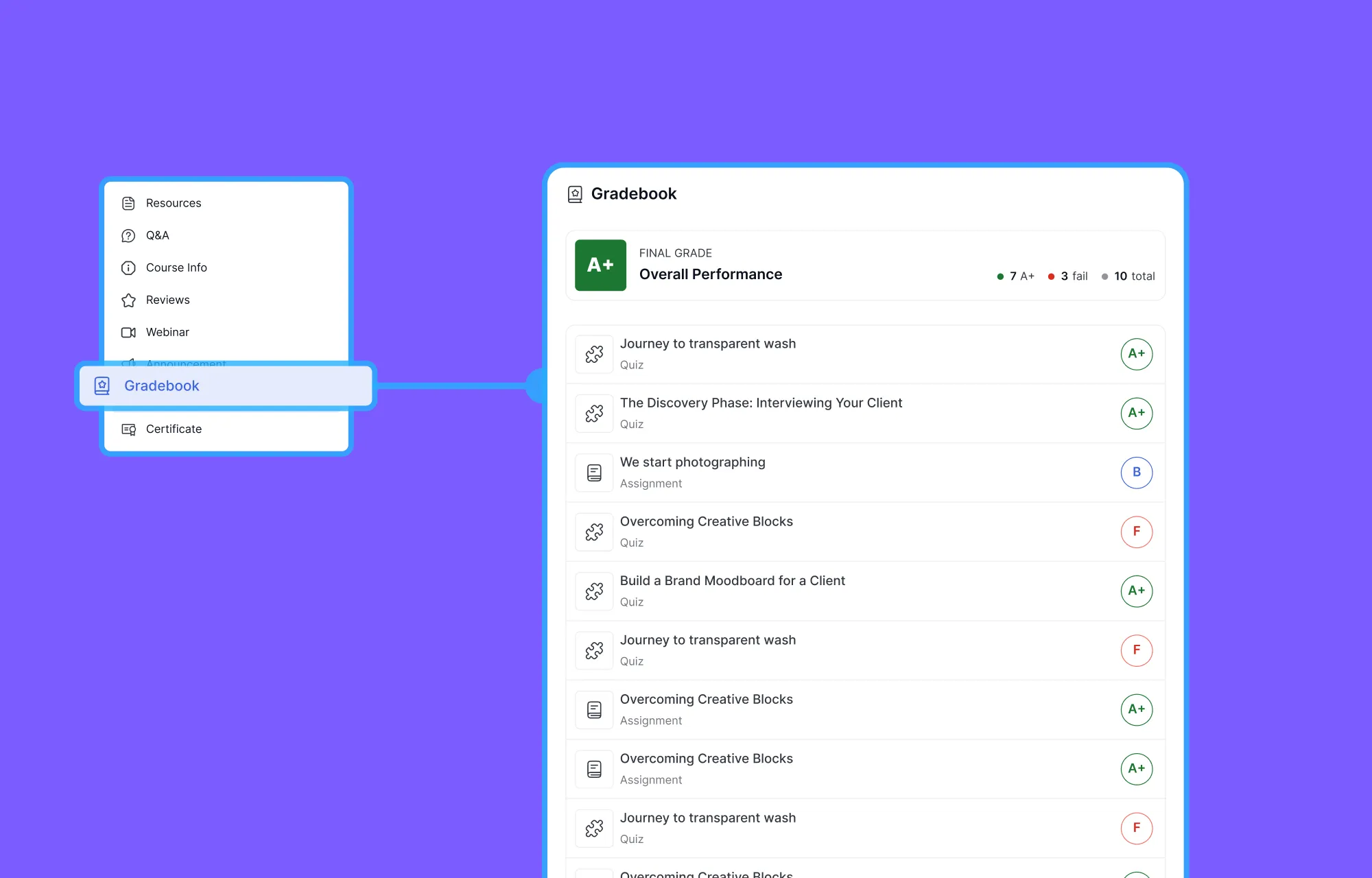
Below that, every graded item in the course is listed with its title, content type (Quiz or Assignment), and the letter grade earned. Students can see at a glance which assessments went well and which ones need improvement.
The Gradebook requires the Gradebook addon to be active on the platform. When enabled, it gives students meaningful academic feedback that goes beyond a simple pass or fail on individual items.
Earning and Sharing Certificates in Tutor LMS
A course certificate is more than just a PDF. For many students, it is proof of effort, skill, and commitment. Tutor LMS treats it that way.
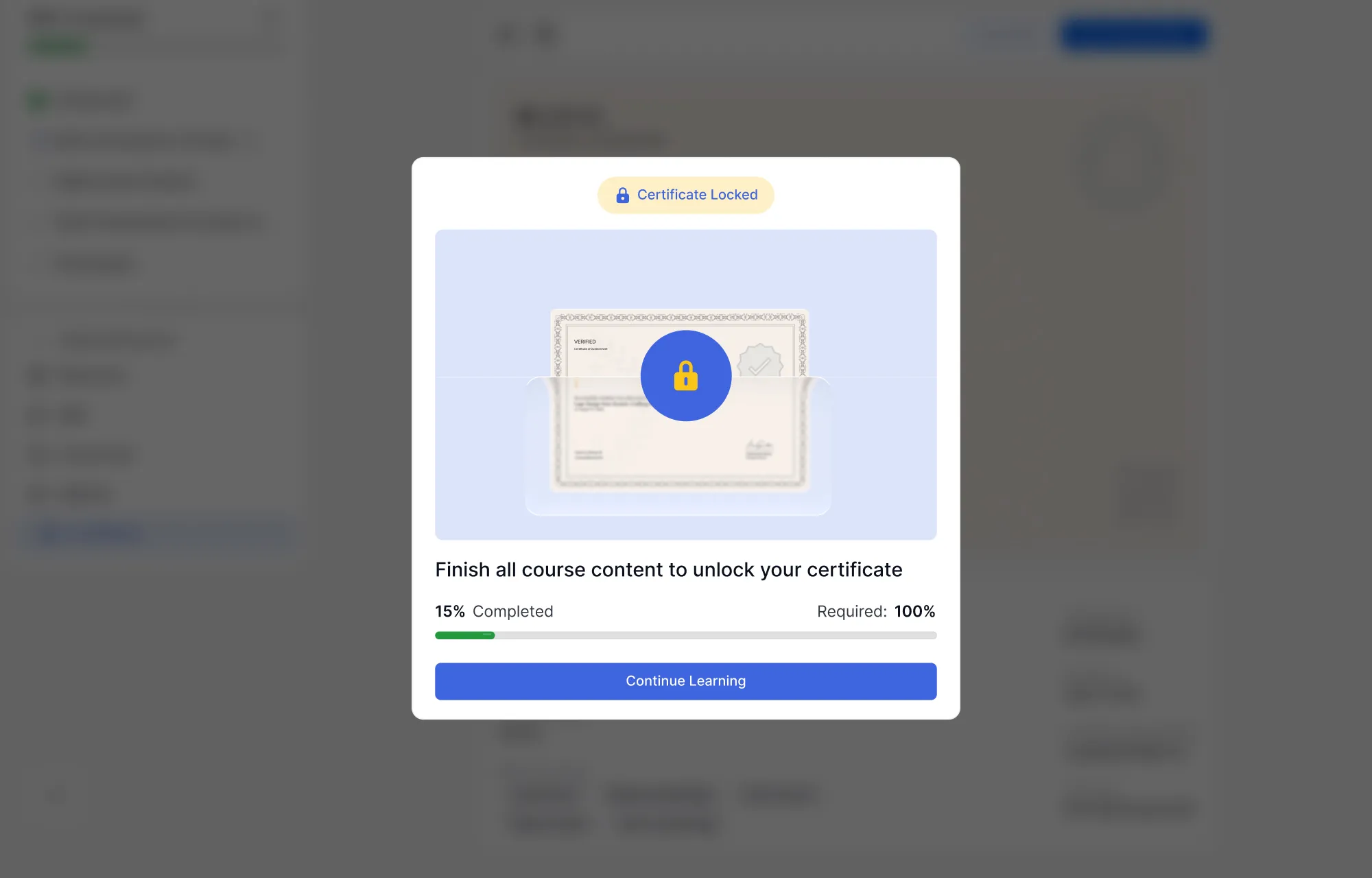
When a student has not yet finished the course, the Certificate section in the sidebar shows a locked preview, along with the message: “Complete the course to unlock the certificate.”
Once the course is finished, the certificate becomes fully accessible. Students then have three options:
- Print Certificate: Opens the certificate in a print-ready preview
- Download Certificate: Saves the certificate as a PDF or JPG file
- Share: A Quick Share modal appears with a direct shareable link and one-click sharing options for Facebook, X (Twitter), LinkedIn, and Email
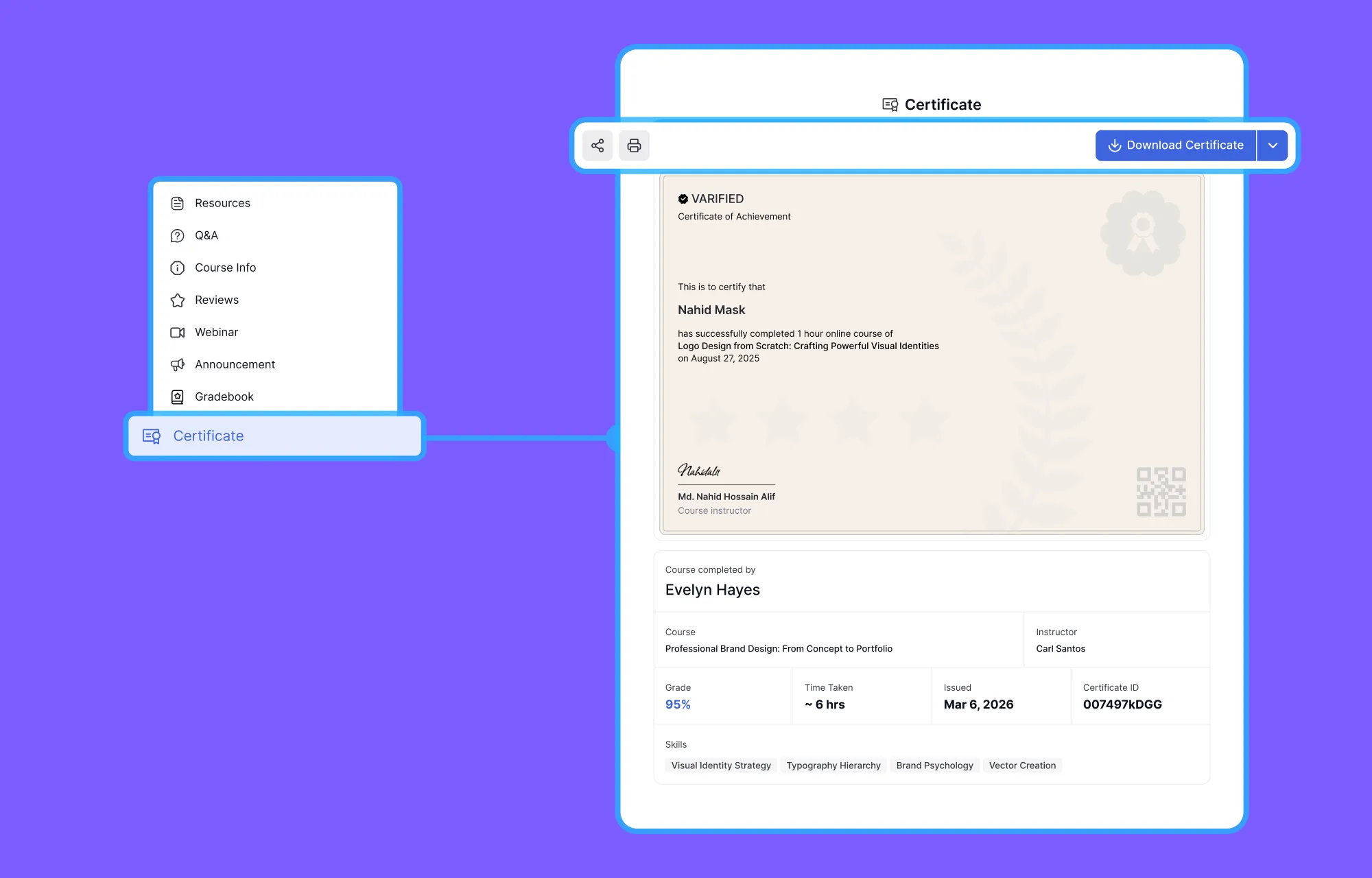
Certificates issued through Tutor LMS also carry a unique verification ID, allowing learners to share credentials professionally and giving recipients a way to confirm authenticity. This allows anyone, an employer, a client, or an institution, to independently verify that a certificate is genuine.
This feature requires the Certificate addon and an assigned certificate template.
The Course Info Panel in Tutor LMS
The Course Info panel is available from the sidebar at all times. It displays the course thumbnail, title, instructor name, enrolled student count, course level, duration, and student ratings. Below that, students can read the full “About This Course” description and the “What You’ll Learn” breakdown.
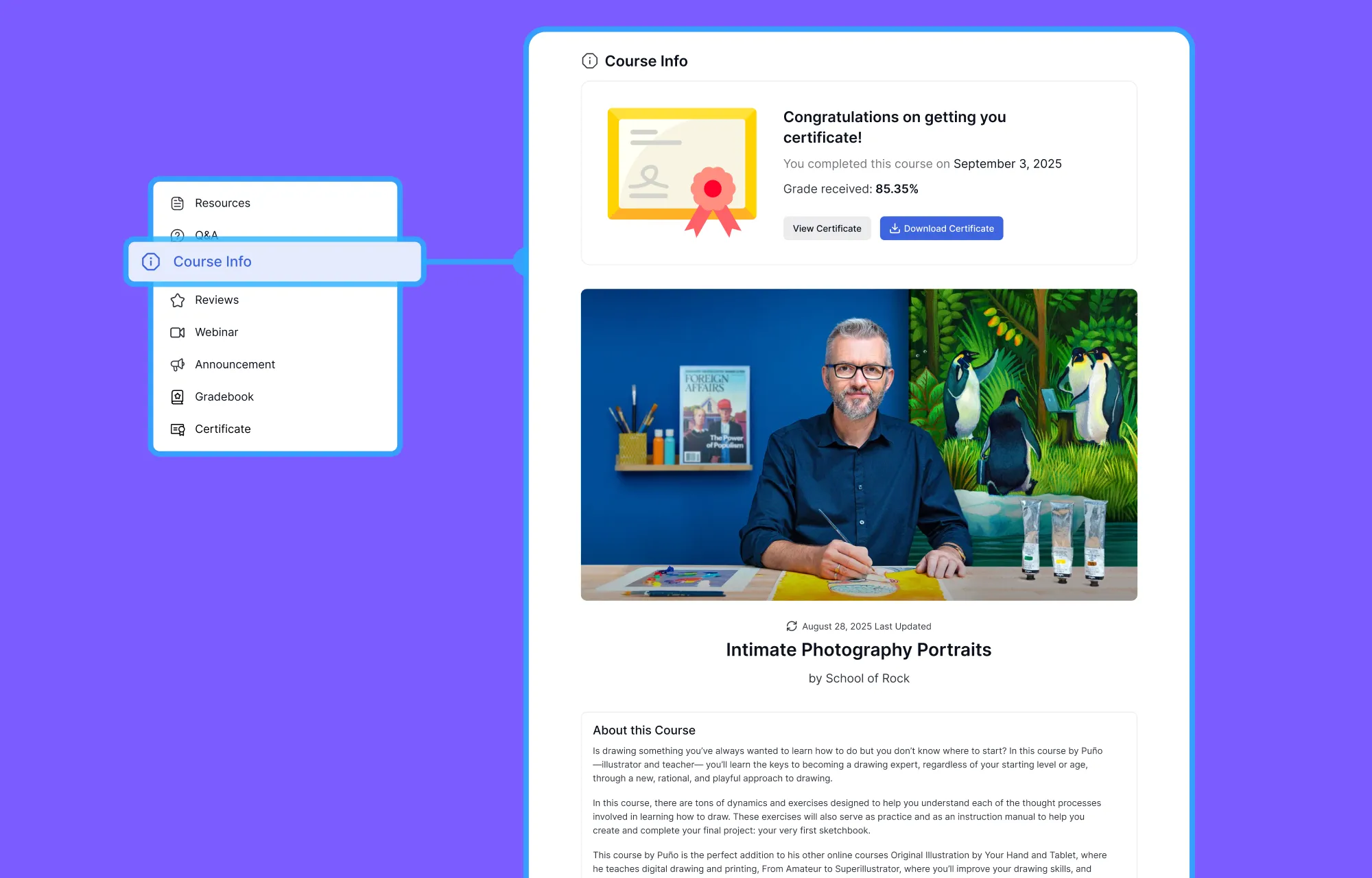
After completing the course, the panel adds a congratulatory message at the top, along with the completion date, the student’s grade if Gradebook is enabled, and buttons to view or download the certificate.
A Learning Experience Built Around You
YouTutor LMS delivers a student learning experience that very few WordPress LMS platforms come close to matching. The redesigned interface reduces friction. The quiz engine covers more interaction types than any comparable plugin. The assignment flow is transparent and flexible. The certificate system is both shareable and verifiable.
Most importantly, all of it was built for the person sitting in front of the screen, trying to learn something. That learner-first mindset is what makes Tutor LMS 4.0 genuinely different.

Start Using Tutor LMS Today
Ready to take your online courses to new heights? Download Tutor LMS now and enjoy a journey of eLearning excellence.