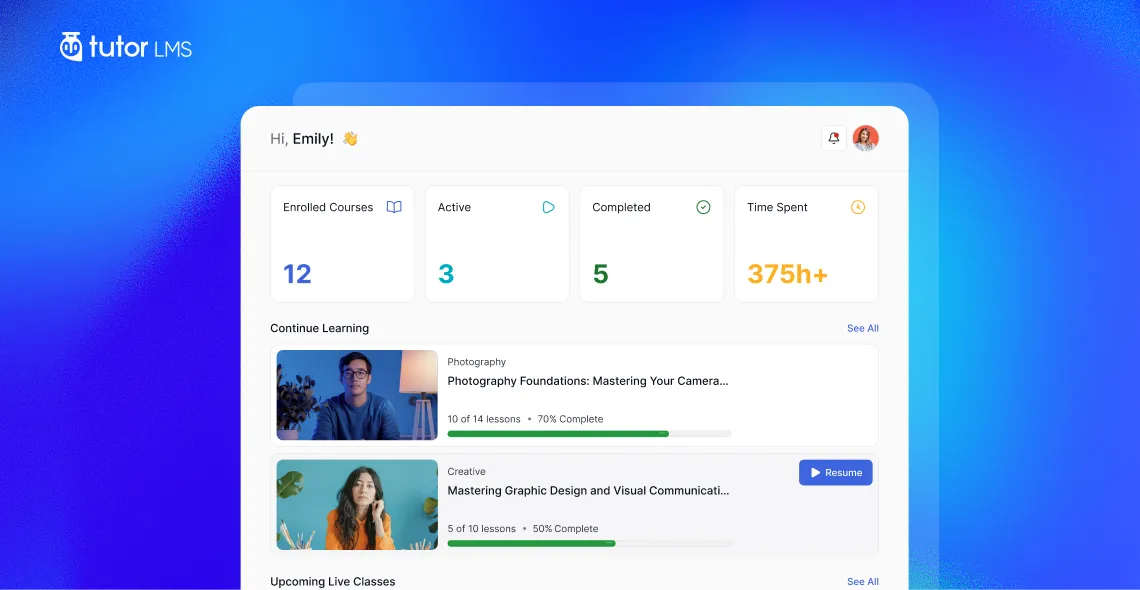
The hardest moment in online learning often comes right after you log in. You open the course platform, and the questions start immediately: Where did I stop? What is due next? Did I pass that quiz? That uncertainty, even if it only lasts a few minutes, is enough to break momentum.
The Tutor LMS learner dashboard was built to answer those questions before you have to ask them. It is a unified WordPress LMS student portal where your courses, notes, quiz history, discussions, schedule, and account settings all live in the same place. Each section below covers what the dashboard includes, how each area works, and why it matters for your day-to-day study routine.
Your Tutor LMS Dashboard Home Screen Explained
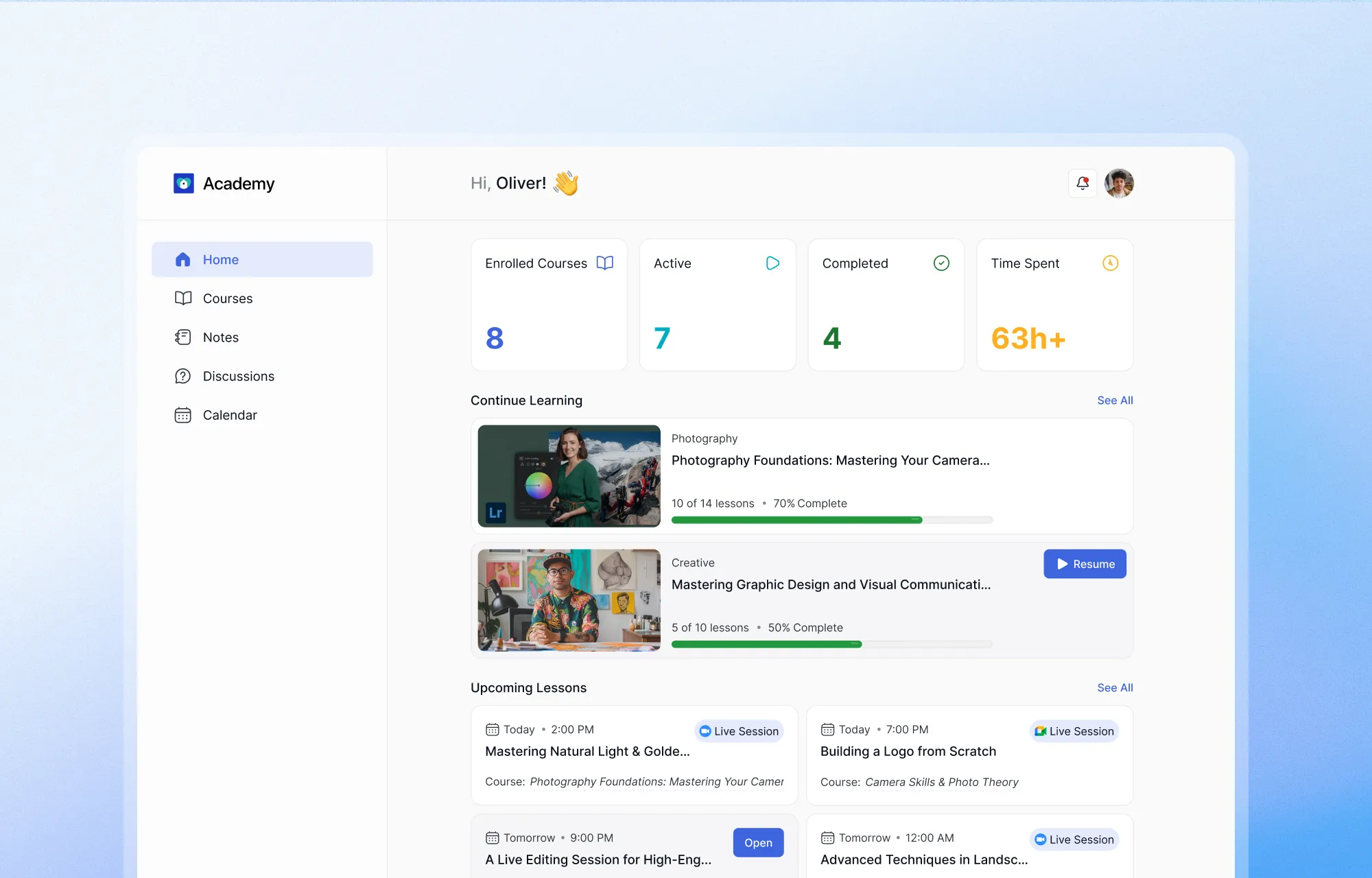
The home screen greets you the moment you log in. It is built to give you an immediate, clear snapshot of where you stand across all your courses without any extra clicking.
Track Learning Progress with Real-Time Metric Cards
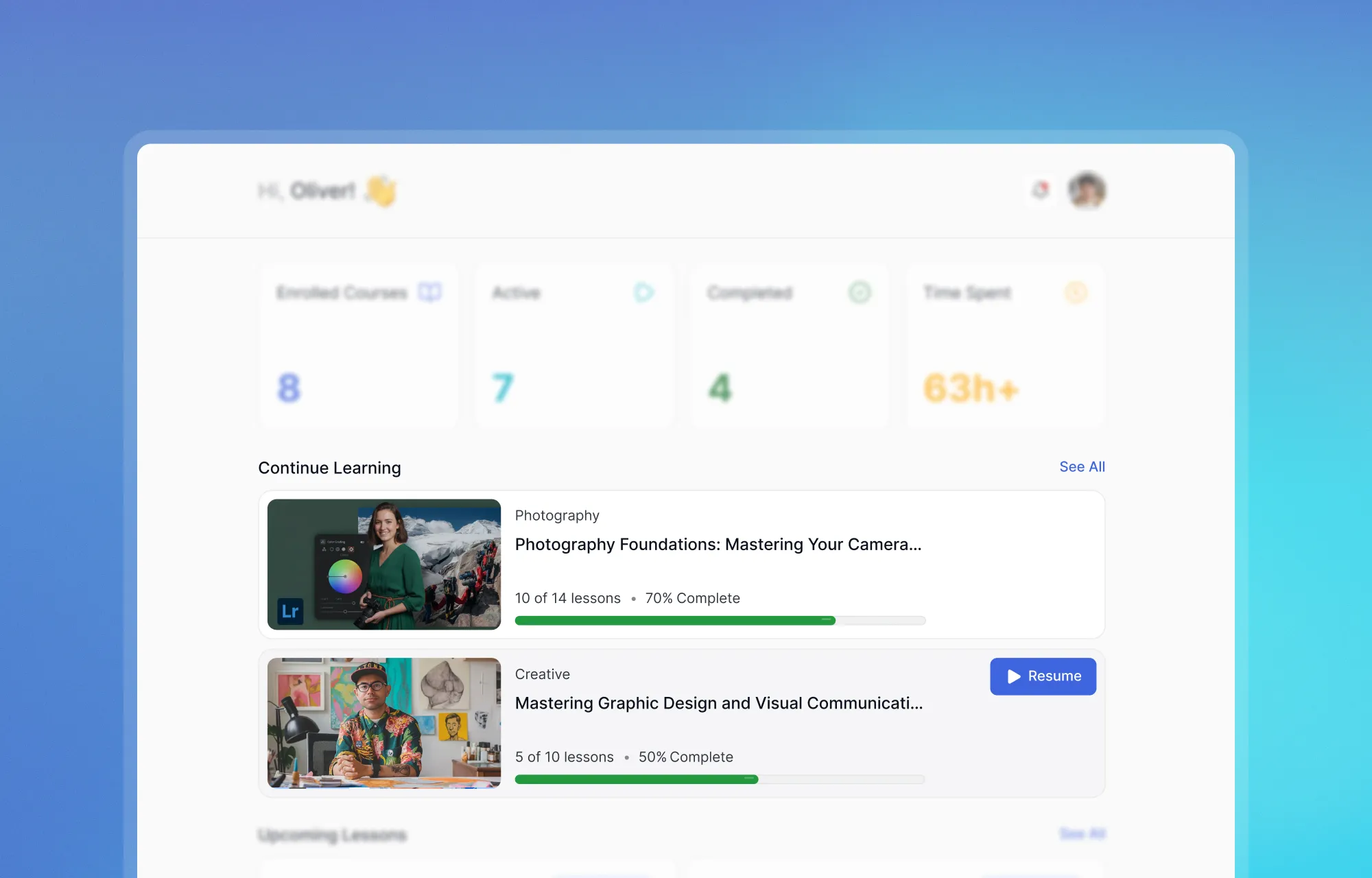
Right at the top of the screen, you will notice a set of dynamic metric cards. These act as your personal progress report. Instead of hunting for your statistics, you get a clear view of your activity at a single glance.
- Enrolled Courses: The total number of courses you have joined.
- Active Courses: what you are currently working through
- Completed Courses: everything you have already finished
- Time Spent: your total learning hours accumulated across all courses
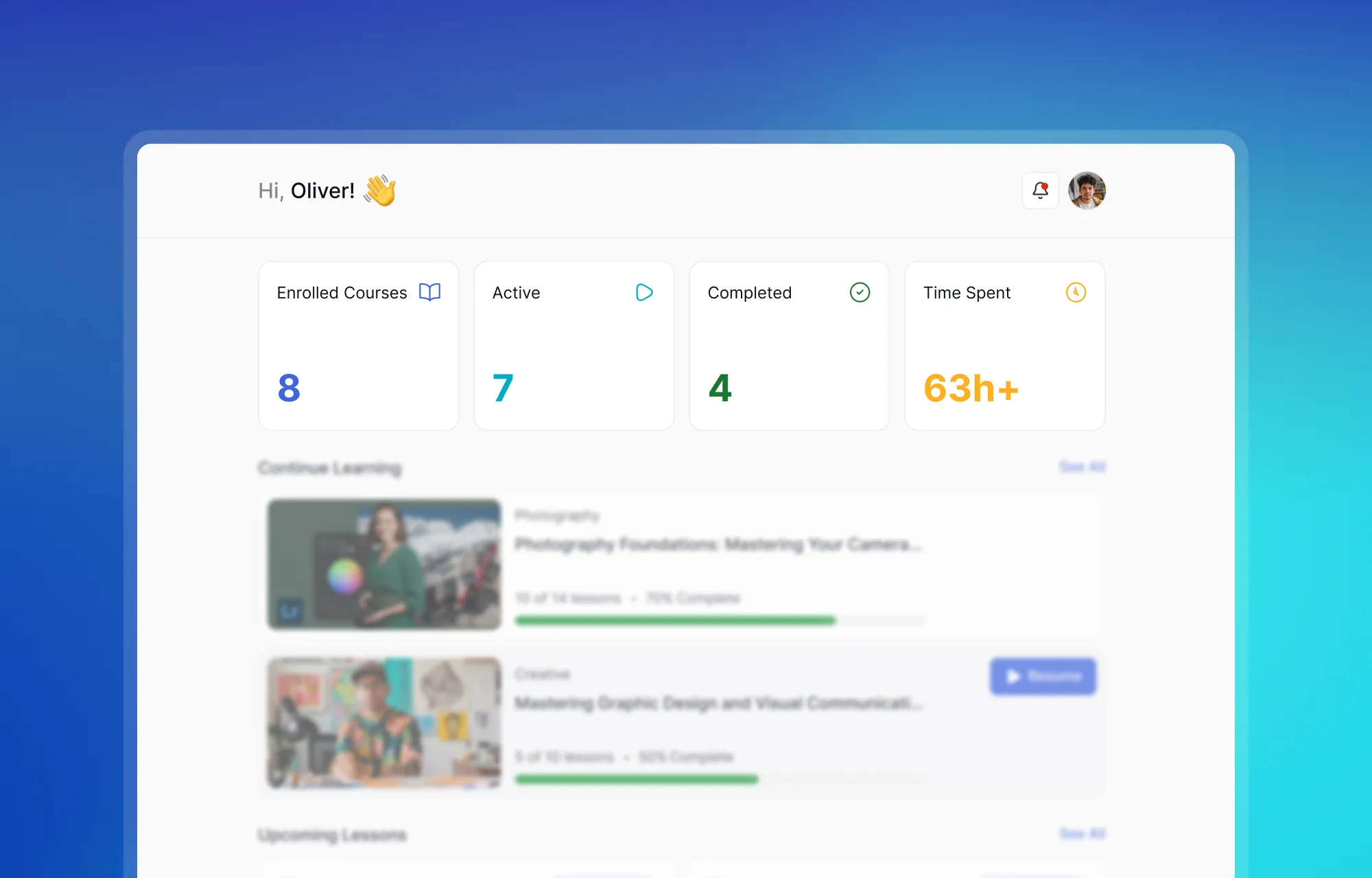
The Time Spent card is worth highlighting. Watching that number climb, even by a few minutes each day, makes progress feel tangible. Small wins like that are often what bring learners back for the next session.
Smart Alerts, Gifted Courses, and Streak Tracking
Keeping track of due dates across several courses is rarely easy on its own. Your dashboard handles that pressure by automatically surfacing the alerts that matter, without flooding your screen.
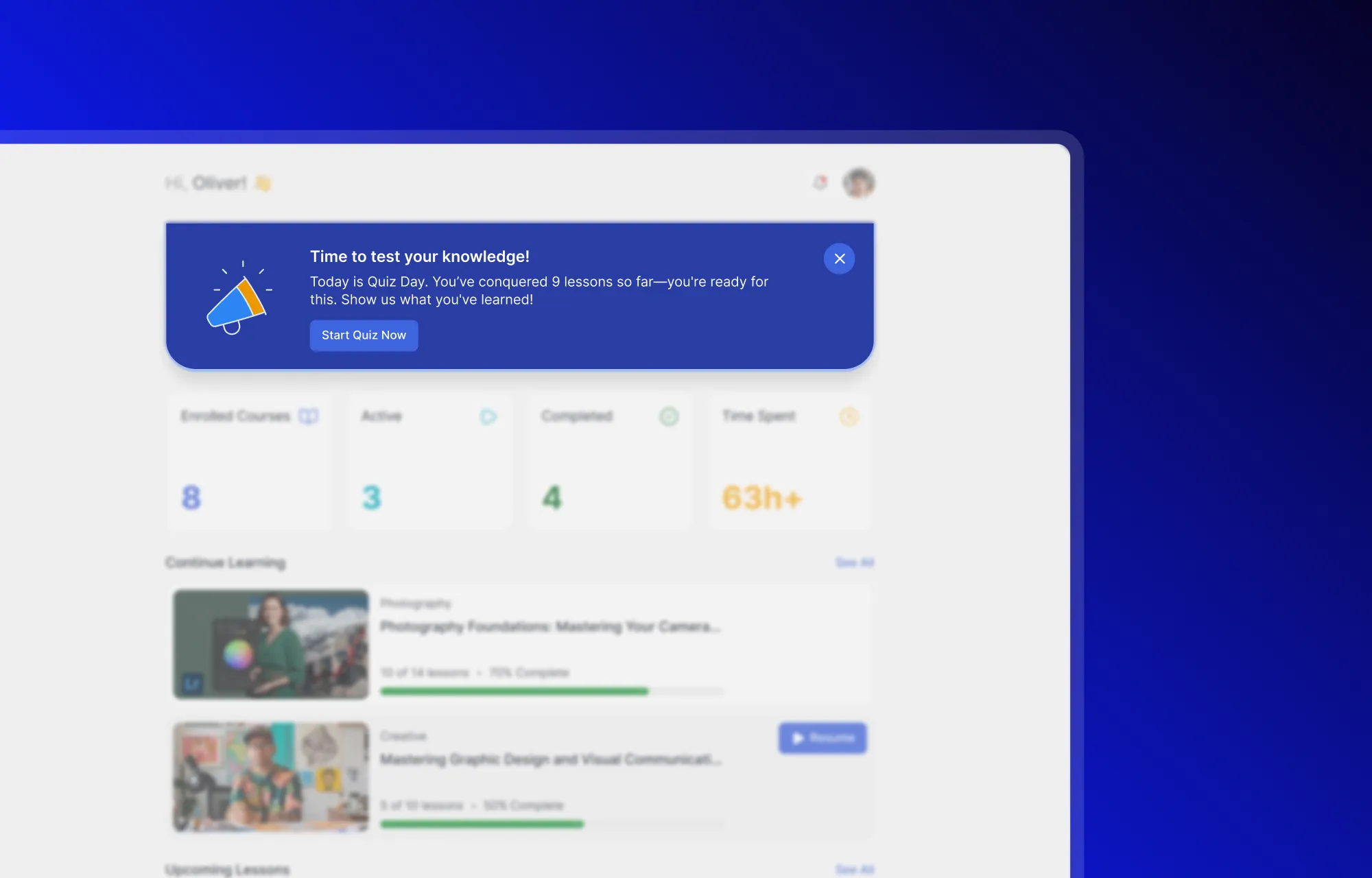
- Assessment Alerts: Prominent banners will gently remind you when a quiz or assignment is due. You can click a single link to start testing your knowledge right away.
- Gift Redemptions: Did a friend or employer buy a new course for you? A celebratory popup will prompt you to open the gift and add the new material to your library.
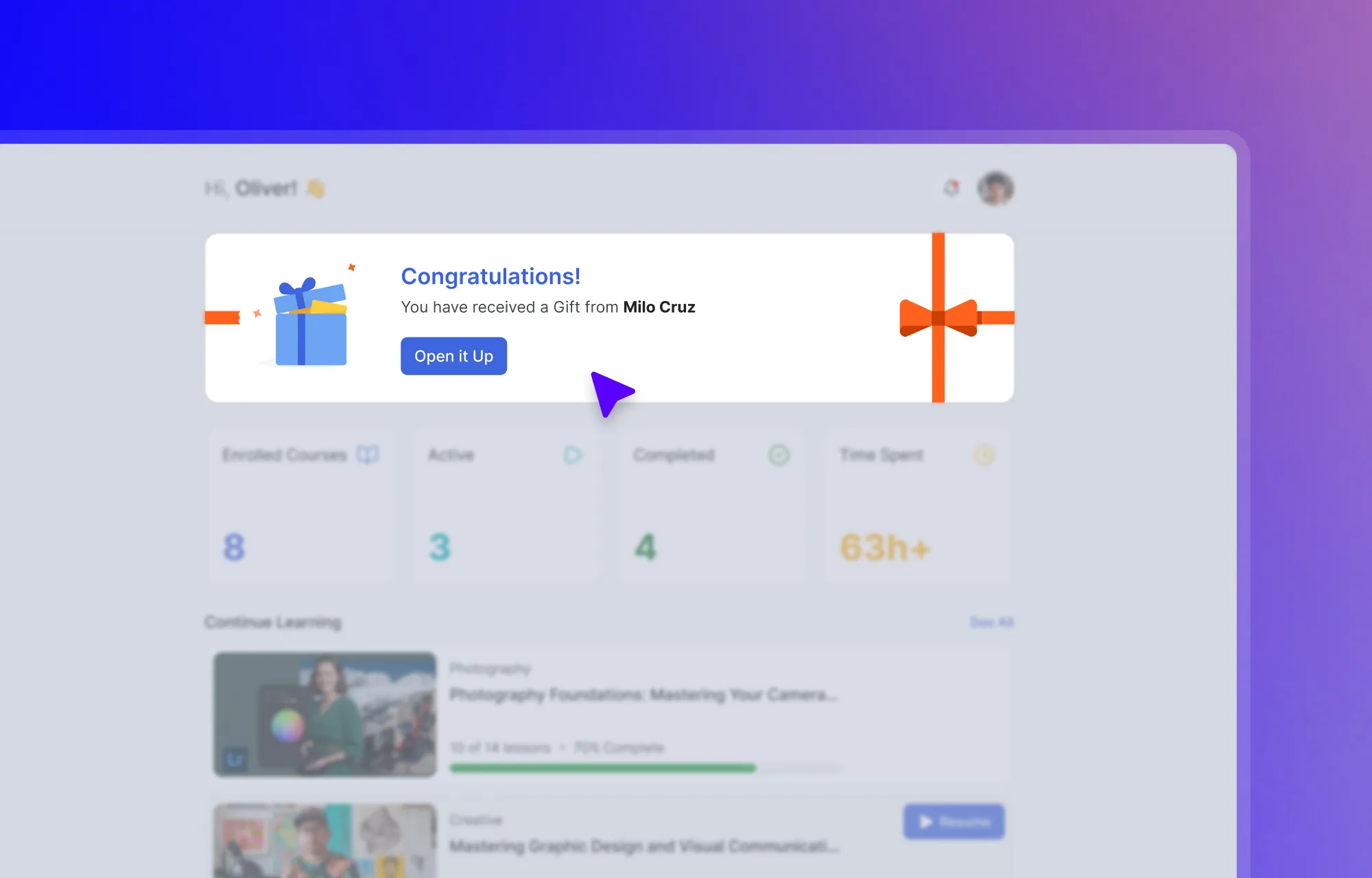
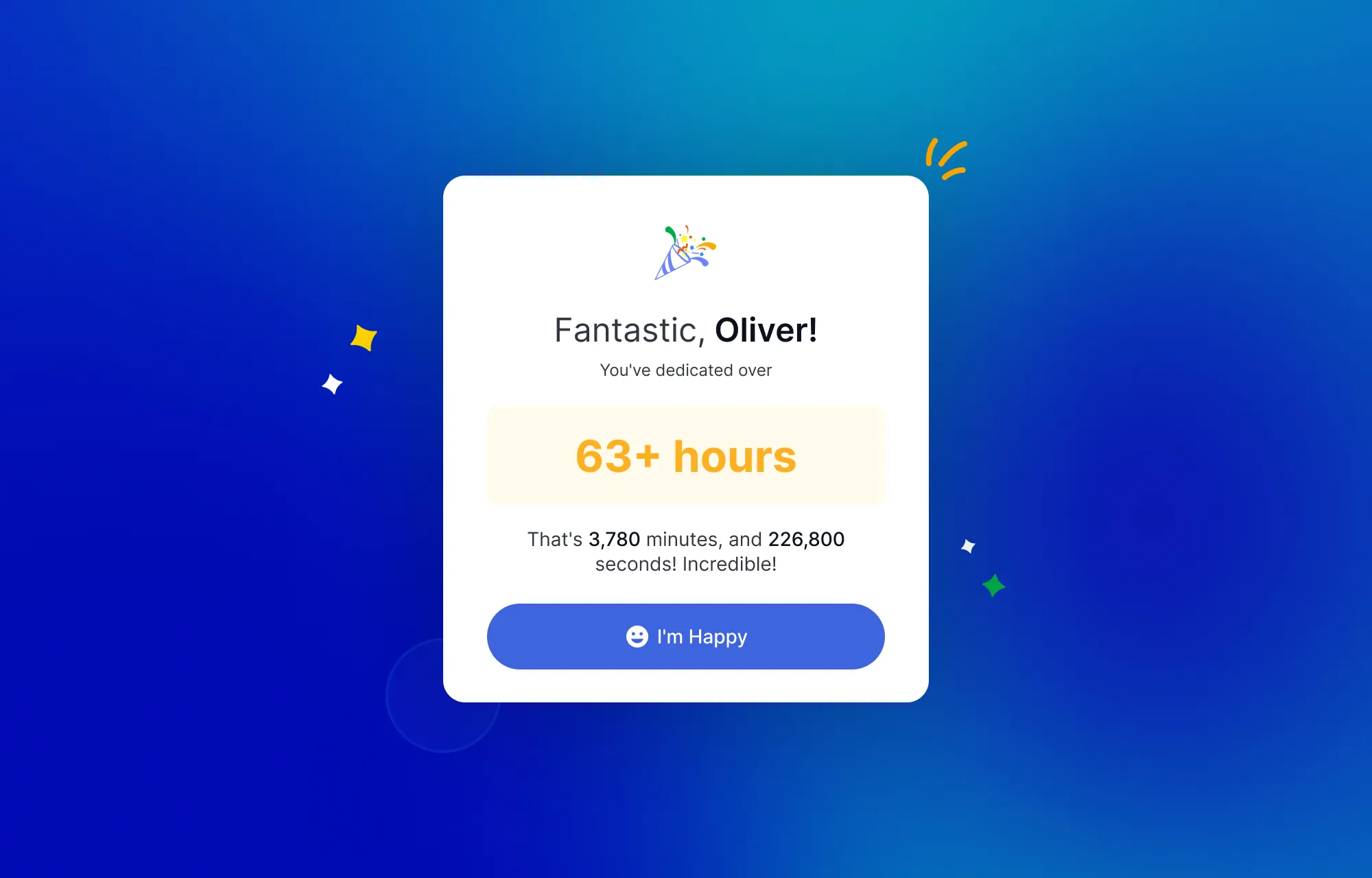
- Streak Tracking: A visual tracker monitors your daily logins and shows your current streak. Seeing a chain of consecutive days is a simple but effective way to stay motivated and build a consistent study rhythm.
Resume Courses and View Upcoming Lessons
Finding exactly where you stopped yesterday is one of the most frustrating parts of online learning. The Continue Learning section handles this by listing your active courses alongside a visual progress bar. A Resume button takes you straight back to the exact video or text module where you left off.
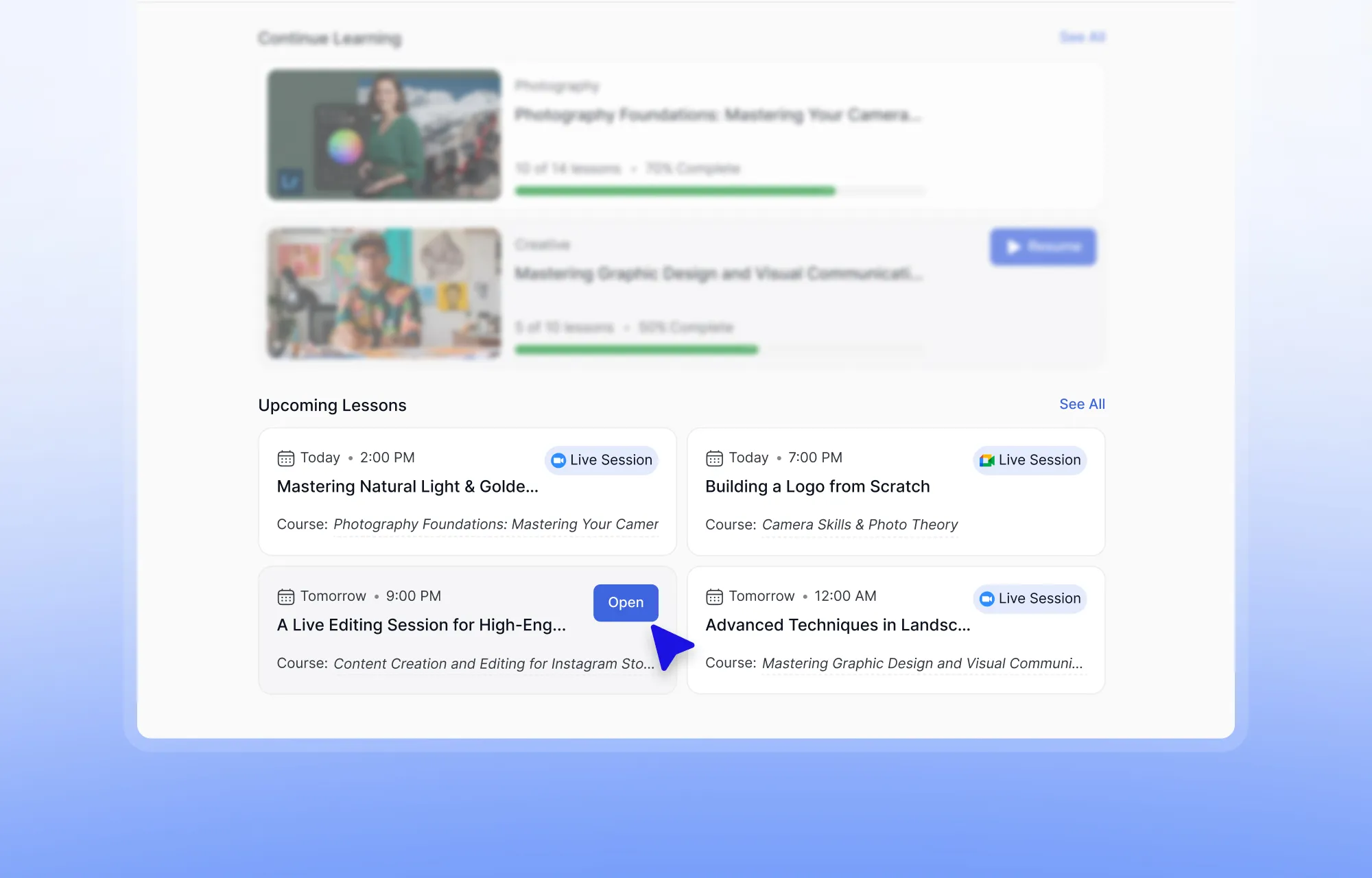
Right below your active courses, the Upcoming Lessons grid displays your scheduled live sessions in a clean card layout. Each card shows the date, time, and course details, giving you a reliable overview of what lies ahead without opening a separate calendar
Finding and Managing Your Courses
Juggling multiple courses at the same time is a familiar struggle for most online learners. Deadlines overlap, progress gets fuzzy, and finding that one lesson you started last week turns into a minor scavenger hunt. The Tutor LMS student dashboard eases that burden by pulling everything into one clean, organized space that feels natural to navigate.
Filter and Browse Your Course Library
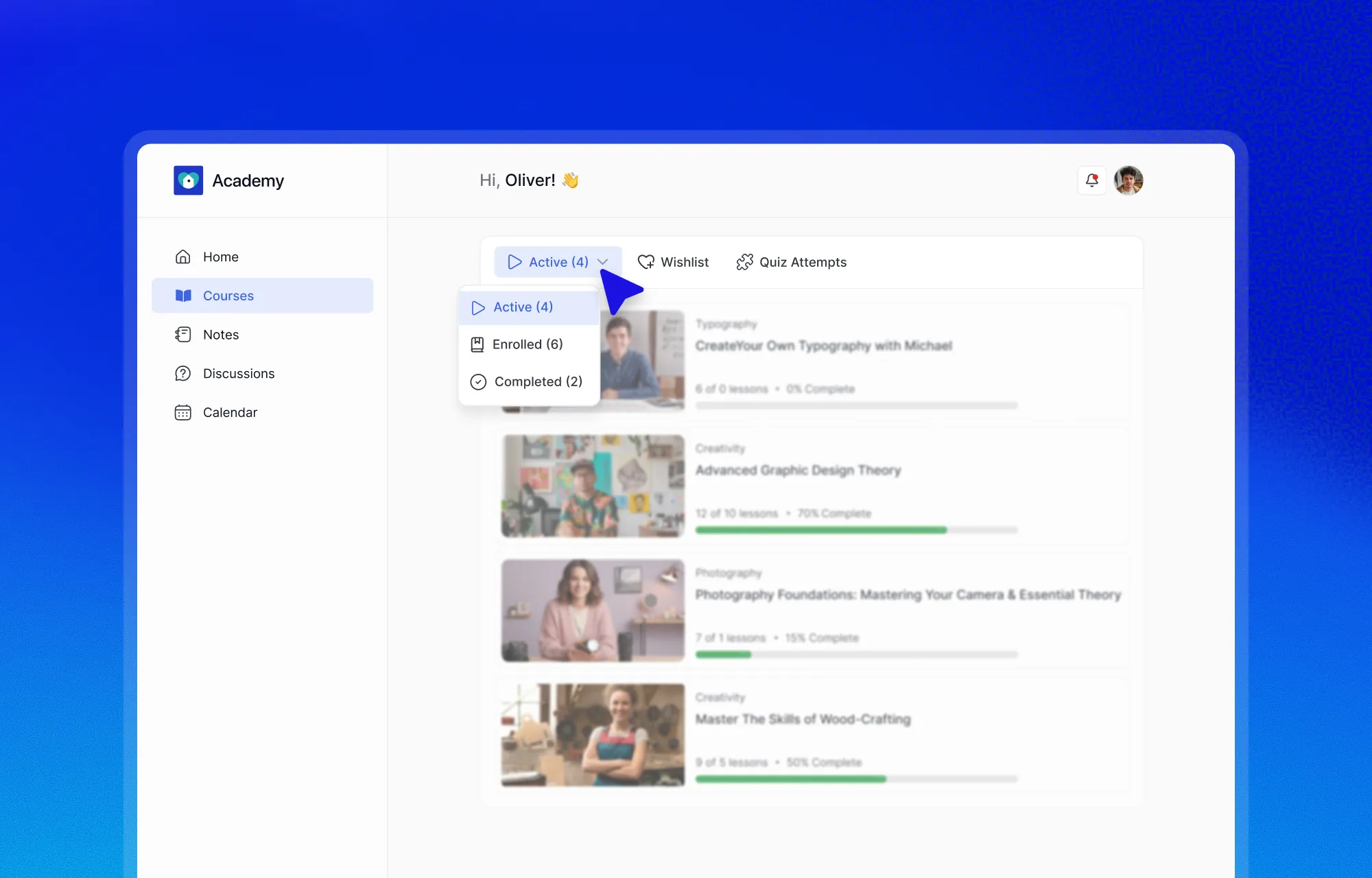
The Courses tab is where your course management happens. It serves as the central hub for Tutor LMS course management for students, and keeps every course you have touched in one organized list. Knowing how to filter courses by status in Tutor LMS removes the guesswork from your daily routine. A dropdown menu presents three clear options:
- Enrolled shows every course you have ever enrolled in, and your full learning history stays just a glance away.
- Active narrows the view to only the courses you are currently working through.
- Completed acts as a personal archive. Finished coursework stays accessible for review, and you can download your course completion certificate (if available) whenever you need proof of achievement for your portfolio or employer.
Planning Ahead with Your Wishlist
The courses you want to take someday deserve the same visibility as the ones you are already studying. The Tutor LMS Wishlist feature for learners gives you a dedicated space to bookmark courses that catch your eye without committing right away.
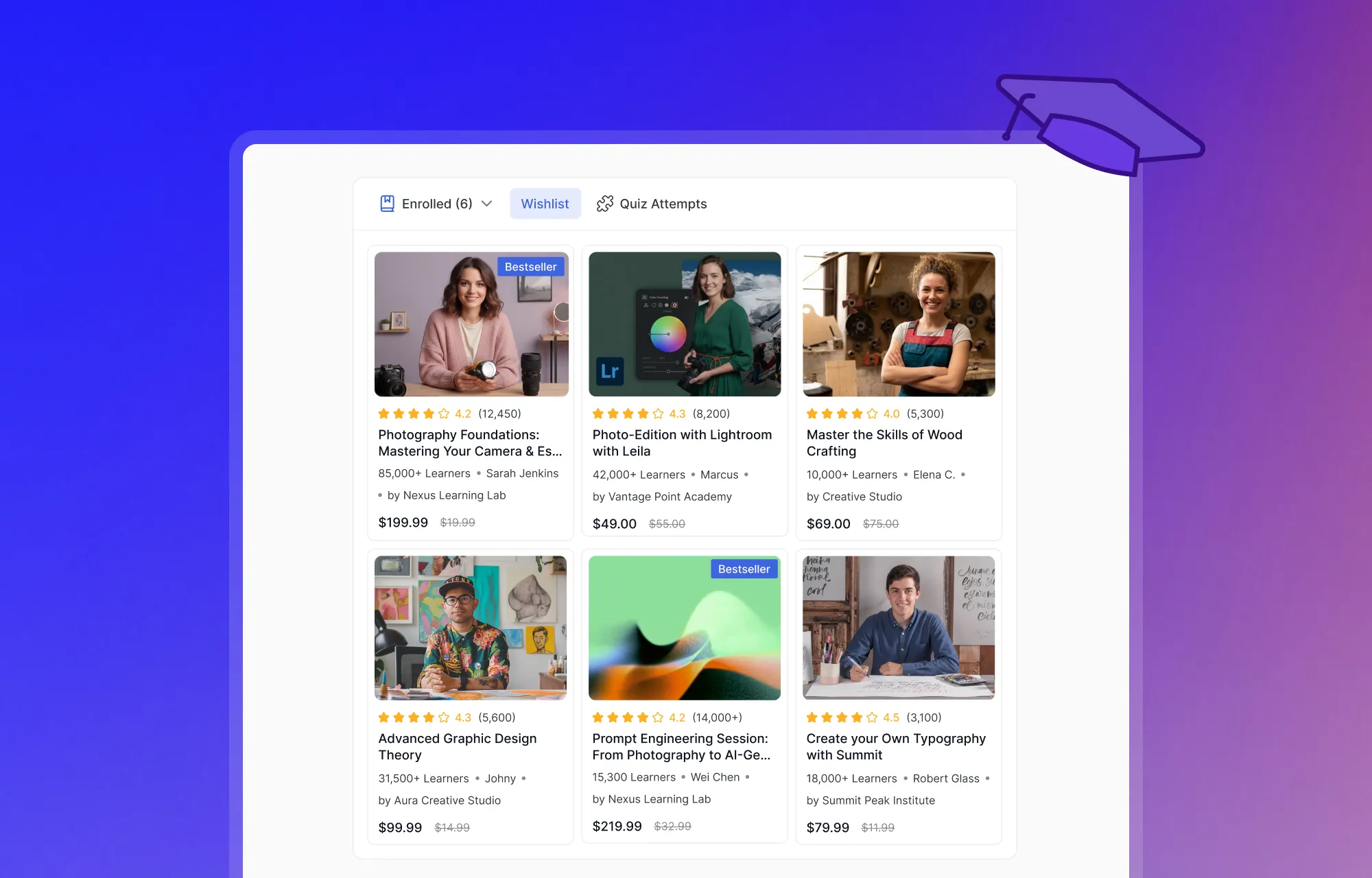
Each saved listing displays the instructor name, current rating, total enrollment count, and pricing details side by side. When you are ready to enroll, every detail you need is already on the screen.
Every Quiz Attempt, Tracked and Reviewable
Learning is rarely about getting everything right on the first try. Real progress comes from understanding mistakes, identifying patterns, and improving over time. That is why the learner dashboard includes a dedicated area for tracking assessment performance across your entire learning journey.
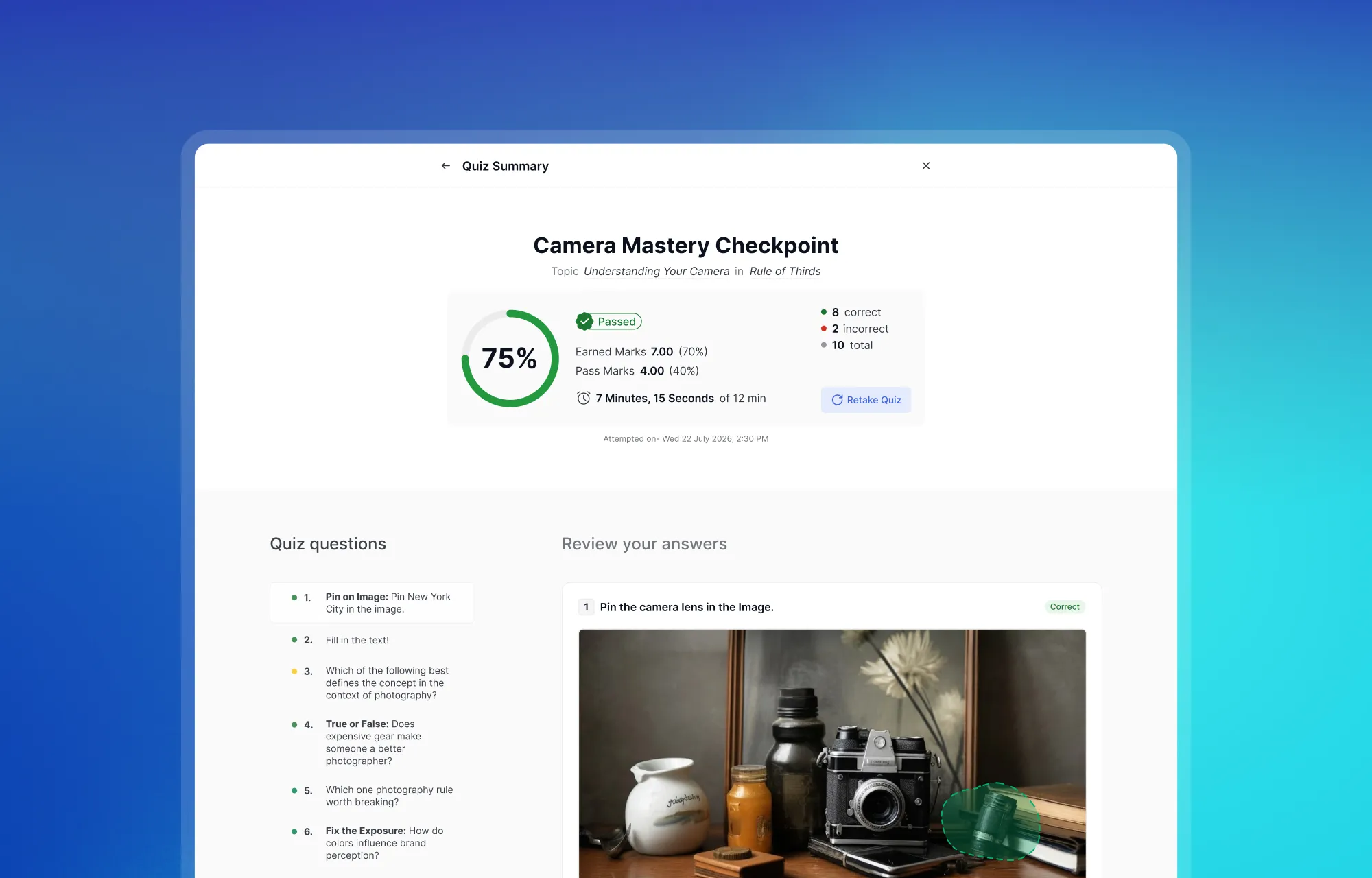
The Quiz Attempts section keeps a full record of every submission across all your enrolled courses. Rather than showing only the latest score, it preserves your complete Tutor LMS quiz attempt history so you can track improvement over time.
Each attempt includes detailed information such as:
- Quiz name and associated course
- Score percentage
- Number of correct and incorrect answers
- Pass or fail status
- Time spent completing the quiz
- Submission date and time
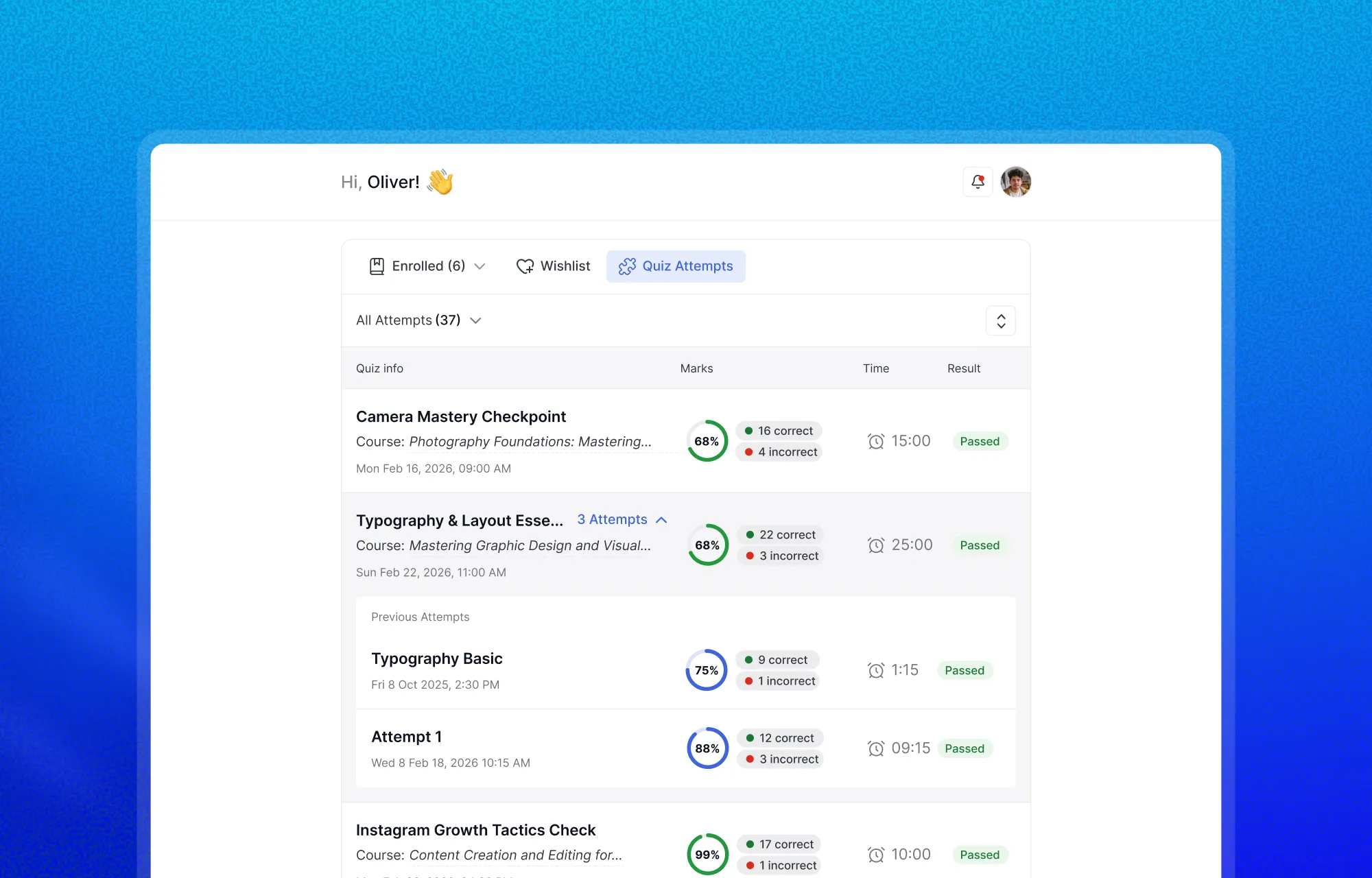
When a quiz allows multiple attempts, every result stays grouped under the same quiz name. A dropdown expands to show the full timeline, making it easy to compare your first attempt with your latest.
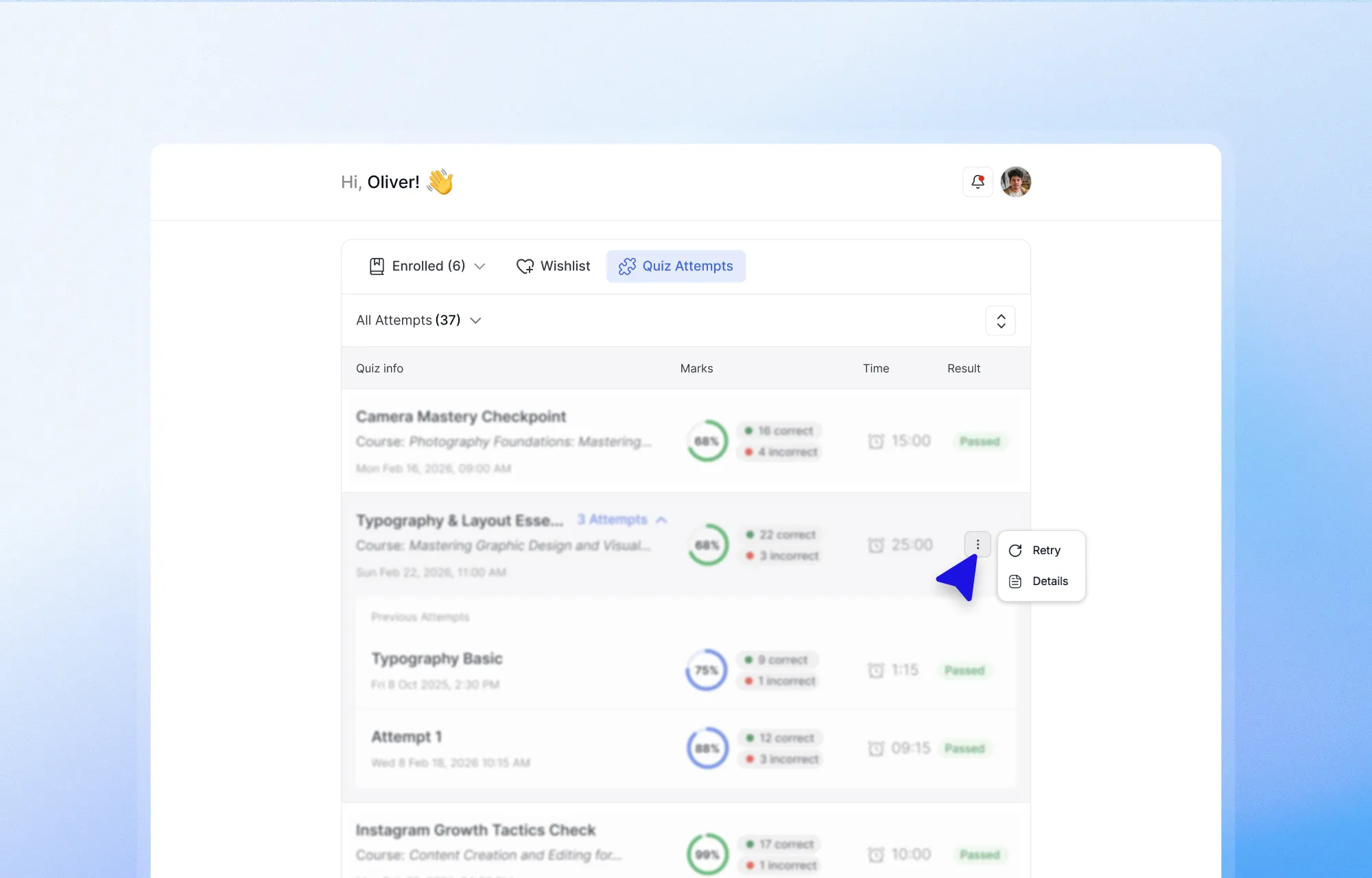
The Quiz Summary adds another layer of insight. Through the options menu on any attempt, you can open question-by-question feedback that highlights correct answers and includes instructor explanations when available. Understanding why an answer was wrong often teaches more than the final score itself.
Performance data tells you how well you understood the material. Capturing your own thoughts and insights is how you make that understanding last. That is where the dashboard’s note-taking tools come in.
Notes That Stay with You Across Every Course
Most online learners know the frustration of scribbling a key insight during a lesson, only to lose it in a scattered mess of tabs and notebooks. The Tutor LMS learner dashboard solves this with a notes system that keeps every thought organized, searchable, and tied to the lesson or video moment that sparked it.
Taking Notes During a Lesson
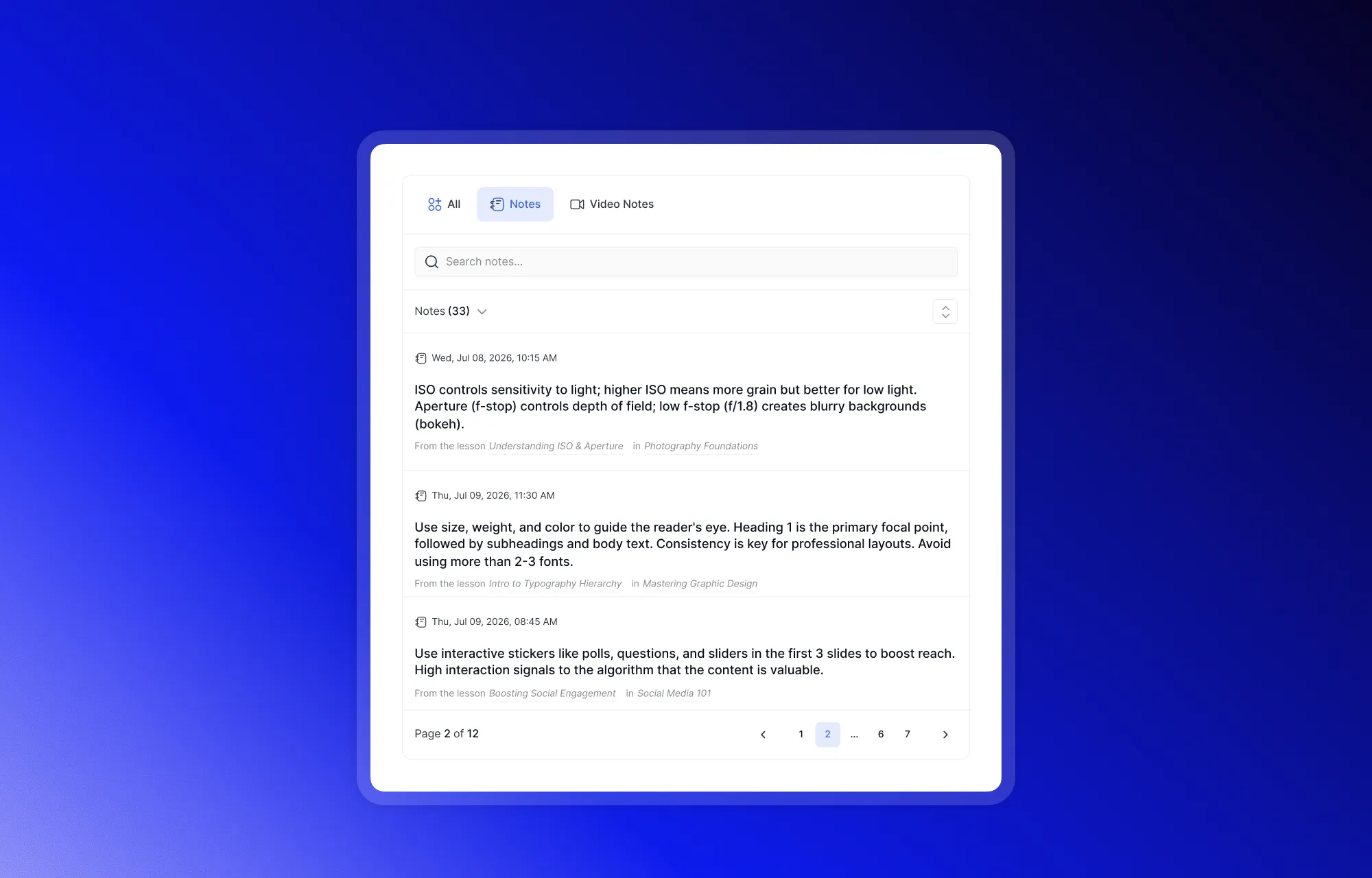
Every lesson includes a dedicated Notes tab right below the main content area. You can type a note at any point during your session, save it, and it will appear chronologically below the input field, always connected to that specific lesson.
Video Notes with Timestamps
Video lessons add a powerful dimension to note-taking. While watching, a Take Note button captures your text alongside the precise timestamp in the video. The feature works in both standard and full-screen view without pausing playback. Later, clicking any timestamp jumps you straight back to that exact frame, turning passive watching into active review.
- Notes can be written in both standard view and full-screen mode without pausing playback
- When you return to your notes later, clicking the timestamp jumps you back to the exact moment in the video where the note was written
- This turns passive watching into a genuinely active study session
A Central Notes Hub
Lesson-by-lesson notes are helpful on their own. A searchable library that collects every note from every course and video in one location is far more powerful.
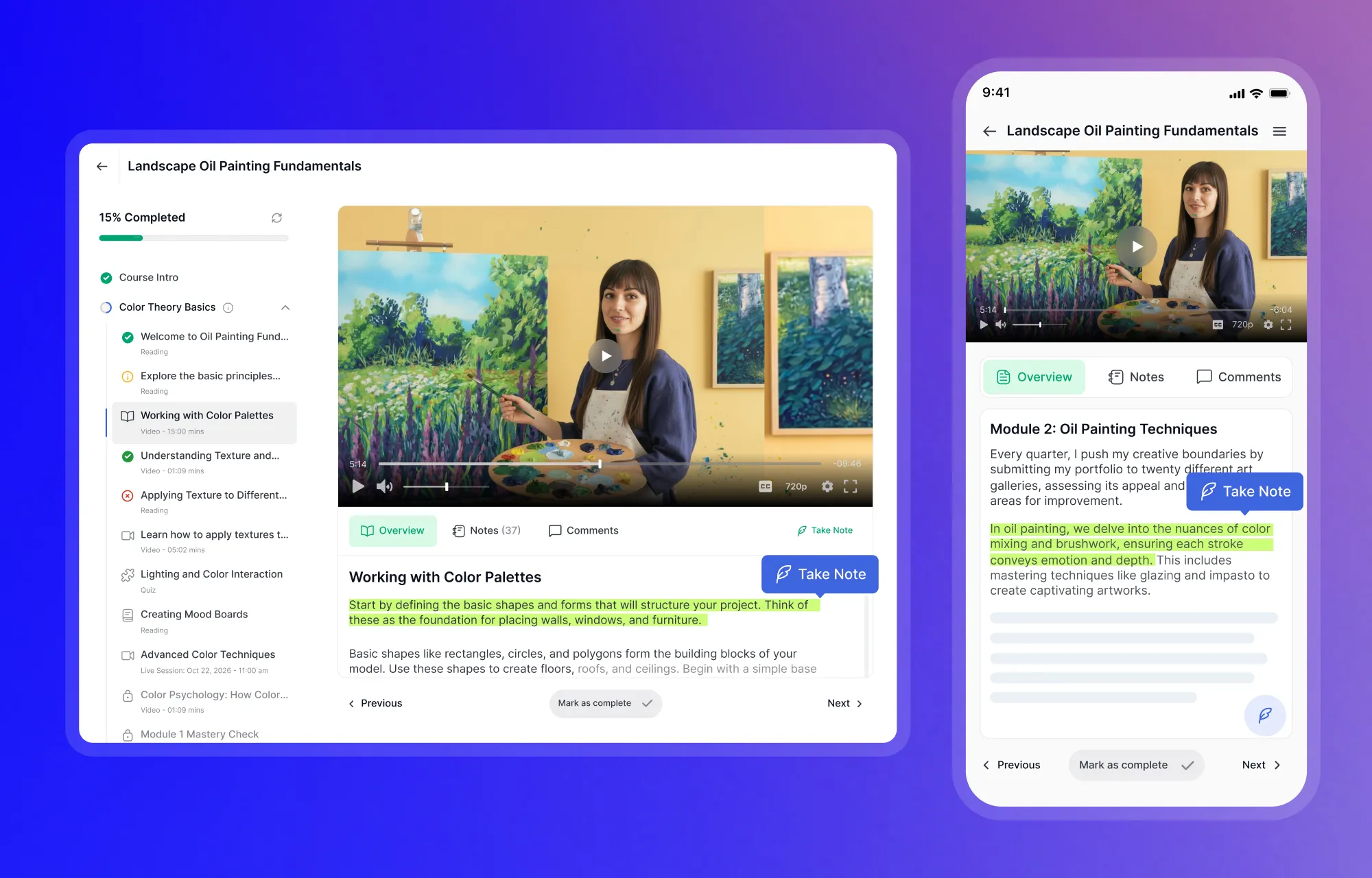
The Notes section in the dashboard sidebar is exactly that. The Notes section pulls together all your lesson notes and video notes into one place. From here you can:
- Edit any note or remove outdated entries.
- Switch between Notes and Video Notes types using the top navigation tabs.
- Use the course dropdown or search bar to find notes from a specific course.
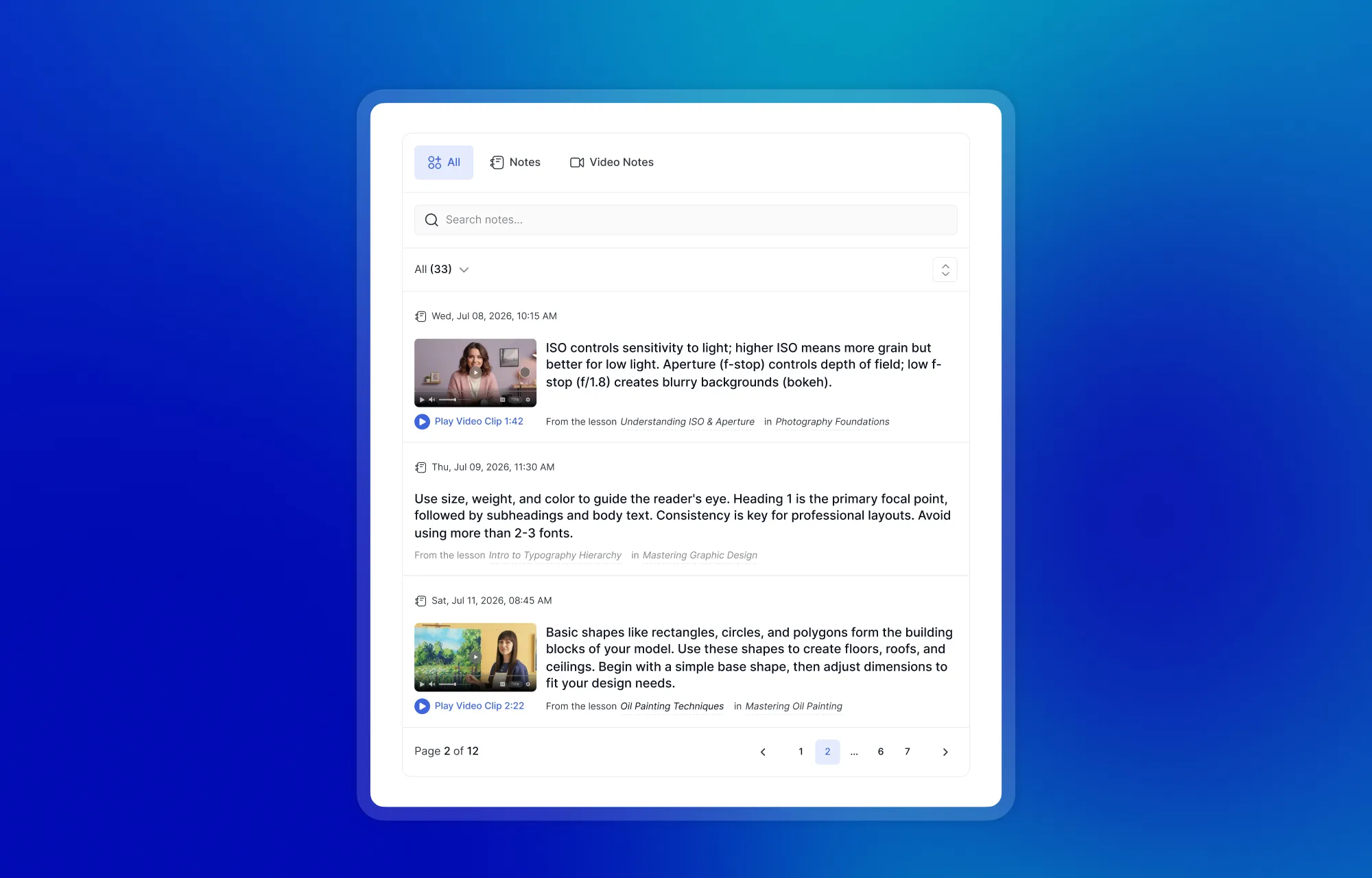
The result is a living study guide that evolves with you, replacing scattered scraps with a single, organized resource you can actually rely on.
All Your Course Conversations in One Place
Keeping up with questions and comments across several courses is harder than it should be on most platforms. The Tutor student dashboard features pull every conversation into one accessible location, organized under the Discussions tab.
Inside the learner dashboard, this tab splits into two focused areas:
- Lesson Comments: This view collects all the short remarks you leave inside individual learning modules. You can see the exact timestamp and course name, making it easy to edit or delete your text directly.
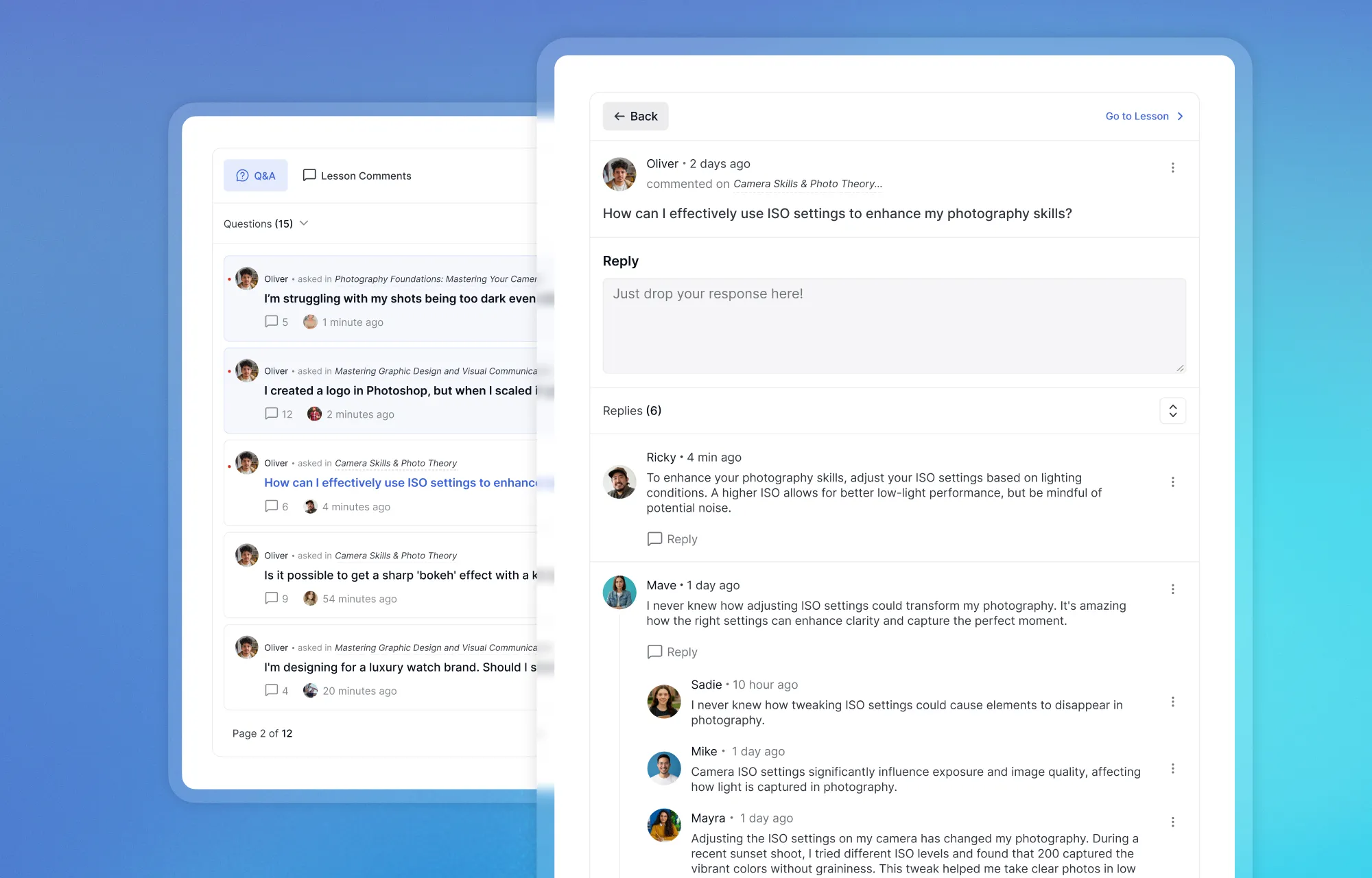
- Course Q&A: This section handles broader questions about prerequisites, course structure, or overall content. It is open to both enrolled and prospective students. The Q&A tab consolidates every question you have asked across all courses. Learners can expand full threads, read instructor and peer replies, and respond without navigating back into the course itself.
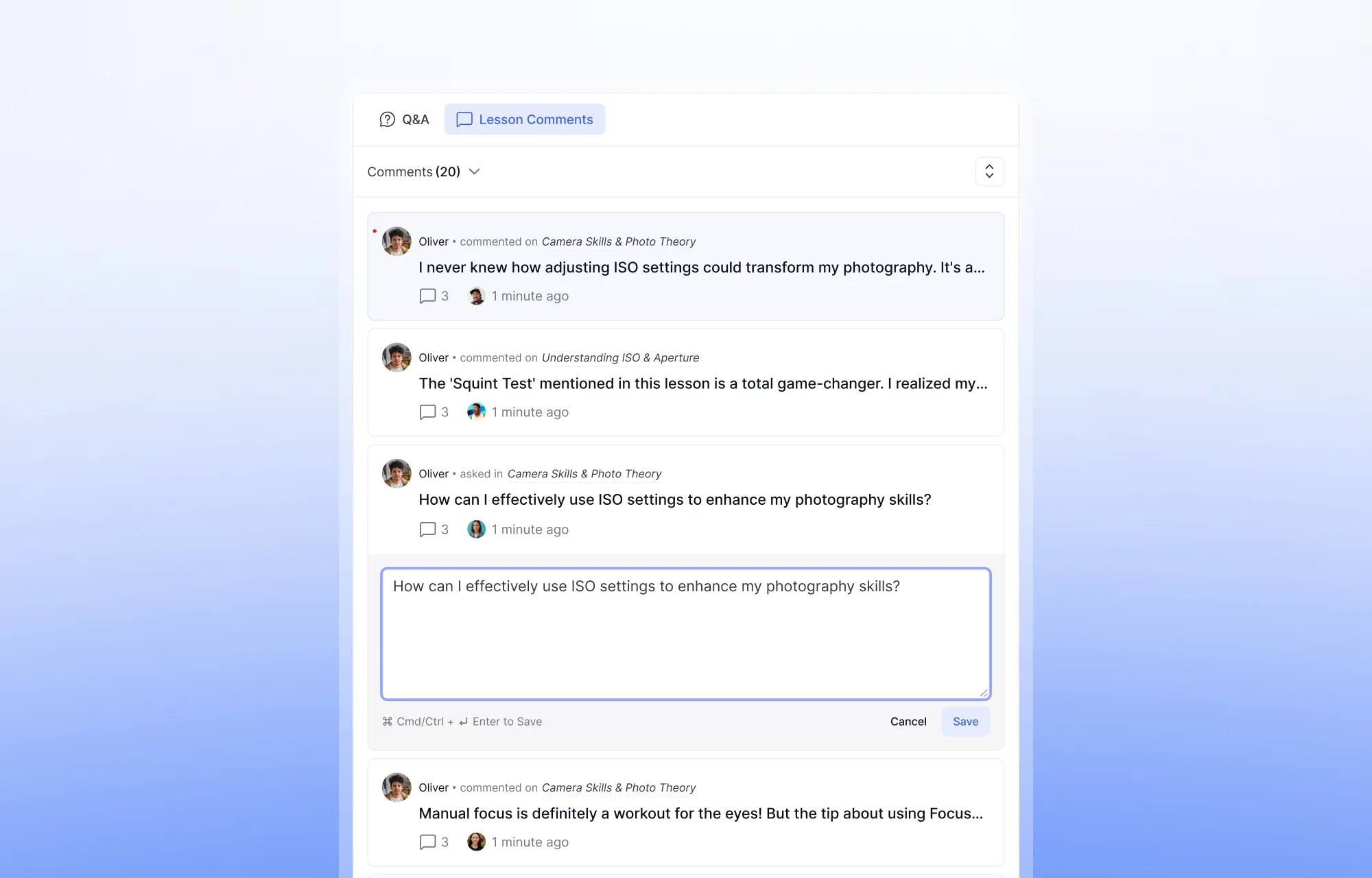
With the Lesson Comments and Q&A system built into your dashboard, no conversation gets buried inside a course you are no longer actively studying.
A Calendar That Keeps Your Learning on Track
As your course load grows, so does the number of deadlines, live sessions, and activities competing for your attention. Missing an important class is frustrating, especially when your schedule is spread across multiple courses. The calendar inside the Tutor LMS student dashboard solves this by gathering every academic event into a single view.
Instead of searching through individual course pages, you see every upcoming commitment from one screen. Planning your week becomes straightforward when all the dates are already in front of you.
The course calendar for students includes two viewing options:
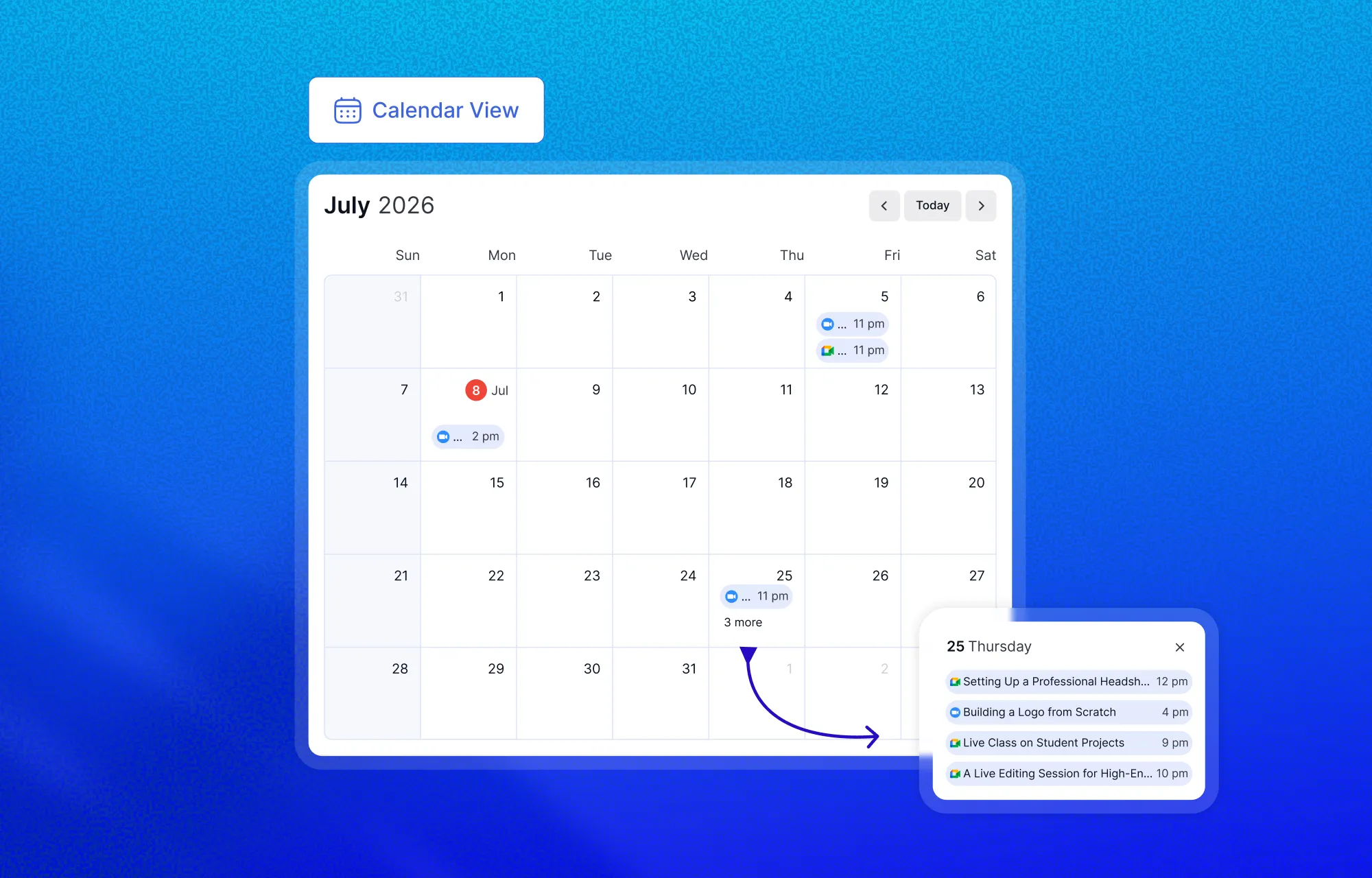
- Monthly Grid View: Displays your schedule in a traditional calendar format with visual indicators on dates containing events. Selecting a date reveals associated sessions, classes, and activities. Navigation controls make it easy to move between months.
- List View: Presents all events in chronological order. Each item includes status labels that clearly identify whether a session is upcoming or has already passed.
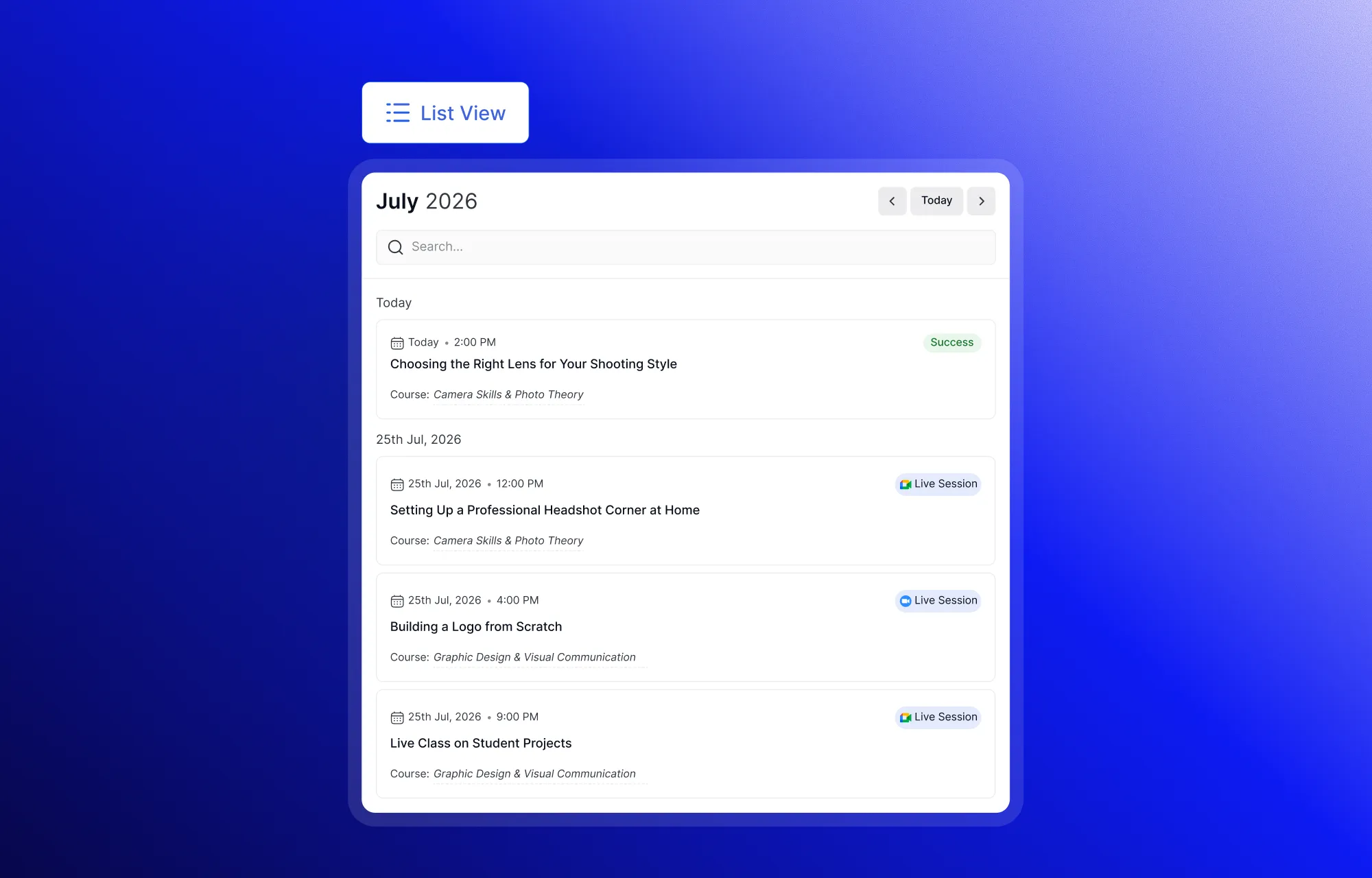
When you need to zero in on something specific, the built-in search bar makes learning how to view live classes and other scheduled events effortless. Filtering by event name or course narrows results instantly.
Your Profile, Certificates, and Account Settings
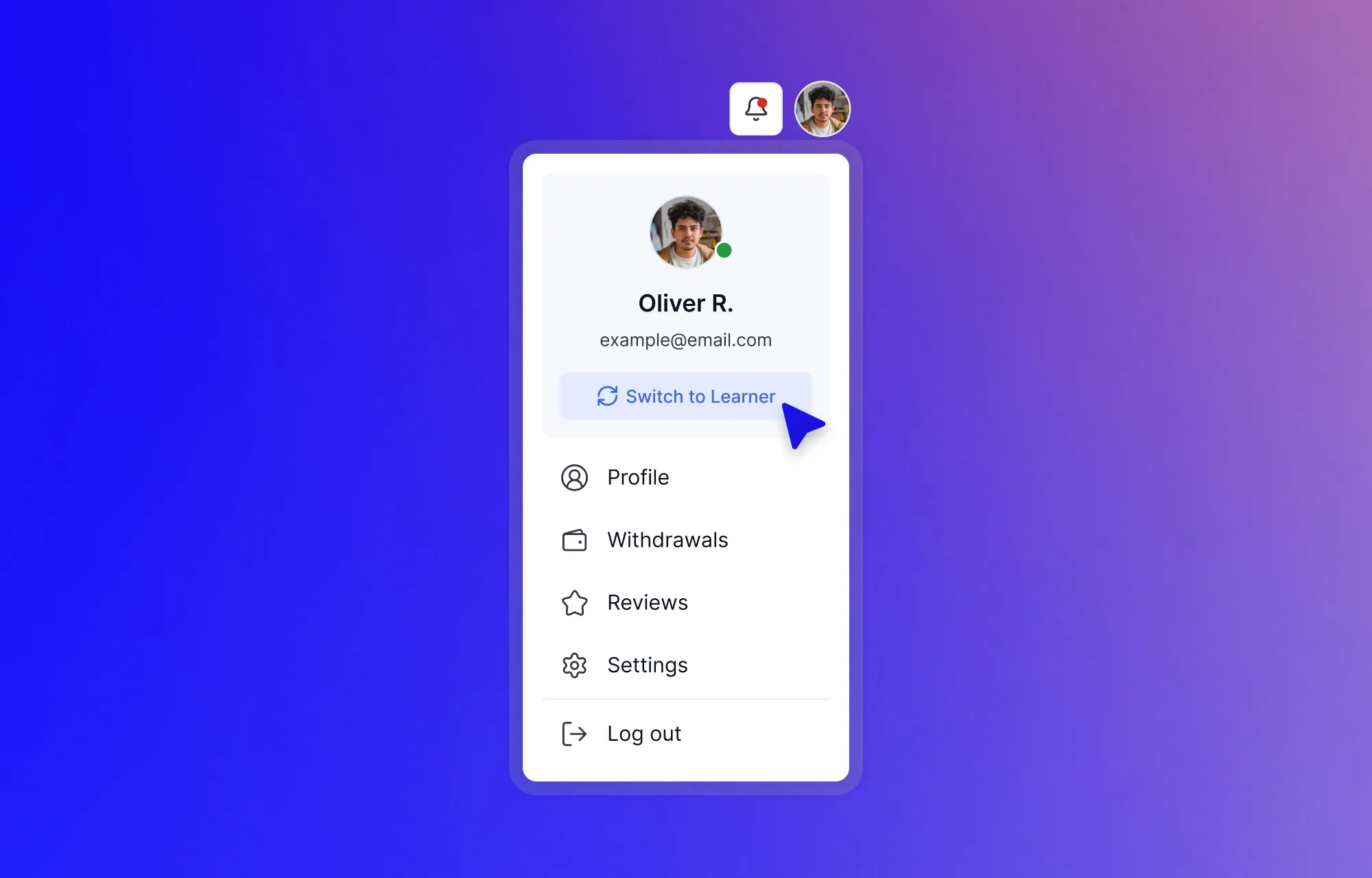
The calendar keeps your schedule in order. But there is one more part of the Tutor LMS student dashboard that quietly handles a lot behind the scenes. The account menu, sitting in the top-right corner of your screen, groups together everything related to your identity, purchases, and personal preferences. A single click on your profile avatar opens the full suite.
Profile and Certificates
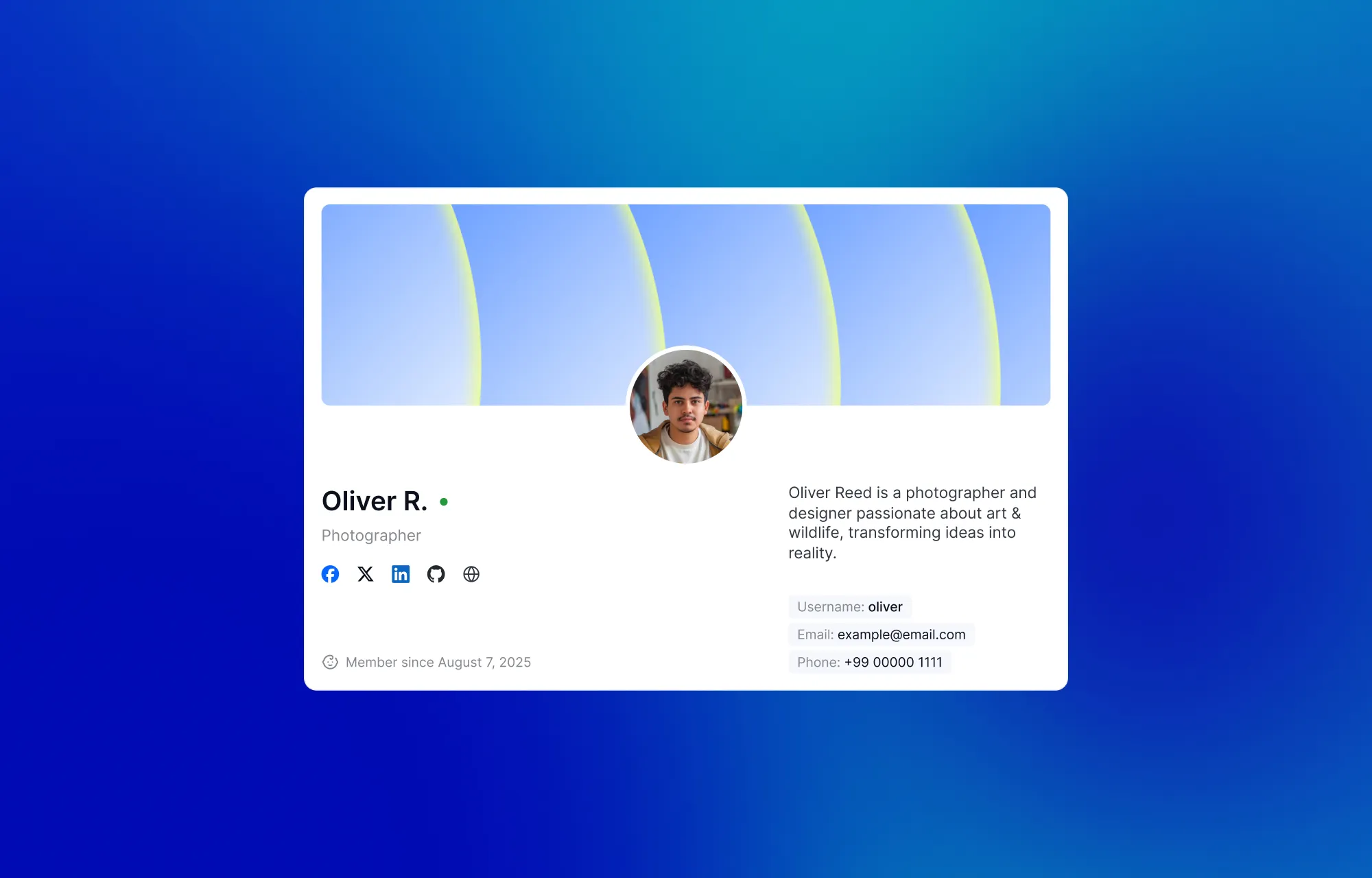
Your Profile section shows what others see when they interact with you: your name, occupation, bio, contact email, and any linked social profiles. Keeping this current helps instructors and fellow learners connect with you more easily.
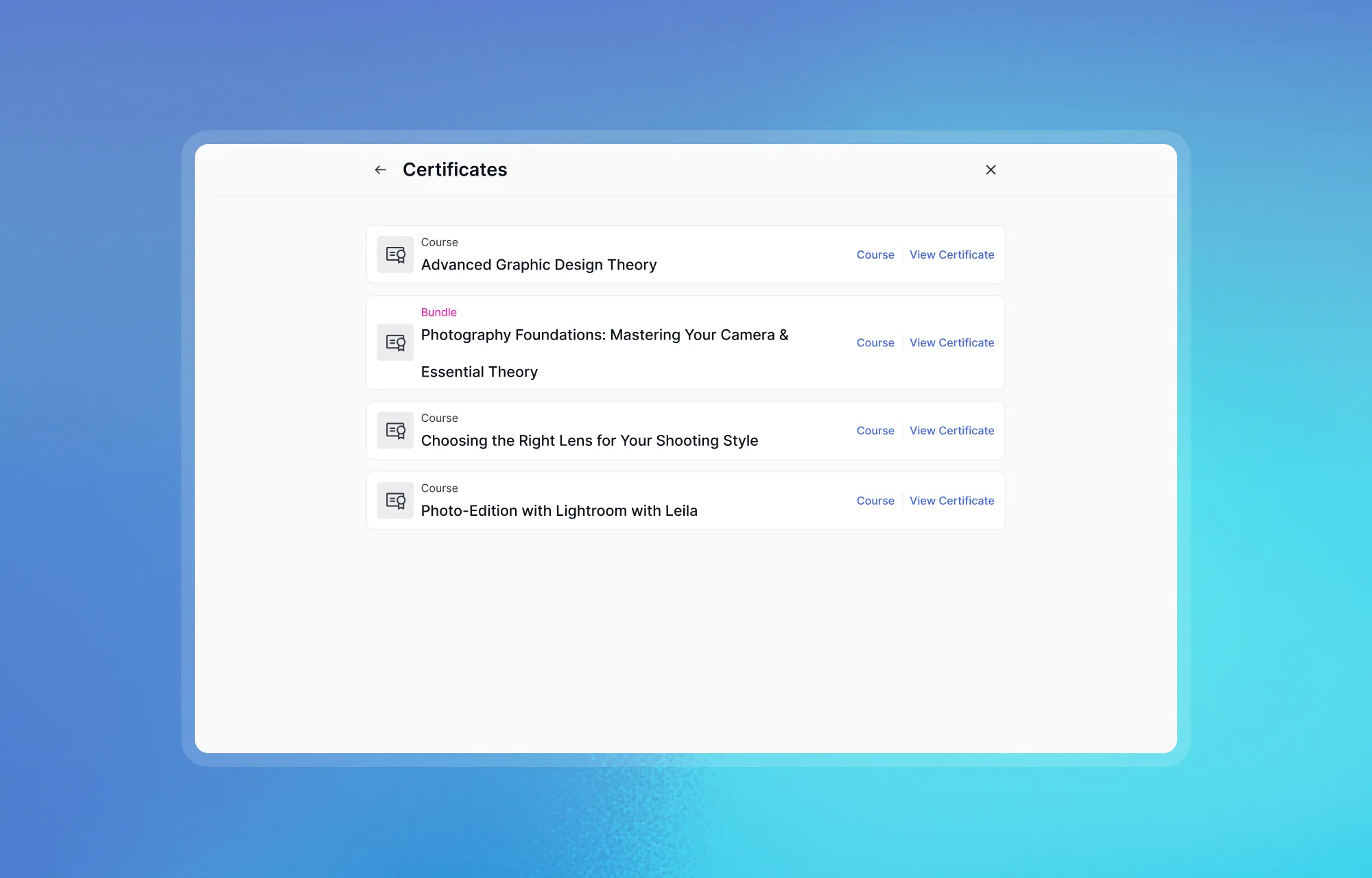
The Certificates section serves as a personal trophy case. Every credential you have earned lives here, each linked back to the course it came from. A View Certificate button sits beside every entry, ready for opening, printing, or sharing whenever you need to showcase your achievement.
Your Course Reviews and Approval Status
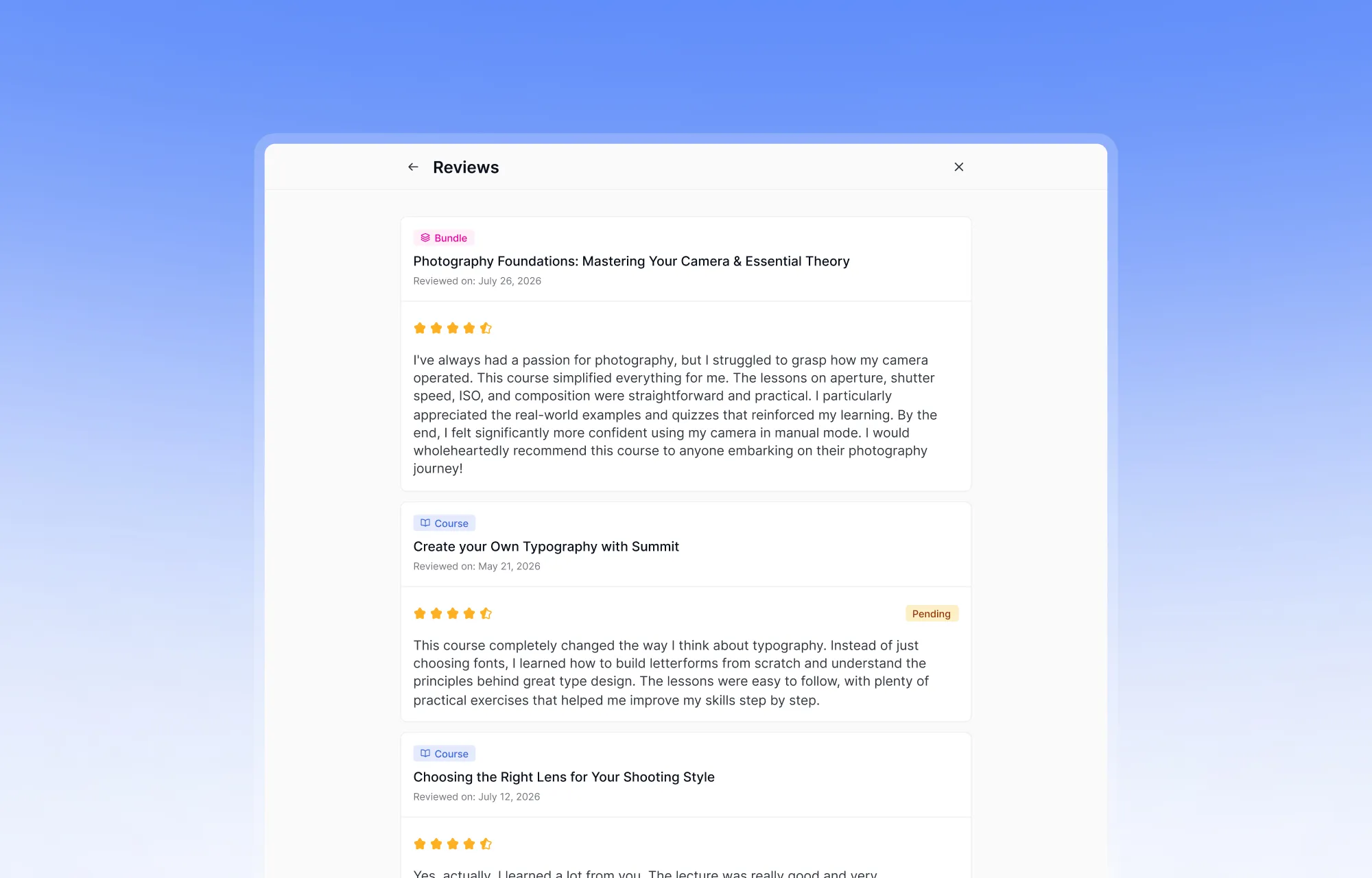
The Reviews section collects every course or bundle review you have submitted. Each entry shows the star rating, your written commentary, the submission date, and the current approval status. A “Pending” badge appears next to any review still waiting on admin approval, so you always know where things stand.
Billing and Subscriptions
For anyone managing purchases over time, the billing area keeps your financial picture clear across two tabs.
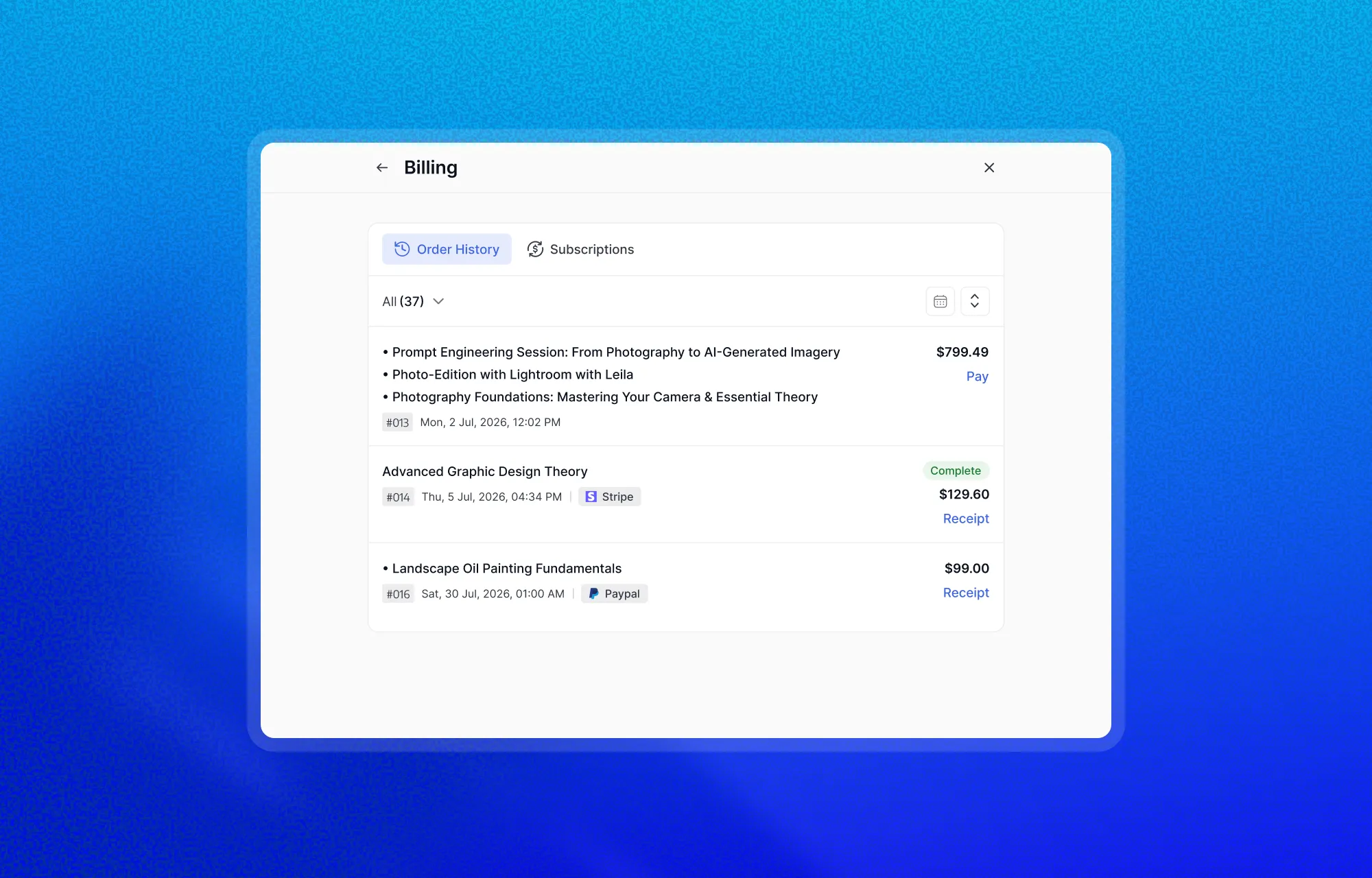
The Order History tab is a complete transaction log that includes:
- Course or bundle name along with the purchase date
- Payment method used, whether Stripe, PayPal, Apple Pay, or Google Pay
- Amount paid and the current payment status
- Downloadable receipts and invoices for every completed transaction
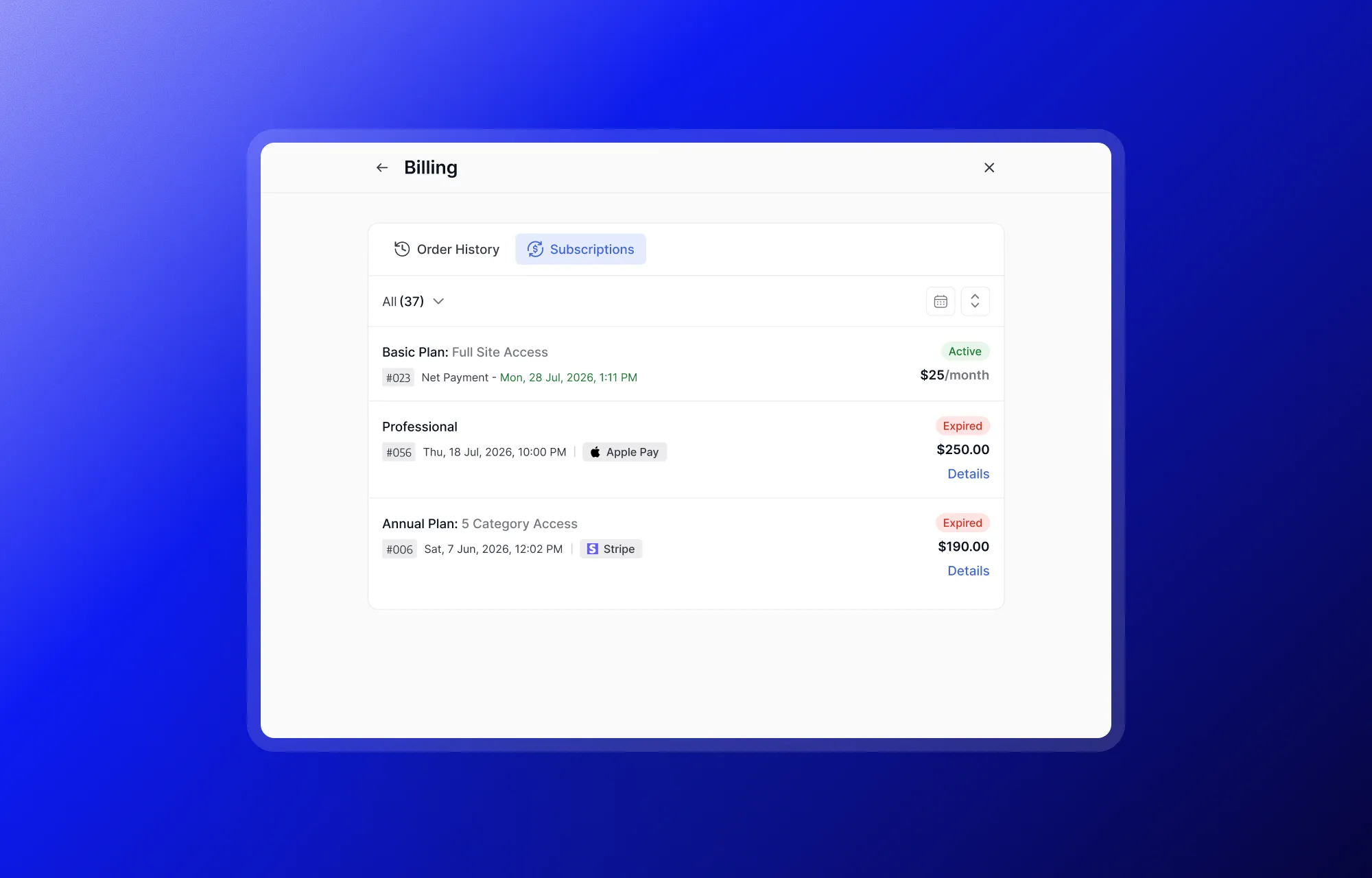
For learners on a recurring plan, the Subscriptions tab keeps the full picture of your ongoing access in one view. Both active and past plans appear here, so you can see exactly what you are currently paying for and what has lapsed. Each entry displays:
- Subscription ID and current status (Active, Pending, Cancelled, or Expired)
- Billing amount, frequency, and a full payment history per cycle
- Action buttons for Cancel Plan, Resume Plan, and Early Renewal
How to Manage Account Settings
Learning how to manage account settings in Tutor puts you in full control of your experience. The Settings section is organized into focused categories so nothing feels overwhelming:
- Account: Update your name, username, phone number, timezone, bio, and certificate signature
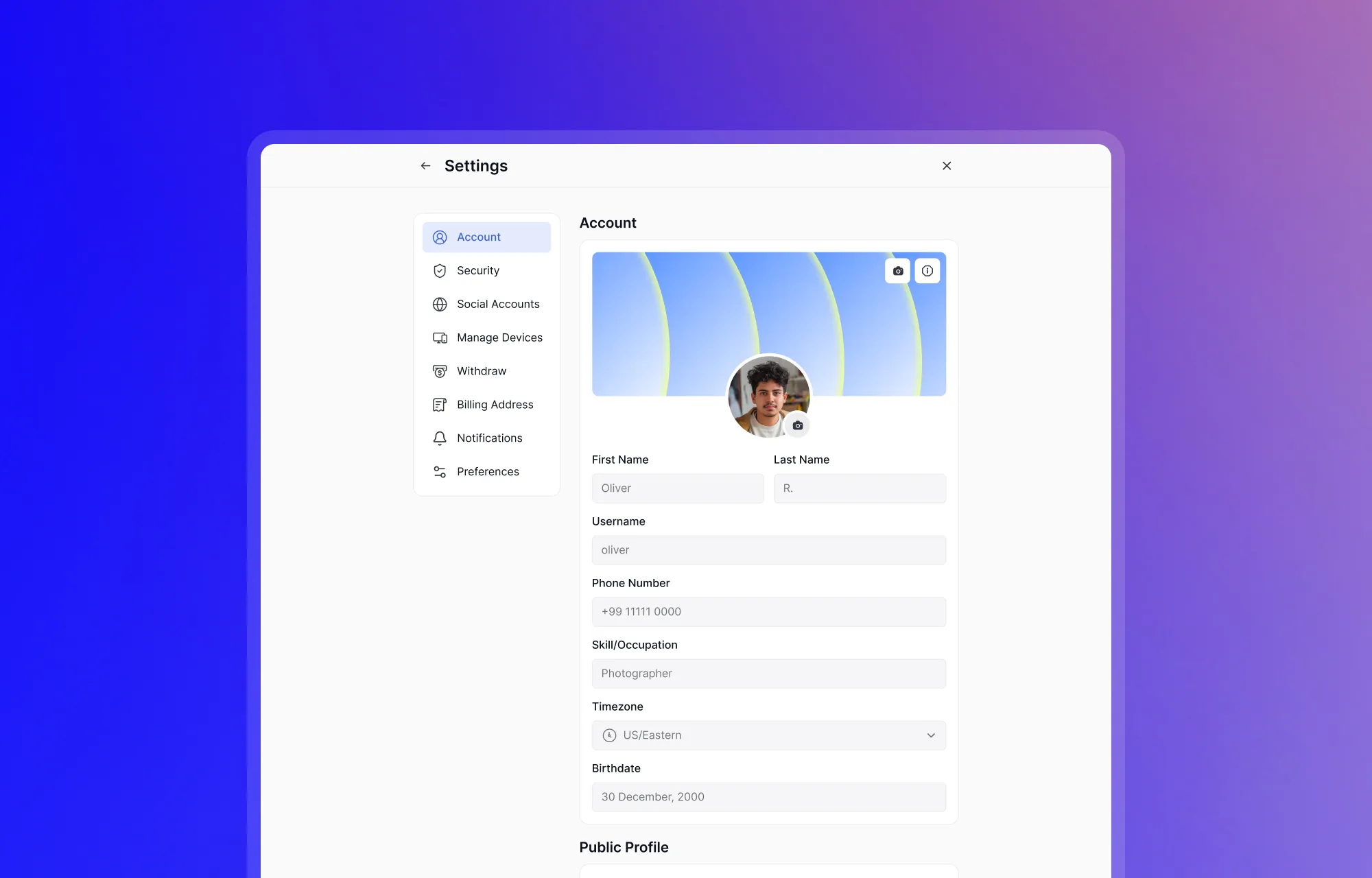
- Security: Change your login email or password, or deactivate your account if needed
- Social Accounts: Link profiles from Facebook, X, LinkedIn, GitHub, or your personal website
- Billing Address: Set a default address used for generating invoices
- Notifications: Toggle email and push notifications globally, or fine-tune individual alerts for enrollments, assignments, live classes, and password resets
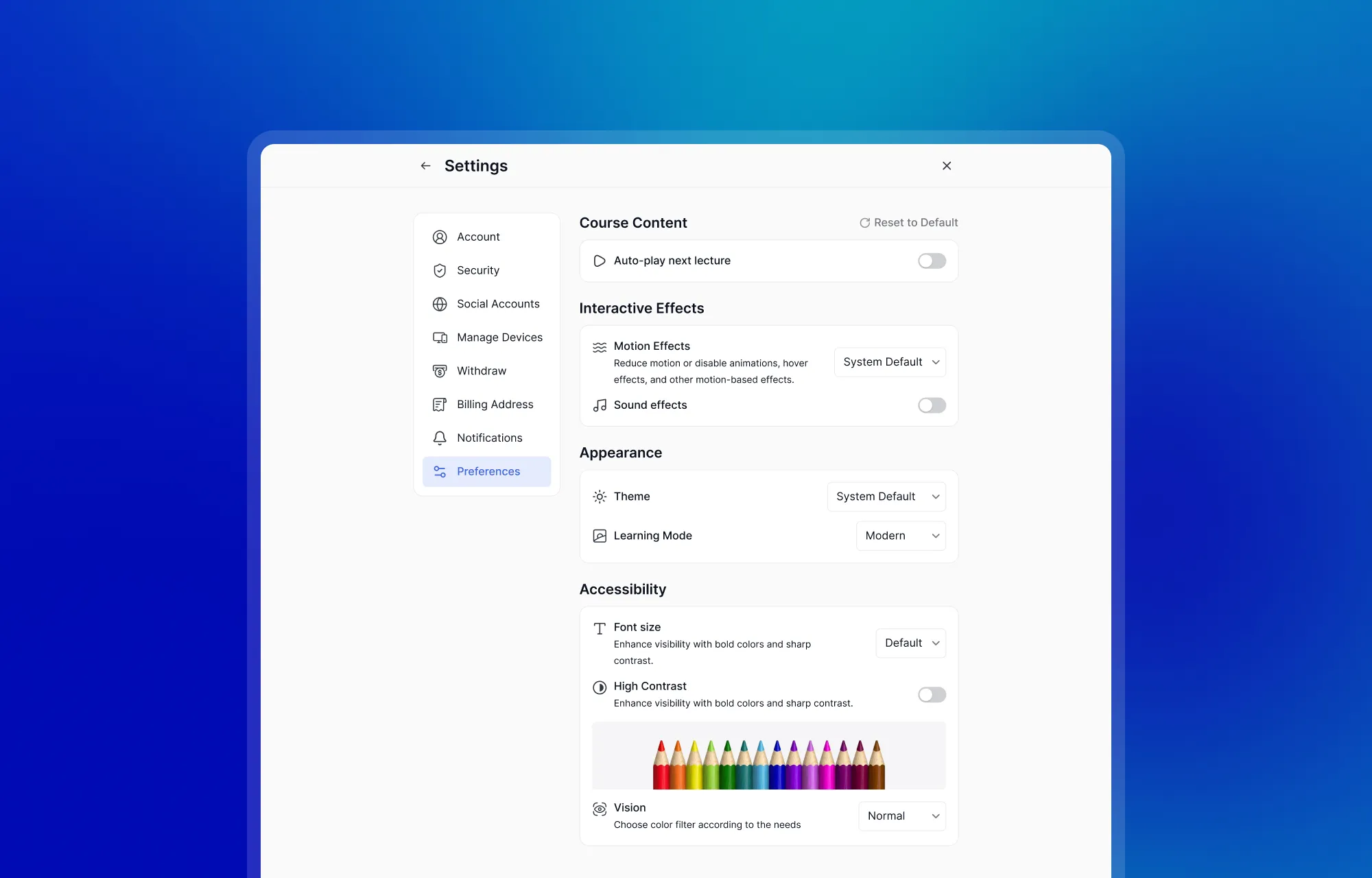
- Preferences: Enable auto-play for the next lecture, adjust global font size, choose between Modern or Kids Mode layouts, and configure Tutor LMS dark mode, Accessibility options, and appearance settings to match your comfort
Every option in this menu is designed to keep you in charge of your own learning experience, without ever needing to involve an administrator.
Conclusion
That feeling of logging into a learning platform and not knowing where to start can quickly drain motivation. The Tutor LMS learner dashboard is designed to remove that uncertainty by bringing every important tool into a single, organized workspace.
From course tracking and quiz history to Tutor LMS video notes with timestamps, centralized discussions, a flexible calendar, and complete account and billing management, everything is accessible from one place within your WordPress LMS student portal.
A great dashboard does more than organize information. It helps you stay focused, build consistent learning habits, and ultimately finish what you started.

Table of Contents
Start Using Tutor LMS Today
Ready to take your online courses to new heights? Download Tutor LMS now and enjoy a journey of eLearning excellence.