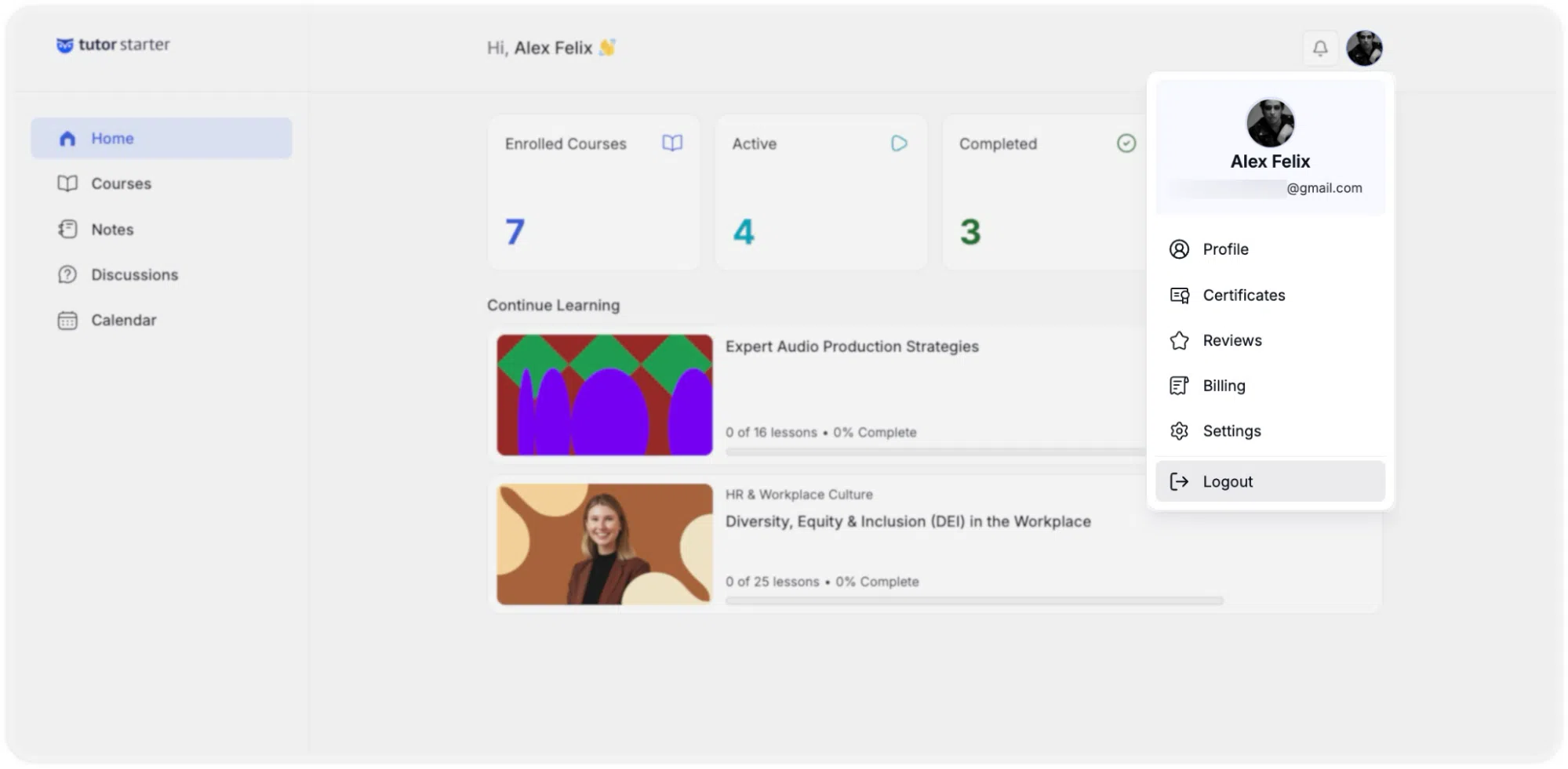
Account Menu & Profile Options
The Learner Account Menu provides access to account management tools, personal records, and system preferences. Access this menu by clicking the profile avatar in the top-right corner of the dashboard.
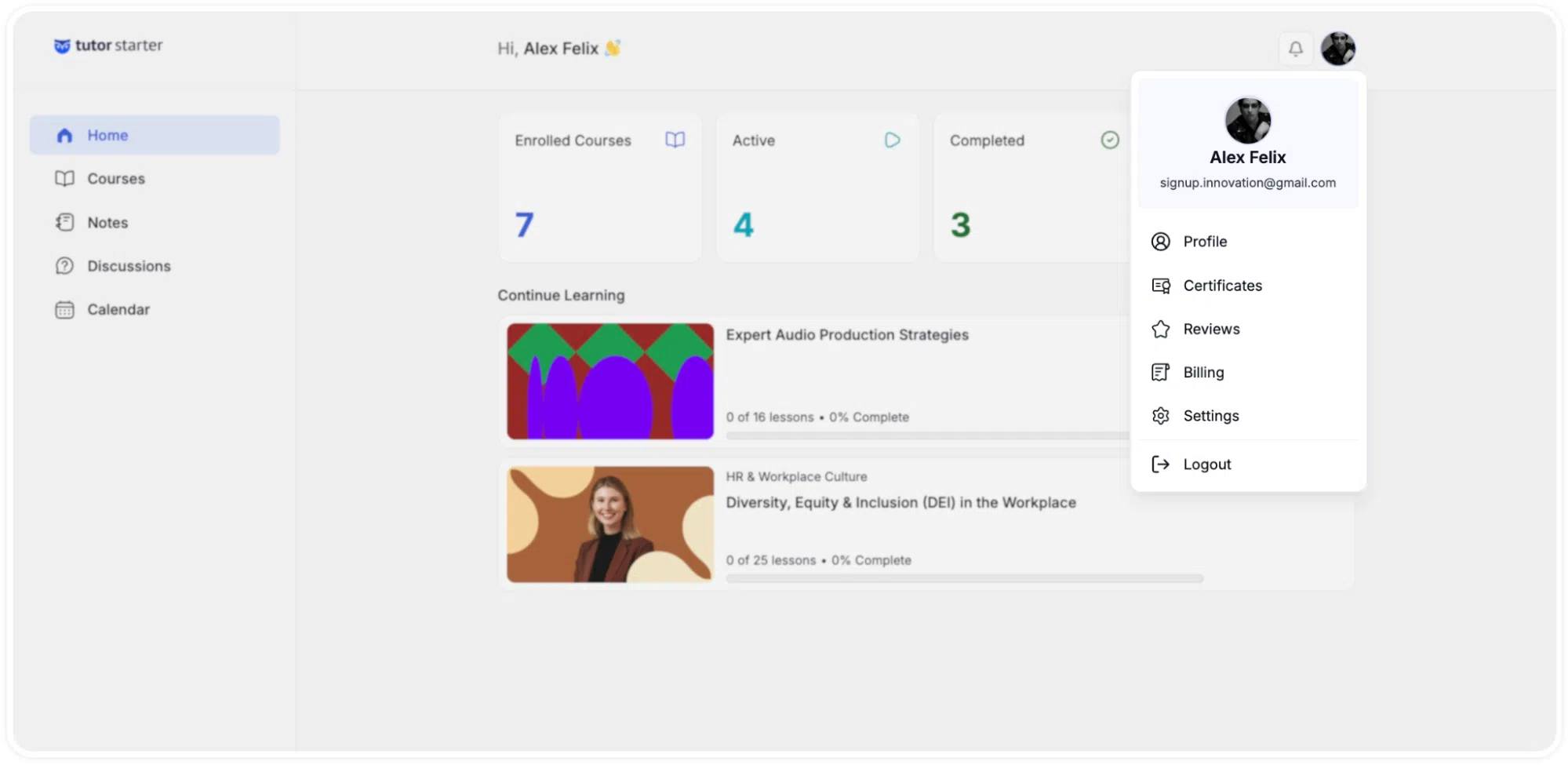
Profile
The Profile section displays public-facing user information visible to instructors and other learners.
- Information Displayed: Includes the user’s profile picture, full name, stated skill or occupation, a brief biographical summary, contact email, and linked social media profiles.
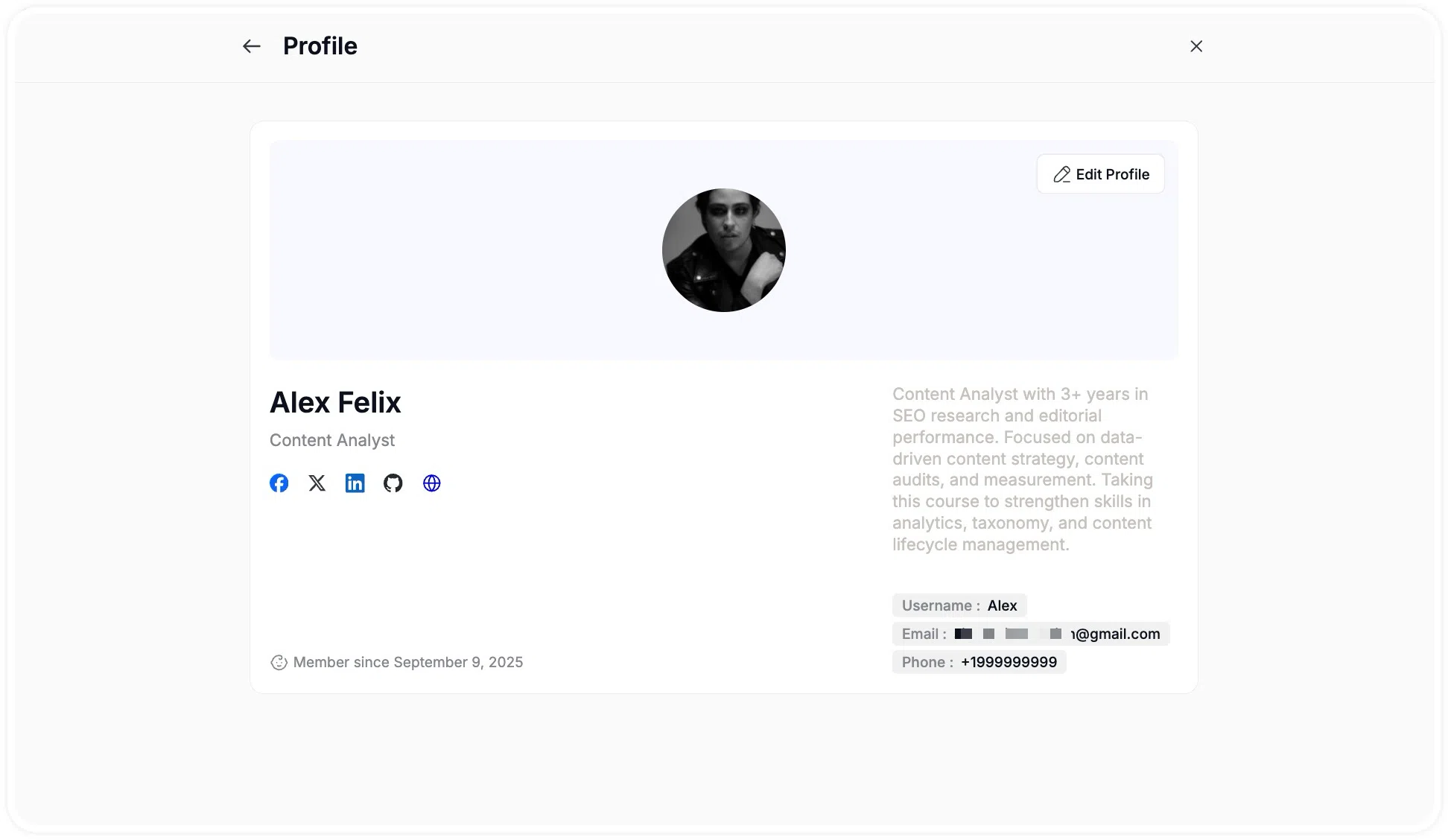
- Editing: Users can modify this information by clicking the Edit Profile button or by navigating to the Settings > Account tab (see Settings section below).
Certificates
The Certificates section provides a historical ledger of all certifications earned by the learner upon completing courses.
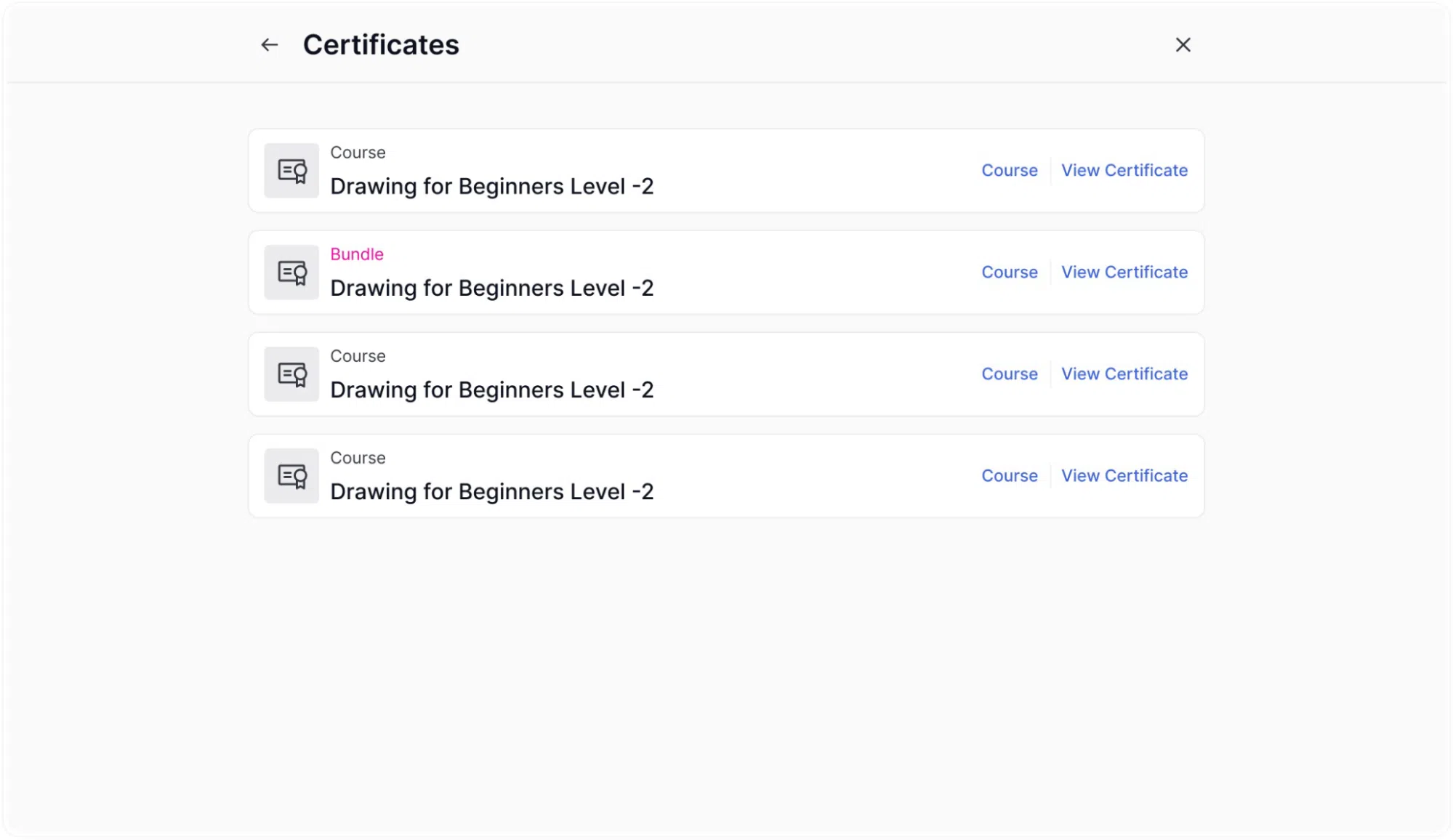
Each entry lists the associated Course link alongside a View Certificate button, which opens the full, downloadable document for printing or digital sharing.
Reviews
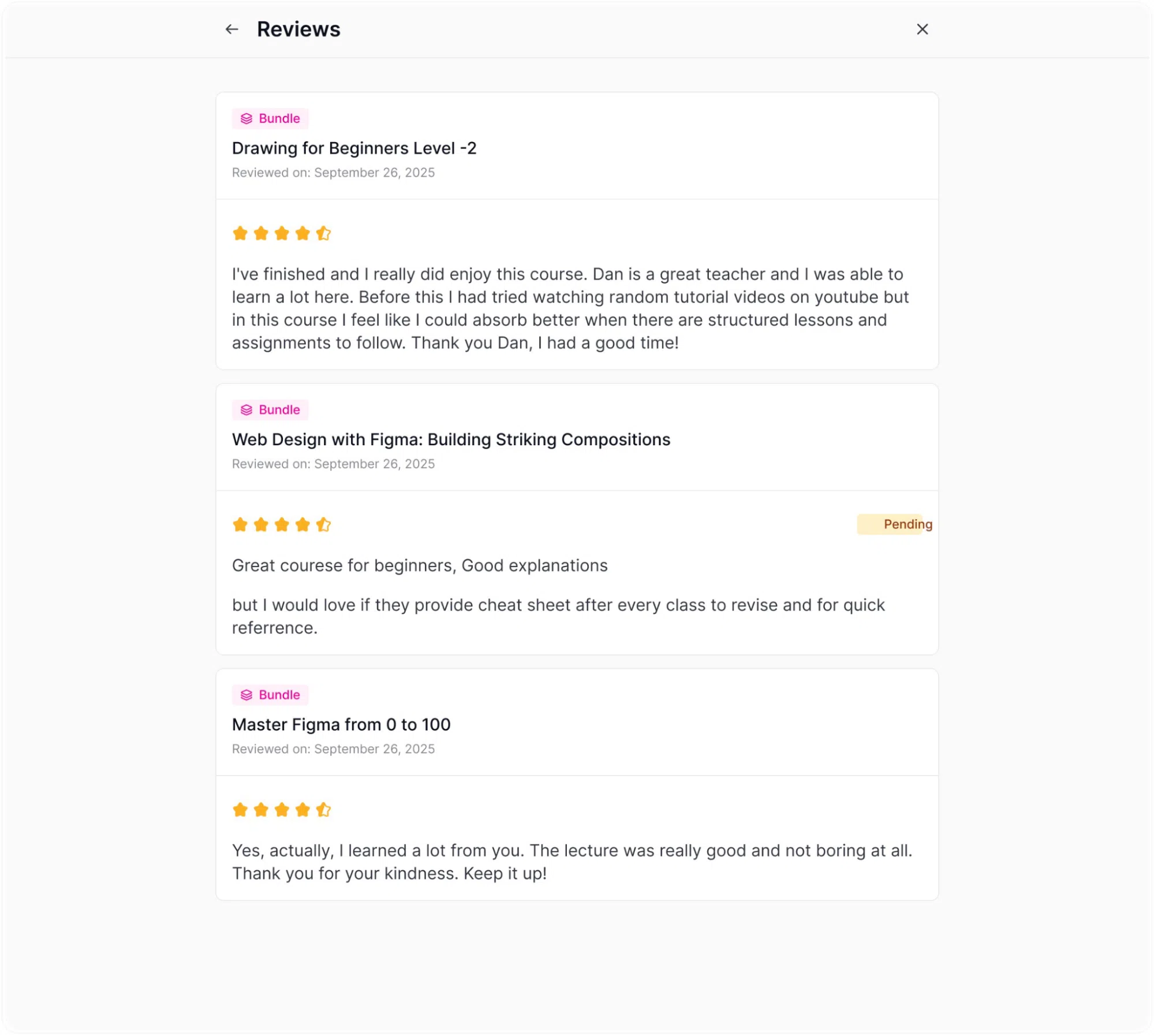
The Reviews section is a dedicated space where you can look back at all the feedback and evaluations you’ve shared across the platform for both individual courses and comprehensive course bundles.
The following information can be found on each review card:
- The Content Title: The specific name of the course or bundle, complete with a handy visual tag (“Bundle” label) so you know exactly what you were reviewing.
- Submission Date: The exact date you left your thoughts.
- Star Rating: Your visual score out of five stars.
- The Full Review: The complete text of your written commentary and feedback.
- Approval Status: Notice a “Pending” badge next to your star rating? That just means your review is currently in the queue waiting for admin approval. Once an admin gives it the green light, the badge will disappear, and your feedback will be live for the whole community to see!
Billing
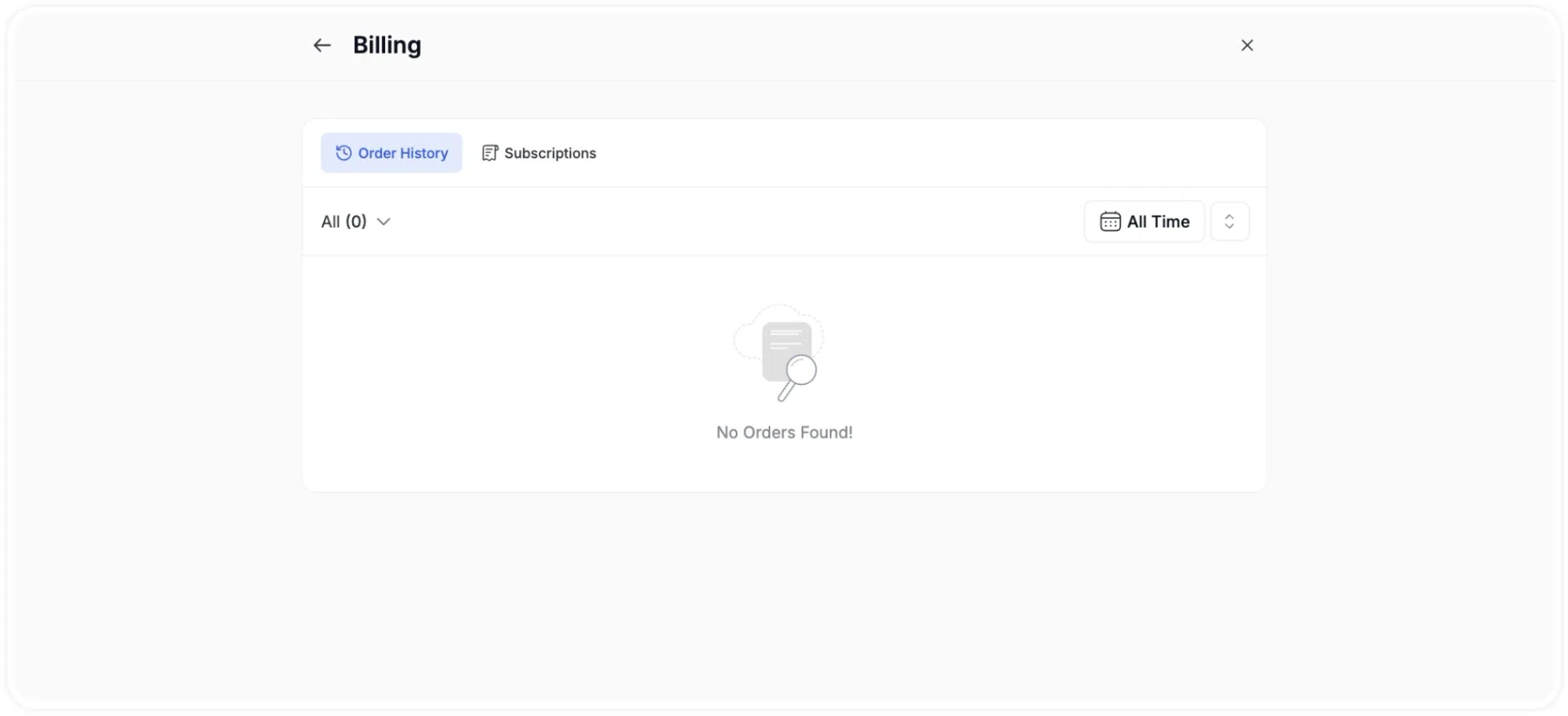
The Billing section manages financial transactions, purchase history, and subscription plans. It contains two tabs: Order History and Subscriptions.
1. Order History
This tab records all one-time purchases and individual transactions made by the user.
- Transaction List: Displays a comprehensive list of all orders. Each line item details the course or bundle name, the date and time of purchase, the payment method utilized (e.g., Stripe, Apple Pay, Google Pay, PayPal), the total amount, and the payment status (e.g., Paid, Pending).
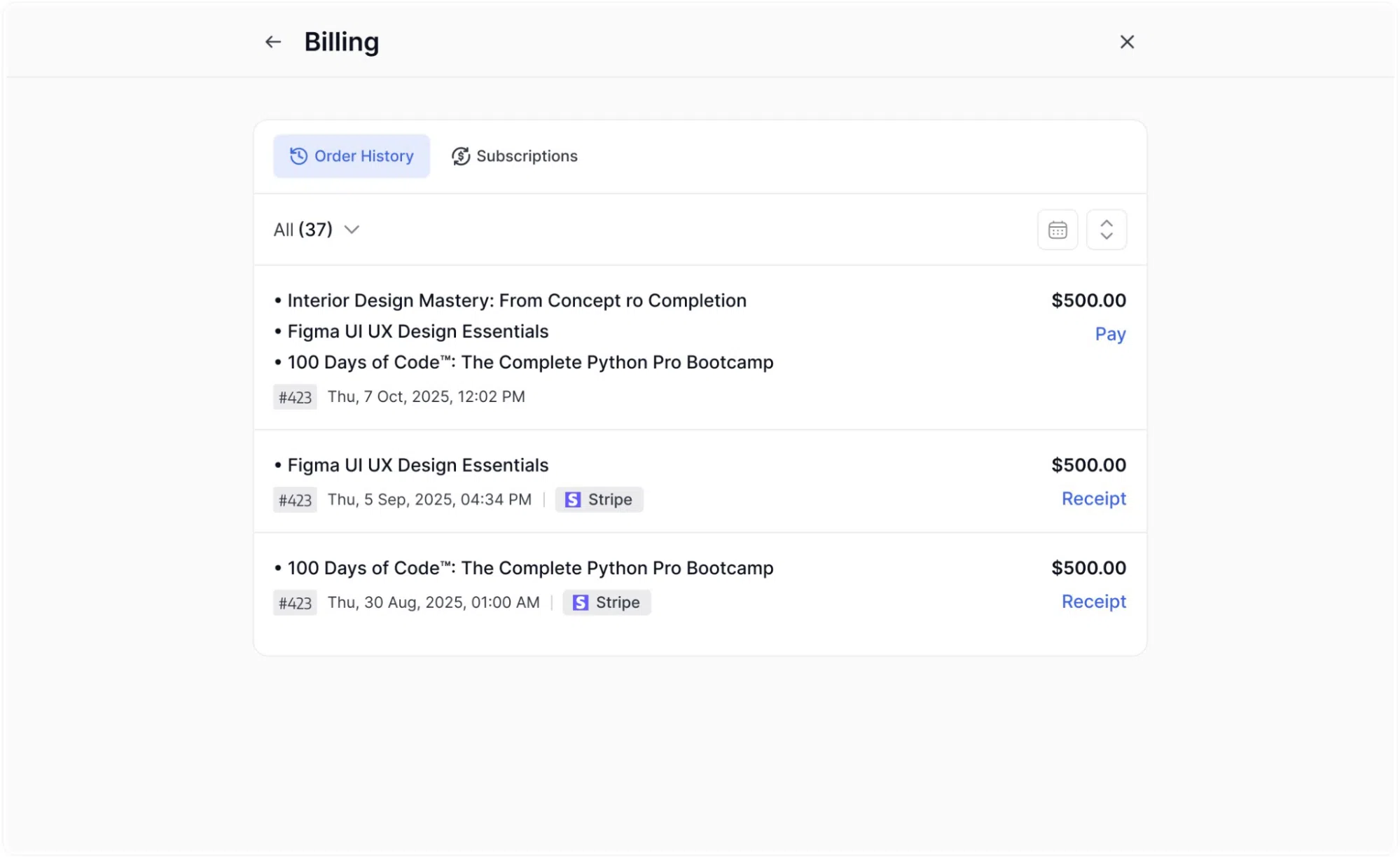
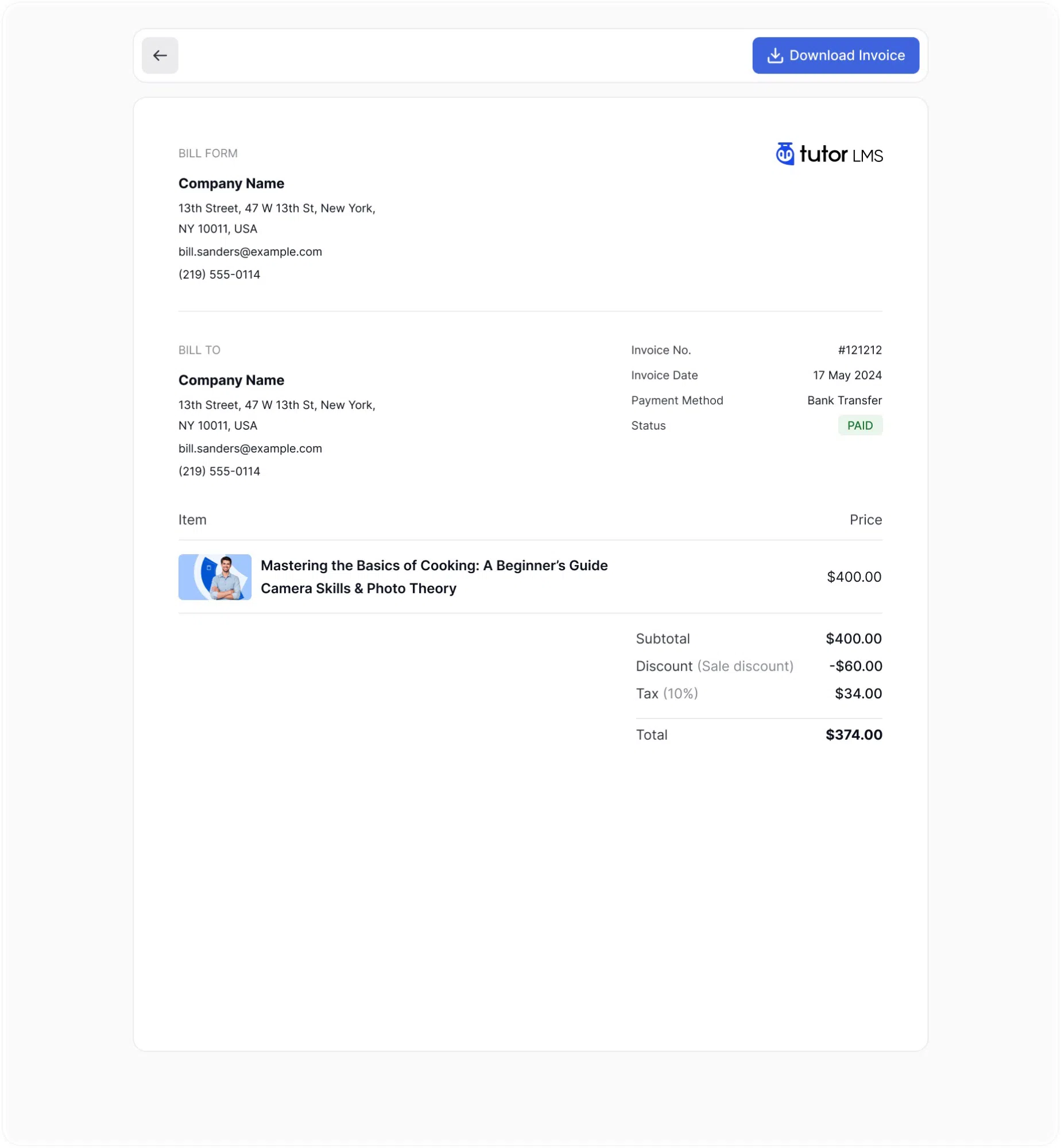
- Receipts and Invoices: For completed transactions, a Receipt link is available. Clicking this opens a detailed, formalized invoice.
- Invoice Details: The invoice includes standard billing information such as the issuing company details (“Bill From”), the user’s billing address (“Bill To”), Invoice Number, Date, Payment Method, and Status.
- Itemized Breakdown: It provides a line-item breakdown of the purchase, detailing the subtotal, applied discounts, tax amounts, and the final total paid.
- Export: Users can retain this document locally by clicking the Download Invoice button located at the top of the invoice view.
2. Subscriptions
This tab manages recurring billing agreements for ongoing access to specific courses or site-wide plans.
- Active and Past Plans: Displays all subscription tiers the user is currently enrolled in or has previously held (e.g., “Basic Plan”, “Professional”).
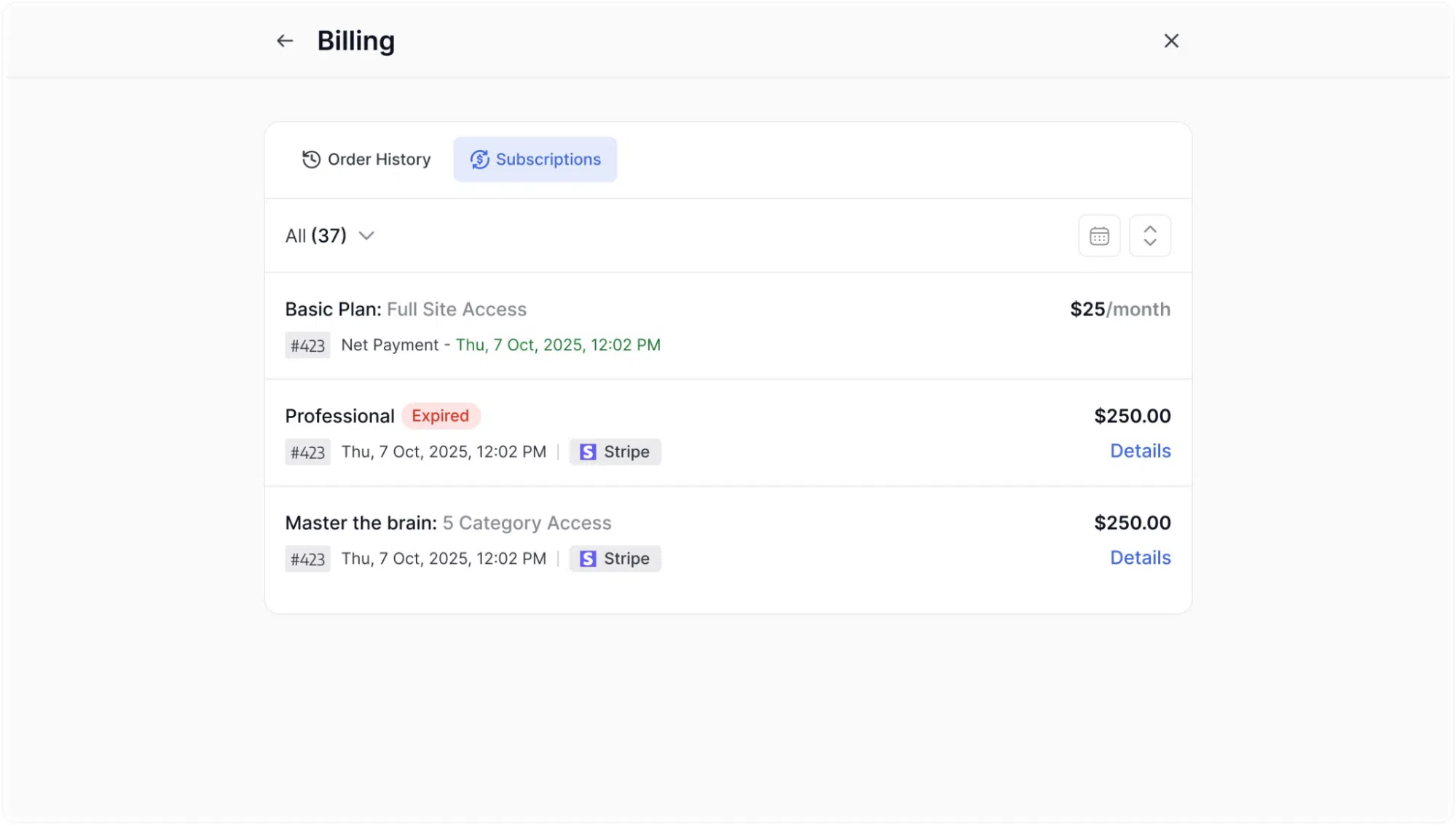
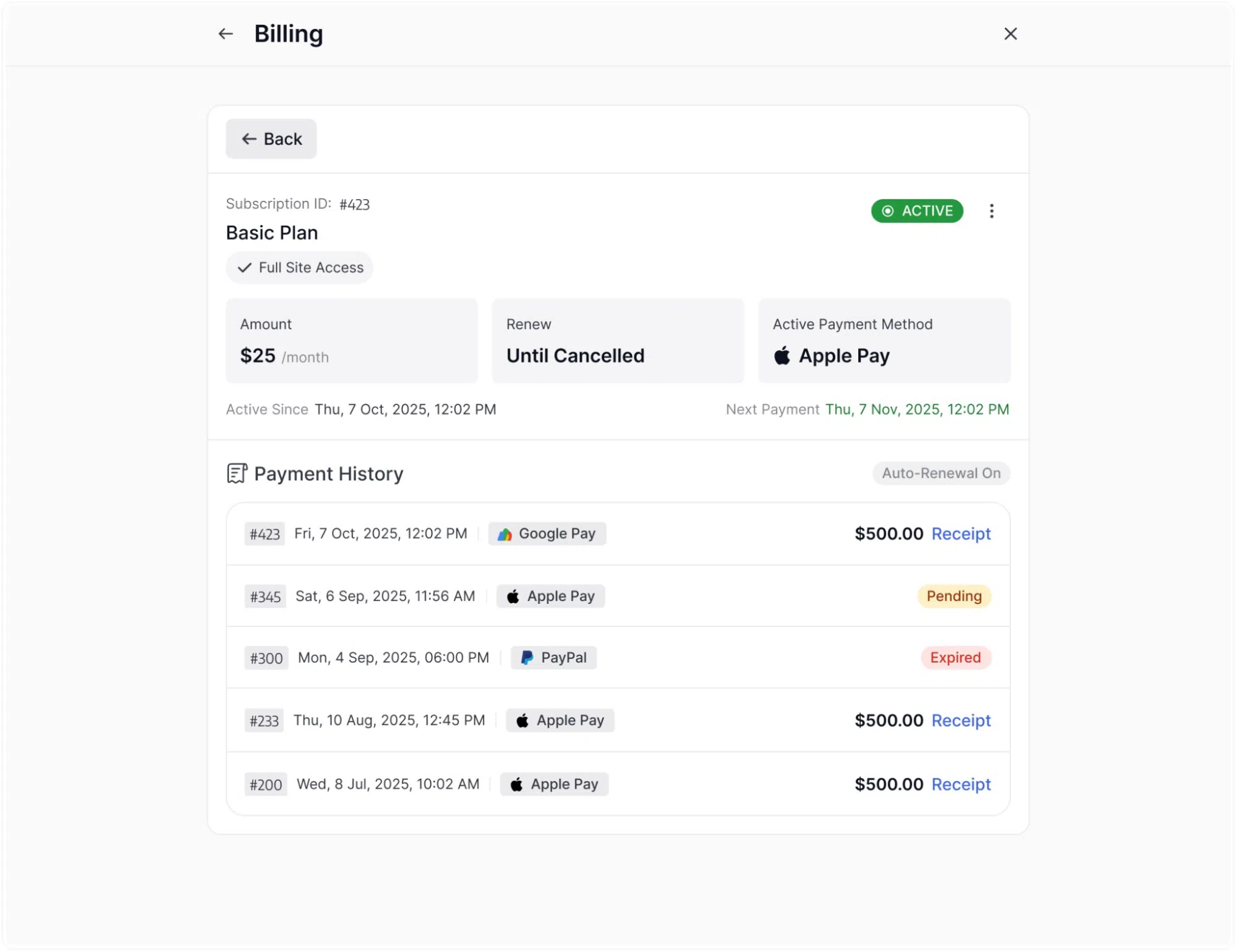
- Subscription Details: Each entry outlines the Subscription ID, current Status (highlighted with tags such as Active, Pending, Cancelled, or Expired), the recurring amount (e.g., $25/month), the renewal status (“Until Cancelled”), and the active payment method.
- Payment History: Expanding a specific subscription reveals a localized payment history strictly tied to that recurring plan, showing individual receipts for each billing cycle.
- Subscription Actions: Depending on the current status of the plan, users have access to management controls:
- Cancel Plan: Initiates the cancellation process to prevent future billing. The UI will indicate when the current access expires.
- Resume Plan: Reactivates a previously cancelled subscription.
- Early Renewal / Confirm Renewal: Allows users to manually push a payment through before the scheduled automatic renewal date.
Settings
The Settings menu provides controls for account data, security credentials, and platform preferences. Settings are organized into categories accessible via a left-hand sidebar navigation.
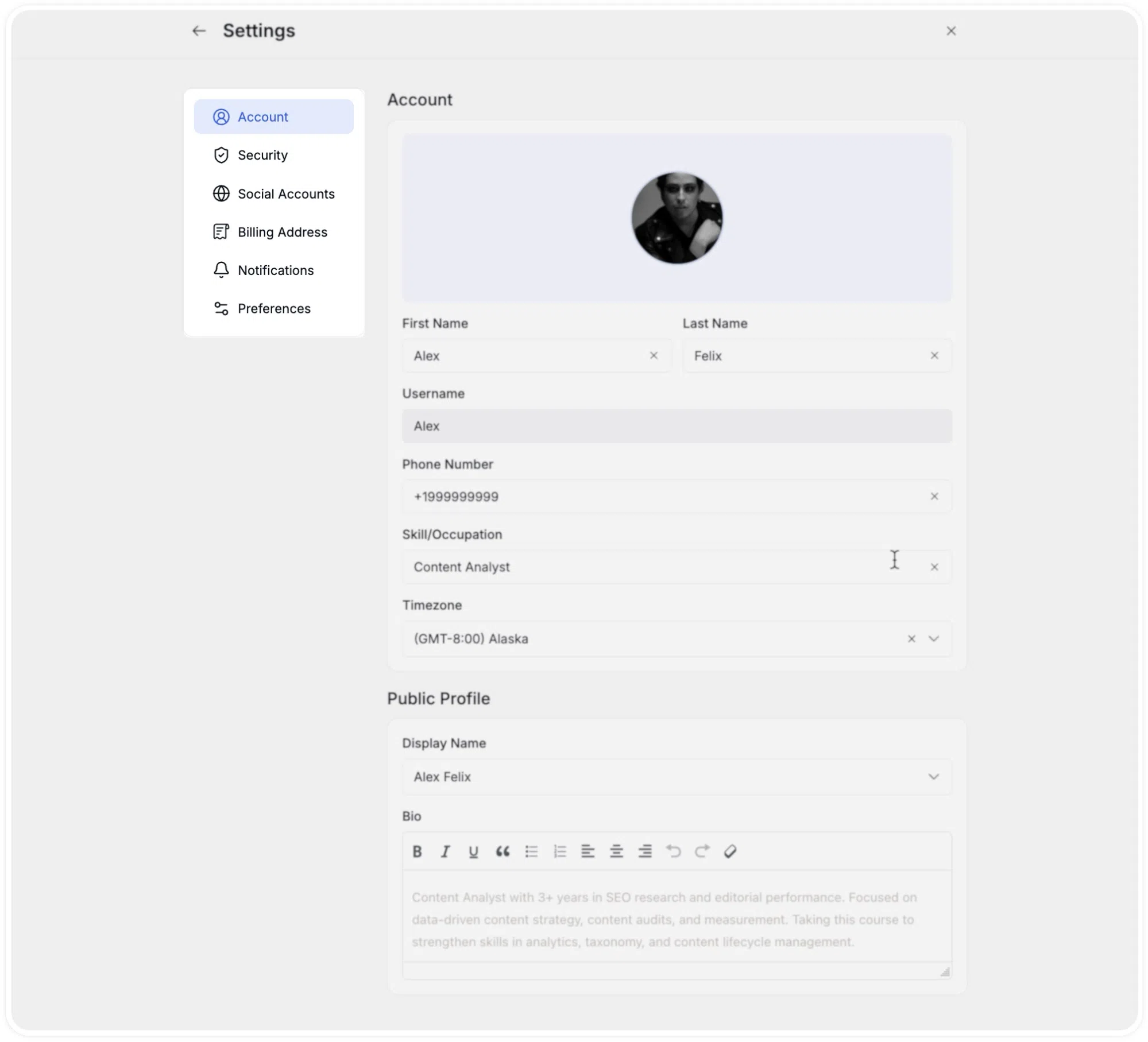
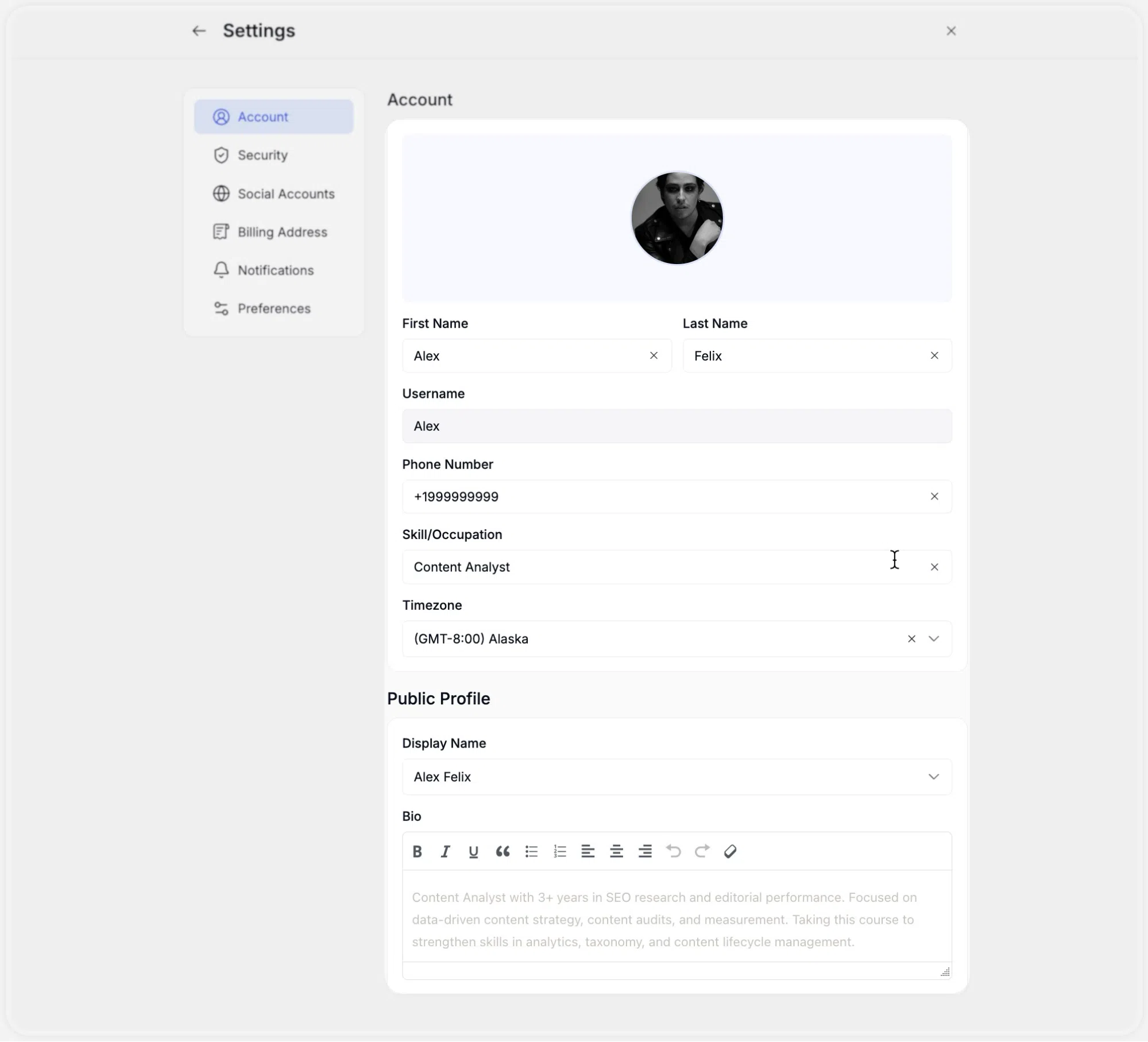
- Account: Manages core identity data. Users can update their First/Last Name, Username, Phone Number, and Timezone. It also houses the “Public Profile” configuration for updating the Display Name and Bio, as well as an upload field for setting a custom Certificate Signature.
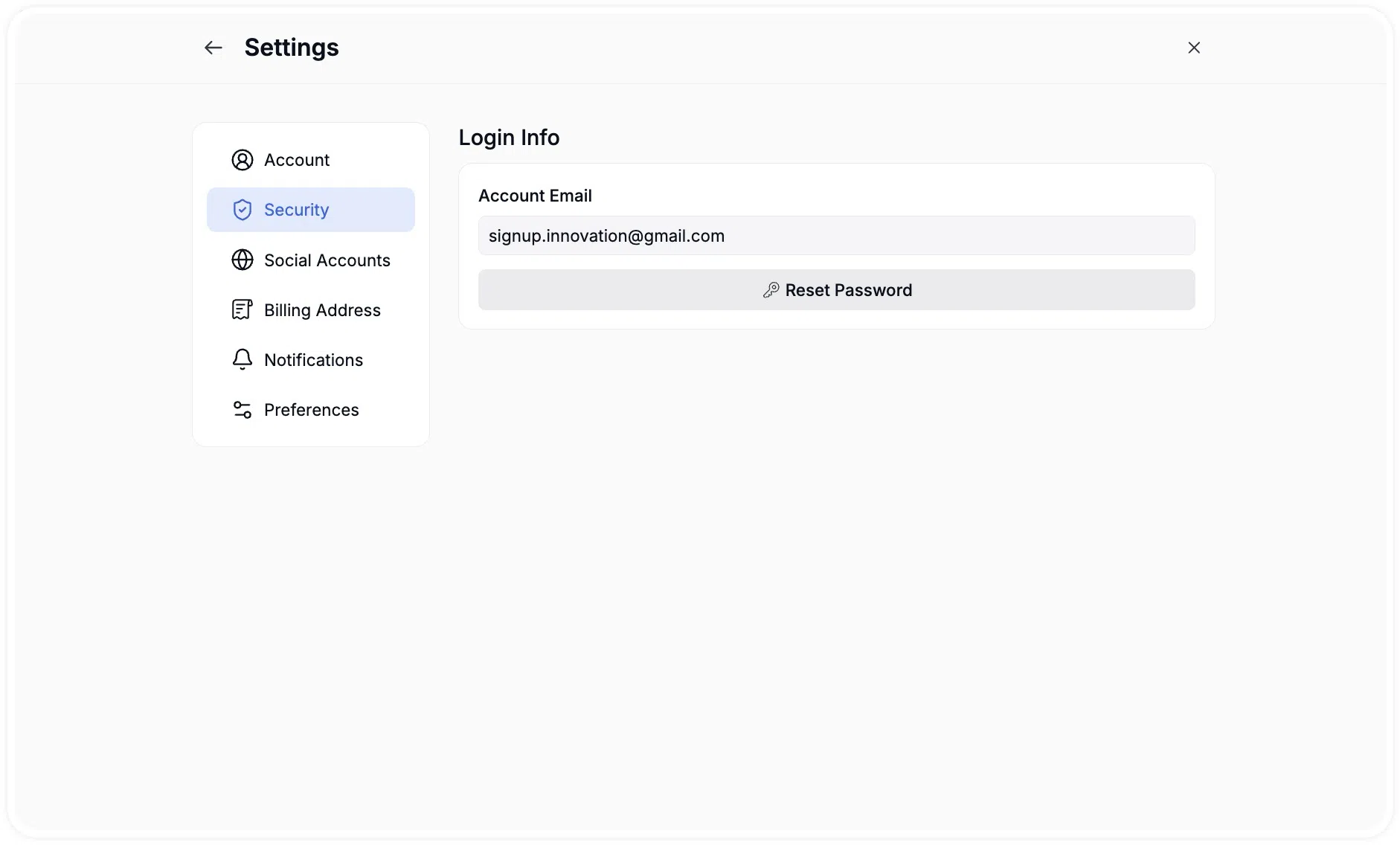
- Security: Controls account access parameters. Users can initiate a change to their login email address or reset their account password. This section also includes the “Account Management” utility for permanently deactivating the account.
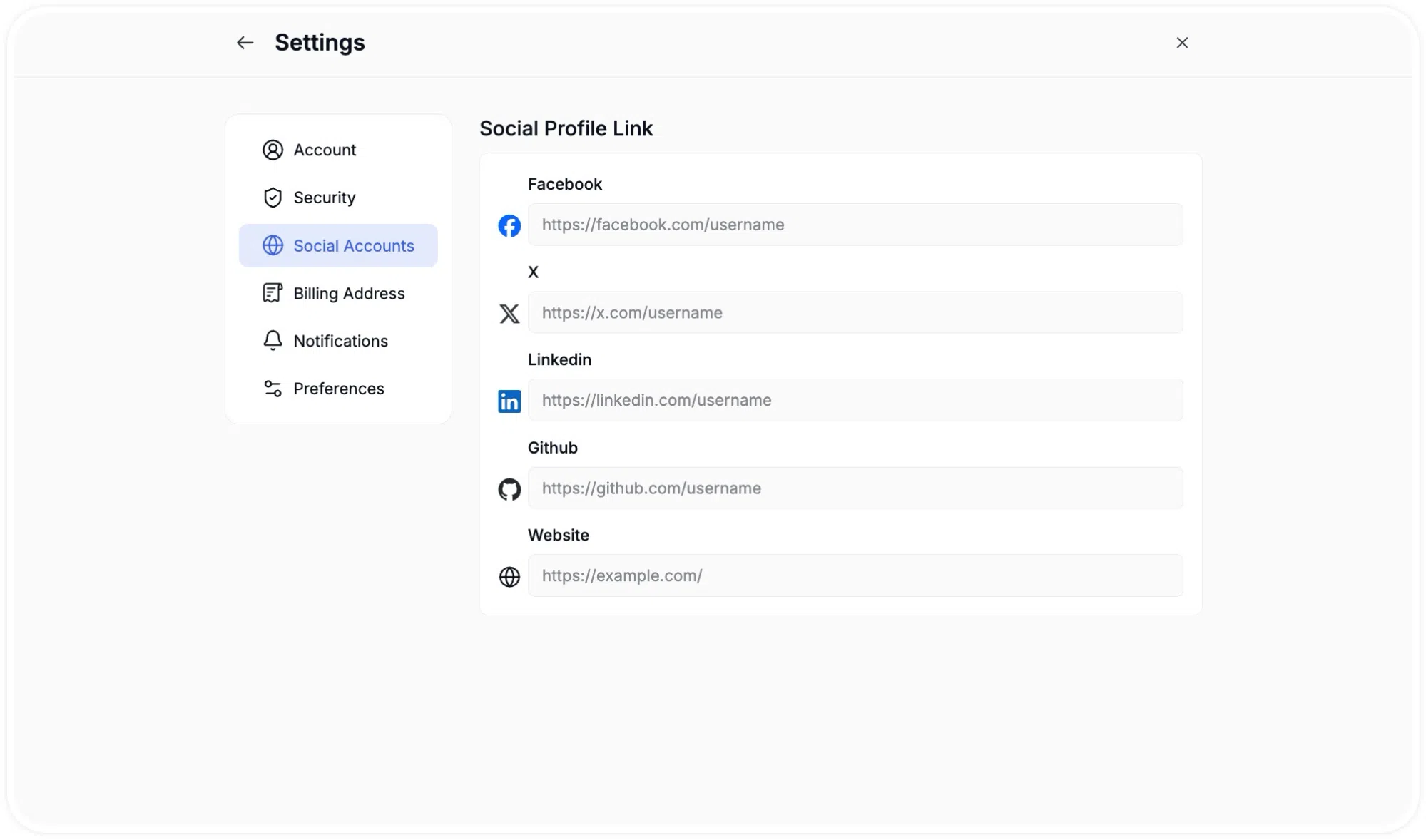
- Social Accounts: Provides input fields to link external platforms, including Facebook, X (formerly Twitter), LinkedIn, GitHub, and personal websites, integrating them into the public profile.
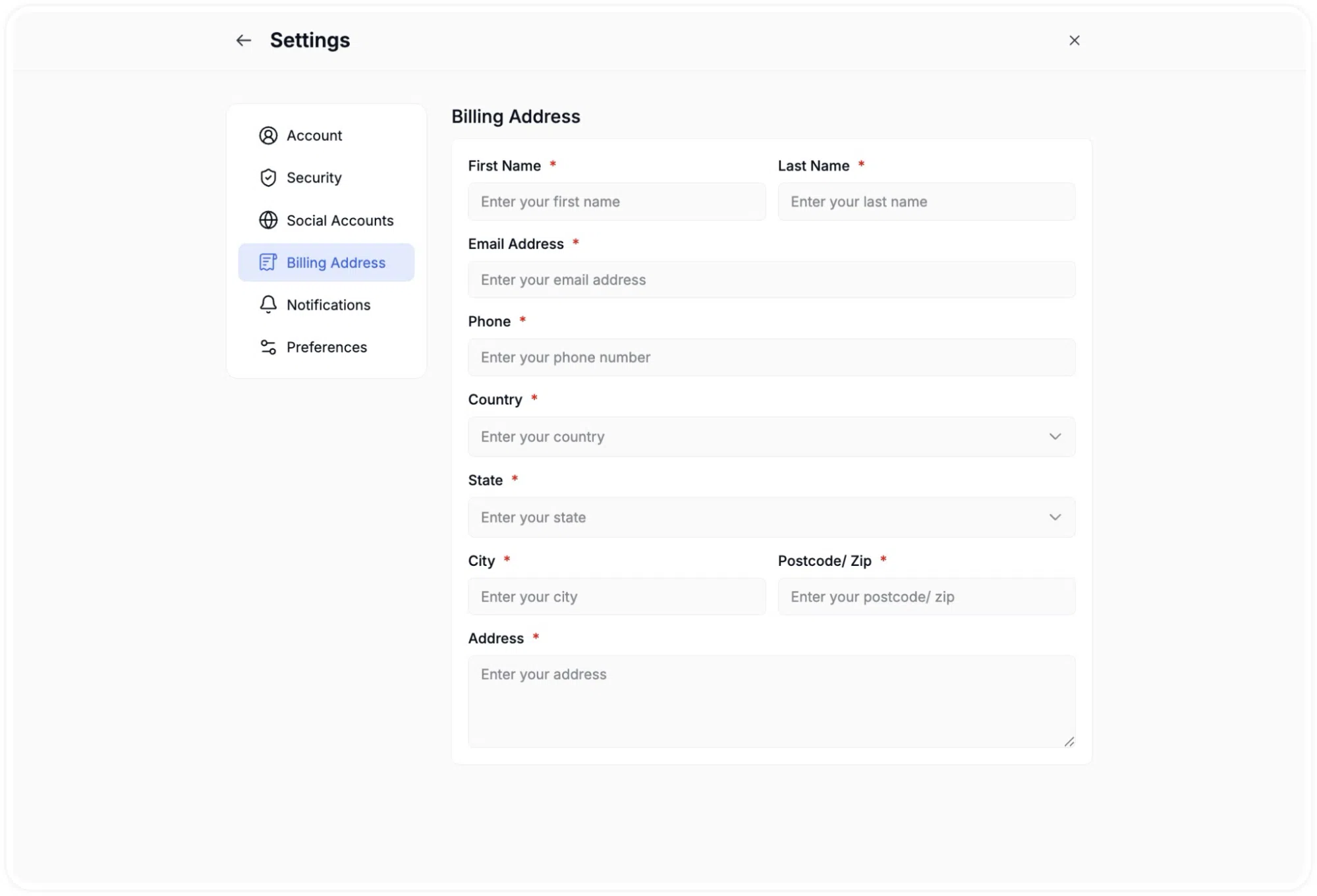
- Billing Address: A standardized form to define the default global billing address (Street, City, State, Country, Postcode) used for automated invoice generation during checkouts.
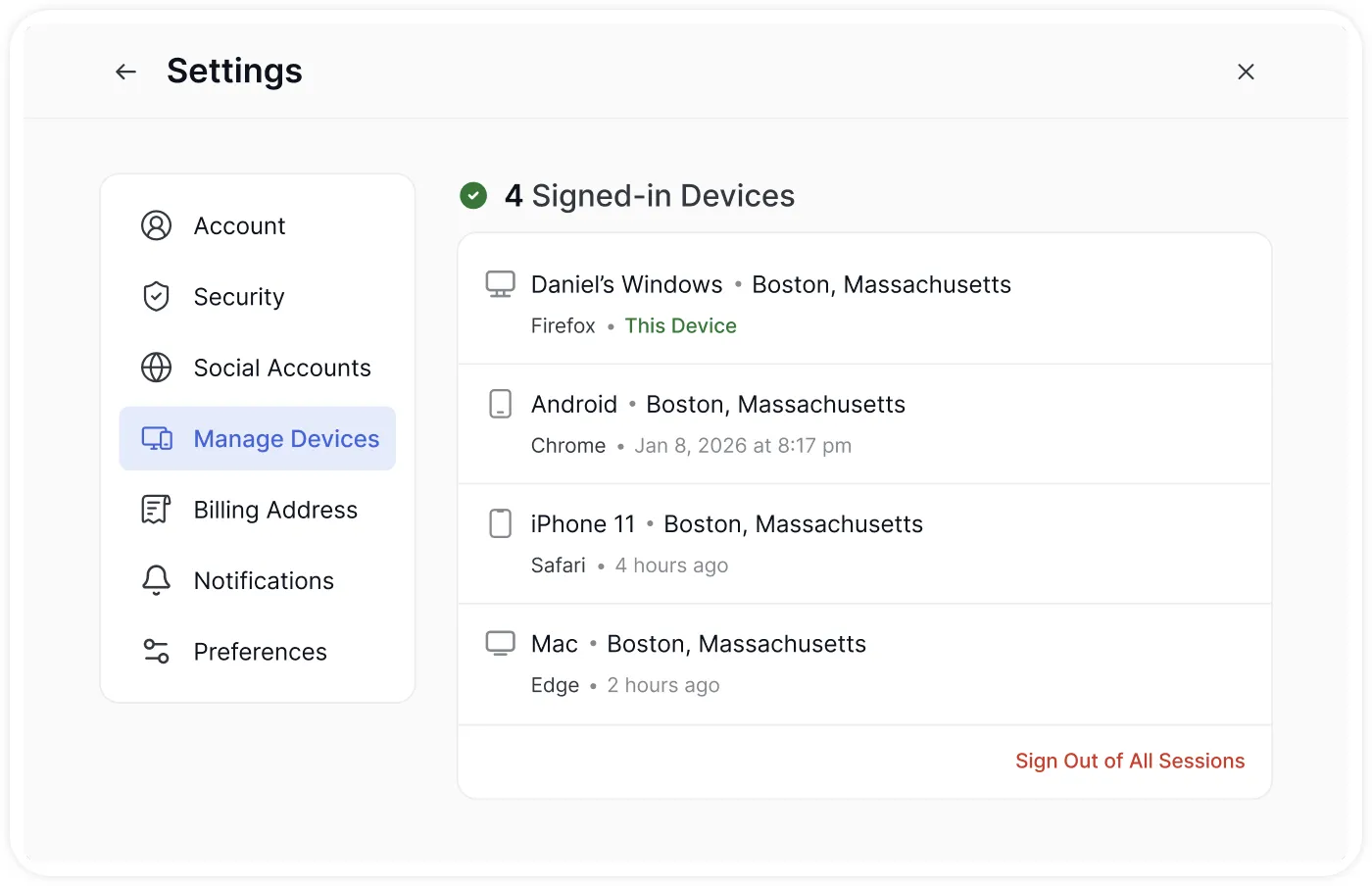
- Manage Devices: The Manage Devices tab allows learners to monitor, manage, and revoke active login sessions across various browsers and devices connected to their account.
- Information Displayed: Under this section, users can see an overview of all currently authenticated sessions:
- Active Session Count: Displays the total number of currently active logins (e.g., 1 Signed-in Device or 3 Signed-in Devices).
- Device & Operating System: Identifies the operating system and platform used to log in (e.g., Mac, Windows, Android).
- Geographic Location: Shows the detected location or IP-based origin (e.g., Unknown Location or city/country).
- Browser & Last Activity: Specifies the browser utilized (e.g., Google Chrome, Safari, Firefox) along with the activity status:
- This Device: Highlights the device and browser session currently in use.
- Relative Timestamp: Indicates when the session was last active (e.g., 3 weeks ago, 5 months ago).
- Managing Sessions: Learners have granular control over their logged-in sessions:
- Sign Out Individual Devices: Hovering over any specific device card reveals a Sign out button. Clicking this terminates that specific session immediately without logging out of the current device.
- Sign Out of All Sessions: Clicking the red Sign Out of All Sessions button at the bottom revokes authentication across all connected devices and browsers simultaneously.
- Information Displayed: Under this section, users can see an overview of all currently authenticated sessions:
Note: The maximum number of concurrent active sessions allowed per account is configured by site administrators under Tutor LMS Pro > Settings > Authentication > Manage Active Login Sessions. If a learner reaches the maximum session limit set by the admin, signing out of inactive sessions from this menu allows them to log in from a new device without encountering session limit warnings.
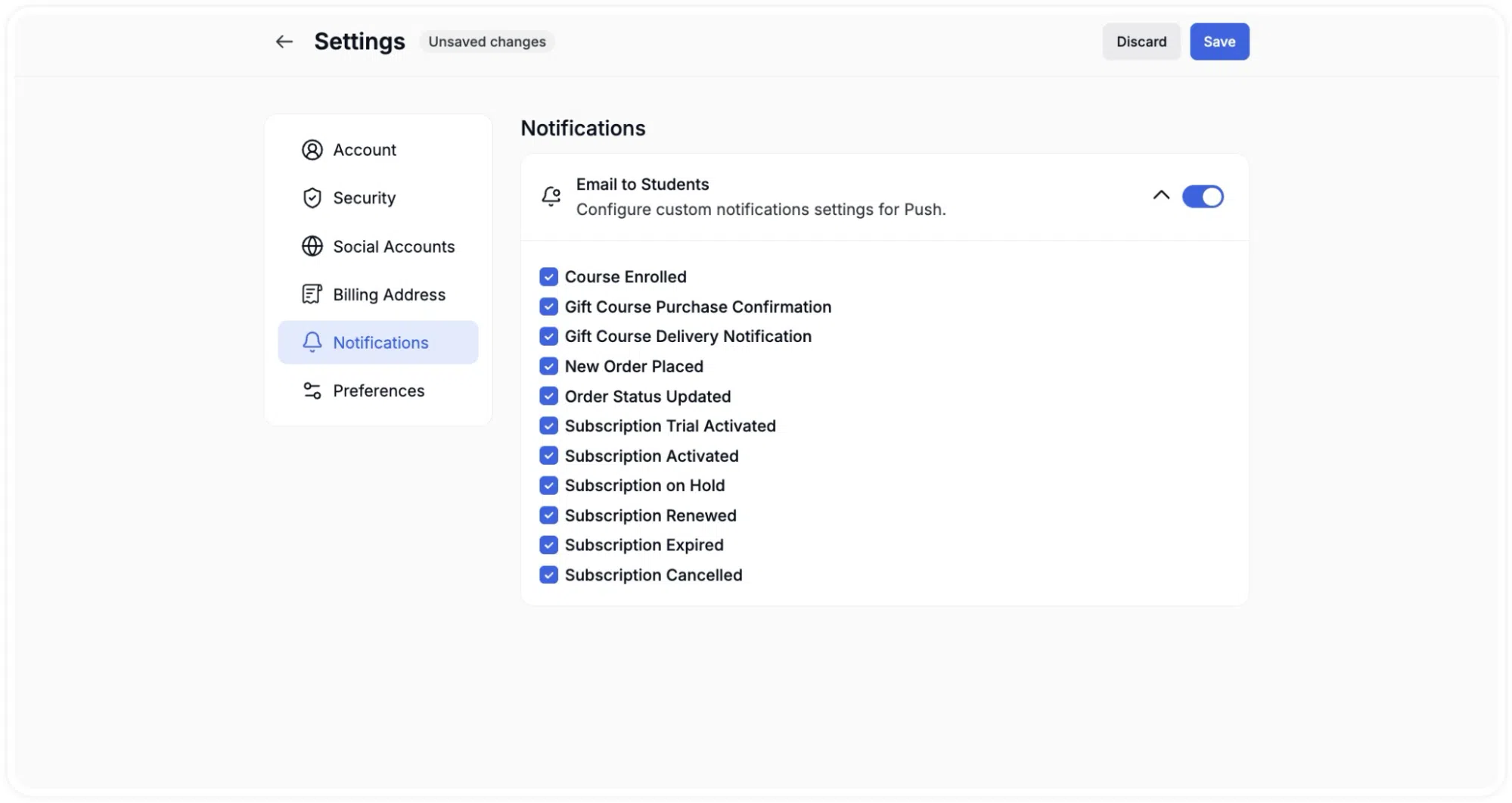
- Notifications: Offers granular control over platform communications. Users can toggle master switches for Email Notifications and Push Notifications, or individually configure alerts for events such as Course Enrollments, Assignment Updates, Live Class Reminders, and Password Resets.
Preferences
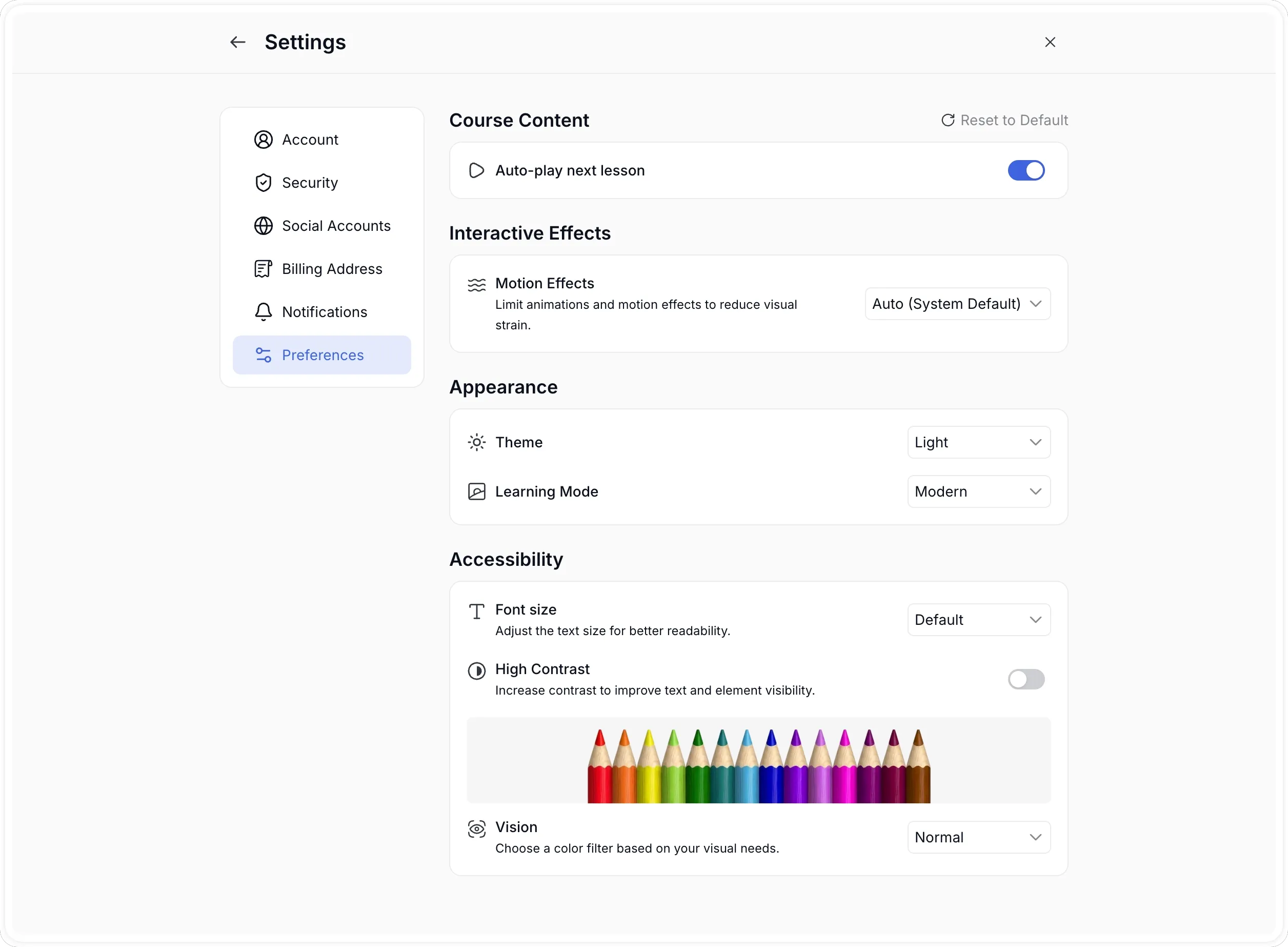
The Preferences tab allows you to customize your learning experience by adjusting interface settings for better usability. The options are divided into four main categories.
Course Content
- Auto-play next lecture: Use the toggle switch to enable or disable auto-play. When enabled, the next video lecture will start automatically upon finishing the current one.
Interactive Effects
- Motion Effects: A drop-down menu allows you to limit animations and motion effects, which can help reduce visual strain. You can choose between:
- Auto (System Default): Uses your device’s system settings.
- Reduced Motion: Minimizes animations across the dashboard.
- Standard Motion: Uses the default platform animations.
Appearance
- Theme: A drop-down menu to set the visual mode of your dashboard.
- Light: Forces a light interface.
- Dark: Forces a dark interface.
- System Default: Follows your device’s system theme settings.
Accessibility
- Font size: Use the drop-down menu to scale the interface text size based on percentage values, ranging from 60% to 200%, or set it to Default to improve overall readability.
- High Contrast: A toggle switch to increase contrast across the dashboard to improve text and element visibility.
- Vision: This option provides color filters based on visual needs. The drop-down menu allows you to select from various color profiles to assist with color blindness or other visual impairments. Options include: Normal, Protanopia, Deuteranopia, Tritanopia, and Achromatopsia.
A Reset to Default button in the top-right of this sub-section restores all three preferences to their original values in a single click.
Logout
Clicking Logout at the bottom of the Instructor Menu ends your current session immediately and redirects you to the platform login screen. No confirmation prompt is shown before logging out, so ensure any unsaved changes in Settings or other areas are saved before selecting this option.