Courses
The Courses tab provides a complete overview of your educational journey. It provides a centralized location for managing enrolled programs, tracking assessment performance, and organizing future enrollments. Access the Courses Hub by selecting the Courses tab in the left sidebar.
Courses Tab
The Courses tab displays all courses associated with your account. Access this tab from the left sidebar navigation.
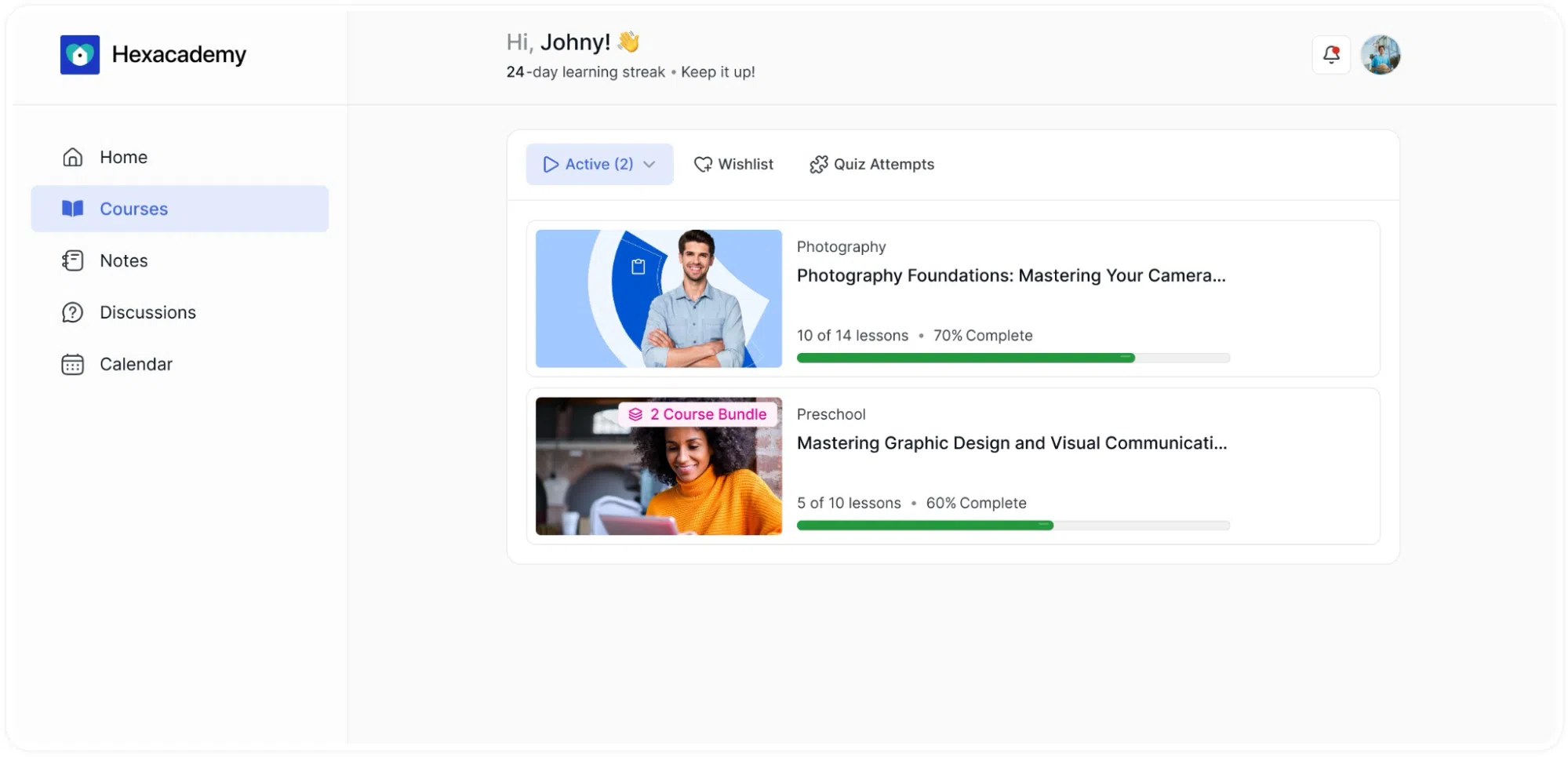
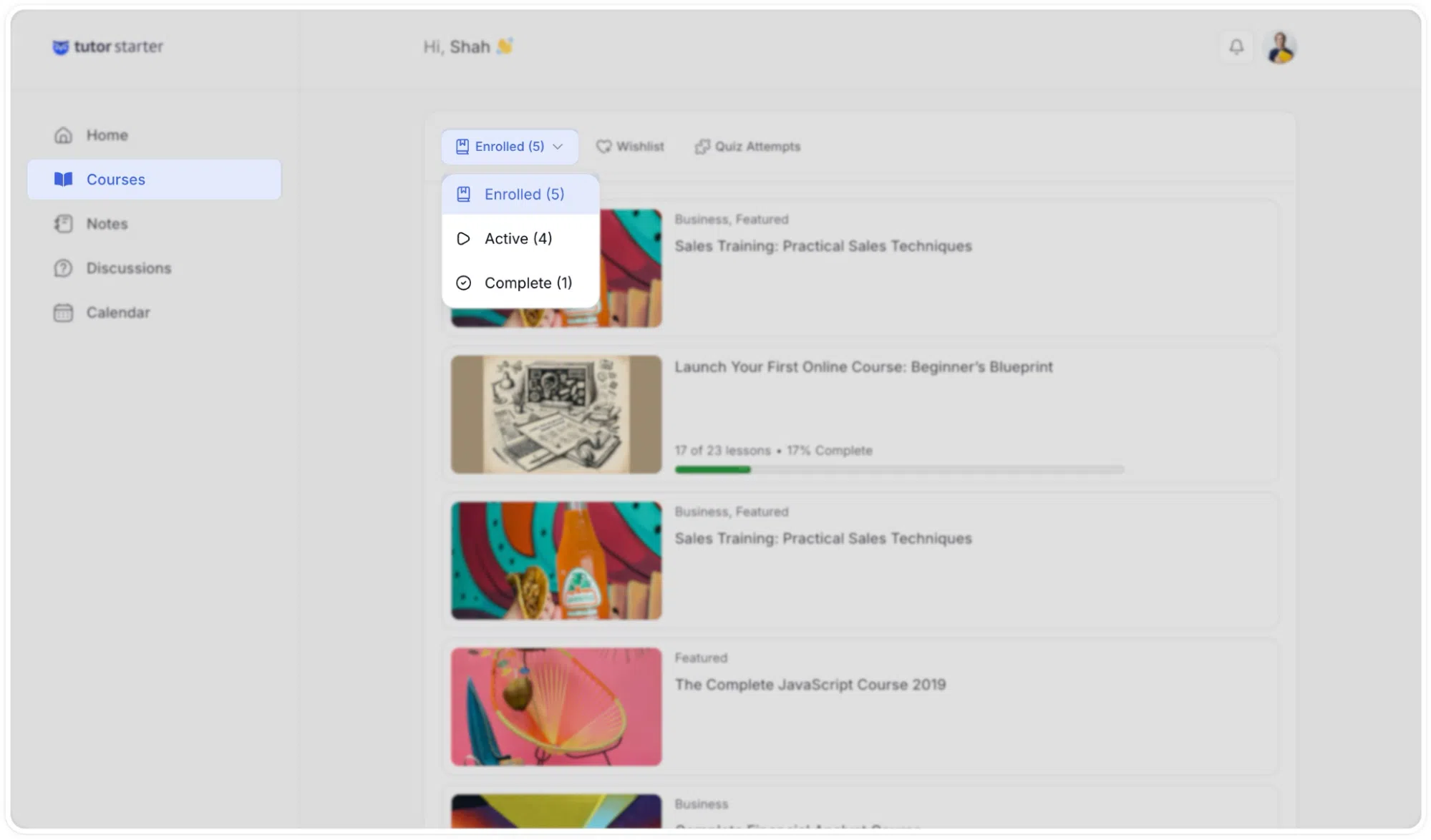
Filtering Courses by Status
Use the status dropdown menu at the top of the page to filter courses by enrollment status:
- Enrolled: Displays all courses you have enrolled in, including active and completed courses. Progress indicators appear on each course card.
- Active: Active: This filter isolates the specific courses you are currently taking. Use this view to quickly resume an incomplete lesson without distractions.
- Completed: Lists all finished courses. Completed courses remain accessible for future reference or for downloading certificates.
Wishlist
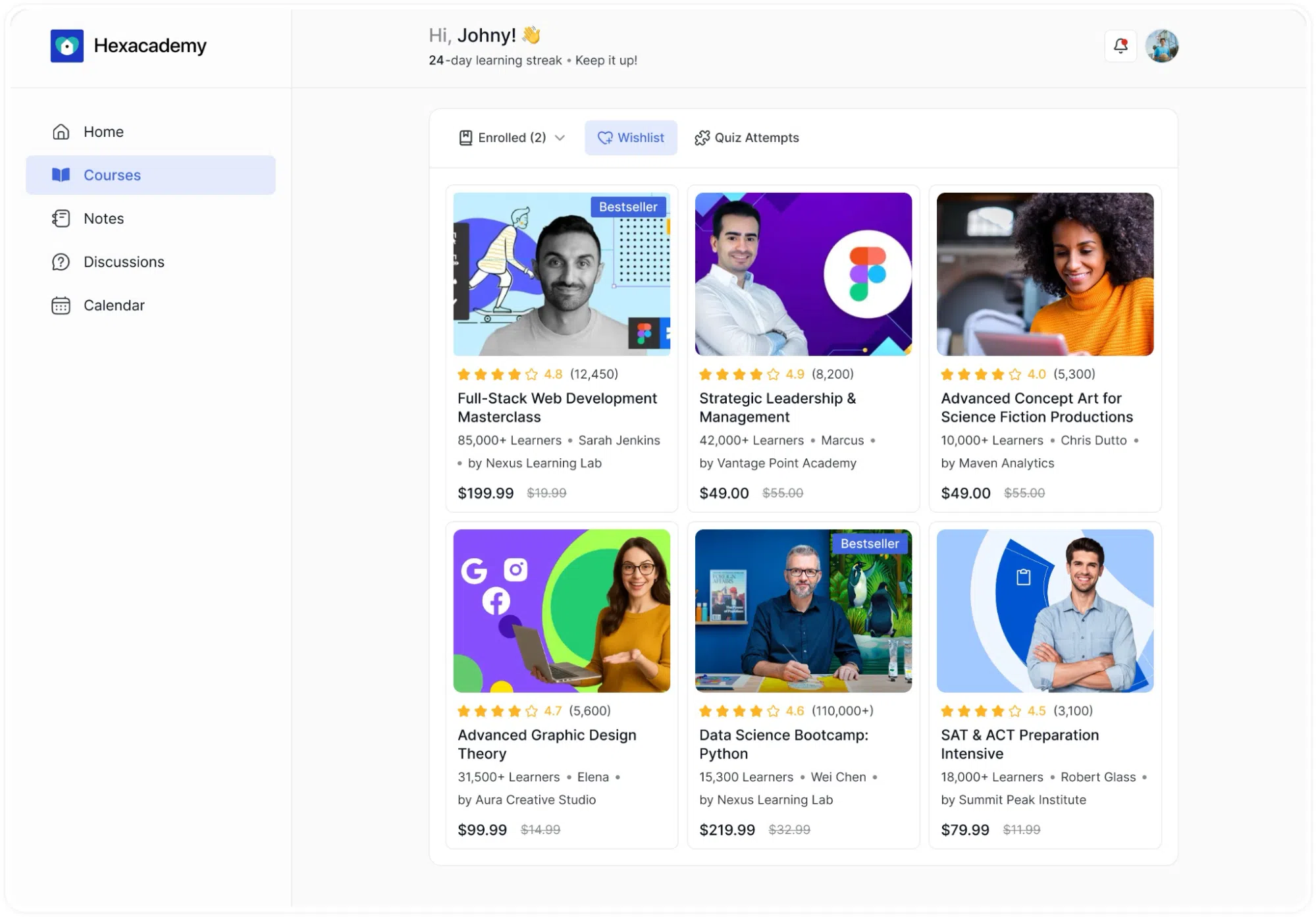
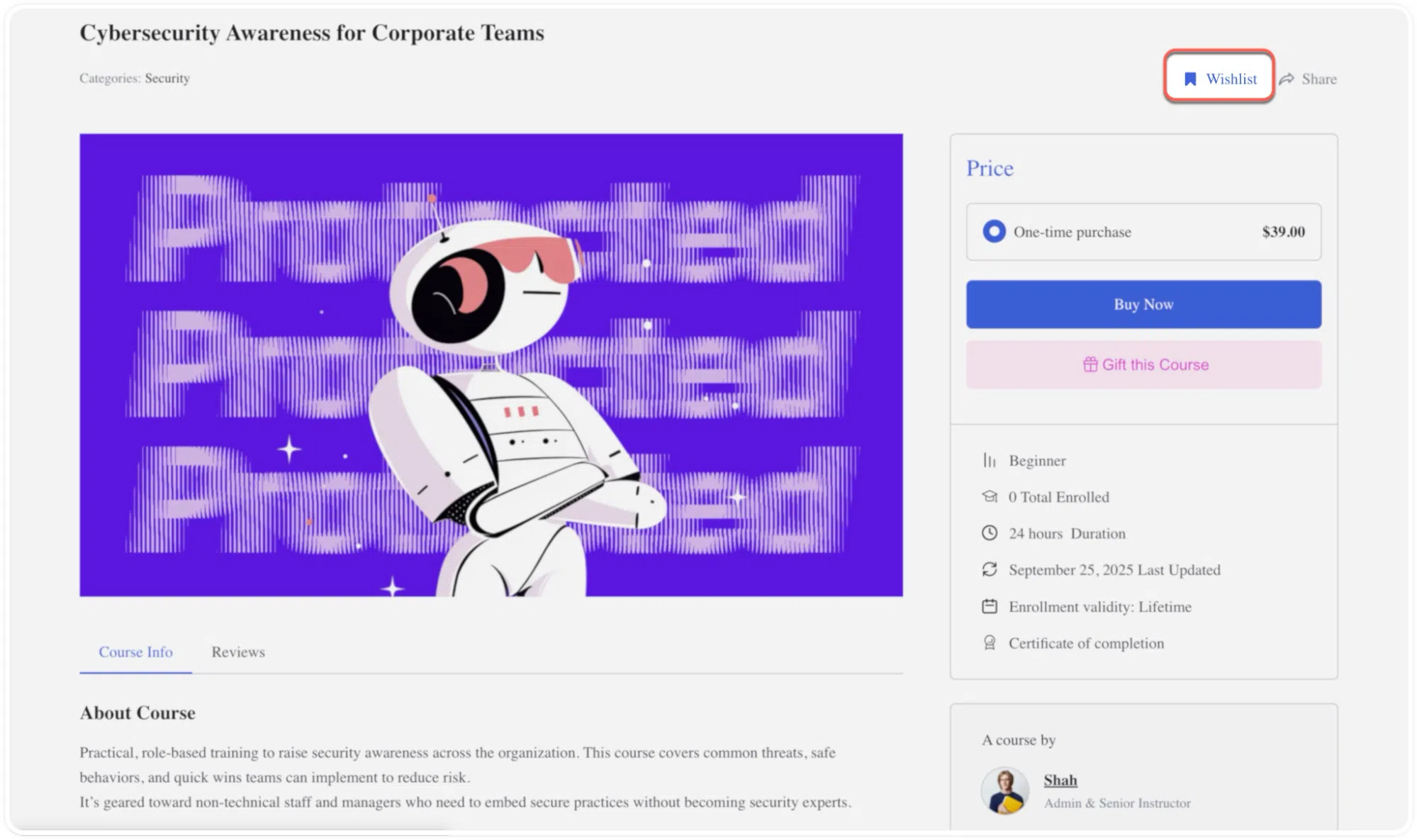
The Wishlist tab stores courses marked for future enrollment. This feature allows you to bookmark courses from the course catalog.
Wishlist Details
Wishlisted courses display the following information:
- Course title and description
- Instructor name
- Course rating and total student enrollment
- Current pricing
- Direct enrollment link
Note: Add courses to your wishlist by clicking the wishlist icon on any course page. Remove courses by clicking the same icon or using the remove option in the Wishlist tab.
Quiz Attempts
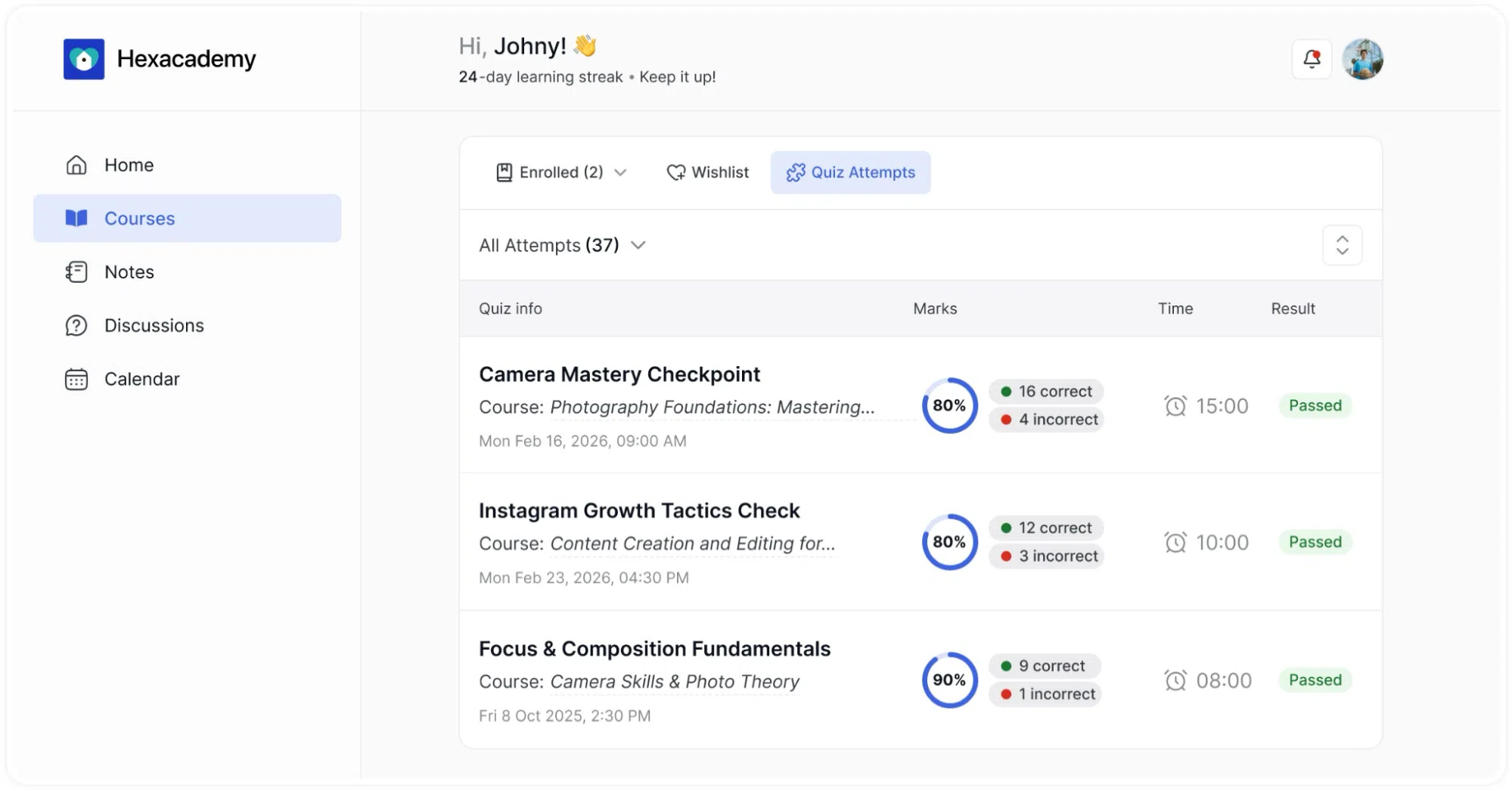
The Quiz Attempts tab maintains a record of all quiz submissions across your enrolled courses.
1. Attempt Records
Each quiz attempt displays:
- Quiz name and associated course
- Score percentage
- Number of correct and incorrect answers
- Pass/fail status
- Time spent on quiz (minutes and seconds)
- Submission date and time
2. Viewing Multiple Attempts
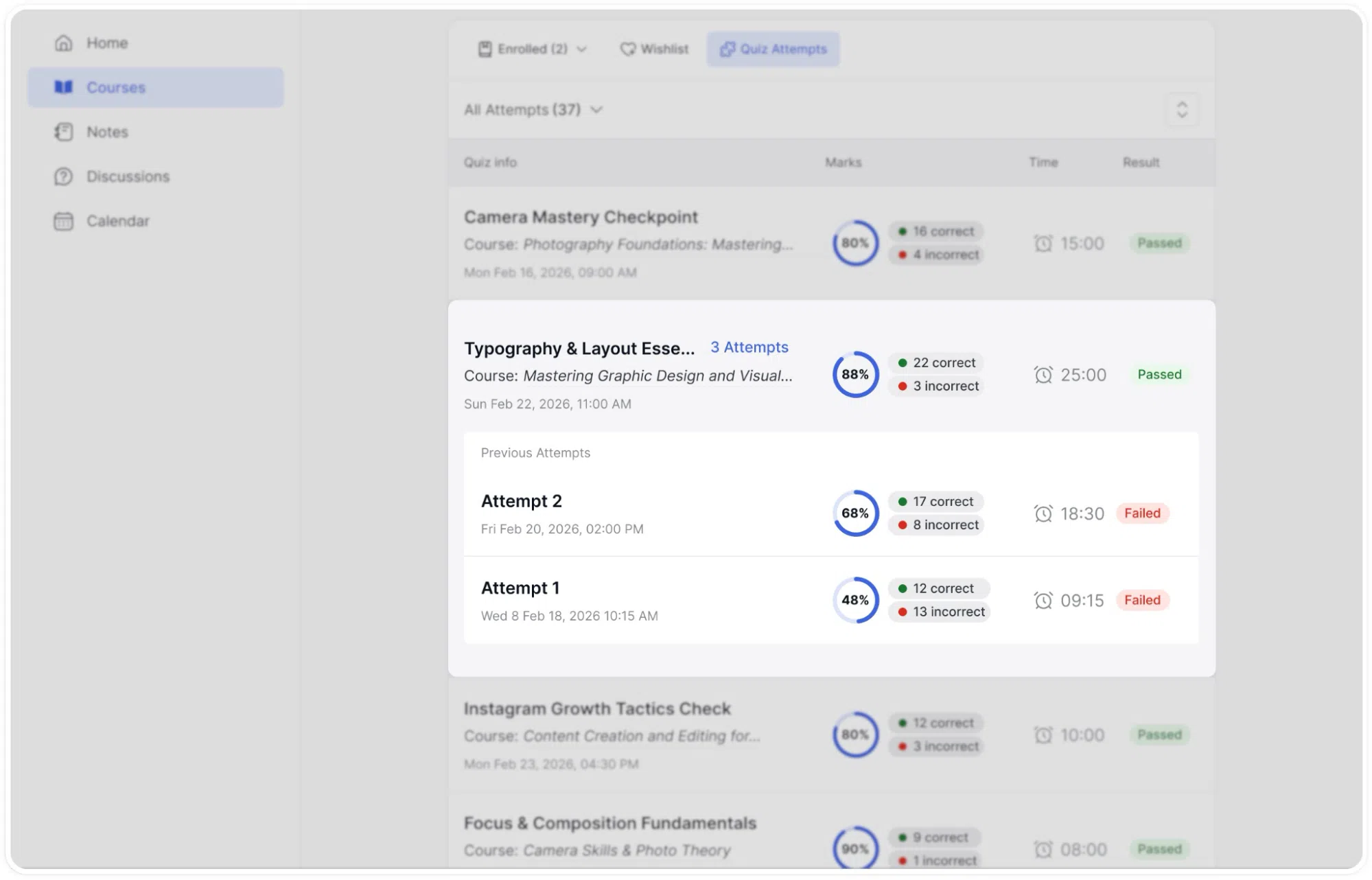
When you retake a quiz, all attempts are grouped under the quiz name. Click the dropdown arrow to expand and view individual attempt details.
3. Reviewing Attempt Details
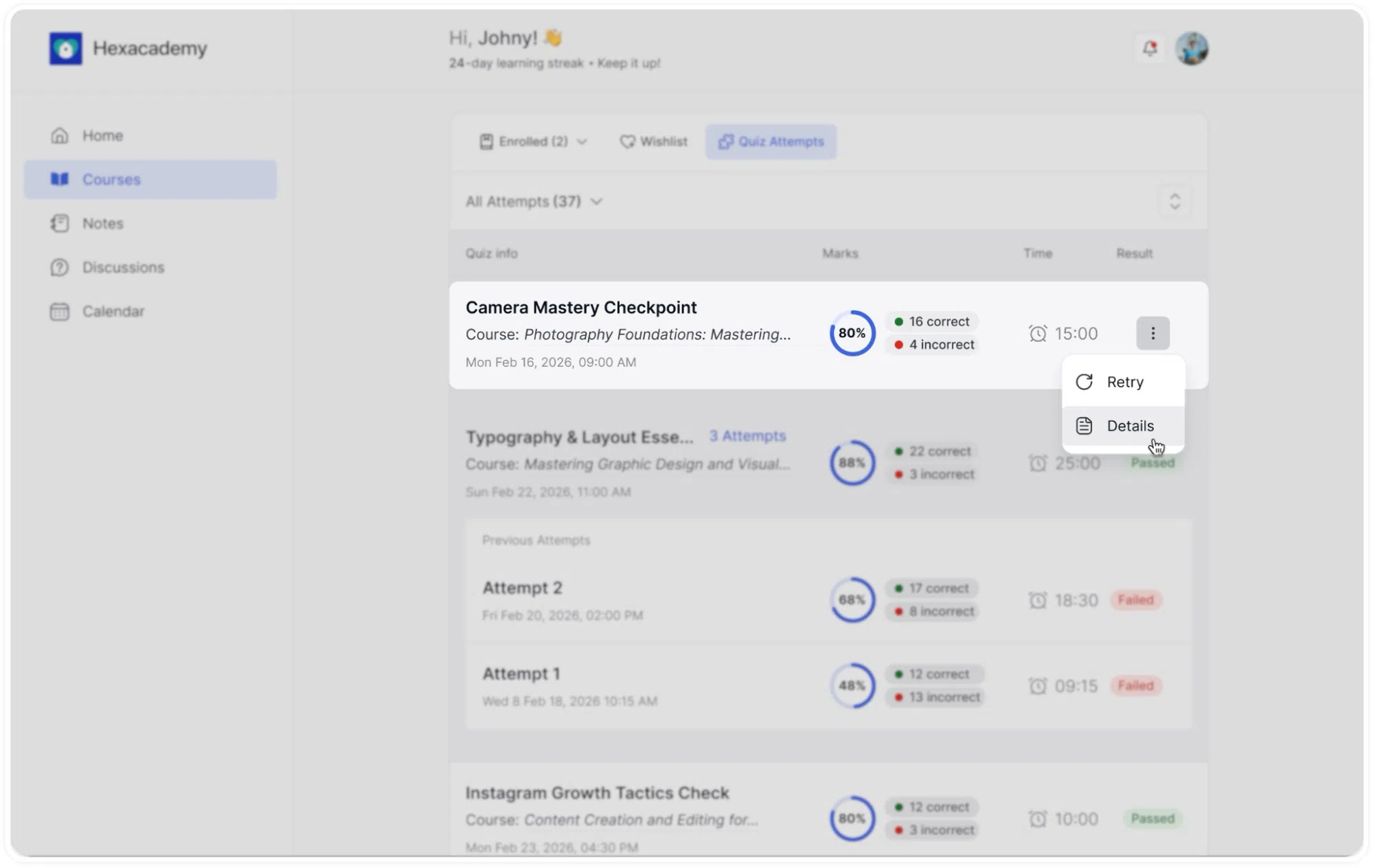
To view detailed feedback for a specific attempt:
- Locate the quiz attempt in the list
- Click the options menu (three dots)
- Select “View Details”
4. Review
Check question-by-question feedback, correct answers, and explanations
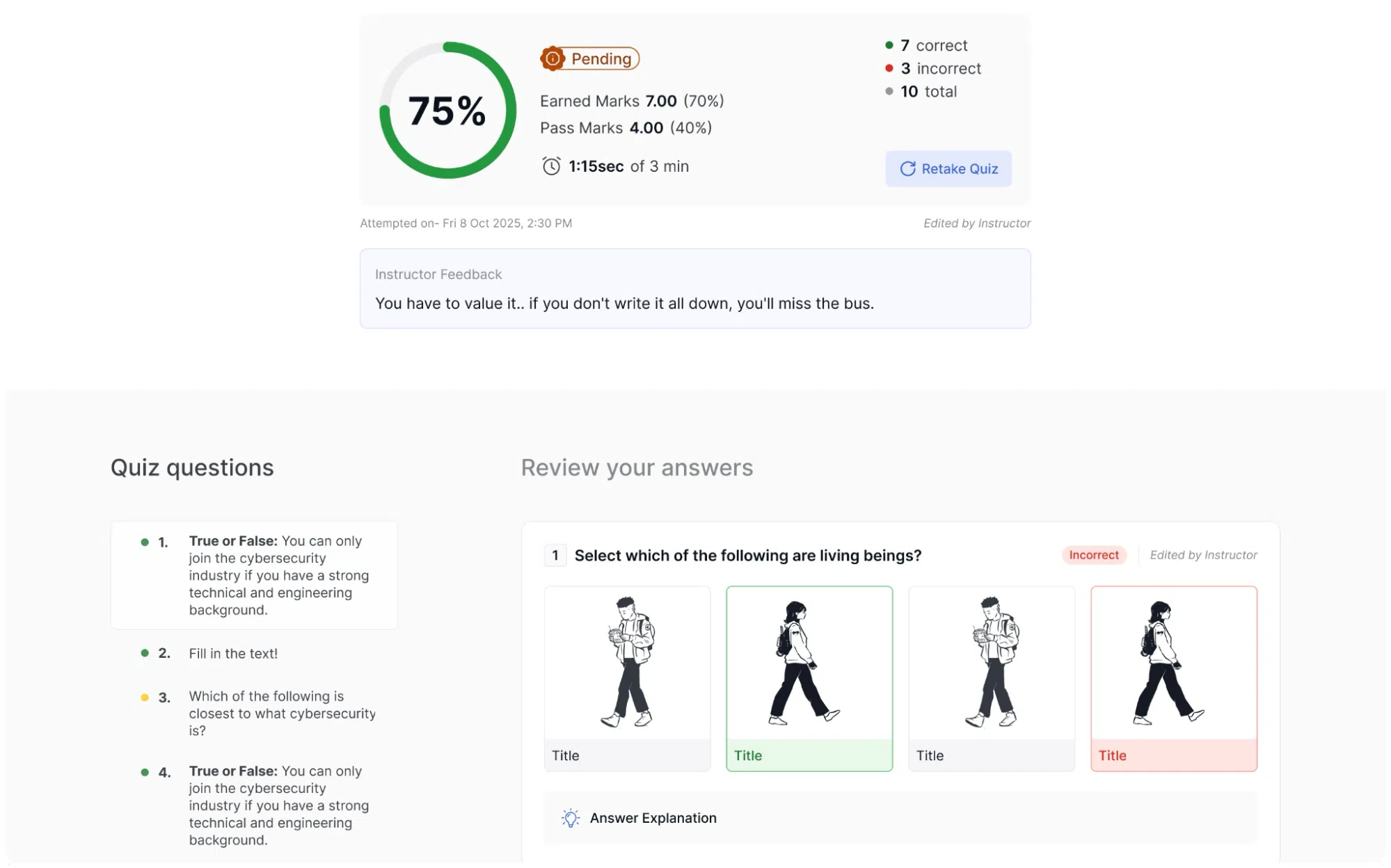
Use this data to identify areas for improvement and track performance across multiple attempts.