Discussions
The Discussions section consolidates all course-related communication in one place. Select Discussions from the sidebar to access it. This section is divided into two distinct sub-sections: Q&A and Lesson Comments.
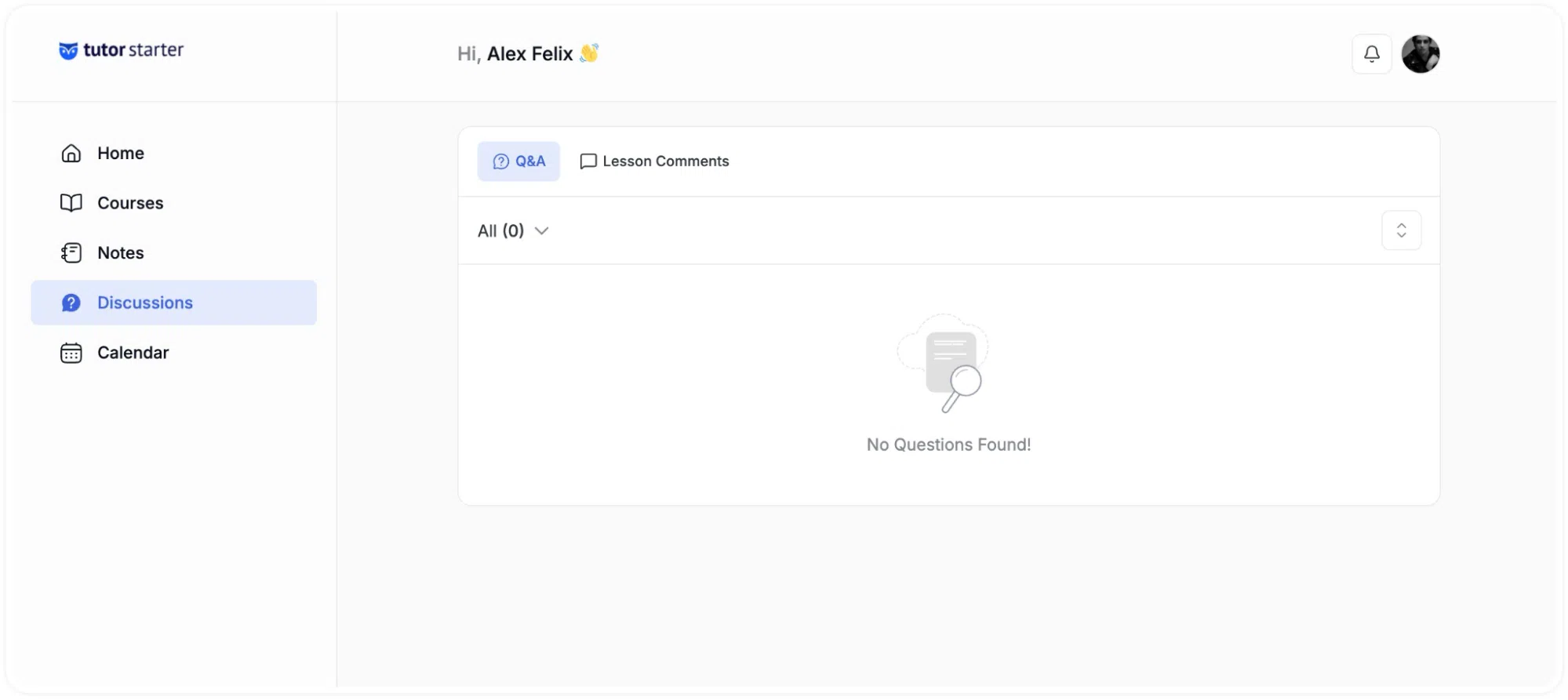
These tabs allow learners to track their historical interactions, follow up on ongoing inquiries, and manage their communications across all enrolled and prospective courses.
Lesson Comments
The Lesson Comments tab aggregates all comments submitted within individual course lessons. Comments in this section are lesson-specific and are visible to the instructor and other enrolled students, depending on course settings.
Submitting a Lesson Comment
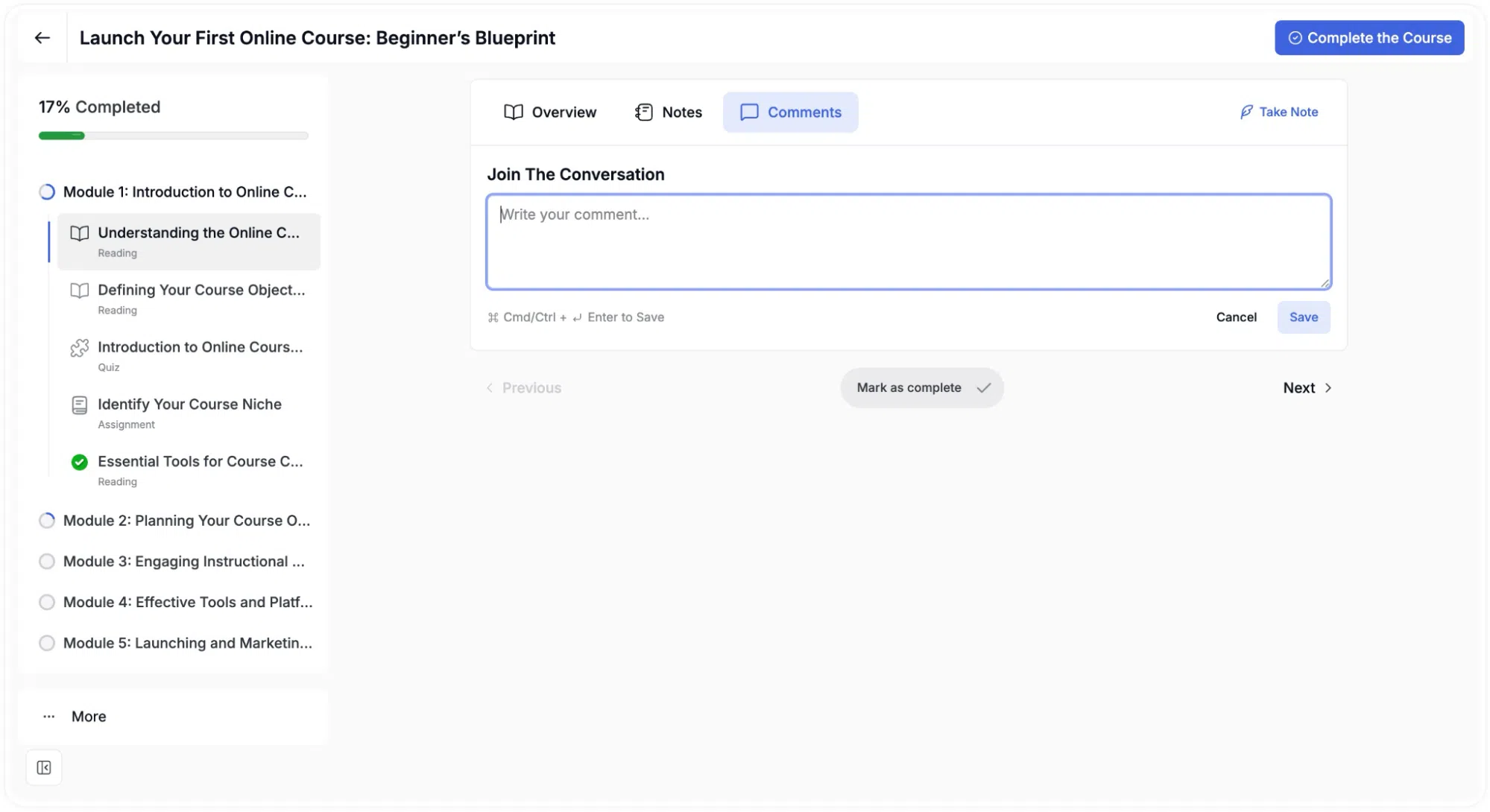
Lesson comments are submitted directly from within the lesson:
- Open a lesson from any enrolled course
- Locate the Comment field below or adjacent to the lesson Overview
- Enter your comment or question
- Click Save
Managing Lesson Comments in the Dashboard
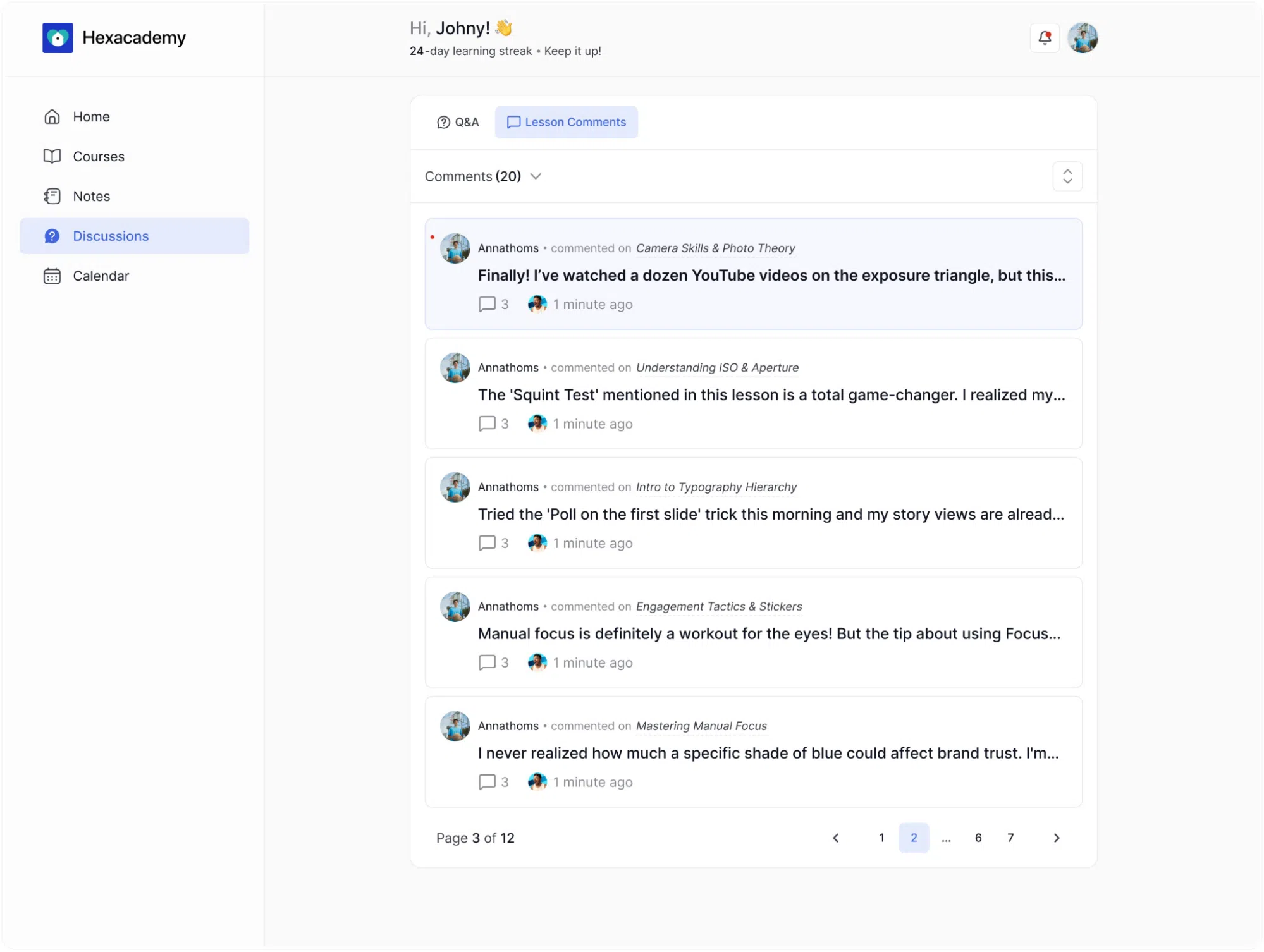
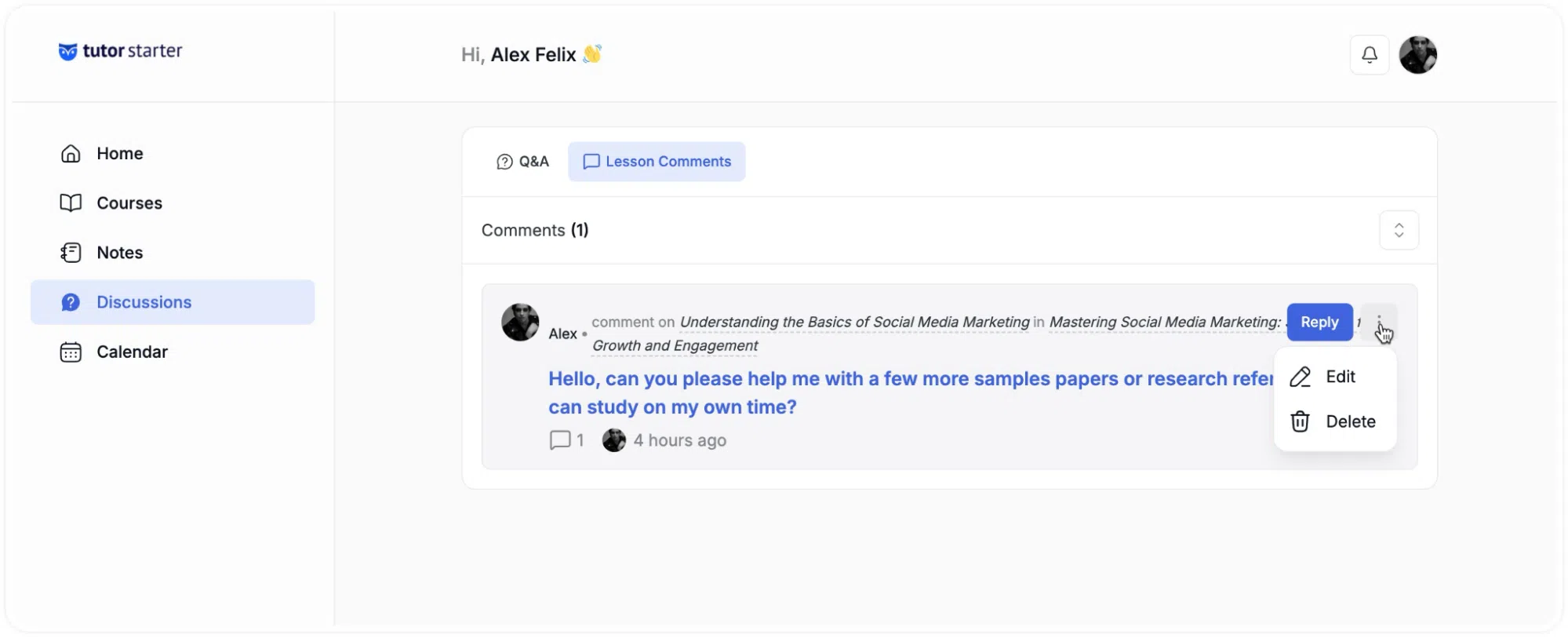
All comments made by the learner across various lessons are compiled within the Discussions > Lesson Comments tab of the Learner Dashboard.
- Viewing: The dashboard displays a list of the learner’s comments, indicating the specific course and lesson where the comment was made, along with the timestamp.
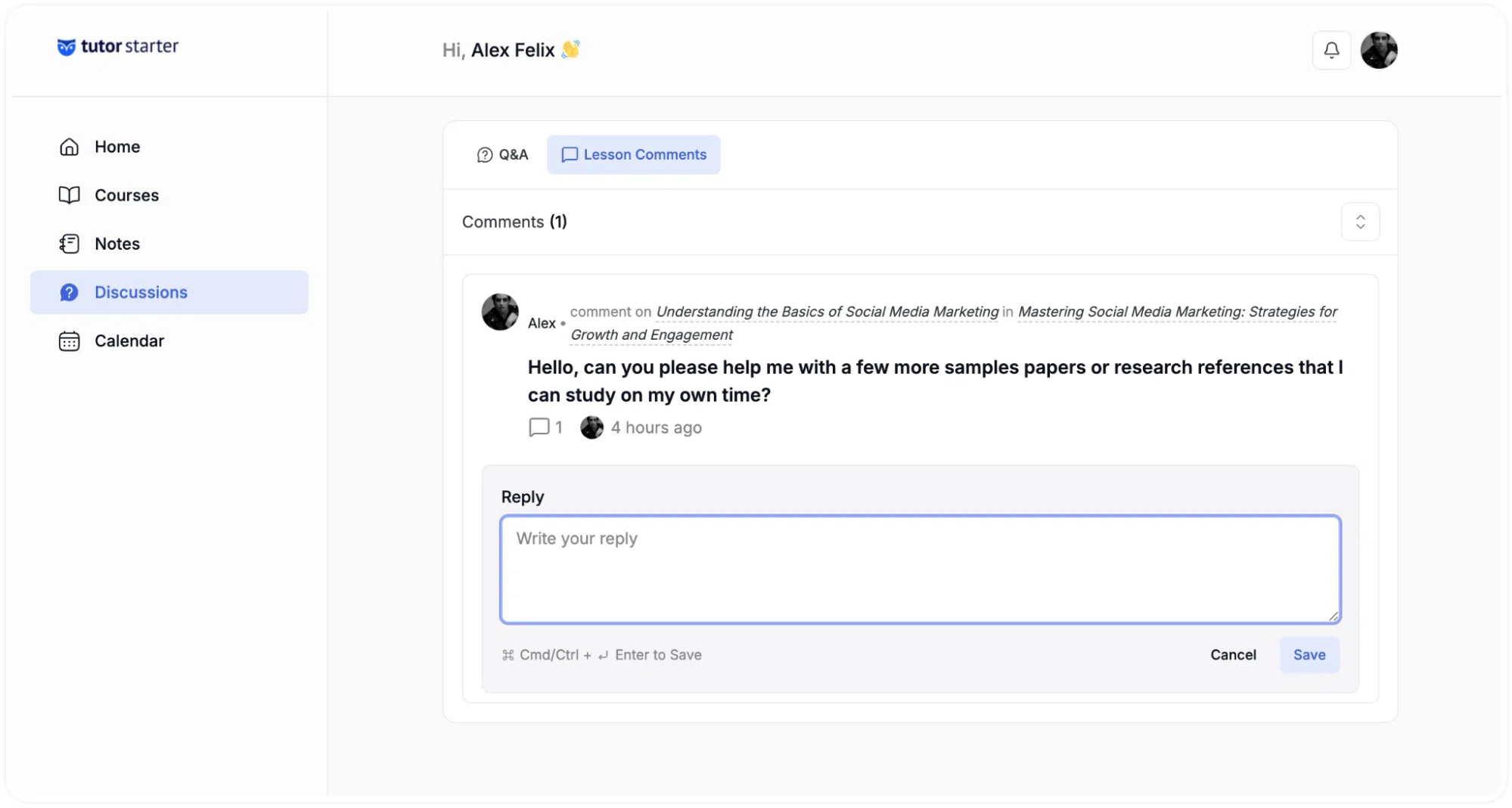
- Replying: To reply to a comment, hover over the entry to reveal the Reply button, enter your response, and submit.
- Editing and Deleting: To edit or delete a comment, select the three-dot options menu on the relevant entry and choose the appropriate action.
Course Q&A (Questions and Answers)
The Q&A section enables course-level discussions about general course topics. Unlike lesson comments that are specific to individual lessons, Q&A addresses broader inquiries about course content, requirements, prerequisites, or structure.
Both enrolled students and prospective students can participate in Q&A discussions.
Prerequisite: Enabling the Q&A Feature
The Q&A feature is disabled by default and must be enabled individually for each course.
To enable Q&A for a course:
- Navigate to the Course Builder for the target course
- Scroll to the Options > General
- Locate the Q&A toggle switch
- Switch the toggle to the On position
- Click Update or the Save button to finalize
Once enabled, a Q&A tab appears on the course landing page alongside other course tabs such as Overview and Reviews.

Note: The Q&A tab is only visible on a course page if the instructor has enabled the Q&A feature for that course. For details on how to enable this option, refer to the Q&A setup guide.
Submitting a Question:
- Navigates to the main landing page of the target course.
- Selects the newly visible Q&A tab located alongside the course description and reviews.
- The user inputs their inquiry into the provided text field and clicks Ask Question.
Managing Q&A in the Dashboard
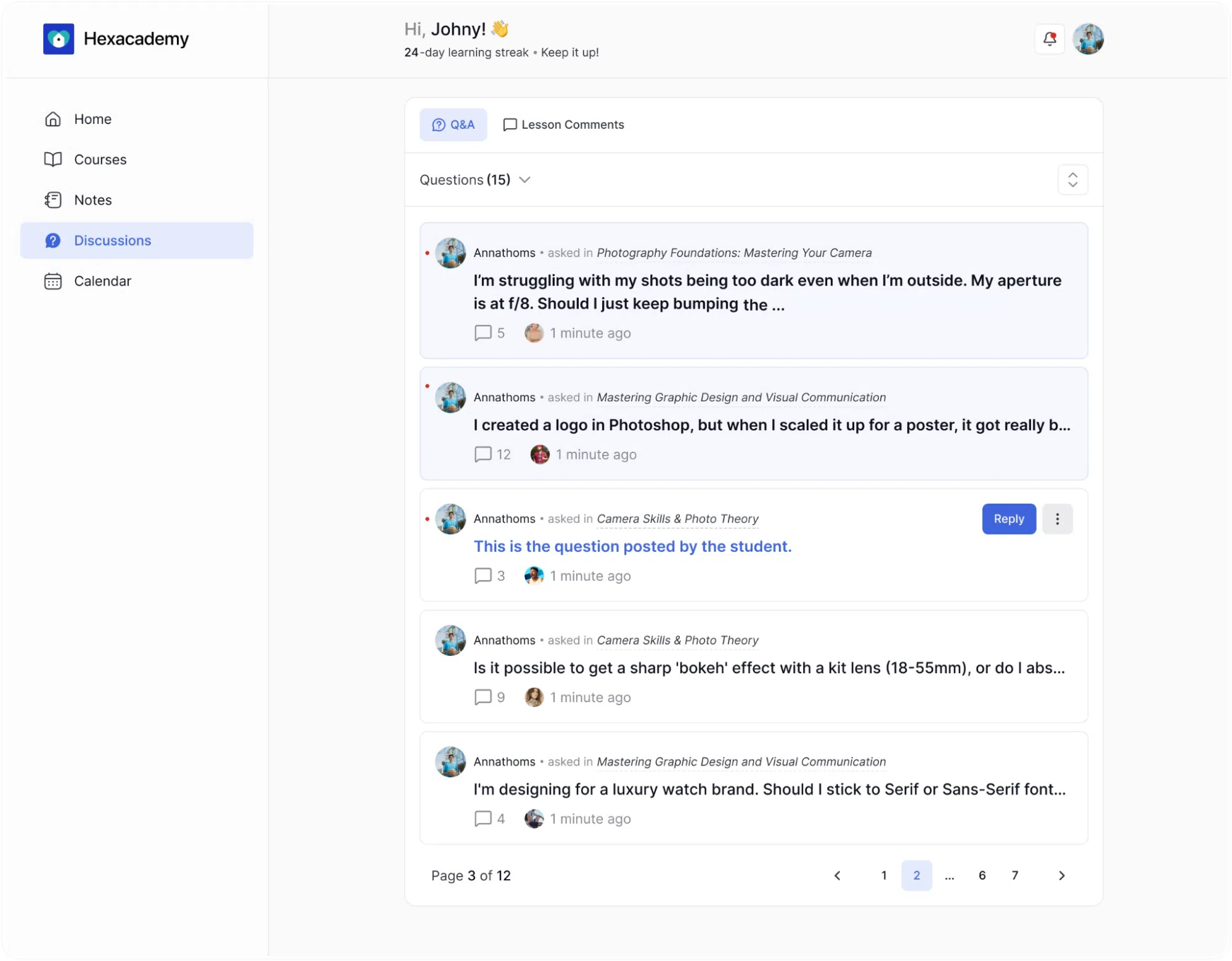
Within the Learner Dashboard, navigating to Discussions > Q&A provides a comprehensive view of all questions the learner has asked across all courses.
- Viewing: The interface displays a consolidated list of inquiries. Each entry shows the question title, the course it was asked in, the timestamp, and the current number of replies.
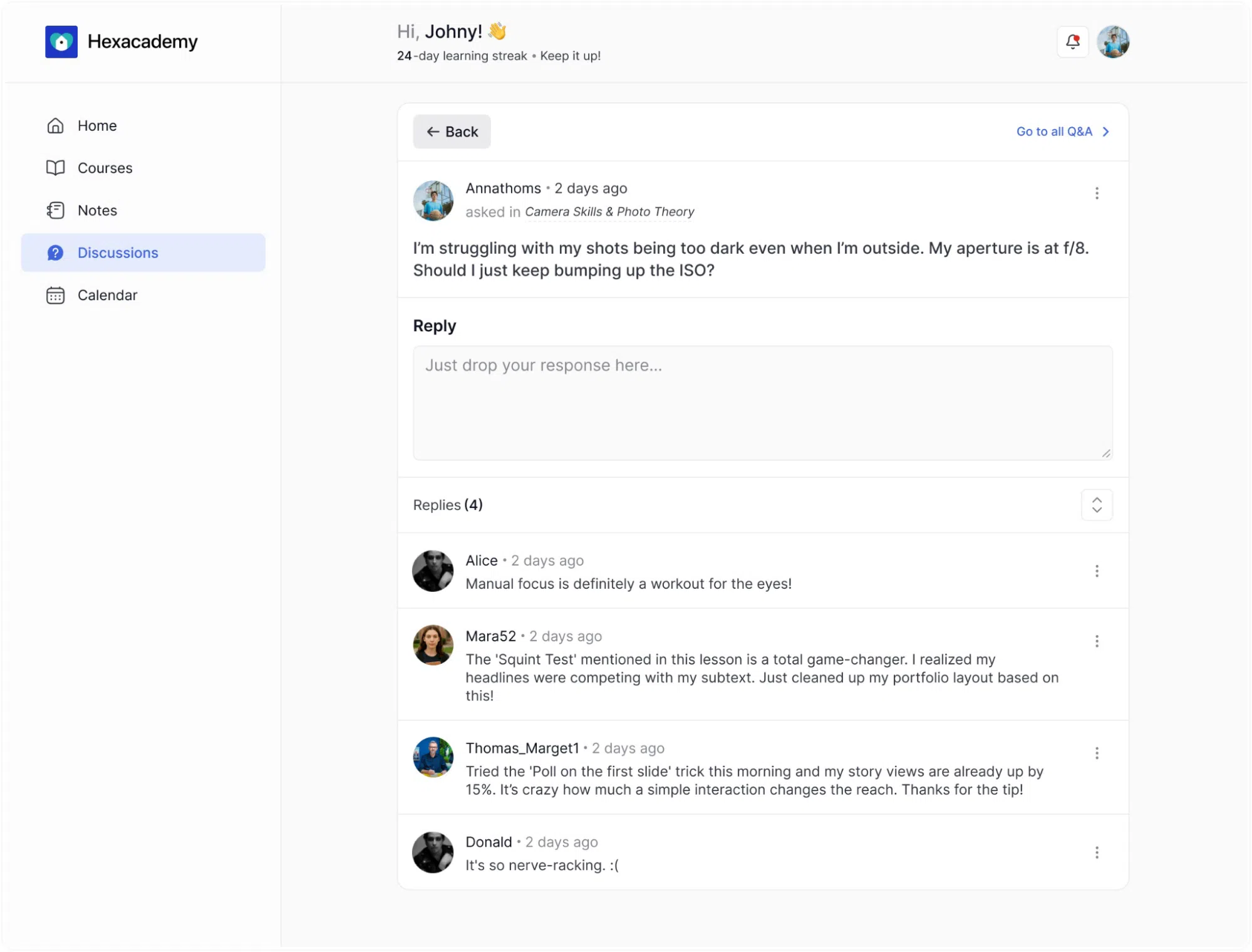
- Replying: Clicking on a specific question expands the view to show the entire thread, including the original question and any subsequent answers from instructors or other users. To add to the thread, the learner can type into the text box labeled “Just drop your response here…” and submit the reply.
- Editing and Deleting: Users retain control over the comments they posted within the Q&A module. By clicking the three-dot options menu located at the top right corner of their specific question, the user is presented with actions to Edit the text to correct errors or update information, or to Delete the entry permanently.
Note: Deleted questions and replies cannot be recovered. Deleting a parent question removes all associated replies from the thread.