Q&A
Q&A
This section is where you can view, reply to, and manage all Question and Answer (Q&A) threads.
Q&A is a nifty feature of Tutor LMS that allows students to easily send all of their queries to instructors. To learn how to enable this feature for your Tutor LMS powered site, check out this documentation.
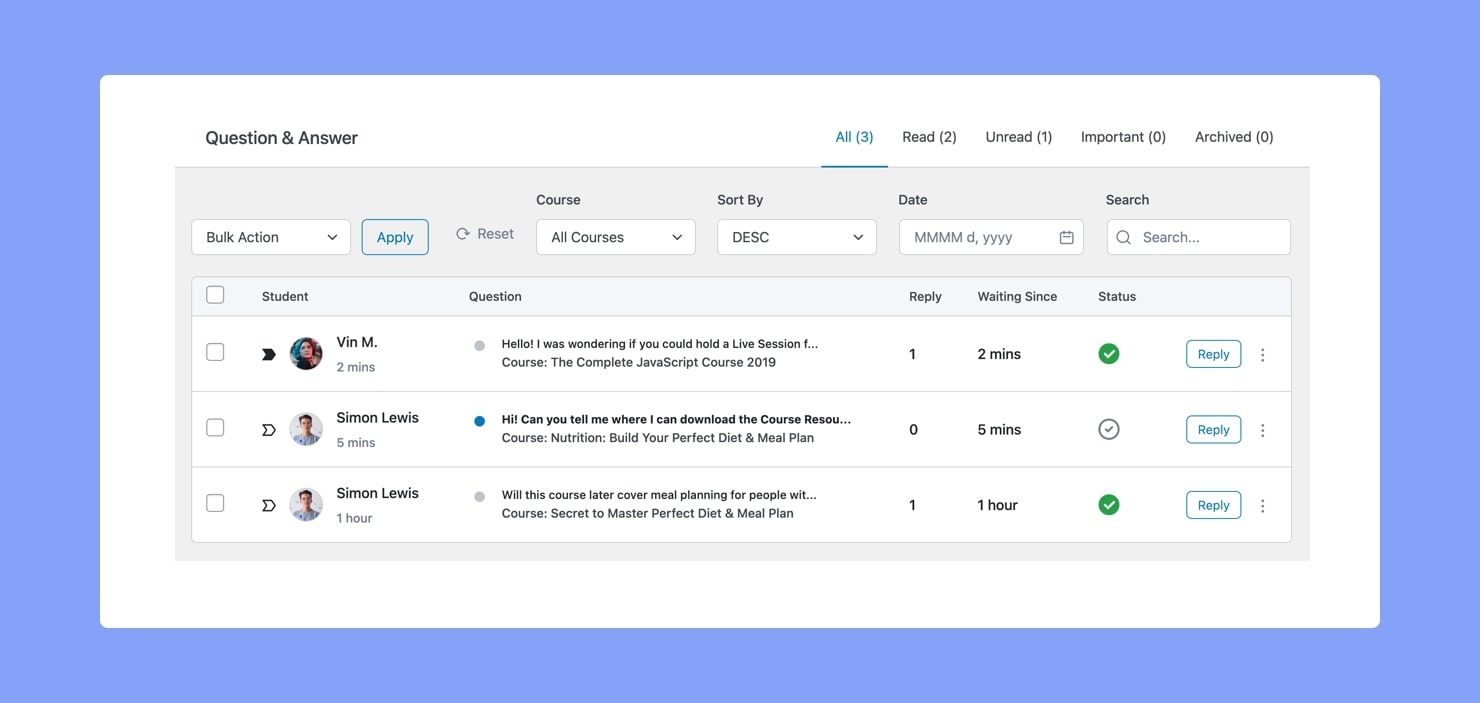
On the top right, we have the various list tabs like All, Read, Unread, Important, and Archived, which segregate Q&As according to their status.
Following that, we have the Bulk Action feature and also options to Filter by course or date, Search, and Sort.
Then, we have the list of Q&As. This list contains the following information:
- Student: Name of the Student who posted the question.
- Question: Question title and Course Name.
- Reply: Number of replies in this thread.
- Waiting Since: Time since posted.
- Status: Whether the question status is unresolved or resolved.
Mark As Important
You’ll notice an arrow icon on the left of each Q&A item. Clicking on this icon will mark this Question as important. Once marked, the icon will become a solid black arrow instead of just an outline.
Answering a Question
To reply to a Q&A thread, click on the Question or on the Reply button that is on the right. This will take you to the Question Thread Page, where you will be able to see the entire conversation, and at the bottom will be a text box for your reply.
Inside the text box, you can format your text so that it’s bold, italic, or underlined. There are even buttons to add links, remove links, erase all formatting, insert/edit images, and add a bulleted list.
At the very top, you’ll also see options to mark this Q&A as Solved or Important and even icons to Archive or Delete it.
More Options
Lastly, beside each Reply button should be a (︙) vertical ellipsis icon, clicking on which will give you the options to Archive, Mark as Read, or Delete the Q&A item.
Note: If you can’t see all of these options, simply scroll over the Q&A item while the More Options (︙) dropdown is open to see them.