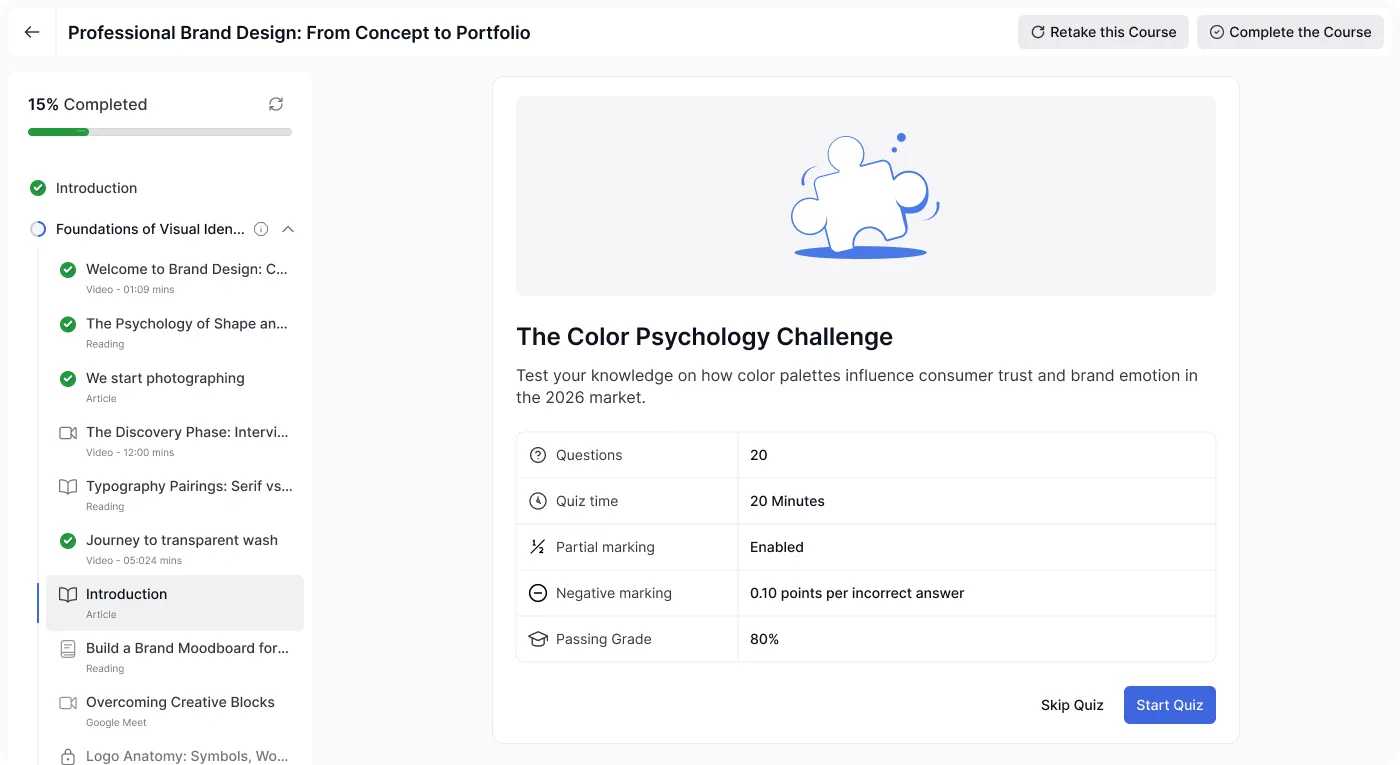
When a student navigates to a quiz in the curriculum, they first see a quiz introduction screen before the quiz begins. This screen When a student navigates to a quiz in the curriculum, they first see a quiz introduction screen before the quiz begins. This screen shows:
The quiz title and a short description.
Questions: the total number of questions in the quiz.
Total Marks: the maximum achievable points for the quiz.
Partial marking: indicates whether multi-part questions award proportional credit (Enabled/Disabled).
Negative marking: displays the exact point deduction per incorrect answer (for example, 0.15 points per incorrect answer for uniform quizzes, or a range like 0.15 – 0.75 if questions vary in point weight).
Passing Grade: the percentage required to pass (for example, 80%).
Quiz time: the time limit, if one has been set.
Attempts: if the student has taken the quiz before, their previous attempt history is listed here, showing the attempt date.
Two buttons appear at the bottom: Skip Quiz (to bypass the quiz and move on) and Start Quiz (to begin).
Taking a Quiz
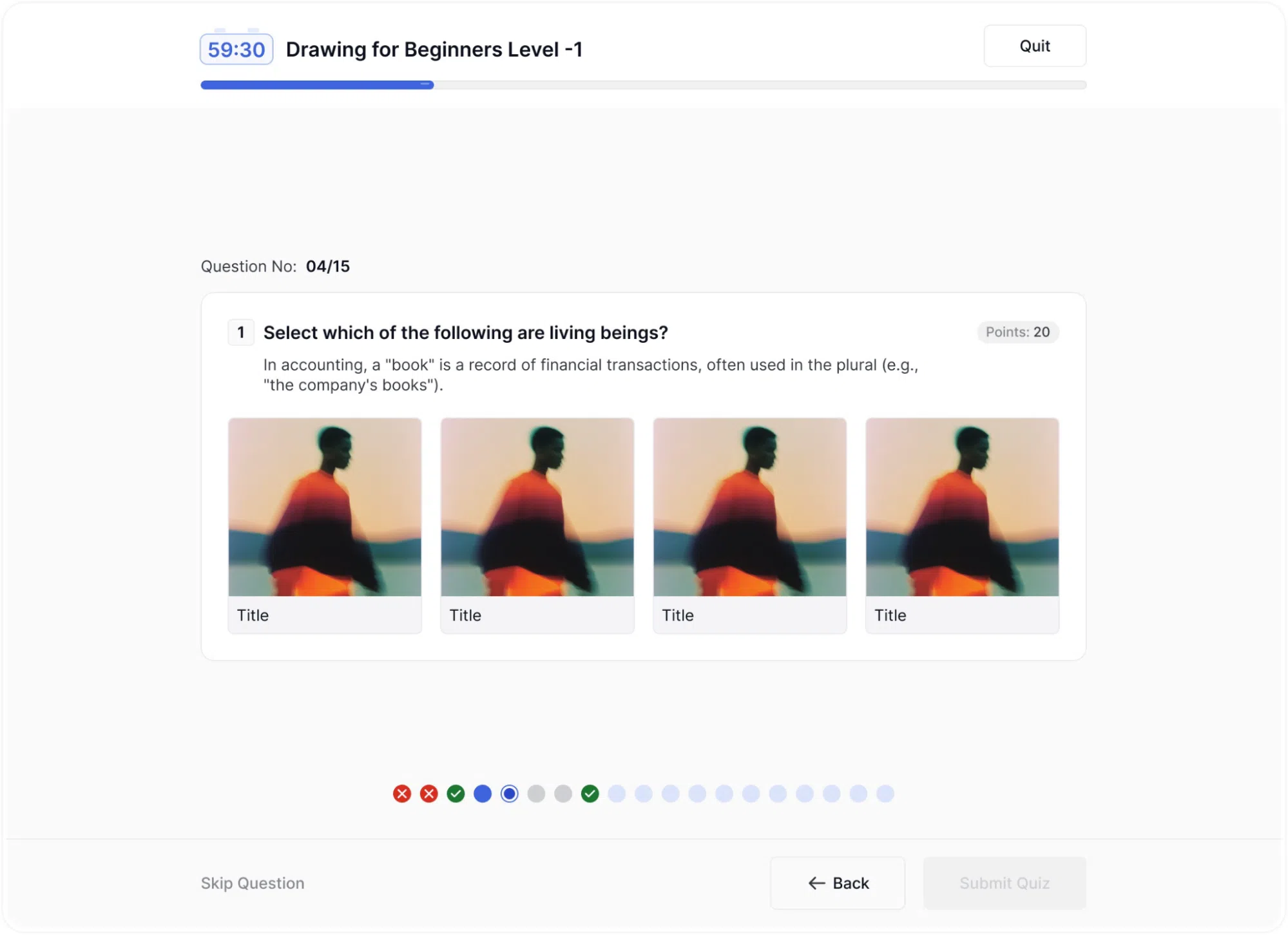
Once the student starts, the quiz opens in a dedicated full-screen view showing the course title, a timer in the top-left corner (if a time limit is set), and a Quit button in the top-right corner. A progress bar runs across the top of the page.
Each question is displayed with its number, the question text, and its point value (if enabled). Students answer using the input method appropriate for the question type, selecting from options, clicking on an image, dragging a slider, placing a pin, arranging items, or completing a puzzle.
If pagination is enabled, navigation dots or numbered buttons appear at the bottom of the screen so the student can see which questions they have answered and which are still pending. Answered, unanswered, and flagged questions are shown in different colours. A Skip Question link is available on the bottom-left, and Back and Next buttons allow the student to move between questions.
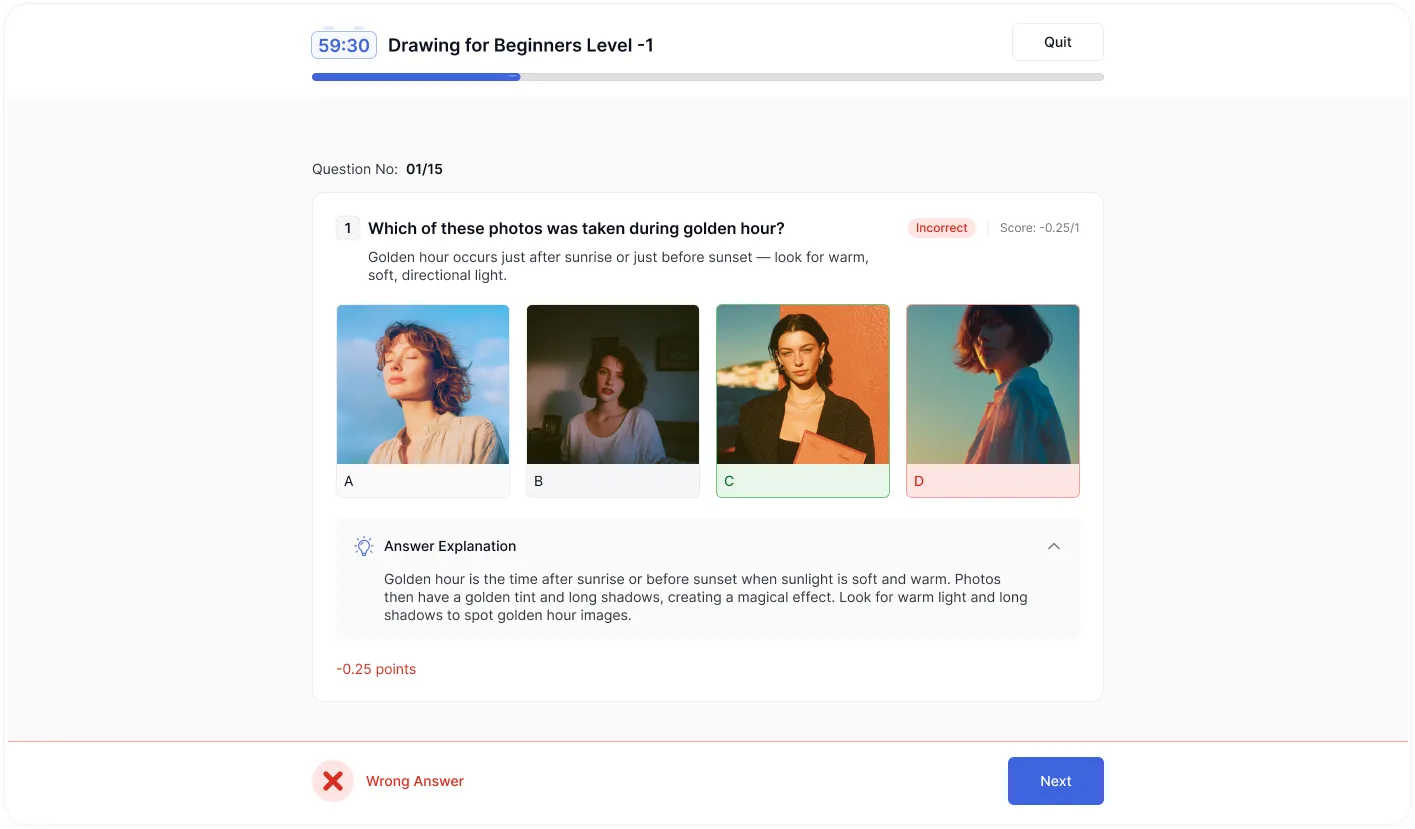
If the instructor has enabled “Reveal answers after submission,” a correct/incorrect indicator appears briefly after each question is answered before moving to the next. If negative marking is active, submitting an incorrect response instantly displays an Incorrect badge alongside the deducted score and the exact red point penalty.
After Submitting a Quiz
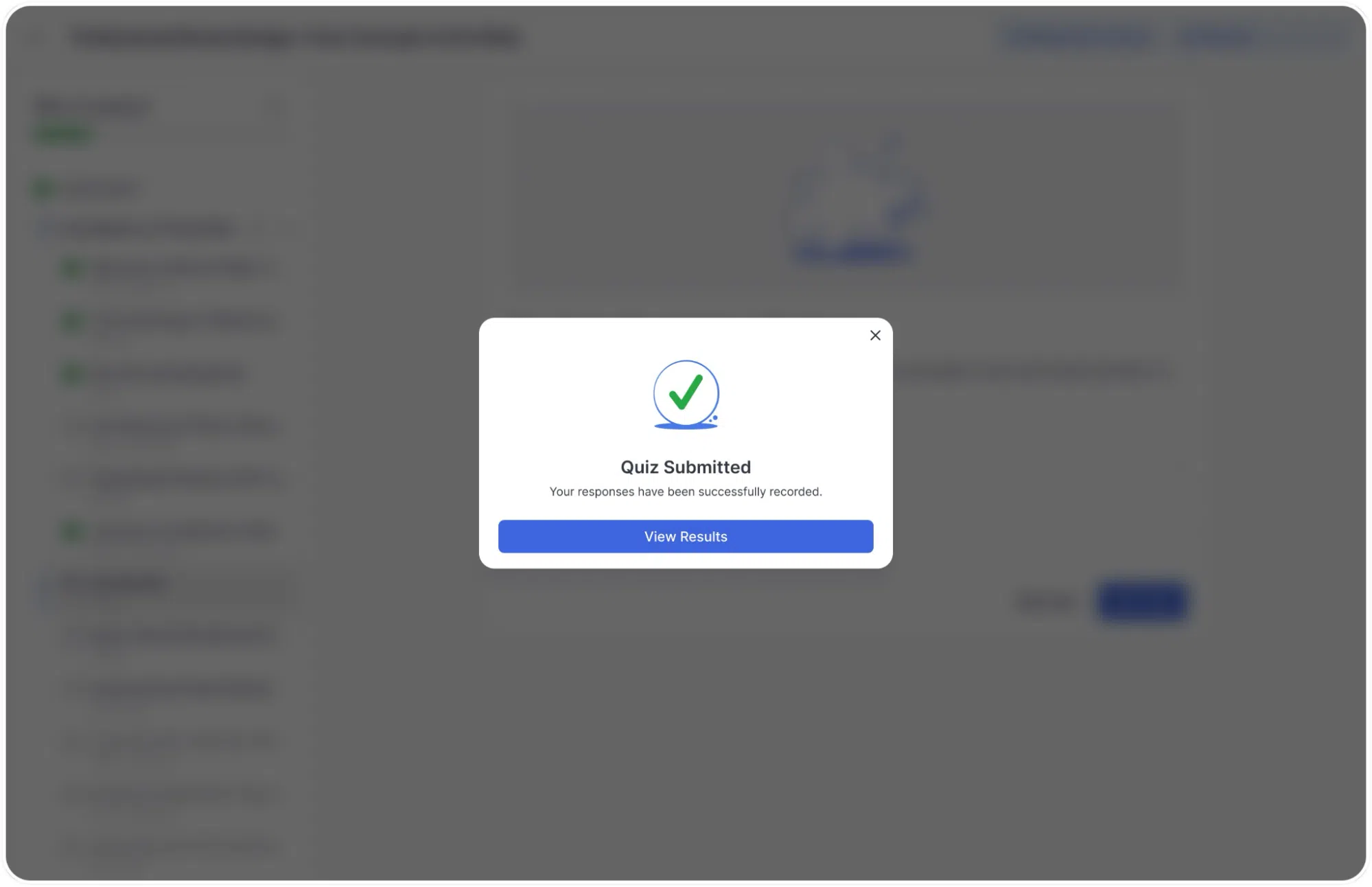
When the student submits their final answer, a Quiz Submitted confirmation modal appears with the message: “Your responses have been successfully recorded.” A View Results button takes the student to the results page.
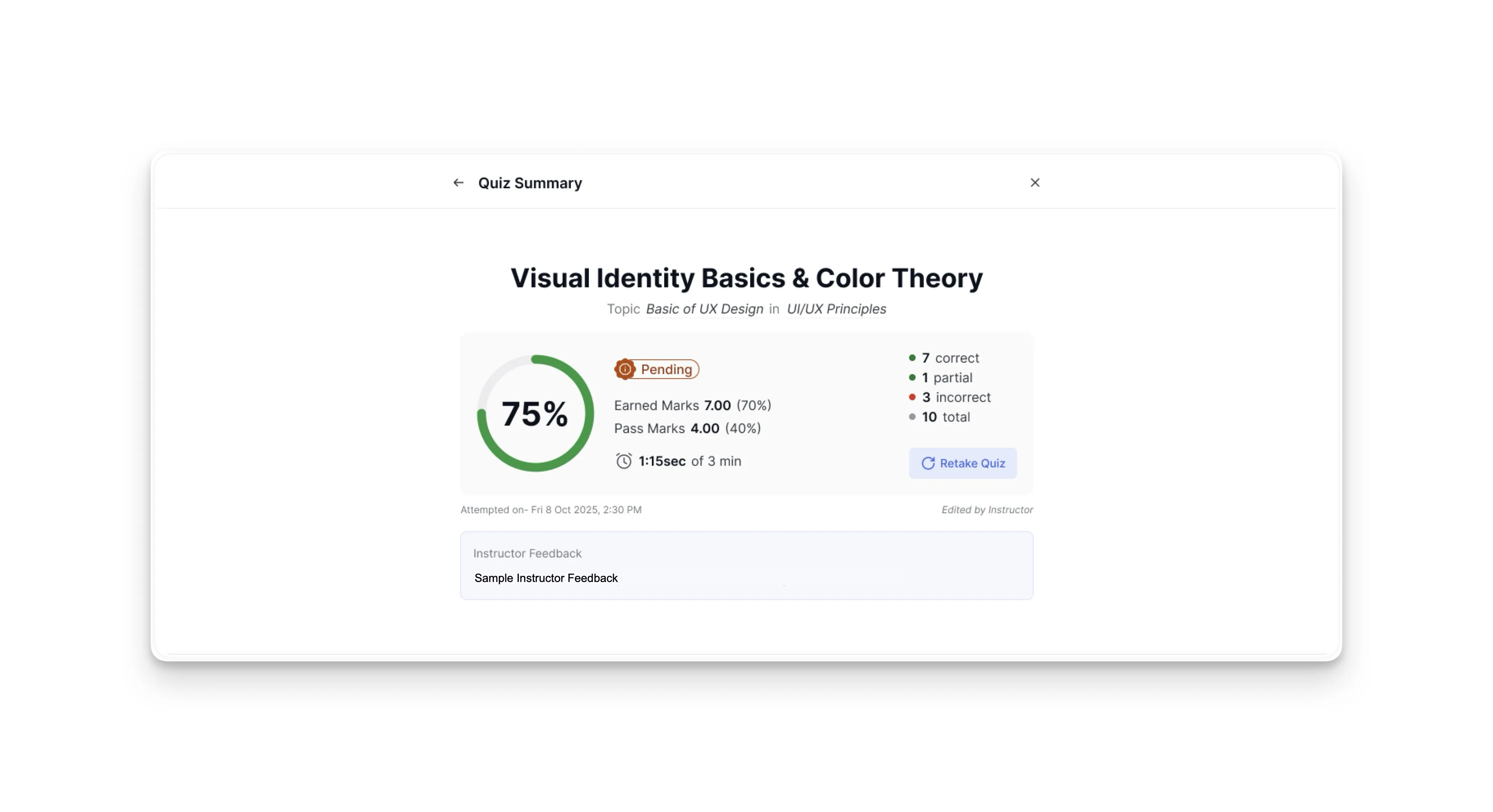
On the results page, the student is presented with a Quiz Summary card displaying their overall score percentage, status badge (Passed, Failed, or Pending), Earned Marks, Pass Marks, and completion time. The Earned Marks will never fall below 0.00 (0%), even if negative penalties exceed the positive points earned. This summary card also breaks down the attempt into four categorized counters: partial, correct, incorrect, and total.
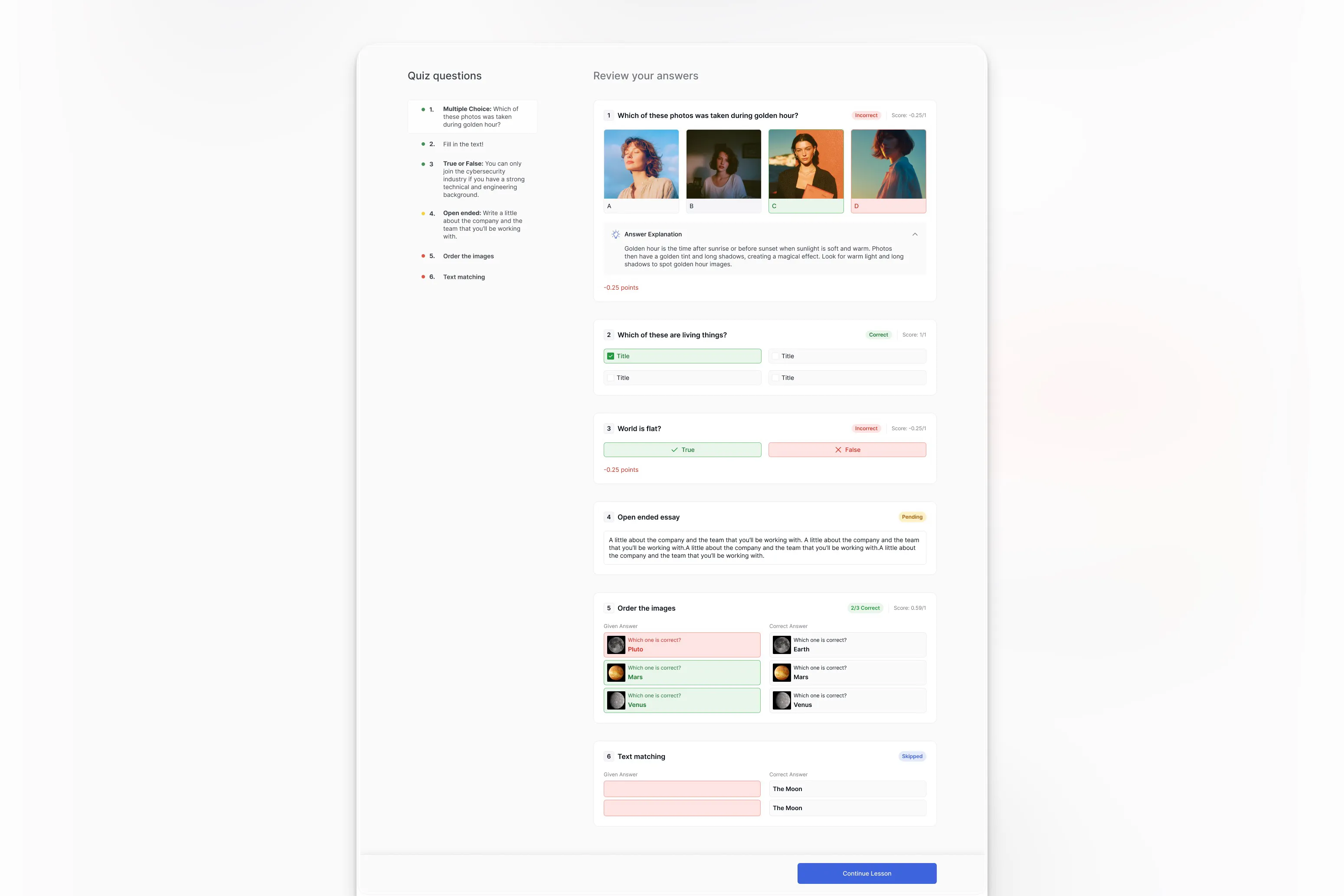
In the Review your answers section below the summary, the student can see each question along with their answer and grading result:
Standard Questions: Marked with a standard correct or incorrect badge.
Multi-Part Questions: If partial marking is enabled, partially correct answers display a partial success badge (e.g., 2/4 Correct) and an itemized math breakdown showing both the positive credit earned and negative penalties deducted.
Image Marking Questions: These display a visual overlay of the student’s marked area against the instructor’s target area, along with the exact overlap accuracy percentage (e.g., Overlap: 67% (required: 70%)).
If the instructor added an Answer Explanation to any question, it is displayed in an expandable section below the relevant question.
In the curriculum sidebar, the quiz shows a green dot if passed or a red dot icon if failed.



 HALLOWEEN SALEHALLOWEEN SALEHALLOWEEN