LearnDash to Tutor LMS Migration
If you want to run a seamless migration from your LearnDash to Tutor LMS, your new LMS of choice, you can use the Tutor LMS Migration Tool plugin.
The process for using the migration tool to migrate from LearnPress is also the same as migrating from LearnDash. This video shows how to migrate from LearnDash but you can follow these steps and our documentation on how to migrate from LearnPress.
Prerequisites
You need to have the following plugins installed and activated to use the Tutor LMS Migration Tool for LearnDash Migration.
- WordPress Version: 5.3 or later (tested up to WordPress 7.1.2; WordPress 7.0+ compatibility added in v2.5.4)
- PHP Version: 7.4 or later
- Tutor LMS: Version 4.0 or later installed and active
- LearnDash LMS: Version 4.0 or later installed and active (updating to the latest version is recommended)
- Tutor LMS – Migration Tool: Version 2.6.0
- Required Tutor LMS Pro Addons (if using these features in LearnDash):
- Assignments addon (Tutor LMS Pro) — required to manage migrated assignments
- Subscriptions addon (Tutor LMS Pro) — required to migrate LearnDash recurring plans and active subscribers to Tutor Native subscriptions
- Certificate addon (Tutor LMS Pro) — required to auto-generate certificates for completed courses
- Optional eCommerce Plugins (if migrating from WooCommerce):
It is advisable that you update to the latest version of LearnDash before migrating to make the migration process run seamlessly.
Installing The Tutor LMS Migration Tool Plugin
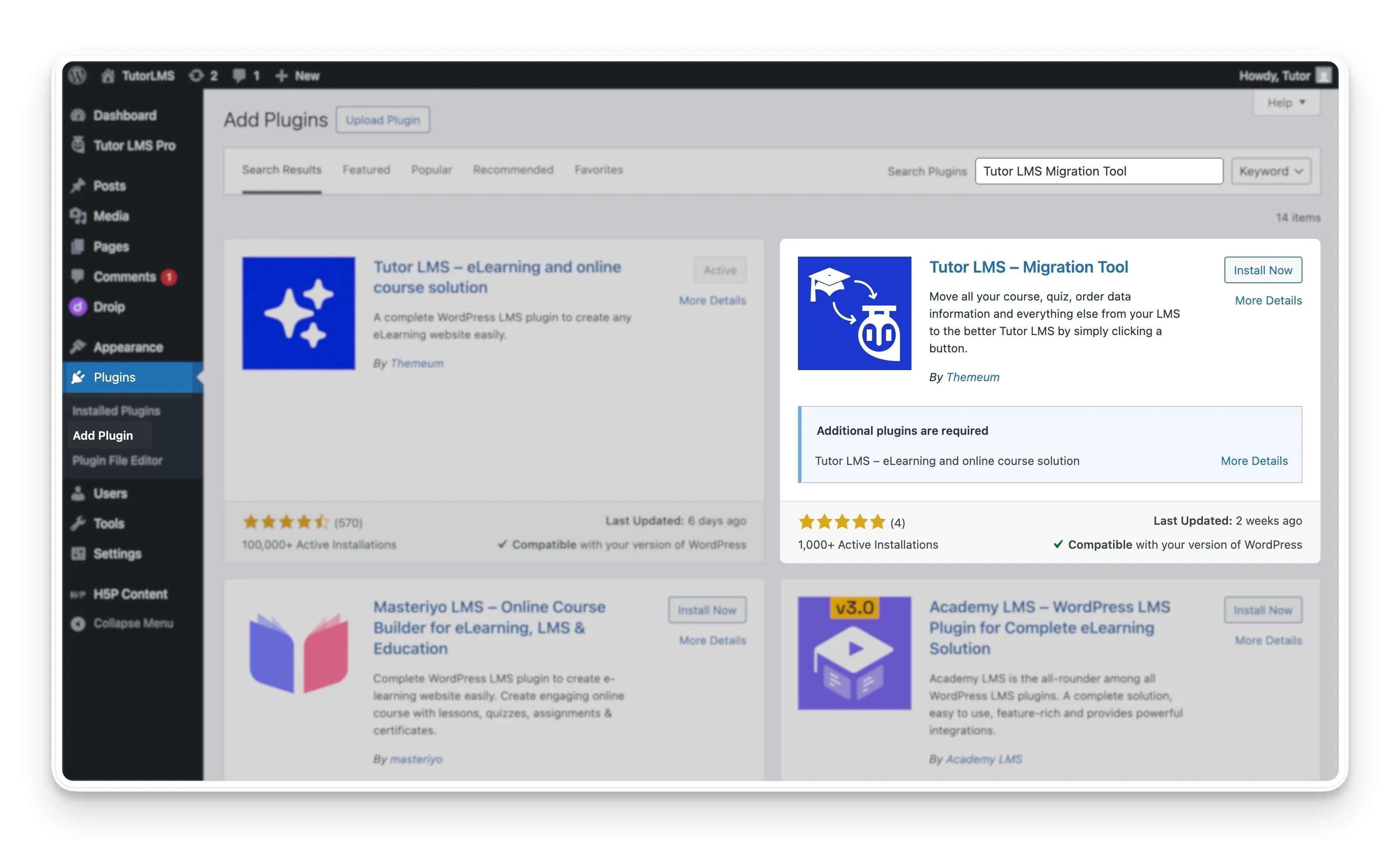
- Navigate to WP Admin > Plugins > Add Plugin (or Plugins > Add New).
- In the Search Plugins bar at the top right, type Tutor LMS – Migration Tool.
- Click Install Now on the Tutor LMS – Migration Tool plugin card, then click Activate.
LearnDash Migration
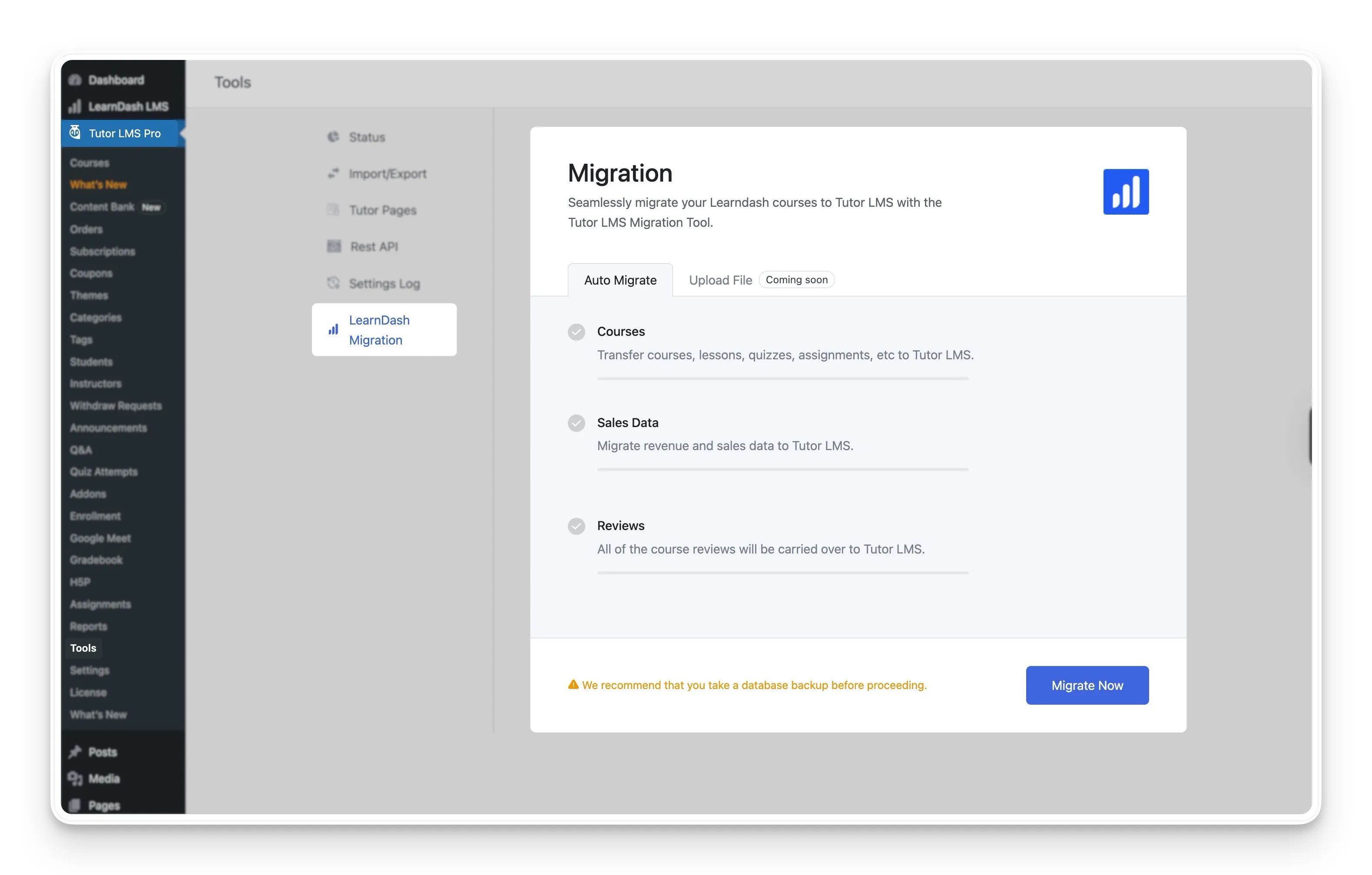
After installing the Tutor LMS Migration tool, you will find all its available features in the Tools section of Tutor LMS. Go to WP Admin > TutorLMS > Tools > LearnDash Migration.
What Data Will Be Migrated?
The LearnDash migration tool carefully moves all the key components of your LearnDash site over to Tutor LMS. Below is a complete list of the data that will be included in the migration process.
| Migration Section / Data Type | What Transfers to Tutor LMS |
|---|---|
| Courses | Transfers courses, lessons, topics, quizzes, quiz attempts, assignments, and course taxonomies (categories and tags) in batches. |
| Media Files | Videos, images, and PDFs already linked inside your lessons are mapped to the new structure. You do not re-upload anything. |
| Enrollments | Migrates student and instructor profiles, student enrollments, course completions, and learning progress (lessons, assignments, and quiz attempts) in student batches. |
| Sales Data | Migrates revenue and sales history (including LearnDash Native Orders and “Buy Now” or priced “Closed” courses) to your active Tutor LMS monetization engine (Native eCommerce, WooCommerce, or Easy Digital Downloads) and reflects them in Reports. |
| Subscriptions | Migrates LearnDash recurring plans and active subscribers directly to Tutor Native subscriptions. |
| Reviews | Carries over all course reviews and ratings from the LearnDash Course Review addon to Tutor LMS. |
| Certificates | Automatically generates certificates for eligible students after migration if the Tutor LMS Pro Certificate addon is active and configured. |
Migrating eCommerce Data
As mentioned above, you can migrate all your eCommerce Data using this tool. But in order for this to work seamlessly, you’ll have to make sure that your eCommerce plugin is properly set up for Tutor LMS before you migrate.
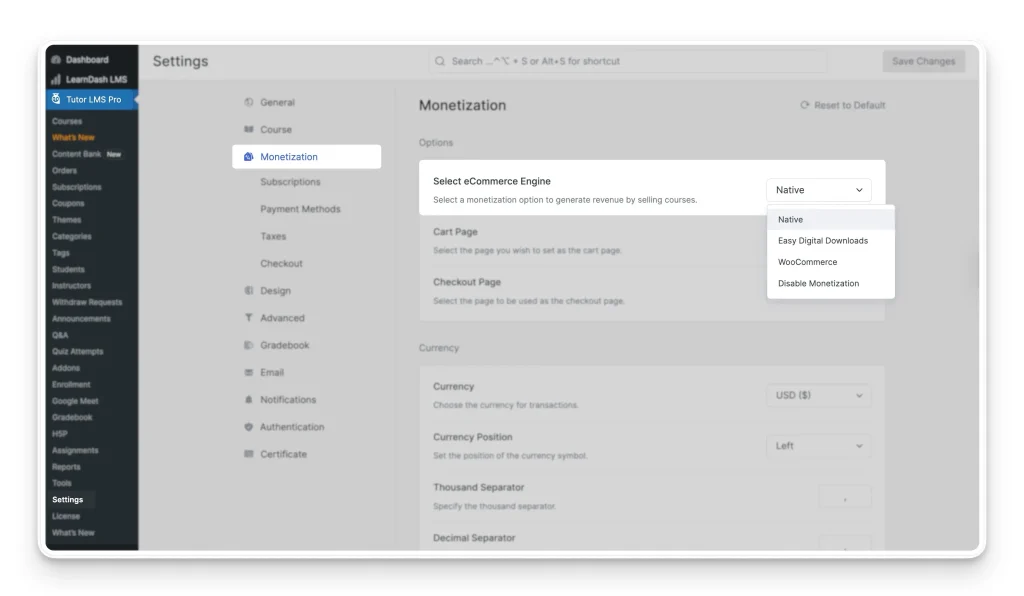
For instance, if you’re using WooCommerce as your LearnDash eCommerce engine, make sure you follow the following steps for a seamless migration.
- Install and Activate Tutor LMS
- Install and Activate Tutor LMS Migration Tool
- Install and activate WooCommerce
- Set WooCommerce as the Monetization option in the Tutor LMS Settings
- Run the migration
Only then will the eCommerce Products and Sales Data be transferred without issues. The same goes if you’re using Easy Digital Downloads instead.
Certificates Will Be Auto-Generated
Another notable aspect of the Tutor LMS Migration Tool is the fact that it will auto-generate Certificates for the respective students if you have Tutor LMS’ Certificate add-on enabled and set up before migrating!
Start the Migration Process
Important Note on Your LearnDash Data: Once the migration finishes, your transferred courses, lessons, quizzes, course orders, metadata, and reviews will no longer be accessible in LearnDash. Always take a full site and database backup before proceeding.
Click the Migrate Now button, which will start the Migration process. Selecting this button will initiate the transfer. The tool will show you a real-time progress bar, so you can see your data moving over. Once it is finished, a success message will pop up to let you know the migration is complete.
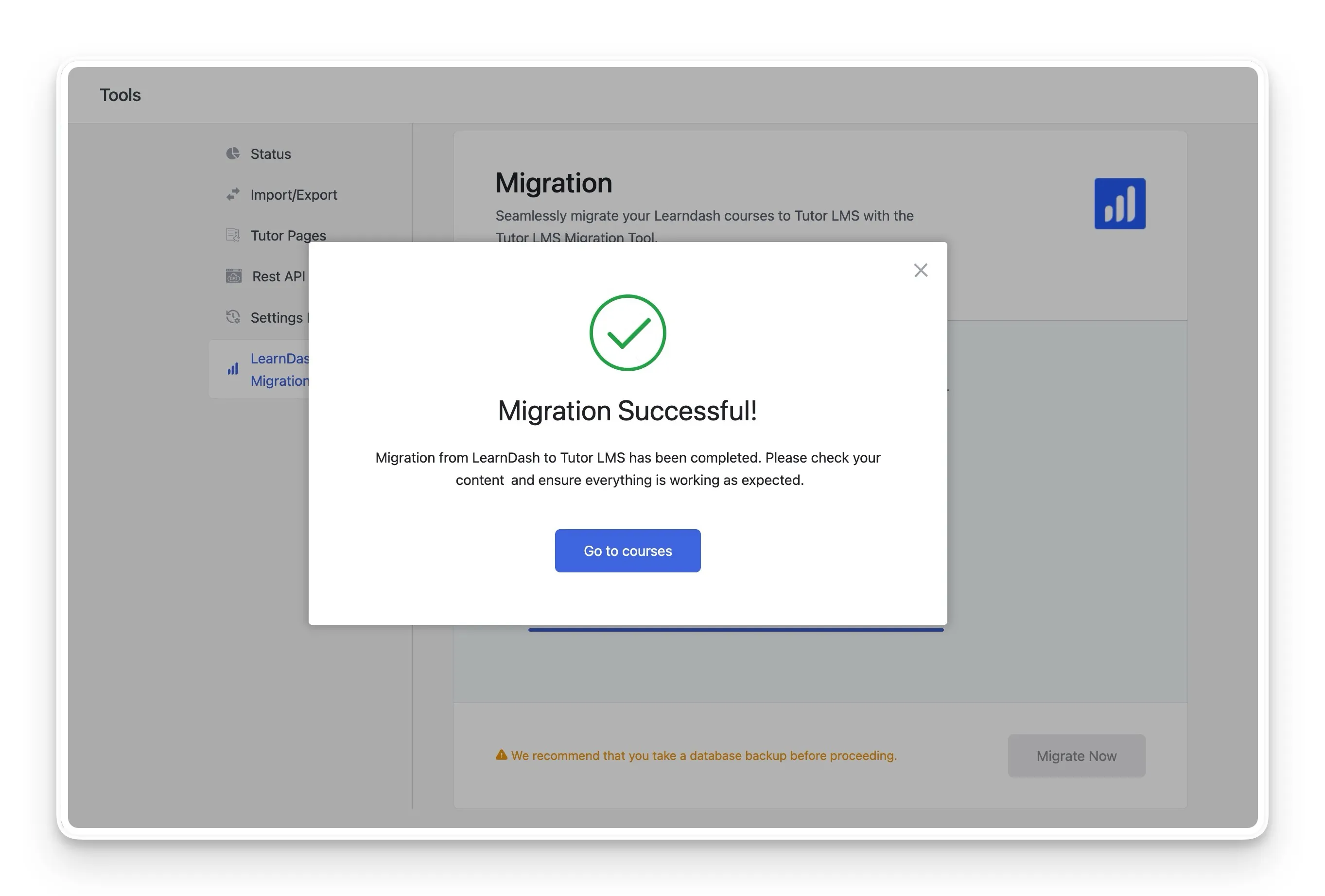
Now, if you head over to WP Admin > Tutor LMS > Courses, you’ll be able to see all of the courses that were transferred. Similarly, you can check Enrollments, Reviews, etc.
Settings History
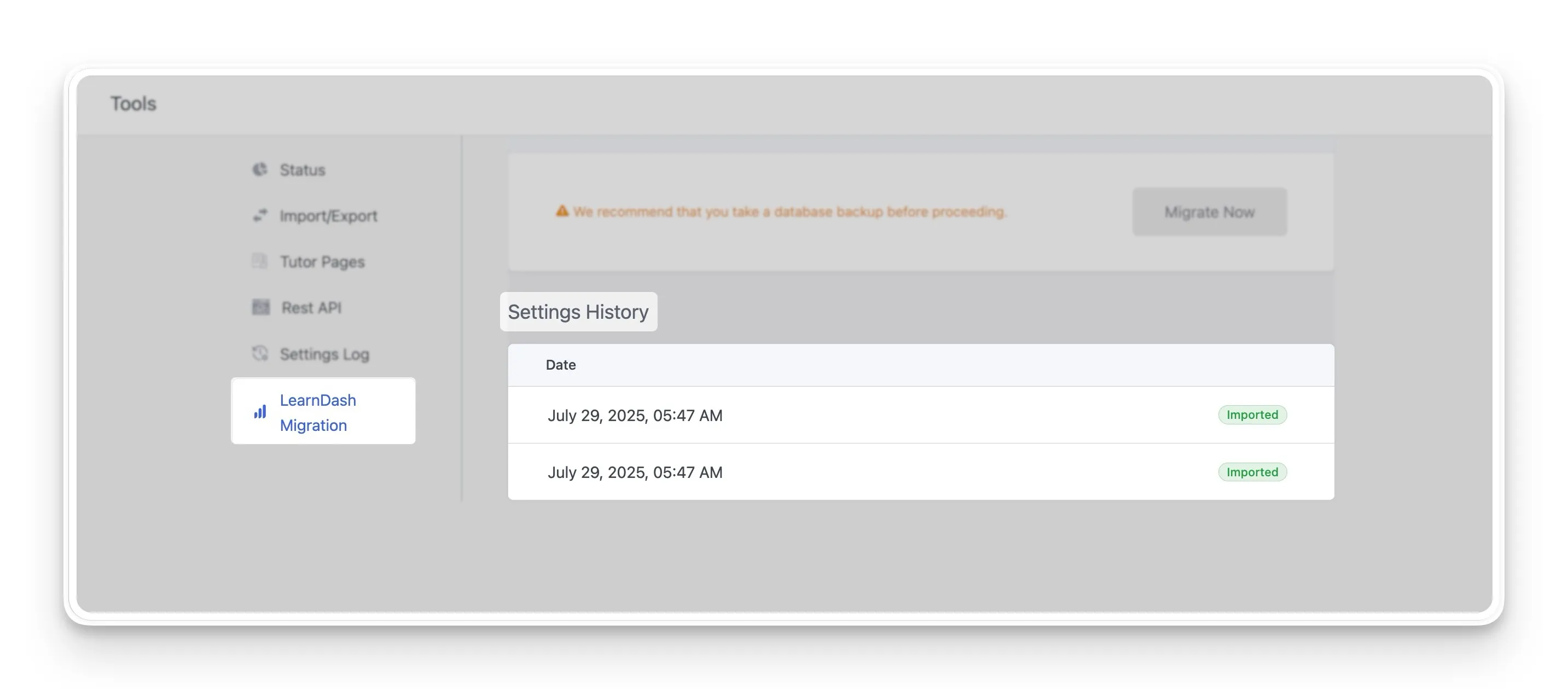
In the sidebar, you’ll find the Settings History which is basically a list of all your Exports and Imports generated automatically. This will only appear after the first such event is triggered and the list will contain the Date & Time of the event and its type i.e whether the settings were exported or imported.