Gift Course
The Gift Course feature allows users to purchase a course and send it to someone else as a gift. The recipient receives an email with the gifted course and can access it after claiming it.
1. Enable Gift Course
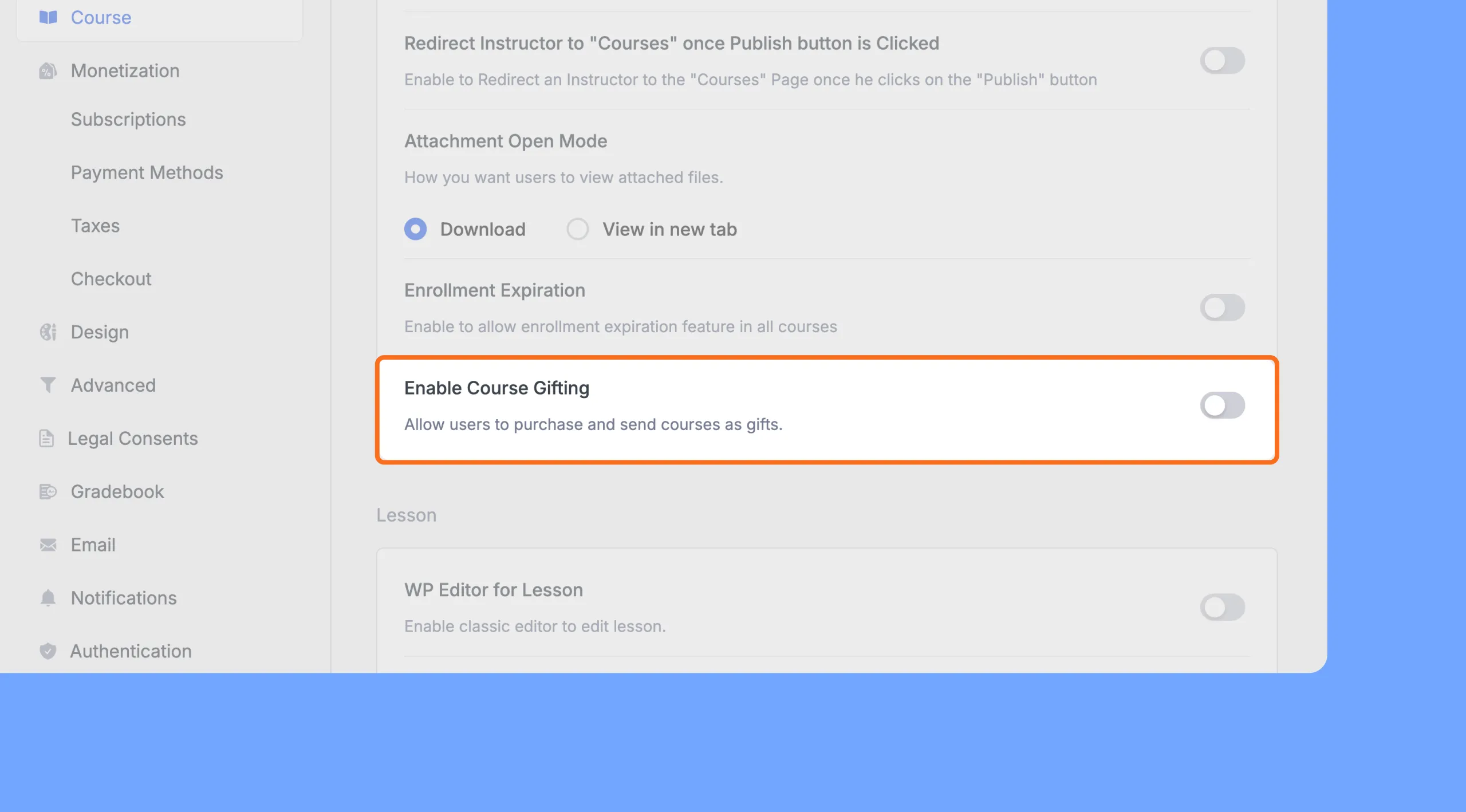
To enable gift course:
- Go to Tutor LMS → Settings → Course.
- Scroll down and toggle on Enable Course Gifting.
- Save your changes.
Once enabled, a “Gift this Course” button will appear on all course details pages.
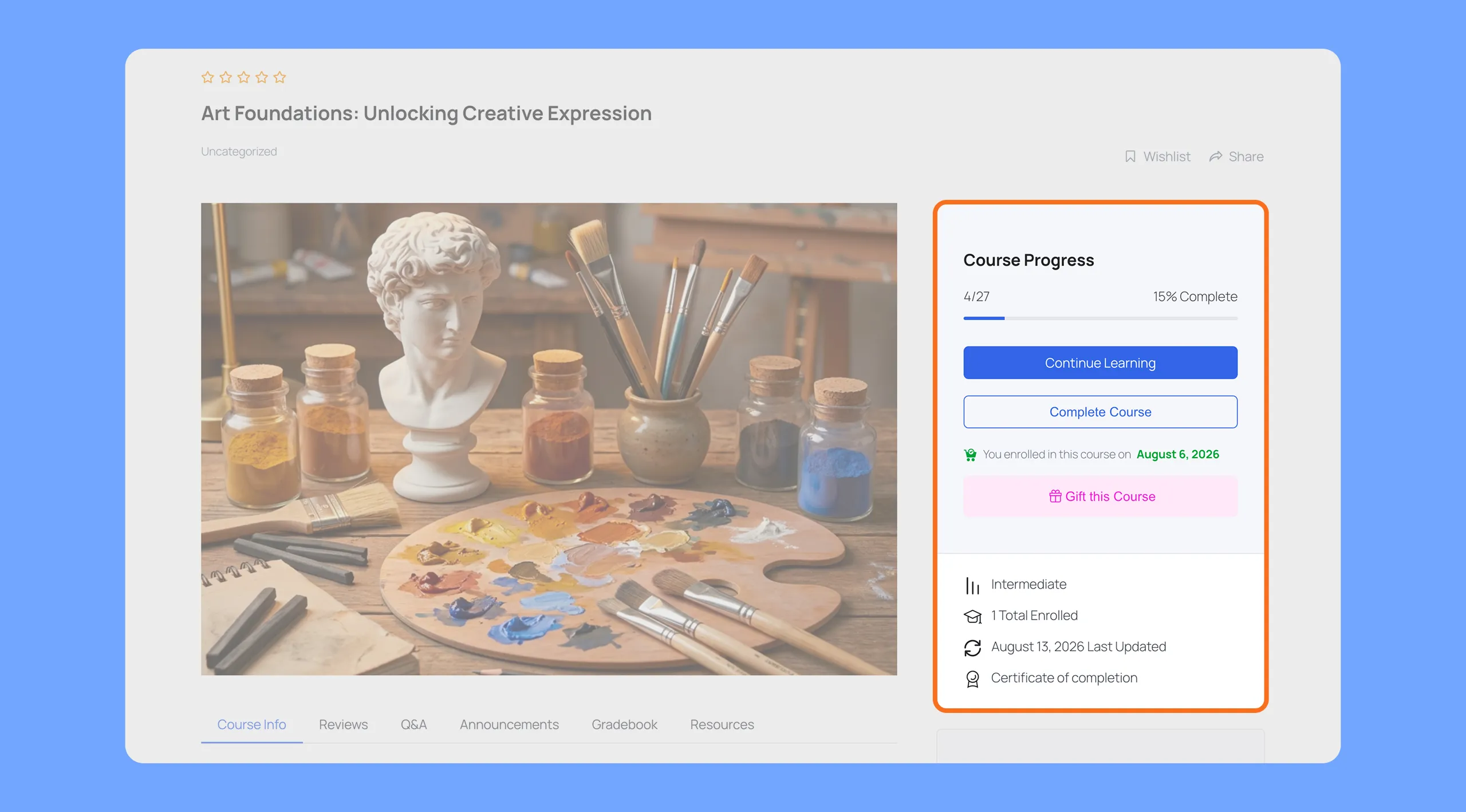
2. Sending a Gift Course
- On the course page, click Gift this Course.
- Fill in the following details:
- Recipient’s Name
- Recipient’s Email
- Delivery Date & Time (optional – schedule when the gift email will be sent)
- Personal Message (optional)
- Recipient’s Name
- Click Proceed to Checkout and complete the purchase.
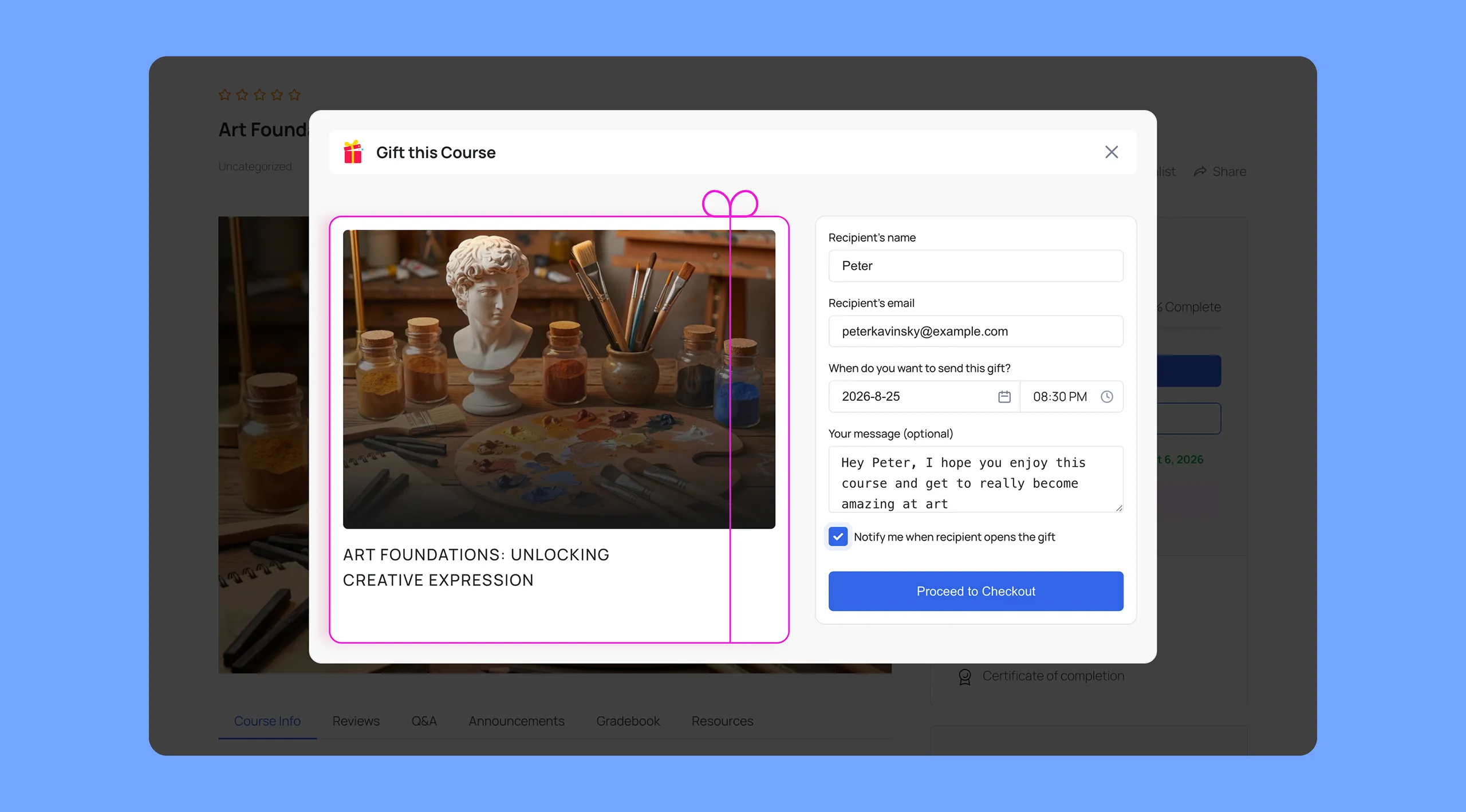
Senders can gift individual courses or course bundles. The process is the same for both.
3. Gift Delivery Process
- The recipient will receive an email with the gifted course.
- If the recipient has an account they will directly be redirected to their dashboard.
- If the recipient does not have an account with the site, Tutor LMS will:
- Automatically create an account for them.
- Send them a separate email to reset their password.
- Automatically create an account for them.
4. Claiming the Gift (Recipient)
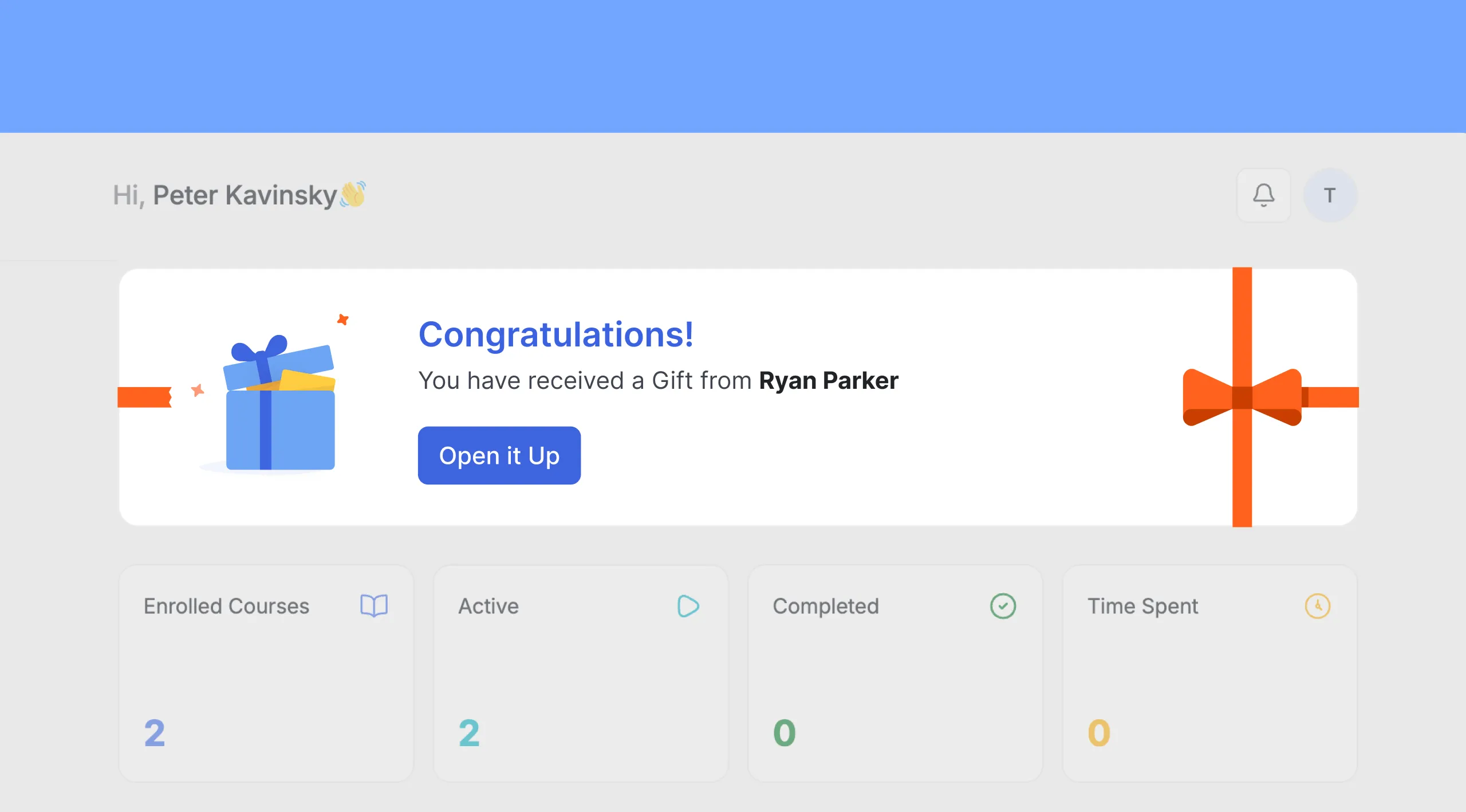
- After logging in, the recipient will see the gifted course in a separate section in their dashboard.
- Click Reveal Gift next to the course.
- Once revealed:
- The recipient is enrolled in the course.
- The course will appear in their My Courses section.
- The recipient is enrolled in the course.
- From this point, the course functions like any normal enrollment.
5. Refund Rules
- The sender can request a refund only if the recipient has not revealed the gift.
- Once the recipient clicks Reveal Gift, refunds are no longer allowed.
6. Customizing the Gift Email
You can modify the gift email template from:
Tutor LMS → Settings → Email
Note: Email addon must be enabled to be able to customize the template.
You will be able to customize the template for these two emails:
- Gift Course Purchase Confirmation
- Gift Course Delivery Notification
Happy Gifting!