How to Import and Export Tutor LMS Courses
The Tutor LMS Import/Export feature allows you to efficiently transfer Tutor LMS courses, bundles, lessons, quizzes, assignments, settings, etc, between Tutor LMS sites or to back up your data.
What You Can Import & Export
Tutor LMS empowers you to seamlessly transfer key data between sites, create backups, or reuse content—all through simple .json file handling. You can import/export the following Tutor LMS data:
- All or selected courses and bundles
- Specific lessons, quizzes, assignments, and more
- Plugin settings and configurations
- All course media files
- Specific course content
How to Export Tutor LMS Data
Here’s the step-by-step process to export Tutor LMS data:
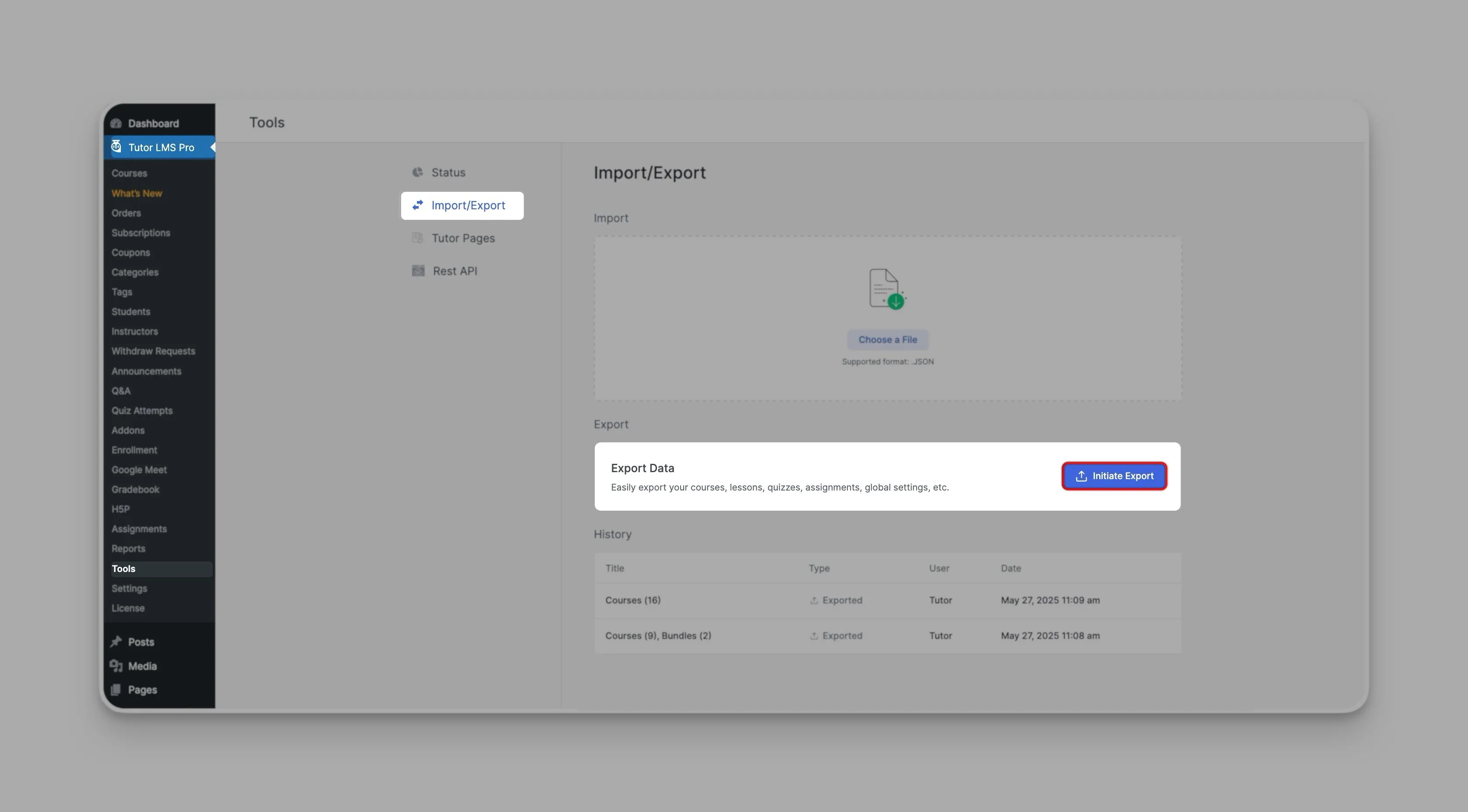
- Navigate to Tutor LMS Pro > Tools and select the Import/Export tab.
- Now, scroll down until you get to the Export tab. From there, click on the “Initiate Export” button.
- After initiating the export, you’ll see a list of checkboxes for your courses, bundles, lessons, quizzes, assignments, and more. Select only the course elements that you want to export.

Besides that, you can click “Select Specific Courses” to hand-pick only the courses you want to export. The same thing goes for the bundles too. You can export specific bundles by clicking on the “Select Specific Bundles” button.
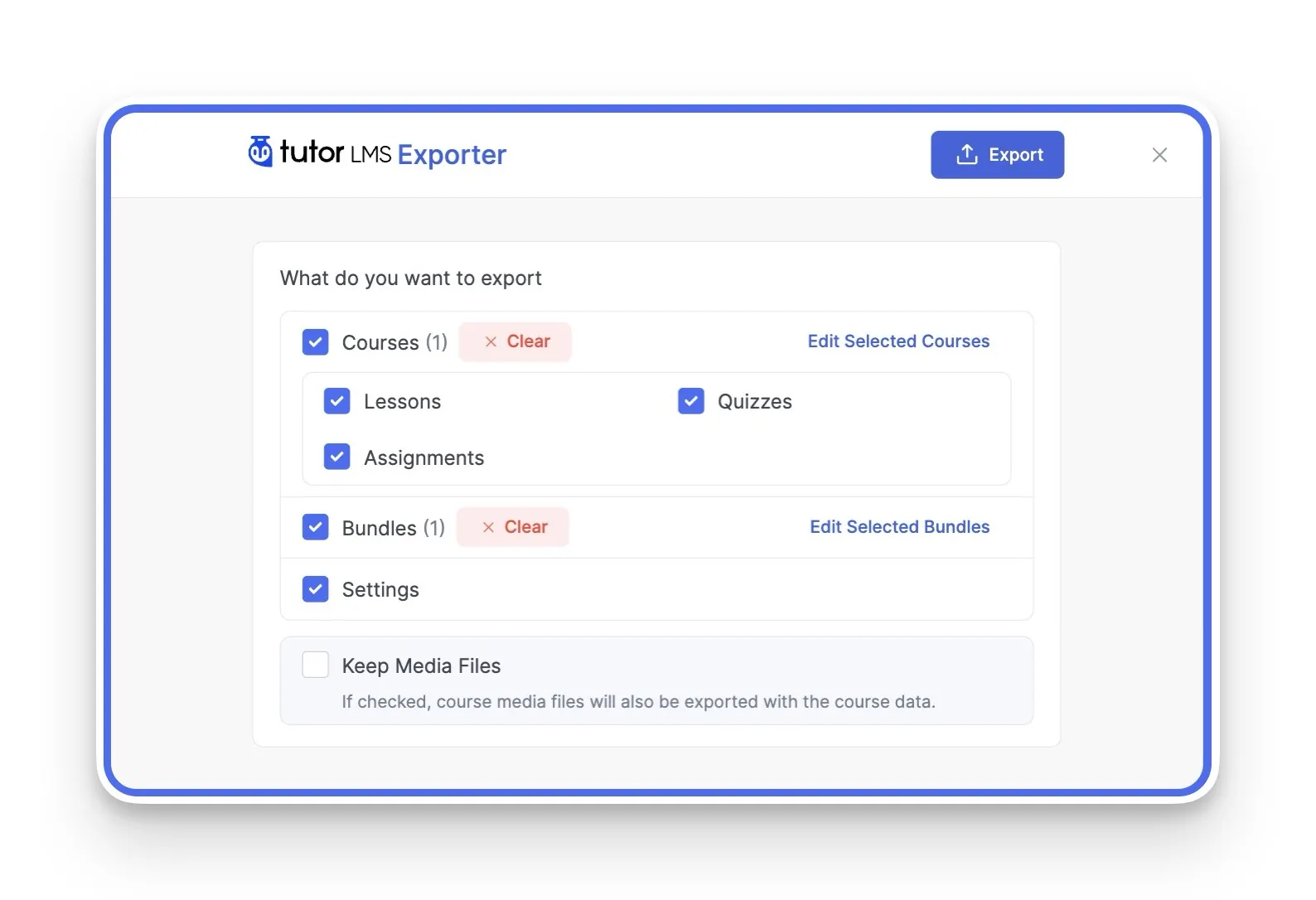
Also, ticking the “Settings” option saves a snapshot of your current Tutor LMS settings directly into the exported JSON file.
- Once you’ve made your selections, click the “Export” button on the top right to initiate the process.
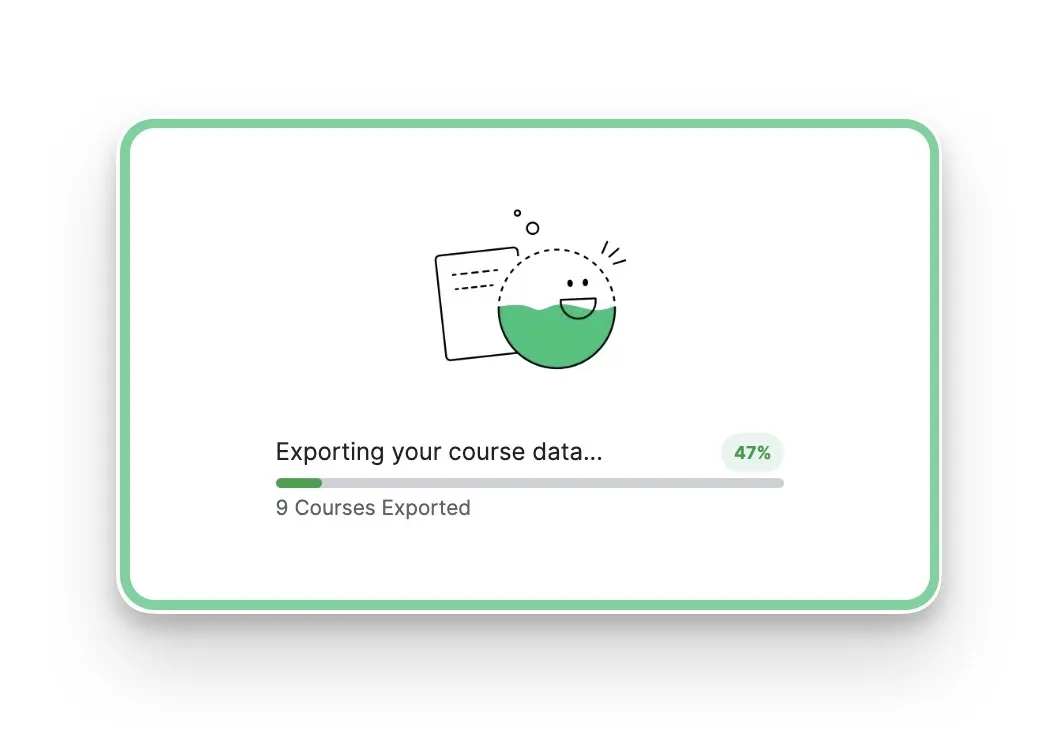
The exporting process will then begin, and you will see a progress bar indicating its status.
Once the exporting is complete, you’ll get a confirmation window saying “Your Data is Ready to Download!”. There, you will also get an overview of how many courses and bundles you’ve exported.
- If everything seems okay, simply click on the “Download” button to save the .json data file to your computer.
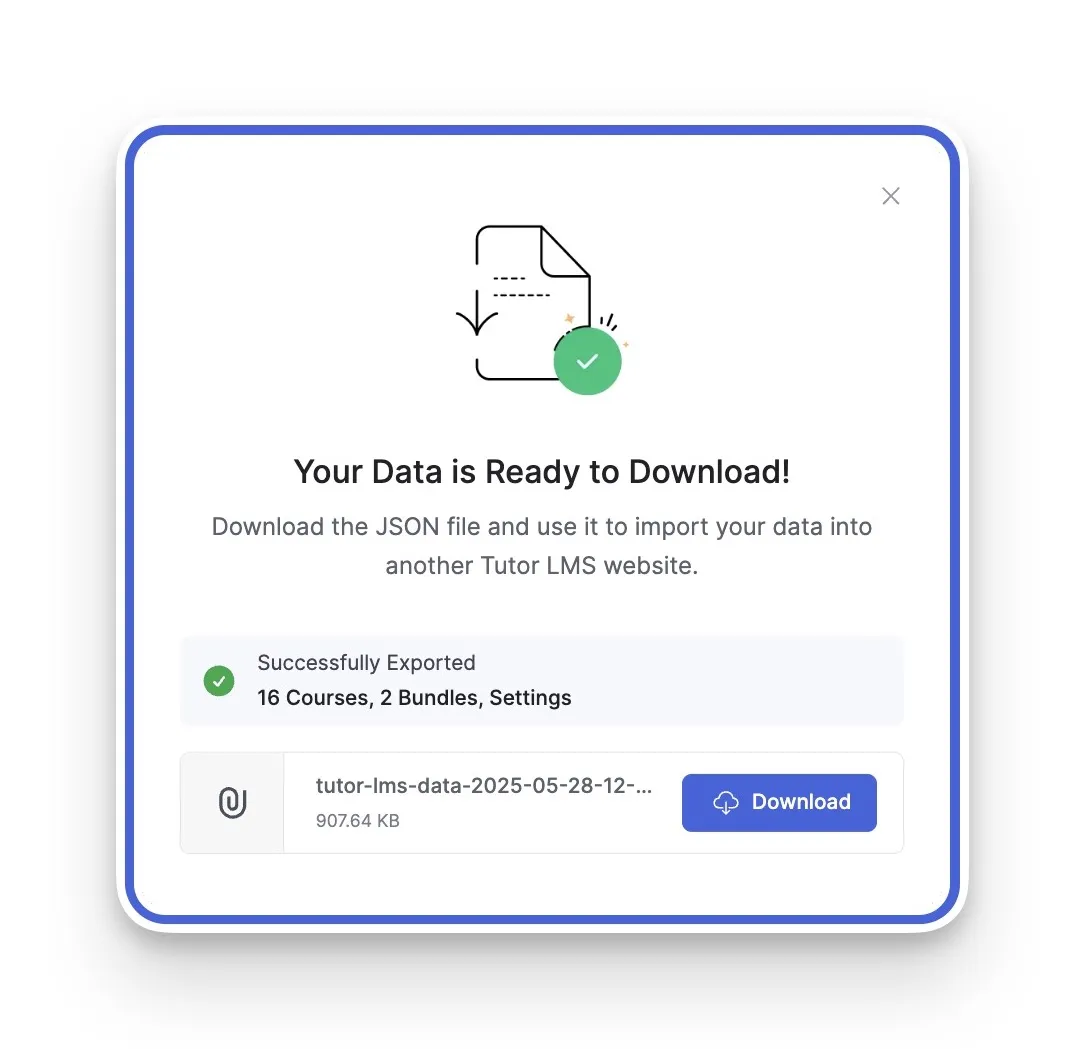
That’s it! You’ve successfully imported your Tutor LMS data into your computer.
How to Import Tutor LMS Data
Here’s the step-by-step process to import your Tutor LMS data:
- Navigate to Tutor LMS Pro > Tools and select the Import/Export tab.
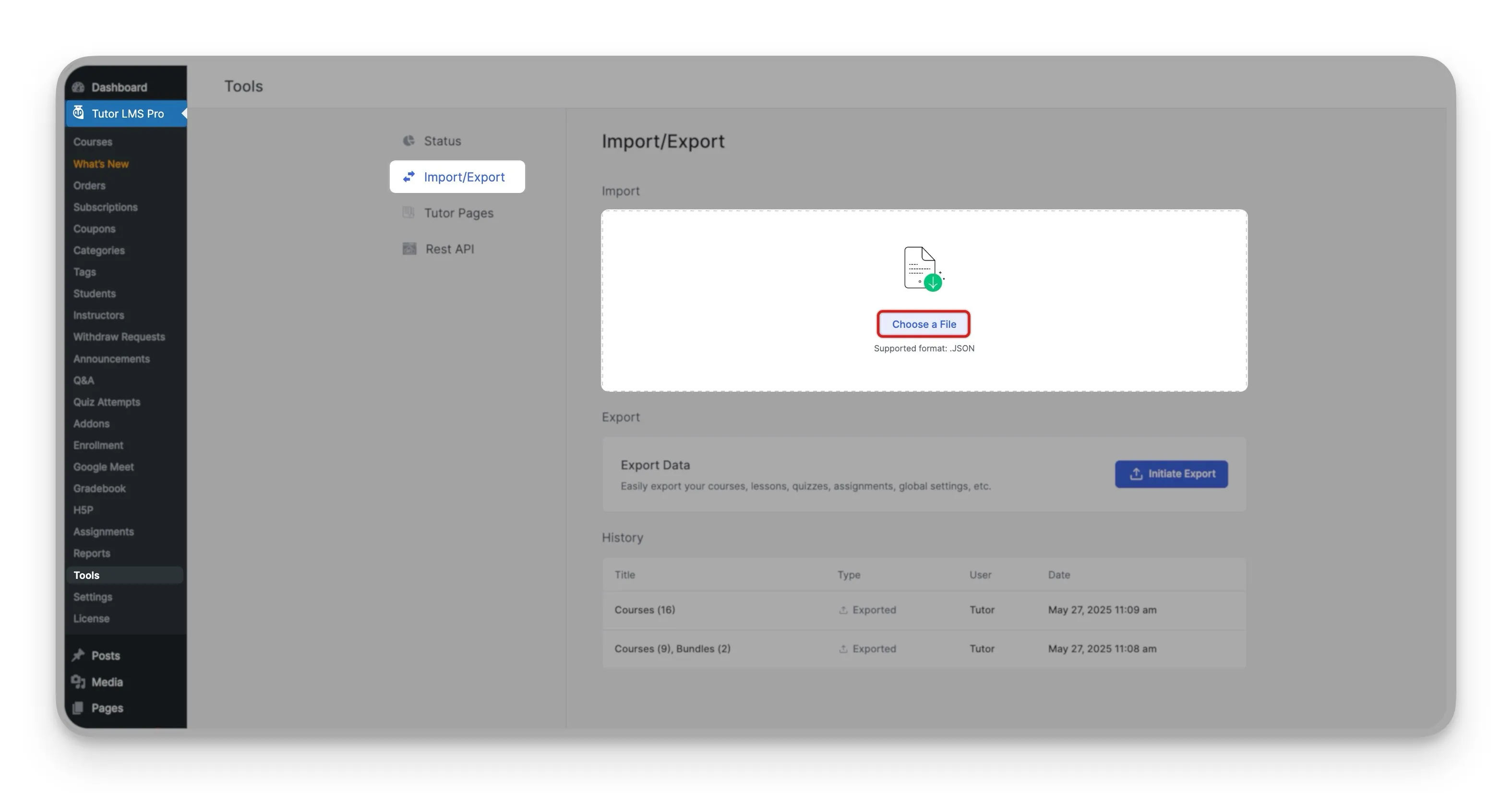
- There, you’ll get the file upload field under the Import section. Simply click on the Choose a File option and select the exported JSON file.
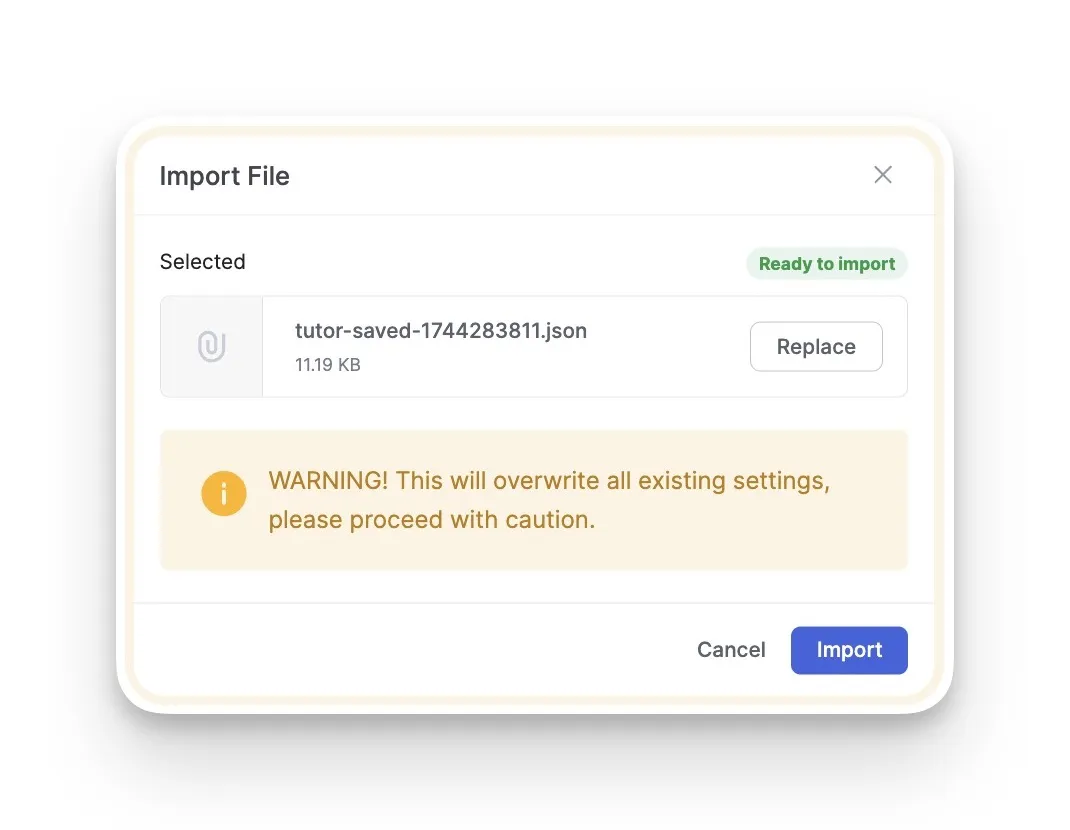
- Next, click the Import button to start the process. A progress bar will appear, showing the number of courses and bundles being imported.
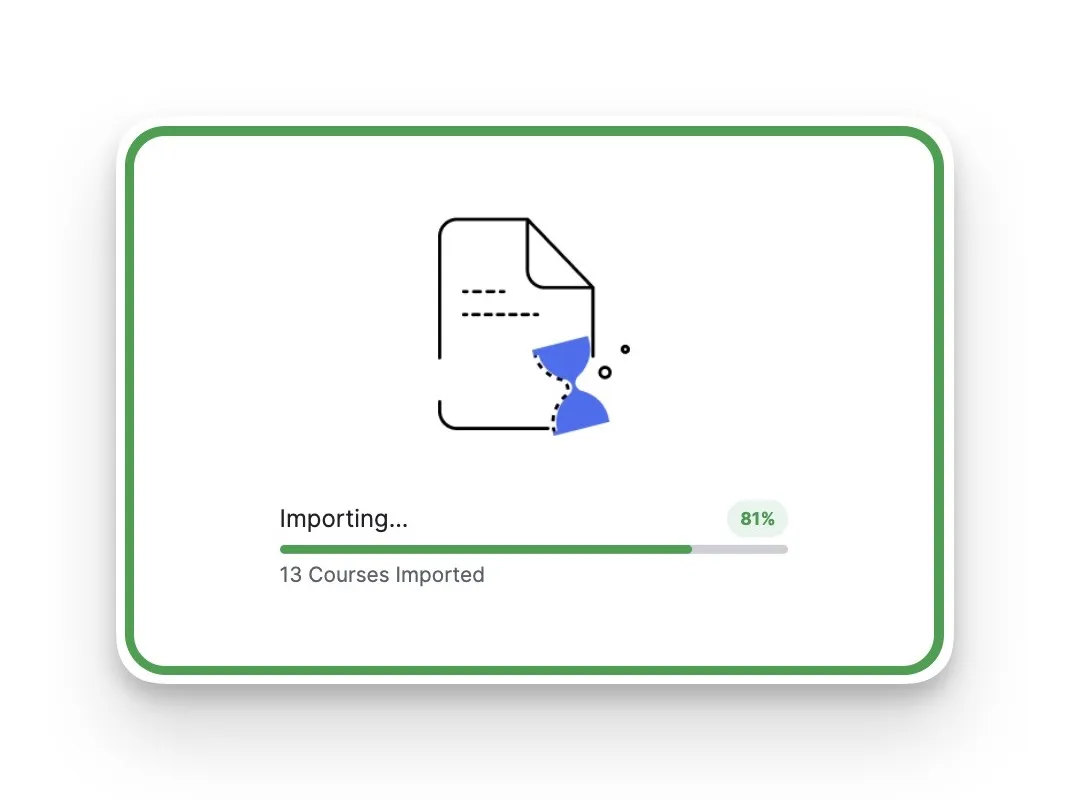
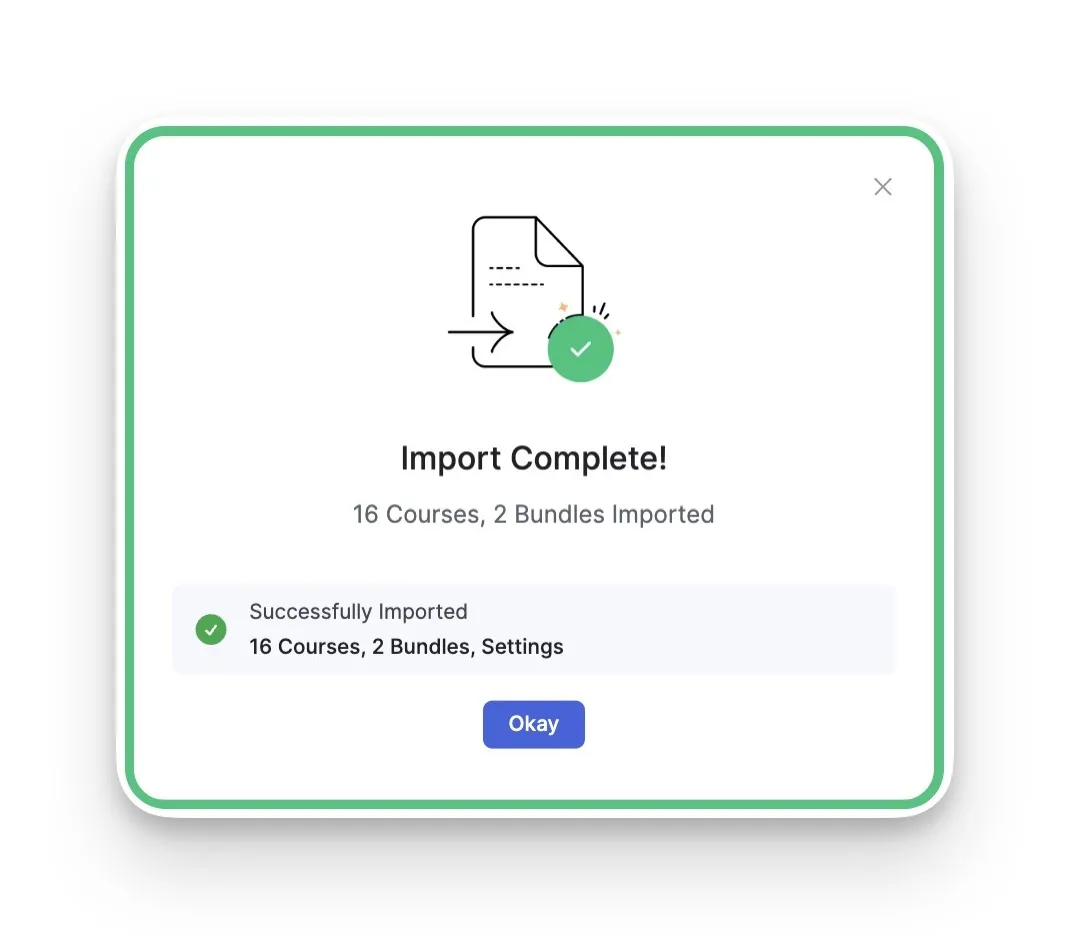
- Once the import is complete, a confirmation screen will appear. It will show how many courses and bundles were successfully imported.
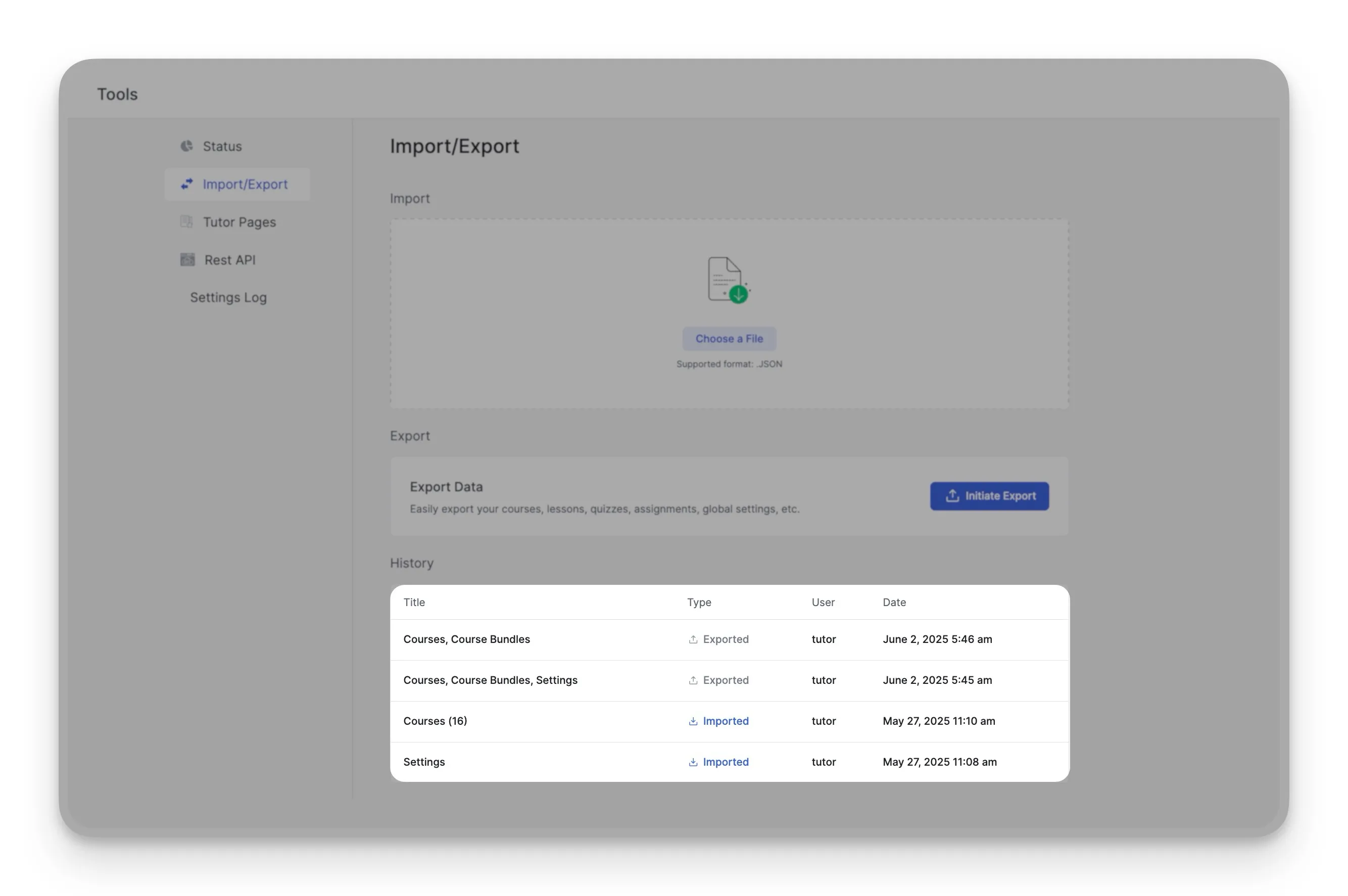
Export Import History
At the bottom of the page, you’ll find a section titled “History”. It shows the last 10 import and export actions. You can delete individual entries by hovering over them.