Alipay
Alipay is one of the largest digital payment platforms in China and is widely used for domestic and international transactions. The Alipay payment gateway provides a secure, efficient, and widely accepted payment method, making it a valuable tool for businesses looking to expand their reach and improve transaction processes.
Alipay is available in limited currencies. So, before using Alipay, ensure that it is supported in your country and your currency is supported.
Adding Alipay as a Payment Option
Here are the steps to add Alipay to your Tutor LMS website.
- Log in to your Tutor LMS Dashboard.
- Navigate to Settings > Monetization > Payment Methods.
Add Alipay
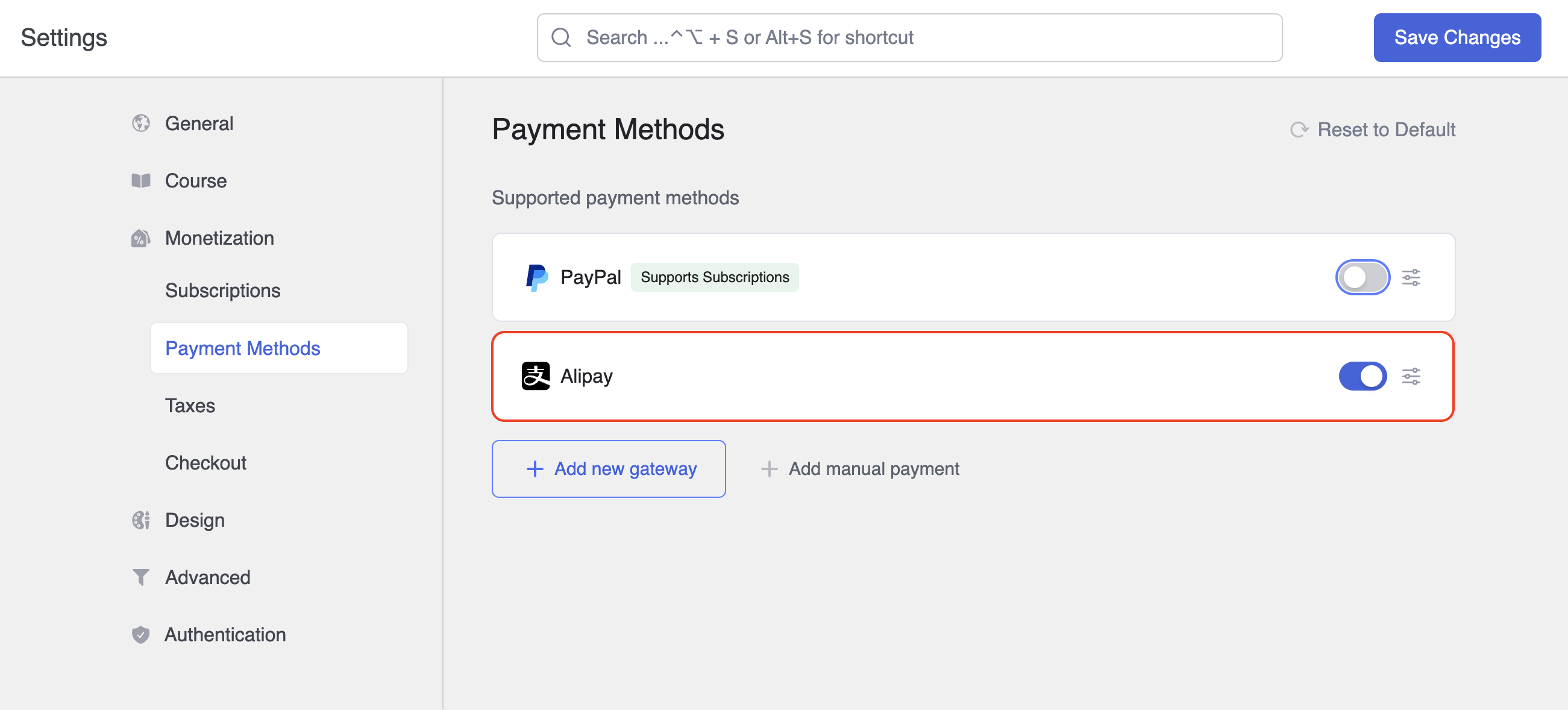
- Click the Add new gateways button.
- From the list of available payment methods, select Alipay and click the Install button.
Once installed, Alipay will appear as one of your payment options.
Note: You’ll need an active subscription to Tutor LMS Pro to use Klarna.
Configuring Alipay Integration
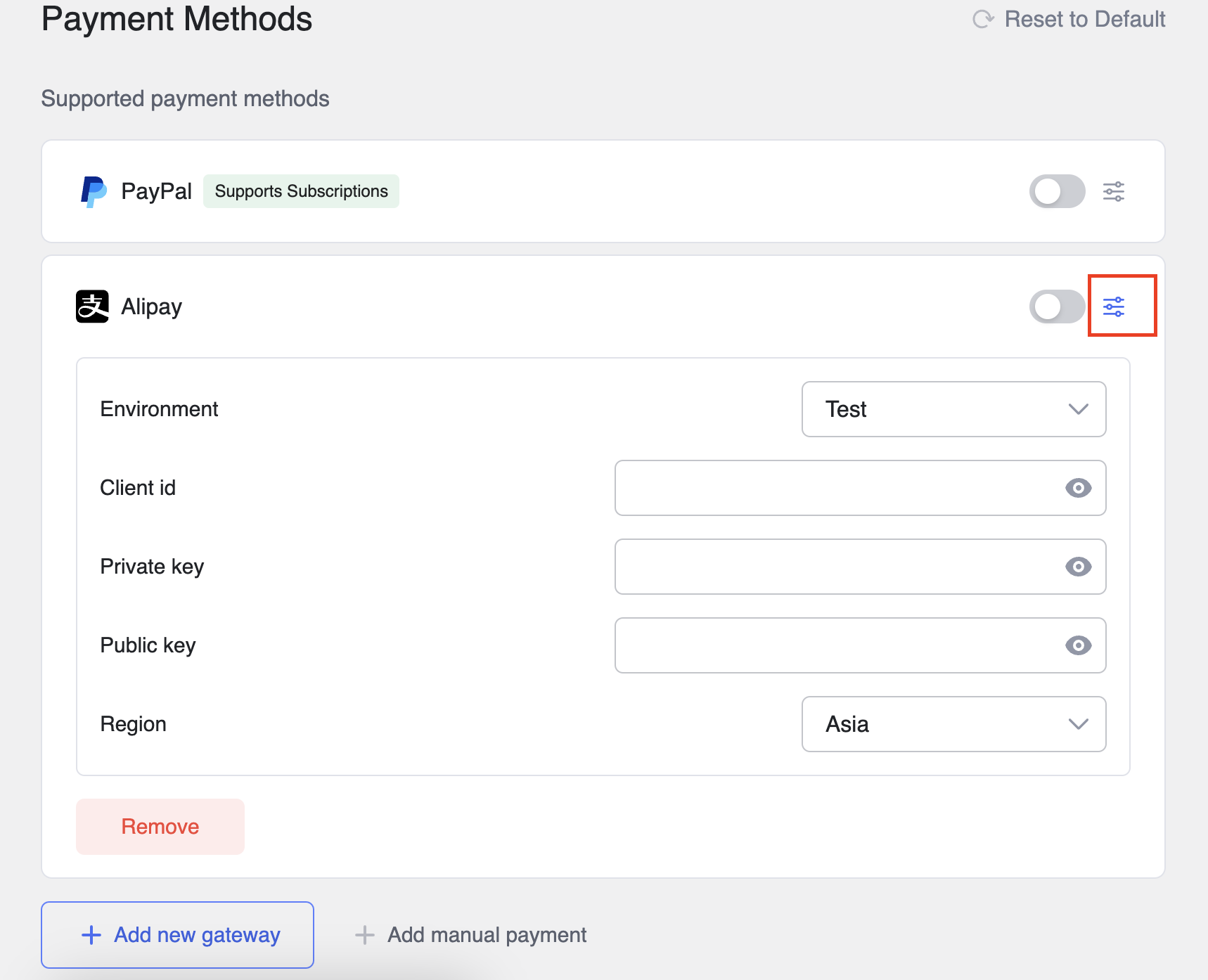
In the Payment Methods section, toggle the switch to enable Alipay for checkout. Then, click the Setup icon next to Alipay to expand the settings. Here, you can select the Environment and enter other fields.
How to Get Alipay Credentials?
To integrate Alipay, you need to obtain the Client ID, Public key, and Private key from the Alipay platform. Here are the steps to collect these:
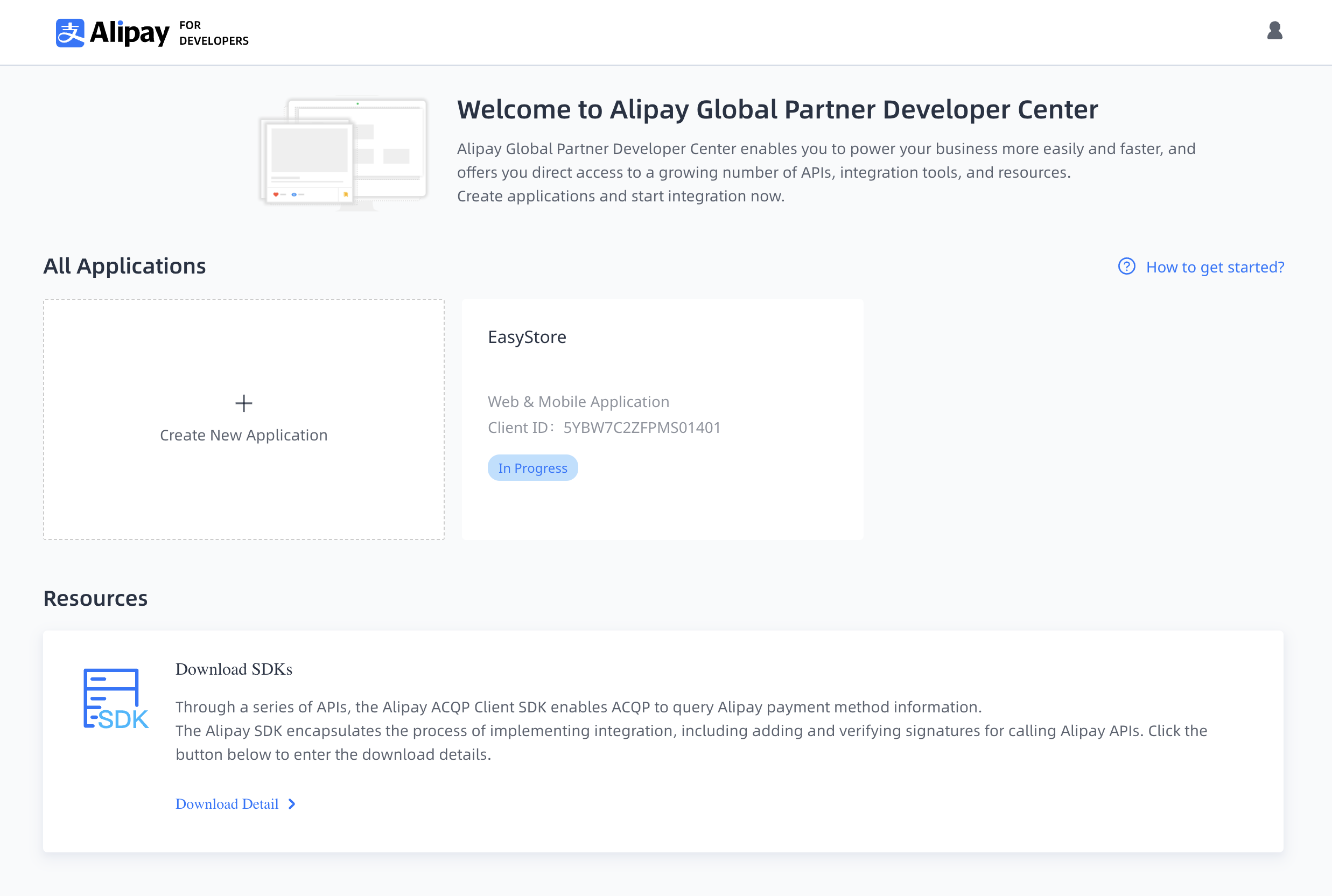
Step 1: Login to your Aplipay Portal.
Step 2: Create a New Application for your platform.
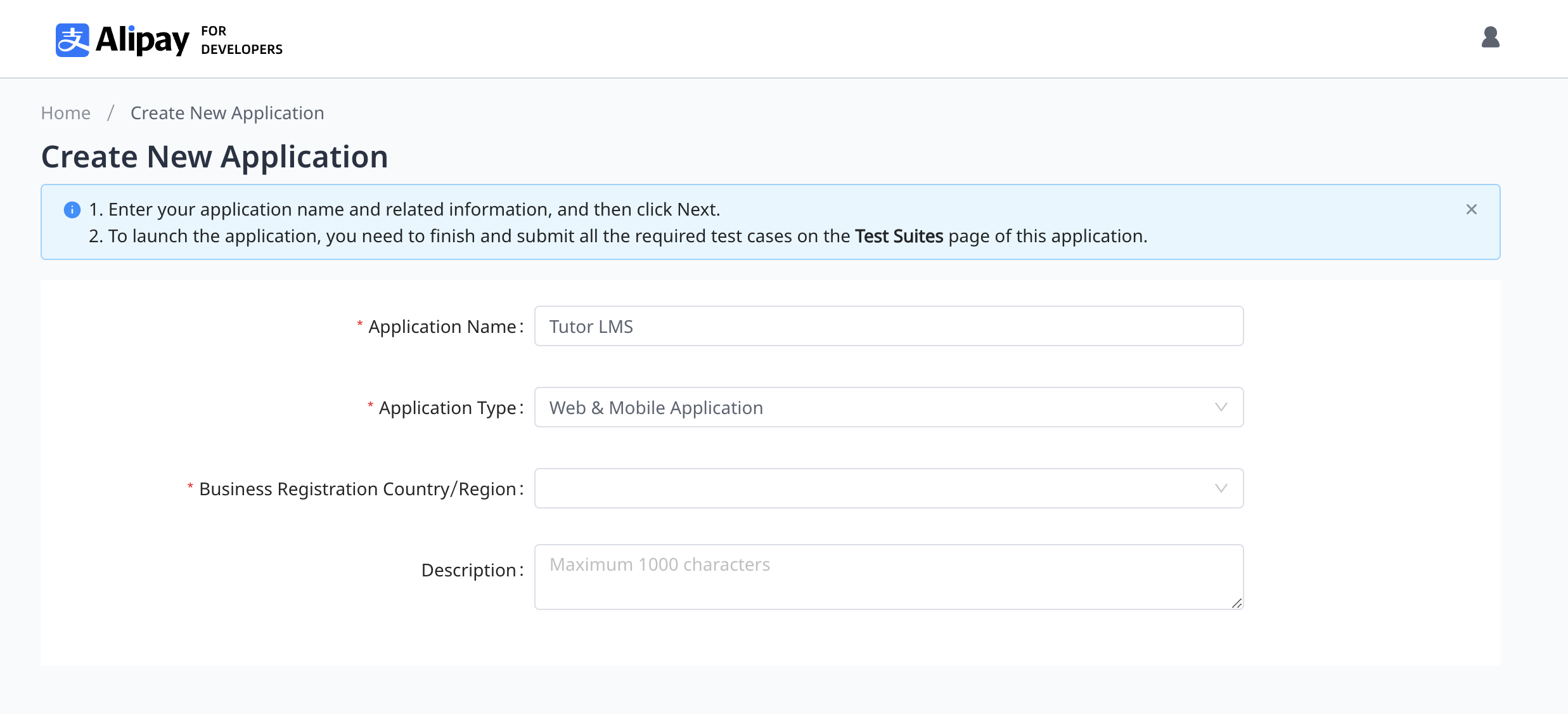
Step 3: Enter the Application name, select the Application type, and set your Business Registration Country.
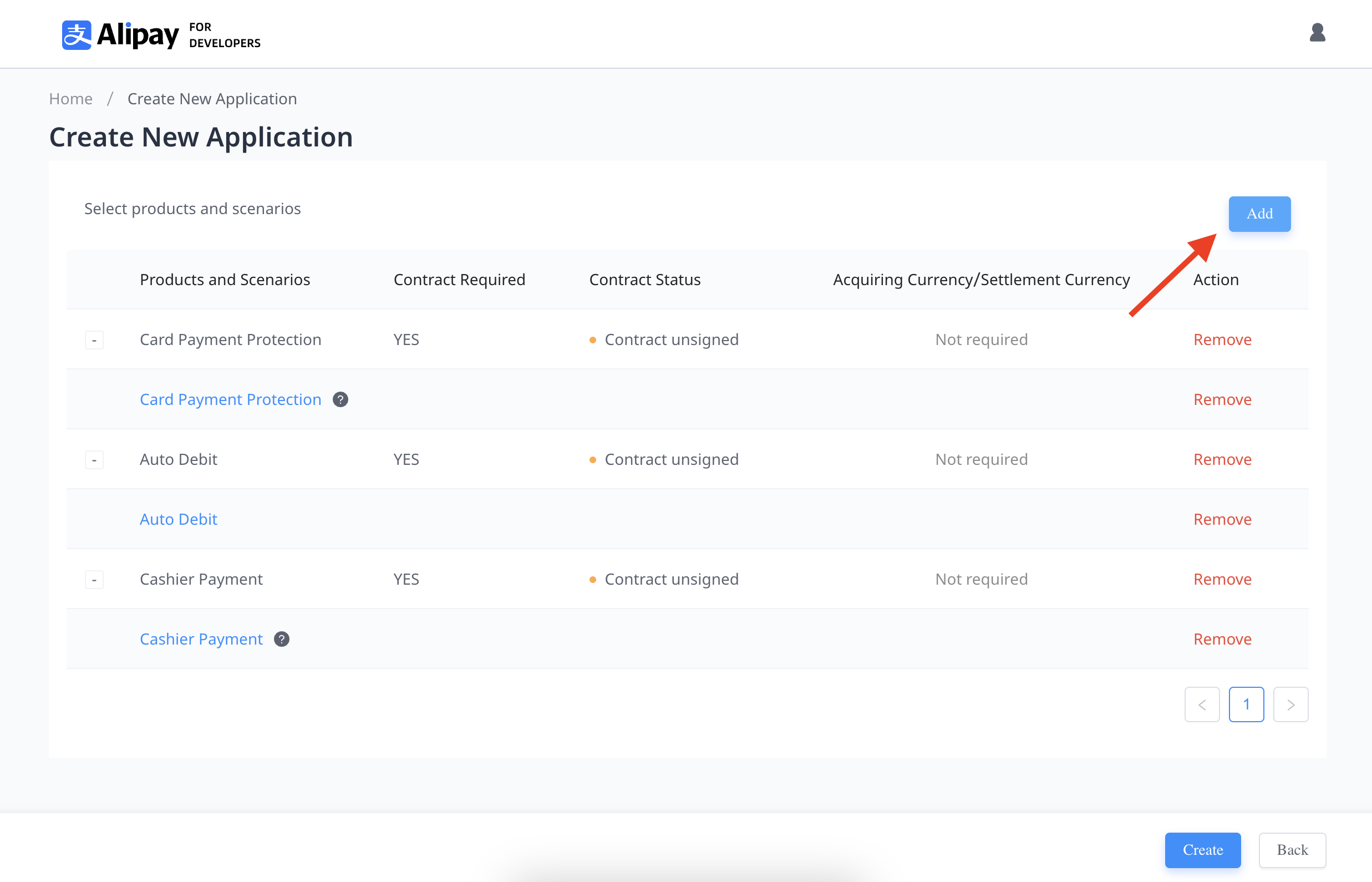
Step 4: Select your required products and scenarios.
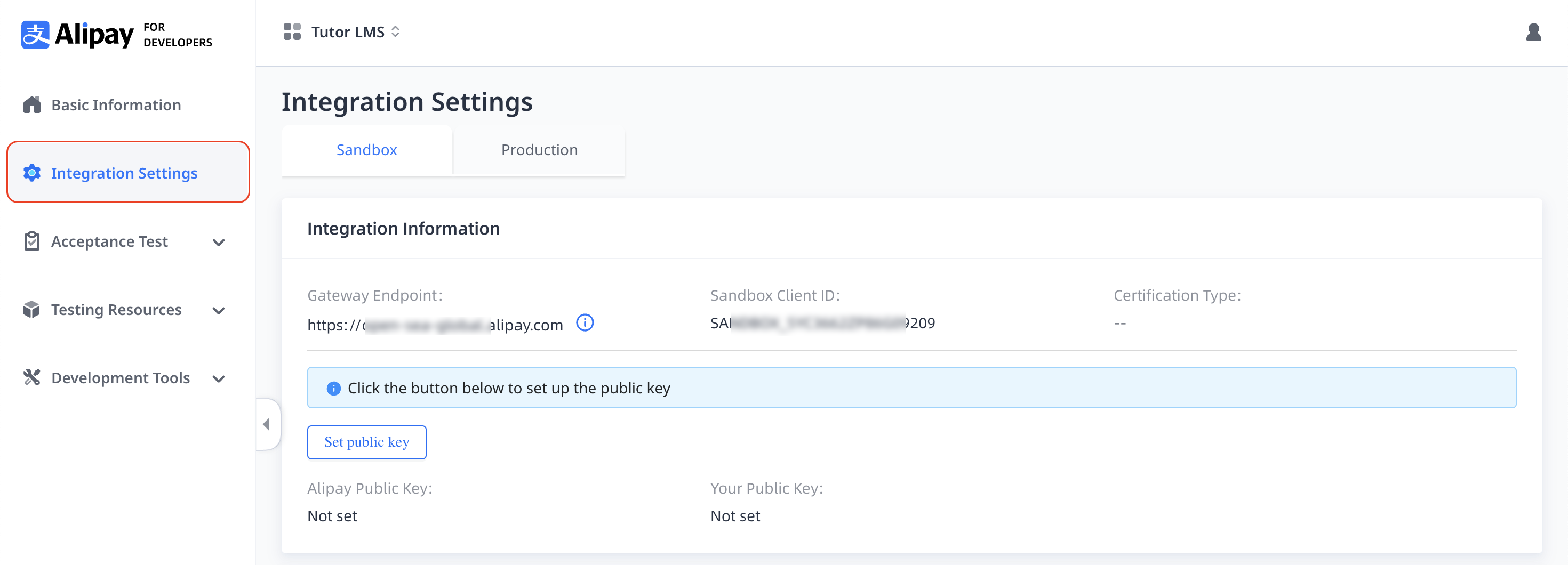
Step 5: Navigate to the Integration Settings and you’ll get the Client ID here.
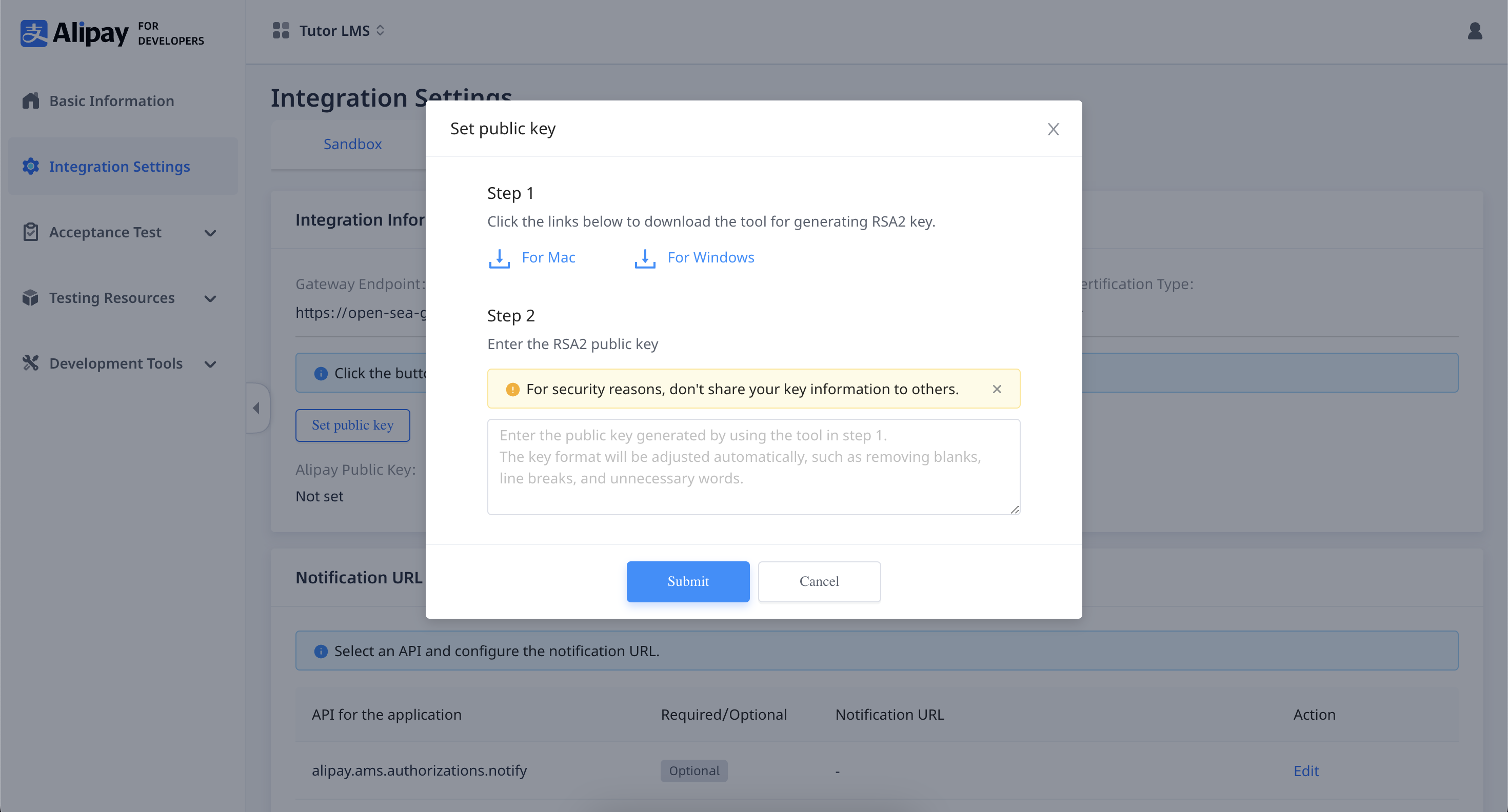
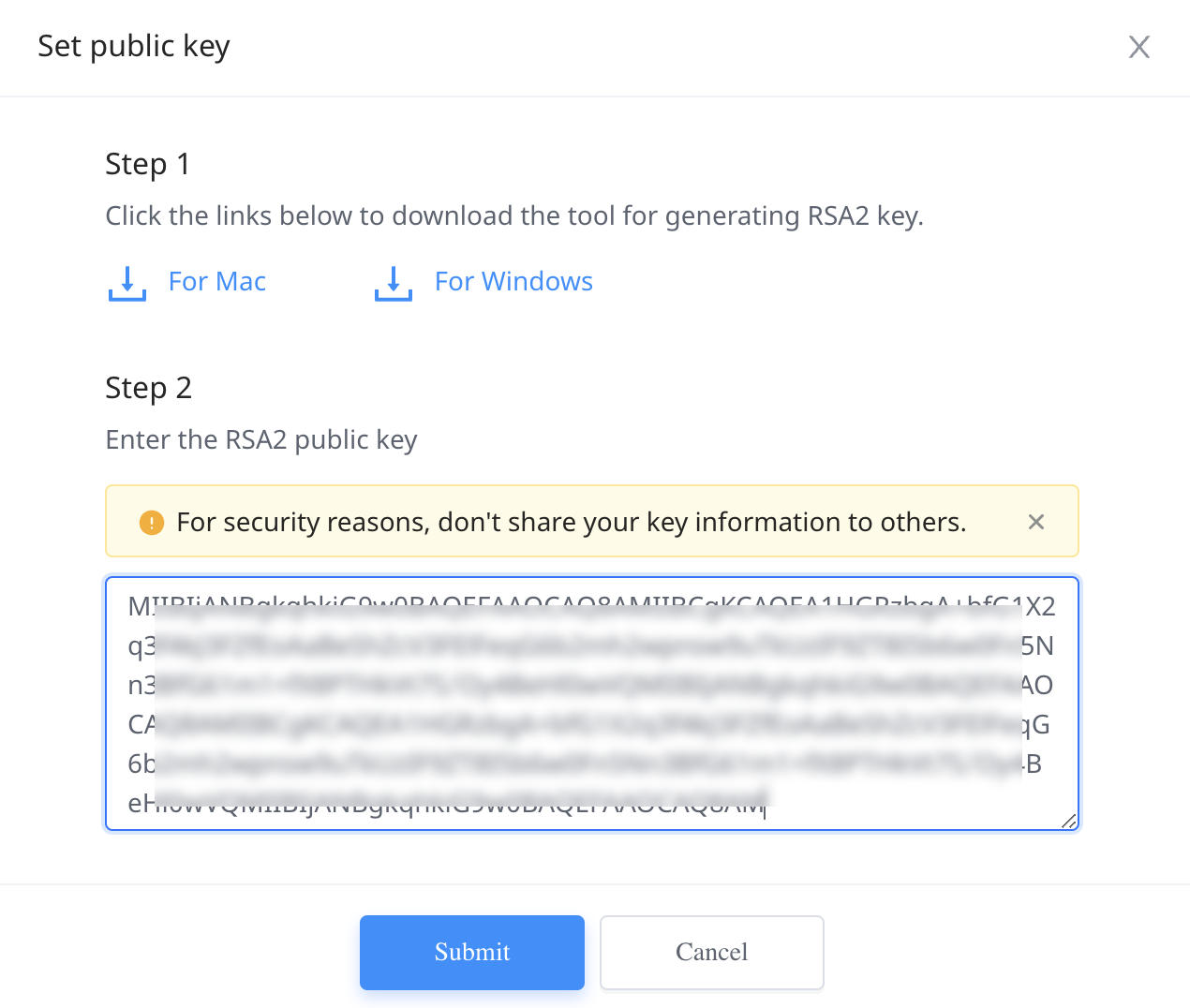
Step 6: Click on the Set public key button, and you’ll get a popup window to download the tool for generating the RSA2 key. Download the plugin based on your operating system.
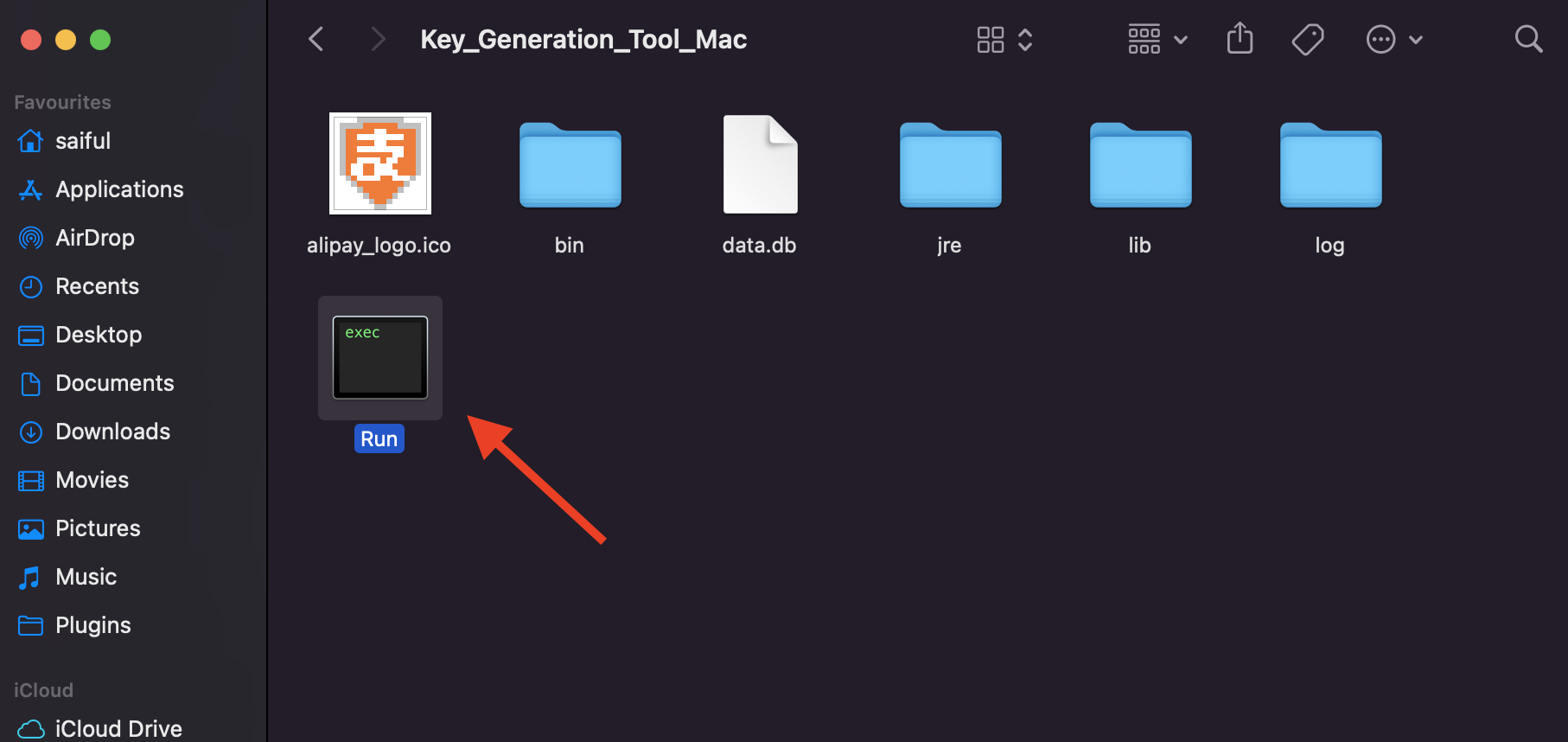
Step 7: Once downloaded, extract the Key Generation Tool folder and locate and execute the “Run” file.
Step 8: Click on the “New” button to obtain the Private and Public Key. Use this private key to integrate the Alipay payment gateway into Tutor LMS.
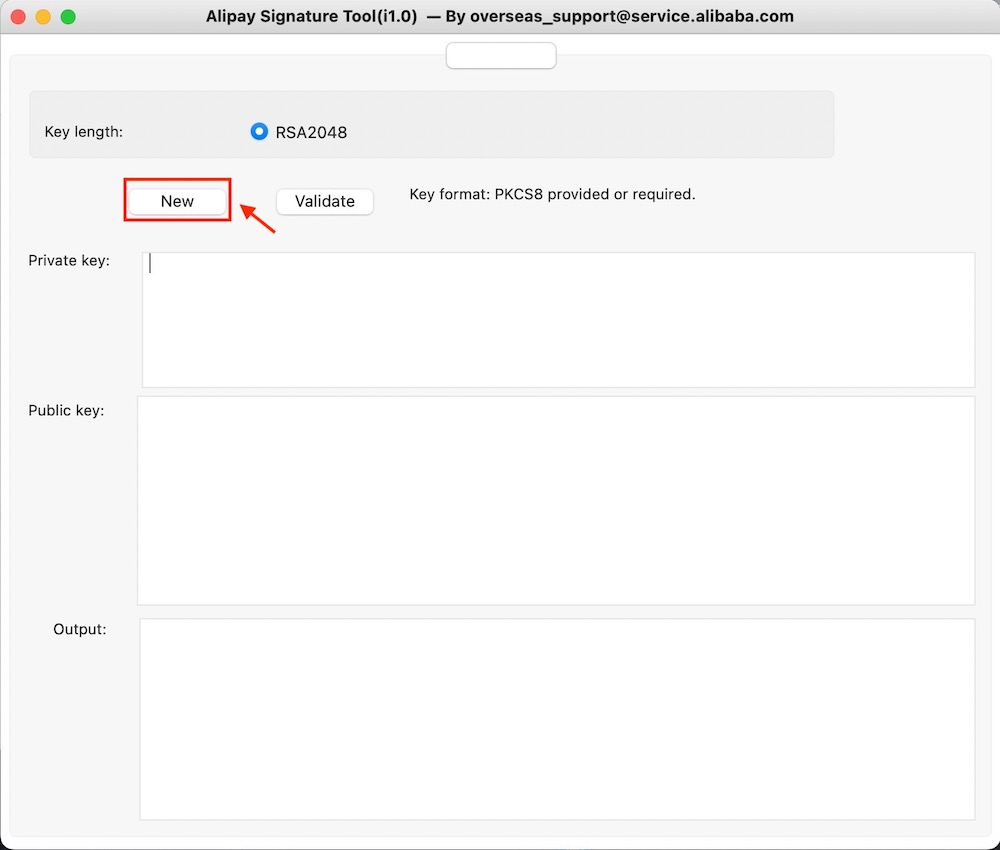
Step 9: Now copy the Public Key generated in your Signature tool and return to the Alipay Application dashboard. Click on the “Set Public Key” button again. Paste the copied key and hit the “Submit” button.
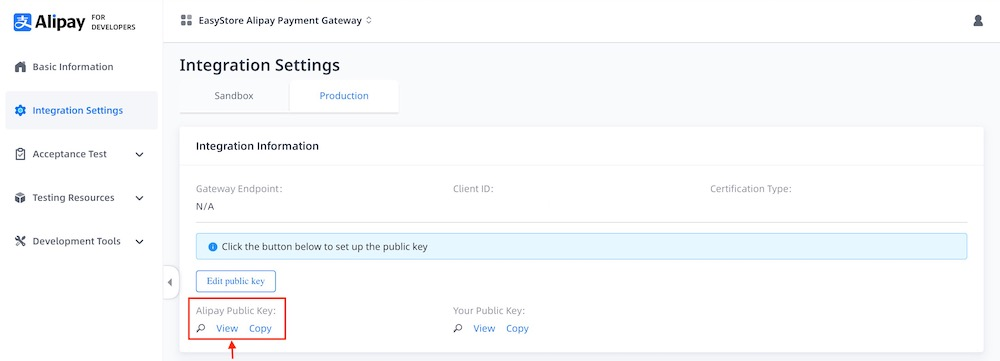
Step 10: Now click on the “View” button to view and copy your Alipay Public Key. This Alipay Public Key should be pasted onto the Tutor LMS integration page.
Users who have an account with the Antom payment solution can refer to the Antom documentation for instructions on getting their Client ID, Private Key, and Alipay Public Key.
Configuring Alipay Settings in Tutor LMS
Now, navigate to the Alipay configuration section and follow the steps below:
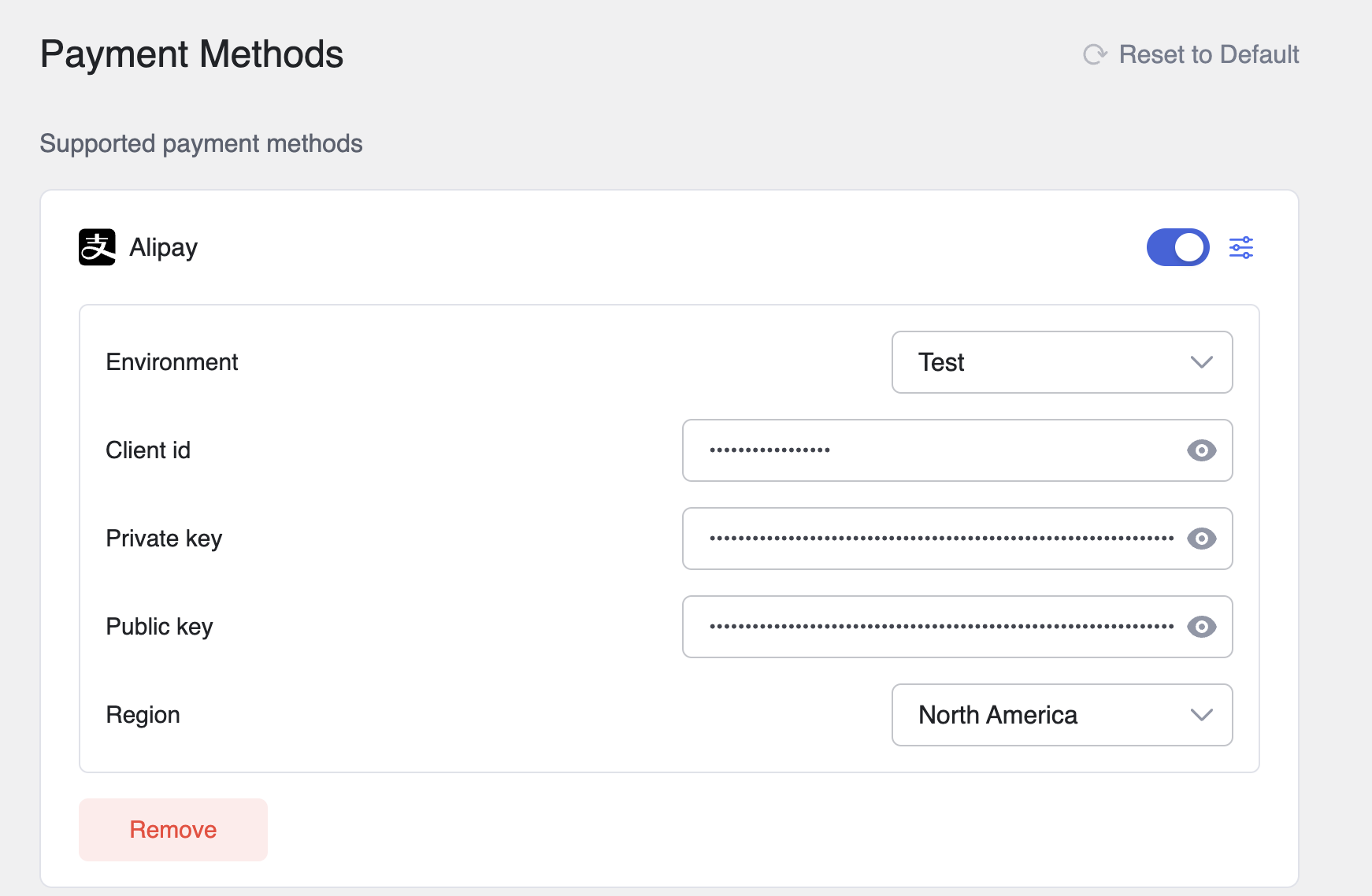
- Choose between Test or Live Environment, depending on whether you want to process real transactions or run test payments.
- Paste the Alipay Client ID, Public key, and Private key in the input field.
- Click Save Changes to finalize your Alipay integration.
That’s how you can seamlessly integrate Alipay into your Tutor LMS platform.