Coupons
To access Coupons you need to enable Tutor LMS native eCommerce first. Navigate to Tutor LMS > Settings > Monetization > Select eCommerce Engine and select Native from the dropdown to enable Tutor LMS native eCommerce.
Once activated, the Coupons tab appears in the Tutor LMS menu.
Fill Out the Coupon Details
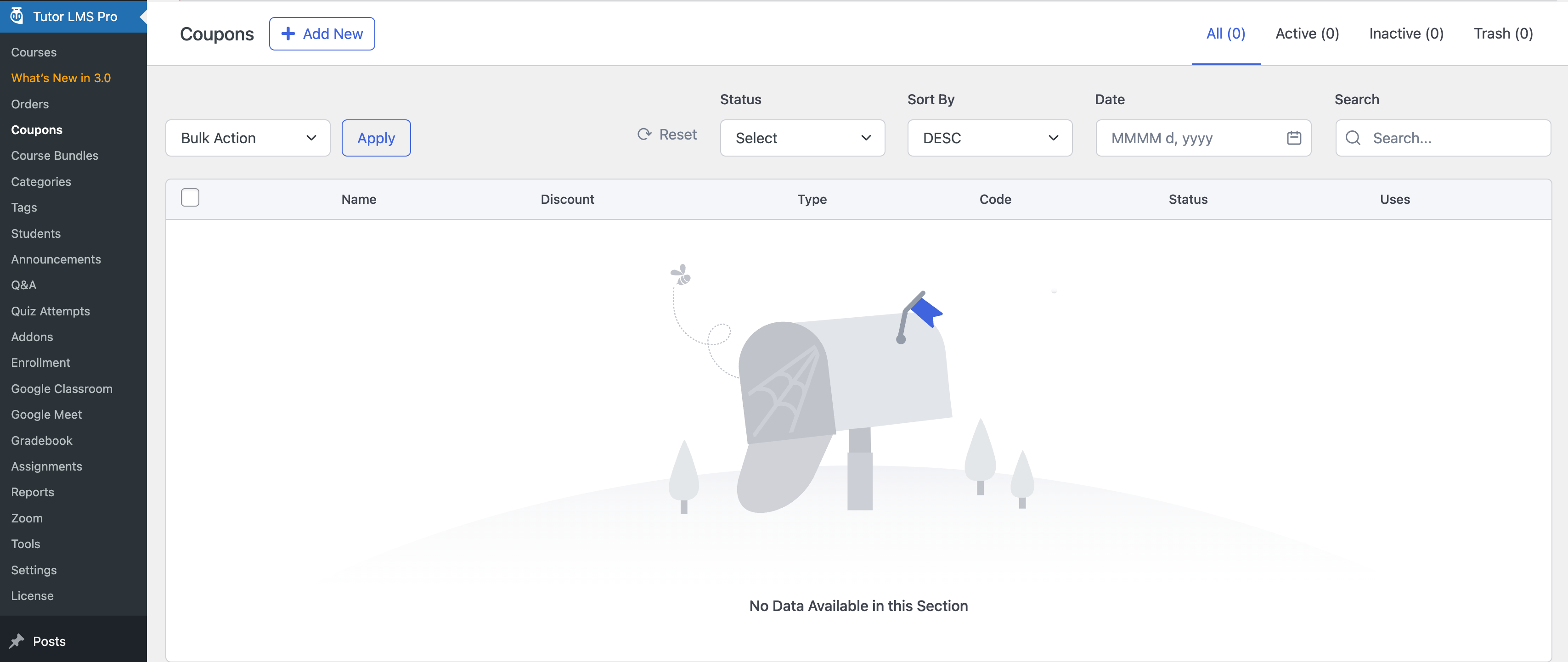
Navigate to the Coupons tab in Tutor LMS, then click Create Coupon to open the coupon setup screen.
Coupon Info
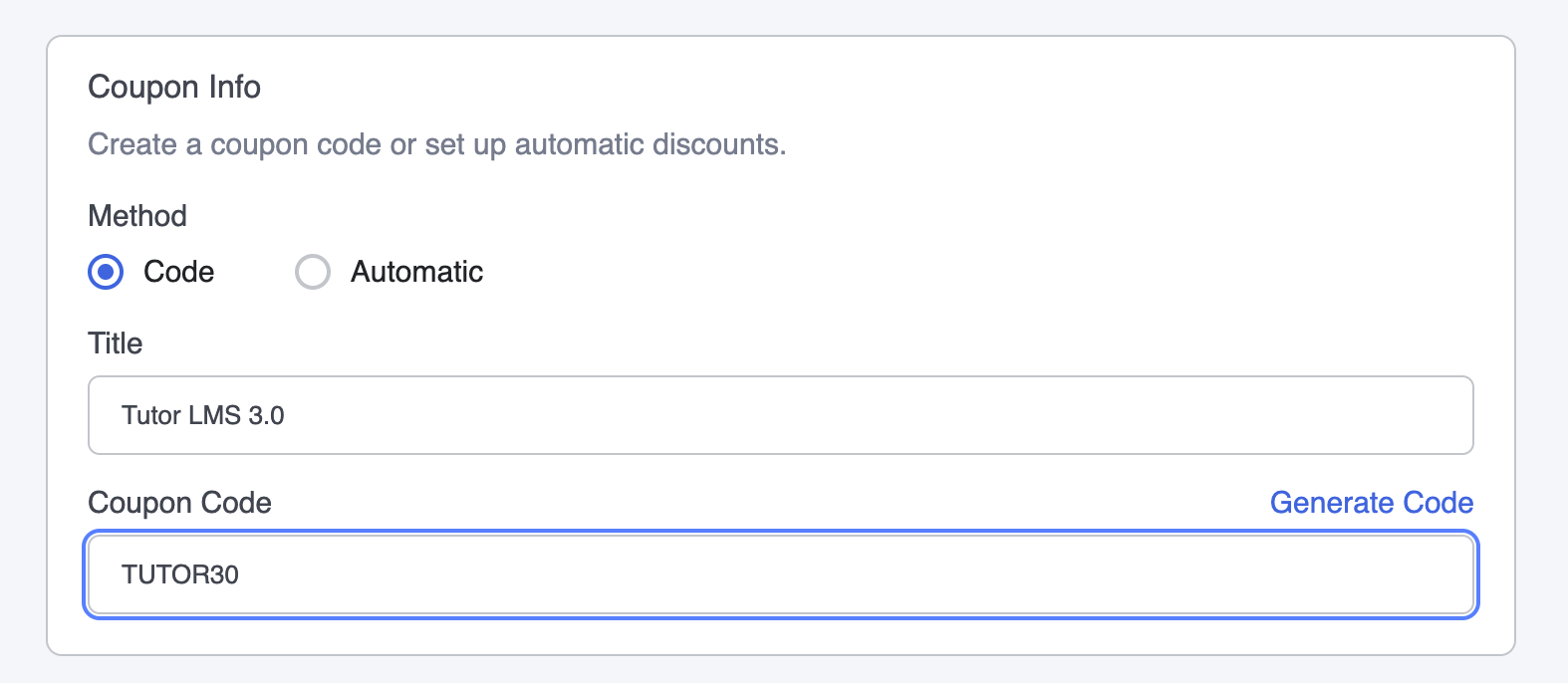
- Deduction Method: Choose how the coupon will be applied.
- Code: The learner must enter a specific code at checkout.
- Automatic: The discount is automatically applied at checkout for eligible items.
- Coupon Title: Enter a name for the coupon. This name is for internal use and helps identify the purpose of the coupon (e.g., “Summer Sale 2024”).
- Coupon Code: Input the coupon code learners will use at checkout (e.g., SUMMER20). You can also click Generate Code to automatically create a unique code.
Discount
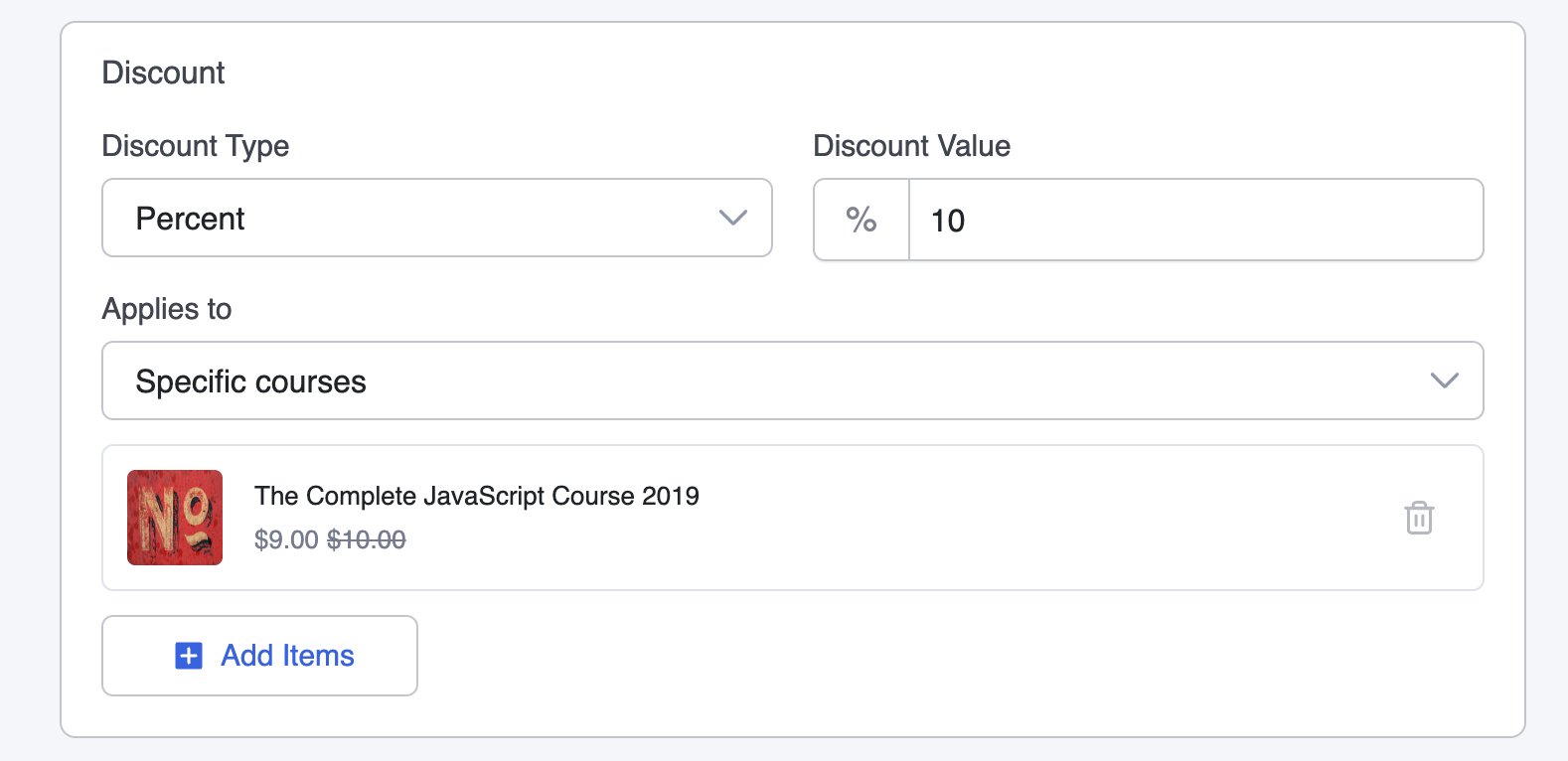
- Discount Type: Choose the type of discount you want to apply.
- Percent: Discount will be a percentage of the course price.
- Amount: Discount will be a fixed dollar amount.
- Discount Value: Specify the value of the discount.
- If using Percent, enter a percentage (e.g., 20% for a 20% discount).
- If using Fixed Amount, enter the fixed amount to be deducted (e.g., $10).
- Applies To: Define the scope of the discount by selecting where it should be applied from the dropdown.
- All Courses: The discount applies to all available individual courses.
- All Bundles: The discount applies to all course bundles.
- All Courses and Bundles: The discount is applicable to both individual courses and course bundles.
- Specific Courses: Choose individual courses for which the discount will be valid.
- Specific Bundles: Select specific course bundles to apply the discount.
- Specific Category: Apply the discount to courses within a specific category.
When selecting specific courses/bundles/categories, you will find an “Add Items” button to select the specific parameters.
Usage Limitation
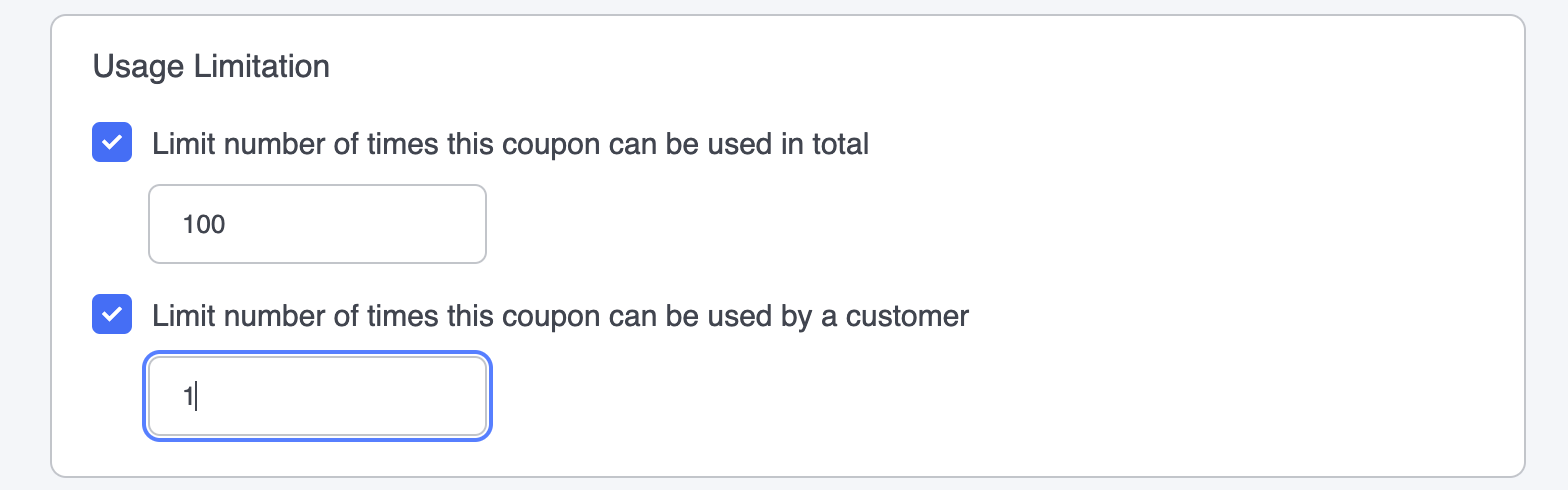
- Limit Number of Times This Discount Can Be Used in Total: Set a limit for the total number of times this coupon can be redeemed across all learners.
- Limit Number of Times This Discount Can Be Used by a Customer: Set a limit on how many times an individual learner can use this coupon.
Minimum Purchase Requirements
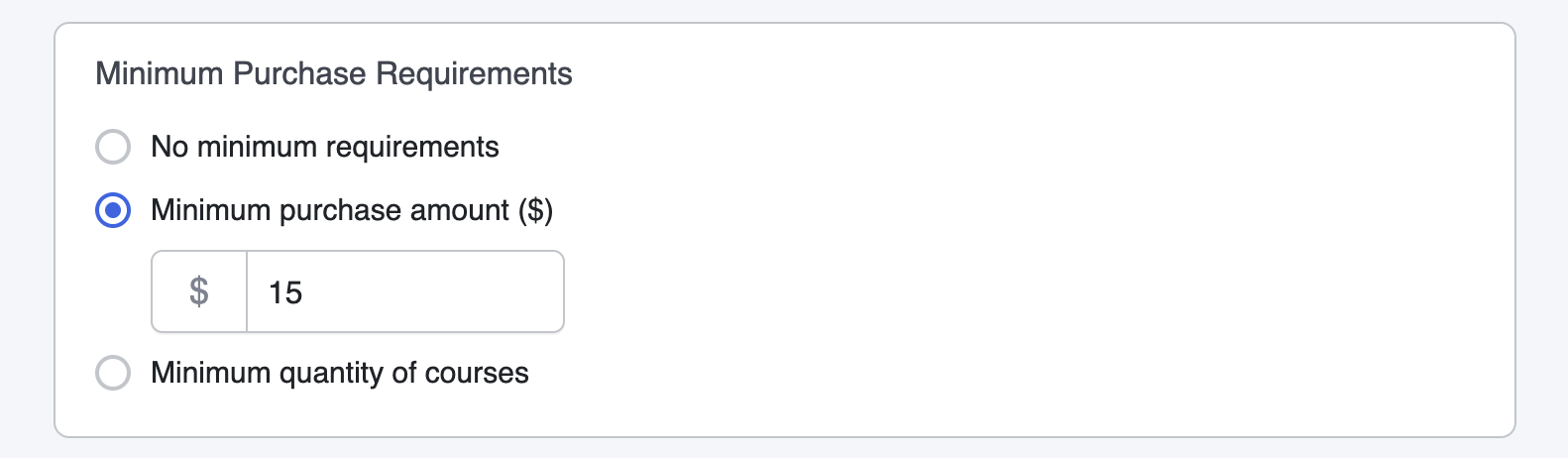
- No Minimum Requirements: The coupon can be used with any purchase, regardless of amount or quantity.
- Minimum Purchase Amount ($) Set a minimum total purchase amount that must be met for the coupon to be valid (e.g., $50).
- Minimum Quantity of Items: Specify a minimum number of courses in the cart required for the coupon to apply.
Validity
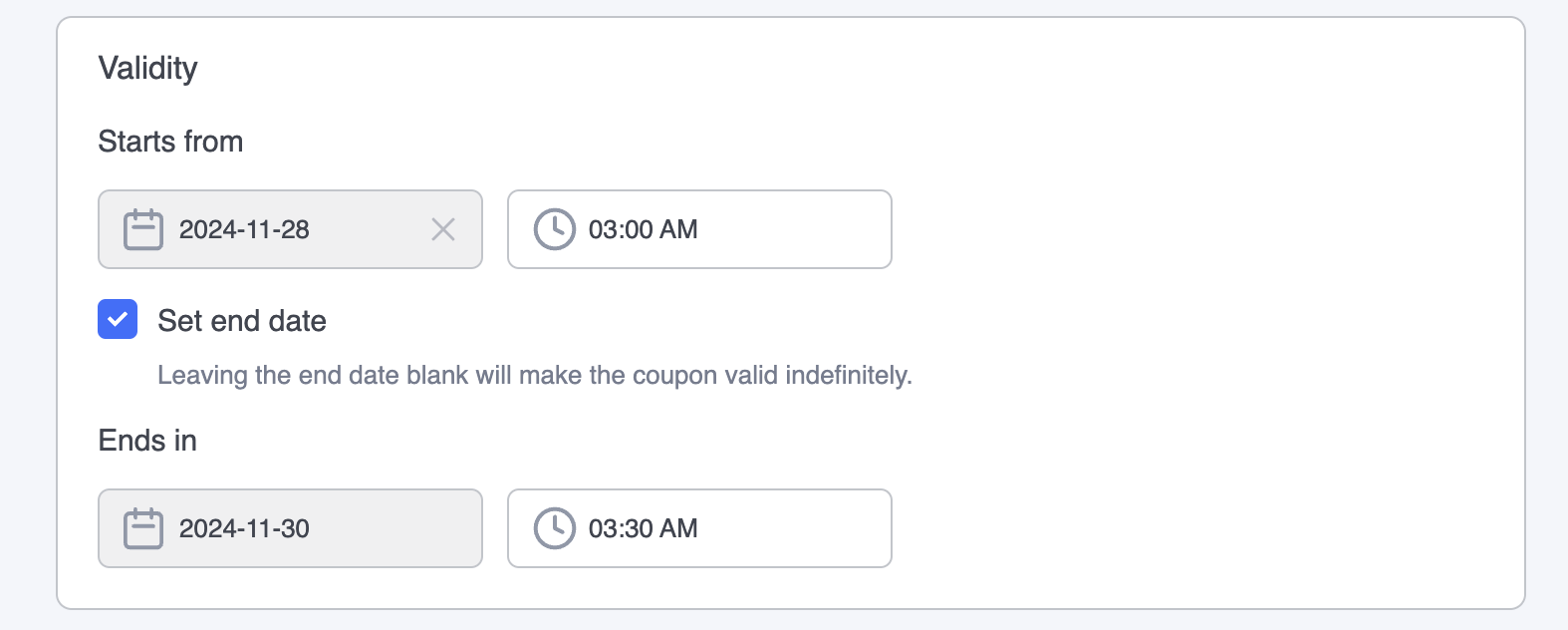
- Start Date: Set the date and time when the coupon will become active.
- End Date:
- Optionally set an expiration date for the coupon by enabling Set End Date.
- If no end date is set, the coupon will remain valid indefinitely.
Activate and Save
Once all fields are completed, Save the coupon to finalize its creation.
You can see a live preview of the coupon on the right-hand side as you edit/create the coupon.
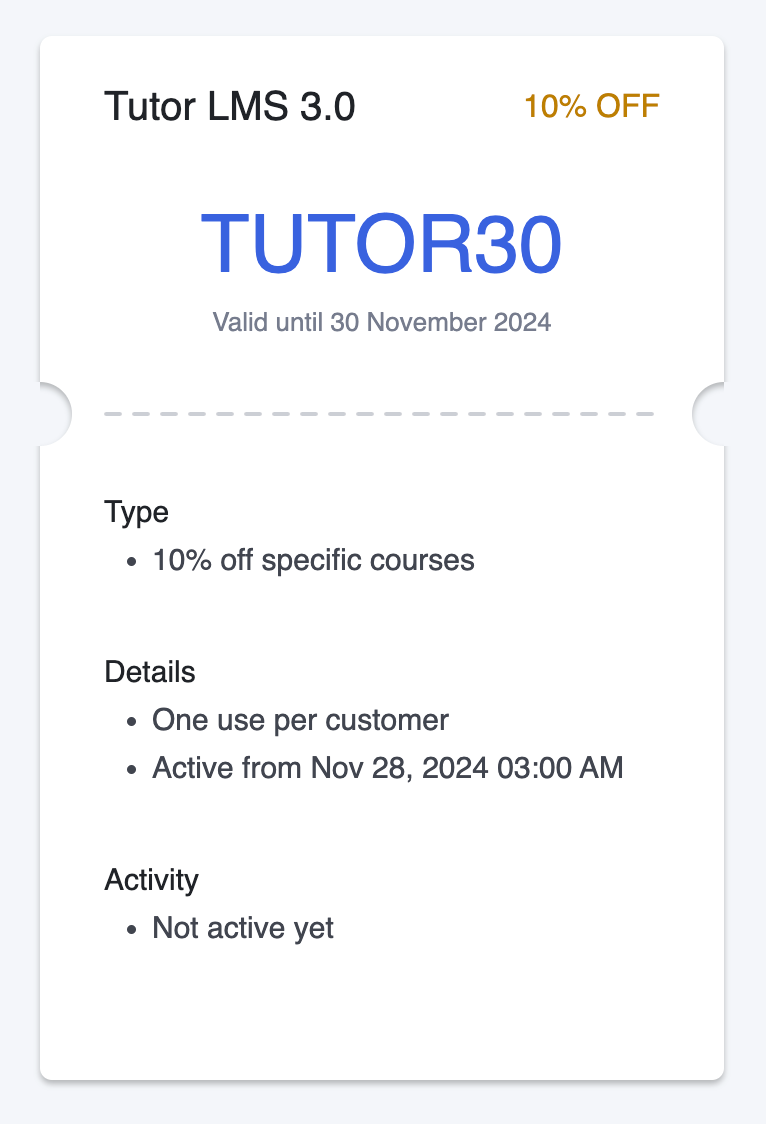
Additional Coupon options can be found in Tutor LMS > Settings.
Checkout
Enable Coupon Code: Toggle this to enable a coupon code at checkout. If you disable this, the coupons you have created will not be available to be applied at checkout.