Kids Mode
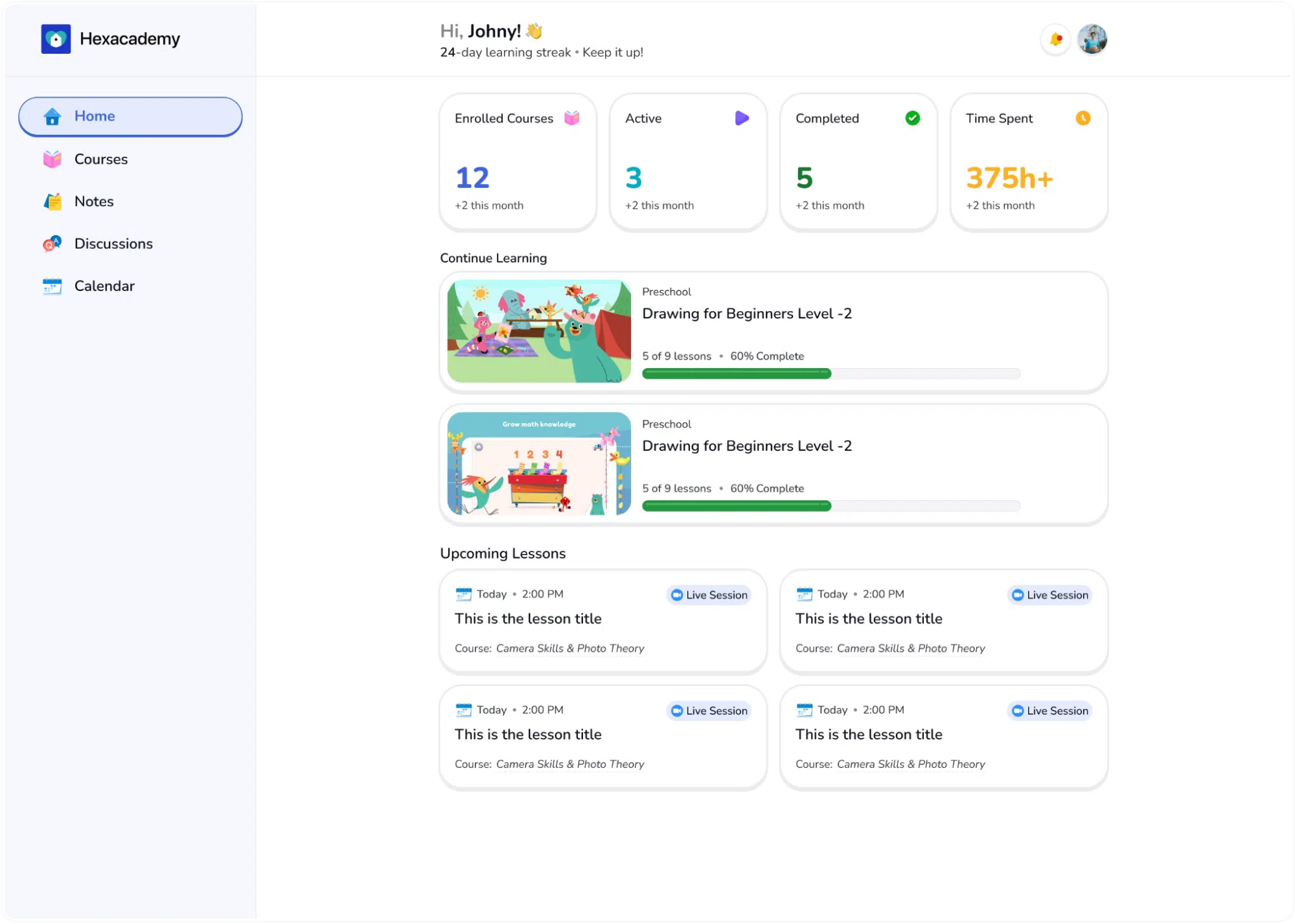
The Kids Mode transforms the standard Learner Dashboard into a vibrant, engaging, and child-friendly educational environment. It is designed specifically to keep younger audiences focused, motivated, and comfortable while navigating their educational journey.
While the underlying architecture and capabilities remain identical to the Modern layout, Kids Mode replaces the traditional platform aesthetic with punchier colors, softer rounded shapes, and playful icons. It also introduces encouraging visual feedback, such as celebratory pop-ups when hitting learning milestones.
Feature Overview
Because Kids Mode is built upon the same framework as the standard interface, learners and parents will not need to learn a new system! All core modules function exactly the same:
- Home & Courses: Track enrolled, active, and completed courses with bright, colorful progress indicators.
- Notes & Discussions: Save lesson highlights and participate in course Q&As using a simplified, high-contrast text interface.
- Calendar: View upcoming live classes and assignments on a colorful schedule.
- Quizzes & Assignments: Interact with course tests through a more visually stimulating and approachable layout.
Note: For step-by-step instructions on how to use any of these specific features (such as how to reply to a discussion, manage billing, or take a quiz), please refer to the detailed Learner Dashboard (Modern) documentation. The workflows are exactly the same!
How to Enable Kids Mode
Kids Mode can be enabled globally by the site administrator for everyone, or toggled individually by the learner.
Enabling Kids Mode as an Administrator (Global Setting)
Site administrators can force the platform to default to Kids Mode for all users. This is ideal for websites dedicated entirely to childhood education.
- Log in to your WordPress backend.
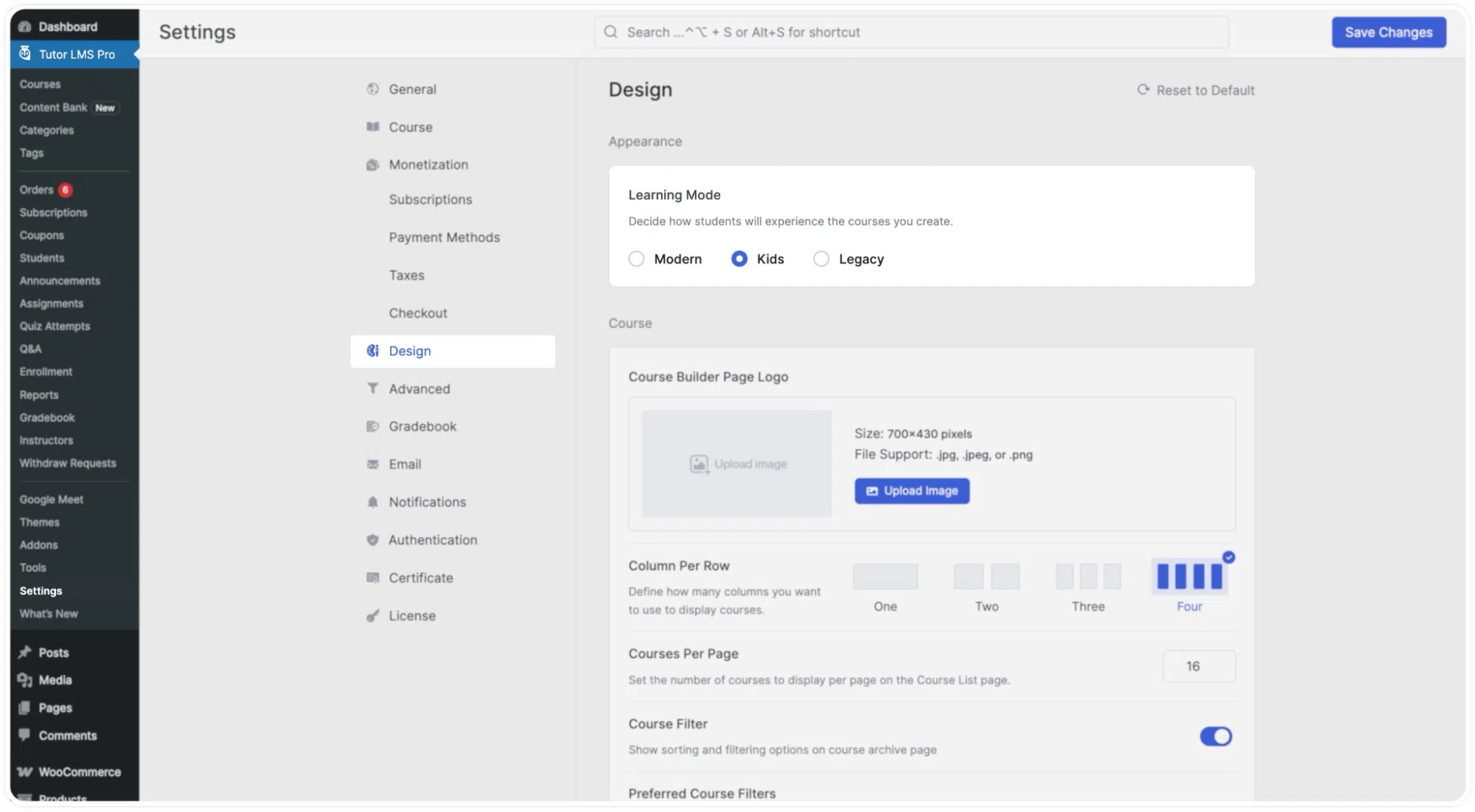
- Navigate to Tutor LMS > Settings from the left-hand sidebar.
- Click on the Design tab.
- Under the Appearance section, locate the Learning Mode setting.
- Select the Kids radio button.
- Click the blue Save Changes button at the top right of the screen.
Enabling Kids Mode as a Learner (Individual Learner Preference)
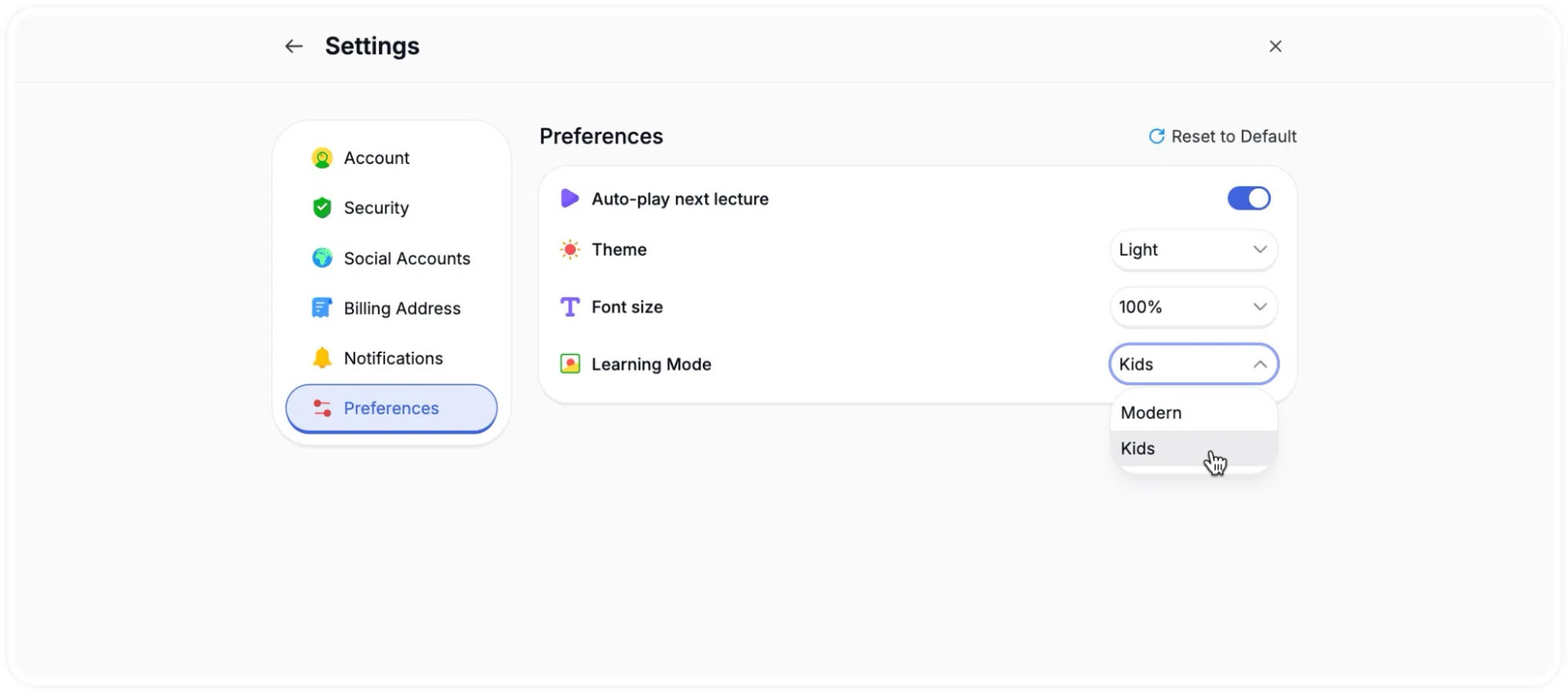
Tutor LMS also allows user-level customization; individual learners can switch to Kids Mode manually from their account settings.
- Click on the user profile avatar in the top right corner of the navigation bar.
- Select Settings from the dropdown menu.
- Navigate to the Preferences tab on the left side of the settings panel.
- Find the Learning Mode option.
- Click the dropdown menu and select Kids. The platform will immediately update to reflect the colorful new theme.