Single Course Template
Single Course Templates are full templates that contain all the elements of a course page. You can use all these settings to change the look and feel of the course page.
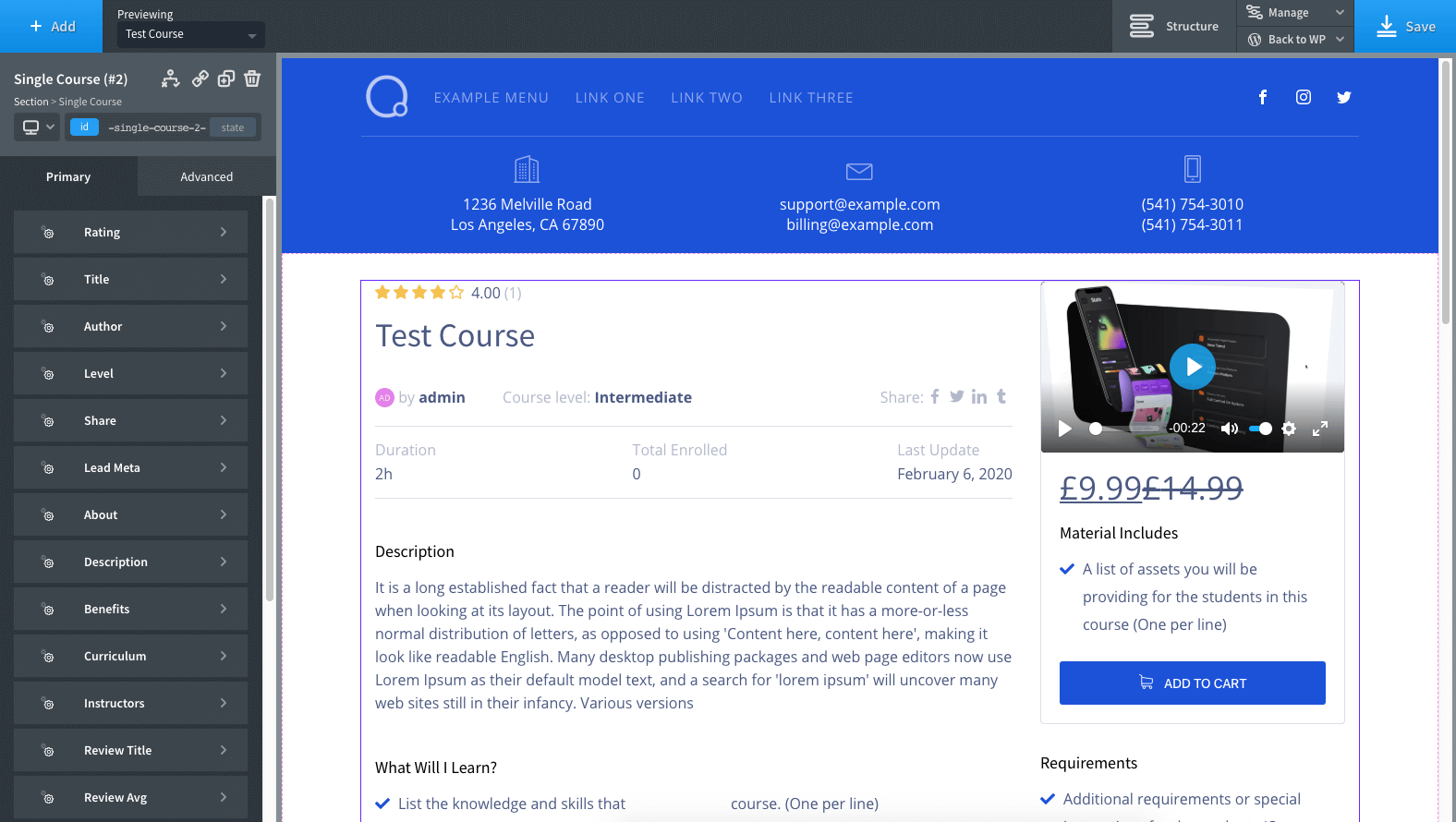
Rating
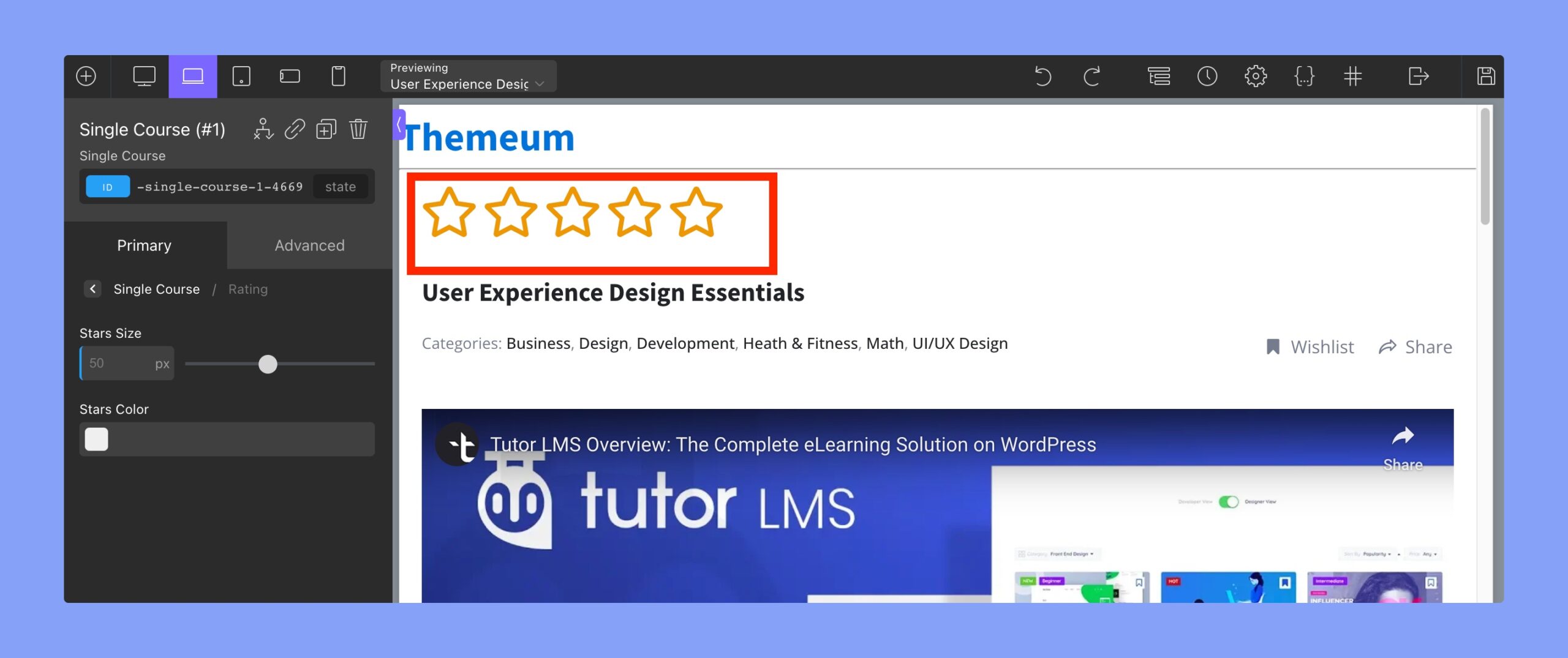
To change the typography of the course rating, select the “Rating” tab. The following options will become available:
- Stars size: change the size of the star in the rating system. The units are in px (pixels).
- Stars Color: use this RGBA color picker to select the color of the stars in the rating system.
Course Title
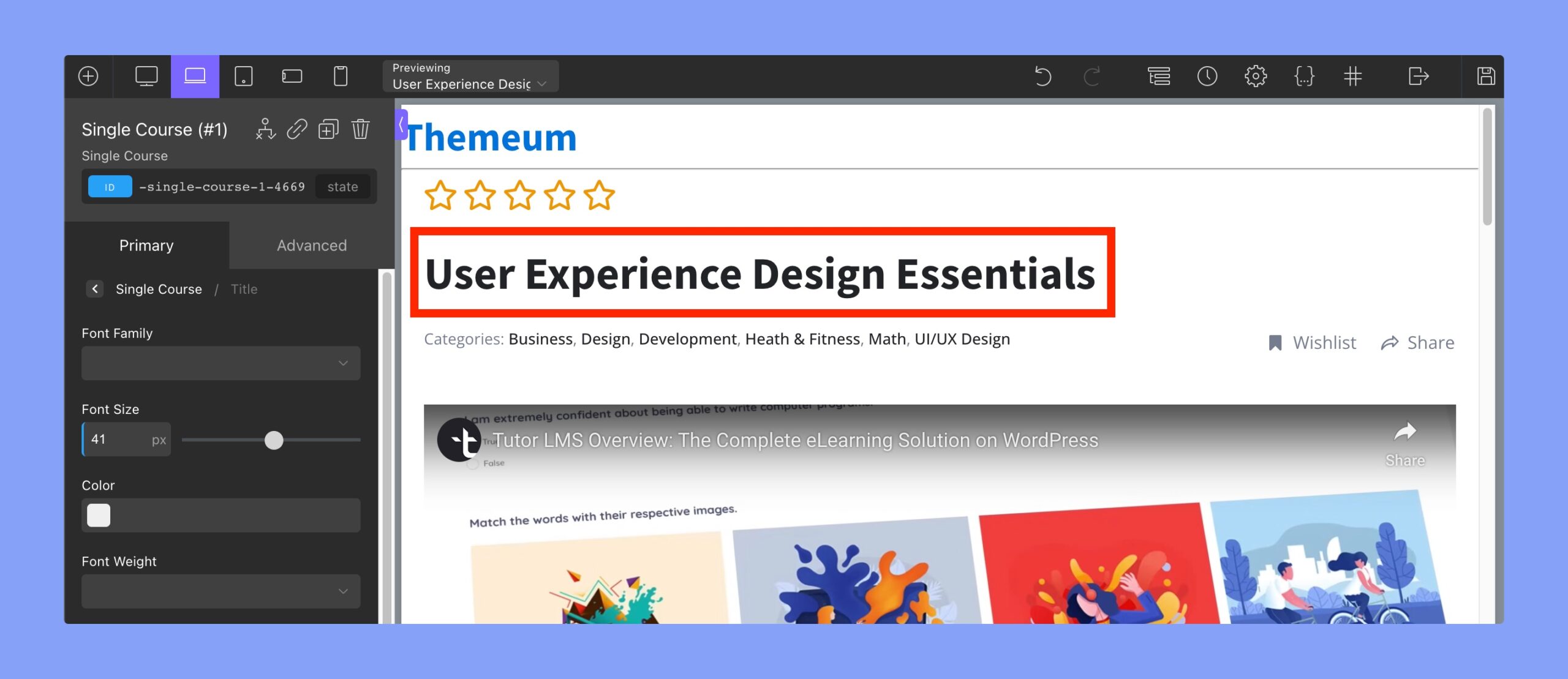
The “Title” tab allows you to modify the visual appearance of the Course Title. By using the text field editor provided by Oxygen Builder, you can adjust the typography of the Course Title to your liking.
The Title tab in Oxygen Builder Integration for Tutor LMS provides several editing options to customize the appearance of the Course Title. These options include:
- Font family: select the font family for the Course Title
- Font size: adjust the font size of the Course Title in pixels (px)
- Color: select the color of the Course Title using an RGBA color picker
- Font weight: adjust the font weight of the Course Title (e.g. bold, regular, light)
- Text alignment: set the alignment of the Course Title (left, center, right)
- Line height: adjust the spacing between lines of text in the Course Title
- Letter spacing: adjust the spacing between letters in the Course Title
- Text decoration: add a decoration to the Course Title (underline, overline, line-through)
- Font style: adjust the style of the Course Title (normal, italic, oblique)
- Text transform: adjust the capitalization of the Course Title (uppercase, lowercase, capitalize)
These options allow you to fully customize the appearance of the Course Title to match the look and feel of your website or LMS platform.
Author
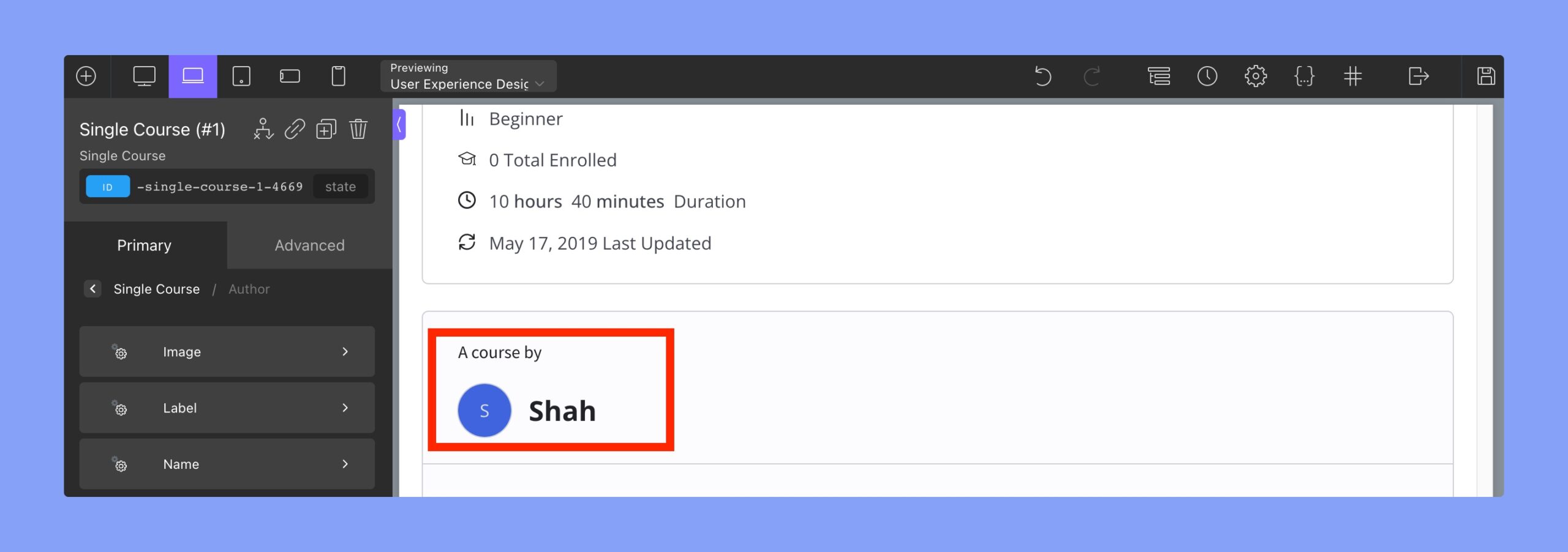
The Author tab in Oxygen Builder integration for Tutor LMS provides several features to edit the attributes for the Course Author field. These features include:
- Image: You can change the image used for the Course Author.
- Height: Select the height of the image in pixels.
- Width: Select the width of the image in pixels.
- Font Size: Change the font size of the icon text.
- Line Height: Use this to adjust the position of the icon text.
- Label: You can edit the label for the Author field, such as changing the text and font style.
- Name: You can edit the name of the Course Author, such as changing the text and font style.
These features provide the ability to customize the appearance of the Course Author field, allowing you to create a unique and personalized design for your Tutor LMS course pages.
Course Meta
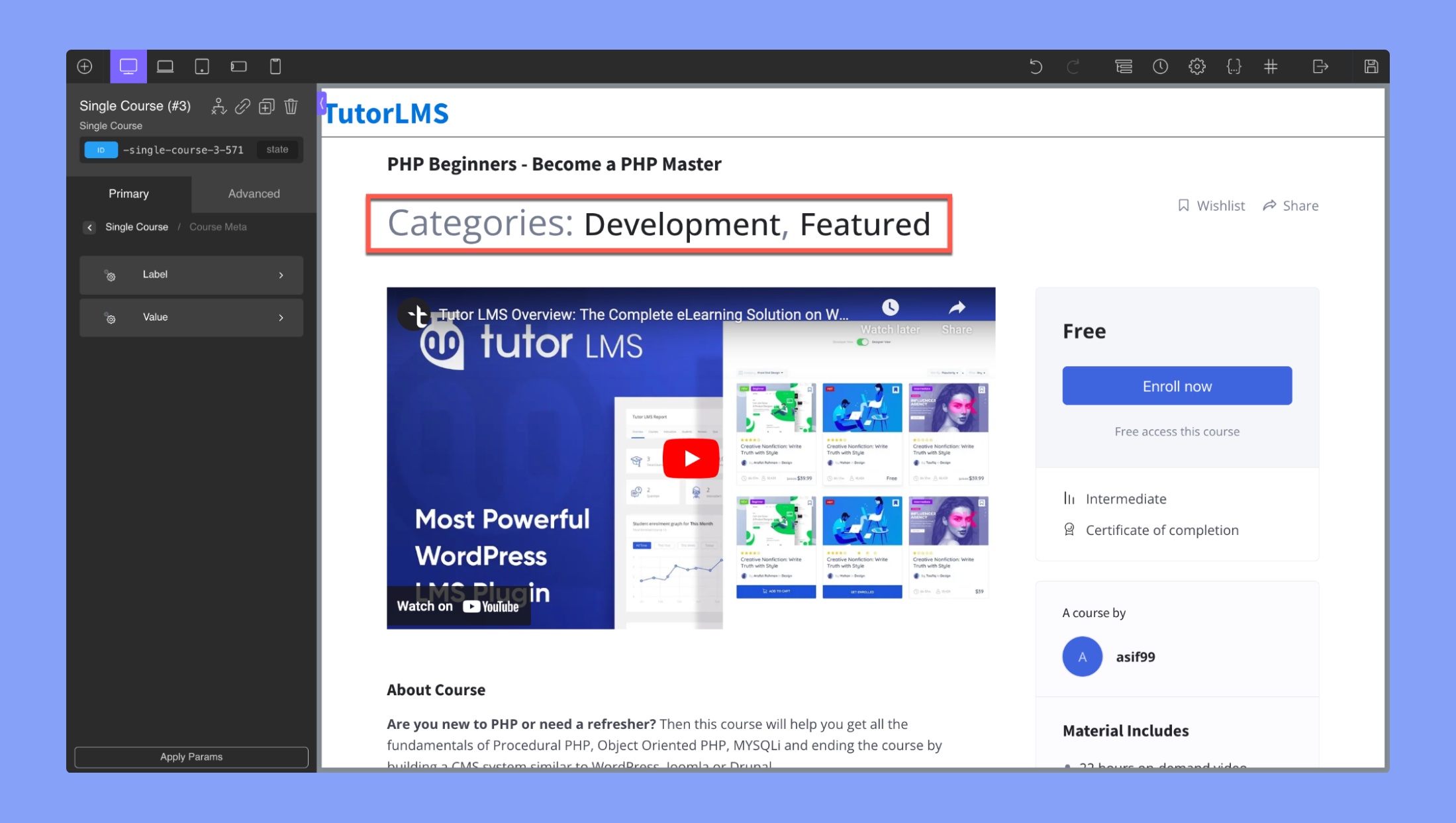
The Course Meta tab in Oxygen Builder integration for Tutor LMS provides options to edit the label and value of the course metadata, such as the course category, level, and tags. This tab allows you to customize the appearance of these metadata elements on the course page.
Label: You can use the Oxygen Builder editor to change the typography of the Category Label text.
Value: You can use the Oxygen Builder editor to change the typography of the Category Value text.
Level
To edit the Course Level field, you can use the Level tab. Here, you will find options to customize:
- Label: You can use the Oxygen Builder editor to change the typography of the Level Label.
- Value: You can use the Oxygen Builder editor to change the typography of the Level value text.
Share & Wishlist
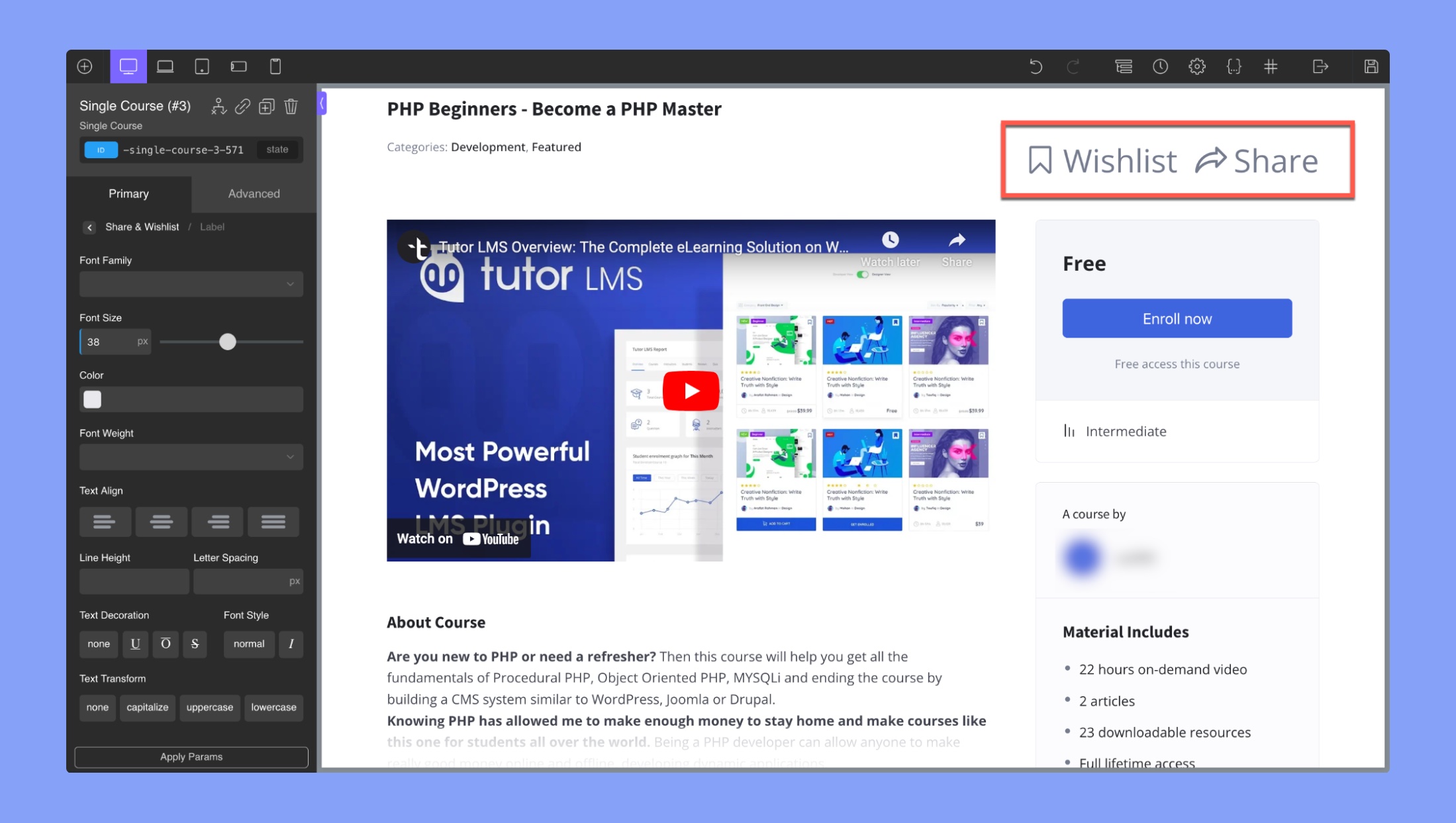
This tab changes the visuals of the social share icons
- Layout: Select between left and right align
- Label: You can use the Oxygen Builder text field editor to change the typography of the “Share” label.
- Original Icon: You can use the Oxygen Builder text field editor to change the typography of the Share Icons without hover.
- Hovered Icon: You can use the Oxygen Builder text field editor to change the typography of the Share Icons with hover.
About
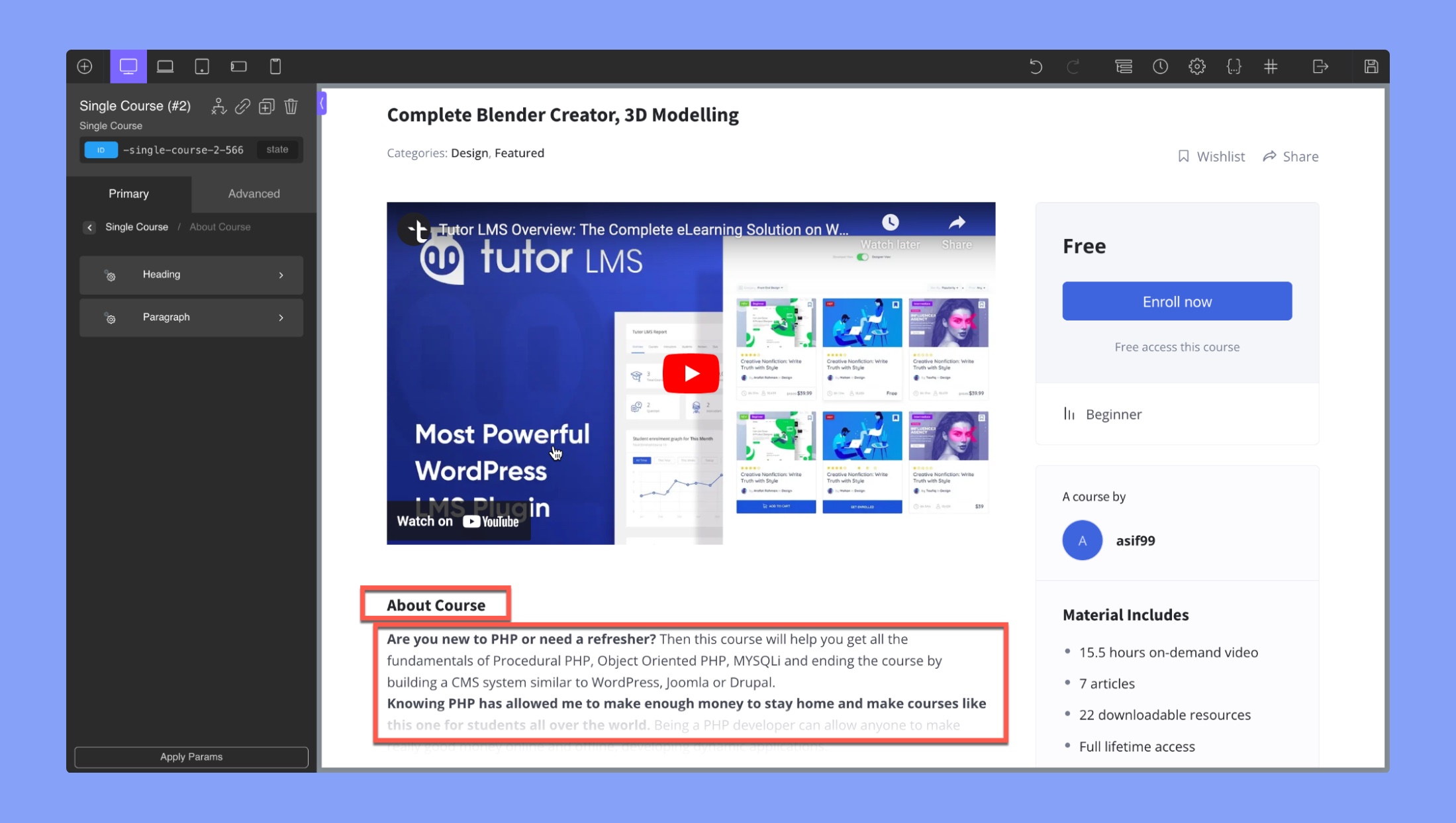
Use this tab to edit the About section of the course.
Heading: You can use the Oxygen Builder text field editor to change the typography of the About section’s heading.
Paragraph: You can use the Oxygen Builder text field editor to change the typography of the About section’s paragraph.
What Will You Learn?
The “What will you Learn?” section editor in the Oxygen Builder integration for Tutor LMS allows you to customize the content and layout of the section that lists the learning objectives of the course.
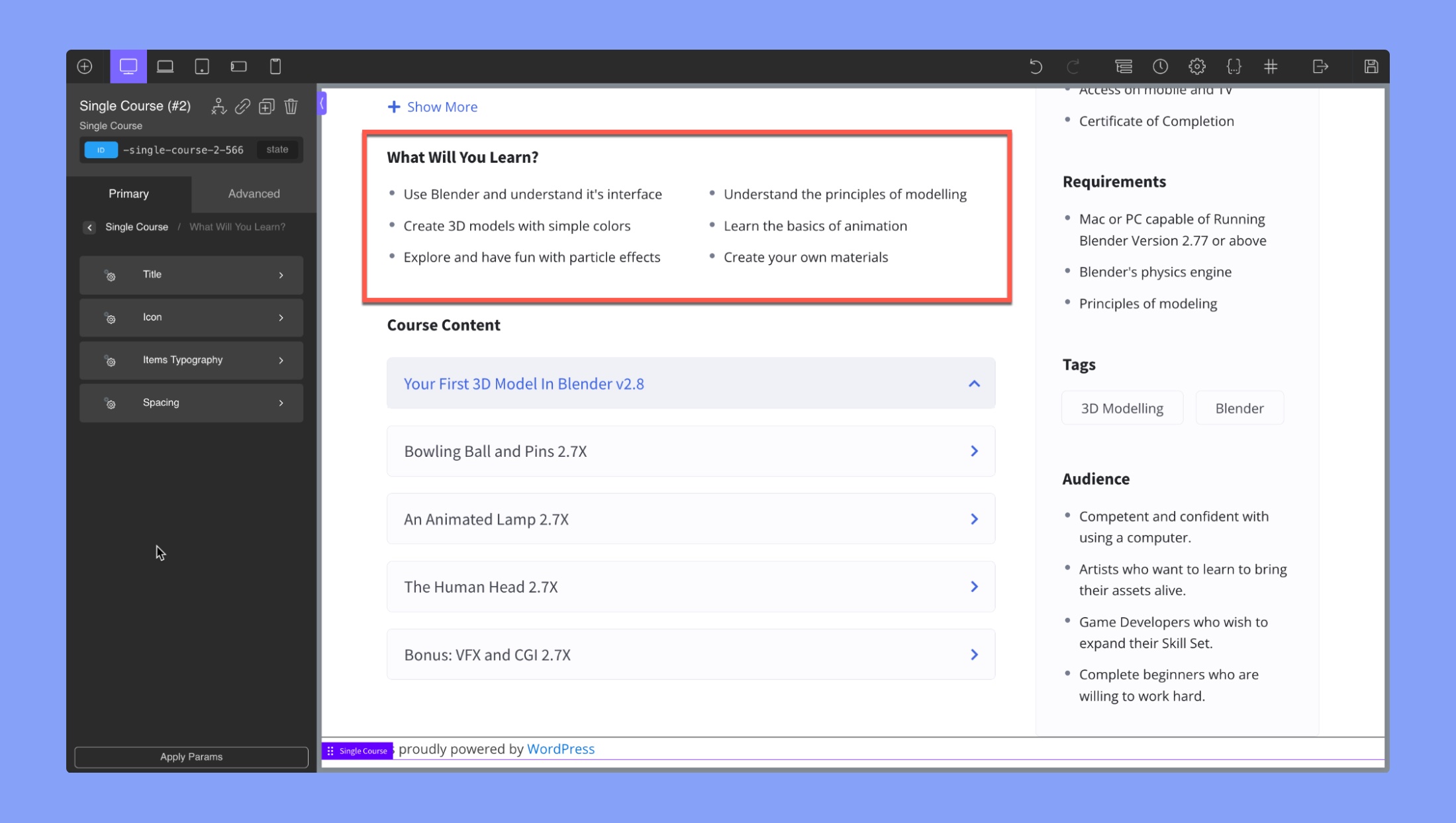
Title: This tab allows you to change the typography of the section’s title. You can edit font family, font size, font weight, text alignment, line height, letter spacing, text decoration, font style, and text transform.
Icon: This tab allows you to edit the icon for the items in the section. You can customize its size and color.
Item Typography: This tab allows you to change the typography of the items in the section. You can edit font family, font size, font weight, text alignment, line height, letter spacing, text decoration, font style, and text transform.
Spacing: This tab allows you to adjust the spacing between the title, icons, and items in the section. You can adjust the margin and padding for each of these elements to create the desired layout.
Curriculum
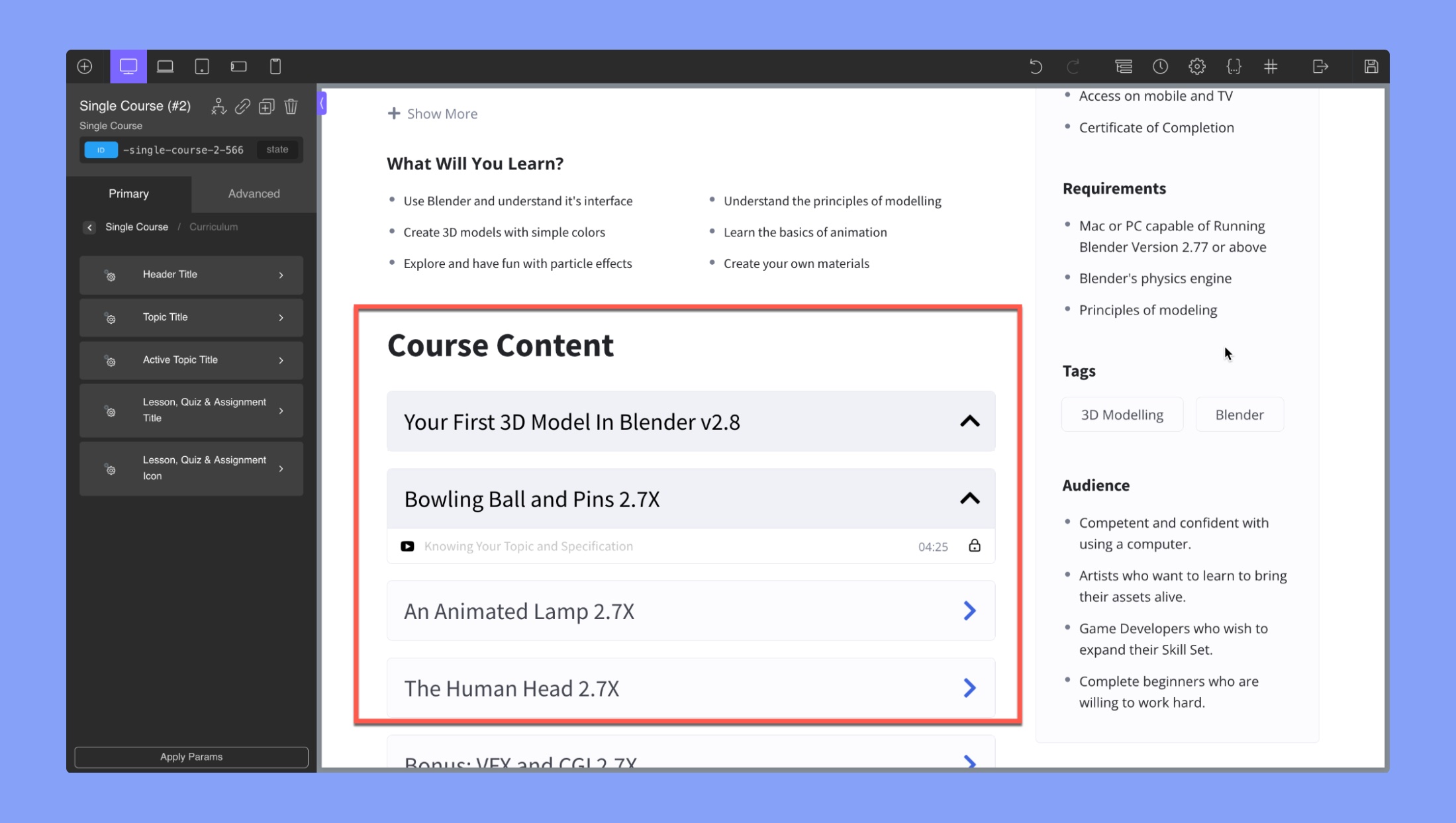
The Curriculum section in Oxygen Builder integration for Tutor LMS allows you to customize the design of the “Course Content.” The settings under “Curriculum” include:
- Header Title: This tab allows you to change the typography of the Curriculum section’s main header.
- Topic Title: This tab allows you to edit the typography of the topics in the curriculum.
- Active Topic Title: This tab lets you modify the typography of the active topic in the curriculum.
- Lesson, Quiz & Assignment Title: This tab lets you change the typography of the lesson, quiz, and assignment titles.
- Lesson, Quiz & Assignment Icon: This tab allows you to change the icon for lessons, quizzes, and assignments.
Review Title
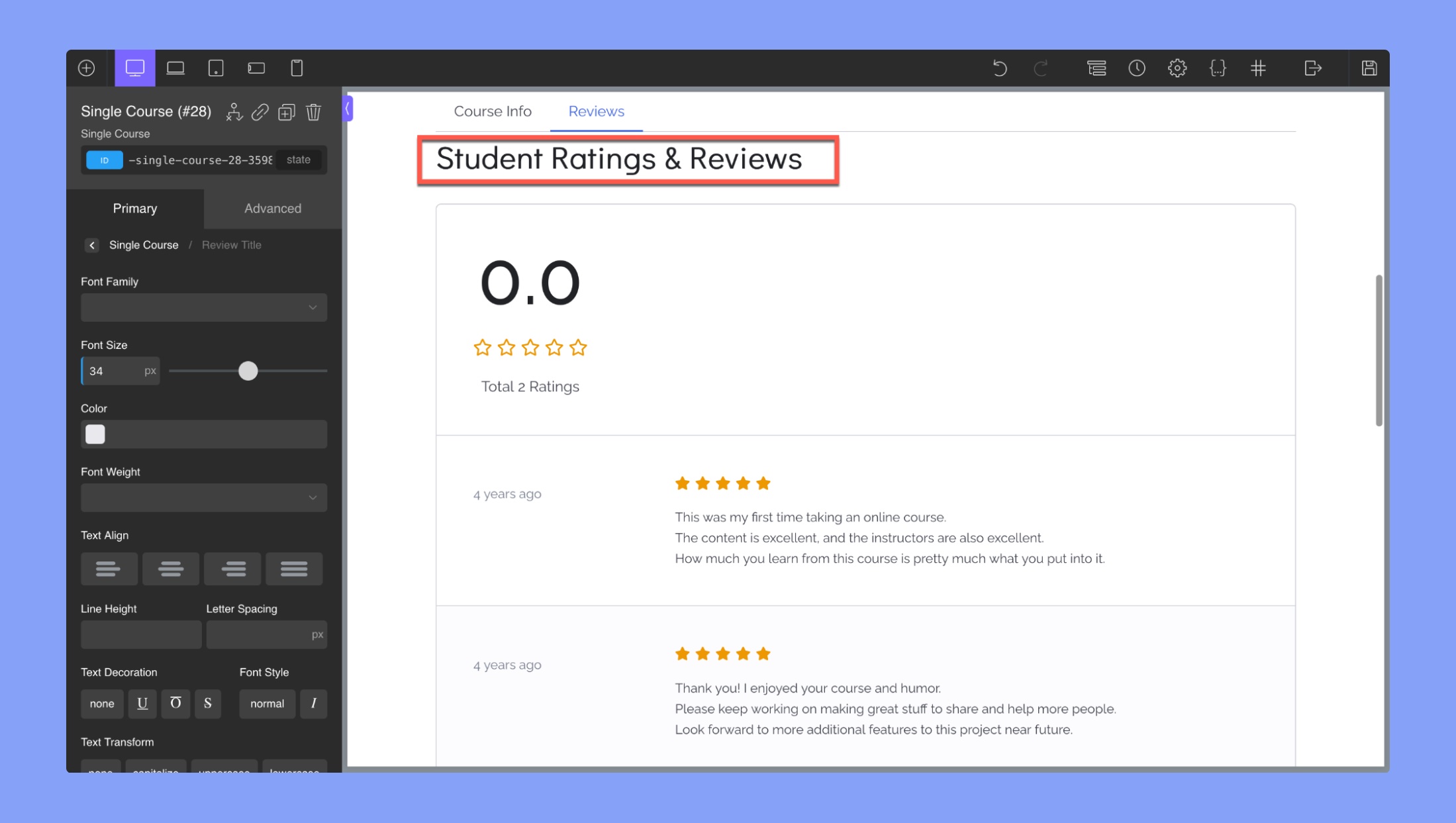
The “Review Title” section in Oxygen Builder integration for Tutor LMS allows you to customize the title of the review section for a course. You can use the text field editor to change the typography of the review title, including font family, font size, font weight, color, and text alignment.
Review Avg
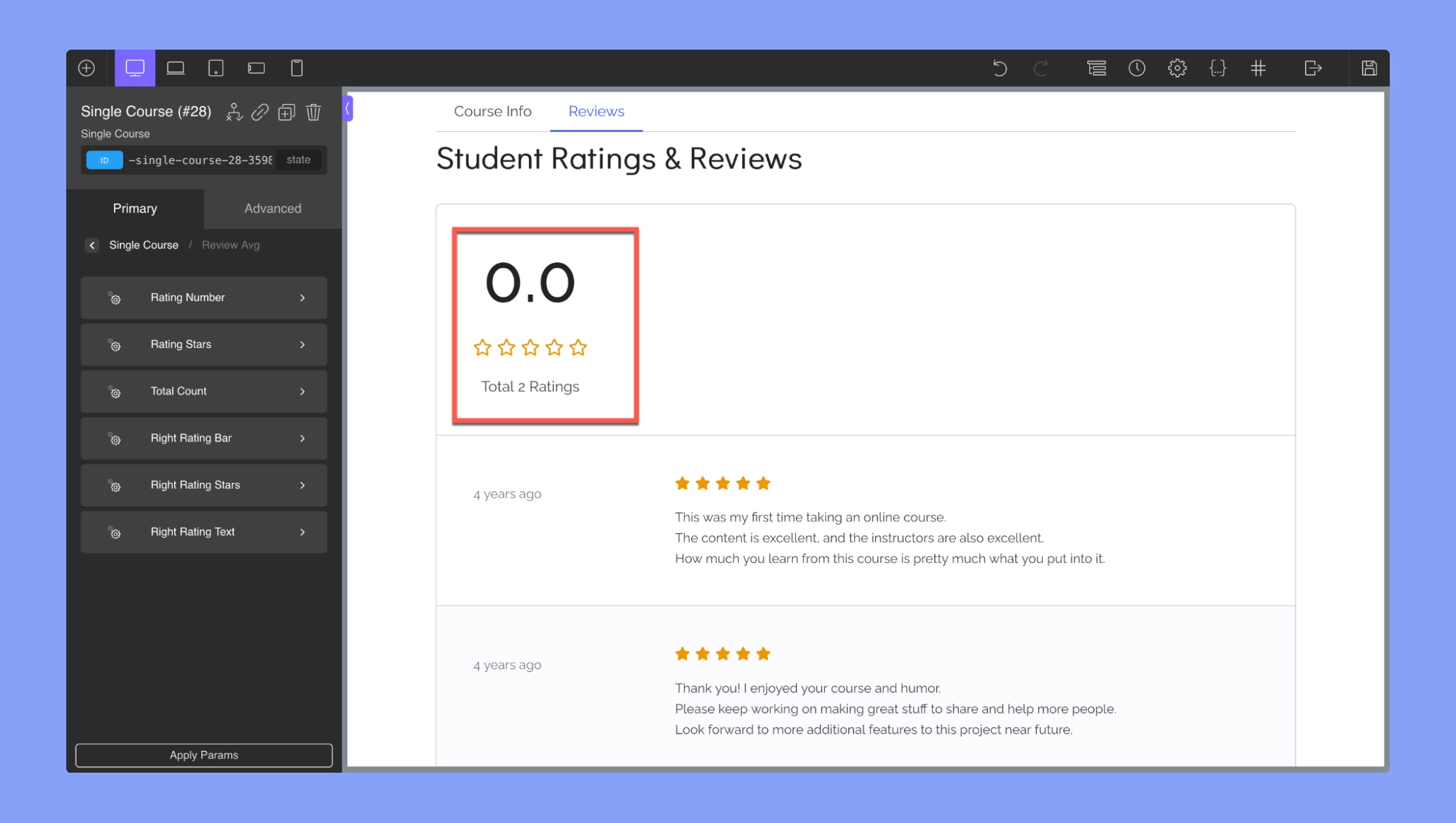
The “Review Average Rating” section in the Tutor LMS integration with Oxygen Builder allows you to customize the display of the course review rating. The different editing options available are:
- Rating Numbers: You can use the Oxygen Builder text field editor to change the typography of the review’s rating number (4 out of 5 stars).
- Rating Stars: This allows you to change the size and color of the rating stars.
- Total Count: This allows you to change the typography of the total review count, including font family, font size, font weight, color, and text alignment.
- Right Rating Bar: This allows you to customize the appearance of the rating bar on the right side of the review section, including the color, height, padding, margin, and width of the bar.
- Right Rating Stars: This allows you to customize the appearance of the rating stars on the right side of the review section, including the size and color of the stars.
- Right Rating Text: This allows you to customize the appearance of the rating text on the right side of the review section, including font family, font size, font weight, color, and text alignment.
Review List
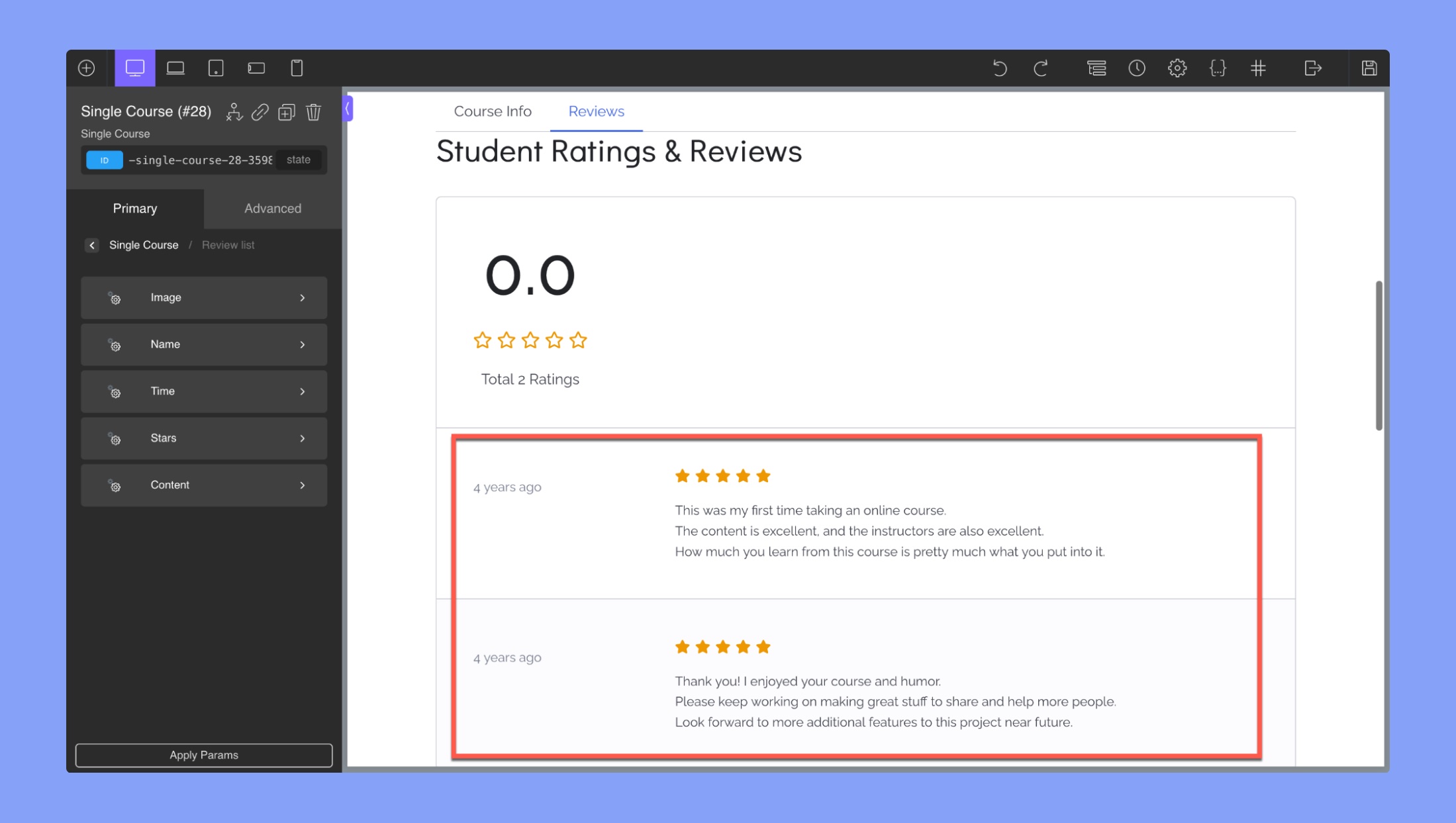
Use this tab to change the appearance of the section with the list of reviews
Image:
- Height: Select image height. The units are in px (pixels)
- Width: Select image width. The units are in px (pixels)
- Font Size: Change the font size of the icon text
- Line Height: Use this to tweak the text position
Name: You can use the Oxygen Builder text field editor to change the typography of the reviewer.
Time: You can use the Oxygen Builder text field editor to change the typography of the review’s time.
Stars:
- Color: Select the color of the rating stars
- Size: Select the size of the rating stars
Content: You can use the Oxygen Builder text field editor to change the typography of the review content.
Enrollment Box
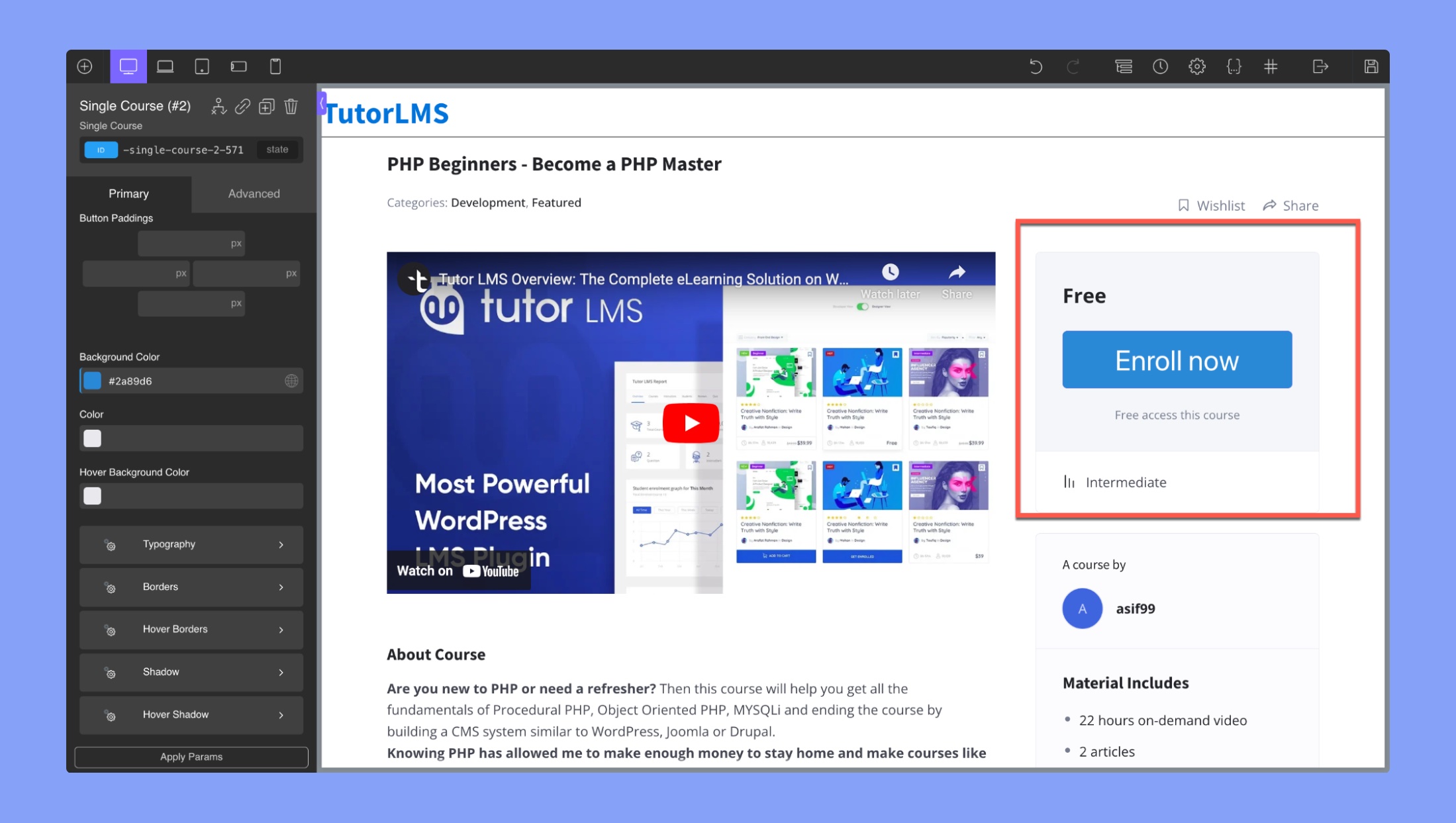
The “Enrolment Box” editor in Oxygen Builder for Tutor LMS provides options to customize the appearance of the enrollment box that appears on the course page. The different editing options available are:
- Course Price: This section allows users to set and style the course price. Users can edit the typography of the price and adjust the font size, weight, and color.
- Course Progress Title: This section enables users to customize the title of the course progress title. Users can edit the typography of the title, adjust the font size, weight, and color.
- Course Progress Text: This section allows users to customize the text displayed in the course progress bar. Users can edit the typography of the text, adjust the font size, weight, and color.
- Course Progress Bar: This section provides options to style the course progress bar, including adjusting the height, color, and fill color.
Cart & Enroll Button
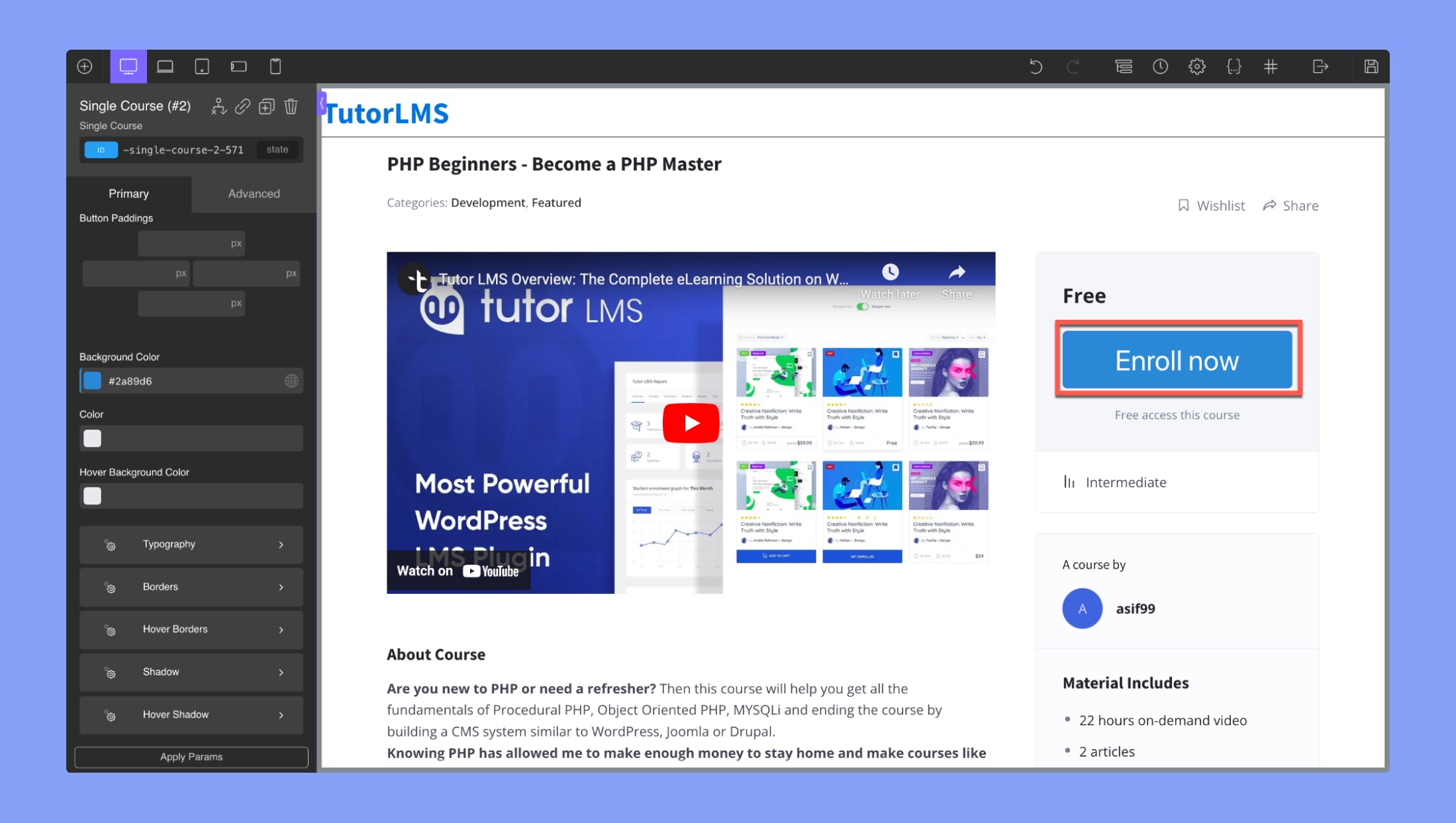
The “Cart & Enrol Button” editor is a section in the Tutor LMS Oxygen Builder integration that allows users to customize the appearance of the cart and enrolment button. This editor provides four main areas that users can adjust:
- Button Padding: Users can adjust the padding around the enrollment and cart buttons to increase or decrease the spacing between the text and the edge of the button.
- Background Colour: Users can change the background color of the enrollment and cart buttons to any color they desire.
- Color: Users can change the text color of the enrollment and cart buttons to match the background color or any other color they prefer.
- Hover Background Color: Users can set a different background color for the enrollment and cart buttons when a user hovers over the buttons with their mouse.
The editor also provides additional customization options for the following sections:
Typography: You can use this section to change the font family, font size, font weight, text alignment, font style, text transform, line height, letter spacing, text decoration, and font style.
Borders: This section allows you to adjust the border width, color, style, and radius of the button.
Hover Borders: You can use this section to adjust the border width, color, style, and radius of the button when it’s hovered over.
Shadow: In this section, you can add a shadow to the button and adjust the shadow color, opacity, blur, and spread.
Hover Shadow: This section is similar to the Shadow section but applies to the button when it’s hovered over.
These customization options enable users to create customized, visually appealing buttons for the enrollment process on their website.
Certificate & Retake Button
The “Certificate & Retake Button” editor is a section in the Oxygen Builder integration for Tutor LMS that allows you to customize the design of the certificate and retake button in your course. The editor provides options to adjust the button padding, background color, color, and hover background color. This allows you to create a button design that matches the overall style of your course.
Specifically, the editor provides options to adjust the following settings:
- Button Padding: This option lets you adjust the padding of the certificate and retake button to ensure it fits perfectly on the page.
- Background Color: You can choose a custom background color for the button to match your course design.
- Color: This option allows you to choose the color of the text in the button.
- Hover Background Color: You can choose a different background color to display when the user hovers over the button to provide visual feedback.
The editor also provides additional customization options for the following:
Typography: This section allows you to change the font family, size, weight, alignment, style, transform, line height, letter spacing, decoration, and style of the button’s text.
Borders: You can adjust the border width, color, style, and radius of the button in this section.
Hover Borders: This section allows you to adjust the border width, color, style, and radius of the button when it’s hovered over.
Shadow: In this section, you can add a shadow to the button and adjust the shadow color, opacity, blur, and spread.
Hover Shadow: Similar to the Shadow section, this section applies to the button when it’s hovered over.
Course Information
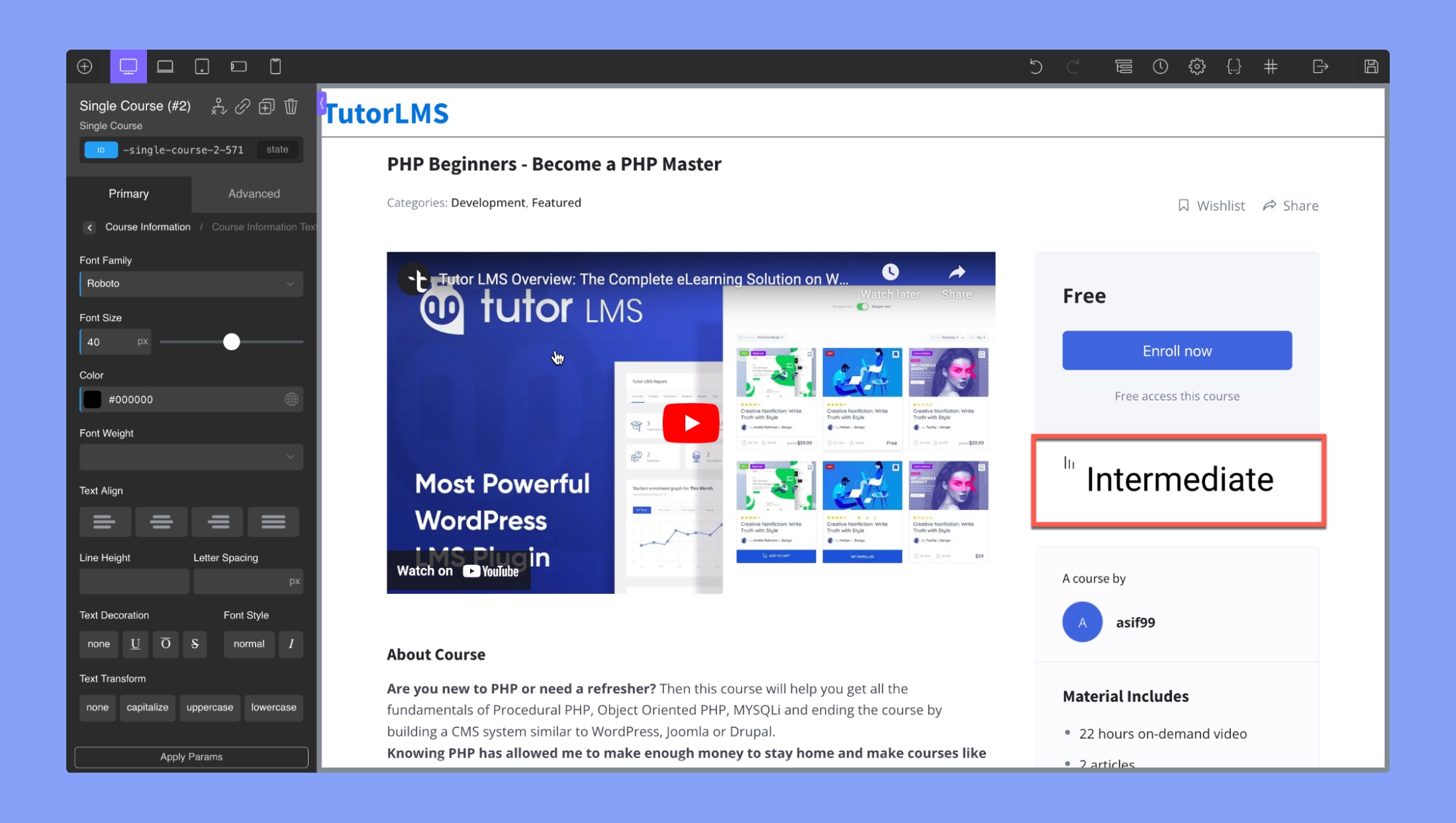
The “Course Information” editor is a section in Tutor LMS that provides options to edit the text and icon of the course information.
- Course Information Text: In this section, you can edit the text of the course information, including the title and description. You can change the font family, font size, font weight, text alignment, font style, text transform, line height, letter spacing, text decoration, and color of the text.
- Course Information Icon: This section allows you to change the icon of the course information. You can change the font family, font size, font weight, text alignment, font style, text transform, line height, letter spacing, text decoration, and color of the text.
Instructors
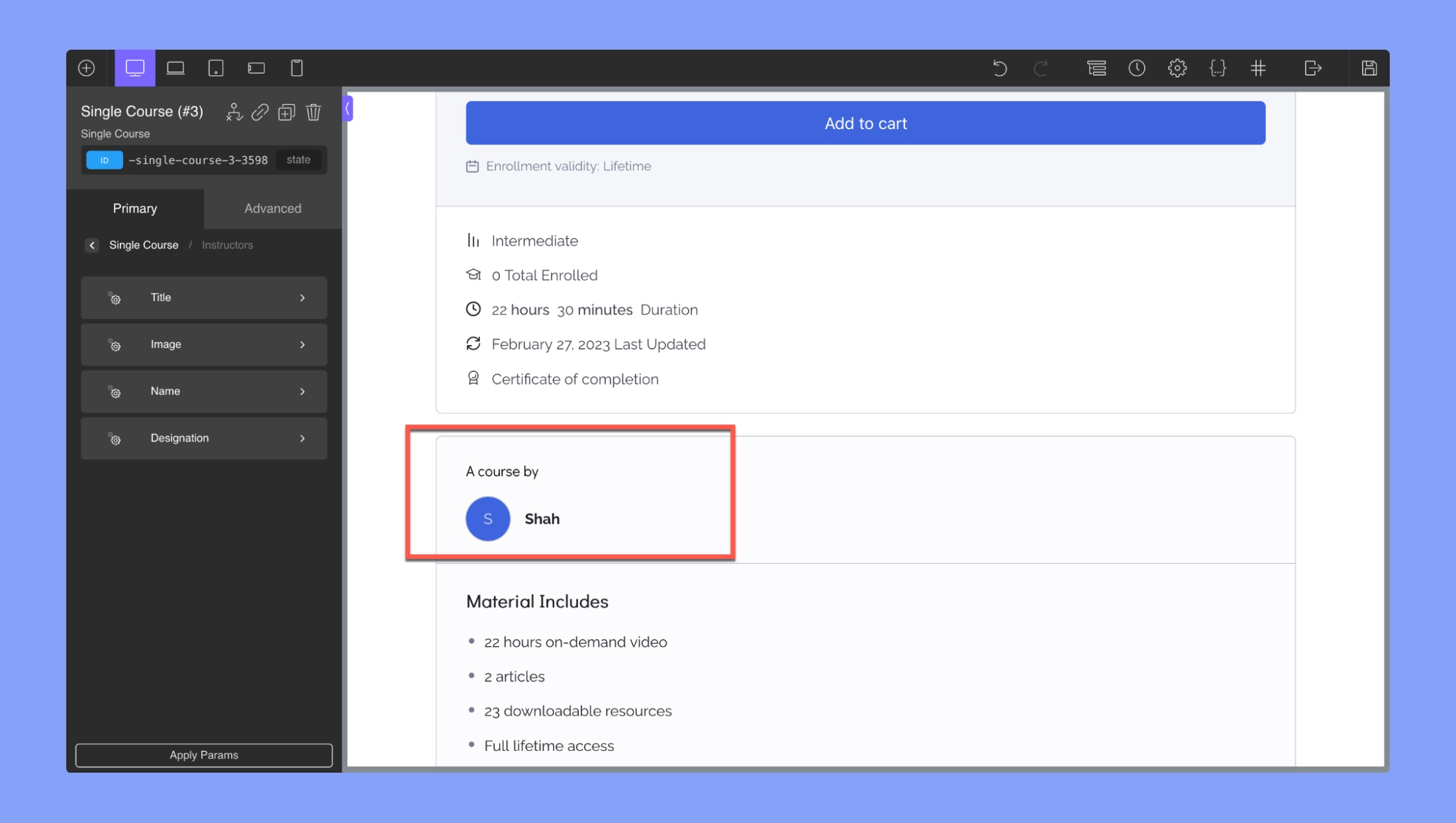
The “Instructors” editor is a section in the Tutor LMS integration with Oxygen Builder that allows you to customize the display of instructors for your course. It includes the following settings:
- Title: You can change the font family, font size, font weight, text alignment, font style, text transform, line height, letter spacing, text decoration, and color of the text.
- Image: You can use this section to adjust the height, width, font size, and line height.
- Name: You can use the Oxygen Builder text field editor to change the typography of the Instructor Name field.
- Designation: You can use the Oxygen Builder text field editor to change the typography of the Instructor Designation field.
Materials
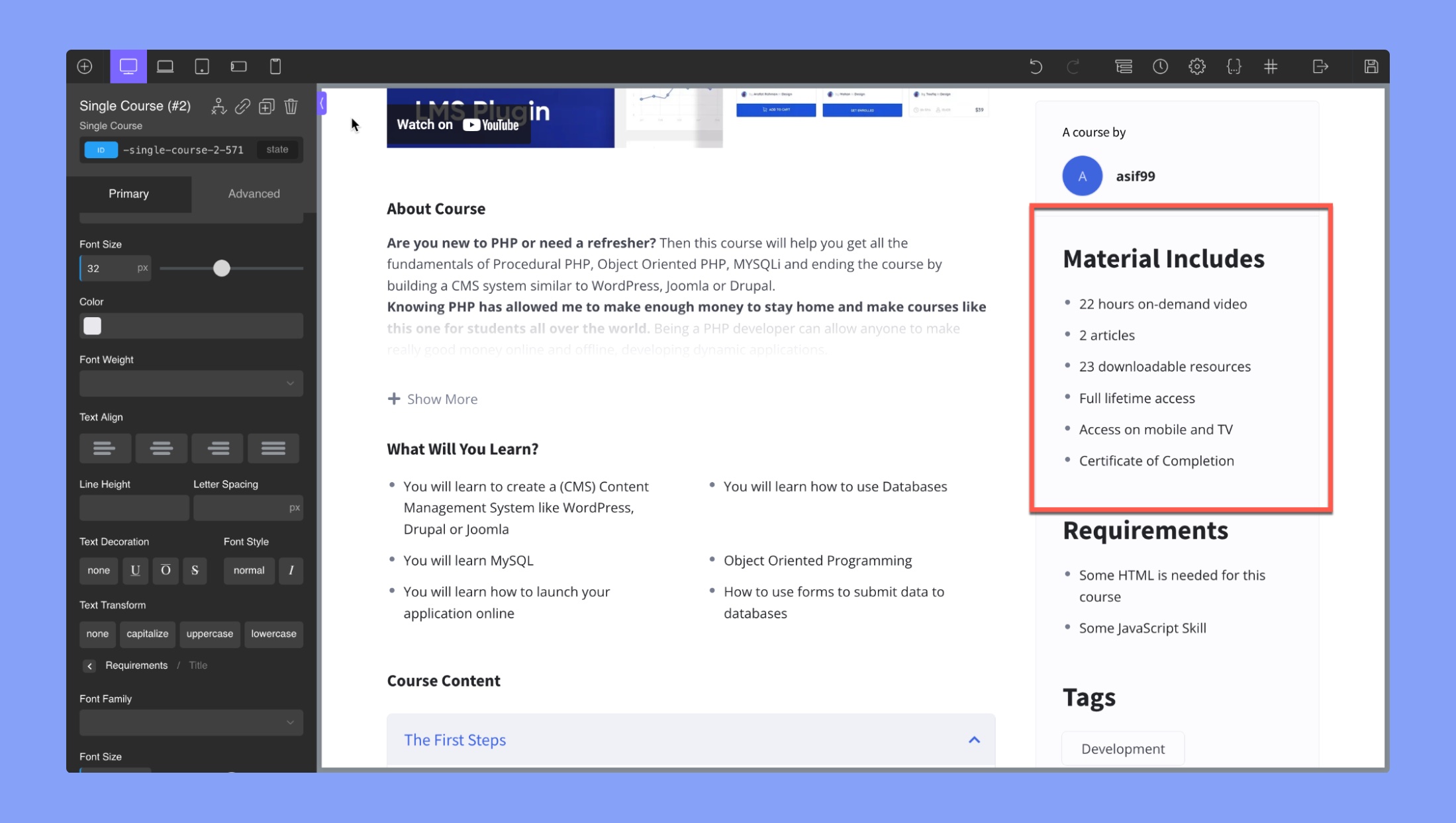
This section can be used to customize the “Materials” section of a course. Here are its editing options:
- Title: This section allows you to change the font family, font size, font weight, text alignment, font style, text transform, line height, letter spacing, text decoration, and font color of the materials title.
- Icon: In this section, you can select the color and size of the rating stars displayed for the materials.
- Typography: This section allows you to change the font family, font size, font weight, text alignment, font style, text transform, line height, letter spacing, text decoration, and font color of the materials text.
- Spacing: This section allows you to adjust the padding around the section and the vertical spacing between lines.
Requirements
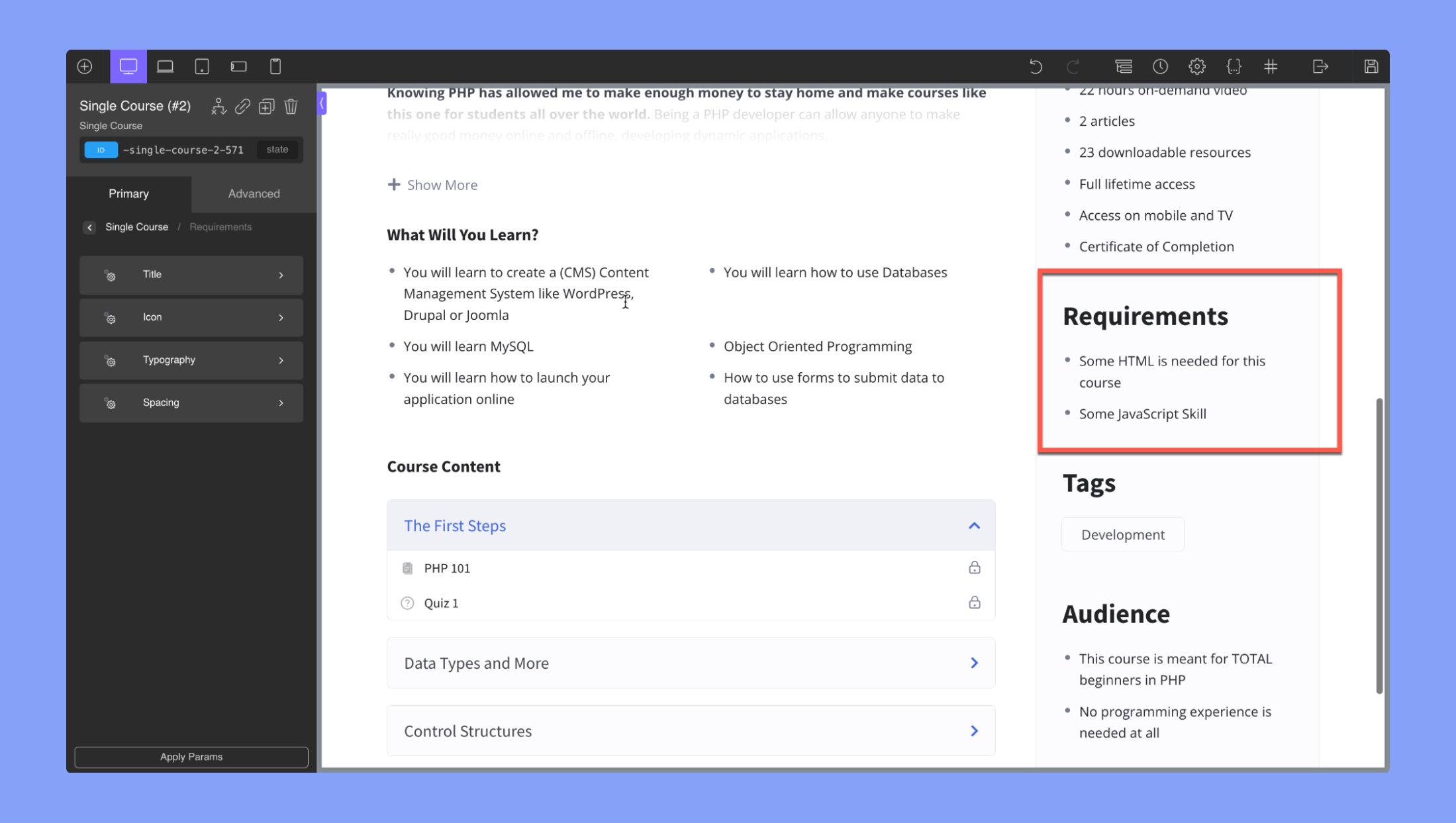
This section can be used to customize the “Requirements” section of a course. Here are its sub-sections:
- Title: This section allows you to change the font family, font size, font weight, text alignment, font style, text transform, line height, letter spacing, text decoration, and font color of the materials title.
- Icon: In this section, you can select the color and size of the rating stars displayed for the materials.
- Typography: This section allows you to change the font family, font size, font weight, text alignment, font style, text transform, line height, letter spacing, text decoration, and font color of the materials text.
- Spacing: This section allows you to adjust the padding around the section and the vertical spacing between lines.
Target Audience
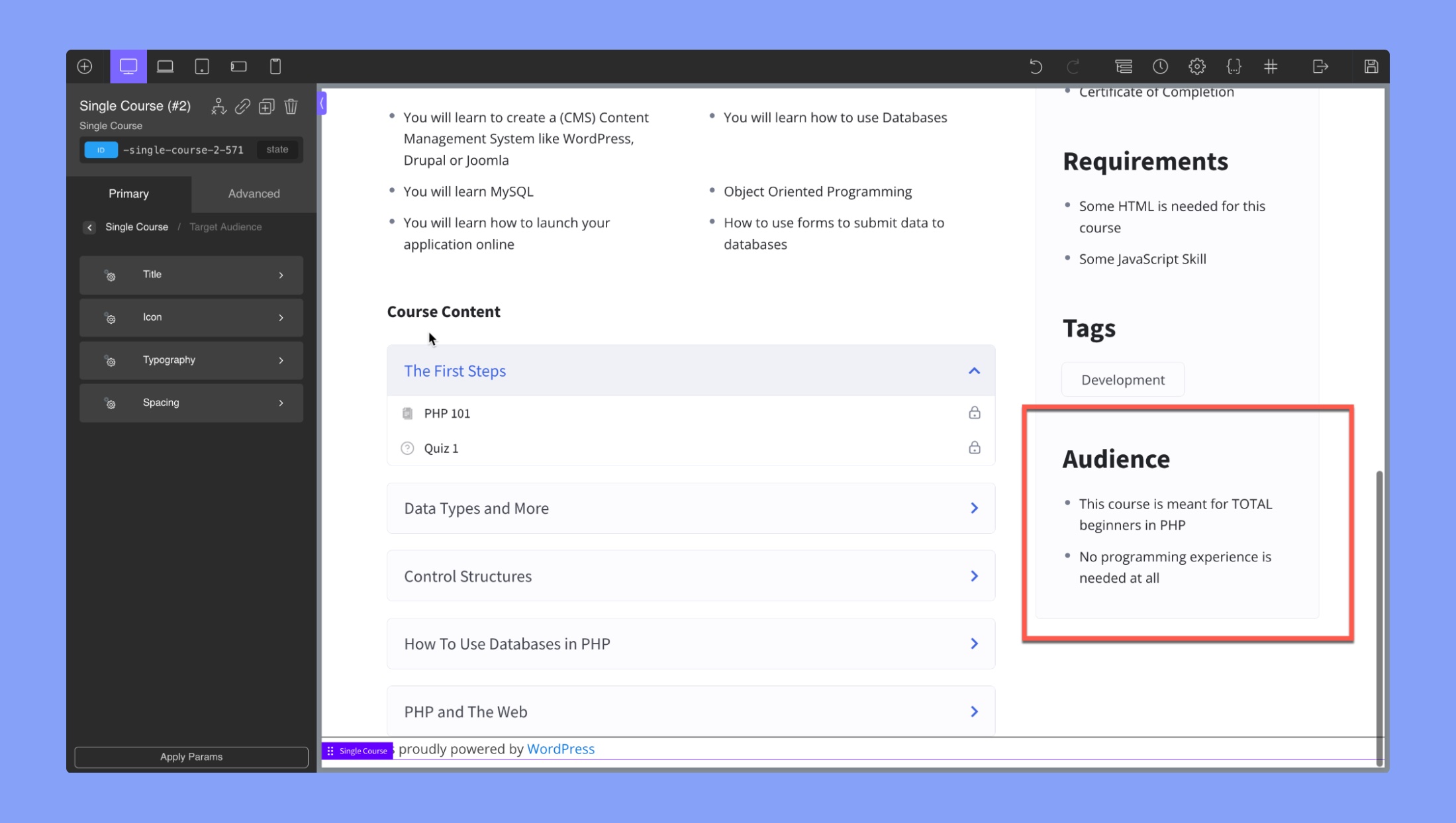
This section can be used to customize the “Target Audience” section of a course. Here are its sub-sections:
- Title: This section allows you to change the font family, font size, font weight, text alignment, font style, text transform, line height, letter spacing, text decoration, and font color of the materials title.
- Icon: In this section, you can select the color and size of the rating stars displayed for the materials.
- Typography: This section allows you to change the font family, font size, font weight, text alignment, font style, text transform, line height, letter spacing, text decoration, and font color of the materials text.
- Spacing: This section allows you to adjust the padding around the section and the vertical spacing between lines.