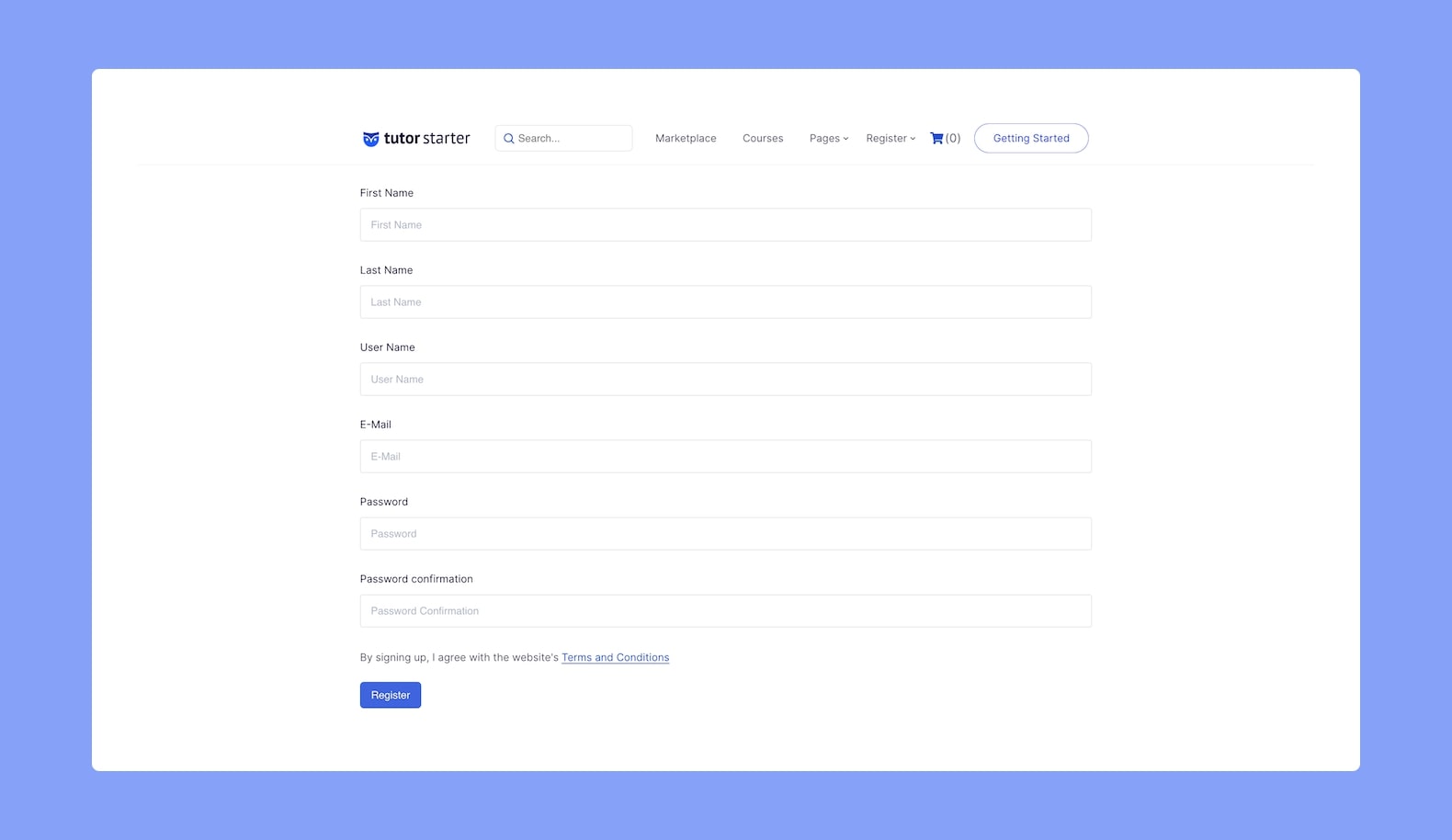
Student Signup
Student Signup
For a visitor to be able to become a student in Tutor LMS there’s not much that you need to do. Most themes have a built-in sign-up option. A user who signs up using the theme’s default sign-up method will become a student in Tutor LMS automatically.
Even if your theme does not come with a default account creation feature, you need not worry. When the Tutor LMS plugin is installed, a few pages are created automatically including a Student Registration Page.
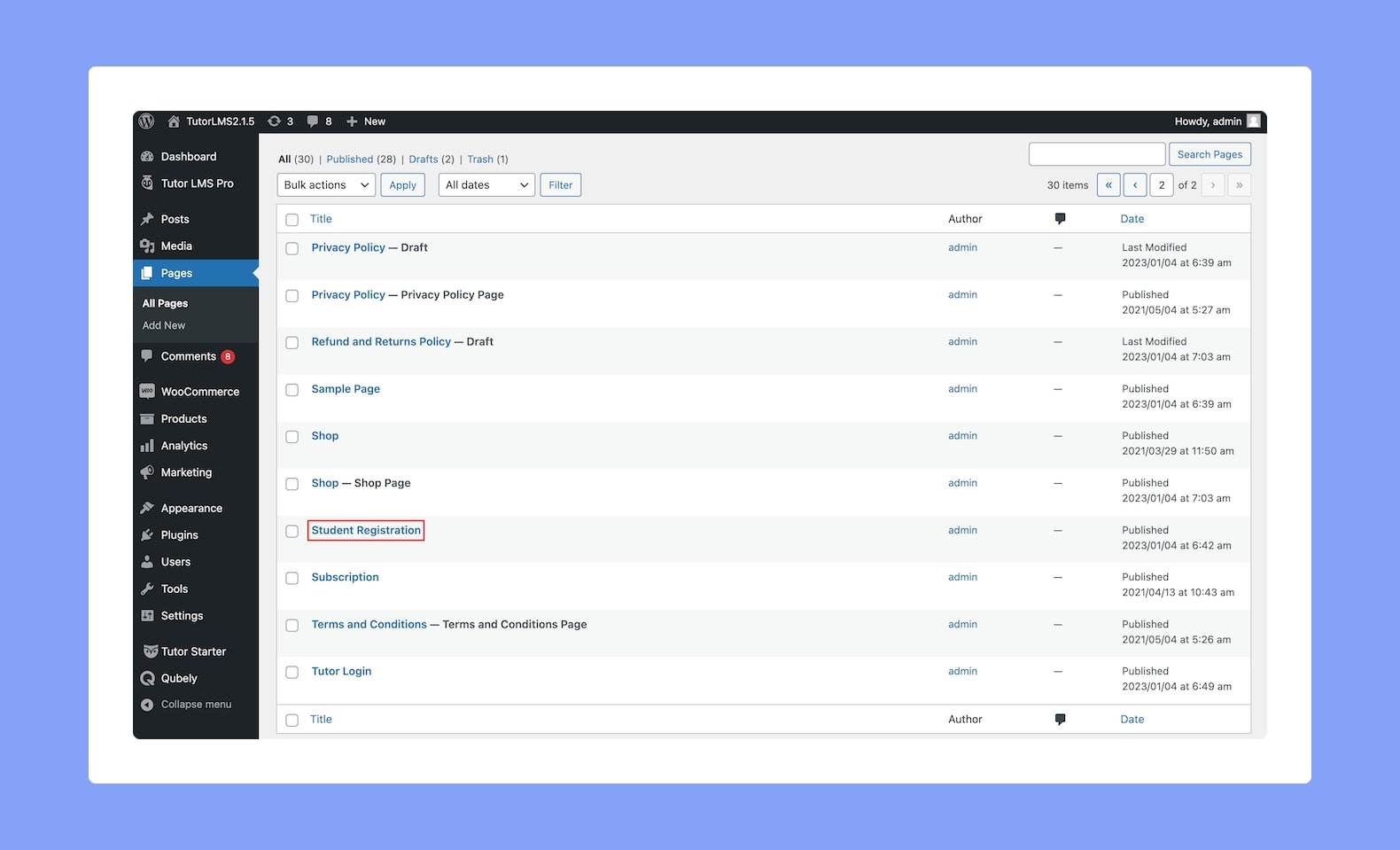
Creating The Registration Page
Alternatively, you can also create your own Student Registration Page. The process of doing this is similar to creating any typical WordPress page. So start by going to WP Admin > Pages > Add New.
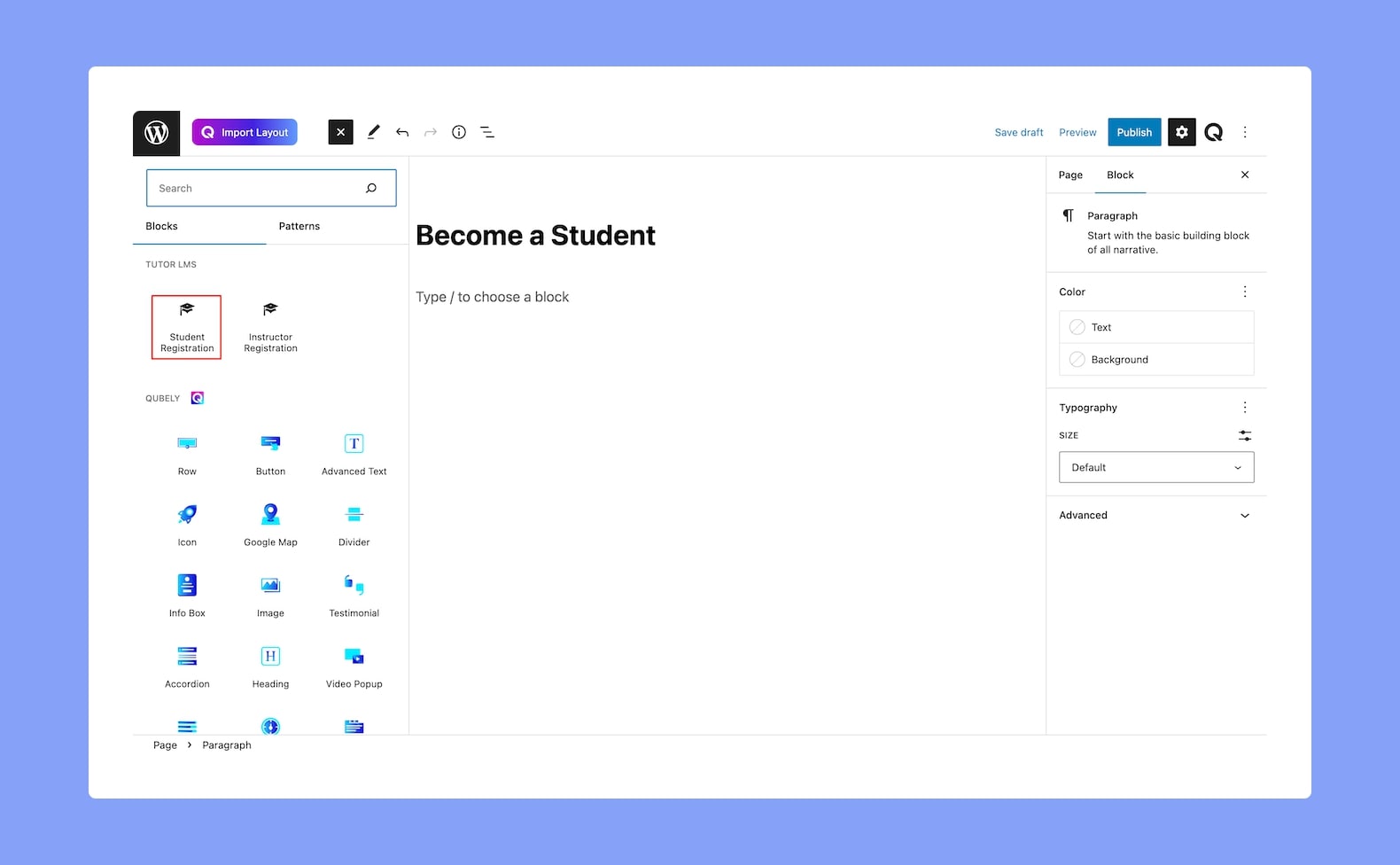
Then from the editor, add the necessary content to the page. To do this easily, find the Tutor LMS Blocks section from the Gutenberg Blocks Panel and use the Tutor Student Registration block from this list.
After that, you can add more content to the page if you wish to. Once you’re okay with how your page looks, hit Publish.
Assigning The Student Registration Page
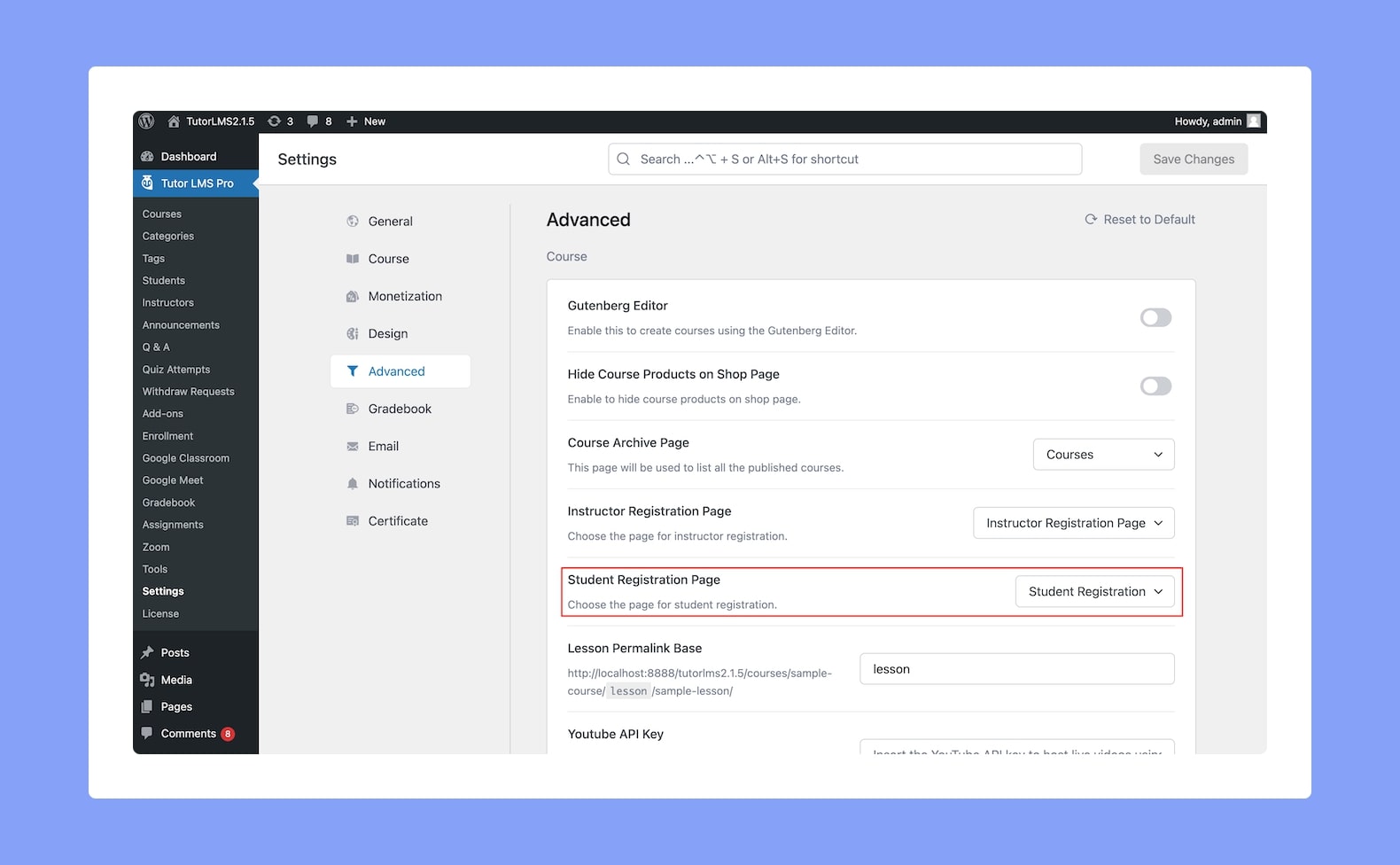
Next, it’s time to assign the Student Registration Page. To do so, go to WP Admin > Tutor LMS > Settings > Advanced. Here, from the Student Registration Page setting, select the page you just created or the default Student Registration page from the dropdown list. Finish off by hitting the Save Changes button.
Adding The Registration Page To The Main Menu
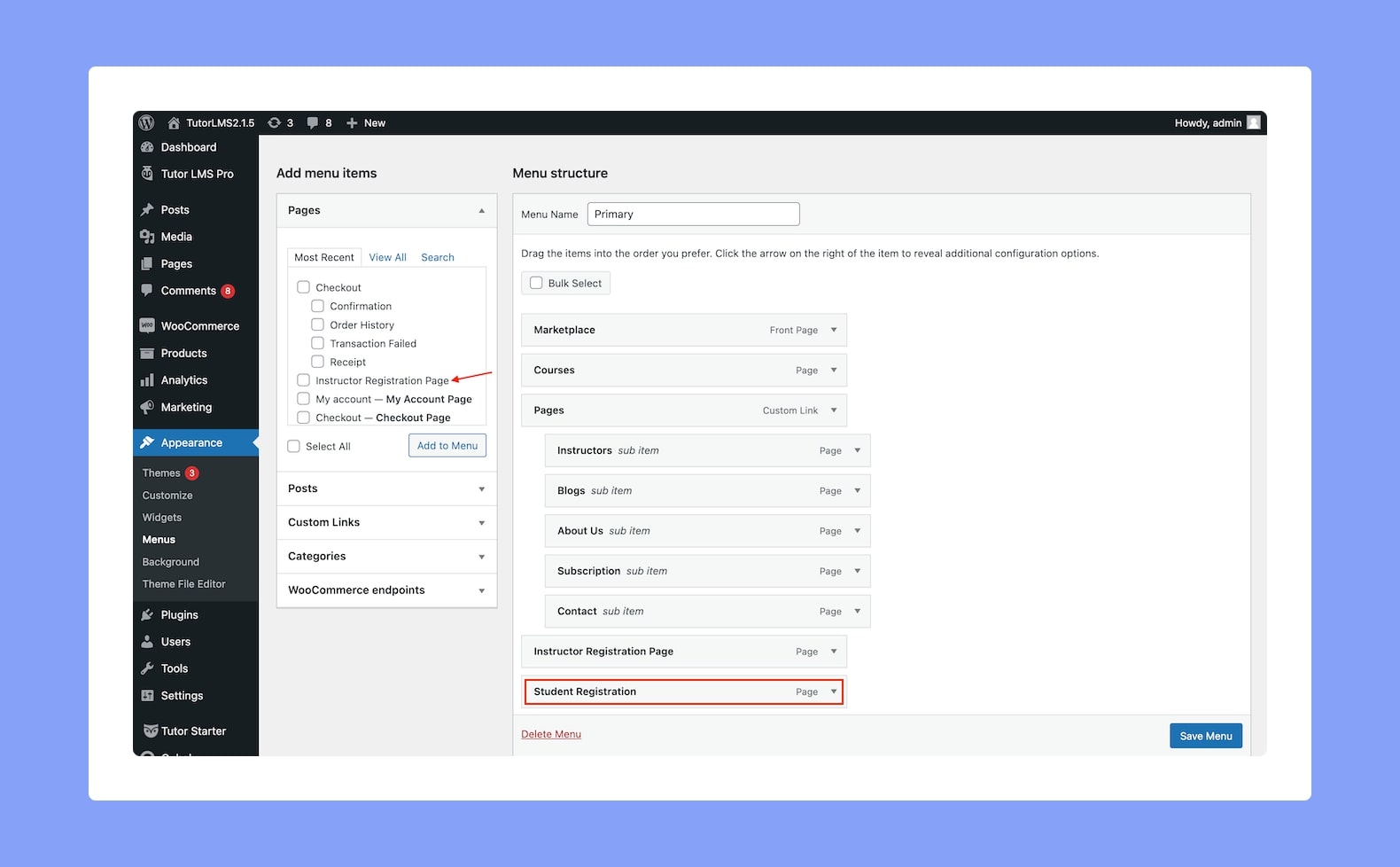
If you’ve reached this section, then it probably means that your theme lacks a user sign-up module and you’ve chosen to use either the default Tutor LMS Student Sign-up Page or your own Student Registration Page.
So now, to provide a better user experience, the next step is to add this page to the frontend Main Menu so that the Registration Form is accessible to the visitors.
To do that, head over to WP Admin > Appearance > Menus and select the primary menu you’re using from the dropdown on the top left.
- Then, select the Student Registration Page from the Pages section.
- Click on the Add to Menu button which will add the page to the menu.
- Finally, hit Save Menu to save your changes.
Tutor LMS’ default Student Registration Page looks something like this: