The Learning Interface
When a student opens any lesson inside a course, they are taken to the main learning interface. This is a clean, focused layout built around the lesson content.
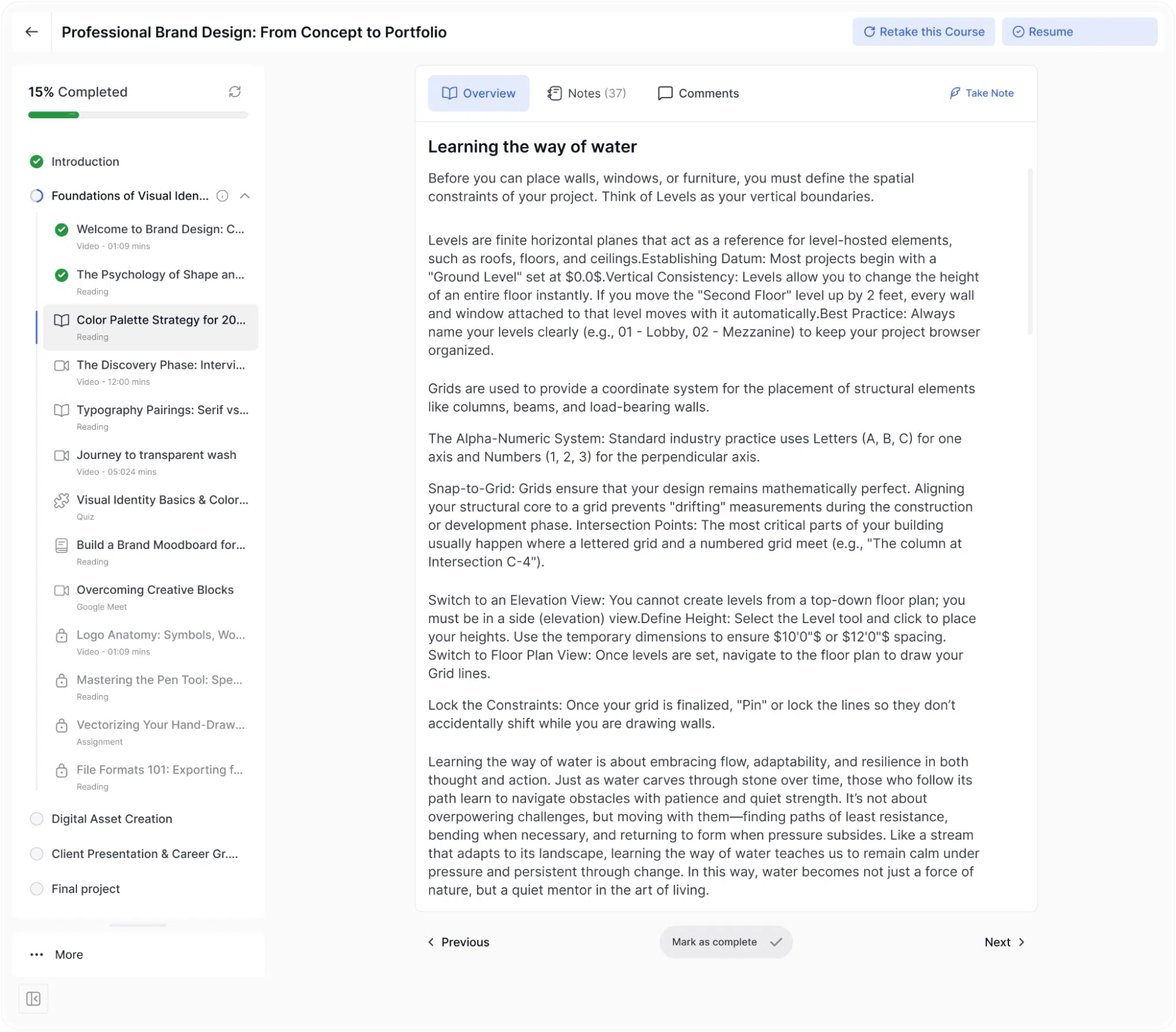
At the very top of the screen, the course title is displayed on the left. On the right, a Complete the Course button is available (Only in Flexible mode), which the student can use to mark the entire course as finished at any point. If the course has already been completed, this button changes to Retake this Course and Resume, allowing the student to go through the material again or pick up where they left off.
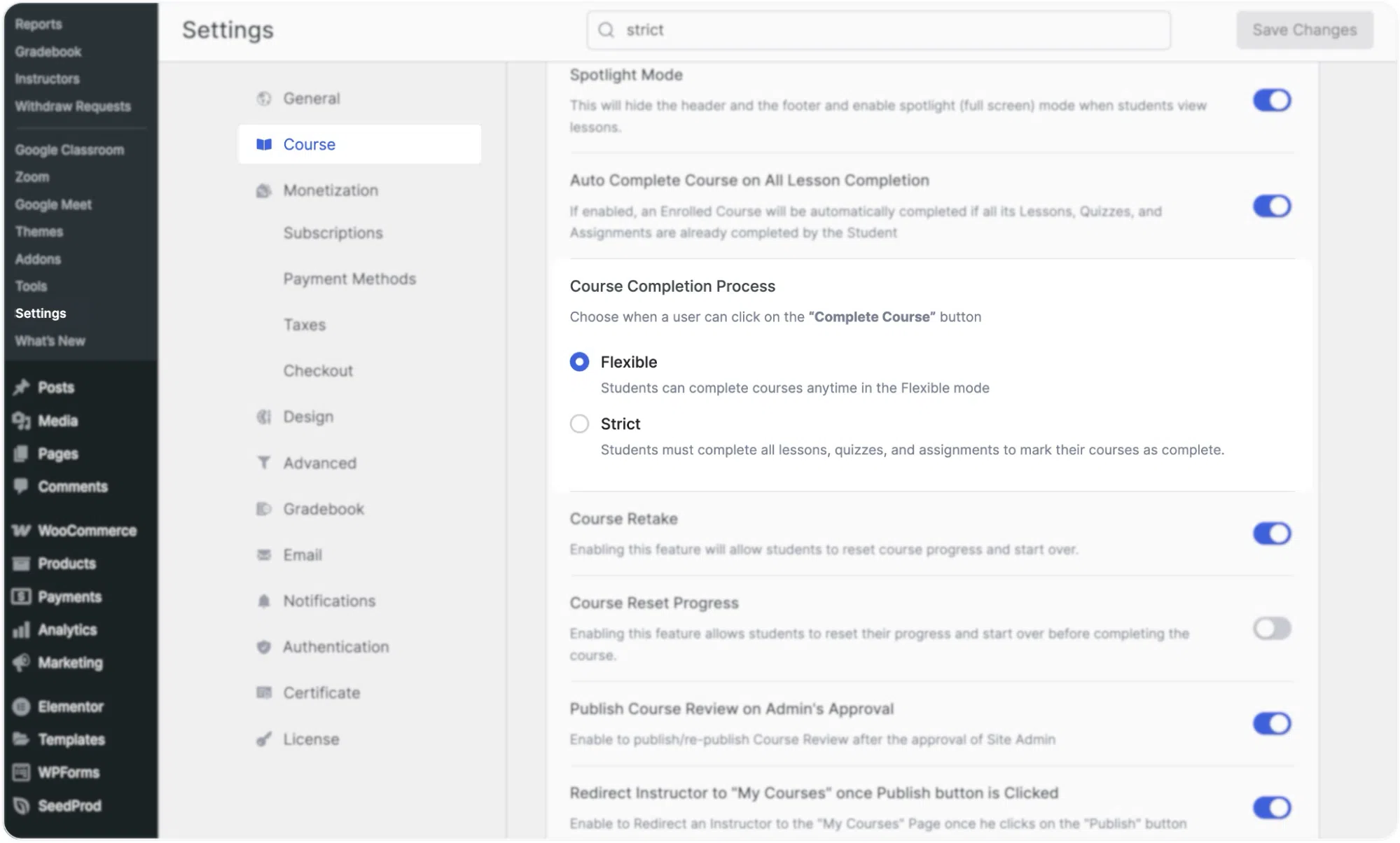
Note: The active state of the “Complete the Course” button depends on your platform’s Course Completion Process settings. If the system is set to Flexible mode, students can click the “Complete the Course” button at any time, regardless of their progress. To ensure learners finish all lessons, quizzes, and assignments before they can mark the course as complete, the platform administrator must enable Strict mode. This setting can be found in Tutor LMS > Settings > Course > Course Completion Process.
Below the header, the interface is divided into two sections:
Course Curriculum (Left bar): This panel lists all topics and lessons in the course. Each lesson shows its title, content type (Video, Reading, Quiz, Assignment, and so on), and its estimated duration (where applicable). As the student progresses, completed lessons are marked with a green checkmark. The currently active lesson is highlighted with a blue left border so the student always knows where they are. A progress bar at the top of the sidebar shows the overall completion percentage for the course. Clicking on any accessible lesson in the sidebar navigates directly to it.
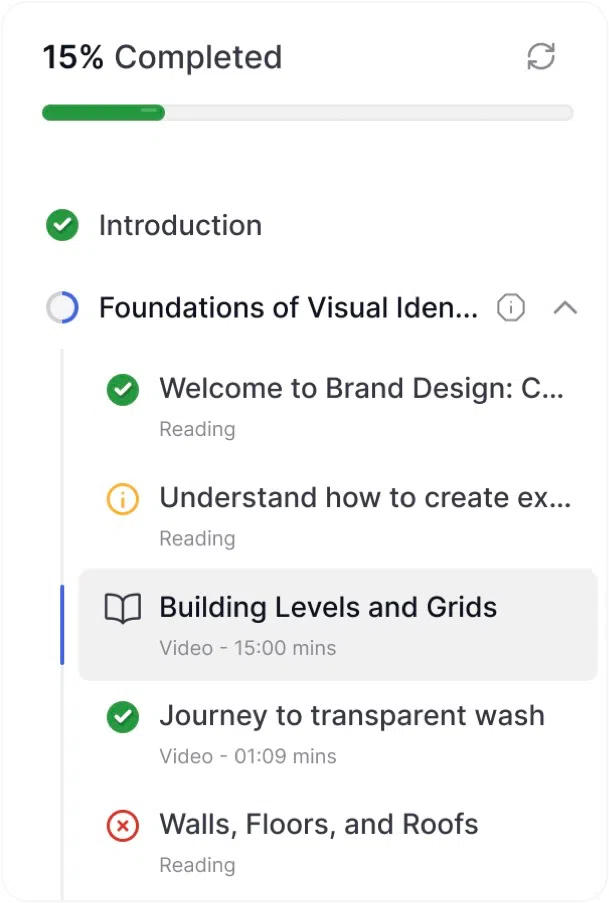
Below the curriculum list, the sidebar has a More option that expands to reveal additional course sections: Resources, Q&A, Announcements, Reviews, Live Classes (if enabled), Gradebook (if enabled), Certificate (if enabled), and Course Info. These are all accessible at any time while inside the learning interface.

Main content area. This is where the lesson content is displayed. The video player, reading content, quiz screen, or assignment form, depending on the lesson type.
At the bottom of the main content area, students have a Mark as complete button, a Previous button (to go back to the last lesson), and a Next button (to advance to the following lesson). Once a lesson is marked as complete, the button turns green and displays Completed with a checkmark.