Stripe
Tutor LMS offers seamless integration with Stripe, a renowned payment gateway known for its security and efficiency. With Stripe integration, you can conveniently process payments for your online courses.
Ensure to review the list of supported countries and currencies by Stripe to confirm availability in your region.
Check the video tutorial below to implement Stripe in your Tutor LMS website:
Adding Stripe as a Payment Option
- Log in to your Tutor LMS Dashboard.
- Navigate to Settings > Monetization > Payment Methods.
- Click the Add new gateways button.
- From the list of available payment methods, select Stripe and click the Install button.
Once installed, Stripe will appear as one of your payment options.
Note: You’ll need an active Tutor LMS Pro subscription to use the Stripe payment gateway.
Configuring Stripe Integration
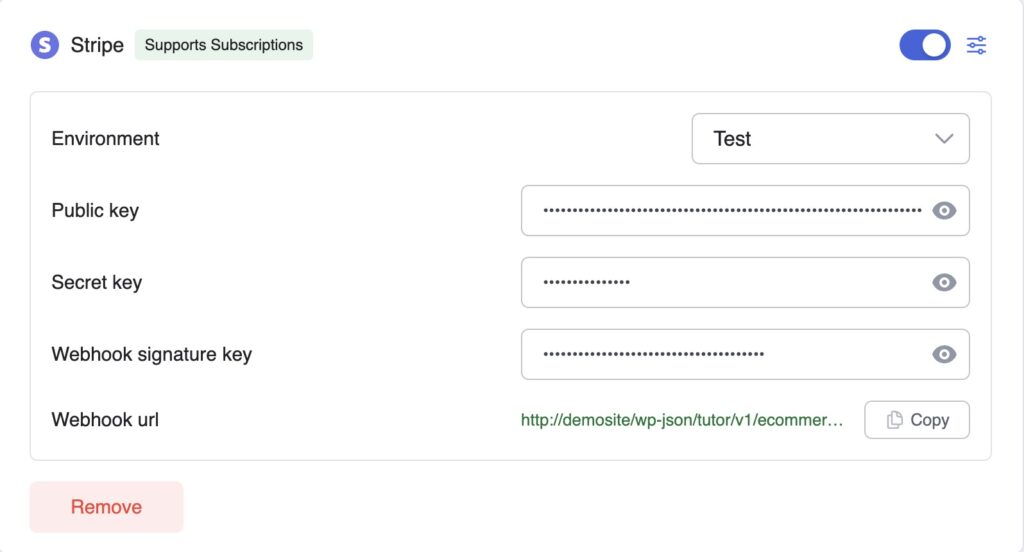
Enable the toggle button for Stripe in the Payment Methods section to make the payment method available during checkout.
Click the Setup icon next to it. A popup window will appear, allowing you to configure Stripe for seamless integration with your checkout process.
Payment Environment
Choose between “Live” or “Test” depending on whether you want to test payments or process real transactions in a production environment.
Stripe Public & Secret Key
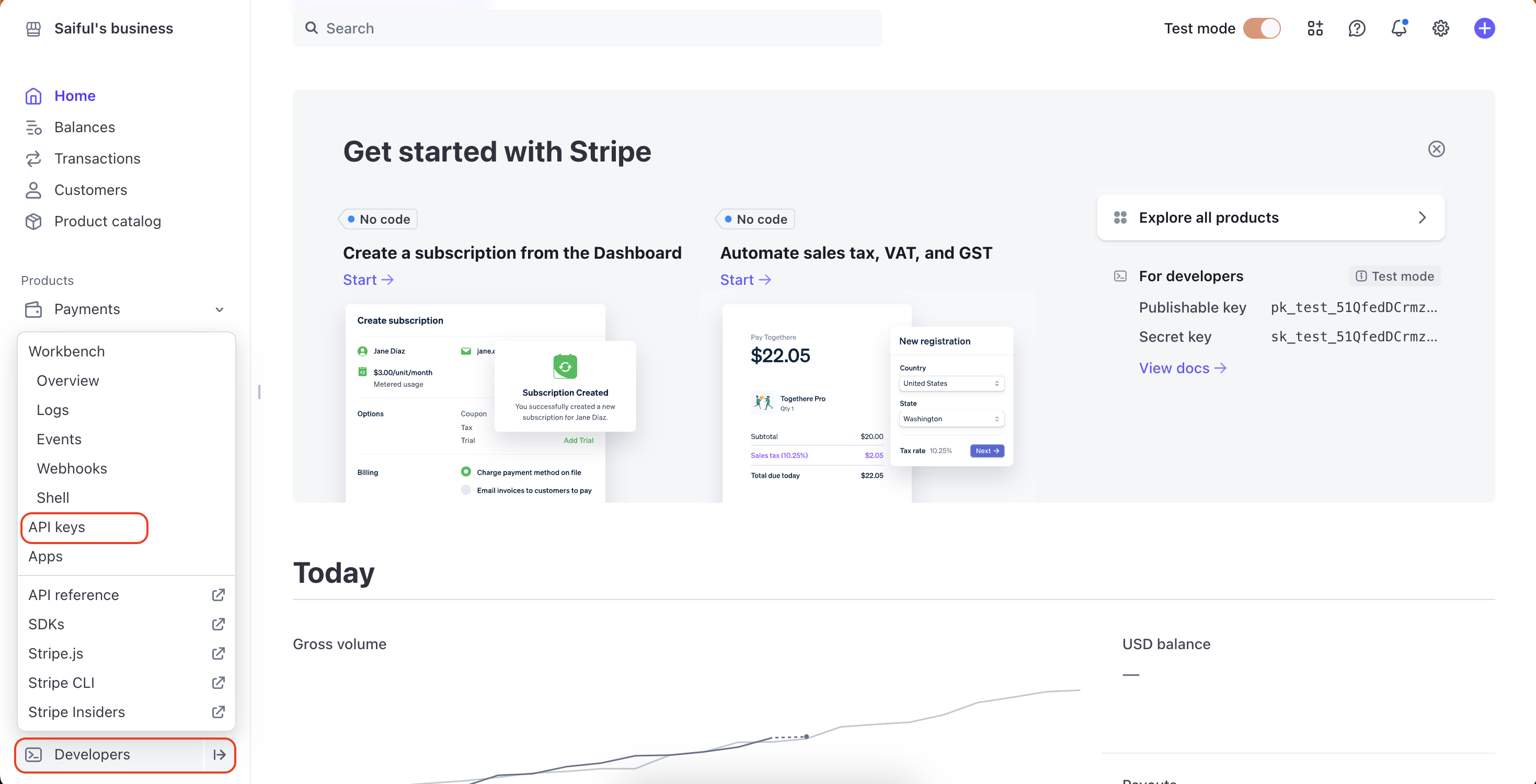
To obtain your secret key, log in to your Stripe account, visit the developer dashboard, and then select the Developers option from the left-bottom corner. There you have to select the API keys option to get your API keys..
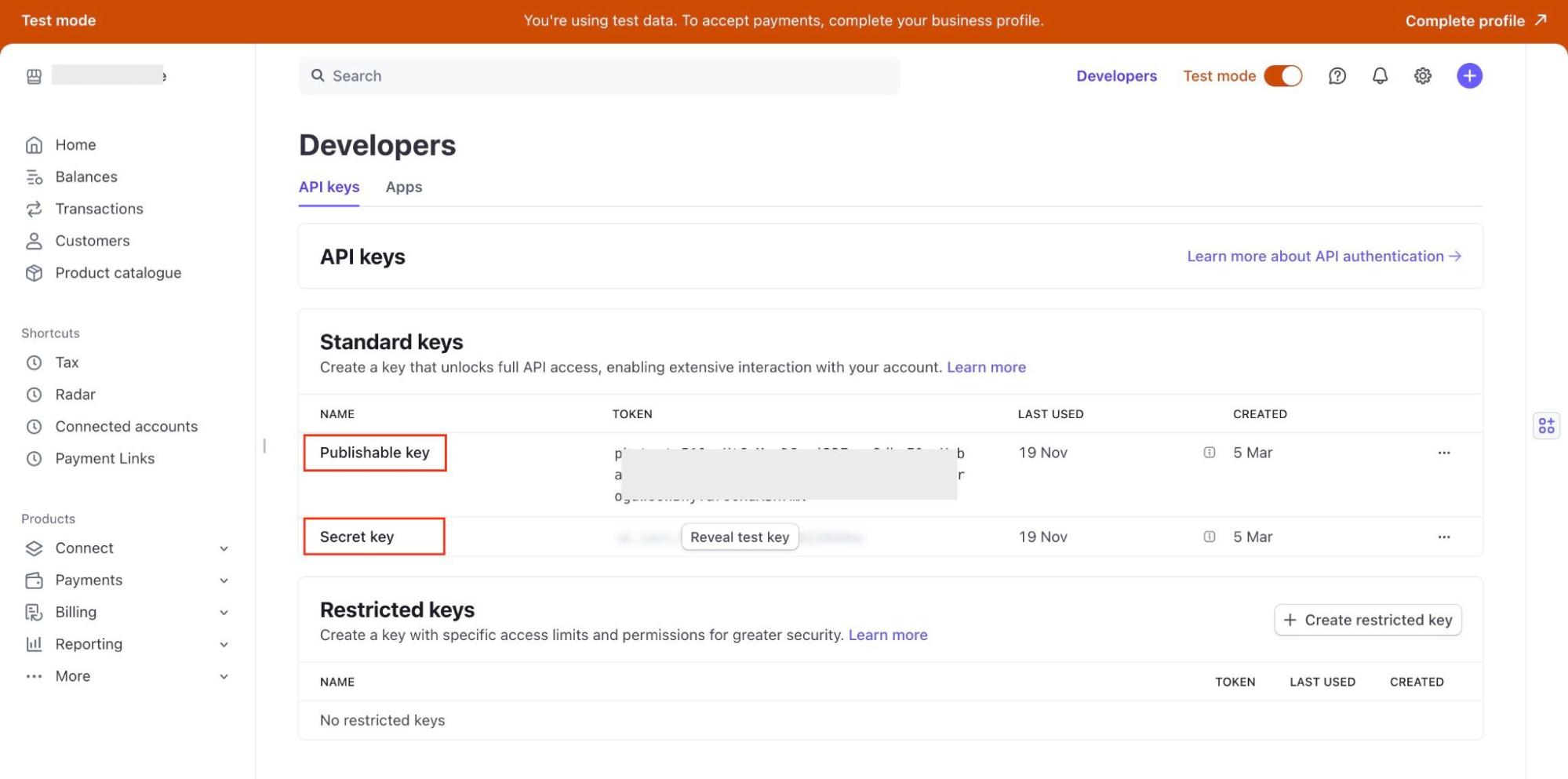
Select whether you want to generate a key for Test purposes or Live transactions.
Copy the Publishable key and Secret key and simply paste them into the respective fields in Tutor LMS Stripe settings.
Please note that if you generate a secret key for Test purposes it will start with the prefix “sk_test” and for Live transactions, the secret key will start with the prefix “sk_live“.
Stripe Webhook Signature Key
To obtain the Webhook Secret in Stripe, please follow these steps:
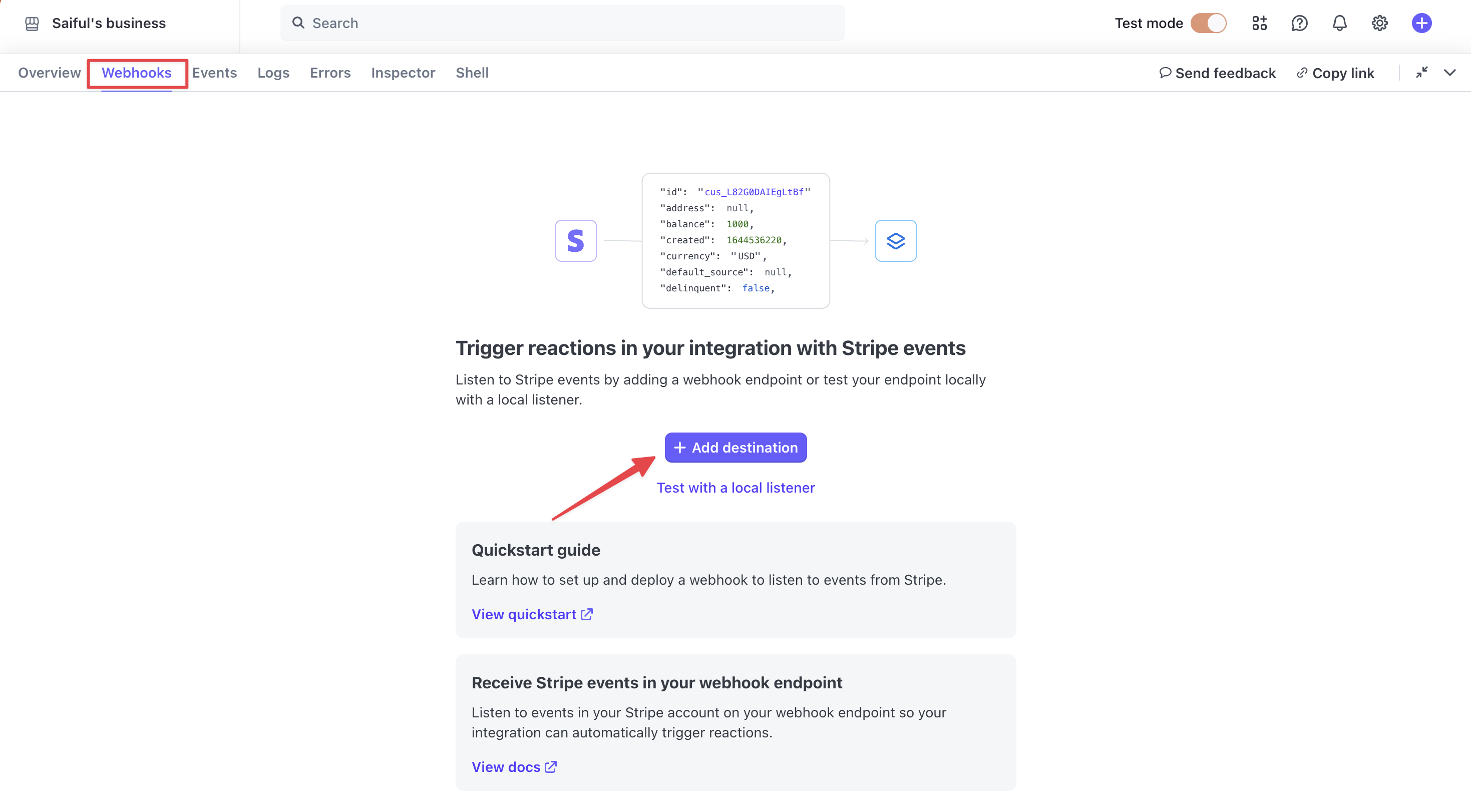
- Navigate to the Webhooks page.
- Click on “+ Add destination”.
- Select the specific events for which you want to receive notifications. However, you must select the following for smooth operation:
- payment_intent.payment_failed
- charge.updated
- charge.succeeded
- payment_intent.canceled
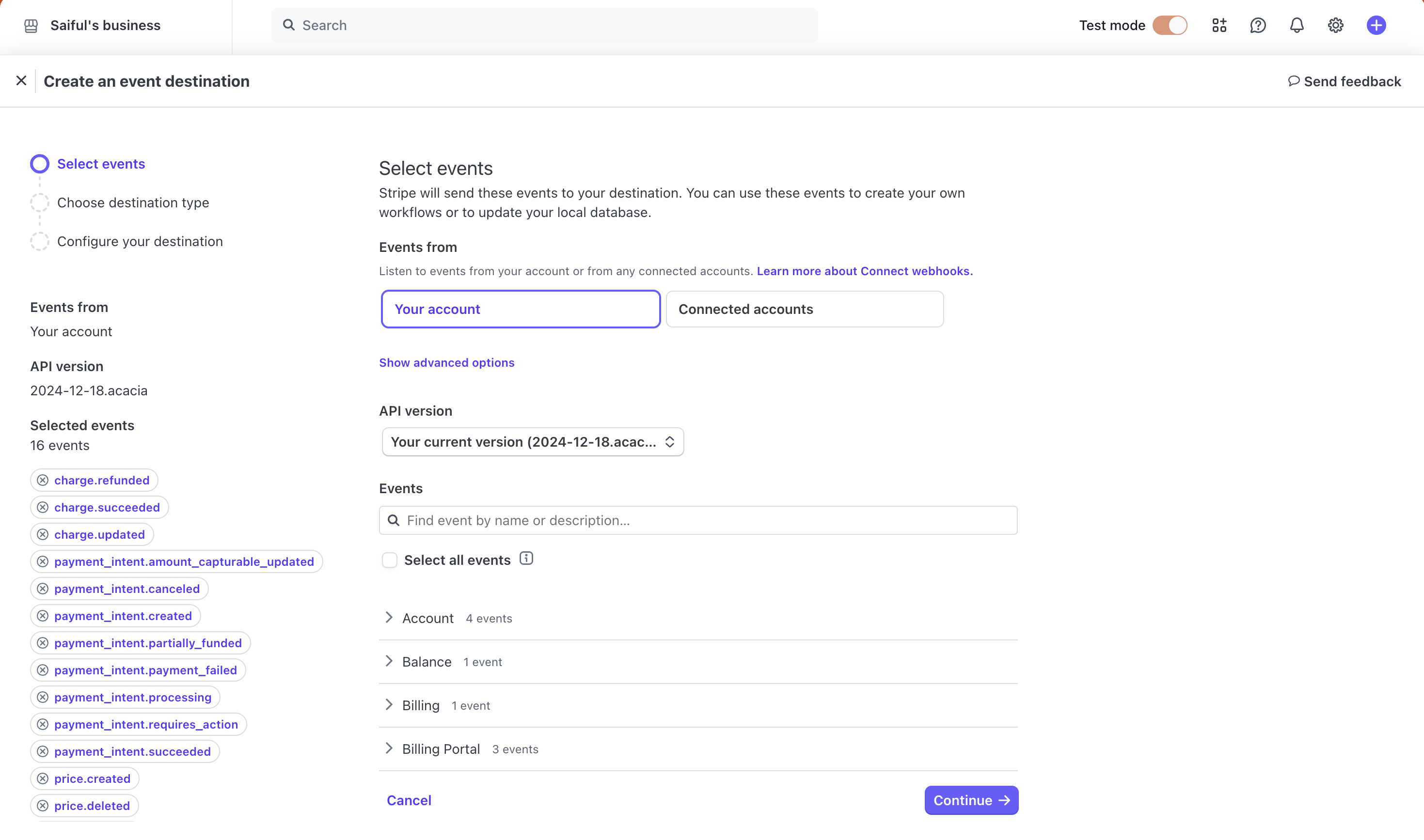
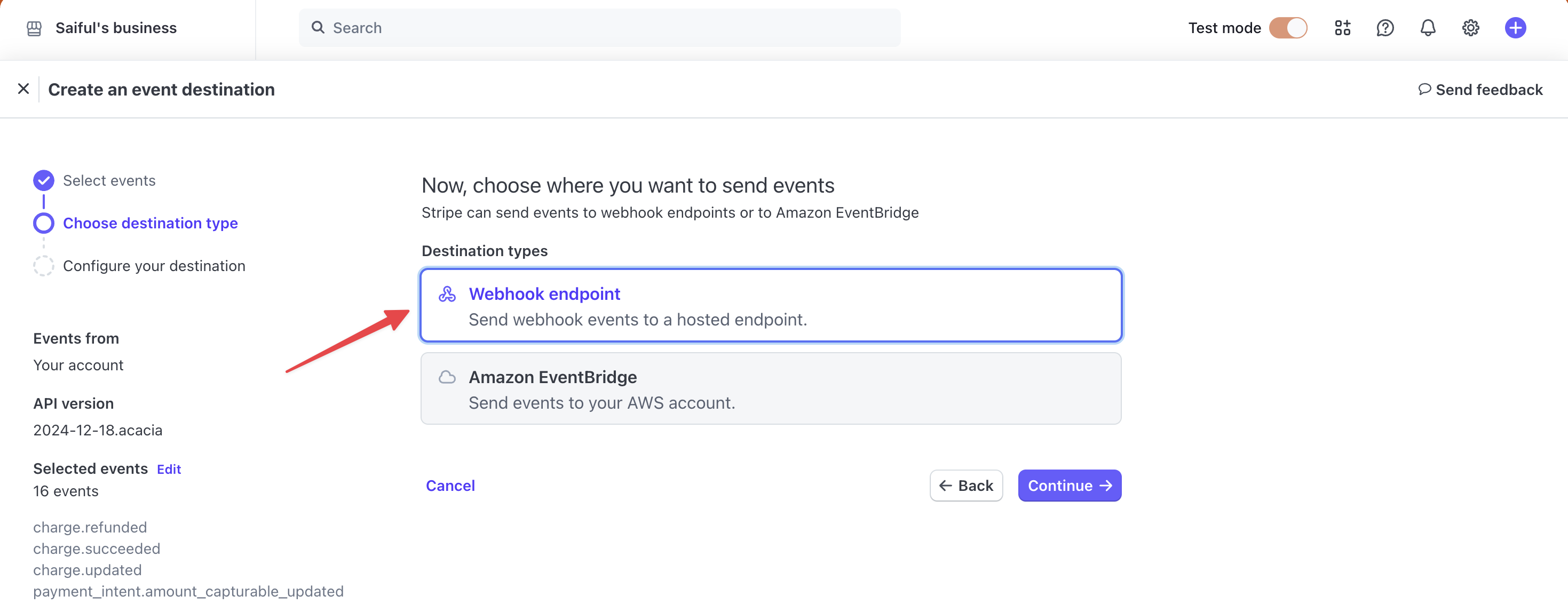
- Click on Continue and select Webhook endpoint on the following step to add your webhook endpoint’s HTTPS URL.
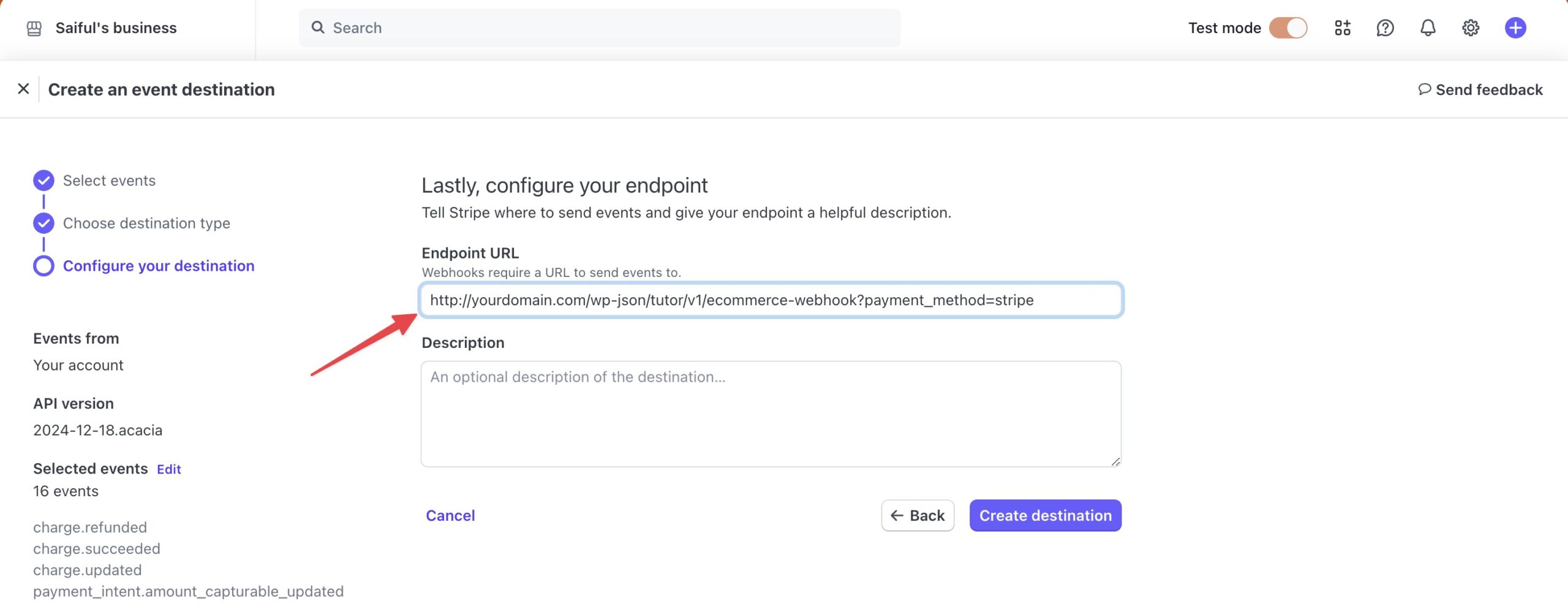
- Here, you have to enter the Endpoint URL.
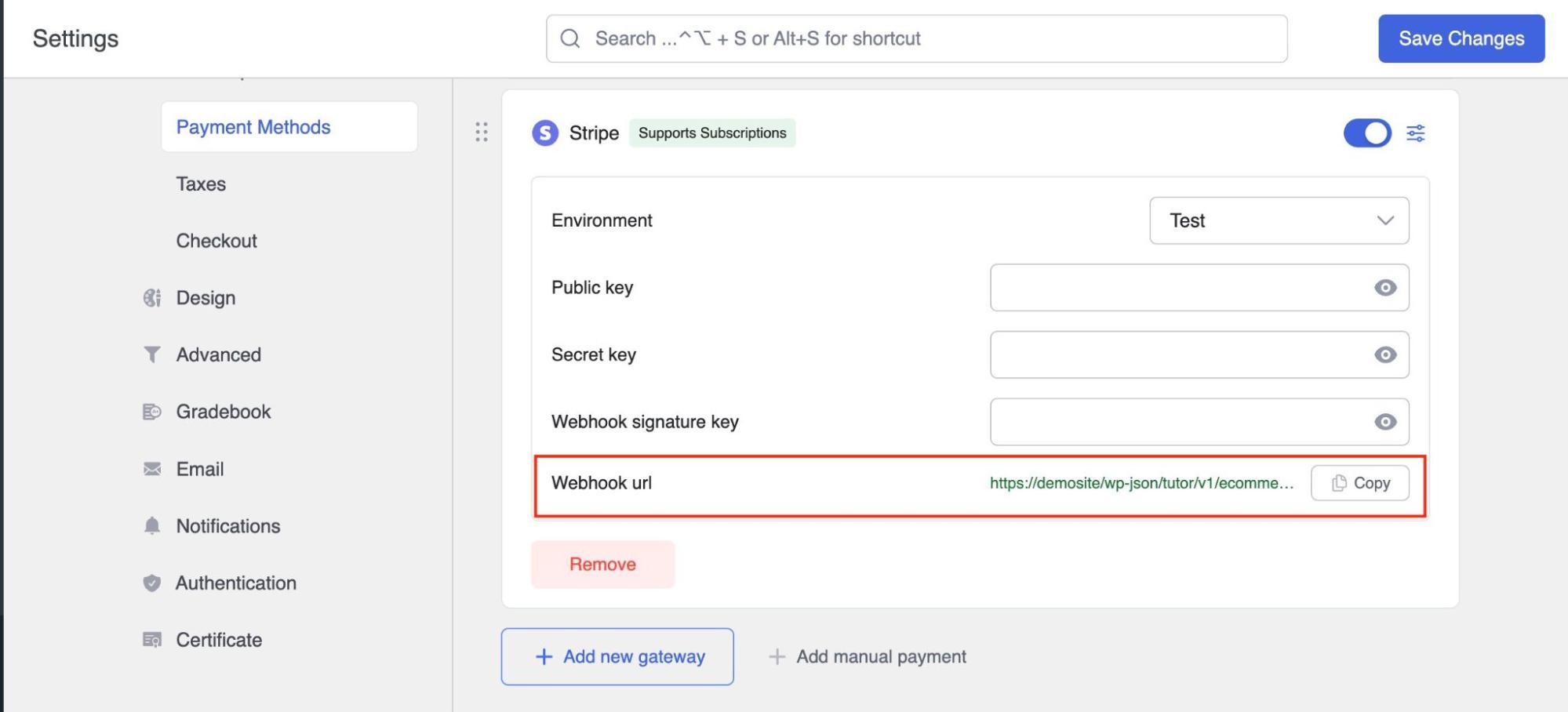
Here, you can collect your webhook endpoint URL given from the Tutor LMS Stripe settings.
- Click on Create destination to find your Signing secret key.
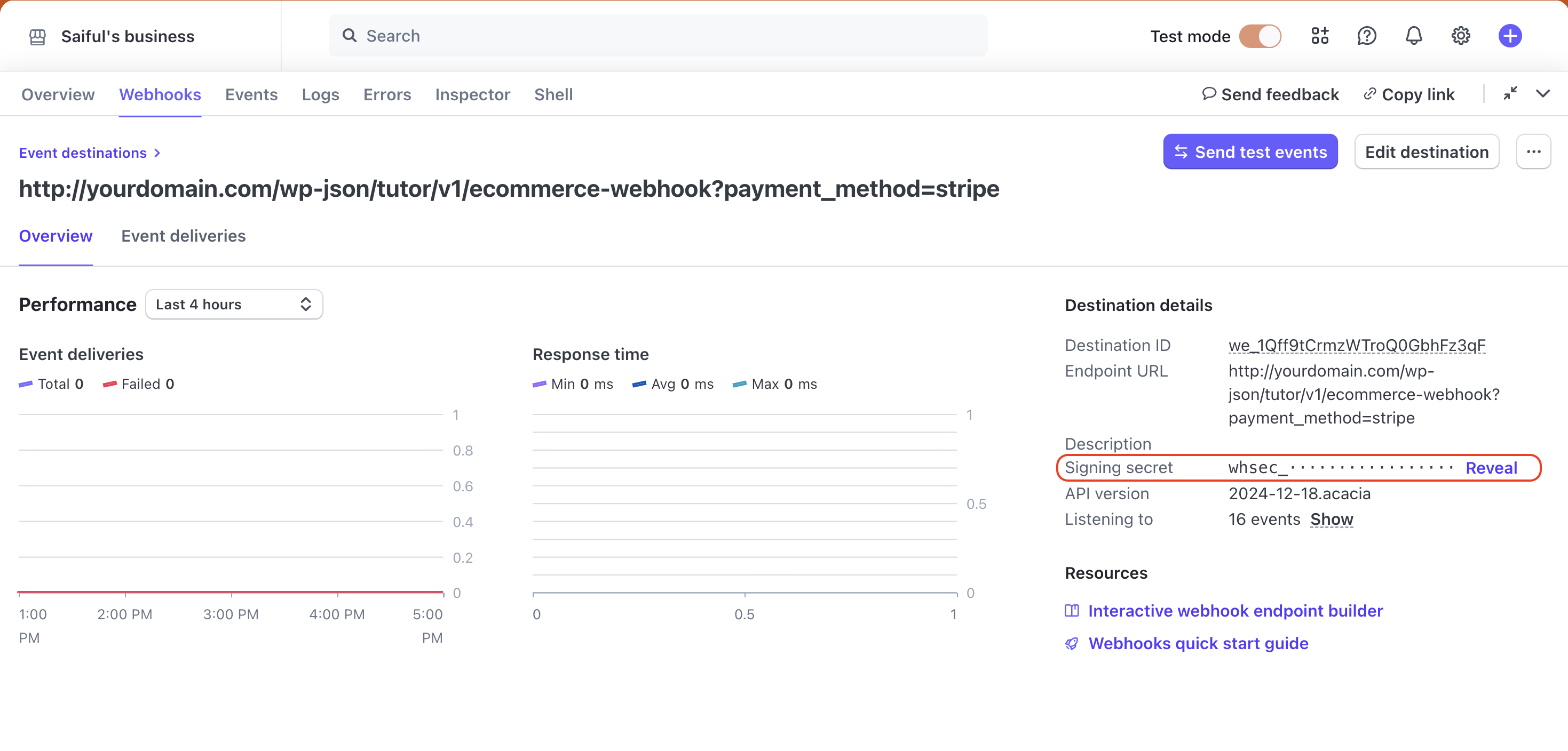
Copy the Webhook Secret Key from Stripe and paste it into the Webhook Signature Key field in Tutor LMS. Click Save Changes to complete the setup.