How to Migrate From Zoom JWT App to Server-To-Server OAuth App
How to Migrate From Zoom JWT App to Server-To-Server OAuth App
If you used a JWT app type to integrate Zoom with Tutor LMS, you need to migrate to the server-to-server app type. According to their official announcement, The Zoom JWT app type will be deprecated!
Hence, you must migrate to the new server-to-server OAuth app and update your API setup by September 1, 2023.
Create a Server-to-Server OAuth App
To migrate from a JWT app to a Server-to-Server OAuth app and update the integration with Tutor LMS, follow these steps:
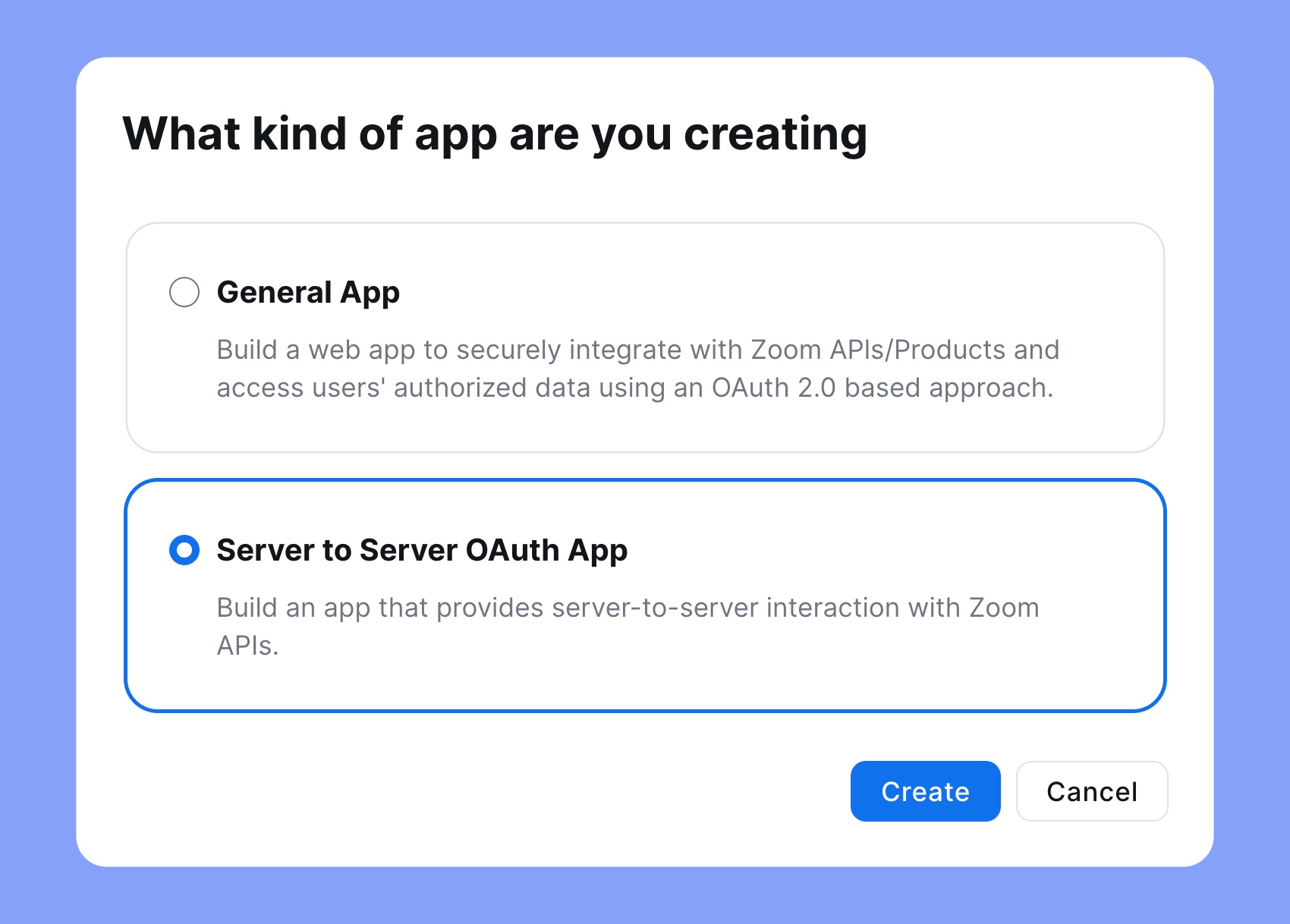
Step 1: Go to the Zoom App Marketplace Developer Dashboard (https://marketplace.zoom.us/develop) and select Server to Server OAuth App.
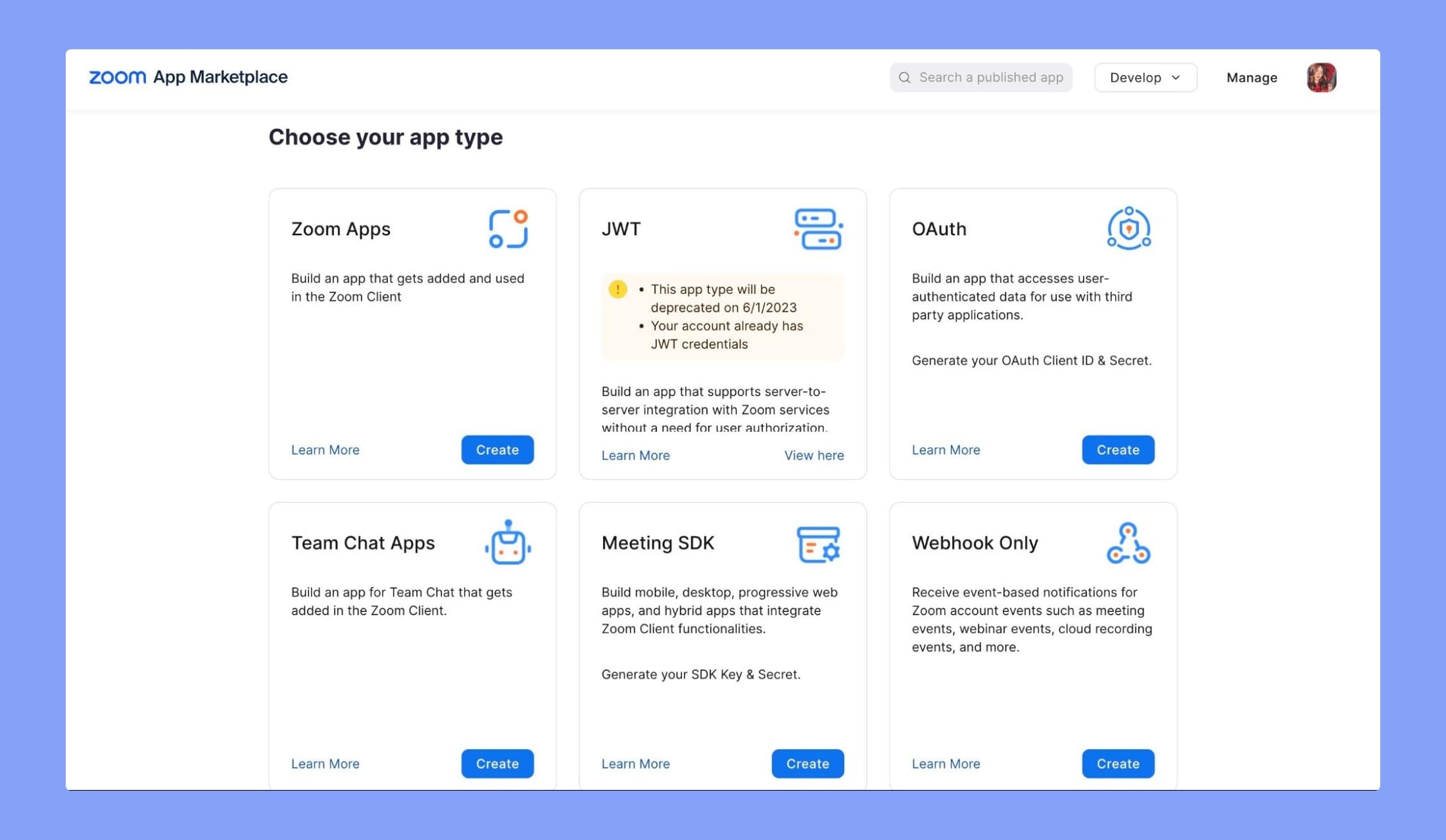
If you have an existing JWT app, the Create page on the App Marketplace indicates that “Your account already has JWT credentials,” as shown below:
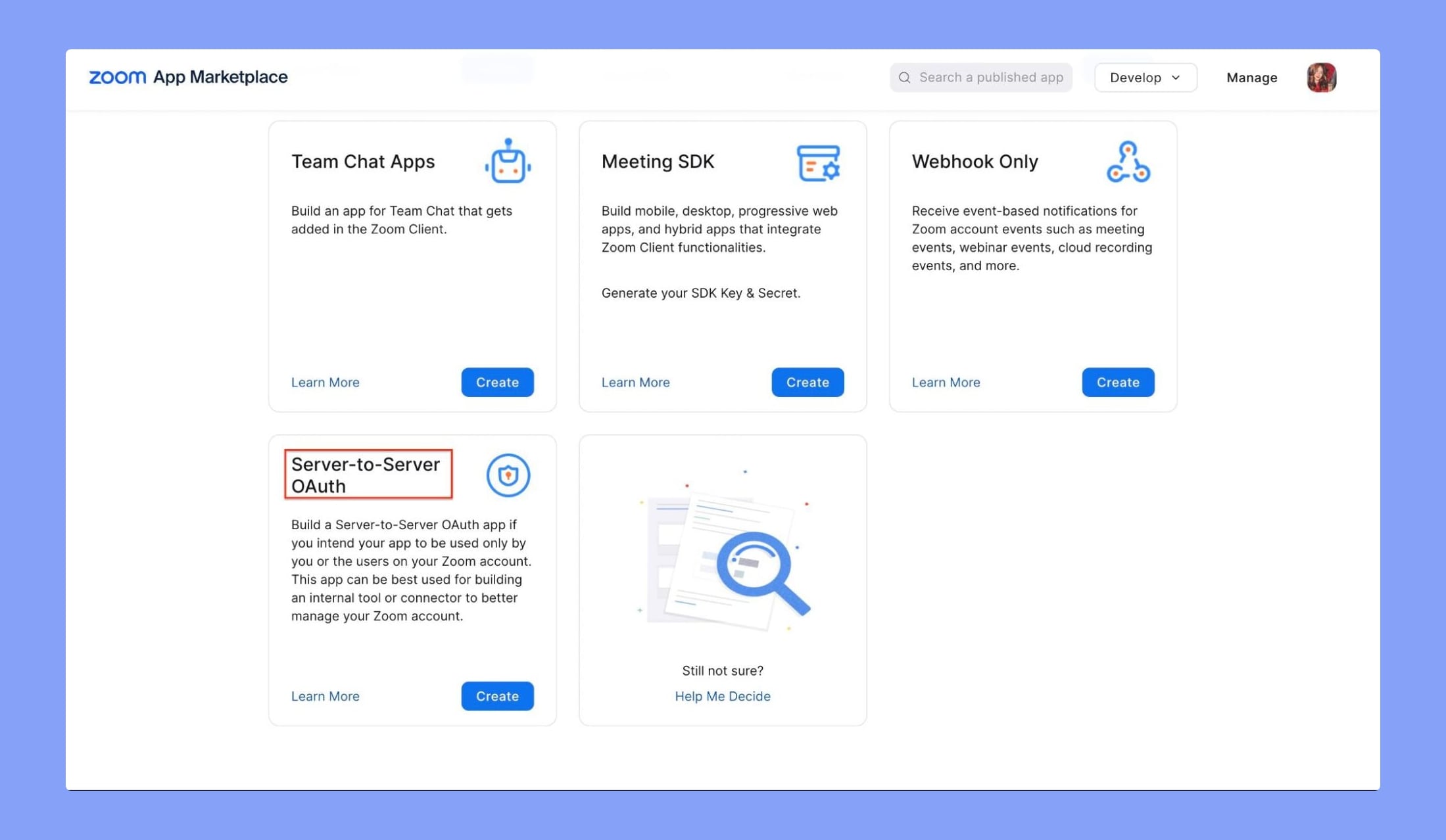
Step 2: Scroll down to find Server-to-Server. Click on “Create” under the Server-to-Server OAuth app type.
Step 3: Fill in the App Name field and click on Create.
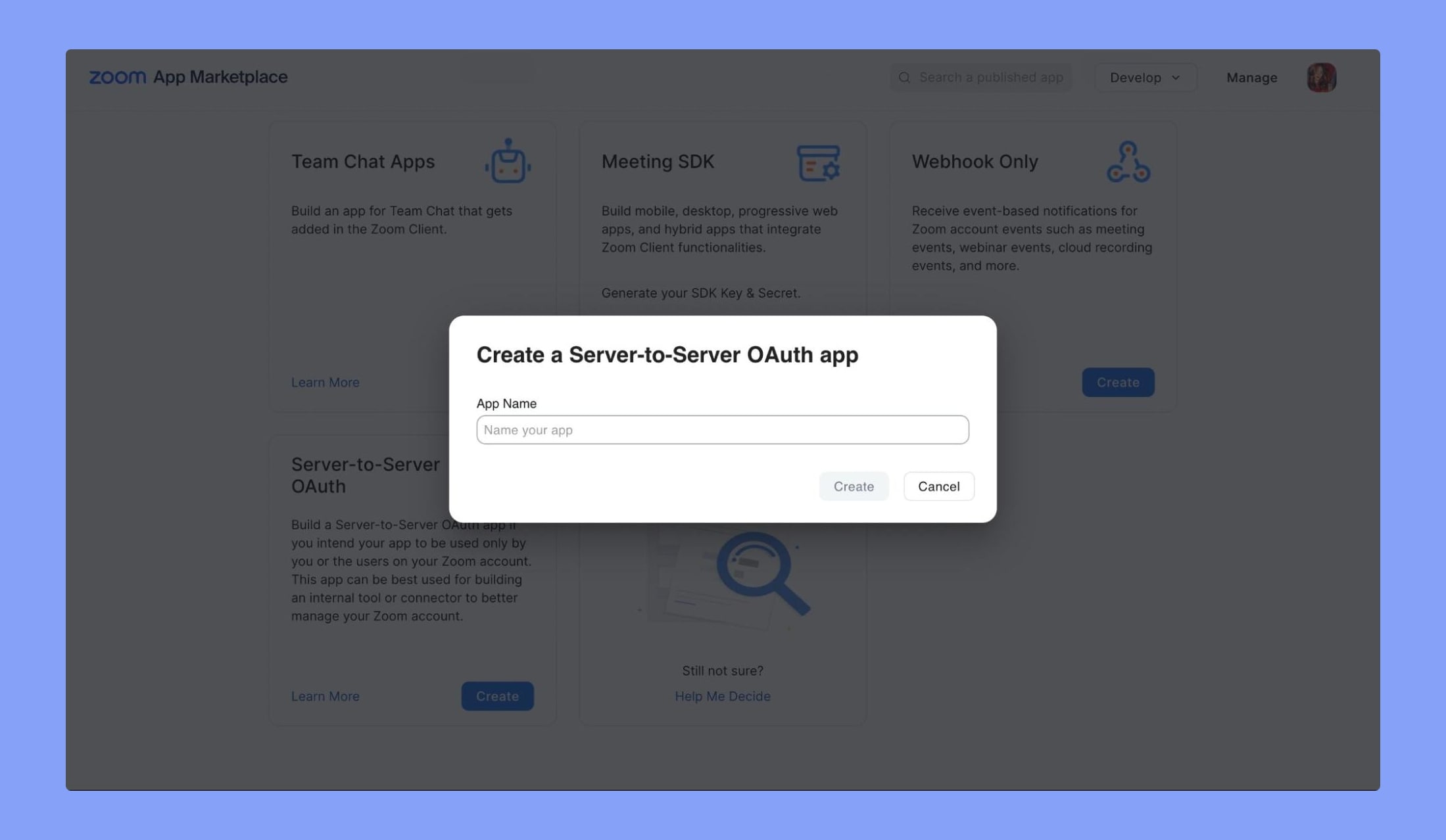
This will take you to the App credentials page. But first, you need to fill in the required Information & Scopes to Activate your app.
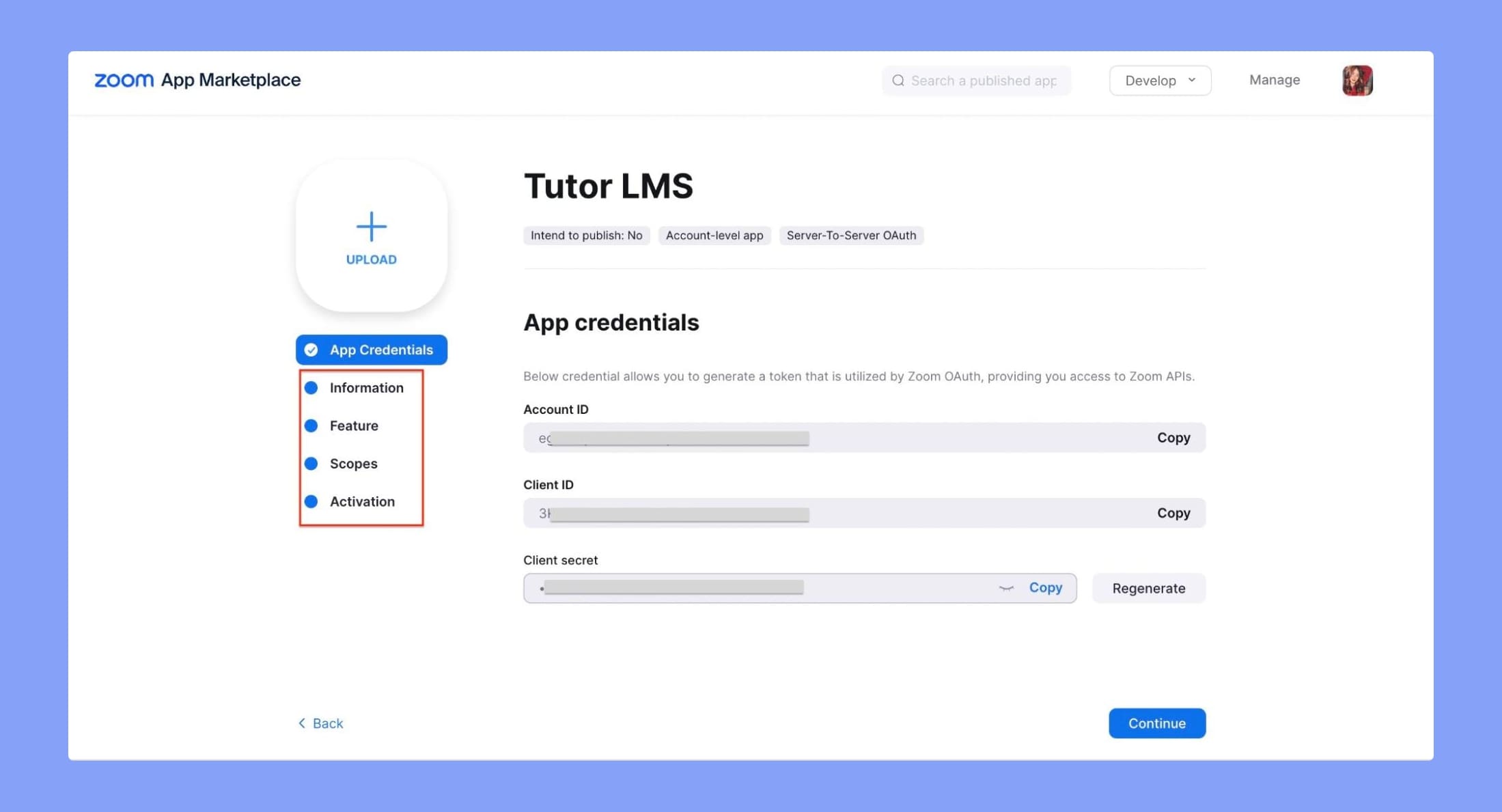
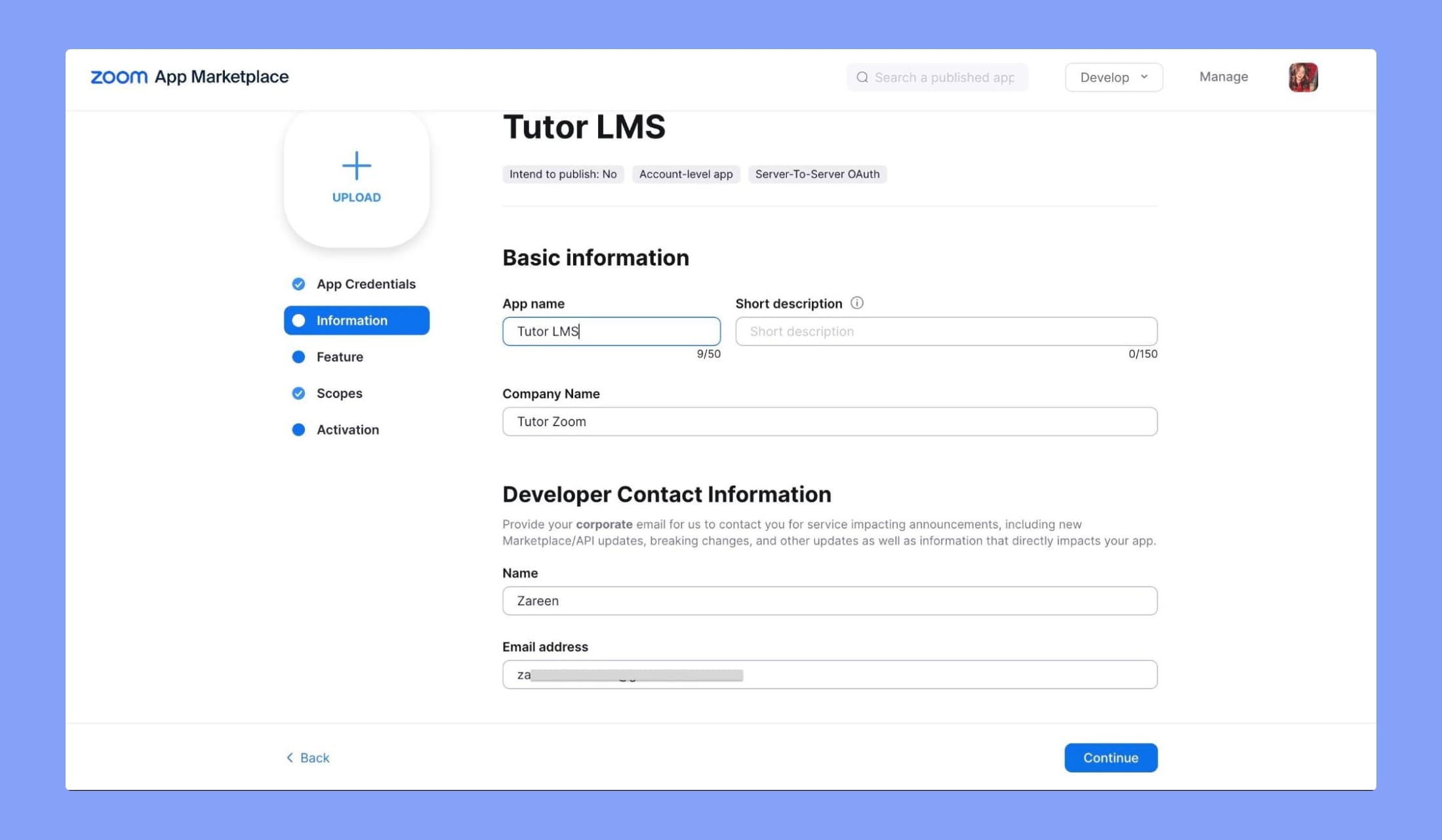
Step 4: Go to Information to set your Company Name and Developer Contact Information, i.e. your name and email address.
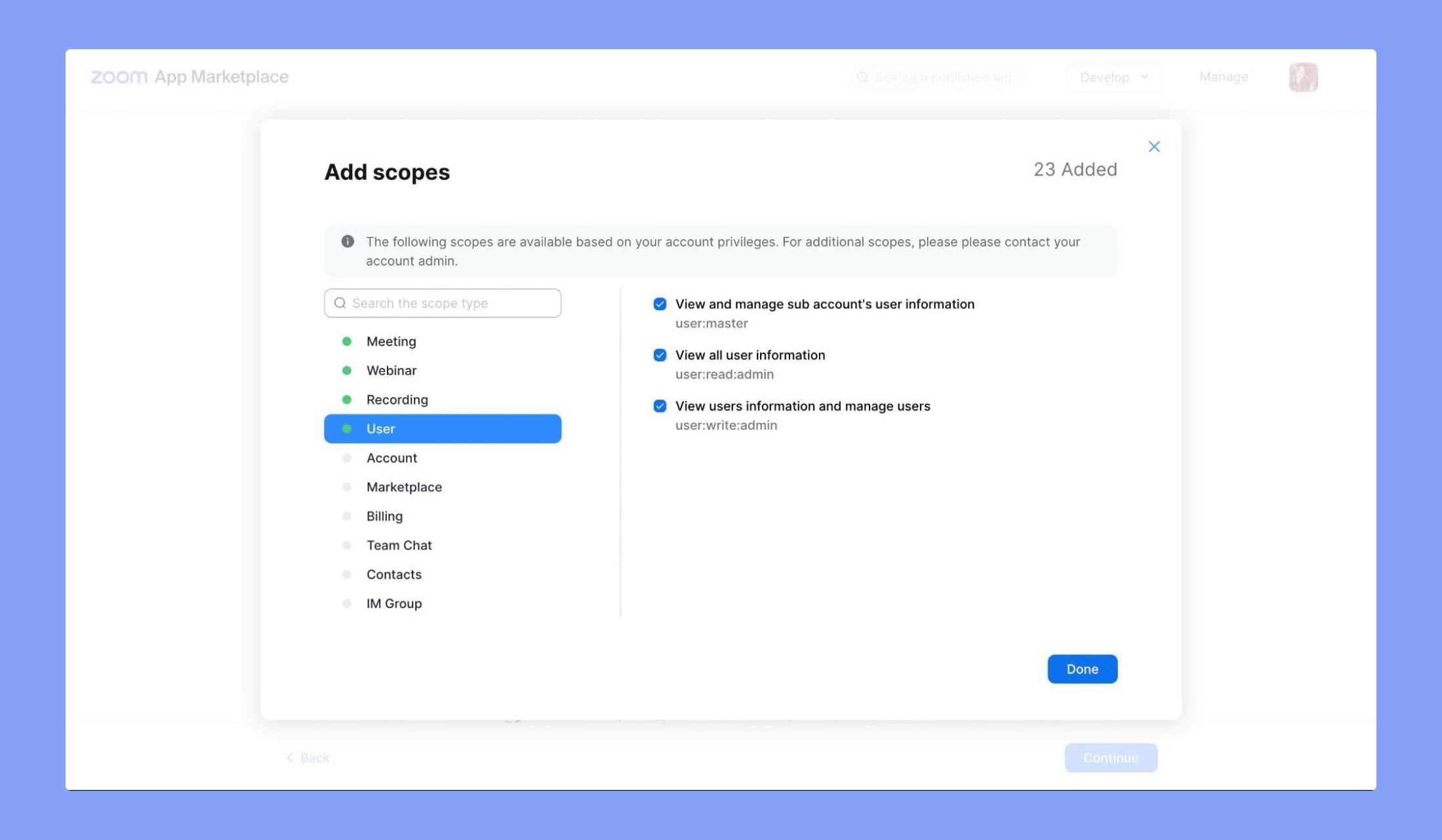
Step 5: Go to Scopes and configure your app’s necessary scopes based on your Tutor LMS integration requirements. We recommend you select all the scopes for Meeting, Webinar, Recording, and User.
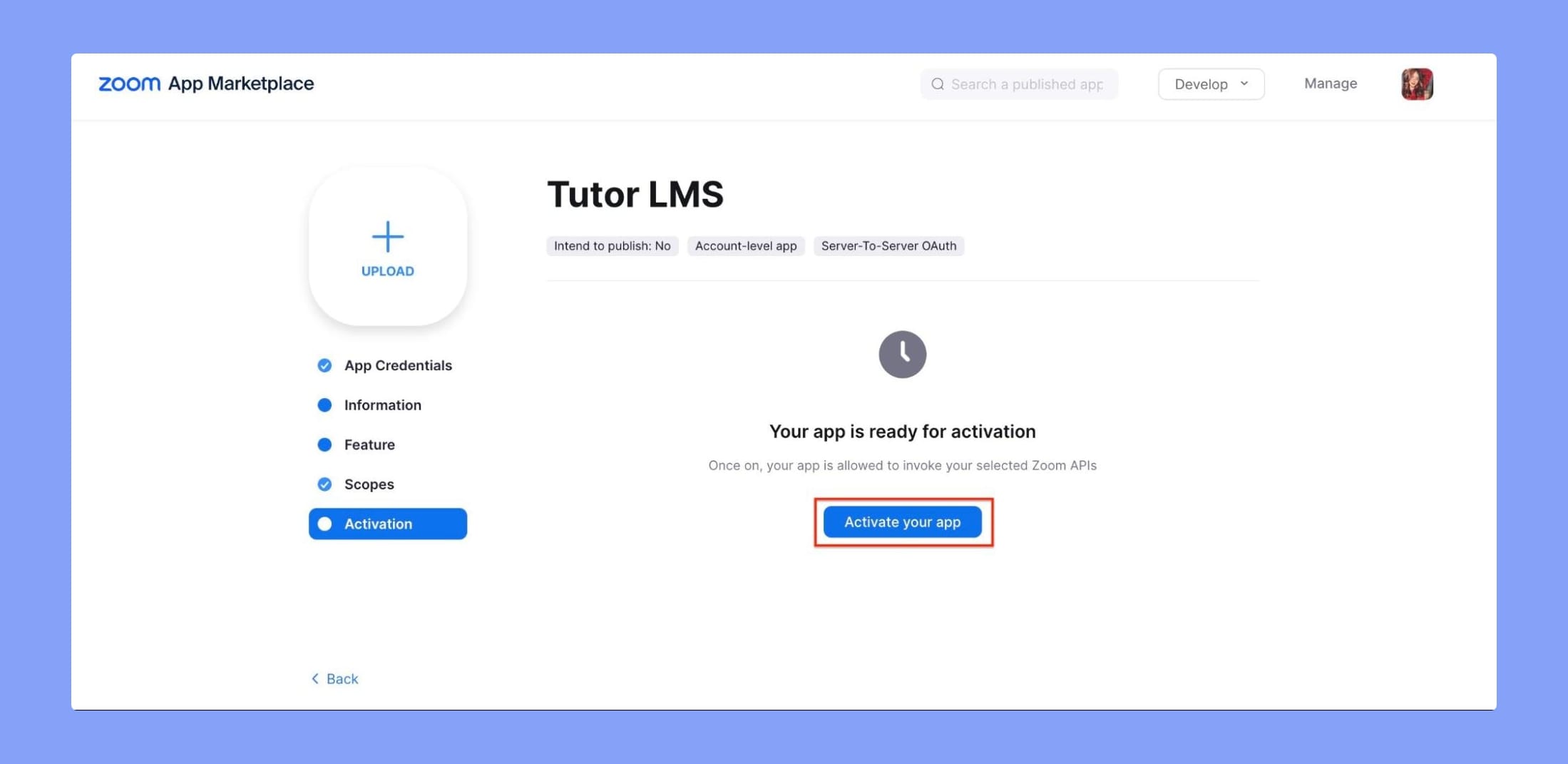
Step 6: Go to Activation, and activate your app.
Obtain the App Credentials
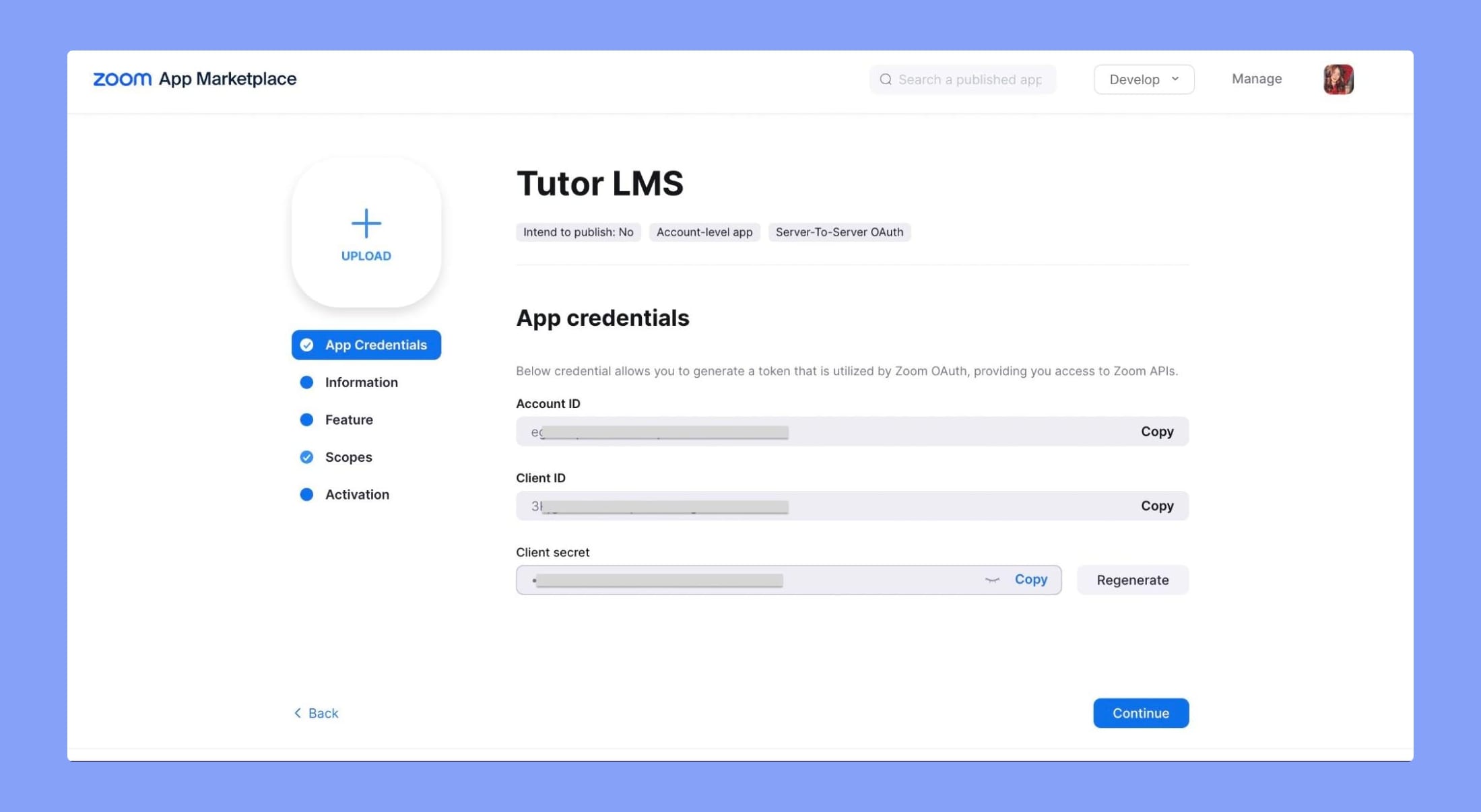
Once your Server-to-Server OAuth app is activated, Go to App Credentials to obtain the Account ID, Client ID, and Client Secret. Keep these credentials handy as you will need them in the following step.
Update Zoom Integration in Tutor LMS
From the Tutor LMS backend dashboard, go to Zoom > Set API.
Add the new Server-to-Server OAuth app credentials (Account ID, Client ID, and Client Secret) obtained in the previous step.
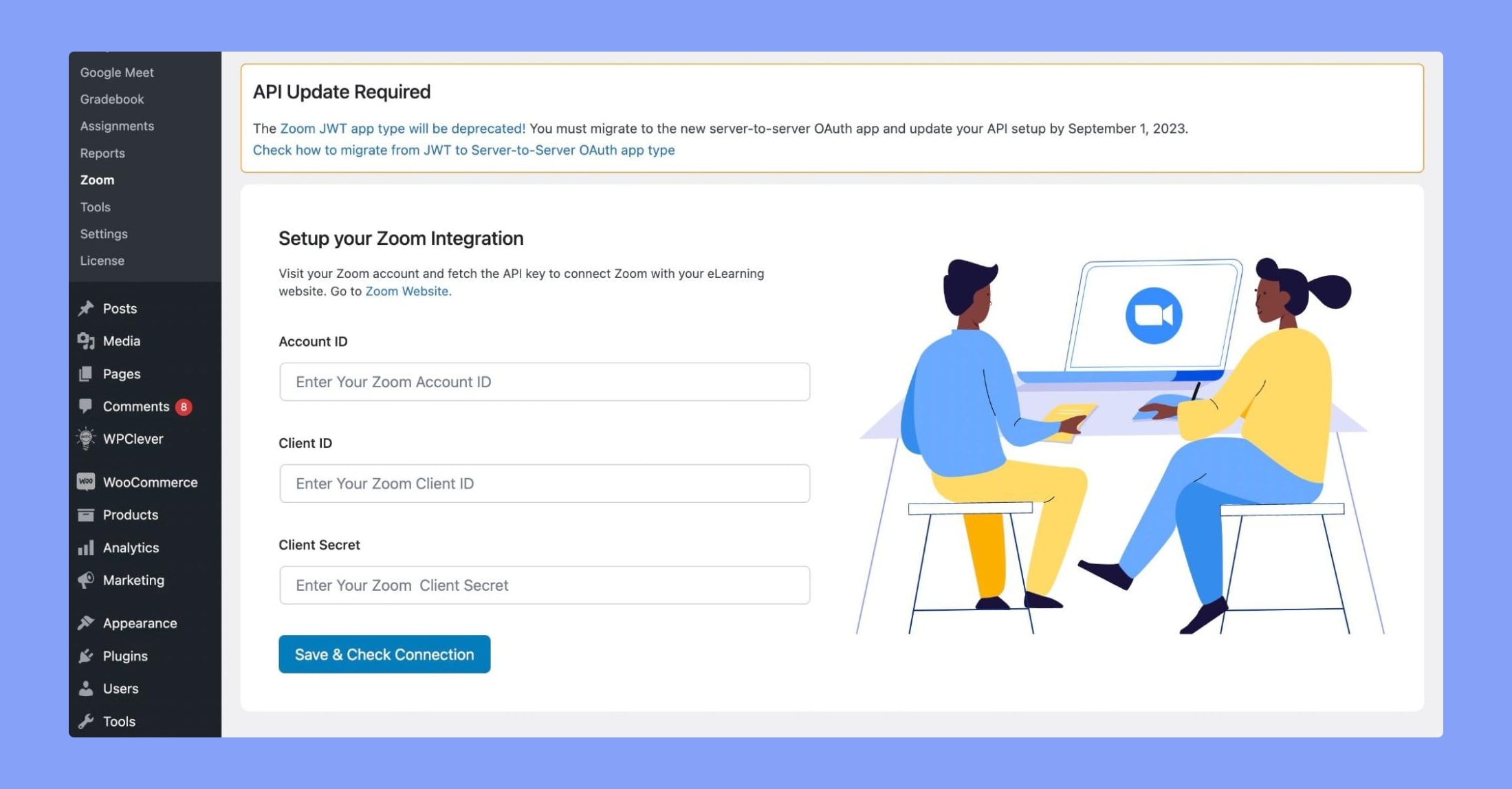
Click on Save & Check Connection to update the integration settings.
Test and Verify
Thoroughly test your Tutor LMS integration with Zoom using the updated credentials. Check if the integration functionalities, such as creating meetings are working as expected.