WooCommerce to Tutor LMS Native eCommerce Migration
The WooCommerce Migration tool offers a powerful way to transfer your e-commerce data from WooCommerce directly into the Tutor LMS native monetization engine. This helps consolidate your platform, allowing you to manage course orders, promotions, and subscriptions entirely within Tutor LMS.
This tool is capable of importing the following data types:
- Orders: All historical sales and fulfillment data for your courses.
- Coupons: All promotional codes, discount details, and their usage history.
- Subscriptions: Active and past subscription data for recurring course payments.
Requirements
Before you begin the migration process, please ensure that you have the following plugins installed and activated on your site:
- Tutor LMS
- Tutor LMS Migration Tool
- WooCommerce
- WooCommerce Subscriptions: This paid plugin is required only if you need to migrate subscription data. If you do not use subscriptions, this plugin is not necessary.
How to Use the Migration Tool
Migrating your data involves a few simple steps. We strongly recommend creating a full backup of your website’s database before you begin this process.
Step 1: Enable Native Monetization
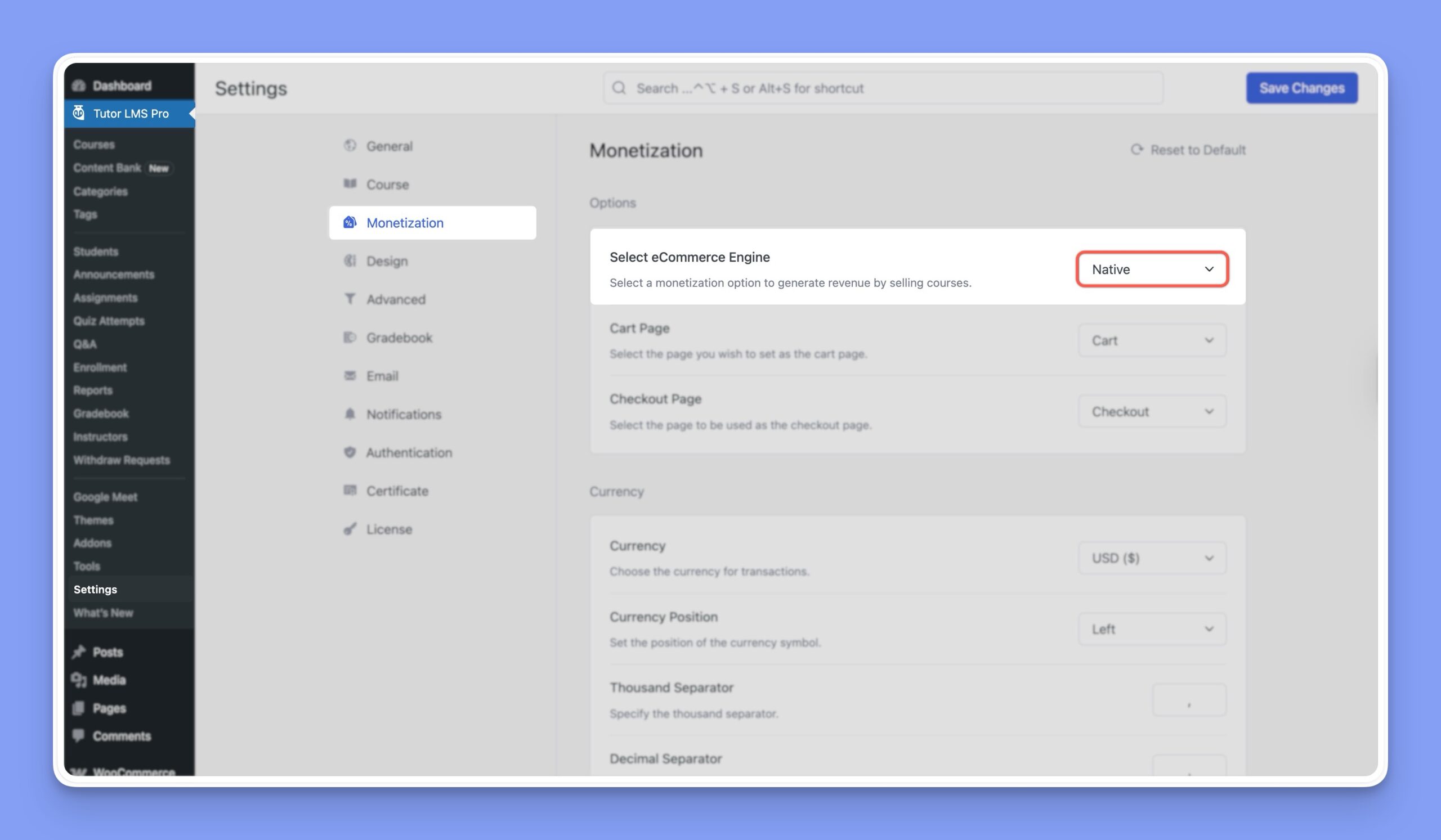
To activate Tutor LMS’s own eCommerce engine and use your newly imported data, you need to switch your monetization setting from WooCommerce to Native.
You can do this easily by clicking the Enable Native Monetization button on the migration success pop-up.
Alternatively, you can switch it manually:
- Navigate to Tutor LMS Pro > Settings > Monetization.
- In the Select eCommerce Engine dropdown, choose Native.
- Click Save Changes to finalize.
Step 2: Navigate to the Migration Tool
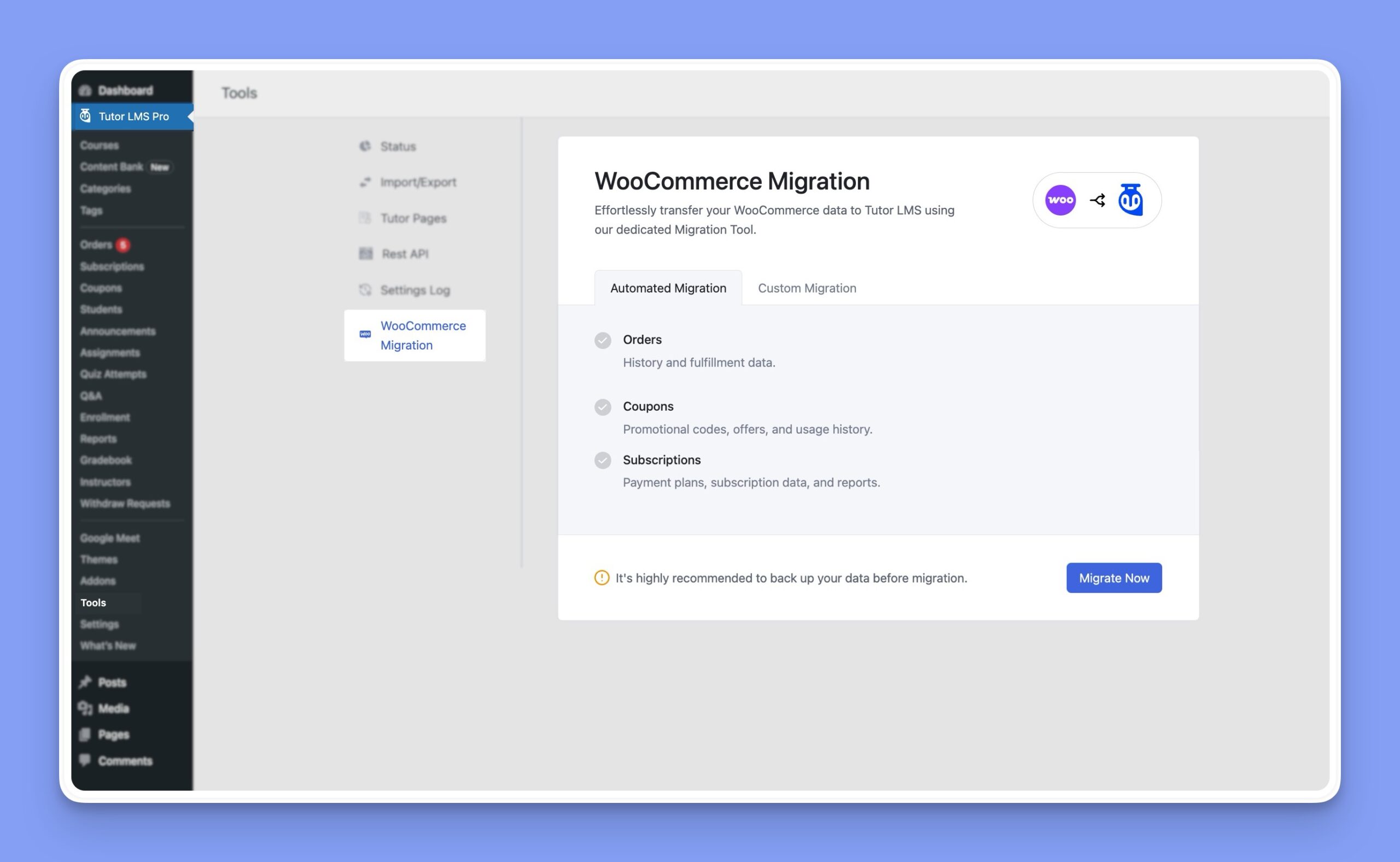
You can find the migration utility within the Tutor LMS Tools menu.
- From your WordPress dashboard, navigate to Tutor LMS Pro > Tools.
- Click on the WooCommerce Migration tab to open the tool’s interface.
Step 3: Choose Your Migration Method
The tool offers two distinct methods for migrating your data: Automated Migration and Custom Migration.
Automated Migration
This method is the quickest way to move all your e-commerce data. The Automated Migration will import all your Orders, Coupons, and Subscription data from WooCommerce to Tutor LMS in a single operation.
- From the WooCommerce Migration screen, ensure you are on the Automated Migration tab.
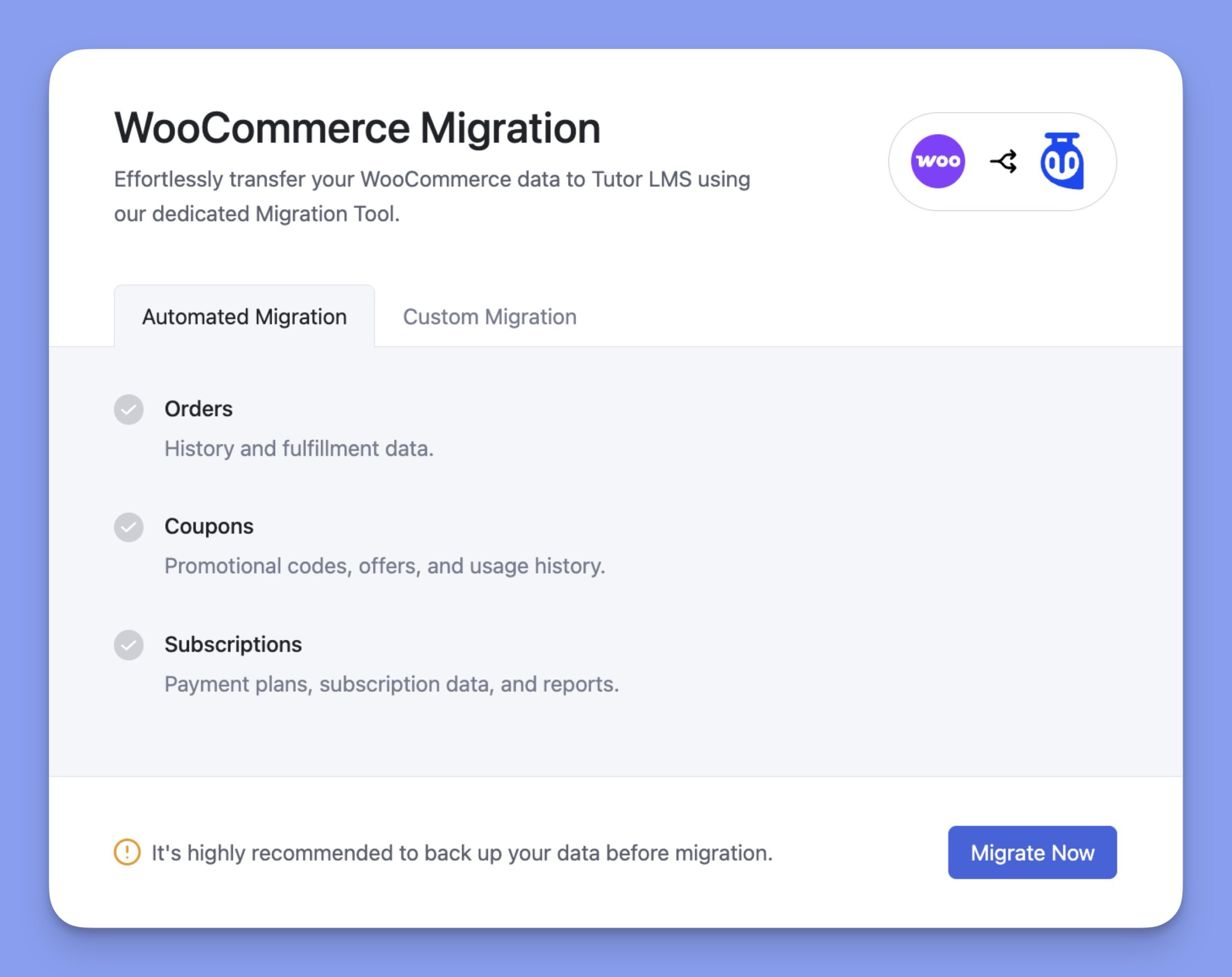
- Click the Migrate Now button.
- A confirmation pop-up will appear. Click “Yes, Let’s Start” to initiate the process.
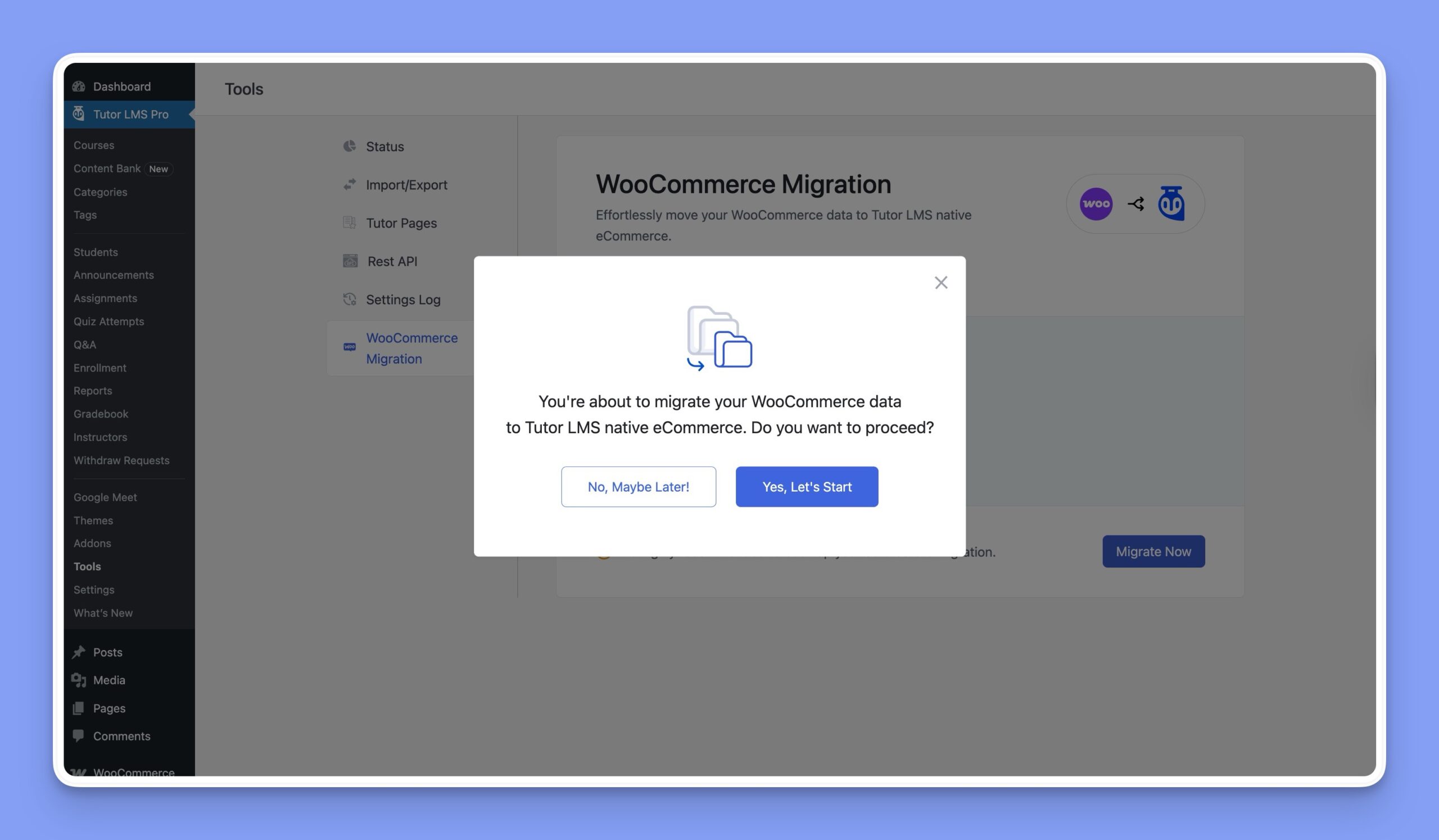
The tool will now transfer all relevant data. Do not close your browser tab until the process is complete.
Custom Migration
This method provides granular control, allowing you to select exactly which data types you want to migrate. This is useful if you only need to import specific information, such as just your order history or only your coupon codes.
- Select the Custom Migration tab.
- Check the boxes next to the data types you wish to import (Orders, Coupons, or Subscriptions).
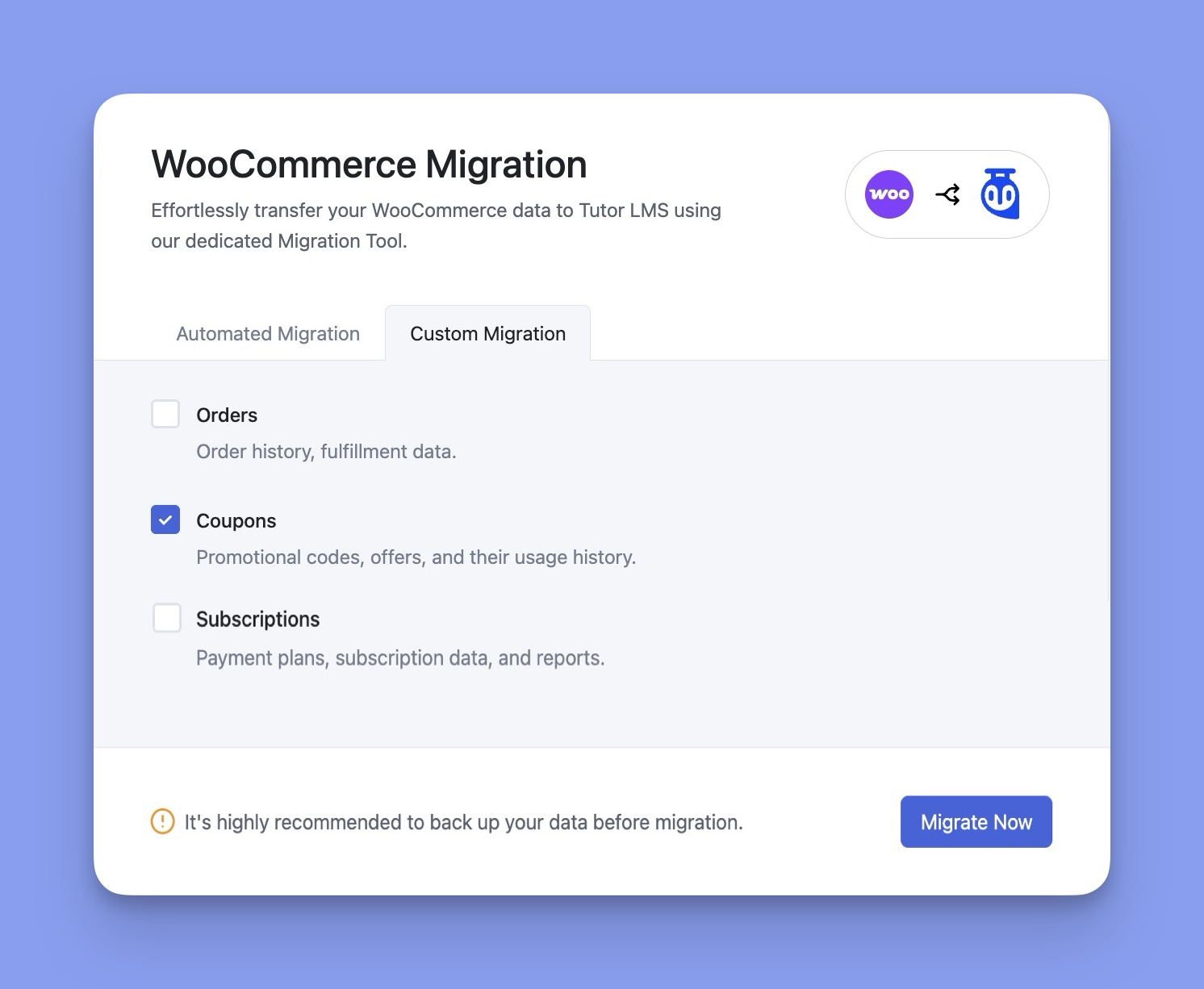
- Click the Migrate Now button.
- Confirm the action by clicking “Yes, Let’s Start” in the pop-up modal.
Understanding the Migration Results
After the migration process finishes, a status pop-up will appear, informing you of the outcome.
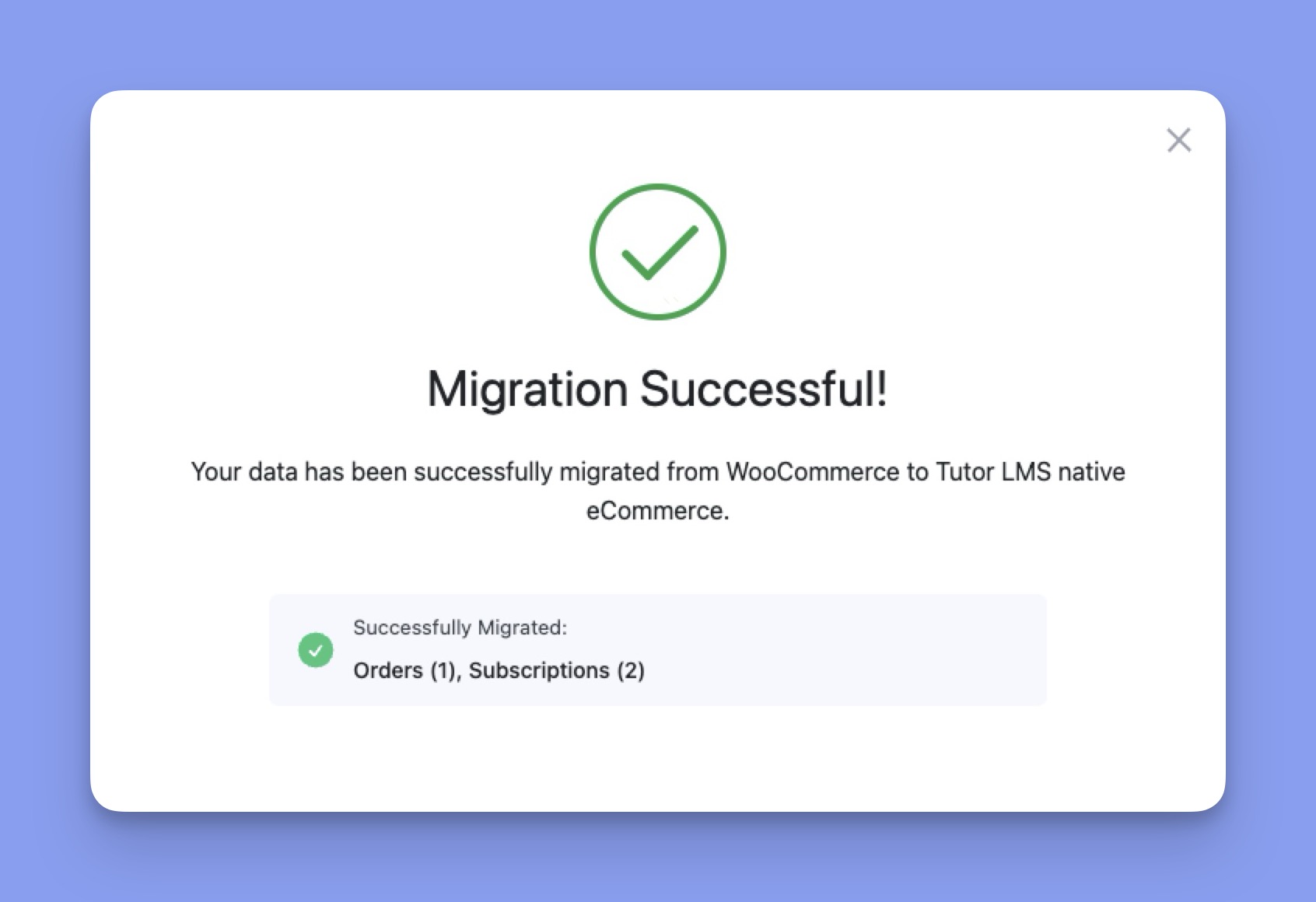
- Migration Successful: A success message indicates that all selected data was transferred without any errors.
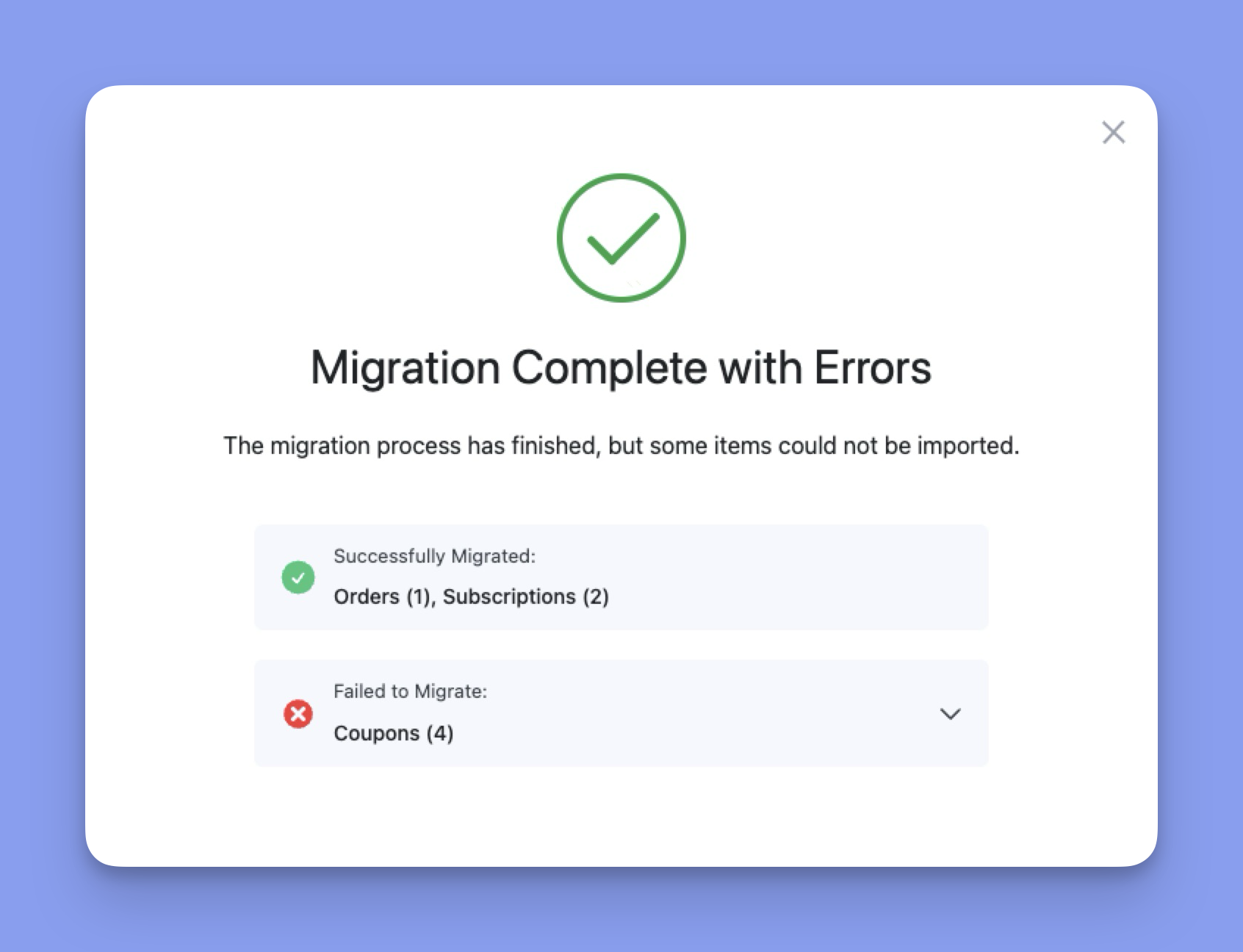
- Migration Complete with Errors: Sometimes, the process completes, but certain individual items could not be imported. The pop-up will indicate success but will also display a summary listing the specific items that failed (e.g., “Failed to Migrate: Coupons (#)”).
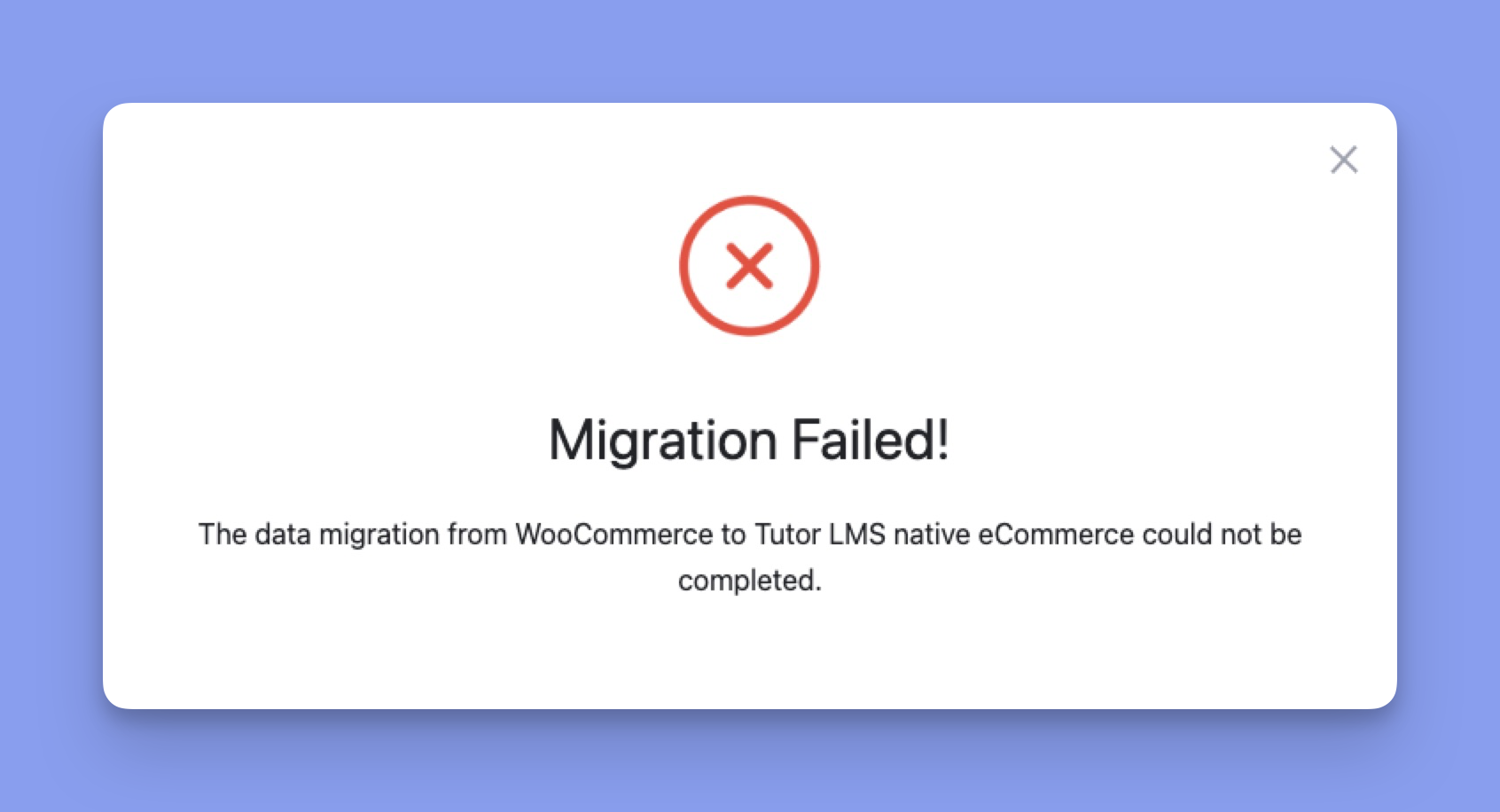
- Migration Failed: A failure message appears if the entire process could not be completed. This can be caused by server timeouts, plugin conflicts, or other technical issues. In this case, no data will have been migrated.
Migration History
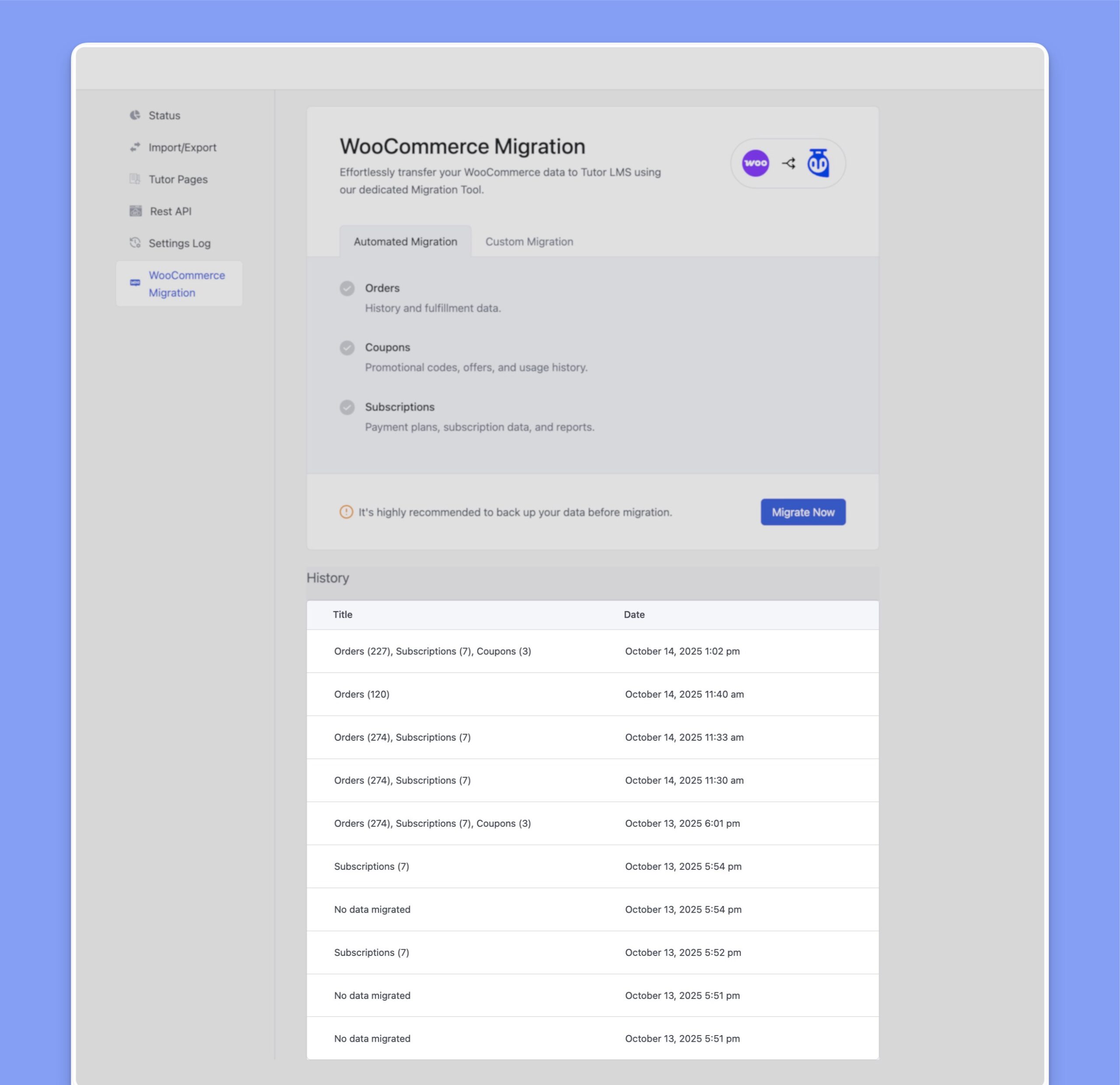
The tool maintains a detailed log of every migration attempt, which is displayed in the History section at the bottom of the page. This log is essential for keeping track of all migration activities and for troubleshooting purposes.
The history table provides the following information:
- Title: This column details exactly which data types were included in a specific migration run, along with the count of items in parentheses (e.g., Orders (227), Coupons (7)). If an attempt was made but no data was selected or found, it will display “No data migrated.”
- Date: This column shows the precise date and timestamp of when each migration process was completed.