The Notes system allows you to create and manage notes directly within the platform. All notes are tied to their source course and accessible from a centralized dashboard, keeping your annotations organized alongside your learning content.
Adding Notes During a Lesson
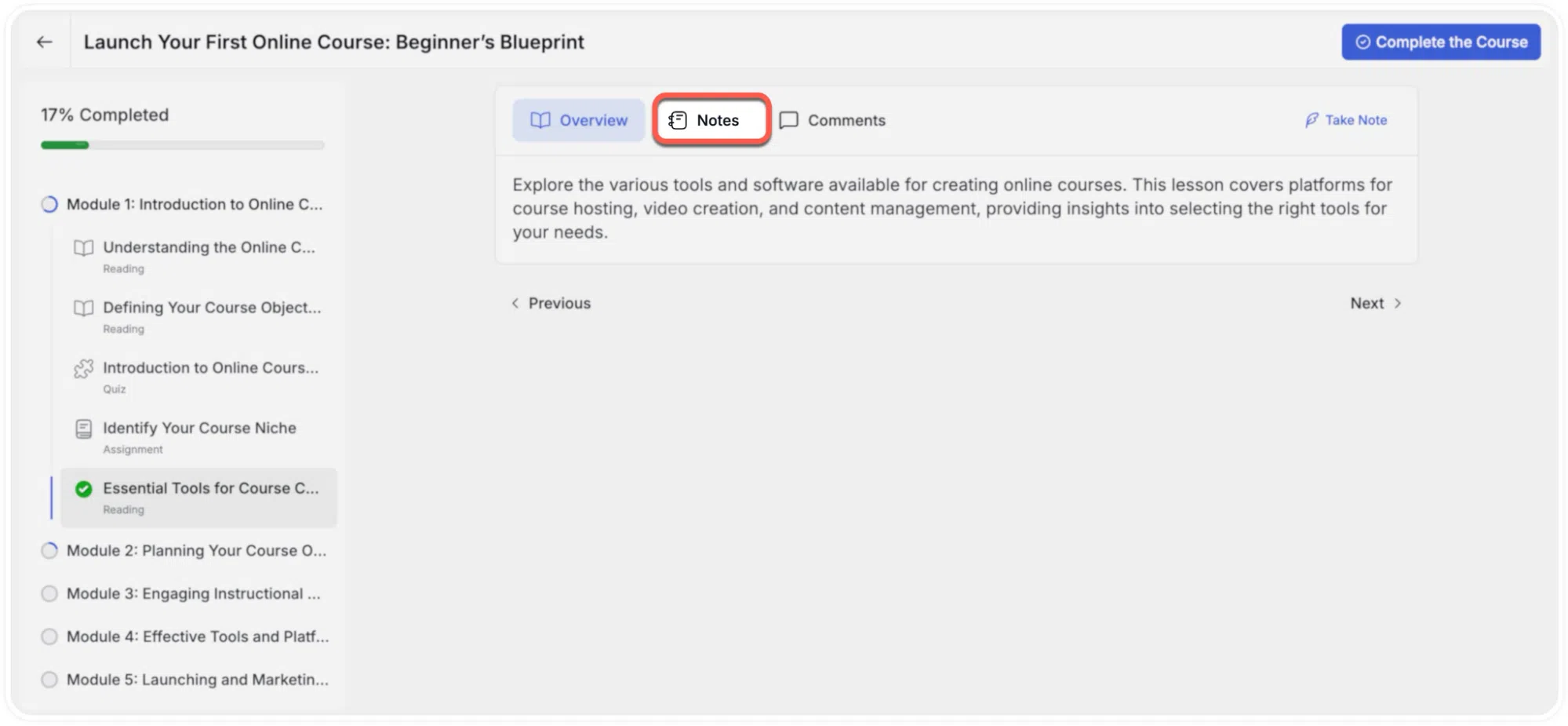
Each lesson contains a Notes tab located below the main content area.
To create a note:
Open a lesson and select the Notes tab.
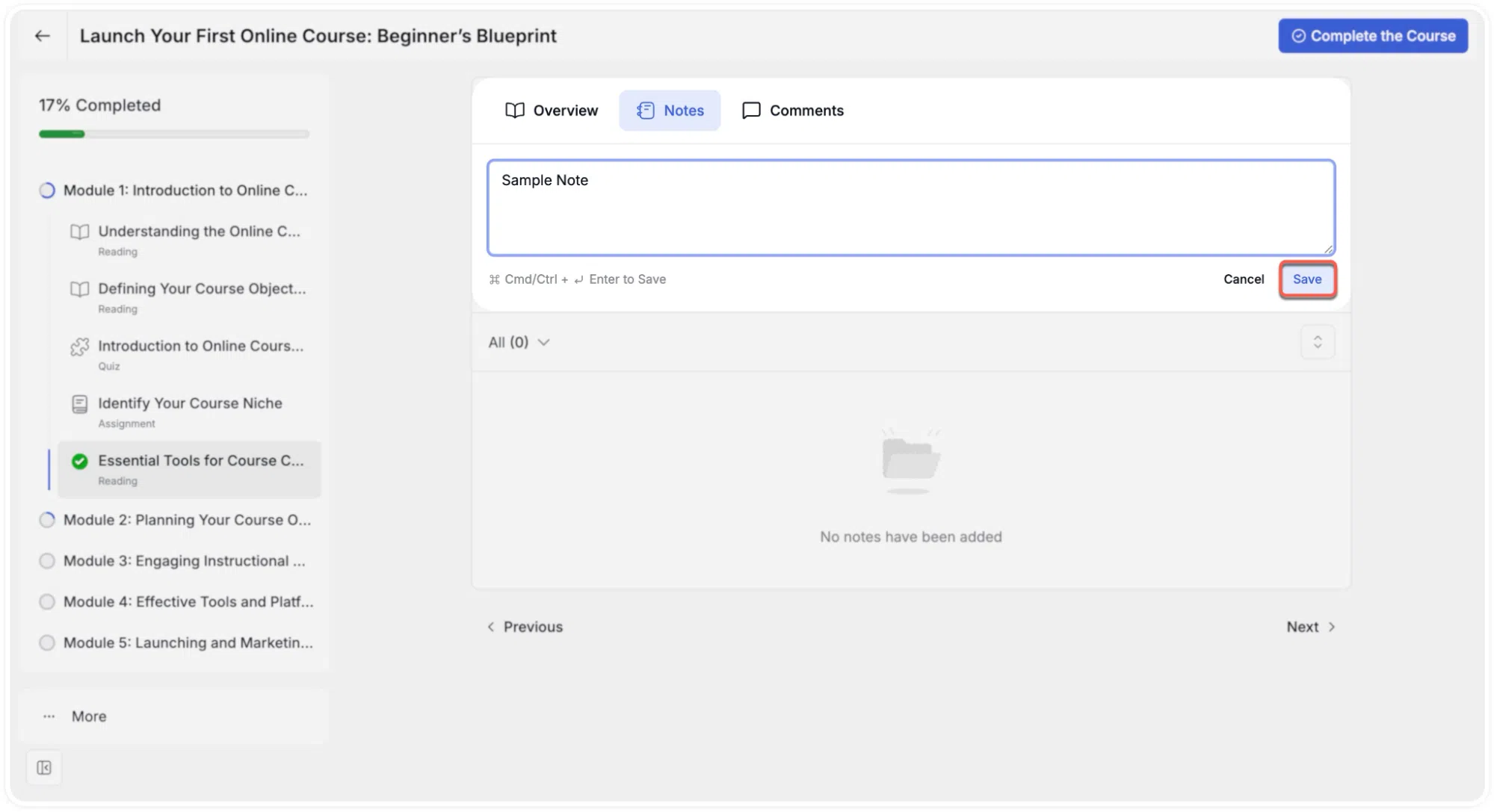
Enter text in the input field and click Save.
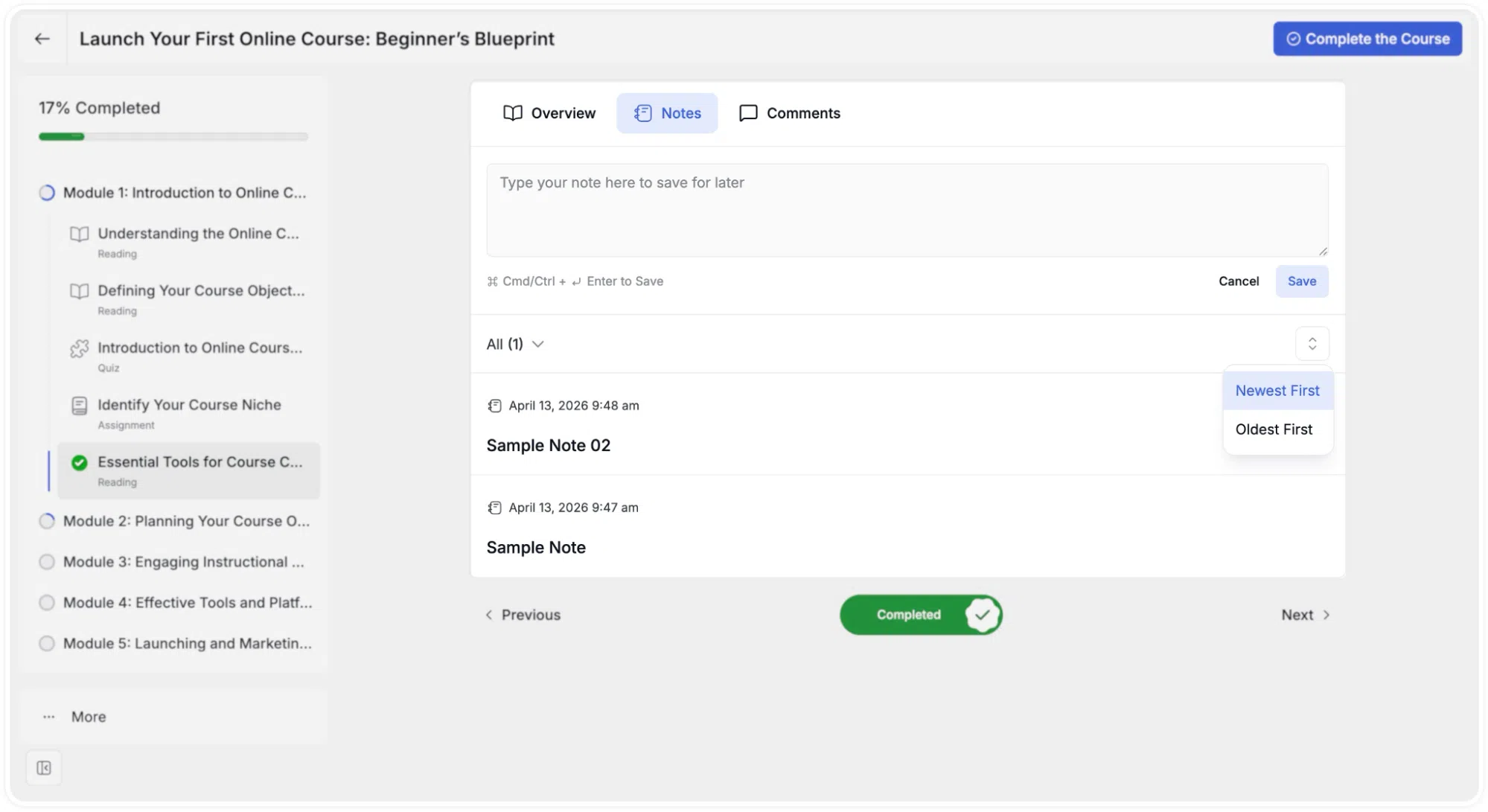
Saved notes appear chronologically below the input field for that lesson.
Video Notes with Timestamps
The Video Notes feature allows you to create notes linked to specific points in a video lesson. Each note automatically captures the video timestamp at the moment of creation, allowing you to return to the exact video position when reviewing notes later.
Creating a Timestamped Video Note
Timestamped notes can be created in both standard and full-screen viewing modes without interrupting playback.
Standard View
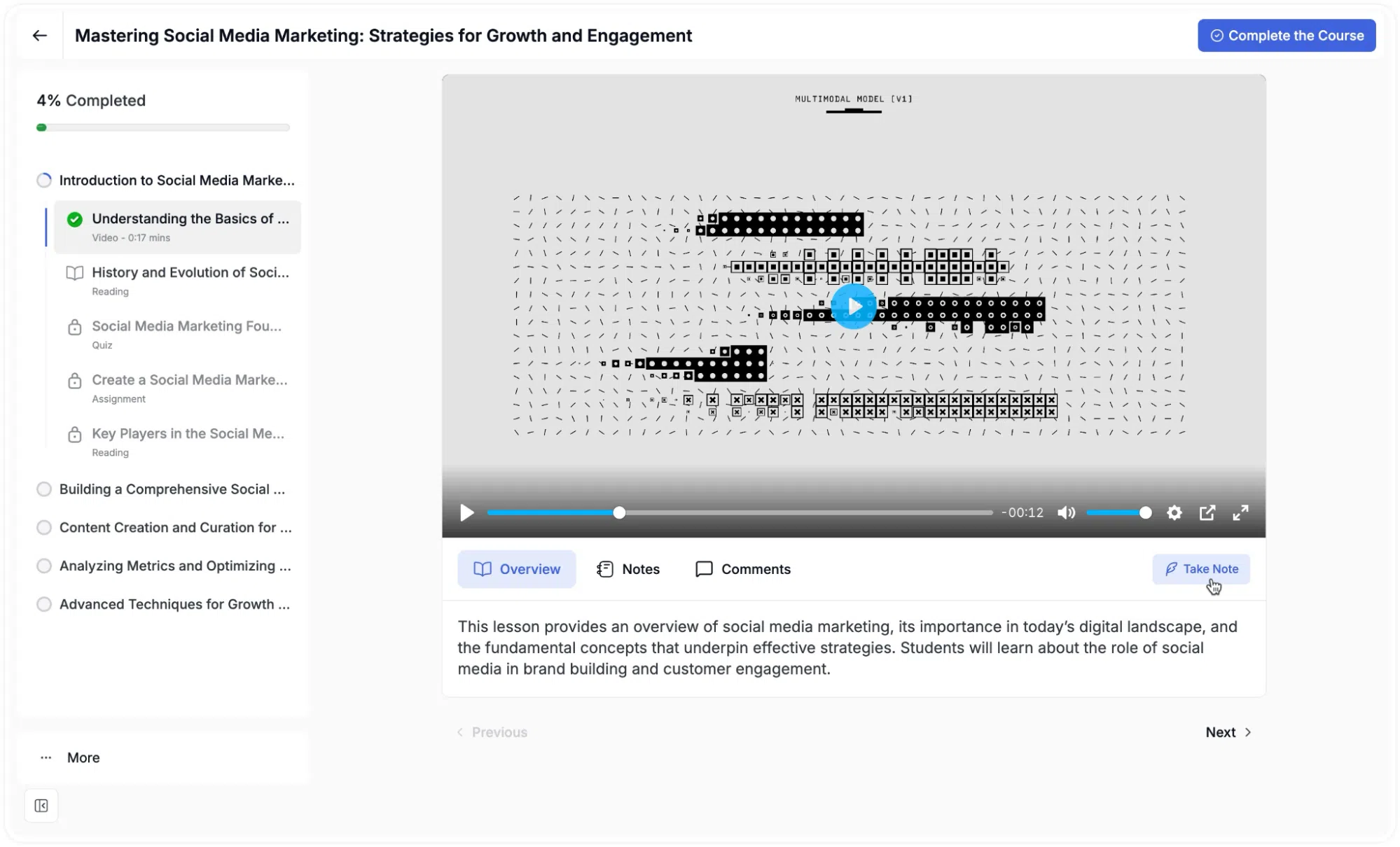
Begin playing the video lesson
Click the Take Note button located below the lesson tabs on the right side of the screen
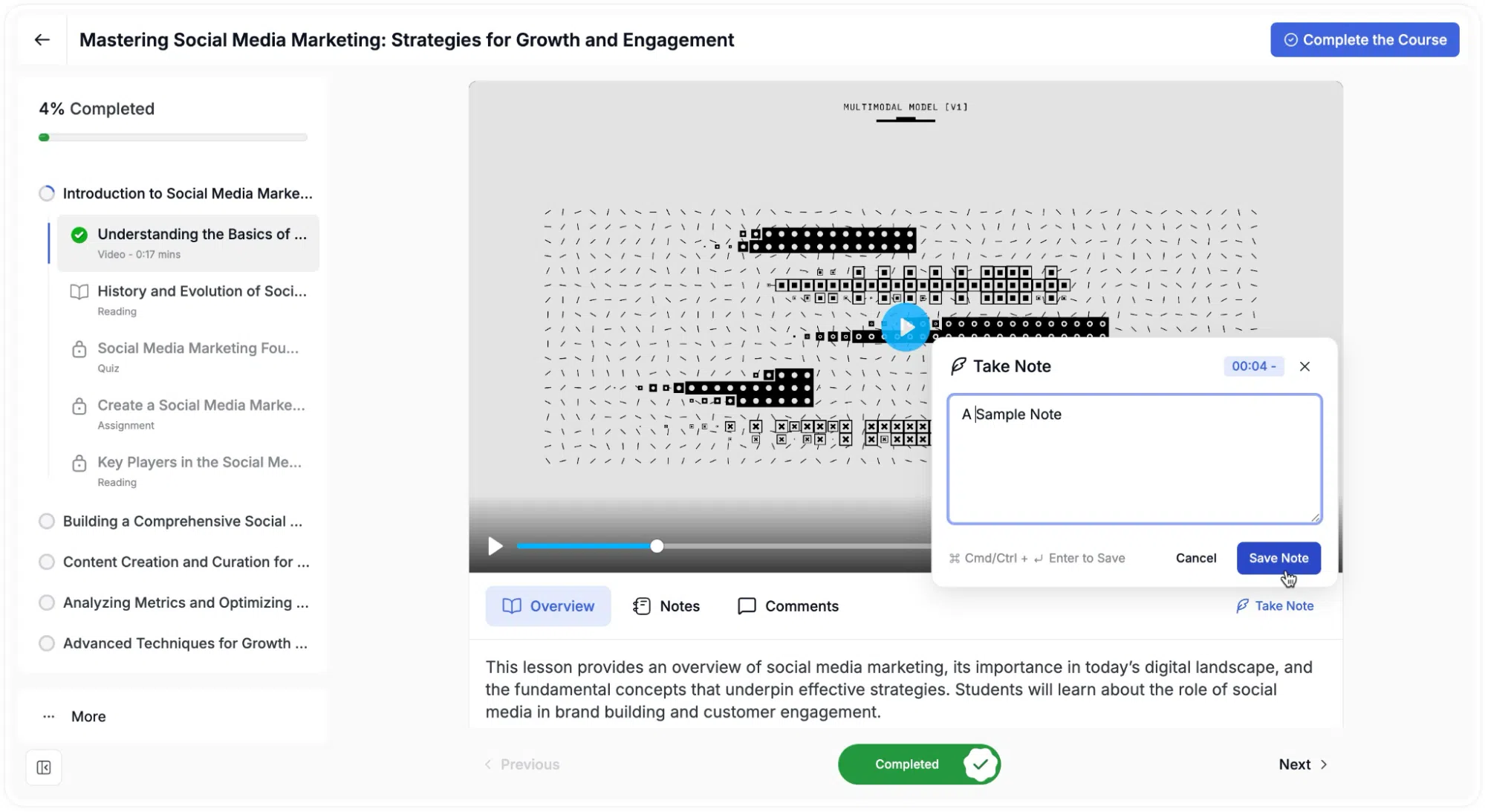
Enter your note text in the text box that appears over the video
Click Save Note.
Full-Screen and Maximized View
Begin playing the video lesson
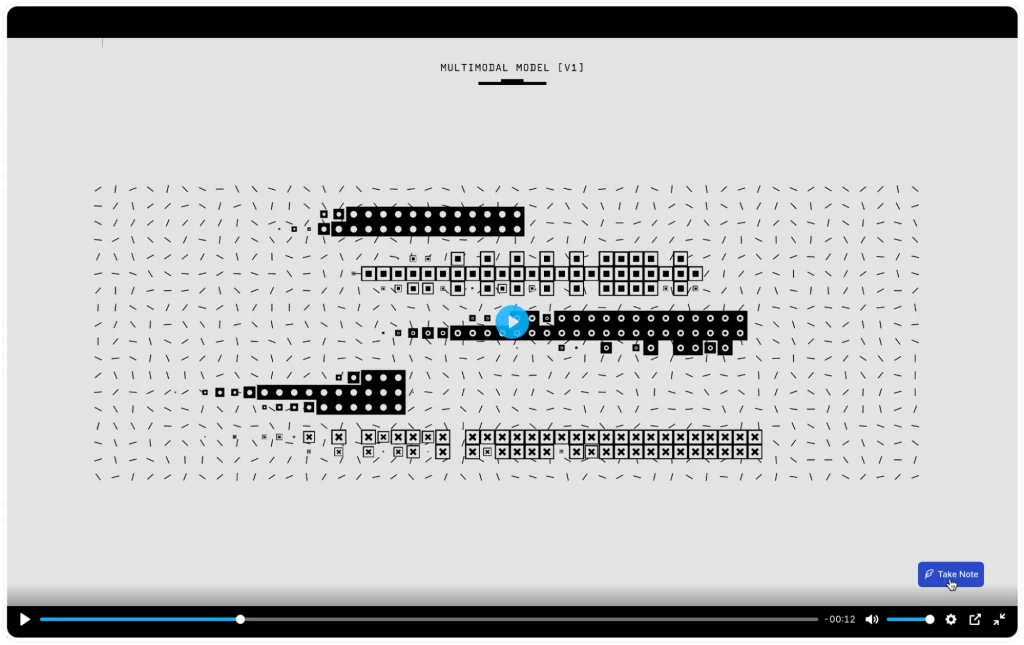
Click the floating Take Note button in the bottom-right corner of the screen
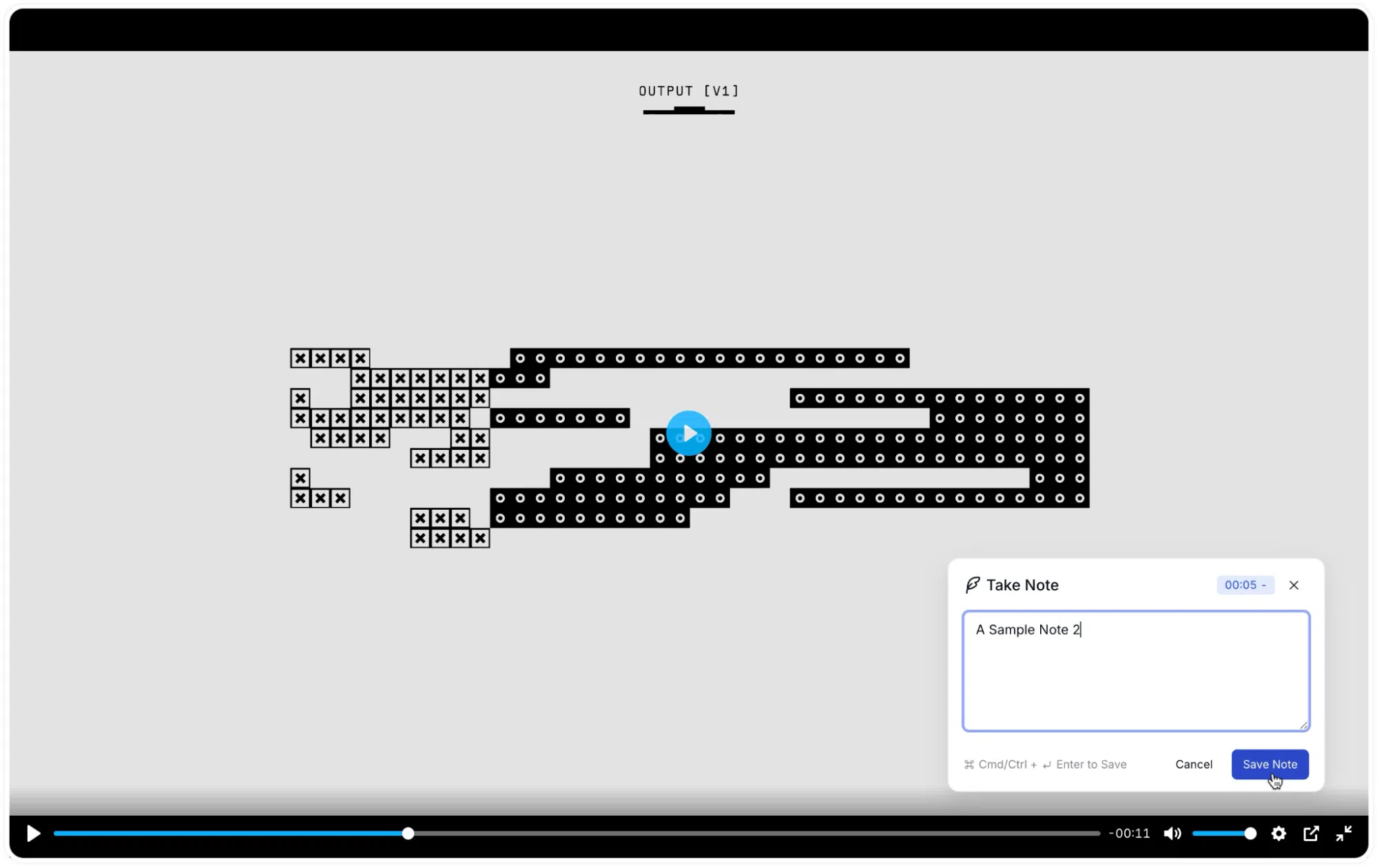
Enter your note text in the text box that appears
Click Save Note
Note: Full-screen note-taking is currently only supported while using the Tutor Player.
Managing Notes from the Dashboard
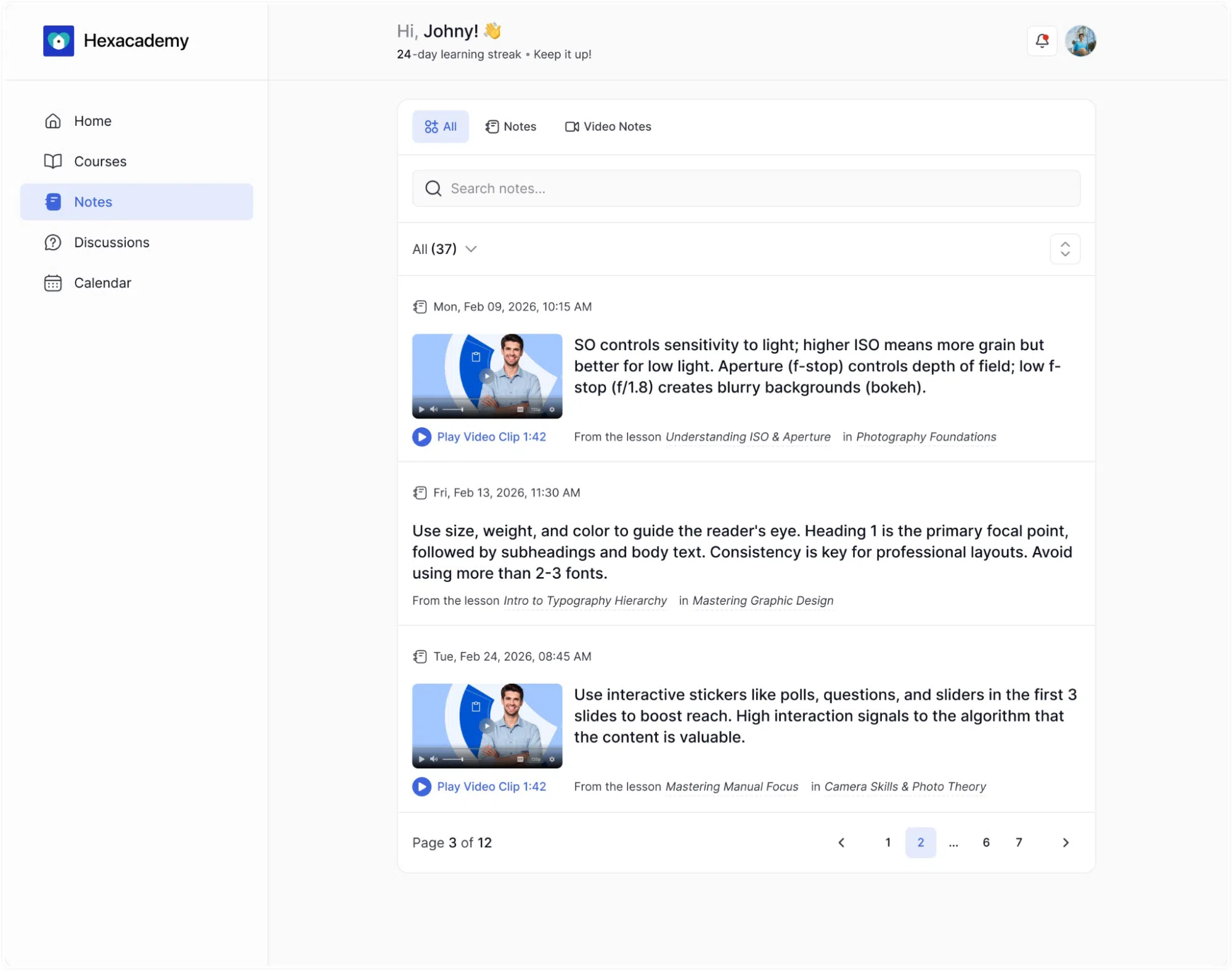
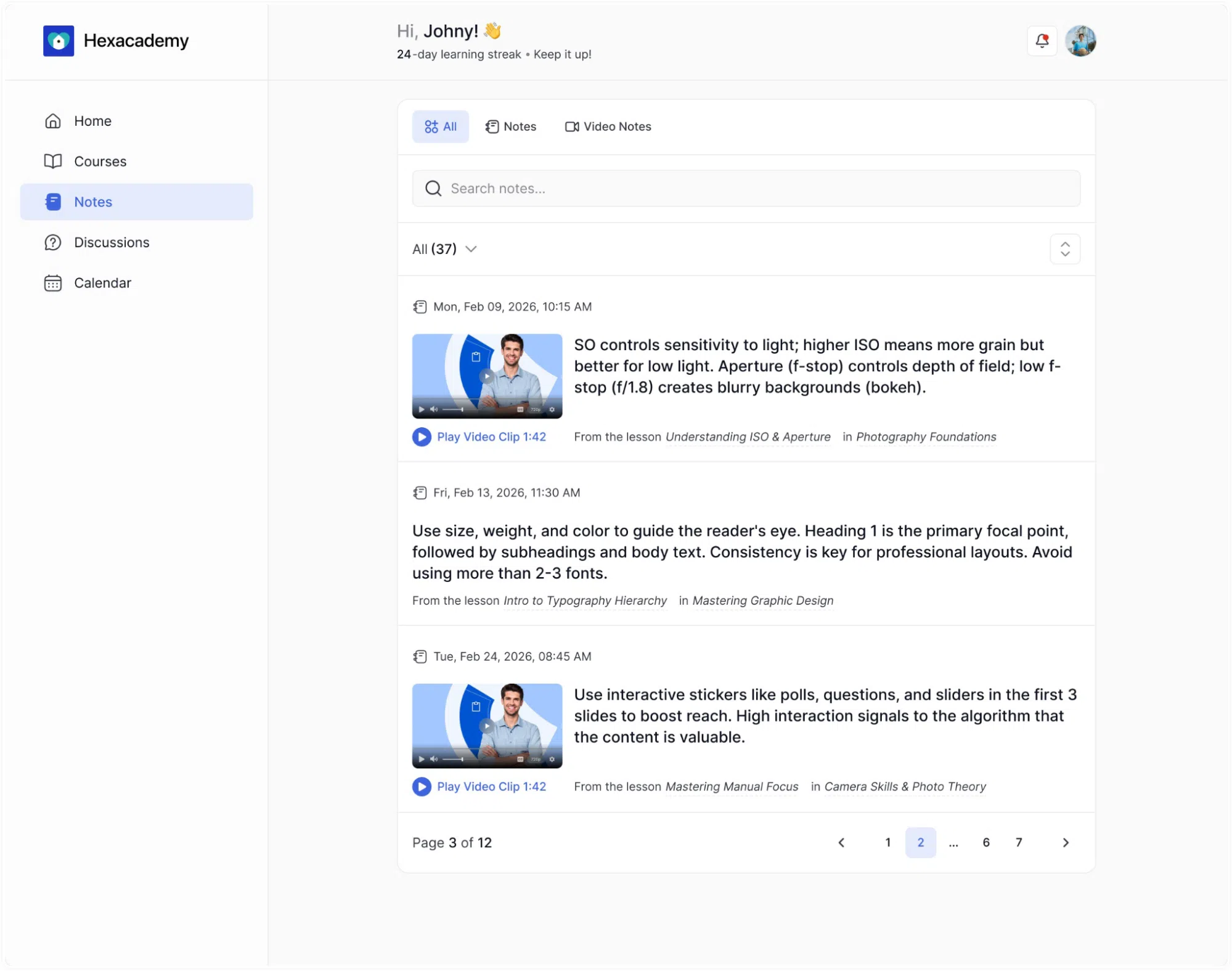
Reviewing notes course by course is highly inefficient. You need a centralized library for all your educational insights. Click the Notes option on your primary dashboard sidebar to access your global repository. This interface gathers every single note you have ever taken across all your enrolled programs.
Finding a specific piece of information takes only seconds in this global hub. You can utilize several built-in tools to manage your records.
Quick Filters: Use the top navigation tabs to instantly filter your entries by standard text Notes or specialized Video Notes.
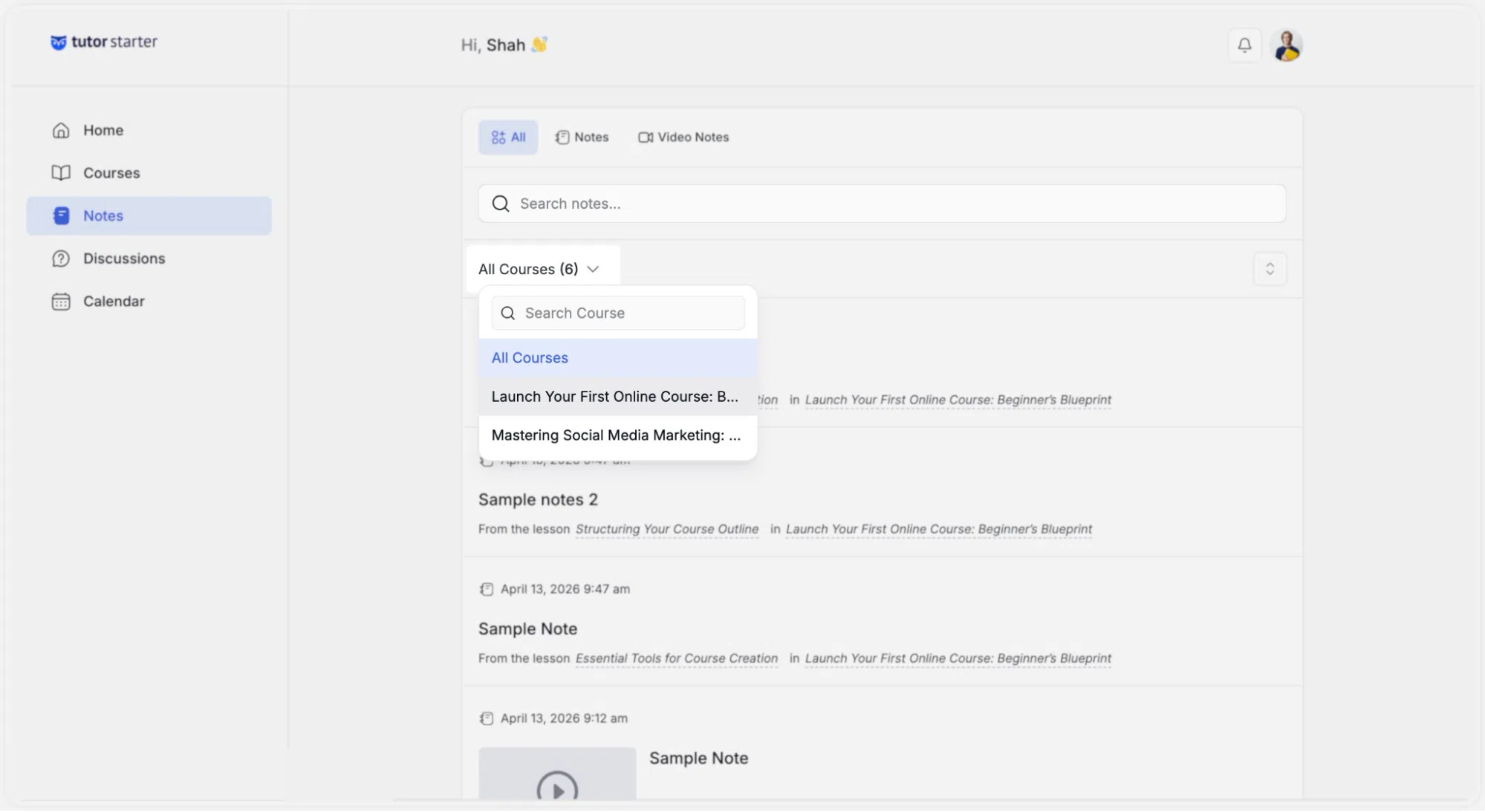
Course Sorting: A dedicated search bar and a dropdown menu allow you to isolate notes from one specific training program.
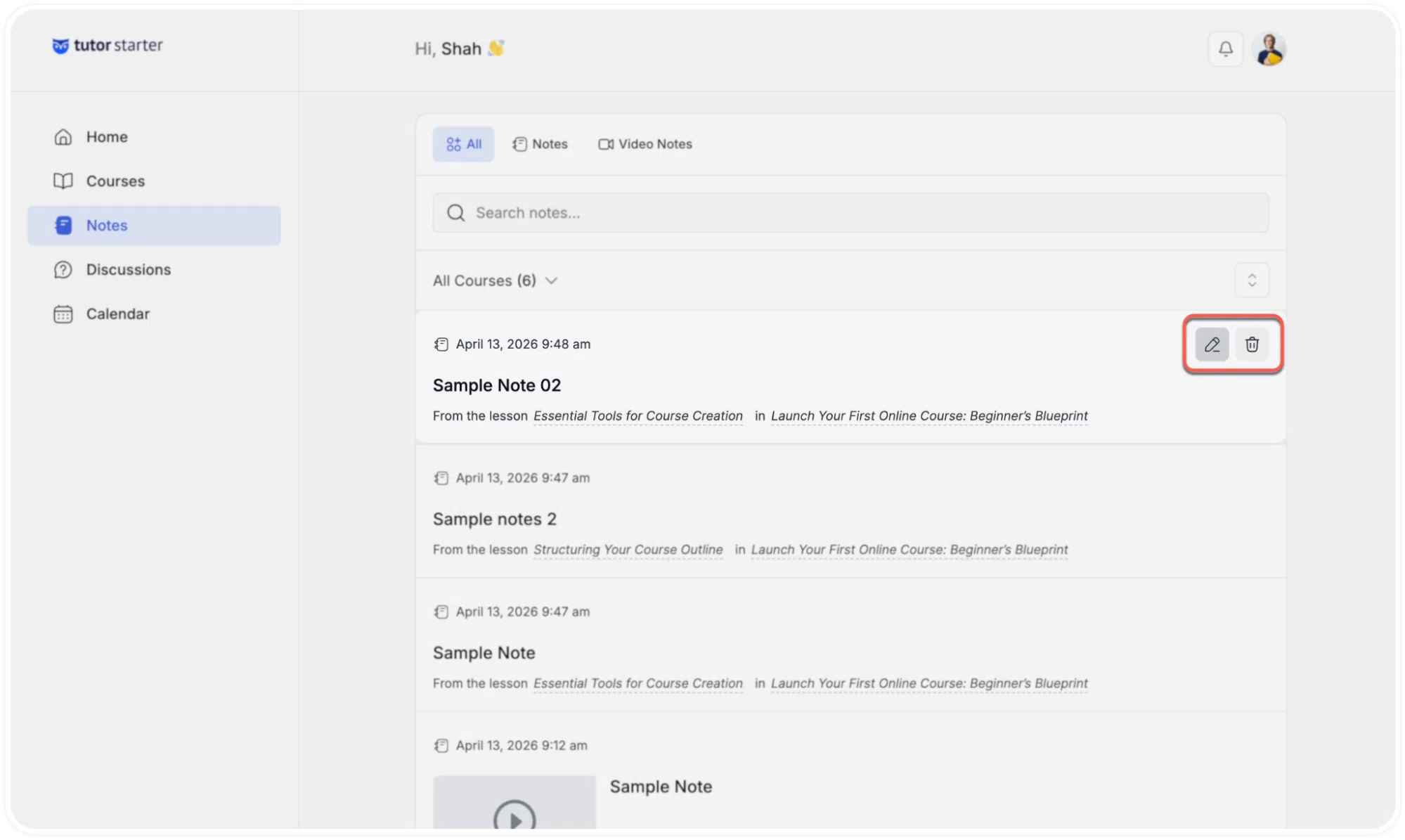
Live Editing: If your insights change over time, simply click the pencil icon next to any note to update the text.
Easy Removal: You can click the trash can icon to permanently delete outdated or irrelevant information.
Regularly managing this personal database helps you build a highly effective study guide for your entire educational journey.



 HALLOWEEN SALEHALLOWEEN SALEHALLOWEEN