Grading
The Grading settings in Tutor LMS Pro allow you to configure how grades and GPA scales are displayed across your platform, as well as how automated assessments handle Partial Marking and Negative Marking in quizzes.
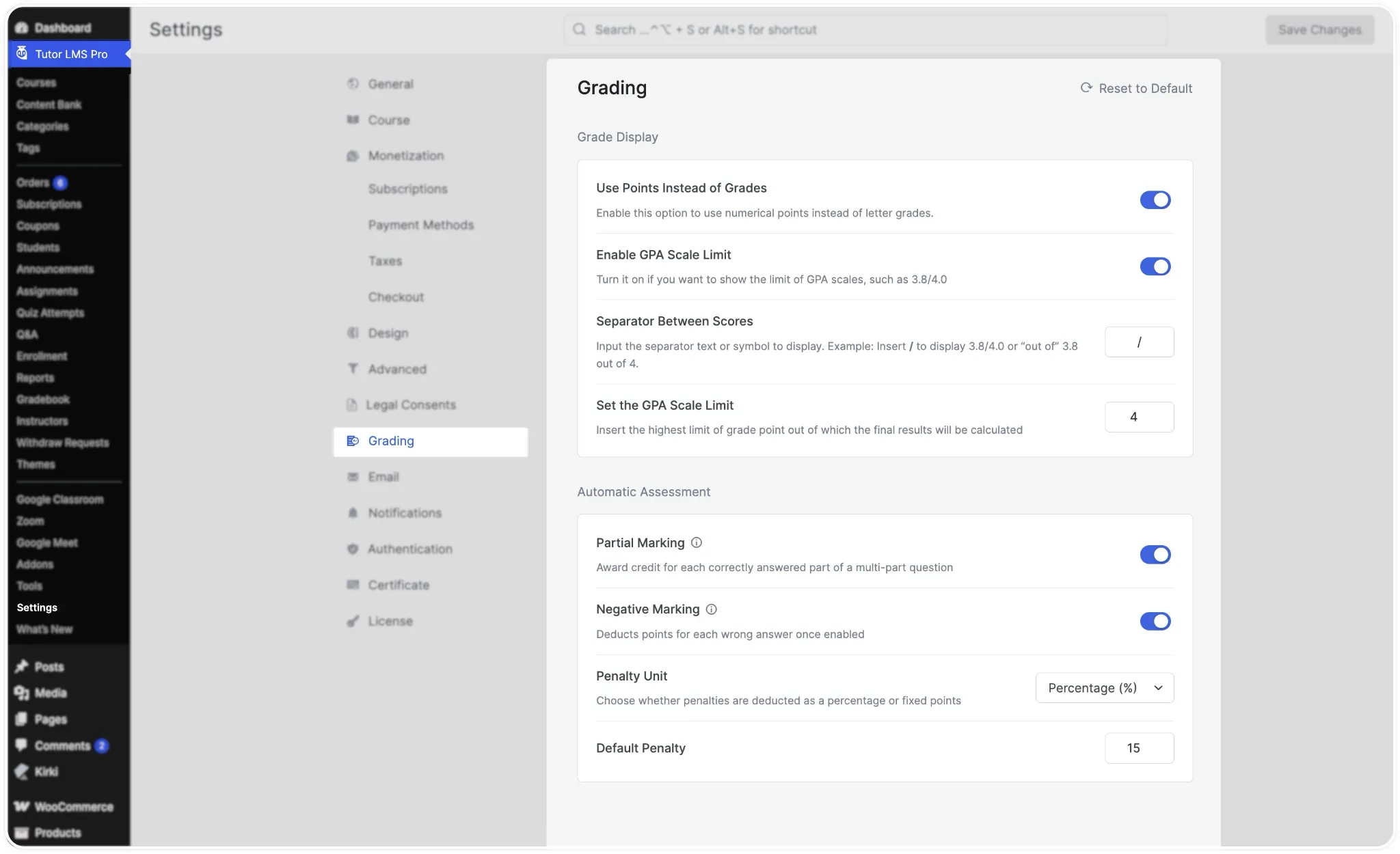
To access these options, navigate to WP Admin > Tutor LMS Pro > Settings > Grading.
1. Global Grading Settings
The Grading settings page is divided into two main sections: Grade Display and Automatic Assessment. At any time, you can click Reset to Default at the top right of the panel to restore the original settings, or click Save Changes to apply your updates.
Grade Display
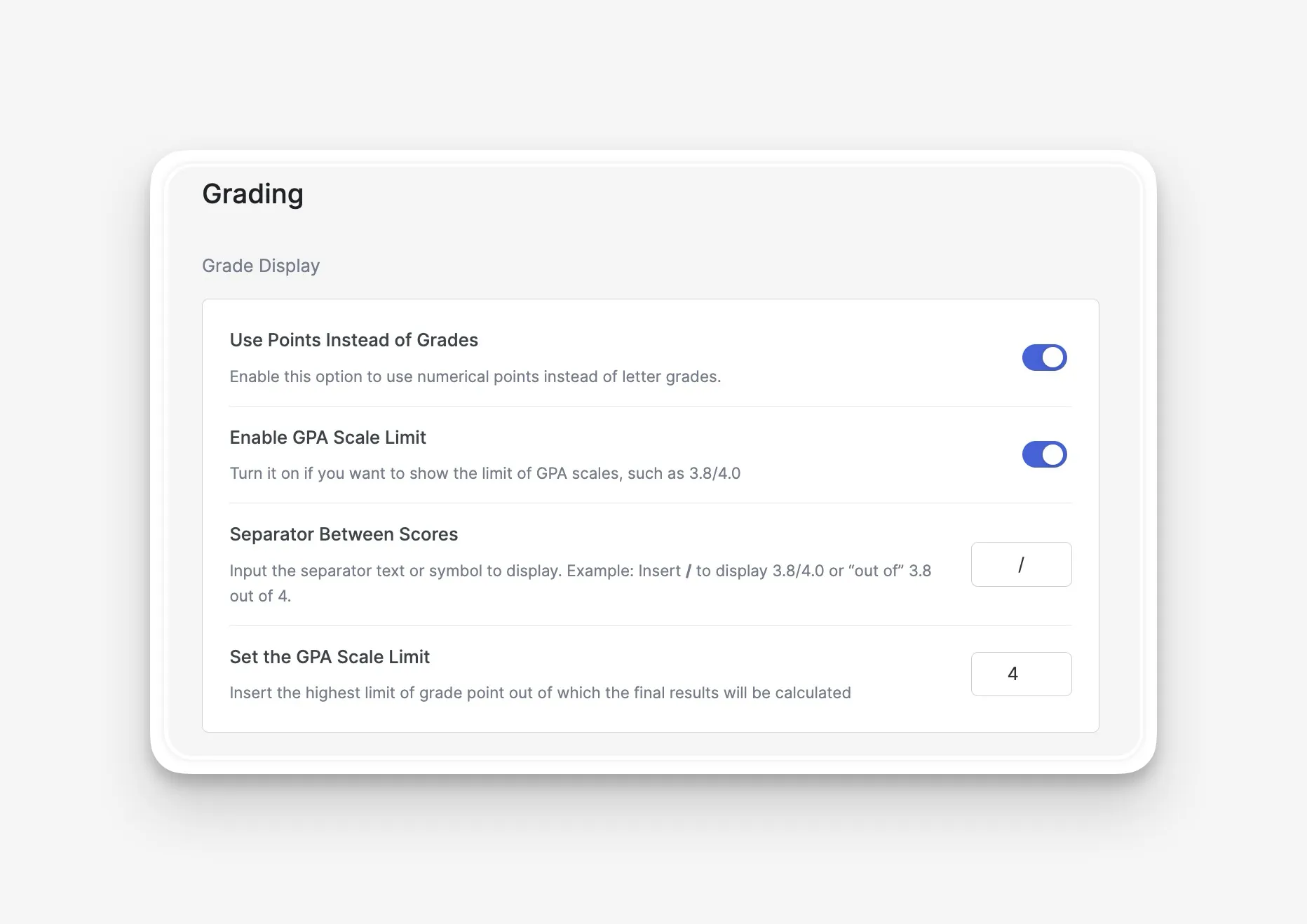
The Grade Display section controls how scores and GPA scales are formatted for learners and instructors across the platform:
- Use Points Instead of Grades: Enable this toggle to display numerical points (such as 3.8 or 4.0) instead of letter grades (such as A or B+).
- Enable GPA Scale Limit: Turn this option on if you want to display the maximum GPA scale limit alongside the learner’s earned grade point (for example, 3.8/4.0).
- Separator Between Scores: Input the character, symbol, or text used to separate the earned score from the GPA scale limit. For example, enter / to display 3.8/4.0, or enter out of to display 3.8 out of 4.
- Set the GPA Scale Limit: Enter the highest grade point value out of which final results are calculated (for example, 4.0 or 5).
Automatic Assessment
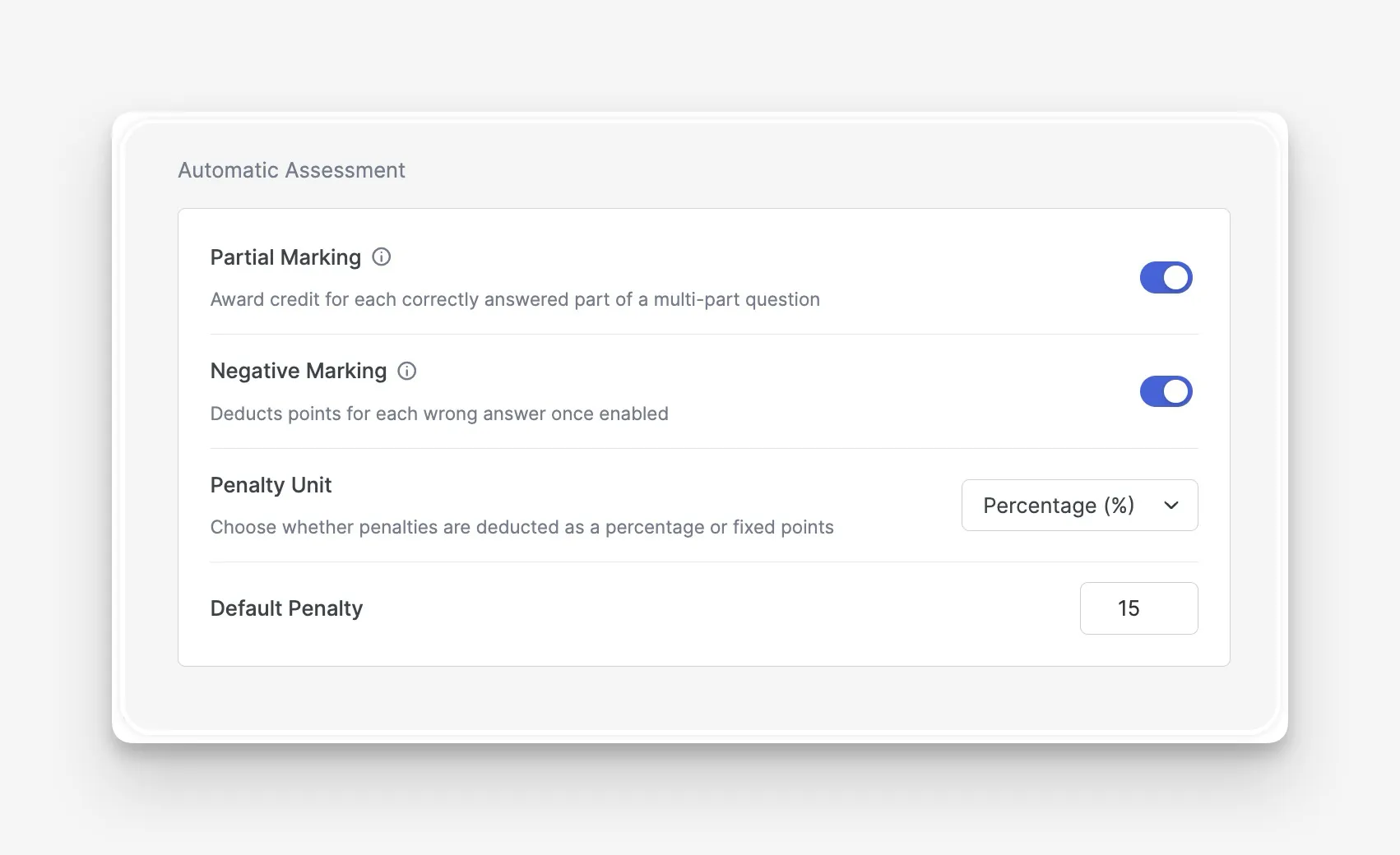
The Automatic Assessment section lets administrators enable and configure platform-wide rules for partial credit and wrong-answer penalties in quizzes.
- Partial Marking: Enable this toggle to award proportional credit for each correctly answered part of a multi-part question.
- Supported Question Types: Partial marking applies to questions with multiple answer parts, including Matching, Ordering, Image Matching (Image Answering), Fill in the Blanks, Multiple Choice (with multiple correct answers), Graph, and Puzzle questions.
- Negative Marking: Enable this toggle to deduct points for incorrect answers in quizzes.
- Score Floor Rule: Individual question scores can drop below 0 when negative marking is applied (for example, -0.15/1). However, a learner’s final overall quiz score will never be lower than 0 (0.00 / 0%).
When Negative Marking is toggled on, two additional configuration fields appear:
- Penalty Unit: Select how penalties are calculated and deducted from the dropdown menu:
- Percentage (%): Deducts a percentage of the question’s total point value for each wrong answer.
- Points (pts): Deducts a fixed point value for each wrong answer.
- Default Penalty: Set the default numerical penalty value (for example, 15 for 15%, or 0.15 for 0.15 points) that will automatically populate when instructors enable negative marking in a quiz.
Confirmation Modals & Unit Changes
- Turning Off Negative Marking: If an administrator turns off Negative Marking globally while one or more quizzes have customized negative marking values, a confirmation modal (Turn off Negative Marking?) will appear. It informs you that negative marking will become unavailable across all quizzes, though existing penalty values remain saved in the database and will be restored if you re-enable the setting later.
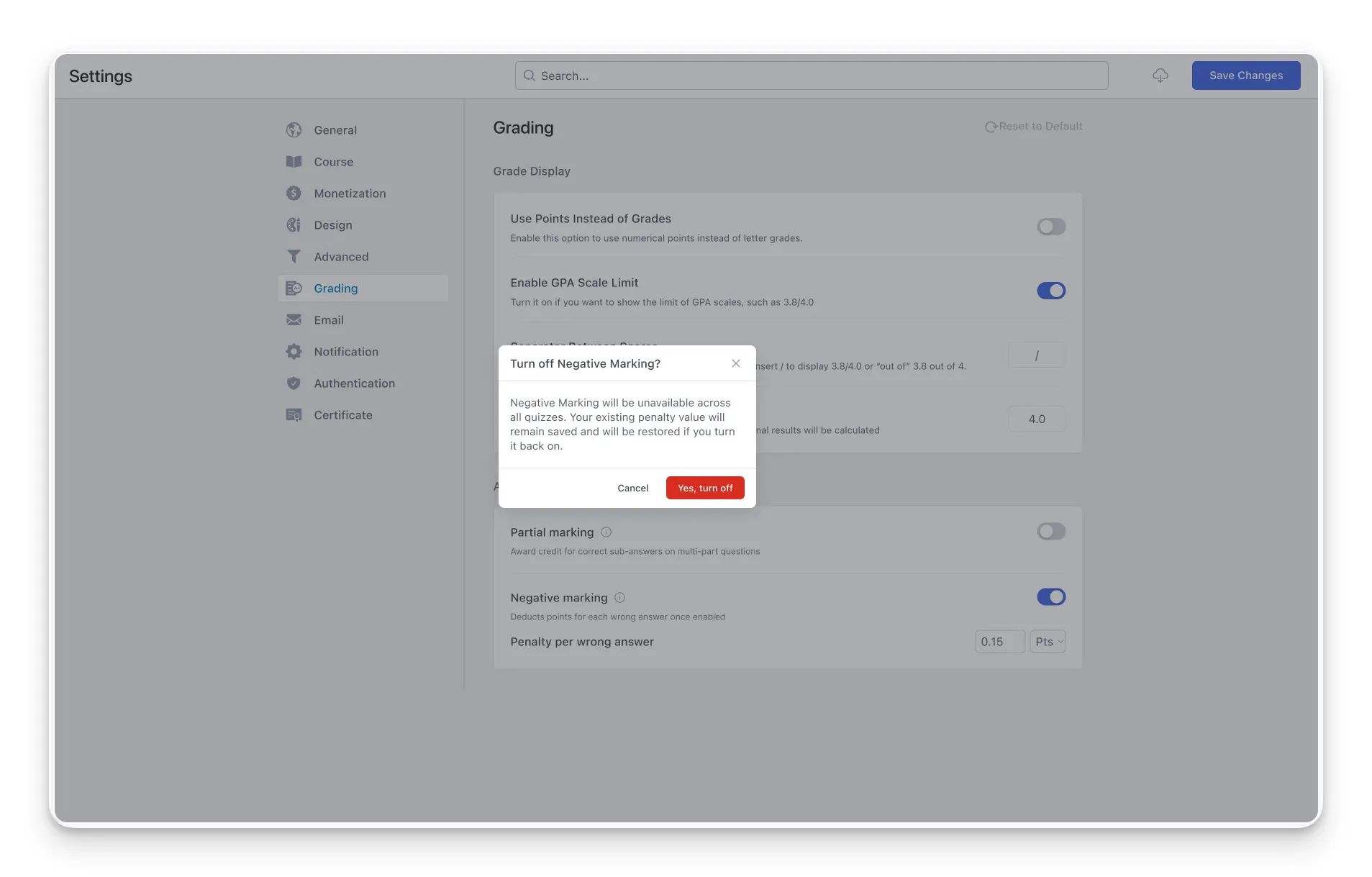
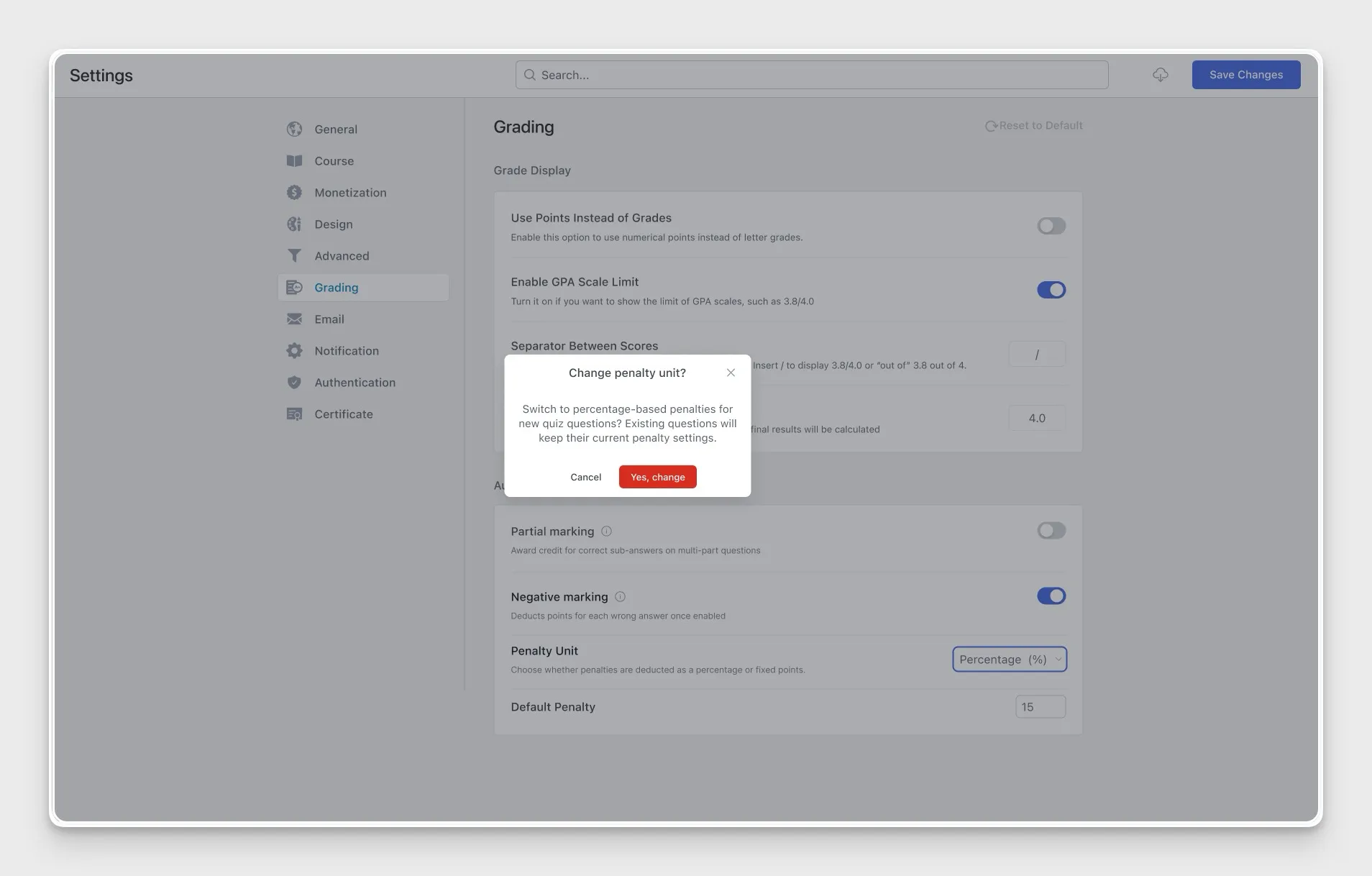
Changing the Penalty Unit: If you switch the Penalty Unit (for example, from Points to Percentage), a confirmation modal (Change penalty unit?) will prompt you to confirm. Switching the unit applies to newly created quiz questions, while existing quizzes retain their current penalty settings until manually updated by the instructor.