The Quiz Attempts page gives you a complete log of every quiz submission made by students across all your courses. You can access it by clicking Quiz Attempts in the sidebar. All attempts are displayed in a table layout, with the most recent submissions appearing at the top by default.
The Quiz Attempts Table
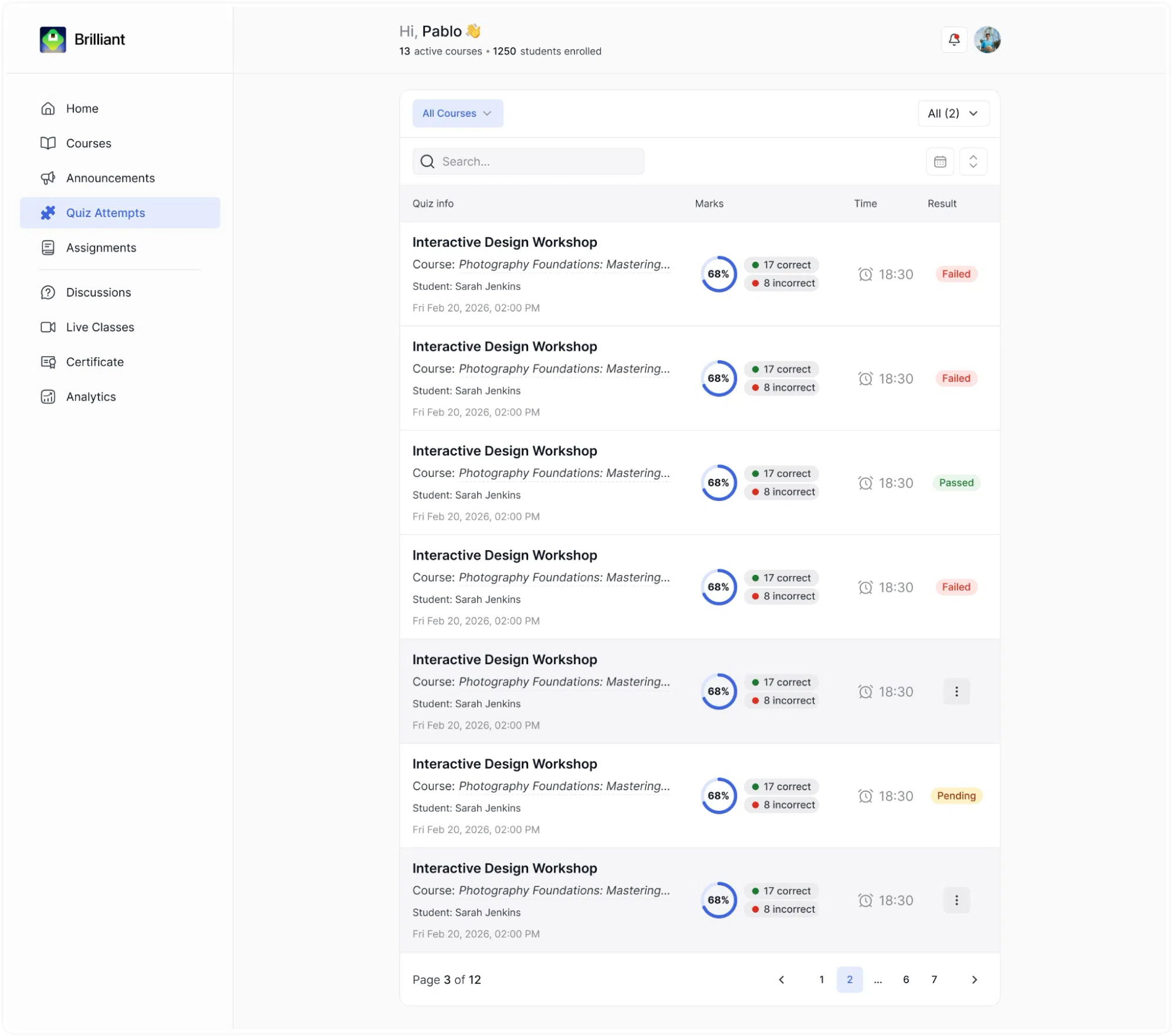
Each row in the table represents one quiz attempt by one student. The table is divided into four columns: Quiz Info, Marks, Time, and Result.
Quiz Info contains all the identifying details for the attempt:
The quiz name.
The course name the quiz belongs to, shown in italics below the quiz title.
The date and time the attempt was submitted.
The student’s name who submitted the attempt.
Marks shows a visual breakdown of how the student performed on the quiz. A circular radial indicator displays the overall score as a percentage. To the right of this indicator, the raw score: the number of correct answers in green and the number of incorrect answers in red.
Time shows how long the student spent completing the quiz, displayed as a duration. This is the total time from when the student started the quiz to when they submitted it.
Result shows the outcome of the attempt as a coloured badge:
Passed: the student met or exceeded the passing score set for the quiz.
Failed: the student did not reach the passing score.
Pending: the attempt has been submitted but has not yet been evaluated, or a result has not been confirmed.
Filtering and Searching
Several controls at the top of the page allow you to narrow the list of attempts displayed.
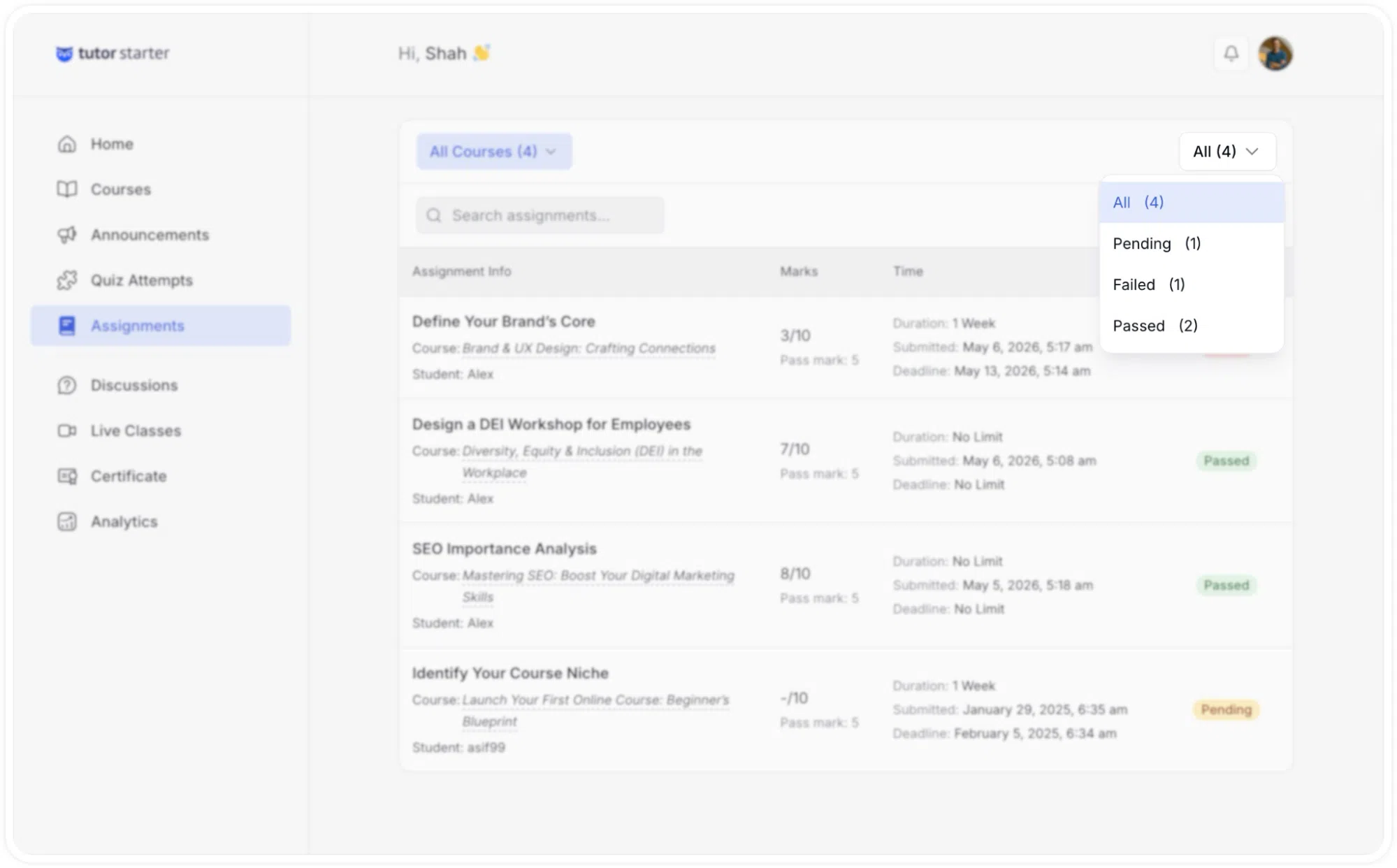
Result filter dropdown: Located in the top-right, this defaults to showing All attempts. Clicking it opens a dropdown with four options, each showing a count of how many attempts fall into that category:
All shows every attempt regardless of outcome.
Pending shows only attempts awaiting a result.
Failed shows only attempts that did not pass.
Passed shows only the attempts that passed.
Selecting any of these options filters the table immediately to show only the matching attempts.
Search bar: Located to the right of the result filter, the search bar allows you to search for a specific quiz by name. Type any part of a quiz title, and the table will update to show only matching results.
Date range filter: A calendar icon sits to the right of the search bar. Clicking it opens a date picker where you can set a specific start and end date, limiting the table to attempts submitted within that period. This is useful when you need to review submissions from a particular week or month.
Sort control: An arrow icon next to the calendar icon lets you toggle the sort order of the list between Newest First and Oldest First.
Managing Individual Quiz Attempts
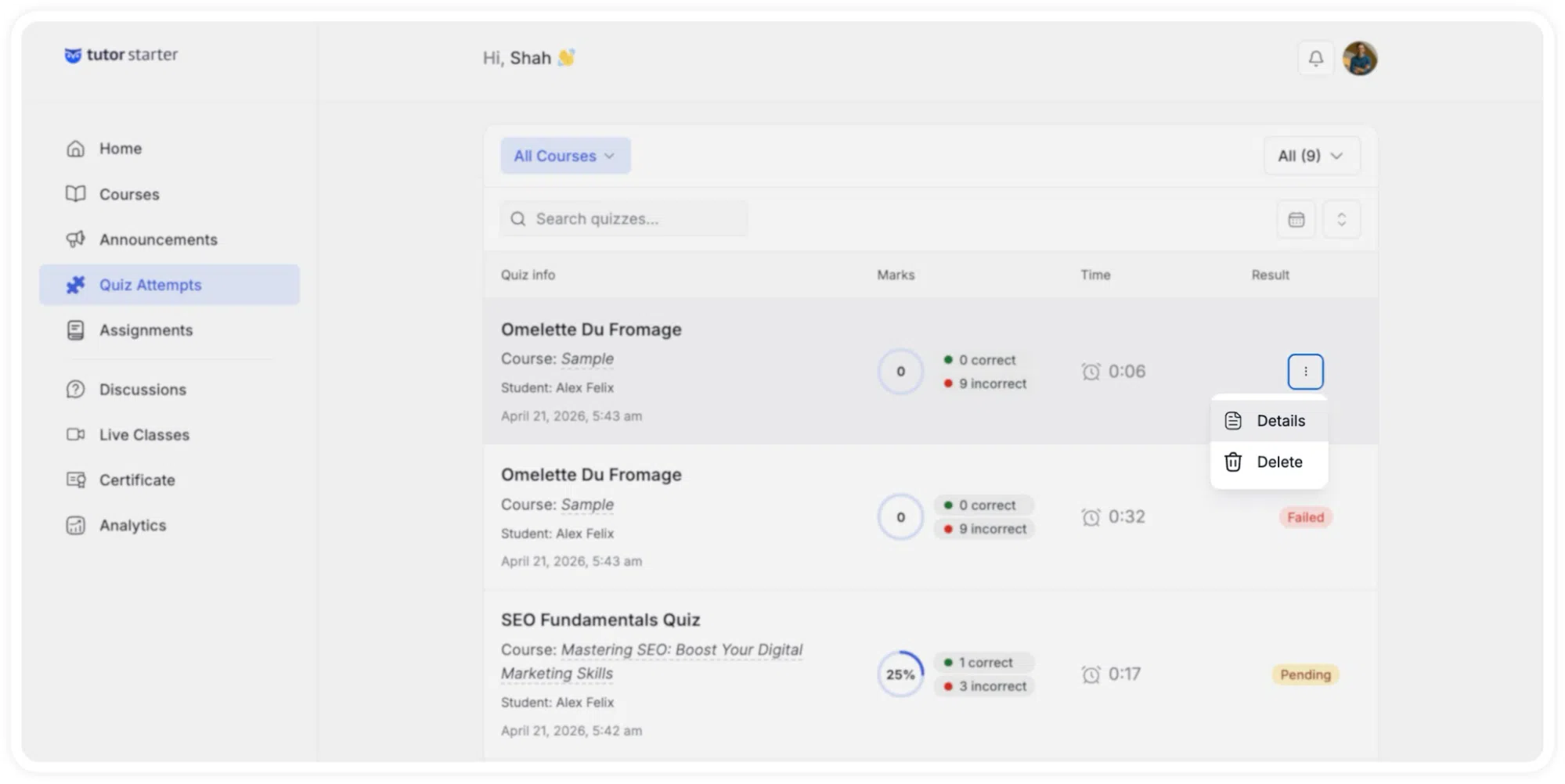
Hovering the cursor over any individual quiz attempt row reveals a three-dot options menu on the right side. Clicking this icon opens a dropdown menu containing two specific actions: Details and Delete.
Delete: Selecting this option permanently removes the specific quiz attempt record from the system.
Details: Selecting this option opens the comprehensive Quiz Summary window to review the student’s exact submission.
The Quiz Summary Window
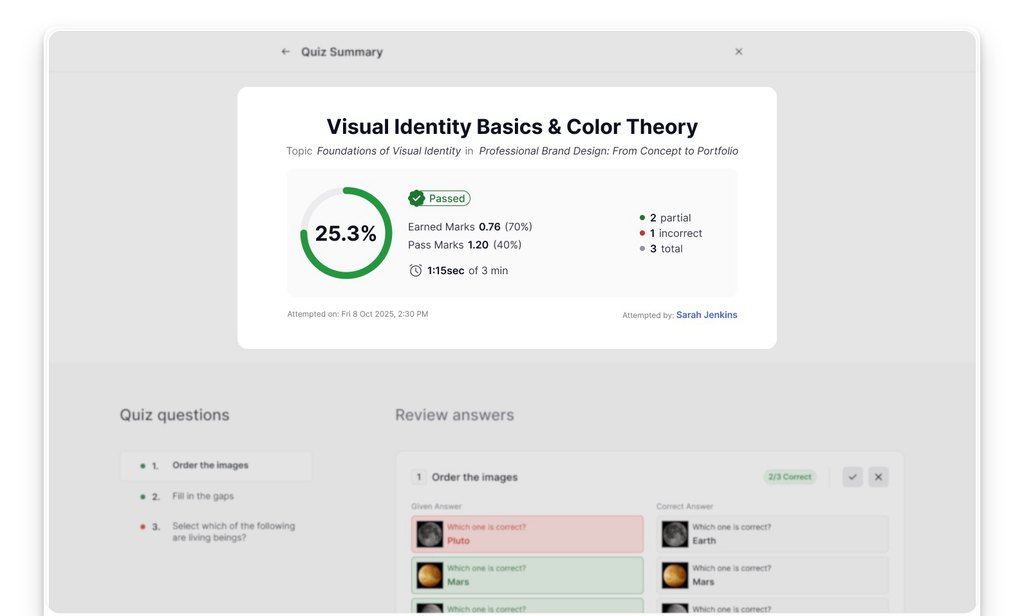
The Quiz Summary section provides an in-depth breakdown of the student’s performance on the selected assessment. The interface is divided into several functional areas:
Header and Score Summary: The top section displays the title of the quiz, the specific topic, and the associated course name. Below this, a summary panel highlights the core metrics of the attempt:
A radial progress indicator showing the final percentage score.
The final result badge (e.g., Passed, Failed, or Pending).
The total Earned Marks compared to the required Pass Marks.
A numerical breakdown categorized into partial, correct, incorrect, and total questions.
The total time taken to complete the quiz compared to the allocated time limit.
The date and time of the attempt, alongside the student’s name.
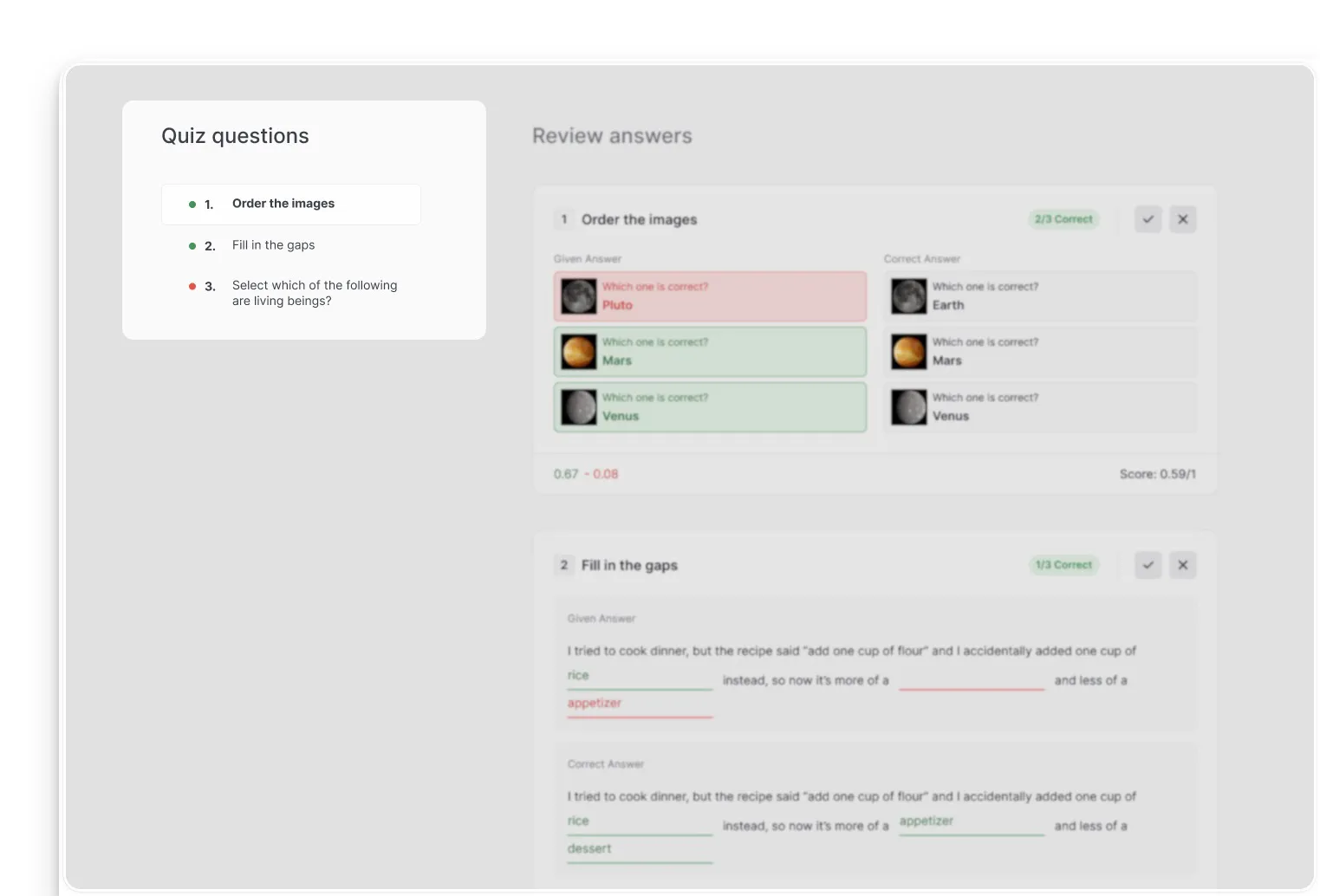
Quiz Questions Navigation: The left column, labeled “Quiz questions,” provides a sequential list of all questions included in the assessment. This list indicates the question format (e.g., True or False, Fill in the blanks) and uses colored indicators to show whether the student’s answer was evaluated as correct, partially correct, or incorrect.
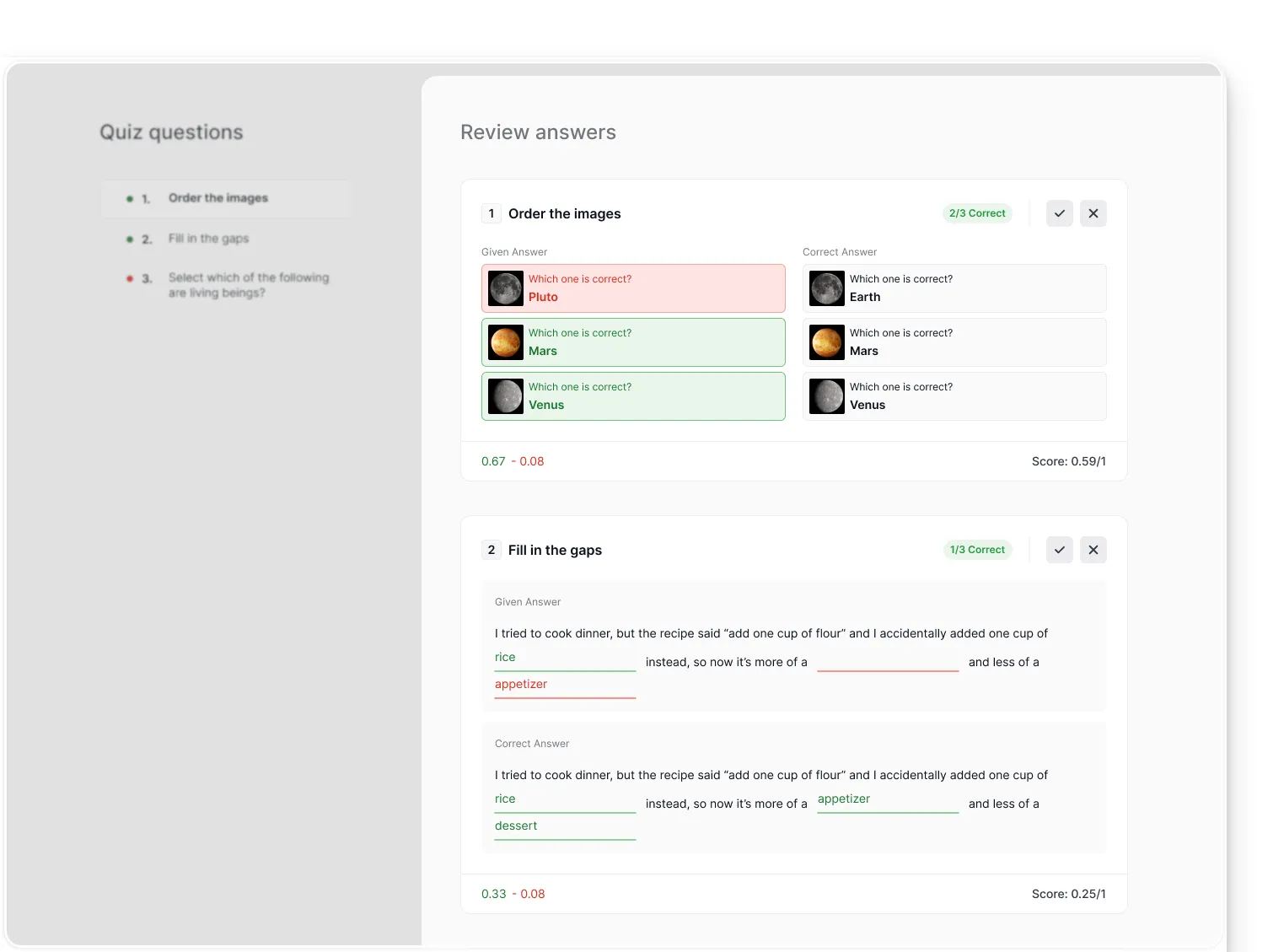
Review Answers Panel: The central viewing area displays the exact answers submitted by the student for each corresponding question, alongside automated grading results and manual evaluation tools:
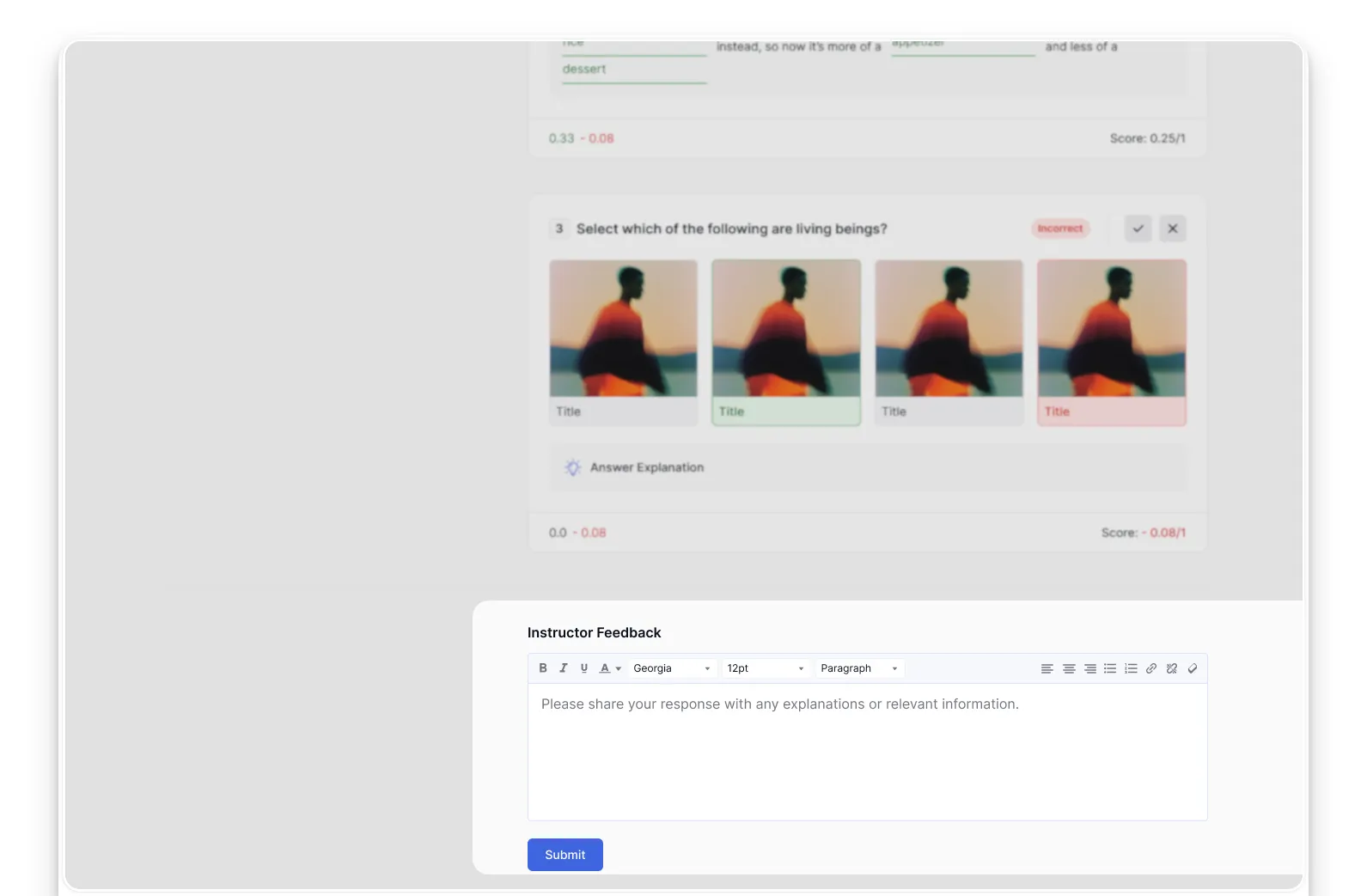
Standard Questions: Correctly answered questions display a green Correct badge, while incorrectly answered questions show a red Incorrect badge alongside any deducted penalty points (if negative marking is enabled).
Multi-Part Questions: If partial or negative marking is enabled, partially correct answers display a partial success badge (e.g., 3/5 Correct), the net score earned, and a mathematical breakdown showing both the positive credit earned and negative penalties deducted.
Manual Grading (Open-Ended): Questions that require manual grading (such as open-ended text submissions) are marked with a Pending badge until an instructor evaluates them. Instructors can input exact decimal or whole point values directly into the score field (e.g., 0.8 out of 1).
Manual Overrides: Instructors can manually override any auto-graded question by clicking the checkmark (✓) or cross (✕) buttons in the Manual Review column. Marking an answer correct awards full points, while marking it incorrect sets the score to zero, overriding any automated partial or negative calculations.
Instructor Feedback: An Instructor Feedback rich-text editor is located at the bottom of the window. This tool allows the instructor to write personalized comments, explanations, or grading notes directly related to the student’s submission. Clicking the Add Feedback or Update button saves the feedback and makes it visible to the learner.
Backend Admin Evaluation (WP Admin)
While instructors typically use the frontend dashboard, platform administrators can review, manage, and grade quiz submissions directly from the WordPress backend.
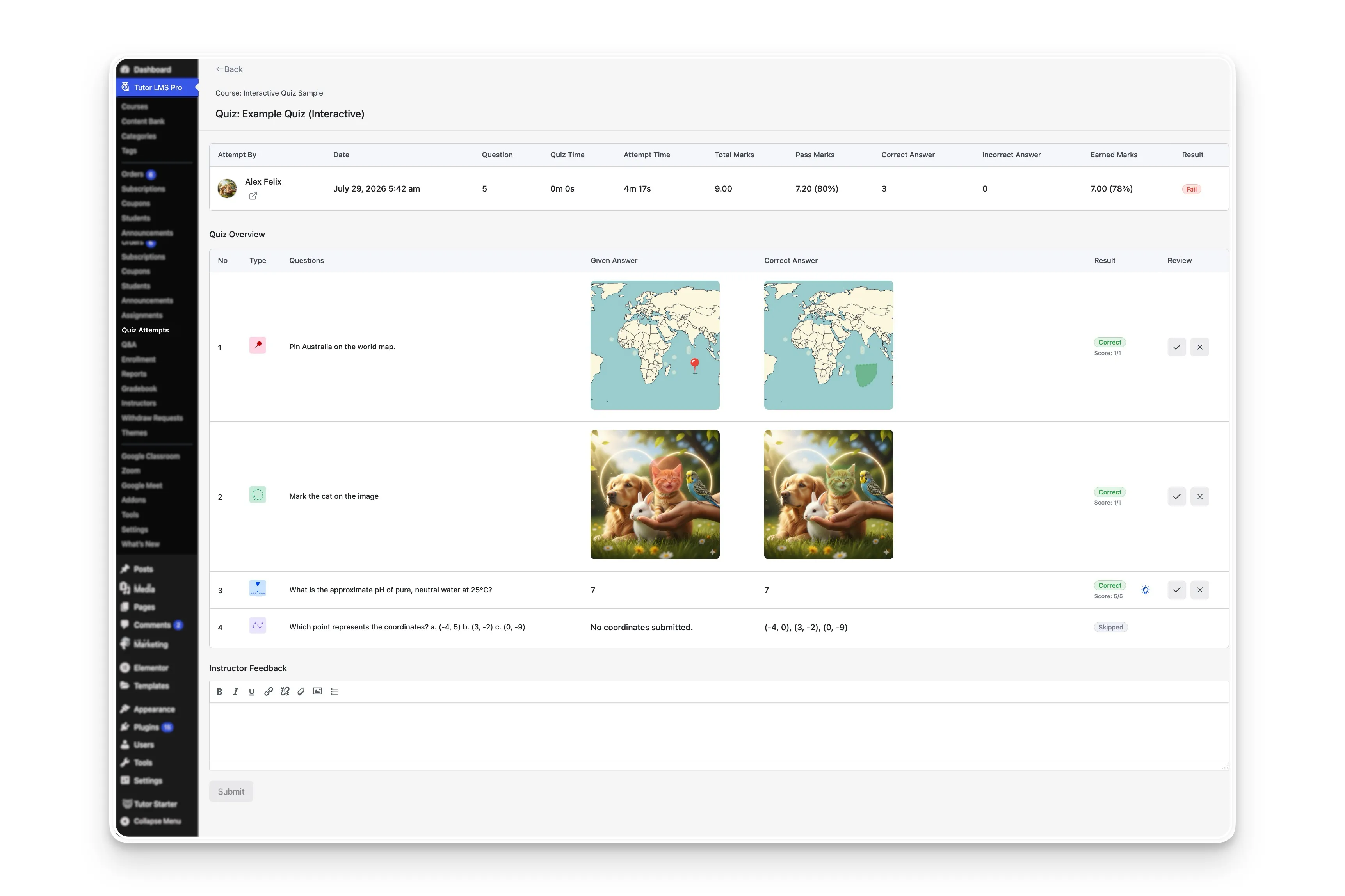
Navigate to WP Admin > Tutor LMS Pro > Quiz Attempts to view the centralized attempts log.
This backend table provides a high-level overview of all site-wide submissions. Each row displays the quiz and course info, student name, total questions, a count of correct and incorrect answers, the earned marks (points and percentage), and the final Pass/Fail result badge.
To evaluate a specific submission from the backend:
Click the Details button located on the far right of the attempt’s row.
The detail page opens with a top summary bar highlighting key metrics, including the student’s attempt time, total marks, and final earned score.
Below the summary, the Quiz Overview table lists every question sequentially so you can directly compare the student’s Given Answers against the Correct Answers.
Using the Result and Manual Review columns, administrators can view the exact partial or negative grading math, apply manual score overrides to auto-graded questions using the checkmark (✓) or cross (✕) buttons, input decimal scores for open-ended questions, and write Instructor Feedback before clicking Update.



 HALLOWEEN SALEHALLOWEEN SALEHALLOWEEN