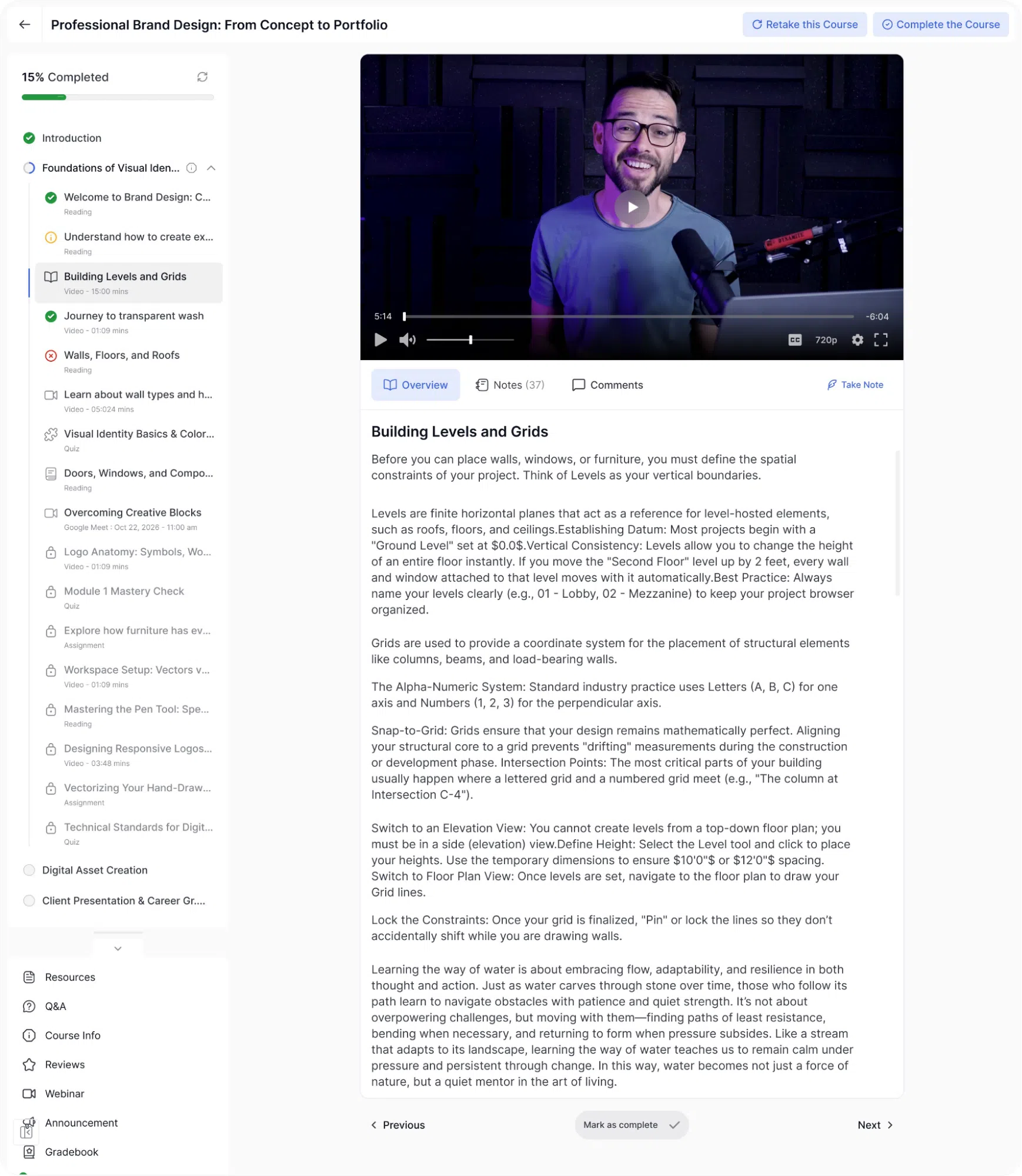
When a student opens a video lesson, the video player loads at the top of the main content area. The player includes a full set of controls along the bottom: play/pause, a progress scrubber, the elapsed and remaining time, volume control, playback settings (for quality and speed), a picture-in-picture button, and a full-screen button.
Beneath the video player, three tabs are available:
Overview: Displays the lesson description provided by the instructor. This is the default tab and gives students context about what the lesson covers.
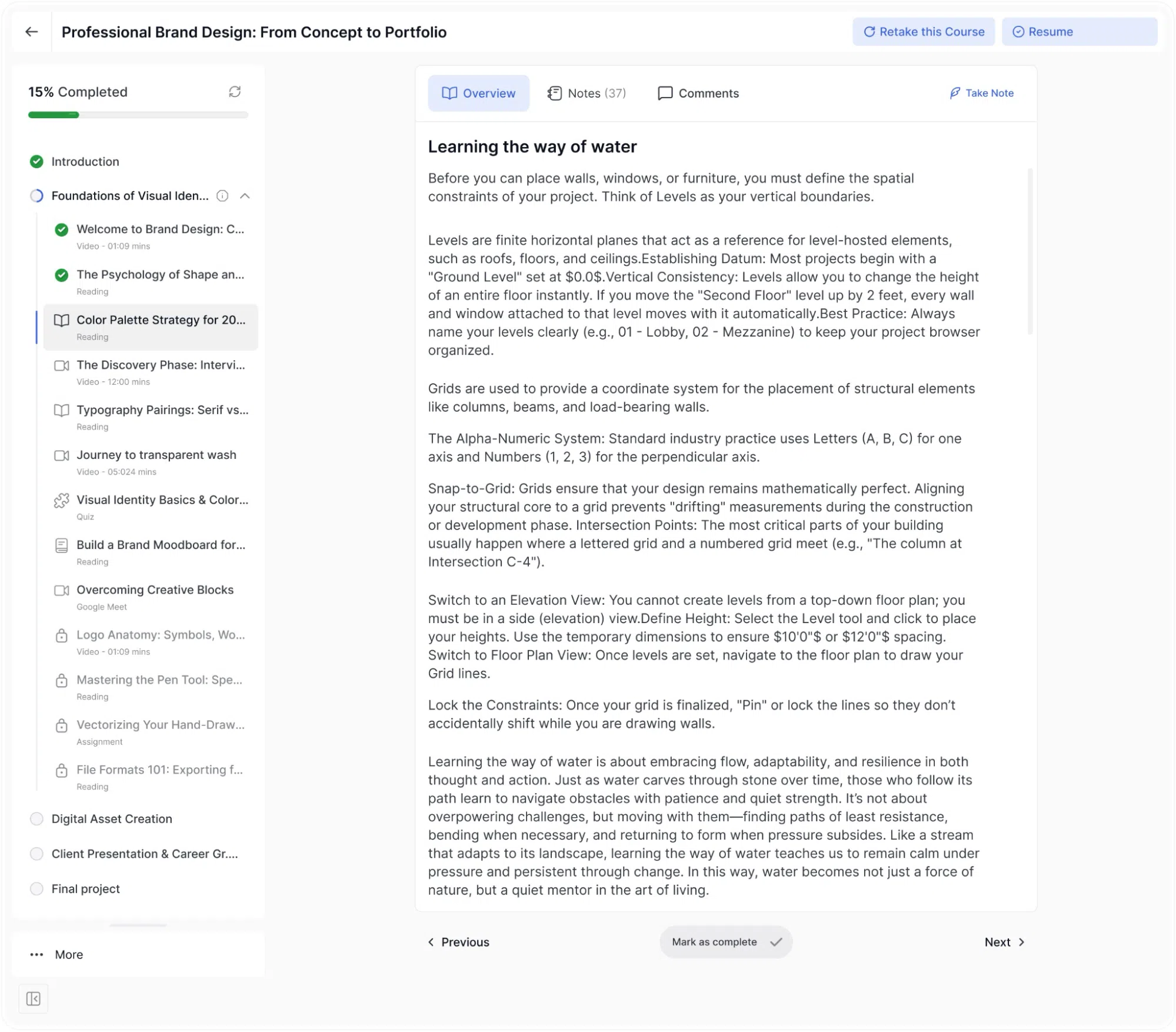
Notes: A text area where the student can type personal notes while watching the lesson. Notes are saved to their account and can be reviewed at any time. A count shows how many notes the student has added across the course. There is also a Take Note shortcut in the top-right corner of the tab bar, which opens the note editor directly without switching tabs.
Comments: A “Join The Conversation” section where students can leave a comment about the lesson. The comment editor supports basic formatting. Existing comments from other students are visible below the input field.
Exercise Files: This tab appears when the instructor has attached downloadable files to the lesson. Files are listed with their name and size, and each has a download button. This tab is labelled with the count of attached files (for example, “Exercise Files (4)”).
When the student finishes watching the video and clicks Mark as complete, the lesson is marked done in the sidebar with a green checkmark, and the overall progress bar advances accordingly.
Reading Lessons
Reading lessons display a block of text content directly in the main area. The same Overview, Notes, Comments, and Exercise Files tabs are available at the top of the content. The student reads through the material and then clicks Mark as complete at the bottom or clicks Next to move on.



 HALLOWEEN SALEHALLOWEEN SALEHALLOWEEN