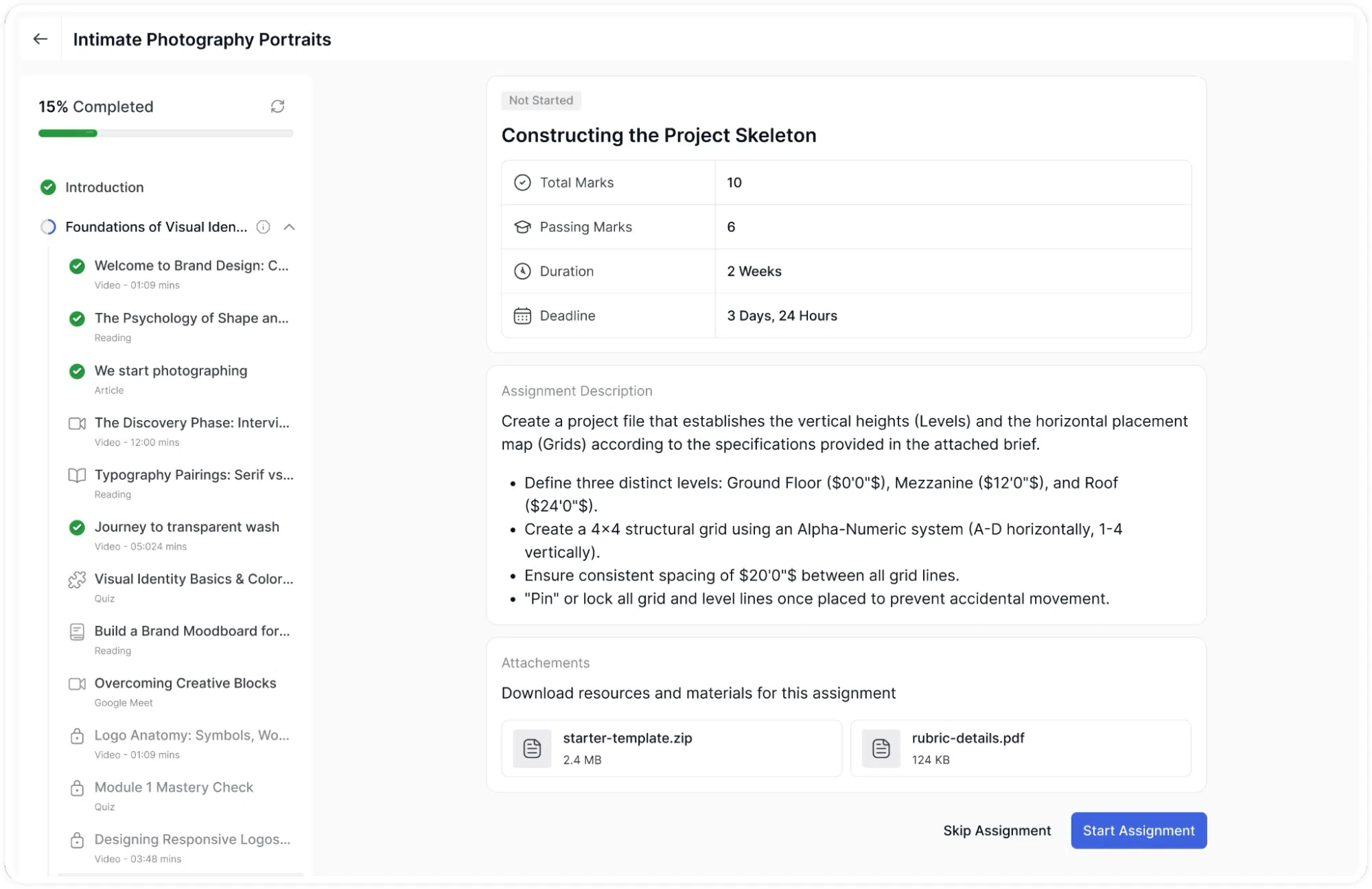
When a student opens an assignment, they first see an overview screen that includes:
The assignment title and status (for example, “Not Started”).
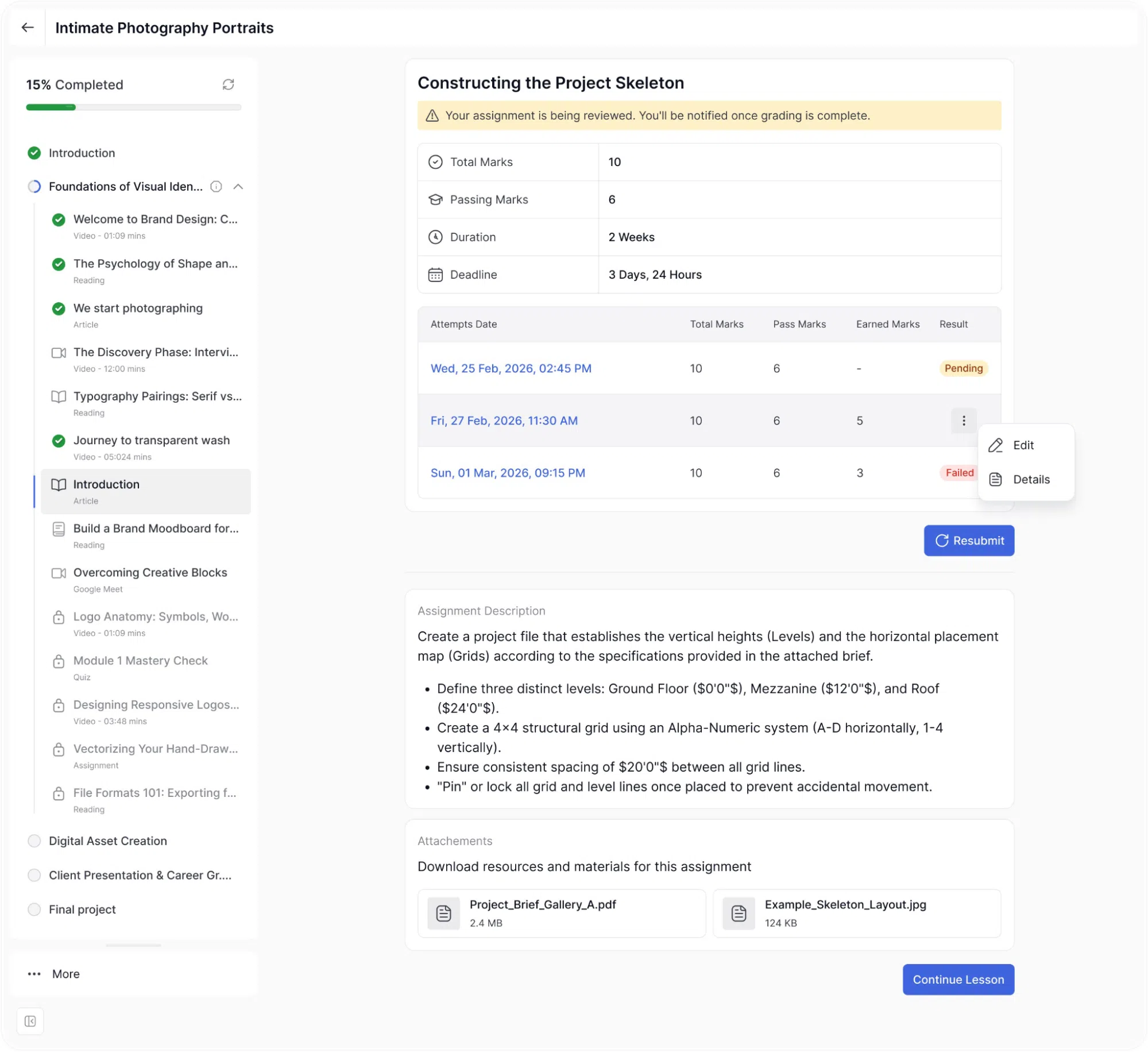
Total Marks: the maximum points available.
Passing Marks: the minimum marks required to pass.
Duration: the total time allowed to complete the assignment.
Deadline: the time remaining before the submission deadline.
Assignment Description: a detailed set of instructions from the instructor.
Attachments: any files the instructor has provided as reference material (such as a starter template or a rubric PDF), which the student can download.
Two buttons appear at the bottom: Skip Assignment and Start Assignment.
Note: The Assignments feature requires the Assignments add-on to be enabled.
Submitting an Assignment
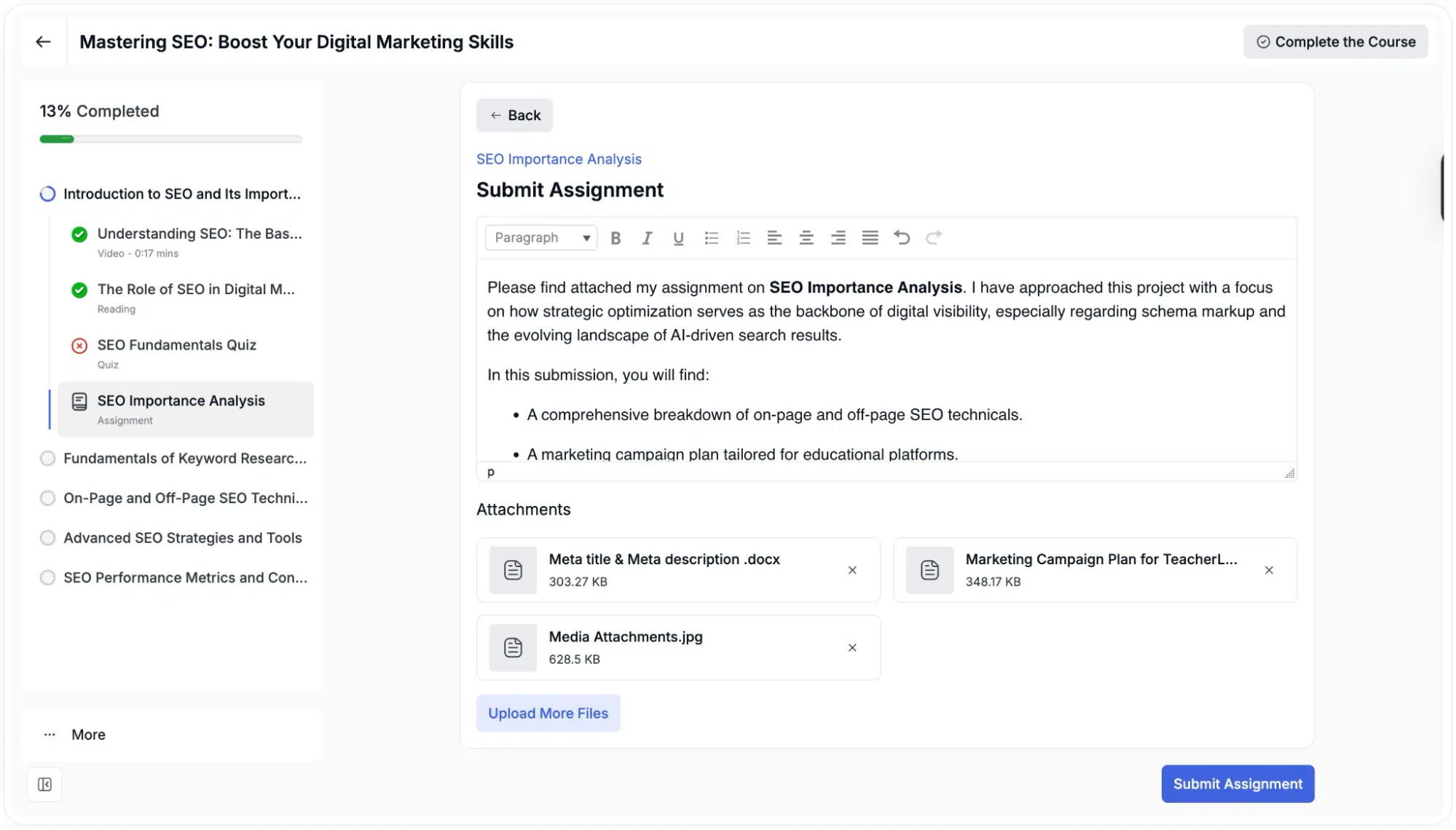
After clicking Start Assignment, the student is taken to the submission form. This form has two parts:
Written Response: A rich text editor where the student types their response. The editor supports bold, italic, underline, bullet lists, numbered lists, text alignment, undo, and redo.
Attachments: A file upload area where the student can attach supporting files. The area shows accepted formats (PDF, DOC, DOCX, JPG, PNG), the maximum number of files, and the total size limit. Files can be dragged and dropped into the area or selected using the Select Files button.
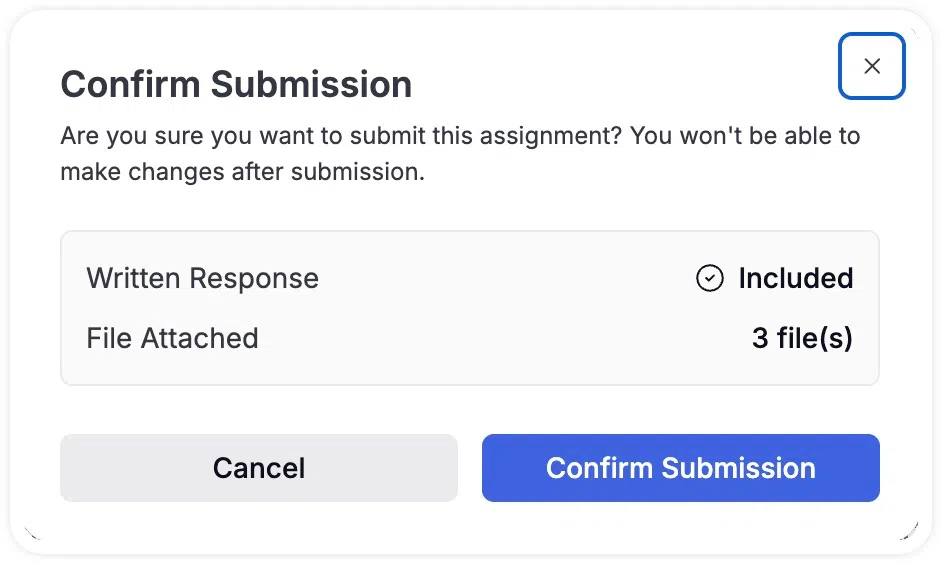
When the student is ready to submit, they click Submit Assignment. A Confirm Submission modal appears, summarising what is included: whether a written response is present (shown as “Included”) and the number of files attached. The student can click Cancel to go back and make changes, or Confirm Submission to finalise.
Reviewing and Editing Assignment Submissions
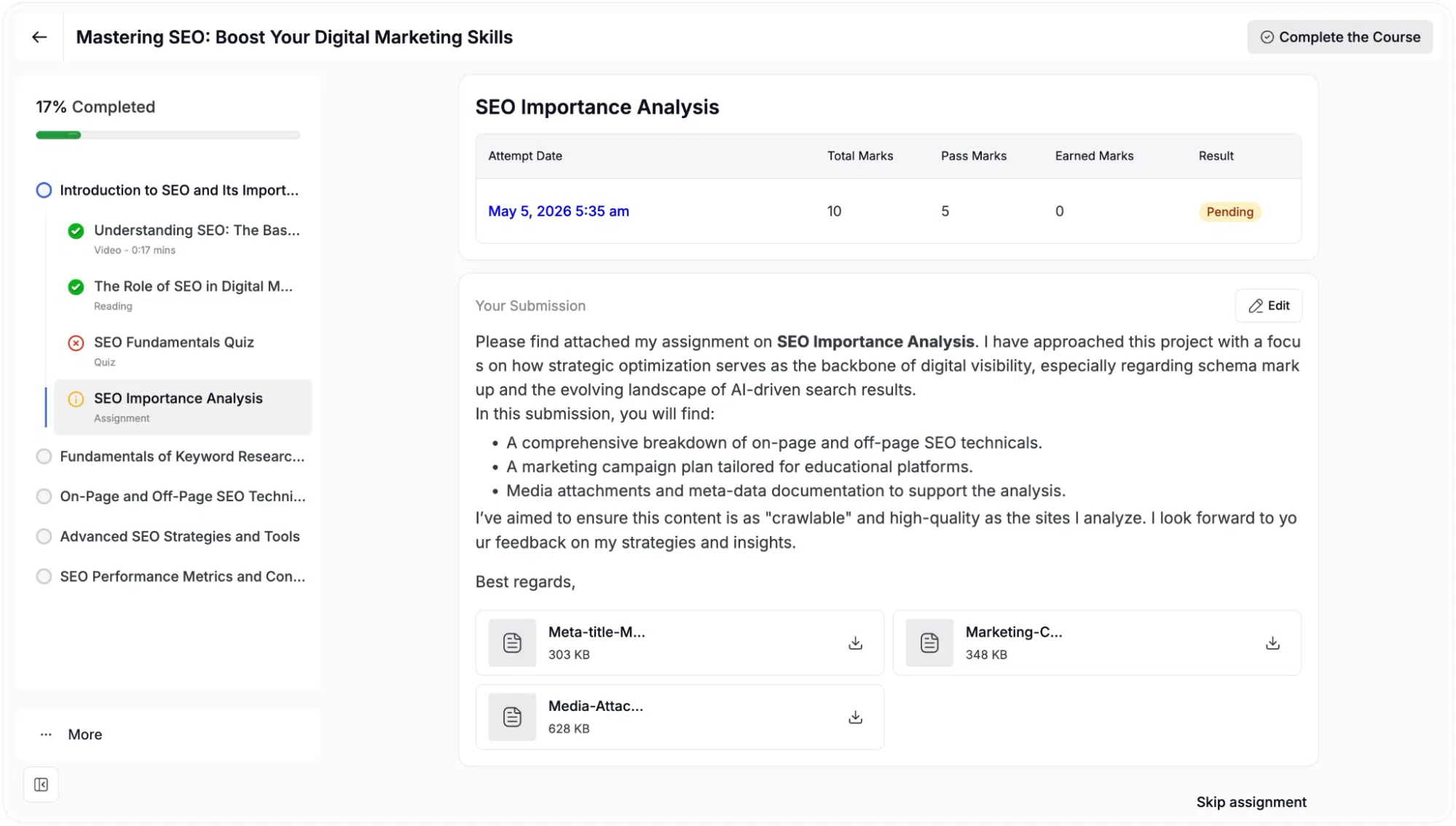
After an assignment is submitted, students can return to the specific assignment page to view their complete submission history.
Submission History Table
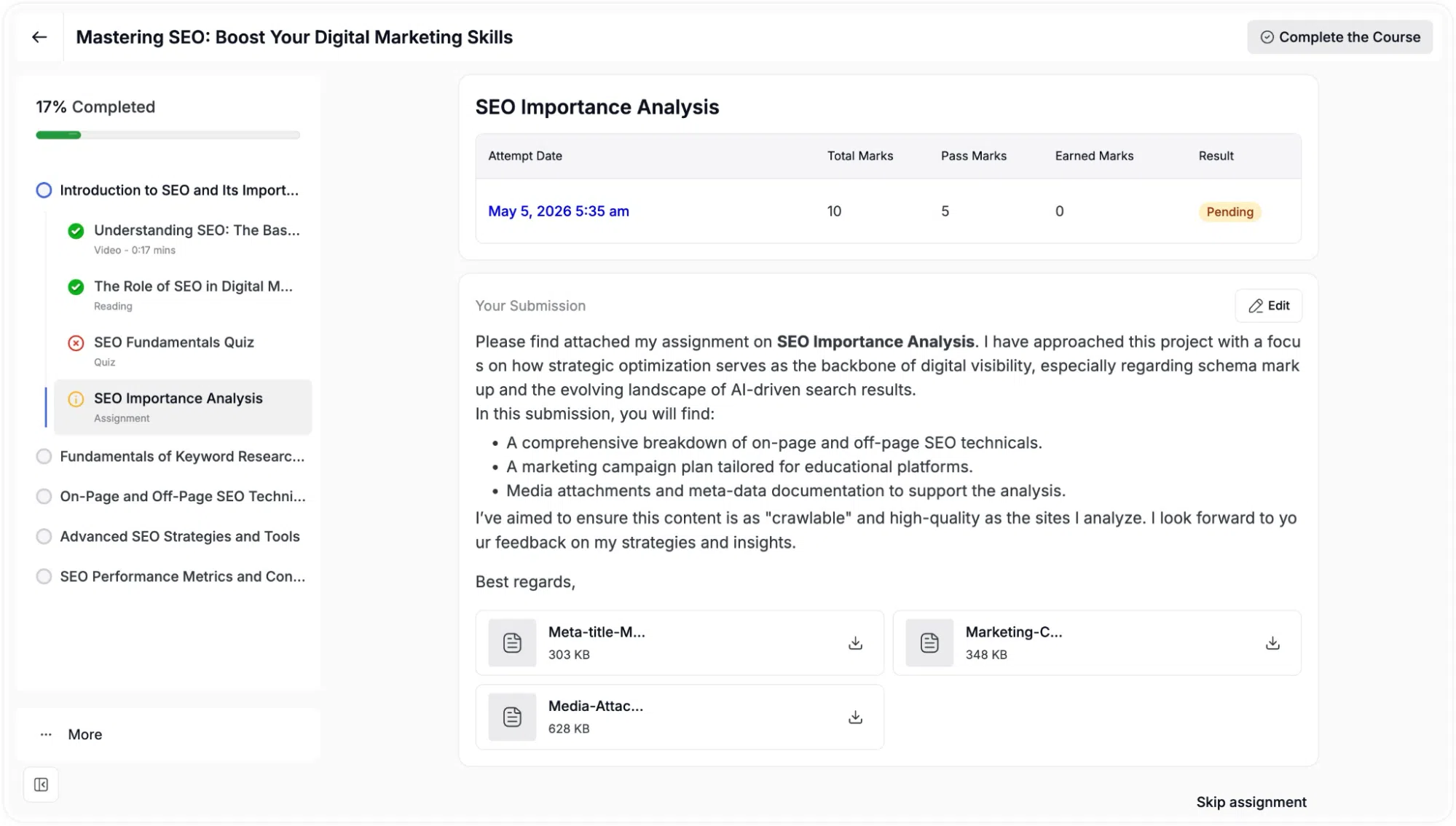
The page features a summary table detailing each submission attempt. Each attempt is listed on a separate row. This table includes the following information:
Attempt Date: The exact date and time the assignment was submitted.
Total Marks: The maximum possible score for the assignment.
Pass Marks: The minimum score required to pass.
Earned Marks: The score awarded by the instructor (this remains empty or shows as “0” while pending).
Result: The current status of the submission (e.g., Pending, Failed, or Passed).
Viewing Submission Details
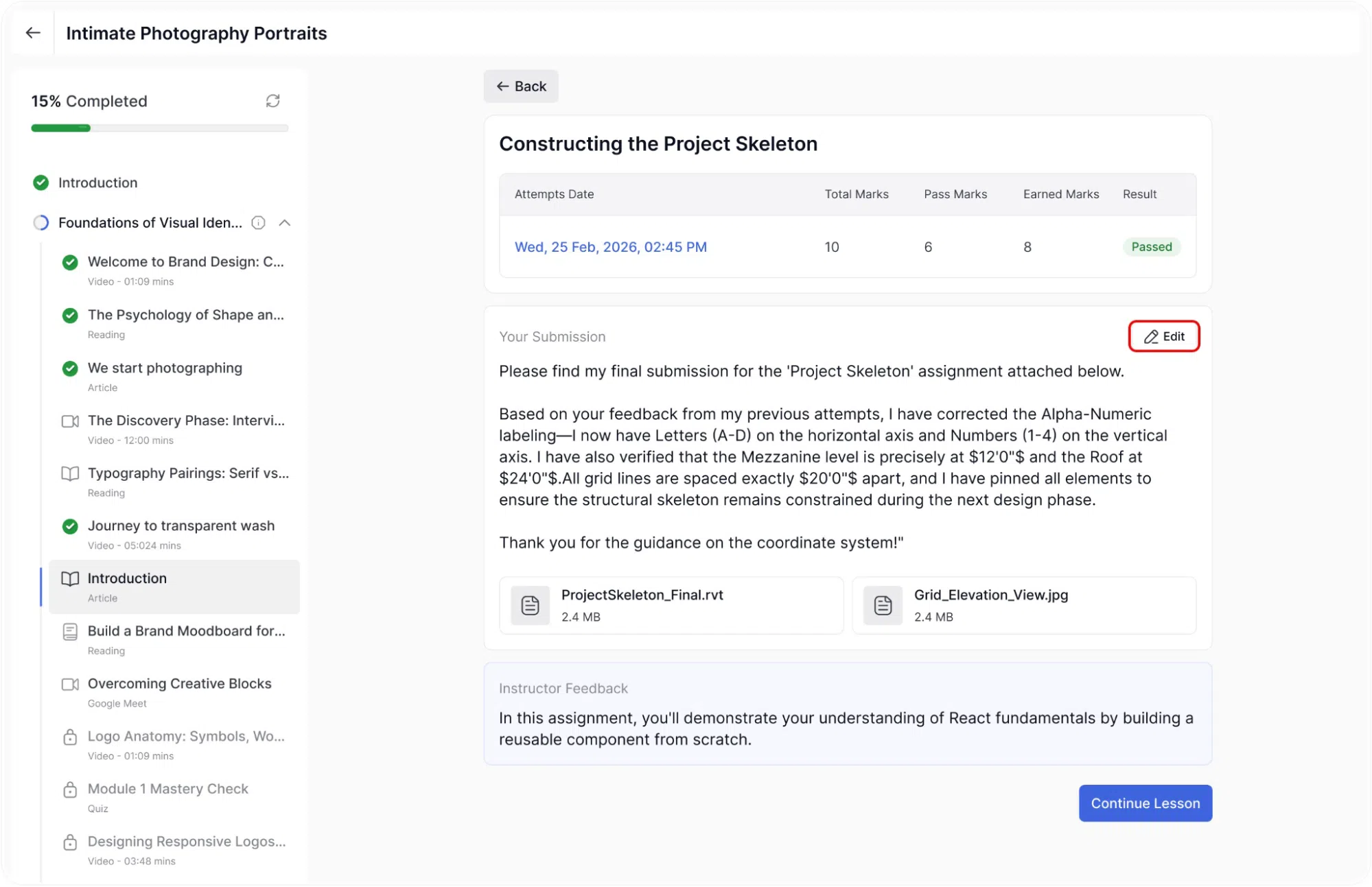
Students can review the specific contents of any past attempt. To do this, click the three-dot menu icon located on the right side of the attempt row and select the option to view the Details. This opens the submission overview, which displays:
The student’s written response.
Any files the student attached are available for download.
Instructor Feedback (this text section will only populate once the instructor has fully reviewed and graded the assignment).
Editing a Pending Assignment
If the assignment’s result status is currently listed as “Pending,” the student is still able to modify their work before the instructor grades it. To make changes, click the three-dot menu icon located on the right side of the attempt row and select the option to Edit.
Alternatively, learners can open the submission overview using the steps above and click the Edit button (represented by a pencil icon) located in the top right corner of the “Your Submission” text box.
Resubmitting an Assignment
If an assignment attempt is marked as “Failed,” or if the course settings explicitly allow for multiple submission attempts, a blue Resubmit button will be visible on the main assignment page below the history table. Clicking this button allows the student to start a completely new attempt.



 HALLOWEEN SALEHALLOWEEN SALEHALLOWEEN