


Course Bundle
Subscriptions
Memberships
Gift Course
Tutor LMS Shortcodes
Course Bundle
Subscriptions
Memberships
Gift Course
Tutor LMS Shortcodes

Reviews

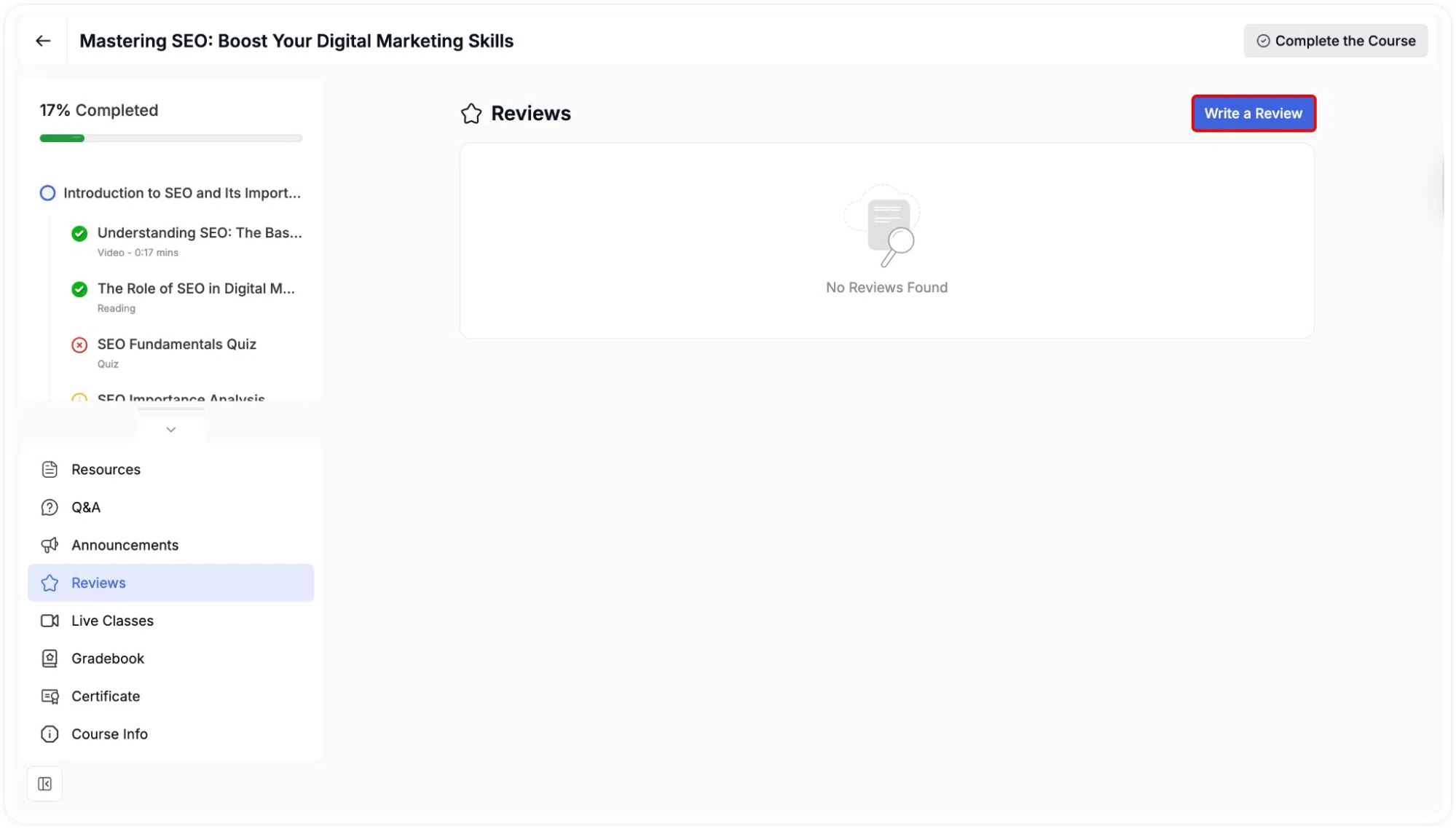
Students can leave a review for a course from the Reviews section in the sidebar.

Leaving a review

A review prompt automatically appears when the learner completes a course. However, using the Reviews section, they can write a review whenever they want by clicking the “Write a Review” button.

Learning interface- Write a Review

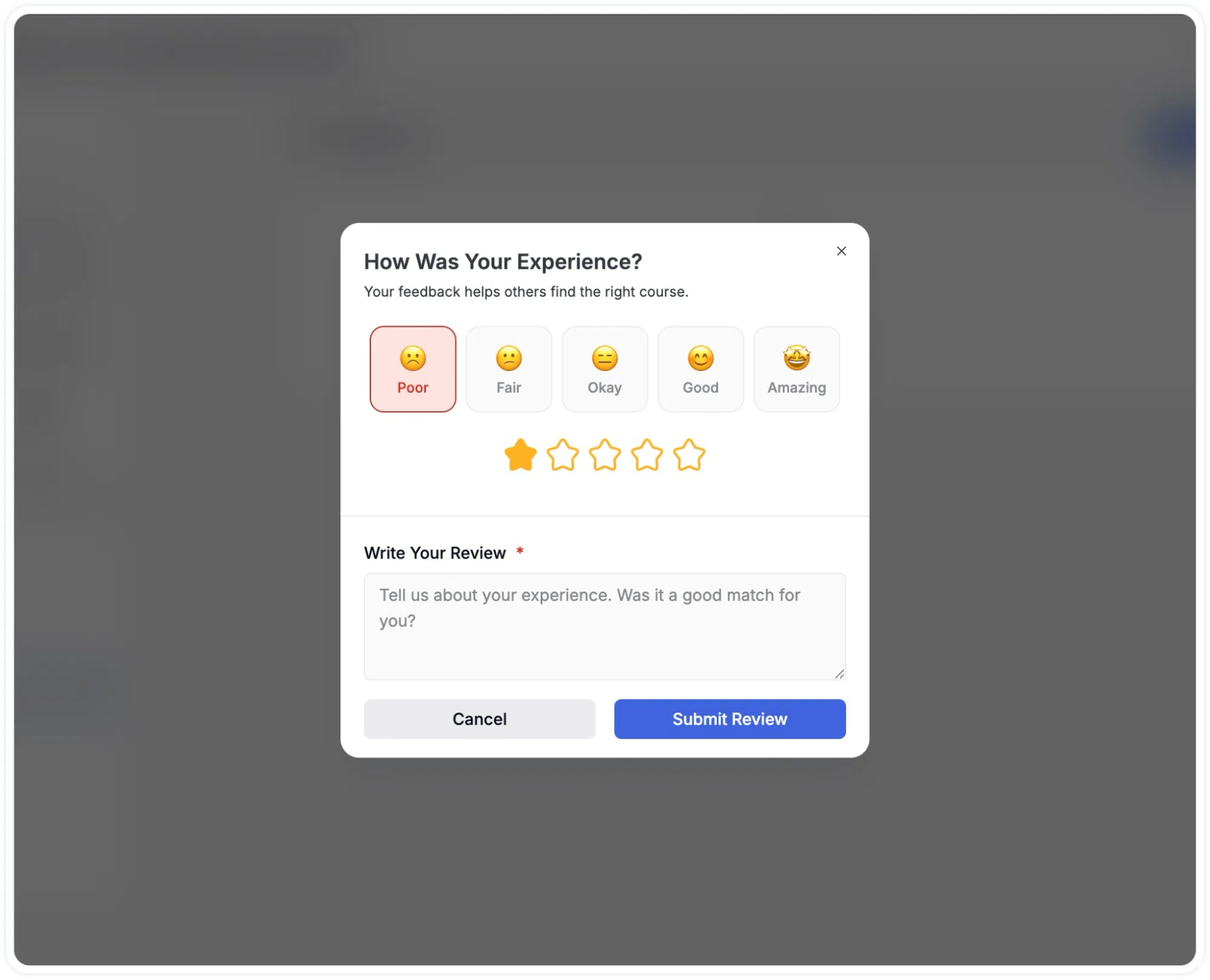
The review modal popup is titled How Was Your Experience? and offers:

  • Emoji-based sentiment rating: five options presented as labelled emoji buttons: Poor, Fair, Okay, Good, and Amazing. Selecting one automatically sets a corresponding star rating.
  • Star rating: the student can adjust the star rating independently by clicking the stars.
  • Written review: a text area labelled Write Your Review with the placeholder “Tell us about your experience. Was it a good match for you?”
Learner interface- Emoji based course rating and review modal

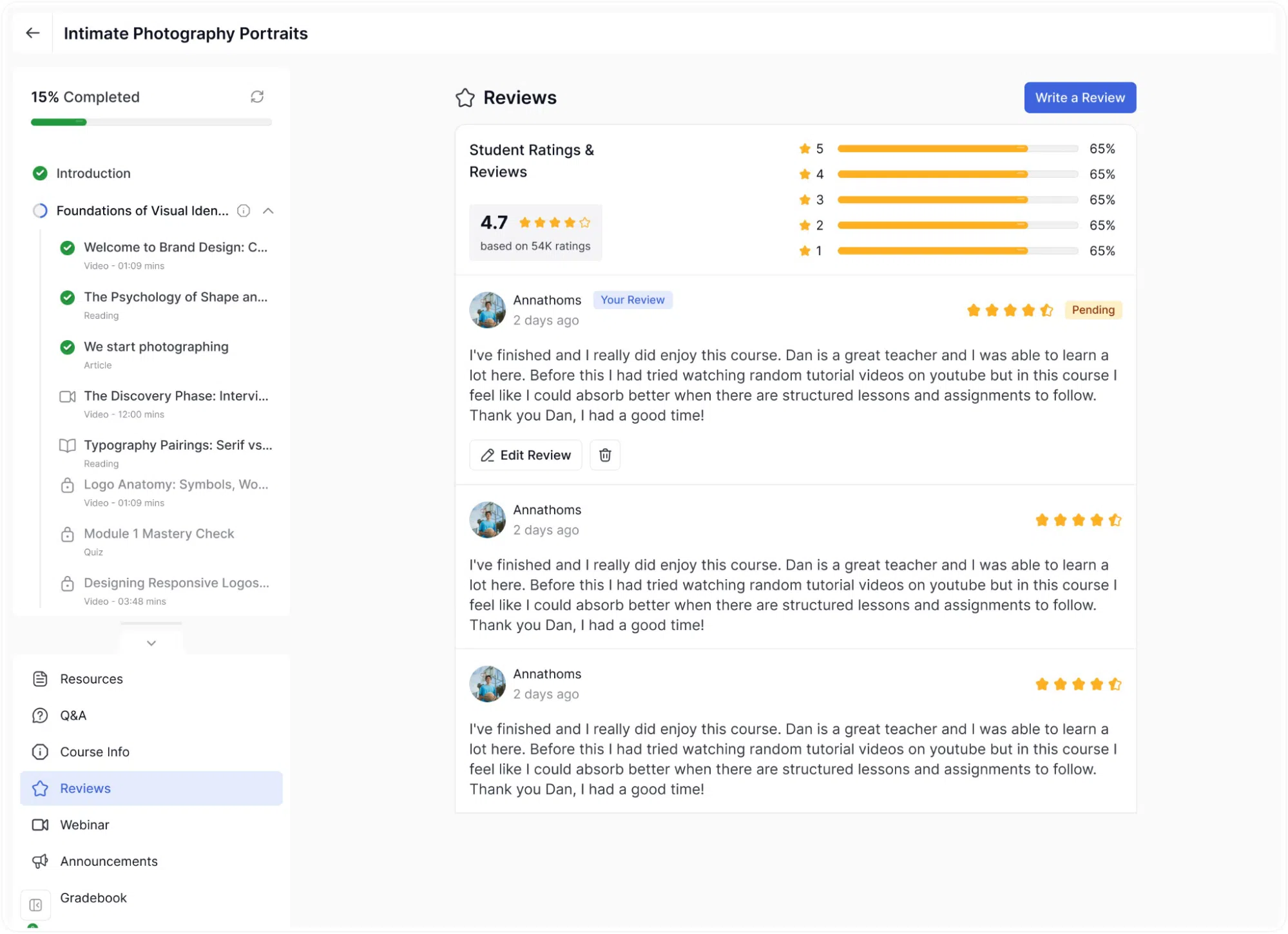
After clicking Submit Review, the review is submitted and shown in the Reviews section with a Pending badge until the instructor or admin approves it.

On the Reviews page itself, students can see:

  • The overall course rating and the total number of ratings.
  • A breakdown of ratings by star level (5 stars, 4 stars, and so on).
  • All approved reviews from other students, including the reviewer’s name, avatar, date, star rating, and written comment.
  • Their own review marked with a Your Review label, with Edit Review and Delete options.
Learner Interface- Pending status Edit & delete Review

Join the world’s #1 Tutor LMS community

Build, manage, and scale your eLearning business with the most powerful WordPress LMS — all in one place.

Crafted by Humans

© 2026 All Rights Reserved