To access orders, you need to enable Tutor LMS native eCommerce first.
Navigate to TutorLMS > Settings > Monetization > Select eCommerce Engine and select Native from the dropdown to enable Tutor LMS native eCommerce. Check out the native eCommerce documentation for more. Once activated, the Order tab appears in the Tutor LMS menu.
Order Tab
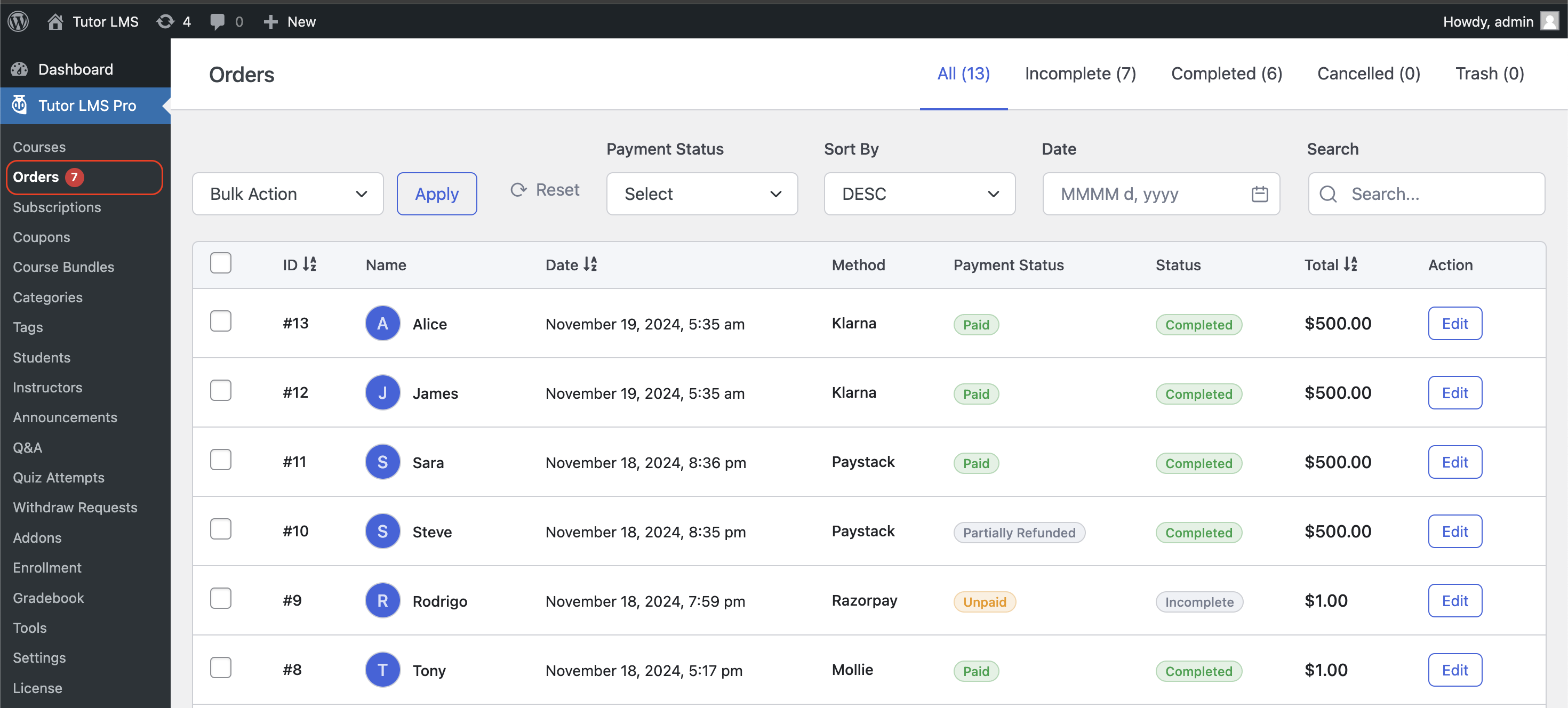
From this tab, you can manage orders, complete, cancel, or trash them as needed.
This table provides information about orders, including whether they are pending or completed. It also shows the payment status and method.
You can bulk trash orders from this table. If you want to manually edit any order, click on edit beside that order.
Order Details
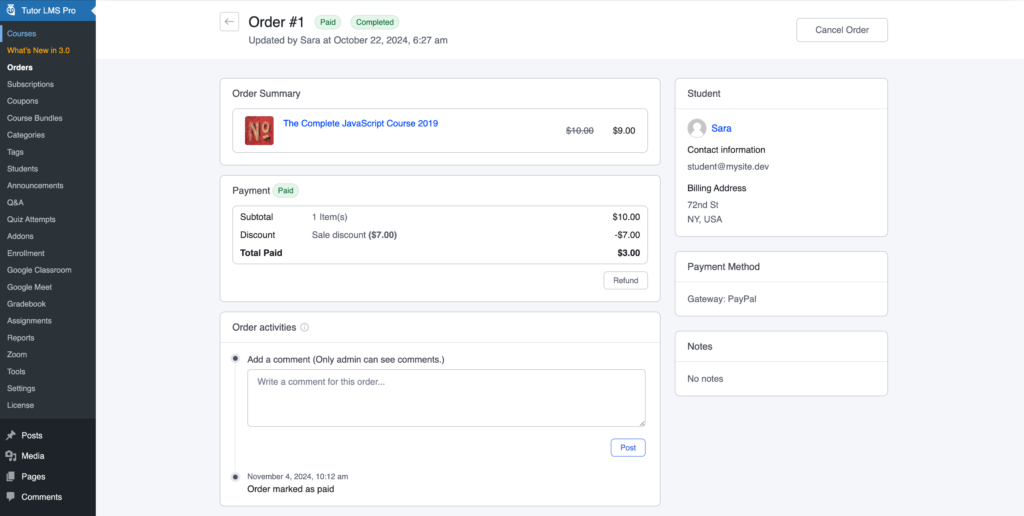
On the order details page, you can see the detailed information of the order. You will have updates on the order activities and a full breakdown of the payment amount for the orders.
Order Refund
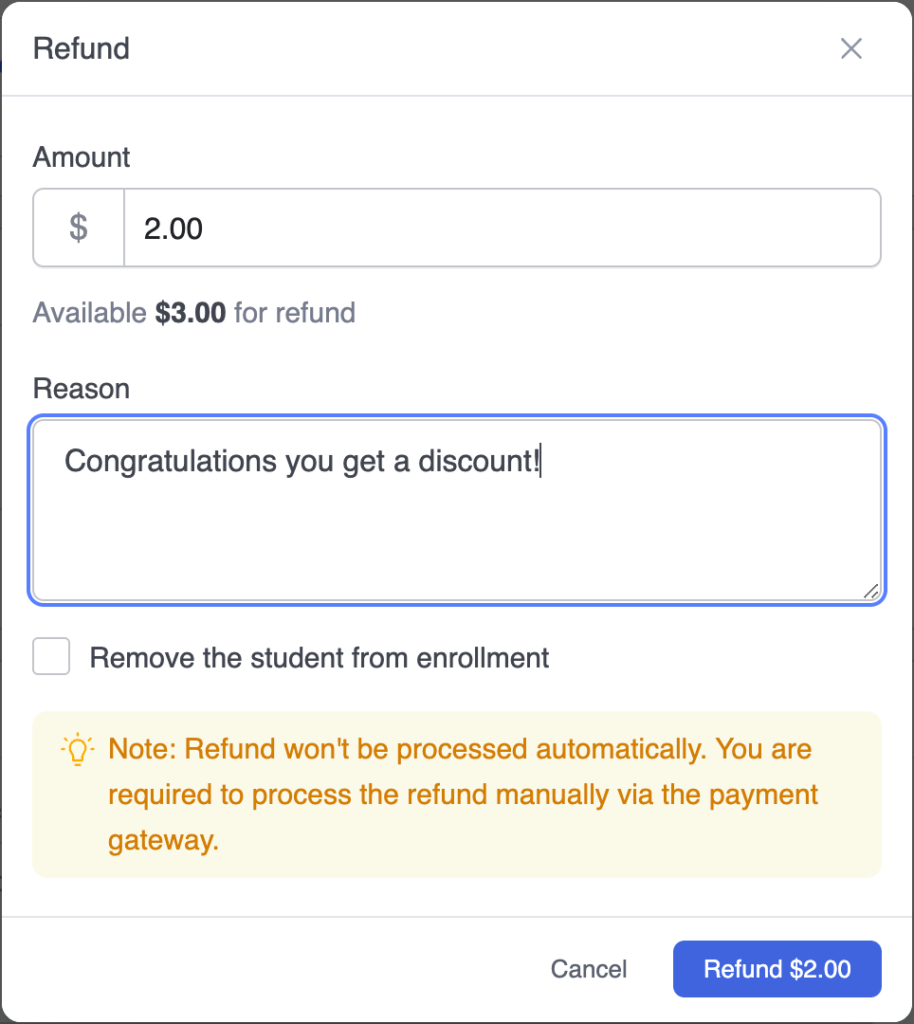
You can click Refund to give a refund for an order, and you can choose the amount you want to refund. You can see how much the student paid on the refund popup. Depending on your needs, you can refund the full or half amount of what they paid or an amount of your choice.
You need to add a reason for the refund, or the refund cannot be approved.
Lastly, you can tick on the checkbox if you want to remove the student from the course along with the refund.
Order Cancellation
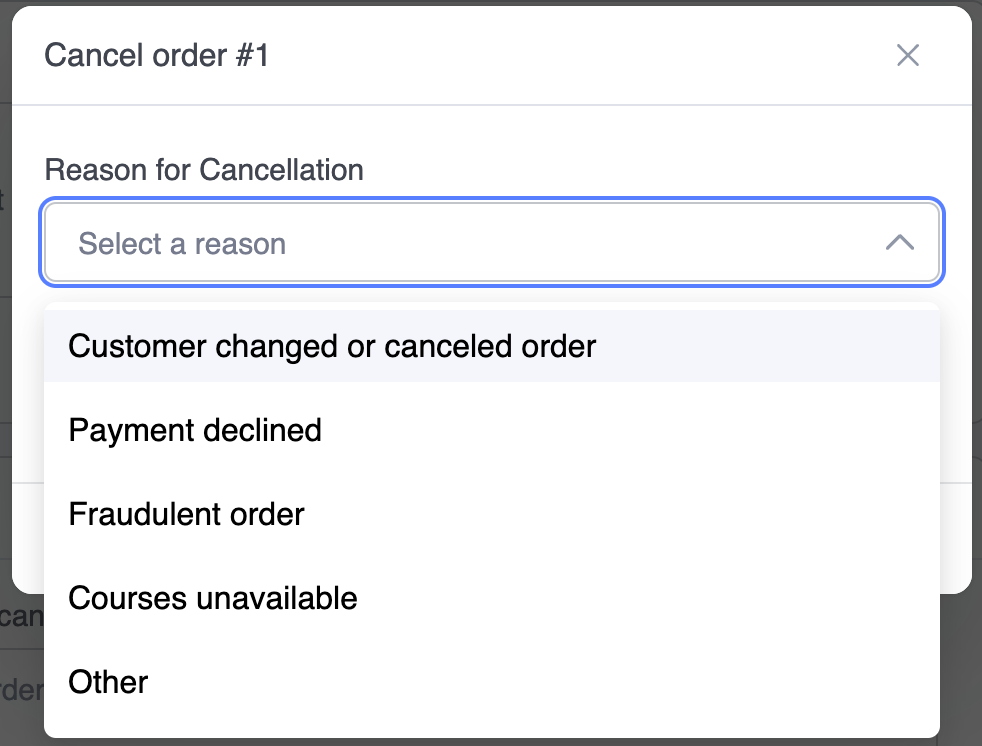
At the top right of the order details page, you have the option to cancel the order. You must select a specific reason from a dropdown for why the order was canceled, or select Other and optionally add a reason.



 HALLOWEEN SALEHALLOWEEN SALEHALLOWEEN