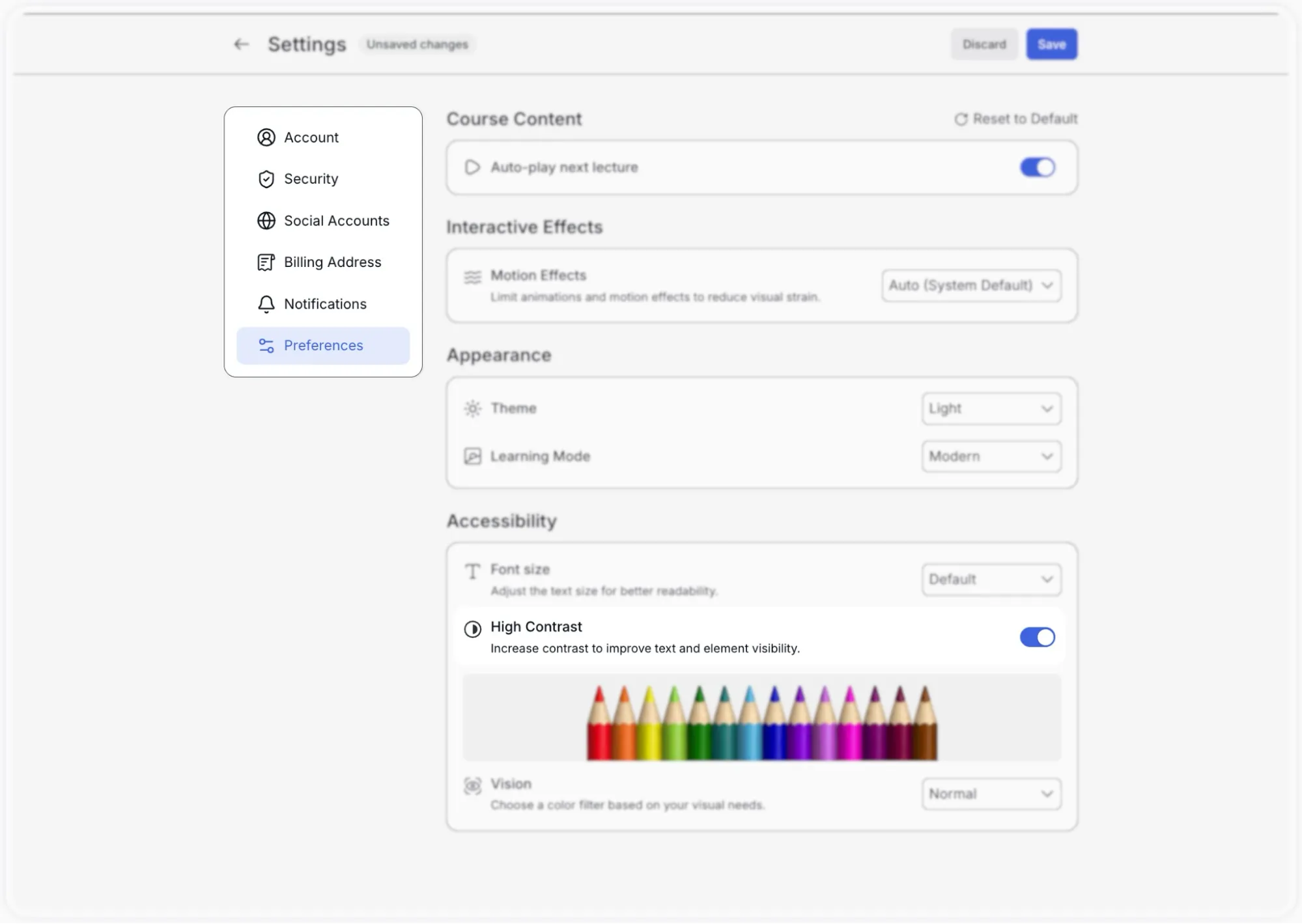
Tutor LMS gives each student individual control over how the platform looks and behaves through a dedicated Preferences panel inside their account settings. These preferences are personal; each student can set them independently, and changes apply immediately to their own learning experience without affecting any other user.
The Accessibility Features allow users to customize their dashboard and learning interface to suit their personal visual and interactive needs. The settings are categorized as follows:
Where to Find These Settings
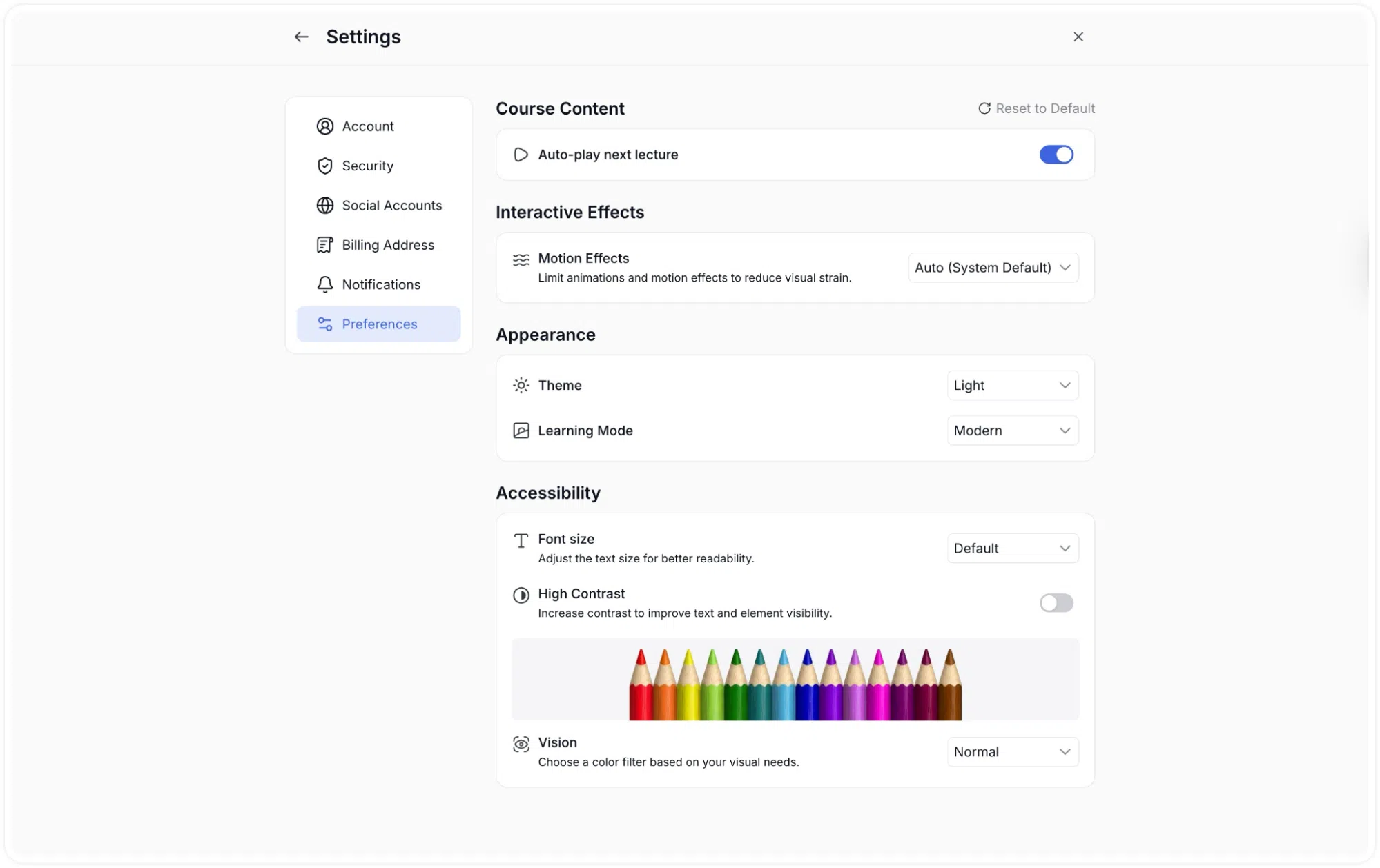
Users can find these options by navigating to their profile dropdown menu, selecting Settings, and then clicking on the Preferences tab in the left-hand sidebar.
The Preferences page is divided into four sections: Course Content, Interactive Effects, Appearance, and Accessibility. A Reset to Default link appears in the top-right corner of the page. Clicking it restores all settings in the Preferences panel back to their original defaults at once. After making any changes, click Save to apply them.
Interactive Effects
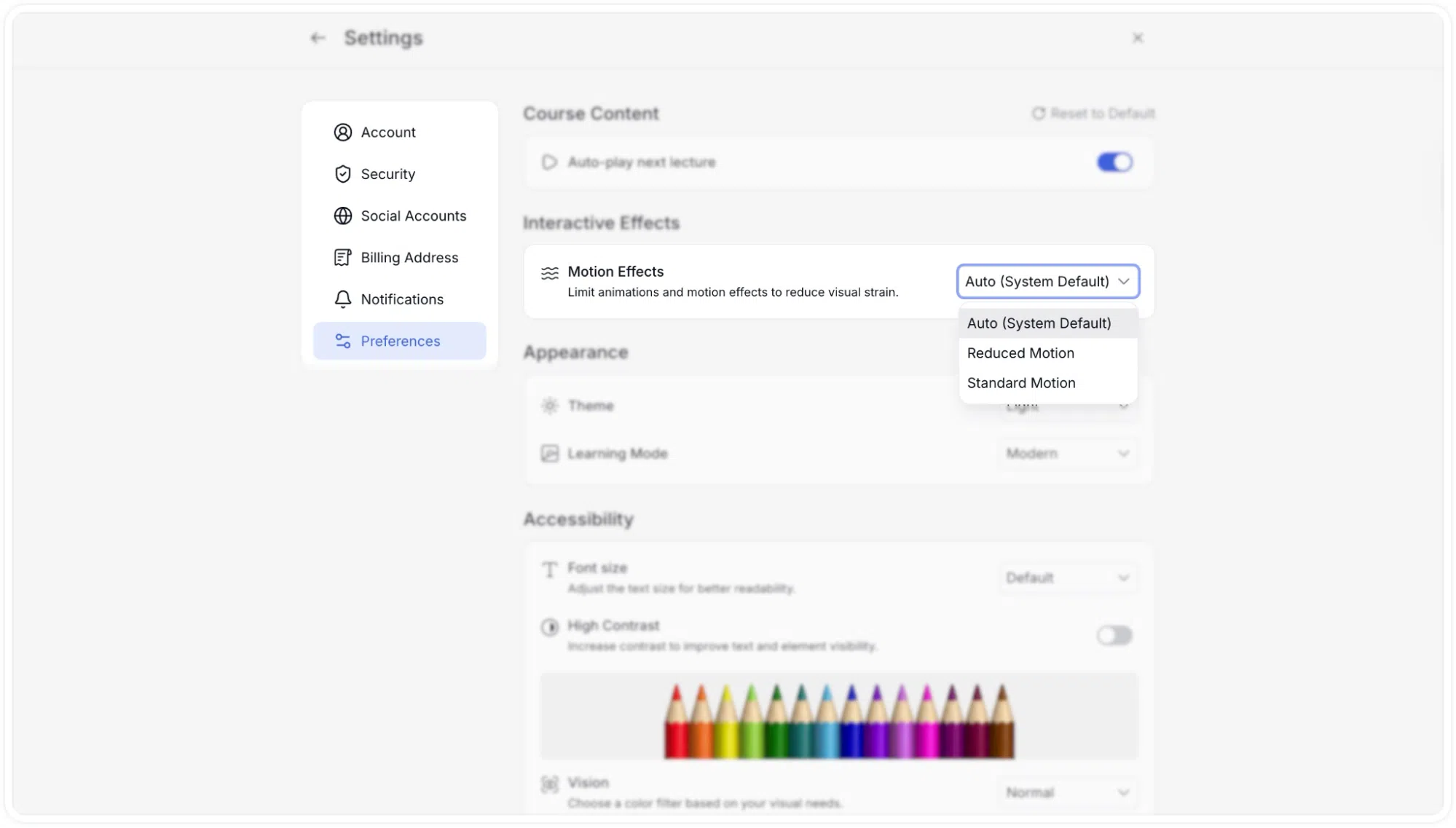
Motion Effects: Some parts of the Tutor LMS interface use animations and motion to transition between states, for example, sliding panels, fading elements, or animated page transitions. For students who find these effects distracting or uncomfortable, this setting allows them to be reduced or removed entirely.
The dropdown has three options:
Auto (System Default): Tutor LMS follows the student’s operating system preference. If the student has enabled “Reduce Motion” in their device’s accessibility settings, those preferences are respected here automatically.
Reduced Motion: Animations and motion effects are minimised regardless of what the operating system is set to. This is the best choice for students who find movement on screen distracting or who experience discomfort from motion-heavy interfaces.
Standard: The standard option is the Tutor LMS’s default motion effects speed.
Appearance
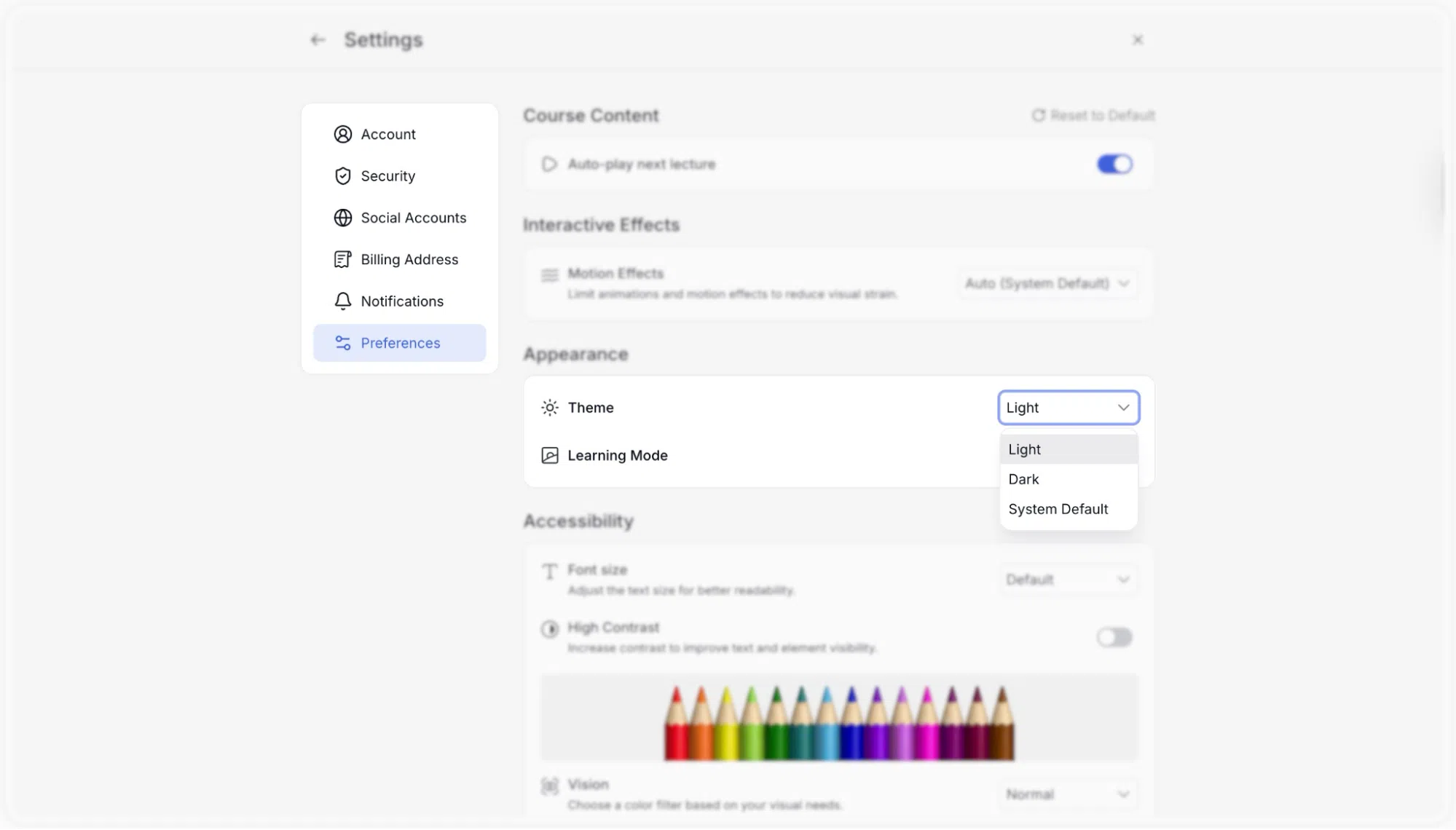
Theme: This controls the overall colour scheme of the student-facing interface, including the dashboard, course player, and all other pages.
The dropdown has three options:
Light: A standard white and light-grey background with dark text. This is the default.
Dark: The interface switches to a dark background with light text. This is useful for students who prefer to study in low-light environments or who find bright screens tiring over long periods.
System Default: The interface automatically matches whatever theme the student’s device or browser is set to. If the device uses dark mode, Tutor LMS will display in dark mode, and vice versa.
Accessibility
The Accessibility section contains settings specifically designed to help students with visual needs customise how content is displayed.
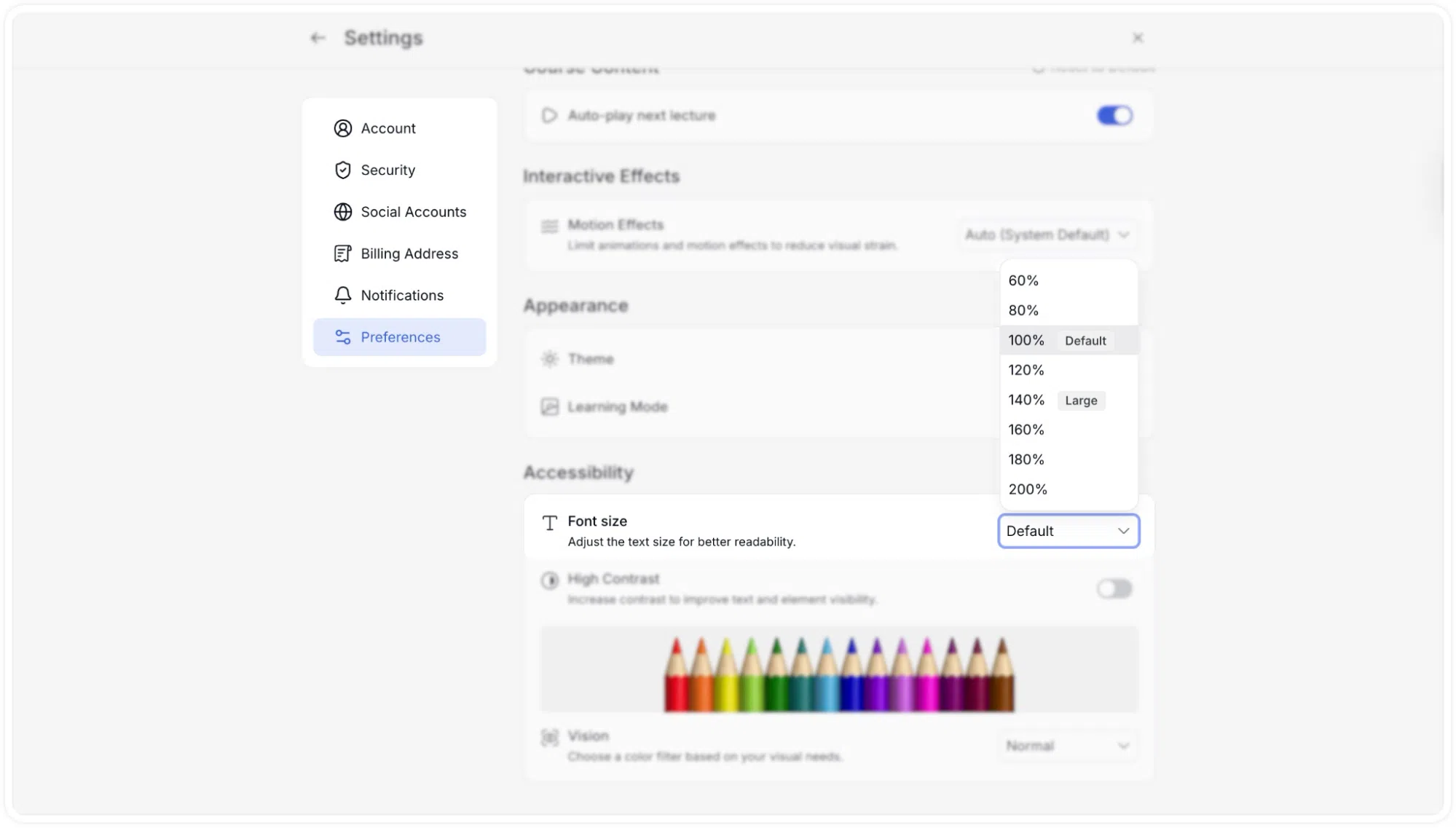
Font size
This setting adjusts the size of text displayed throughout the student interface. The dropdown offers a range of sizes so students can find a level that is comfortable and easy to read:
60%: Smaller than standard
80%: Slightly smaller than standard
100% (Default): The standard text size
120%: Slightly larger than standard
140% (Large): Noticeably larger, good for students who need a bit more size without going fully large
160%, 180%, 200%: Progressively larger sizes for students who need significantly larger text
Increasing the font size makes all text across the interface larger, including lesson descriptions, navigation labels, and body content.
High Contrast
This toggle increases the contrast between text and the backgrounds and elements behind it. When enabled, the interface shifts to higher-contrast colour combinations, making text and interface elements more visible and distinct. This is particularly helpful for students with low vision or those who find standard contrast levels difficult to read.
Vision
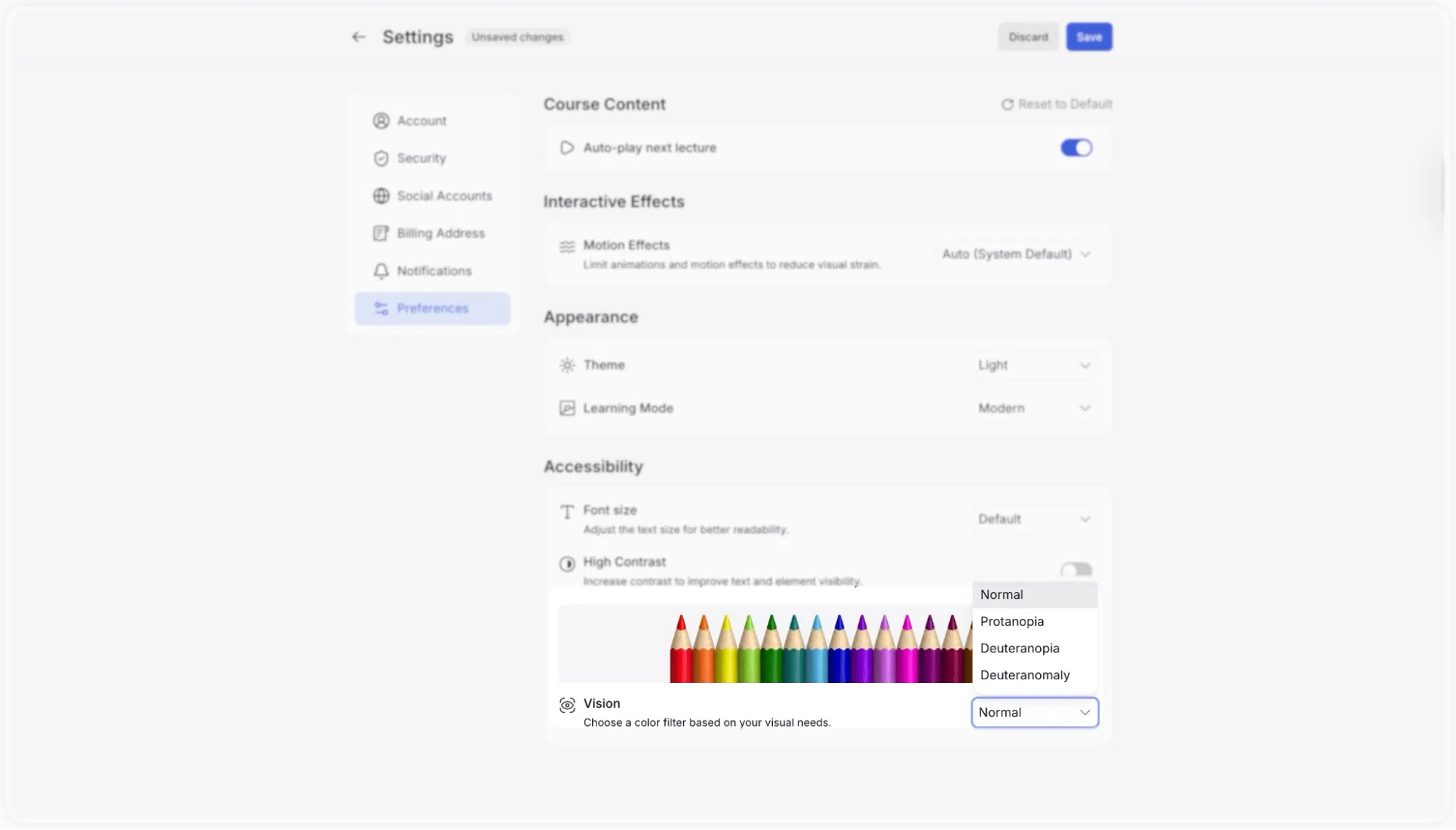
This setting applies a colour filter to the entire interface to assist students with colour vision deficiencies (commonly referred to as colour blindness). Students choose a filter that matches their type of colour vision, so the colours displayed on screen are adjusted to be more distinguishable for them.
The dropdown includes Normal (no filter applied, the default) along with named colour vision filters such as Protanopia. Protanopia is a form of red-green colour blindness where red colours are perceived differently. Other colour filters, Deuteranopia and Deuteranomaly, are also included.
When a vision filter is selected, the preview image of coloured pencils shown on the page updates in real time to reflect how the colour palette appears through that filter. This allows students to see the difference before saving.



 HALLOWEEN SALEHALLOWEEN SALEHALLOWEEN