Shortcodes
Shortcodes are a great feature that you can use to quickly add various elements and functionalities to your pages. In this section, we’re going to be discussing what Shortcodes are offered by Tutor LMS and how you can use them.
Page Shortcodes
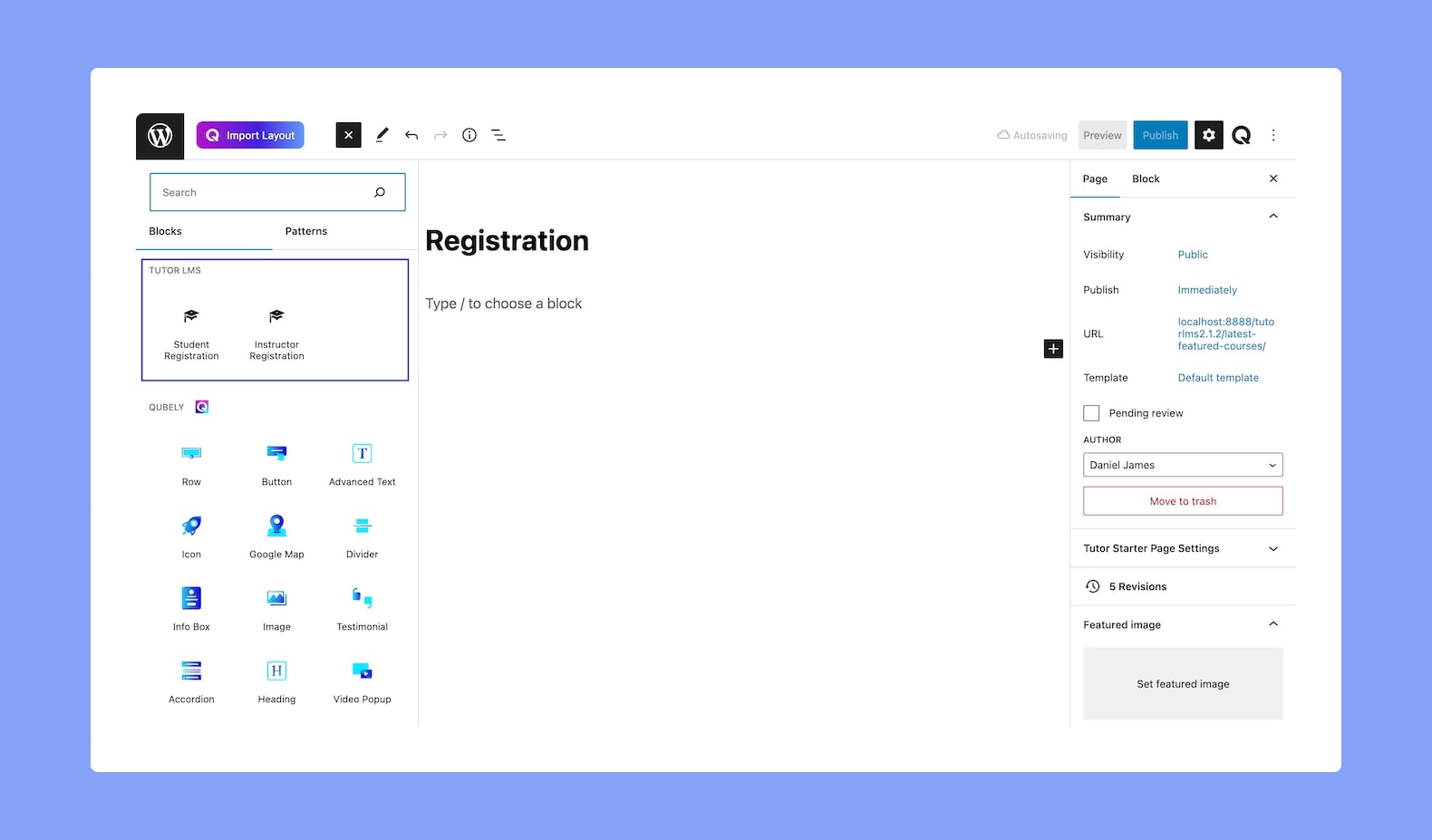
Tutor LMS offers some useful Page Shortcodes and you can find most of these on the Gutenberg Blocks Panel to use directly.
Here is the list of the Page Shortcodes available:
- Student Registration – [tutor_student_registration_form]
- Instructor registration – [tutor_instructor_registration_form]
- Dashboard – [tutor_dashboard]
As we mentioned, Page Shortcodes such as Student Registration and Instructor Registration are available as blocks under the Tutor LMS section on the Gutenberg Blocks panel. And, the Dashboard shortcode you can add directly using its code [tutor_dashboard].
Courses
You can use this next shortcode to embed a single course or multiple courses based on course ID and category. You can also exclude certain courses and limit how many courses you want to show. We have also added a parameter to sort the order.
Here is an explanation of all the possible parameters with examples:
<div class="wp-block-qubely-themeumcode qubely-block-d84a3a div { word-wrap: break-word; }"><div class="themeum-block-code"><pre class="language-php"><code class="language-php">[tutor_course id="20,64" exclude_ids="567,332" category="18,19" orderby="ID" order="desc" count="3" column_per_row='3'
course_filter='off' show_pagination='on']</code></pre></div></div>- id: You can use the Course Id here to target a specific course. To find the Course Id, open the Course in edit mode. You will see something like /wp-admin/post.php?post=5605&action=edit as the URL. Here the post number 5605 is this course’s Id. You can find and define multiple course Ids (i.e. post numbers) here using commas to separate each one.
- exclude_ids: You can also use specific course Ids from the list to exclude certain courses.
- category: Similar to Course Ids, you can use one or multiple Category Ids here to target specific courses. The process to get the Category ID is the same as getting the Course Id but in this case, the Category Id will be tag_ID instead of Post Id.
- orderby: This parameter allows you to define which criteria you want to use to order the courses. The criteria available are the following:
- ID: Use this option to sort the courses based on the Course Id.
- title: Use this option to sort the courses based on their Title. By default, they’ll be sorted in ascending order i.e titles that start with A, B, C, and so on.
- Rand: Use this option to randomize the order of the courses shown.
- Date: Use this parameter to help you to display the latest published courses at the top.
- order: This option has two parameters — asc or desc to define the order in which the courses will be arranged based on the criteria.
- count: Use this option to limit the number of results. For instance, you may want to show the 3 latest courses in a specific category. So, you can use this option to set the limit of this result as 3.
- column_per_row: Use this option to set the number of columns you want the results to be displayed in for each row. We recommend a maximum of 4 columns.
- course_filter: We have a Filter option on our Course Archive Page. If you do not want to use the filters, then you can set this option’s value to off. If you do not use this parameter, the system will use the same settings as what is set in Tutor LMS Settings > Design > Course > Course Filter.
- show_pagination: Use this option to enable or disable the pagination for the course page. Example: show_pagination=’on’.
Example
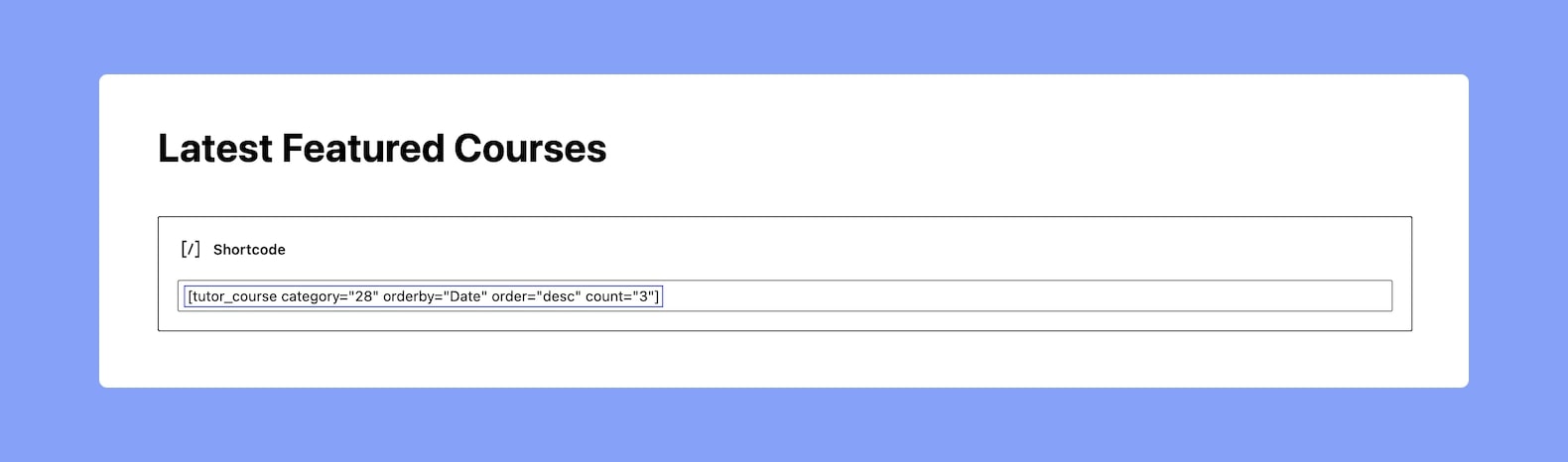
<div class="wp-block-qubely-themeumcode qubely-block-b30a21"><div class="themeum-block-code"><pre class="language-markup"><code class="language-markup">[tutor_course category="28" orderby="Date" order="desc" count="3"]</code></pre></div></div>In this example, the 3 Latest Featured Courses are displayed. This is done using:
- category = 28 (Featured Category Tag Id is 28),
- orderby = Date,
- order = desc,
- and lastly count = 3
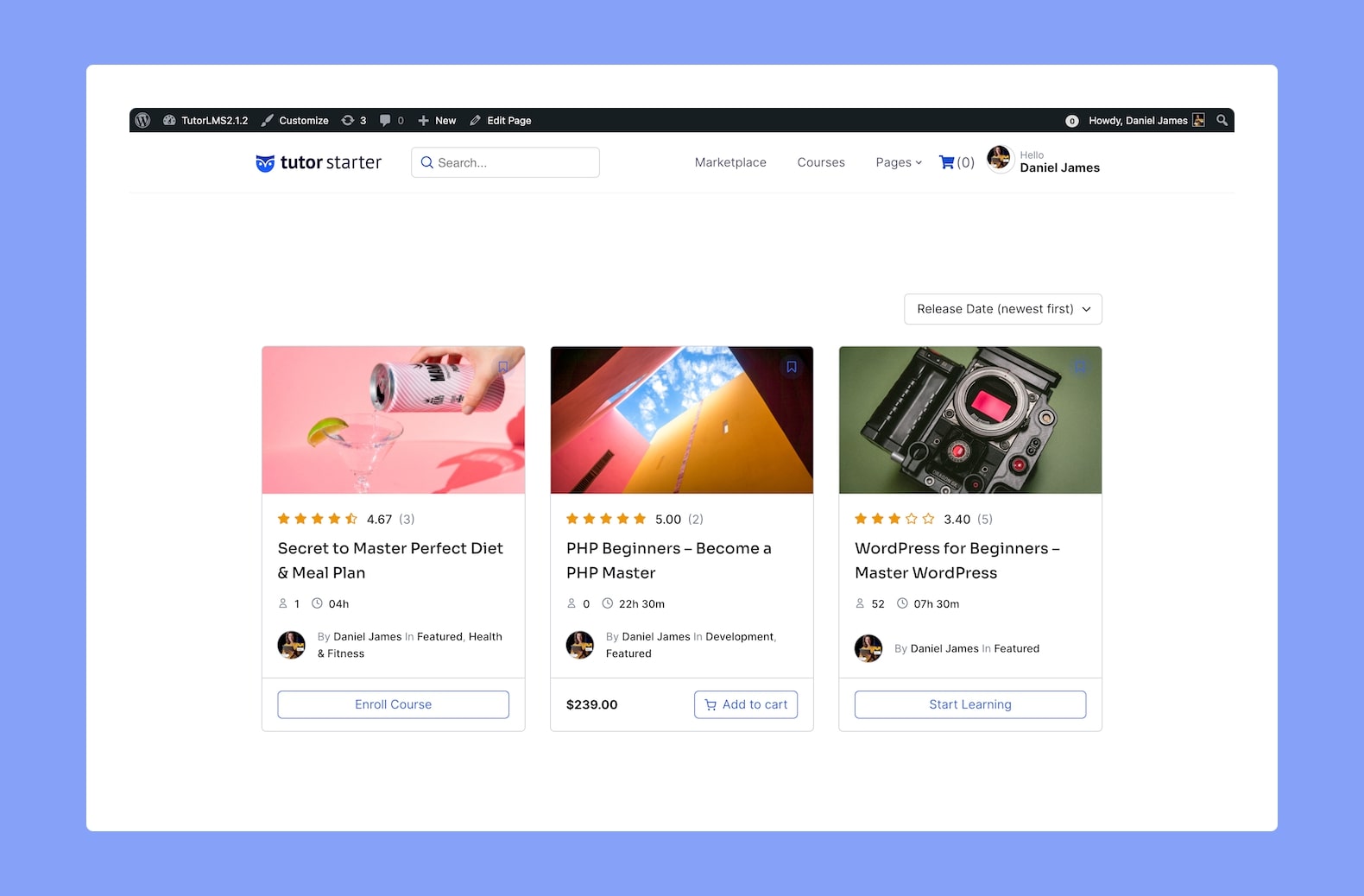
You’ll end up with something like the image shown above. So this feature is really useful if you want to showcase certain courses on a particular page and can help you target and reach more potential students.
Instructors List
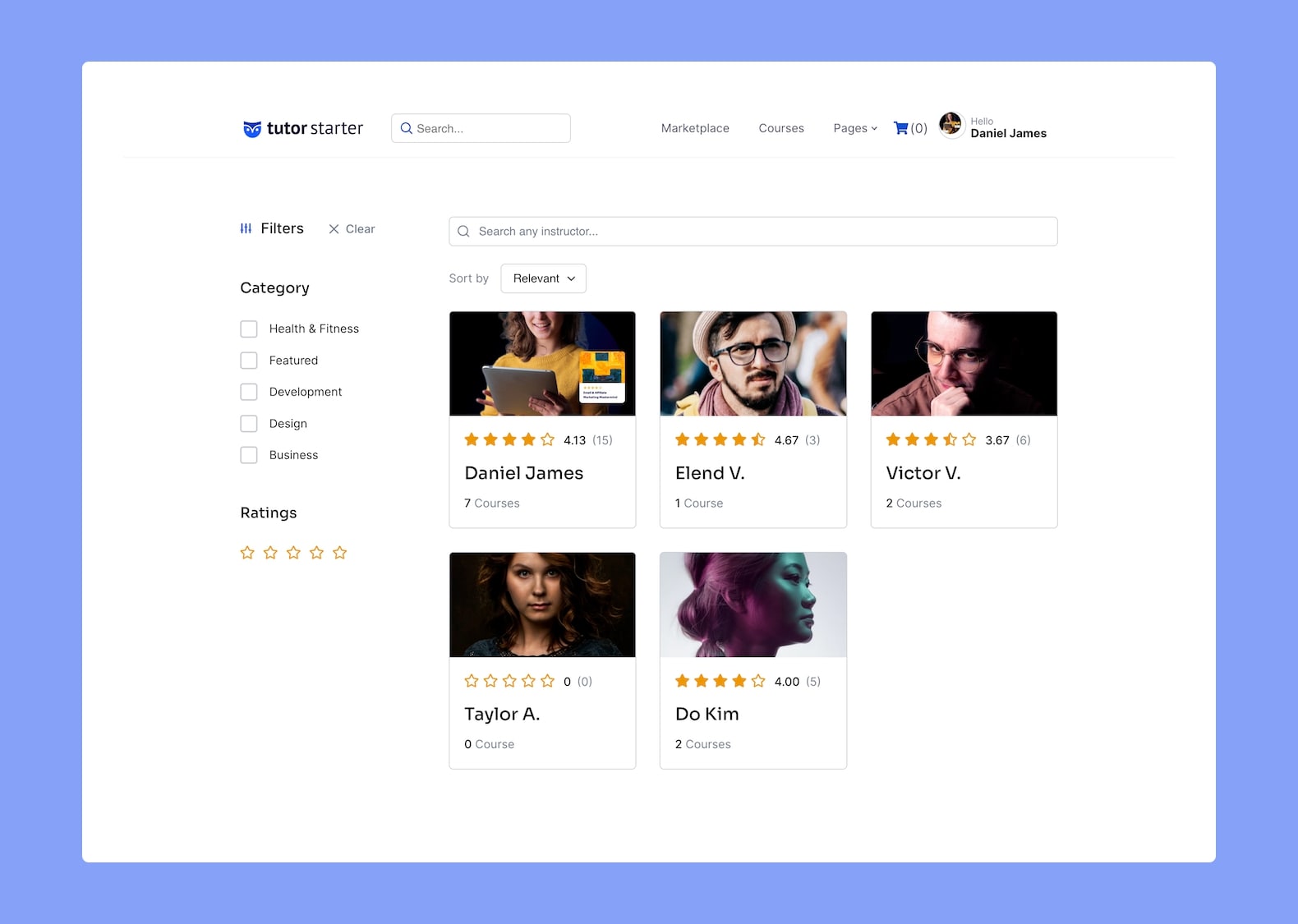
Next up, use the following shortcode to showcase your Instructor’s list on a page/post.
<div class="wp-block-qubely-themeumcode qubely-block-eb06b9 div { word-wrap: break-word; }"><div class="themeum-block-code"><pre class="language-php"><code class="language-php">[tutor_instructor_list column_per_row="1" filter=on count="2" layout="pp-top-left" category_limit="2" hide_empty_category]</code></pre></div></div>You can customize the given shortcode to your liking using the following attributes.
The filter attribute controls the presence of category, search, and rating filters in the instructor listing. If you want to add or remove the filter for the instructor list, please modify this attribute as shown below.
<div class="wp-block-qubely-themeumcode qubely-block-676c93"><div class="themeum-block-code"><pre class="language-php"><code class="language-php">filter=on</code></pre></div></div>OR
<div class="wp-block-qubely-themeumcode qubely-block-e26d8b"><div class="themeum-block-code"><pre class="language-php"><code class="language-php">filter=off</code></pre></div></div>You can also modify the number of instructors per row by changing the following attribute:
<div class="wp-block-qubely-themeumcode qubely-block-d837a6"><div class="themeum-block-code"><pre class="language-php"><code class="language-php">column_per_row="1"</code></pre></div></div>If you wish to choose a specific layout for the instructors’ list, you can define your desired layout within the shortcode. The layout you define using the shortcode will override the default layout option selected from Tutor LMS Settings.
- pp-top-full
- pp-cp
- pp-top-left
- pp-left-middle
- pp-left-full
If you want to display a limited number of caegories, you can add the Category Limit conditions.
<div class="wp-block-qubely-themeumcode qubely-block-b6b956"><div class="themeum-block-code"><pre class="language-php"><code class="language-php">category_limit="2"</code></pre></div></div>In order to hide the empty categories, you can use the following attribute within the shortcode. It will hide categories from the category list which is not assigned to any course. However, if you don’t use this attribute, all those categories will be displayed on your webpage.
<div class="wp-block-qubely-themeumcode qubely-block-90ab41"><div class="themeum-block-code"><pre class="language-php"><code class="language-php">hide_empty_category</code></pre></div></div>Login Page
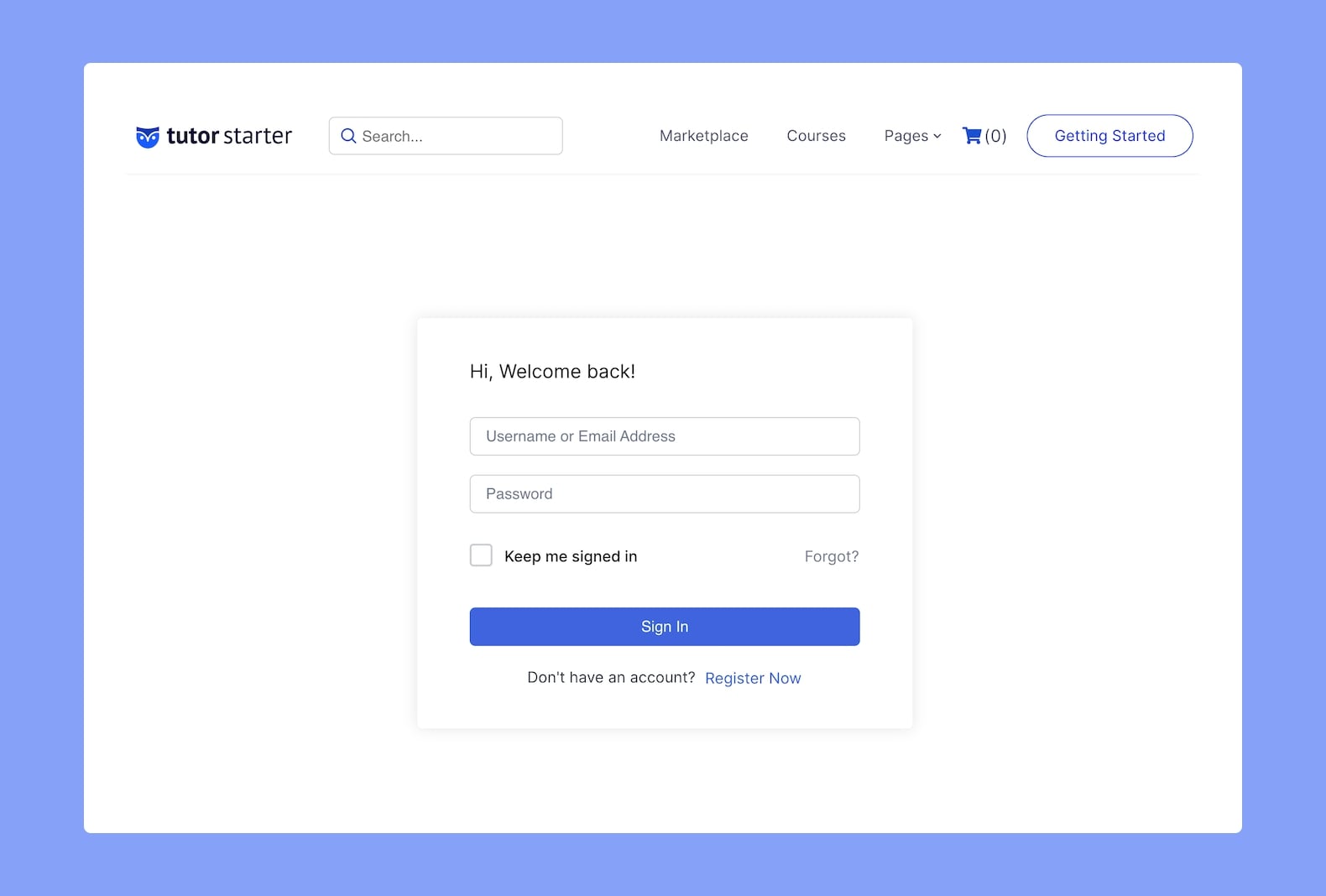
This Login page shortcode will only work with Tutor LMS Pro. You can generate the Login Page for your site from WP Admin > Tutor LMS > Tools > Tutor Pages. You can then use the Login Shortcode by simply adding the following code to your page:
<div class="wp-block-qubely-themeumcode qubely-block-01263e"><div class="themeum-block-code"><pre class="language-markup"><code class="language-markup">[tutor_login]</code></pre></div></div>Then, simply hit publish and you’re done! For more information about the Login Page, visit this documentation.
Membership Pricing Page
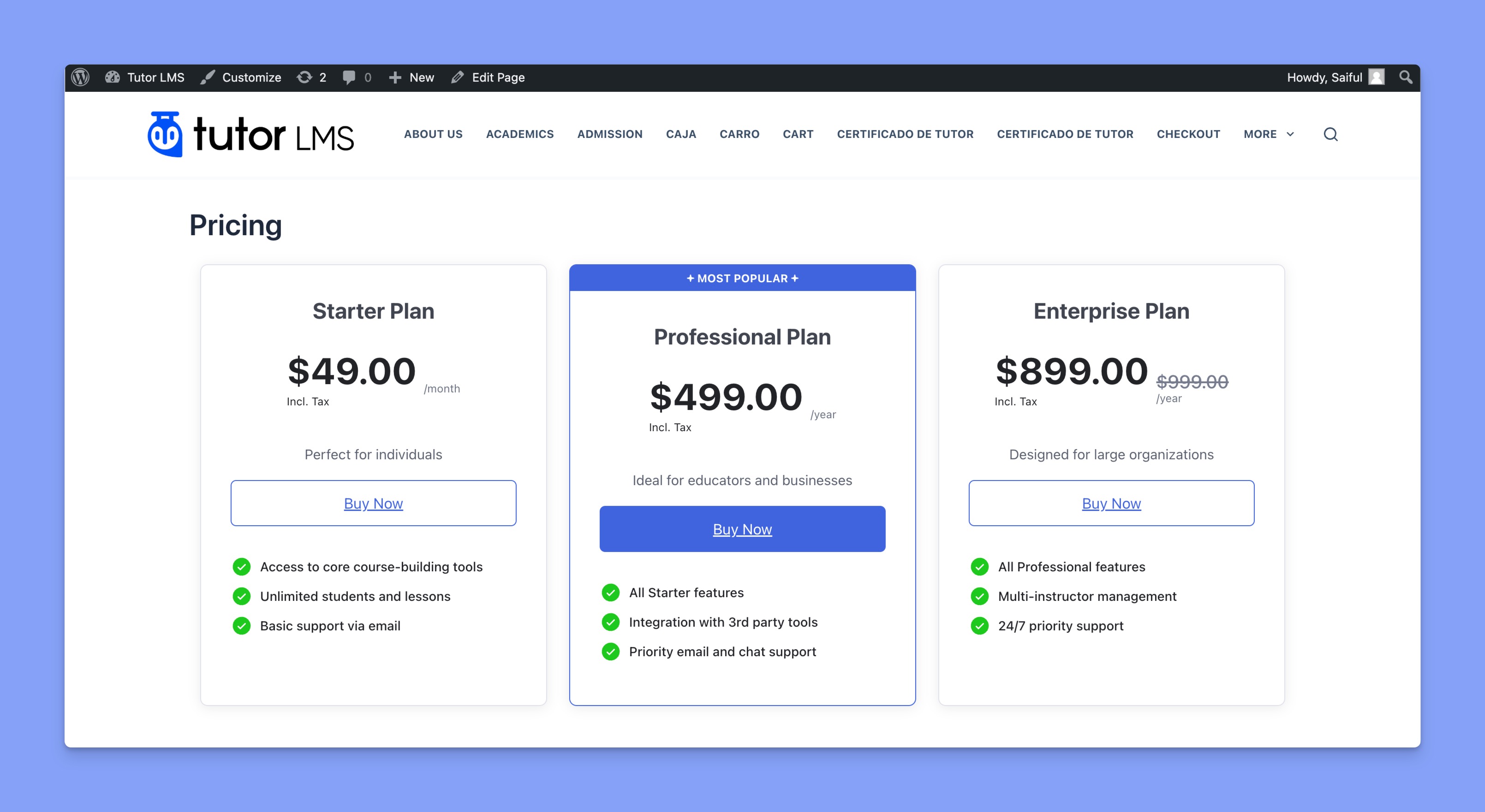
You can create a custom membership pricing page using a shortcode. Simply add the following shortcode to your page:
<div class="wp-block-qubely-themeumcode qubely-block-cd08a0"><div class="themeum-block-code"><pre class="language-markup"><code class="language-markup">[tutor_membership_pricing]</code></pre></div></div>