Introduction to REST API
Tutor LMS is fully integrated with the WordPress REST API. This allows Tutor LMS data to be read and, with Tutor LMS Pro, created, updated, and deleted, using JSON requests. It supports standard HTTP verbs, API key permissions, and token-based user identity.
Important: Authentication changed in Tutor LMS 4.2.0. Basic Auth with an API key and secret no longer works. Your application now sends its key and secret once to log in, and receives an access token that identifies the end user. API keys no longer act as the key owner, and responses depend on the user the token belongs to.
Requirements
To use the latest version of the REST API, you must be using:
- Tutor LMS v4.2 or later
Tutor LMS Free provides a read-oriented API for courses, curriculum, quizzes, authors, and ratings, plus the authentication endpoints. Routes that create, update, or delete data, such as enrollments and assignment submissions, require Tutor LMS Pro.
You can access the API over both HTTP and HTTPS connections. But, HTTPS is strongly recommended.
Request / Response Format
The default response format of the Tutor LMS REST API is JSON, so you use plain JSON to set or update resource attributes. Every successful request returns a 200 OK status.
Most responses use this envelope:
{
  "code": "success",
  "message": "Human-readable message",
  "data": {}
}
General notes about responses:
- Dates are returned in the format YYYY-MM-DD HH:MM:SS.
- Resource IDs are returned as integers.
- Decimal monetary amounts (course prices or totals) are returned as strings with two decimal places.
- A request for an empty collection or a missing resource can return HTTP 200 with “code”: “not_found” and an empty data.
- Responses depend on the user the access token belongs to. See Access and responses below.
How authentication works
Two credentials work together:
- API key and secret identify your application and set what it is allowed to do through its permission level (Read, Write, Delete, or All). You send them only to log in.
- Access token identifies the end user. It is short-lived, and your application sends it with every other request. A refresh token renews it without logging in again and can be revoked.
The authentication flow:
- Create an API key in Tutor LMS and choose its permission level.
- Log in with the key and secret in Headers and the end user’s username and password in the Body. You will receive an access token and a refresh token.
- Save the access token and send the access token with each request.
- When the access token expires, use the refresh token to get a new pair of tokens.
- Log out to revoke the refresh token.
Here’s the detailed step-by-step process:
Step 1: Create an API key
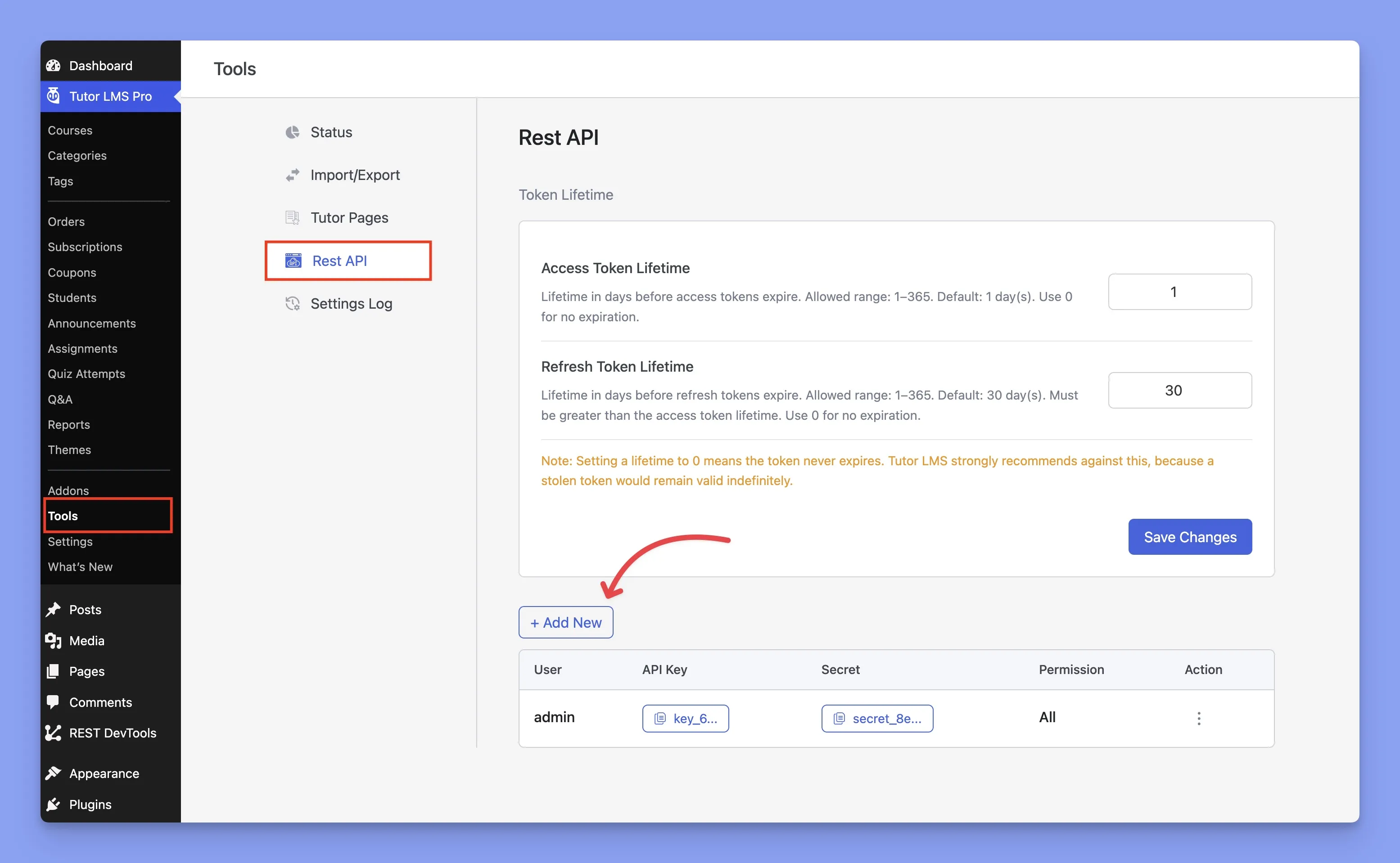
Go to Tools > REST API in your WordPress dashboard. Click Add New to create an API key and secret pair for a user. Each key has a permission level:
| Permission | What it allows |
|---|---|
| Read | [Read requests, for example GET] |
| Write | [Create and update requests] |
| Delete | [Delete requests] |
| All | All of the above |
Step 2: Log in to get tokens
URL: https://yourwebsiteaddress/wp-json/tutor/v1/auth/login
Type: POST
Send your API key and secret as headers:
| Key | Value |
|---|---|
| Content-Type | application/json |
| Tutor-Api-Key | YOUR_API_KEY |
| Tutor-Api-Secret | YOUR_API_SECRET |
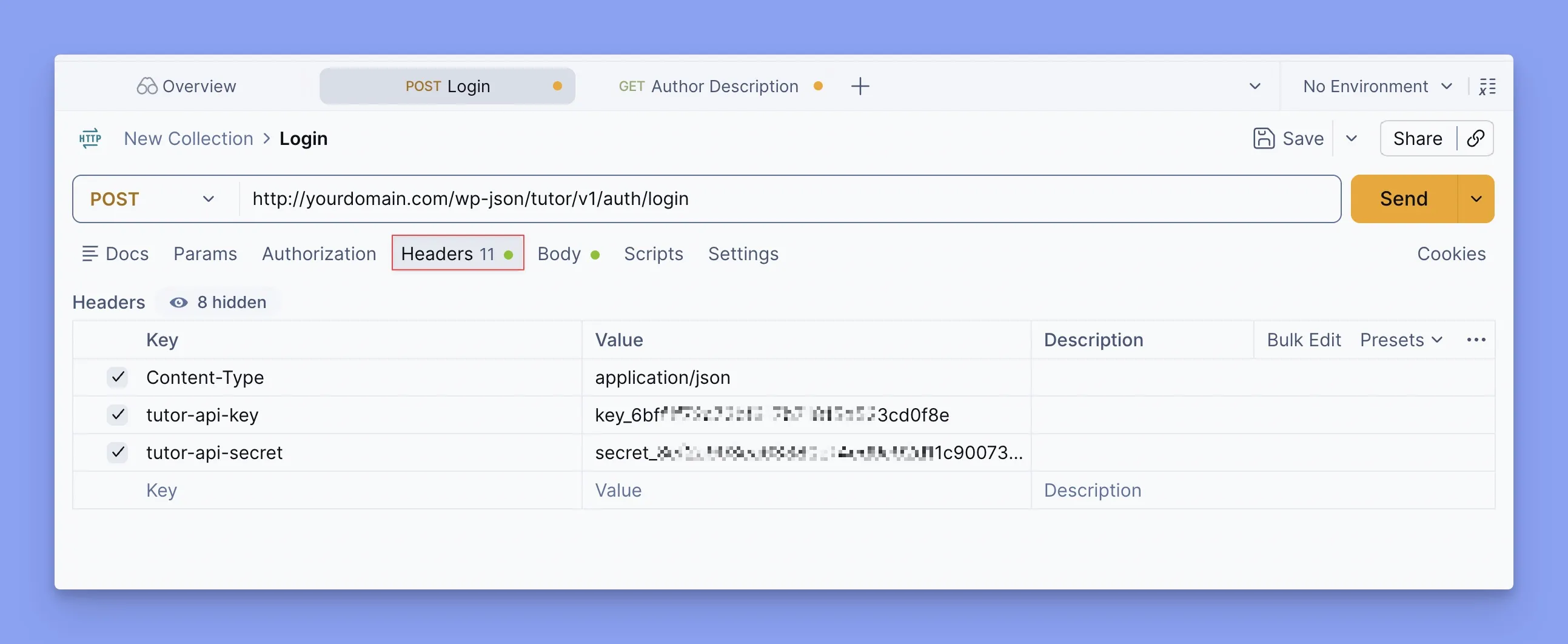
Request body:
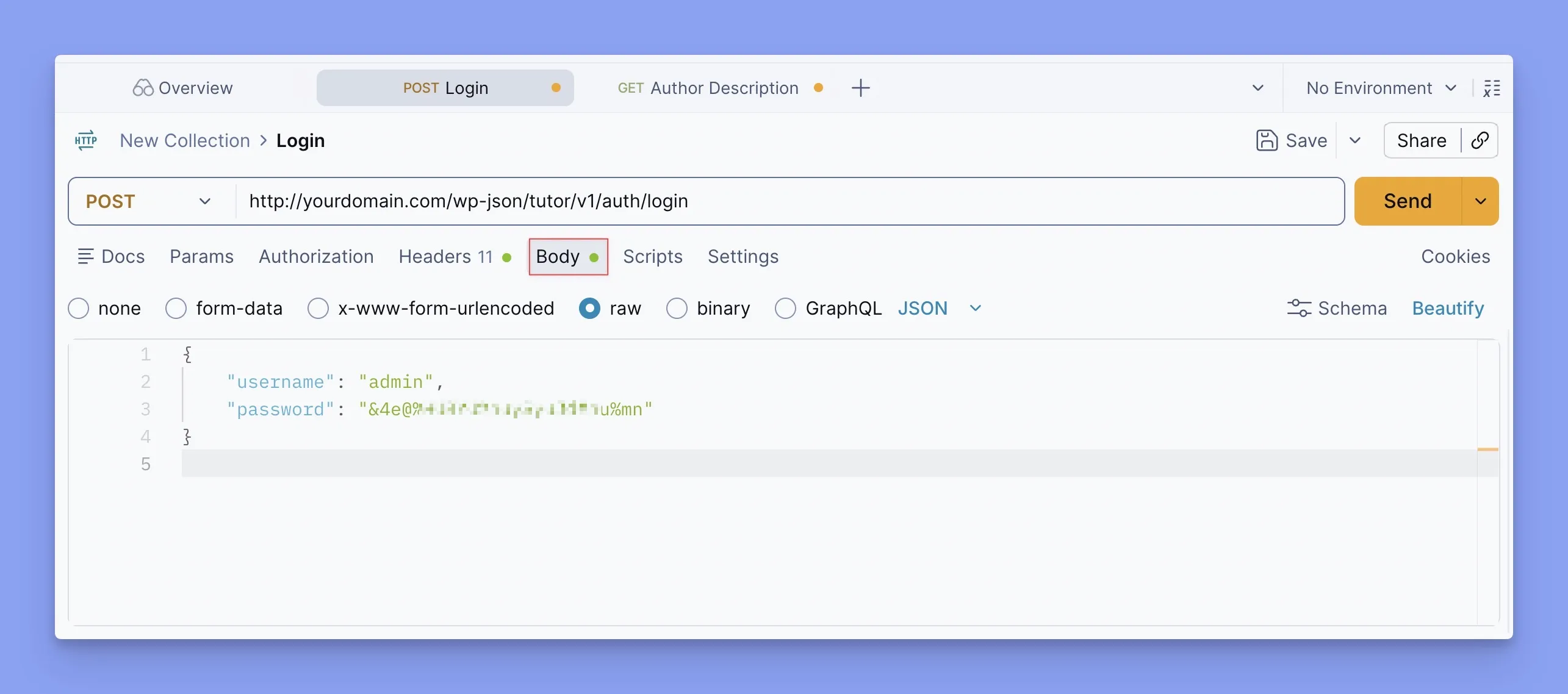
| Field | Type | Required | Description |
|---|---|---|---|
| username | string | Yes | The user’s WordPress login or email |
| password | string | Yes | The user’s password |
{
  "username": "END_USER_USERNAME",
  "password": "END_USER_PASSWORD"
}
Successful response:
{
  "access_token": "ACCESS_TOKEN",
  "expires_in": 86400,
  "refresh_token": "REFRESH_TOKEN",
  "user_id": 12,
  "display_name": "Jane Doe"
}
expires_in is the access token lifetime in seconds. 86400 is the default of 1 day, and 0 means the token does not expire.
If the API key is missing or invalid, the request is refused with rest_forbidden.
Step 3: Send authenticated requests
Save the access token as a Bearer token. In Postman, open the Authorization tab, choose Bearer Token, and enter the access token.
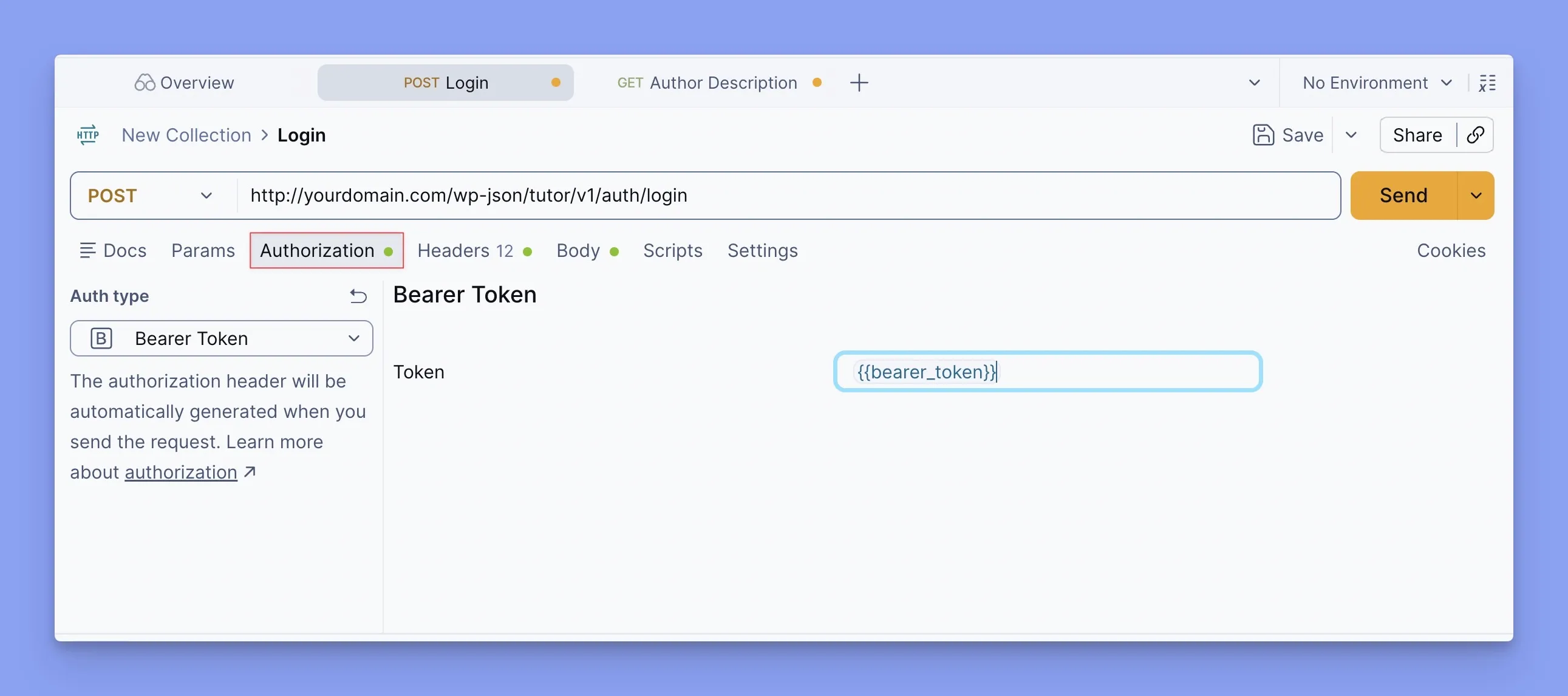
Your API key and secret are not needed for any requests other than login. The token is tied to the key it was created with, so the key’s permission level still applies.
Step 4: Refresh an expired access token
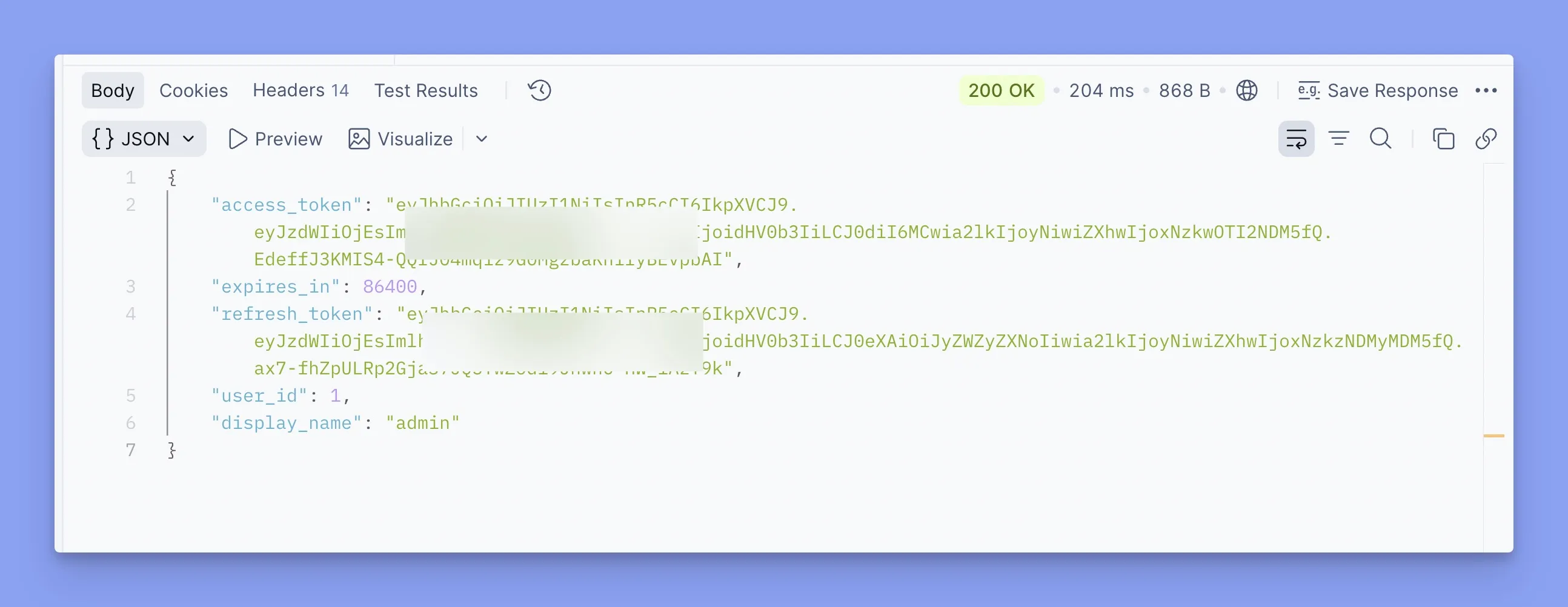
When the access token expires, request a new pair of tokens with the refresh token. No API key headers are needed.
URL: https://yourwebsiteaddress/wp-json/tutor/v1/auth/refresh
Type: POST
{
"refresh_token": "YOUR_REFRESH_TOKEN"
}The response has the same shape as the login response, with a new access token and a new refresh token. Refresh tokens are tied to the API key they were issued with. If that key has been deleted or revoked, the request returns 403.
Step 5: Log out
URL: https://yourwebsiteaddress/wp-json/tutor/v1/auth/logout
Type: POST| Field | Type | Required | Description |
|---|---|---|---|
| refresh_token | string | No* | Ends the session for this refresh token |
| all | boolean | No | If true, ends all refresh sessions for the user |
* Send refresh_token, or send all: true with a valid access token in the Authorization: Bearer or Tutor-User-Token header.
Successful response:
{ "success": true }
Token lifetimes
Access and refresh token lifetimes are configurable. Both are set in days on the Tools > Rest API page, under Token Lifetime.
| Token | Default value | Allowed range |
|---|---|---|
| Access token lifetime | 1 day | 1 to 365 days |
| Refresh token lifetime | 30 days | 1 to 365 days |
- The refresh token lifetime must be greater than the access token lifetime.
- Setting a lifetime to 0 means the token never expires. Tutor LMS strongly recommends against this, because a stolen token would remain valid indefinitely.
Security best practices
- Store keys, secrets, and tokens securely on the server side. Never include them in client-side code or public repositories.
- Use HTTPS for all requests.
- Give each API key the lowest permission level it needs.
- Treat the refresh token like a password. It can be used to obtain new access tokens.
- Log out to revoke refresh tokens when a session ends.
Access and responses
Responses and access depend on the user the access token belongs to, and on the API key’s permission level.
Course content. Course details, curriculum, topics, lessons, announcements, quizzes, quiz answers, and quiz attempts are available only when the course is public, the user is enrolled, or the user is an instructor or admin with access to that course. Otherwise, the API returns 403. (Pro routes for enrollments, assignments, quiz attempts, and Q&A also check who is making the request and whether they can access the specific item.)
Private user details. Author and course responses include only the user’s ID, display name, and nicename by default. Login name, email, registration date, and URL are included only when the caller is the user themselves, has the list_users capability, or is an instructor of a course the user is enrolled in. Reviewer email addresses in course ratings follow the same rule.
Quiz answers. Correct-answer information is removed from quiz responses until the learner completes an attempt, unless the caller can manage the course. For choice questions, the options are returned without is_correct. For other question types, the answers are returned empty.
Quiz attempts. Callers receive only their own attempts, unless they can manage the course.
Requirements by route
| Route | Method | What it needs |
|---|---|---|
| /auth/login | POST | API key and secret (Read or higher) |
| /auth/refresh | POST | Refresh token |
| /auth/logout | POST | Refresh token, or access token with all: true |
| /courses | GET | Access token, Read |
| /courses/{id} | GET | Access token, Read, course content access |
| /course-contents/{id} | GET | Access token, Read, course content access |
| /topics | GET | Access token, Read, course content access |
| /lessons | GET | Access token, Read, content access to the topic’s course |
| /course-announcement/{id} | GET | Access token, Read, course content access |
| /quizzes, /quizzes/{id} | GET | Access token, Read, content access to the quiz’s course |
| /quiz-question-answer/{id} | GET | Access token, Read, content access to the quiz’s course |
| /quiz-attempt-details/{id} | GET | Access token, Read, content access to the quiz’s course |
| /author-information/{id} | GET | Access token, Read |
| /course-rating/{id} | GET | Access token, Read |
If a caller isn’t allowed to perform a request, the API returns 403 Forbidden.
Errors
Occasionally, you may encounter errors when accessing the REST API. Possible errors:
| HTTP Status Code | Error Code | Description |
|---|---|---|
| 400 Bad Request | INVALID_PARAM | Invalid or missing parameters in the request. |
| 401 Unauthorized | UNAUTHORIZED | The access token is missing, invalid, or expired. [Confirm whether expired and invalid tokens use separate error codes.] |
| 403 Forbidden | FORBIDDEN | The API key permission or the user’s access does not allow this resource or action. Also returned when a refresh token’s API key is invalid or revoked. |
| 500 Internal Server Error | INTERNAL_SERVER_ERROR | The server encountered an unexpected condition. |
| 404 Not Found | NOT_FOUND | The requested resource could not be found. |
| 405 Method Not Allowed | METHOD_NOT_ALLOWED | The HTTP method used is not allowed for this resource. |
| 408 Request Timeout | REQUEST_TIMEOUT | The server timed out while waiting to execute the request. |
| 502 Bad Gateway | BAD_GATEWAY | Invalid response received from an upstream server. |
| 504 Gateway Timeout | GATEWAY_TIMEOUT | The server, while acting as a gateway or proxy, did not receive a timely response from an upstream server. |
| 505 HTTP Version Not Supported | HTTP_VERSION_NOT_SUPPORTED | The server does not support the HTTP protocol version used in the request. |
| 507 Insufficient Storage | INSUFFICIENT_STORAGE | The server is unable to store the representation needed to complete the request. |
| 508 Loop Detected | LOOP_DETECTED | The server detected an infinite loop while processing a request. |
WordPress errors use the standard REST error format, with code, message, and data status.
For example, a request with a missing or invalid API key at login returns:
{
  "code": "rest_forbidden",
  "message": "Sorry, you are not allowed to do that.",
  "data": { "status": 401 }
}
Note: Only errors with status codes 400, 401, 403, and 500 originate from Tutor LMS. WordPress handles all other errors.