Content Bank
The Content Bank in Tutor LMS Pro is a centralized hub where you can store and manage reusable learning materials, such as quiz questions, lessons, and assignments. It helps you:
- Create once, reuse anytime – Add content to multiple courses without recreating it.
- Speed up course creation – Quickly pull in ready-made materials as you build.
- Scale with ease – Manage growing content needs more efficiently over time.
Enabling the Content Bank Addon
Before you can build your library of reusable content, you must enable the feature in your settings. This is a quick, one-time setup.
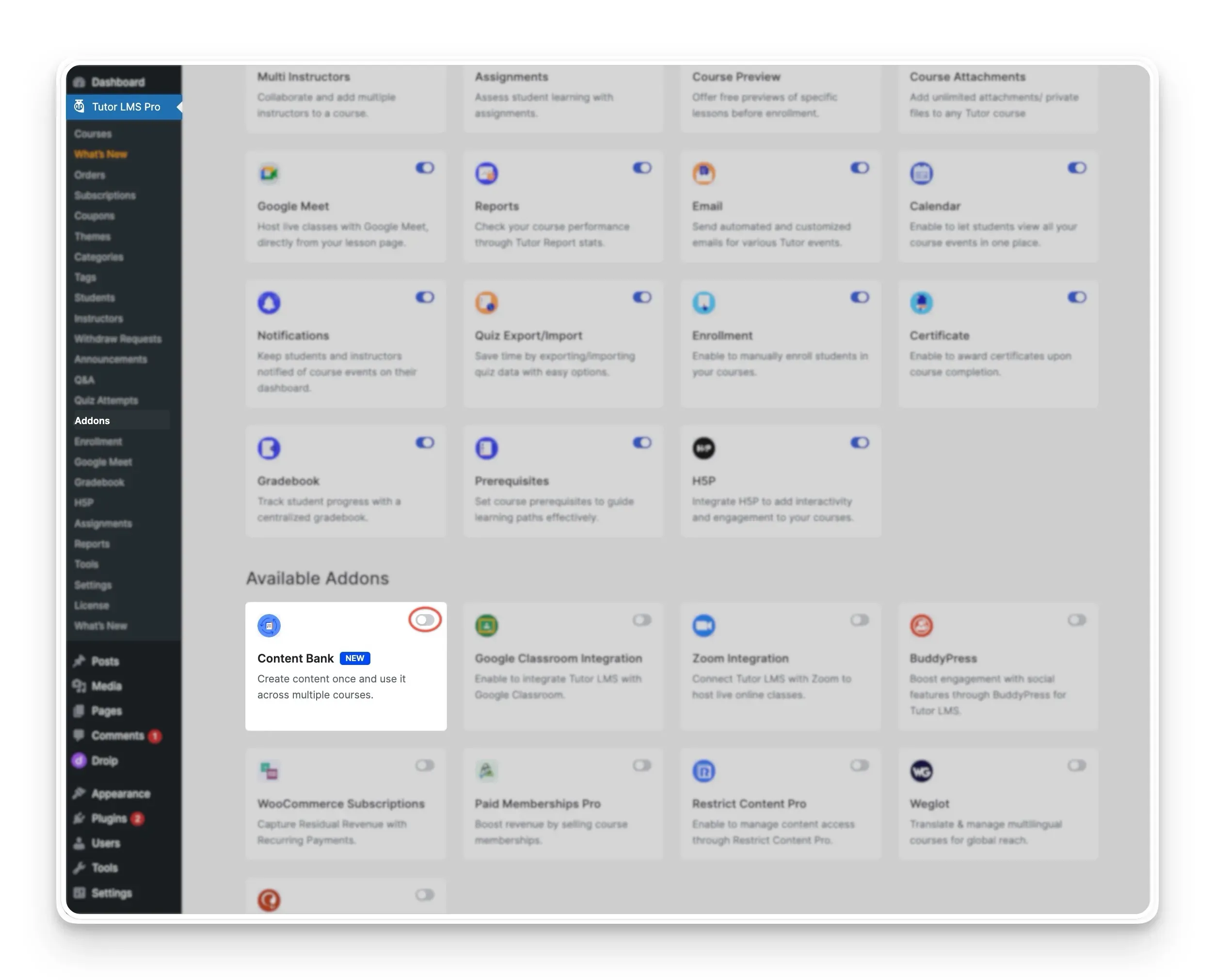
- Navigate to Tutor LMS Pro > Addons from your WordPress dashboard.
- Locate the Content Bank addon and click the toggle switch to enable it.
(Note: If you plan to store and reuse assignments, make sure the Assignment addon is also enabled here.)
Once activated, a new Content Bank menu item will appear under the Tutor LMS Pro section in your WordPress dashboard.
Creating Collections
To keep your digital library organized, the Content Bank uses Collections. Think of a Collection as a dedicated folder for related course materials. You might organize Collections by subject (e.g., “Beginner Math”), content type (e.g., “Standard Quizzes”), or specific modules.
How to Create a Collection
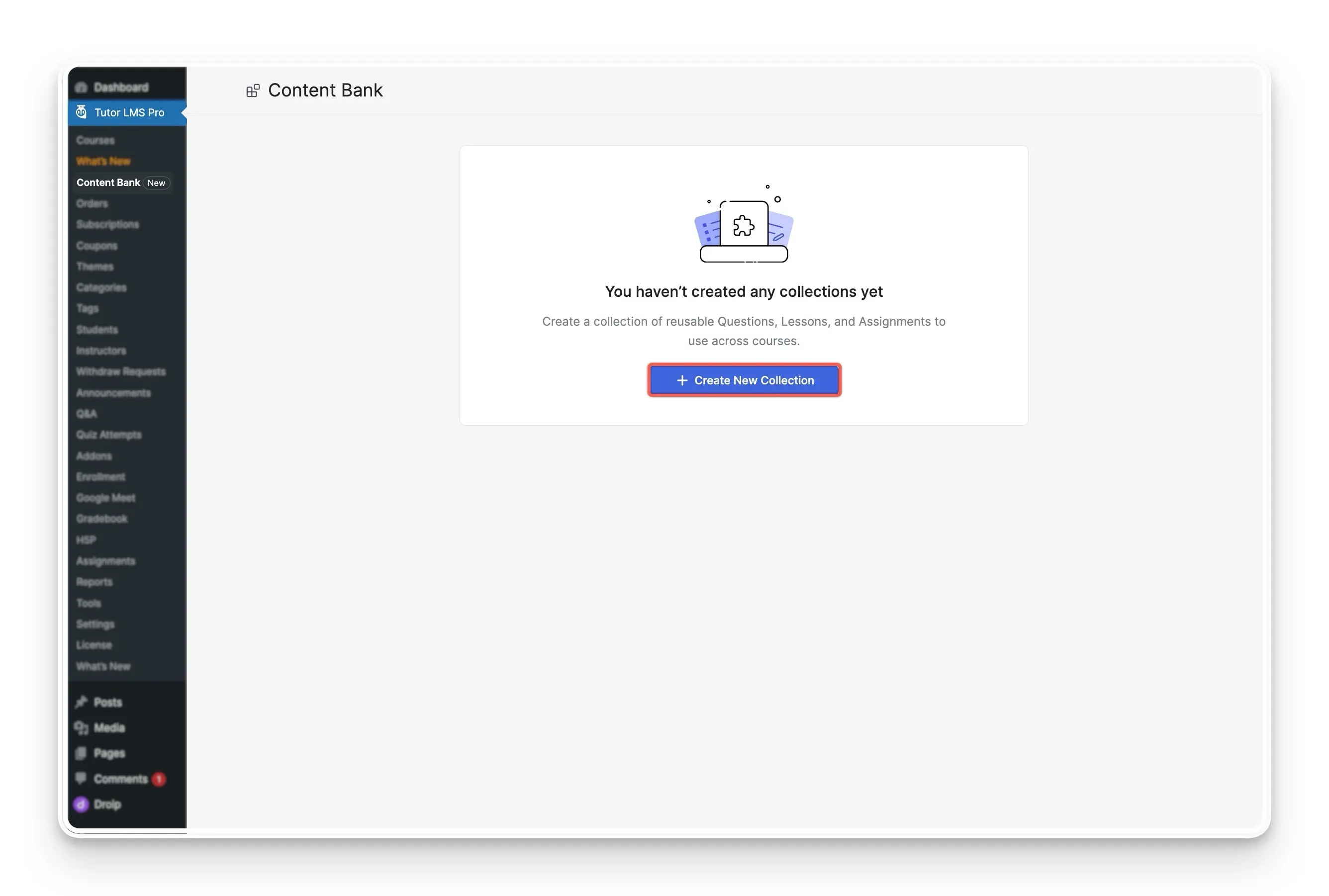
- Navigate to Tutor LMS Pro > Content Bank.
- Click the Create New Collection button.
- Provide a clear, descriptive name for your collection and hit save.
Your new Collection is now ready to hold shareable course content.
Populating Your Collection
Once your Collection is created, you have two flexible methods to fill it with reusable content: building it from scratch or importing it from courses you have already created.
Method A: Add New Content from Scratch
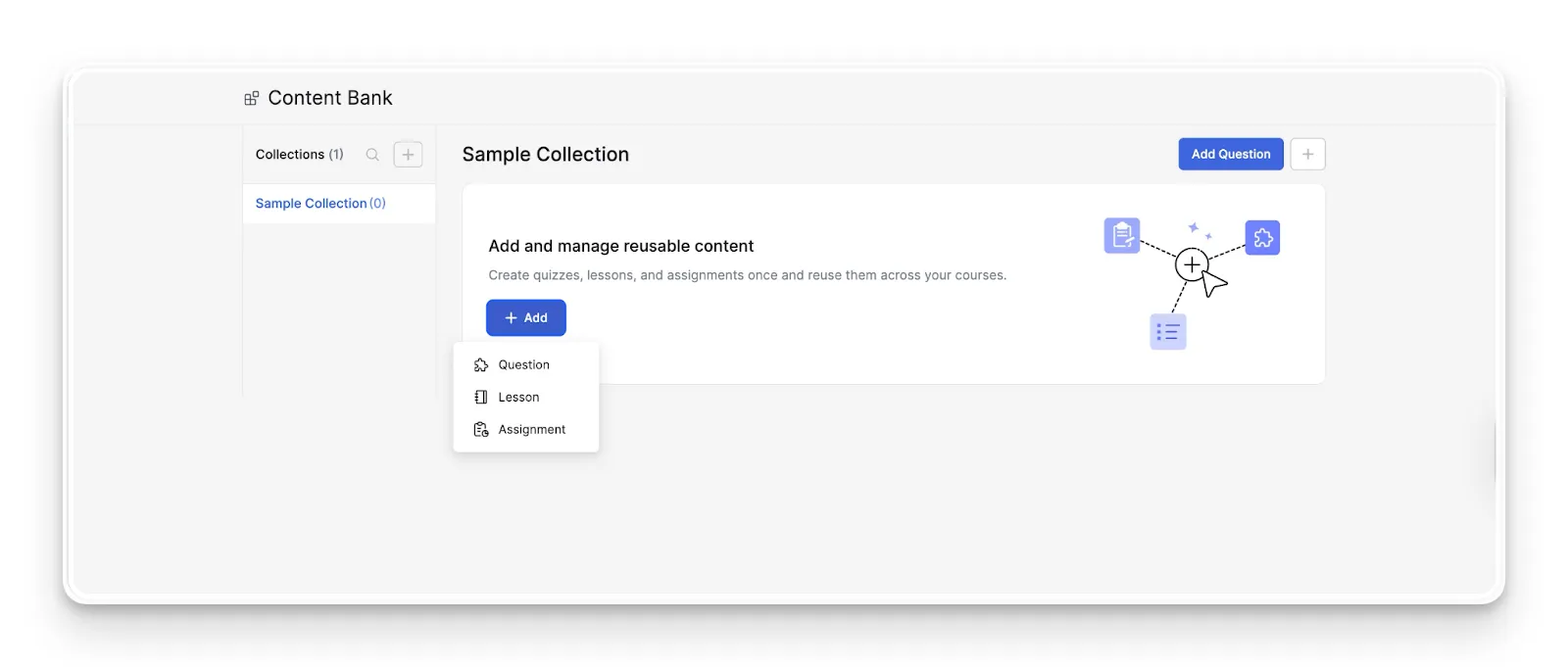
You can build brand-new assets directly inside the Collection. Open your Collection and click the + Add button. You can create:
- Reusable Lessons: Perfect for introductory modules, syllabus information, or foundational text/video concepts used repeatedly.
- Reusable Assignments: Ideal for standard case studies or project templates you want to use across different tracks.
- Reusable Quiz Questions: Build a massive, searchable question bank to instantly generate assessments later.
Method B: Import from Existing Courses
If you already have a mature Tutor LMS site, you don’t need to start from scratch. You can pull the best materials from your current courses straight into the Content Bank.
- Open your Collection and locate the Import from Courses option.
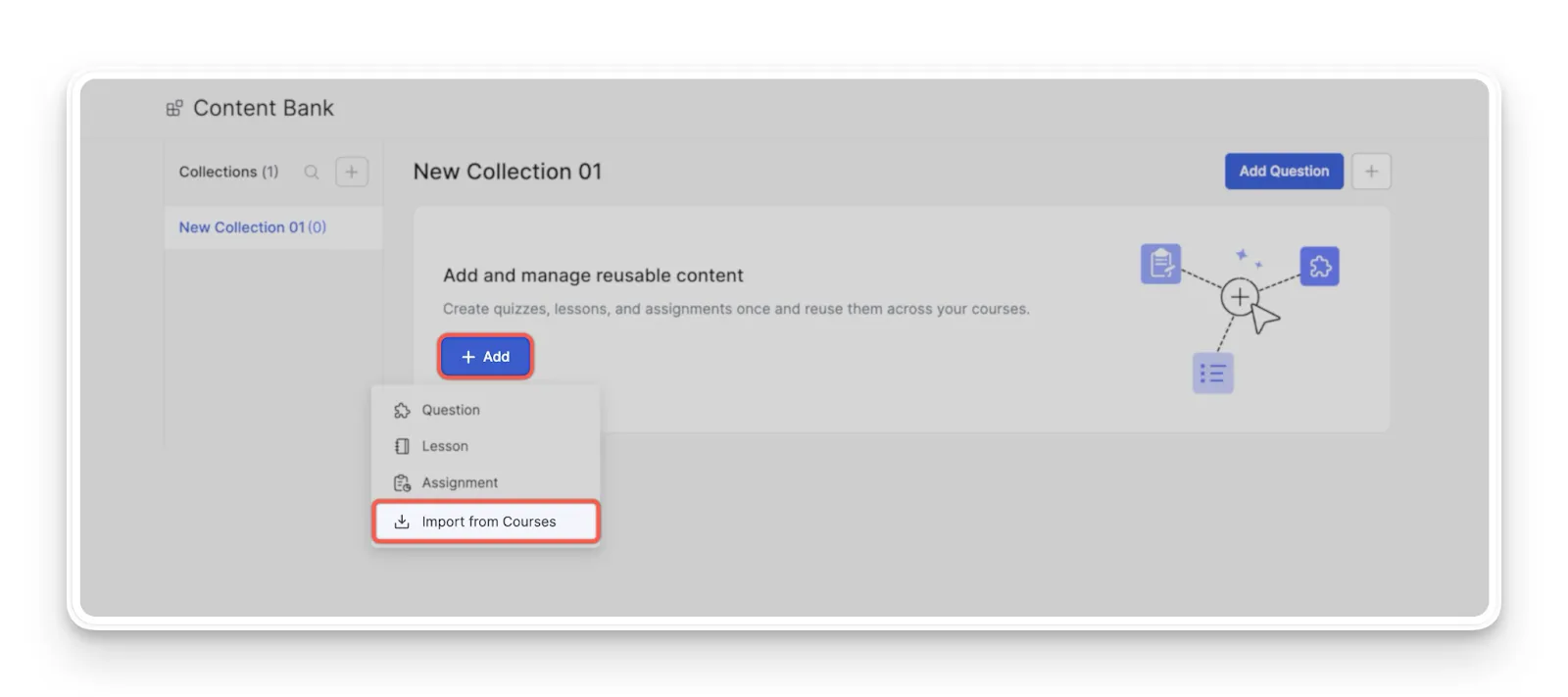
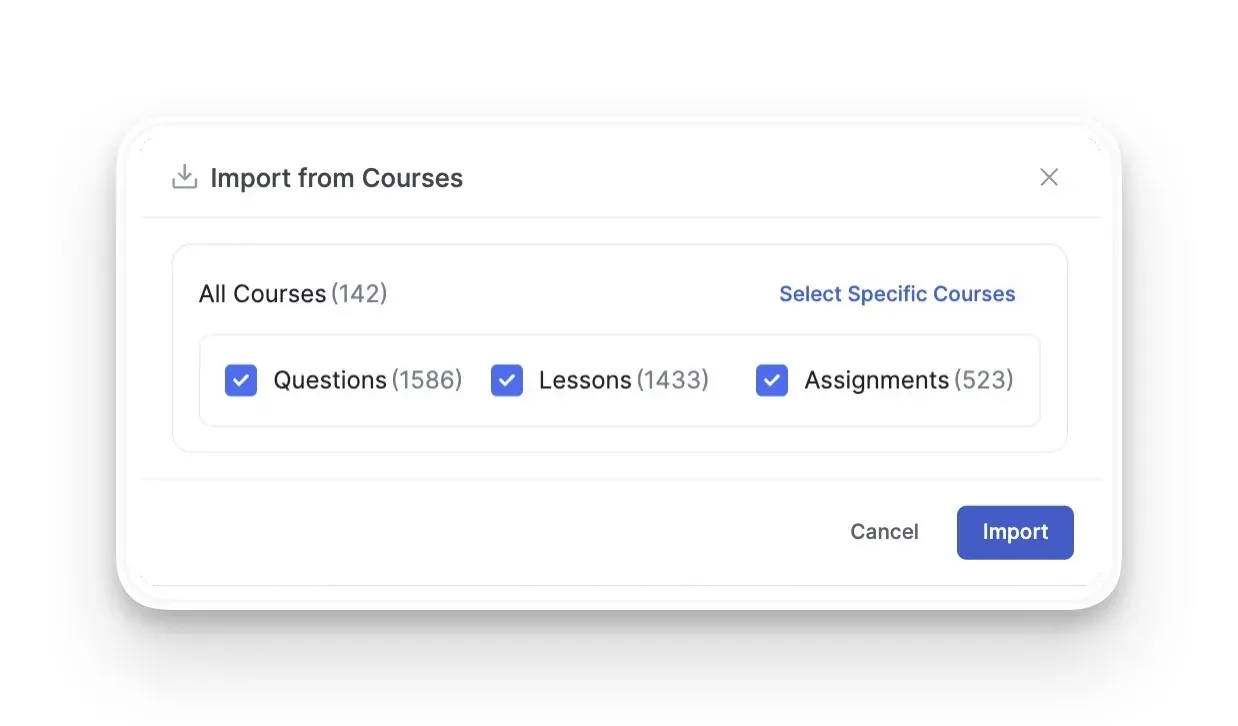
- You will be presented with two choices:
- Import All: Pull all questions, lessons, and assignments from every course on your site simultaneously.
- Select Specific Courses: Hand-pick exactly which existing courses you want to extract materials from.
Viewing and Managing Content
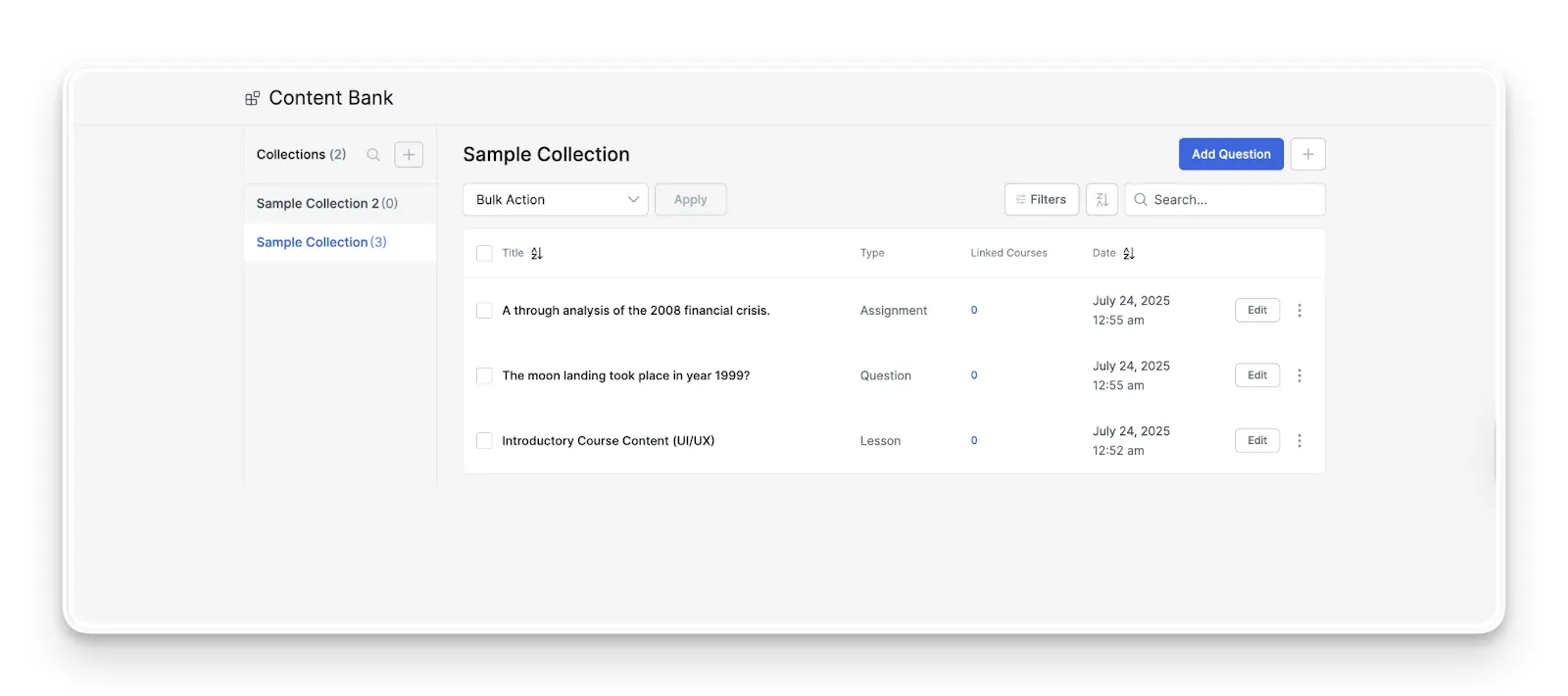
After adding material, your Collection displays a clean overview. You can see the Title, the Type (Lesson, Question, or Assignment), the Date created, and exactly how many Linked Courses currently use that piece of content.
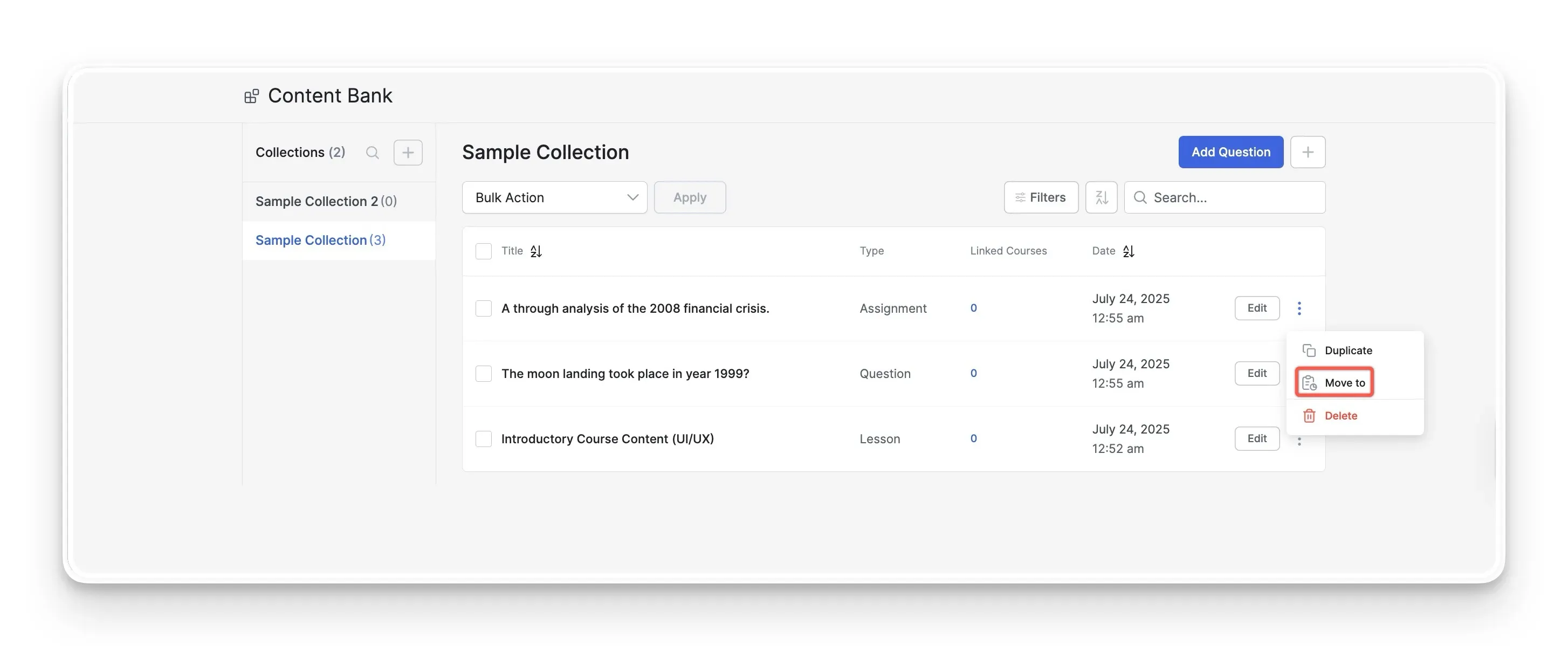
If your library gets too cluttered, you can select items to edit them directly or move them to a different Collection.
Using the Content Bank in the Course Builder
This is where your organizational work pays off. You can now deploy your saved materials directly inside the Tutor LMS Course Builder for a significantly faster workflow.
Adding Lessons and Assignments
To reuse your saved curriculum materials:
- Navigate to Tutor LMS > Courses and open your target course.
- Scroll to the Curriculum section and add a new Topic.
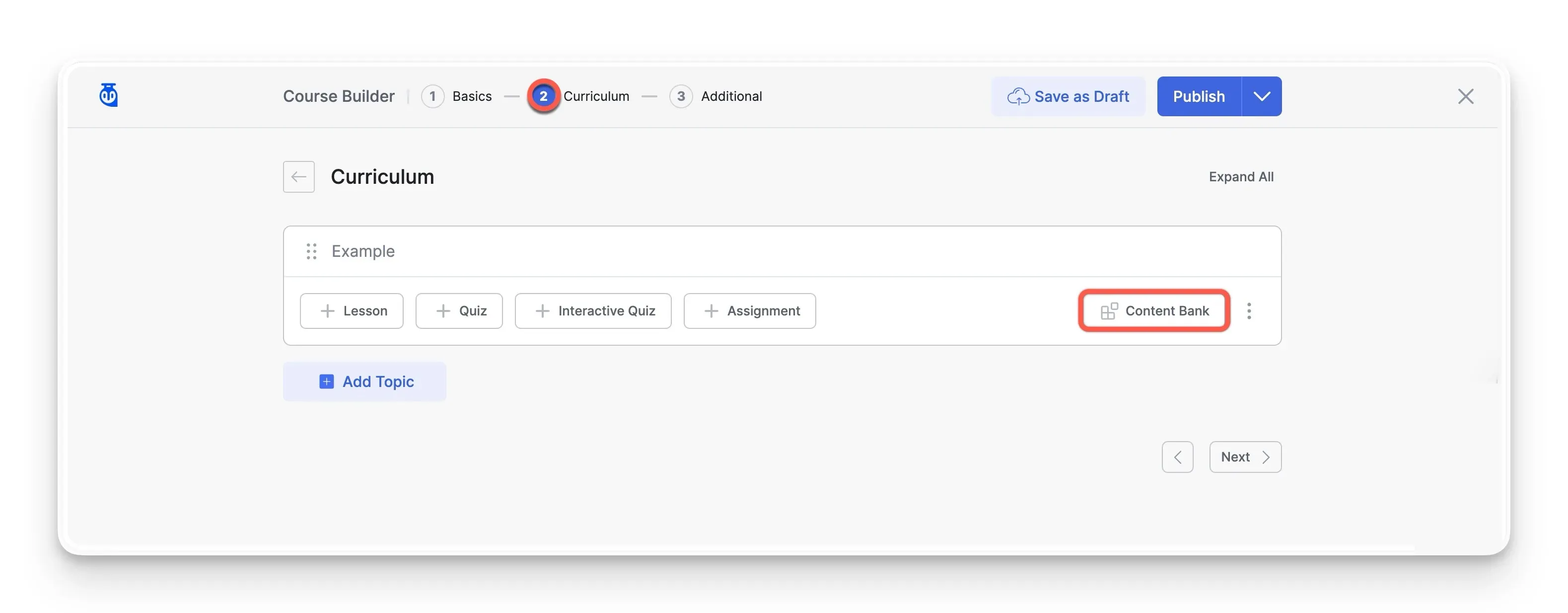
- Alongside the standard “Lesson” and “Quiz” buttons, click the new Content Bank button.
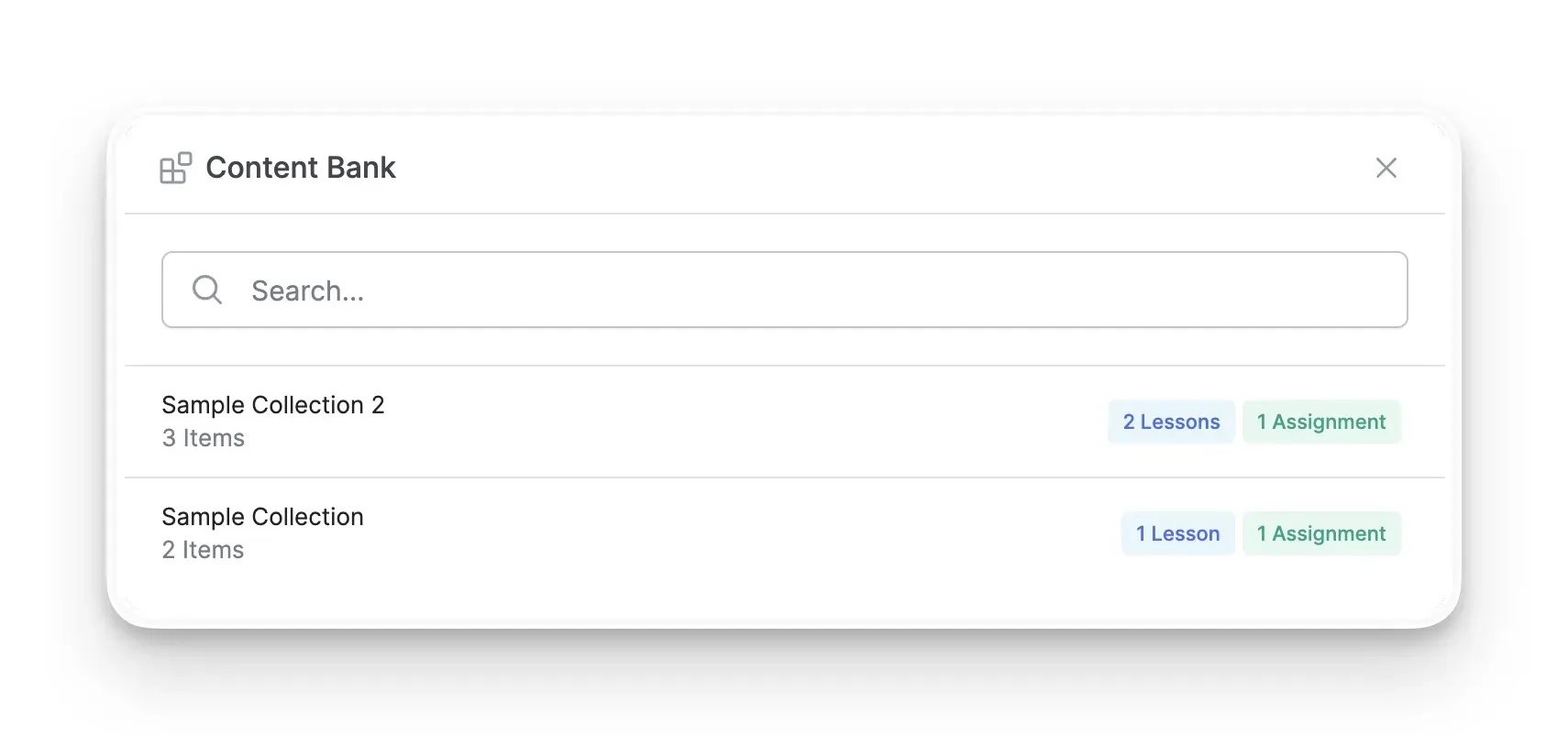
- A window will appear displaying all your Collections. Select the Collection that holds your material.
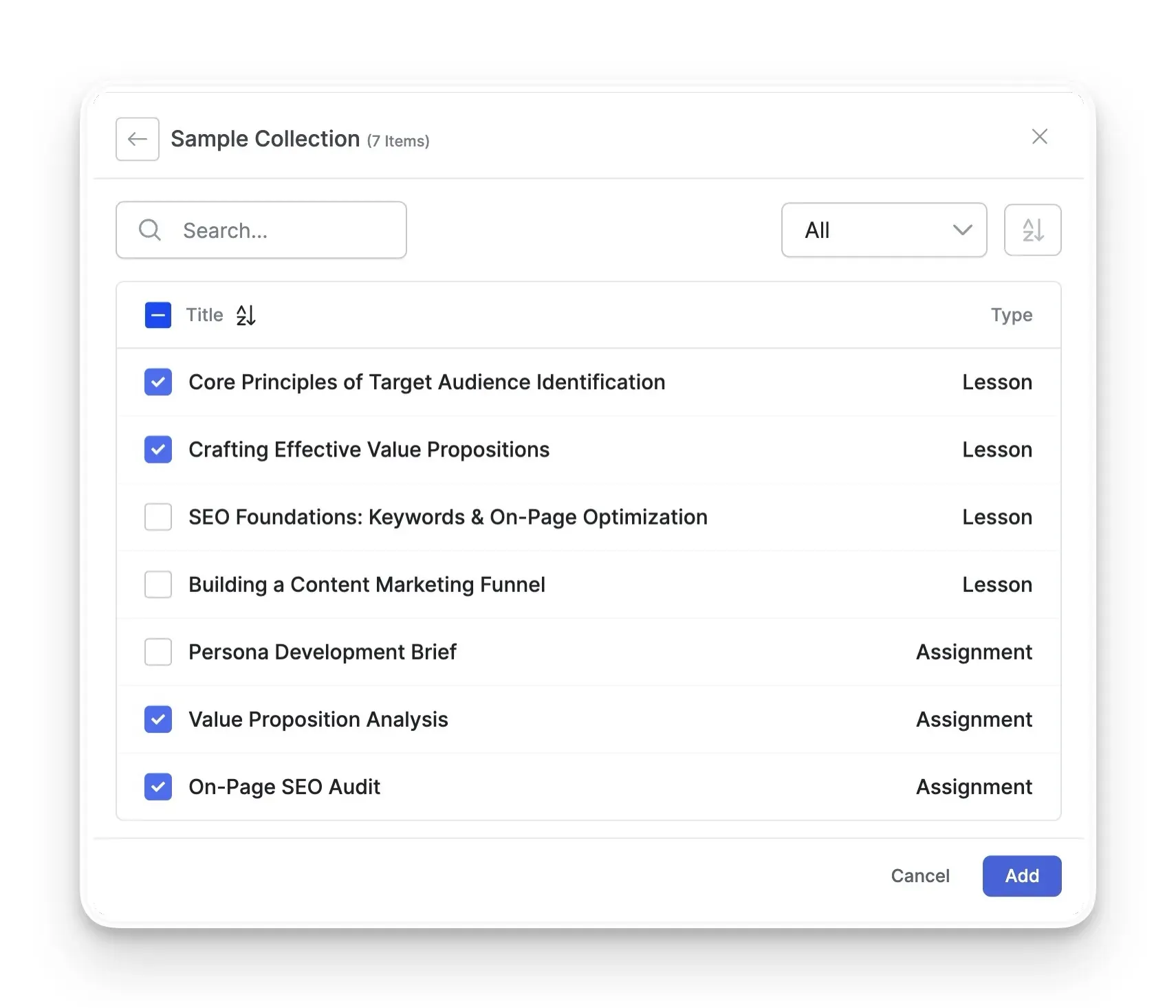
- Select the individual lessons or assignments you need (or use the filter to show specific types), and insert them directly into your curriculum.
Adding Quiz Questions
The Content Bank also acts as a powerful Quiz Bank for instant assessment generation:
- Inside the Curriculum builder, click to edit an existing Quiz or create a new one.
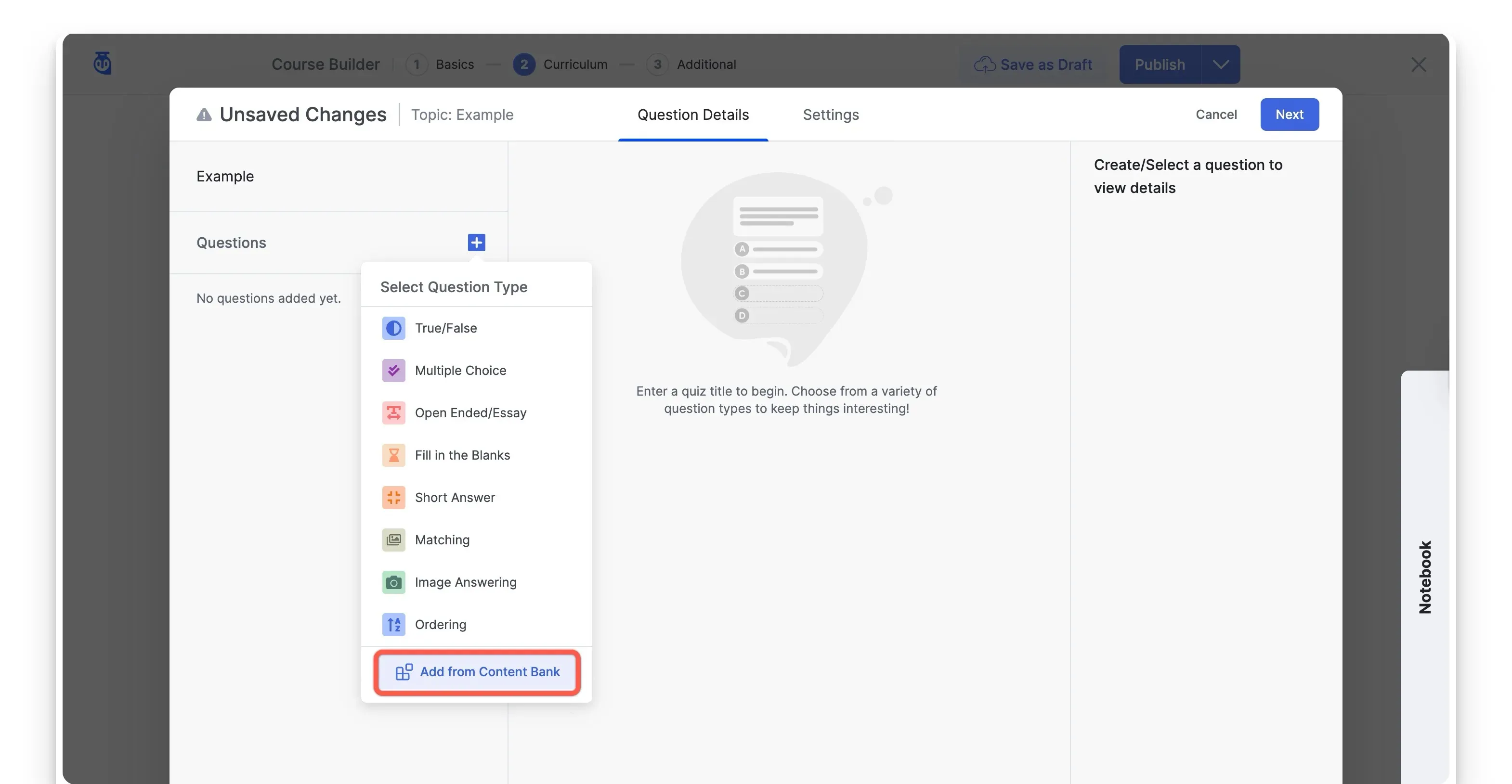
- Scroll to the bottom of the question-type list and click Add from Content Bank.
- Choose the specific Collection holding your question bank.
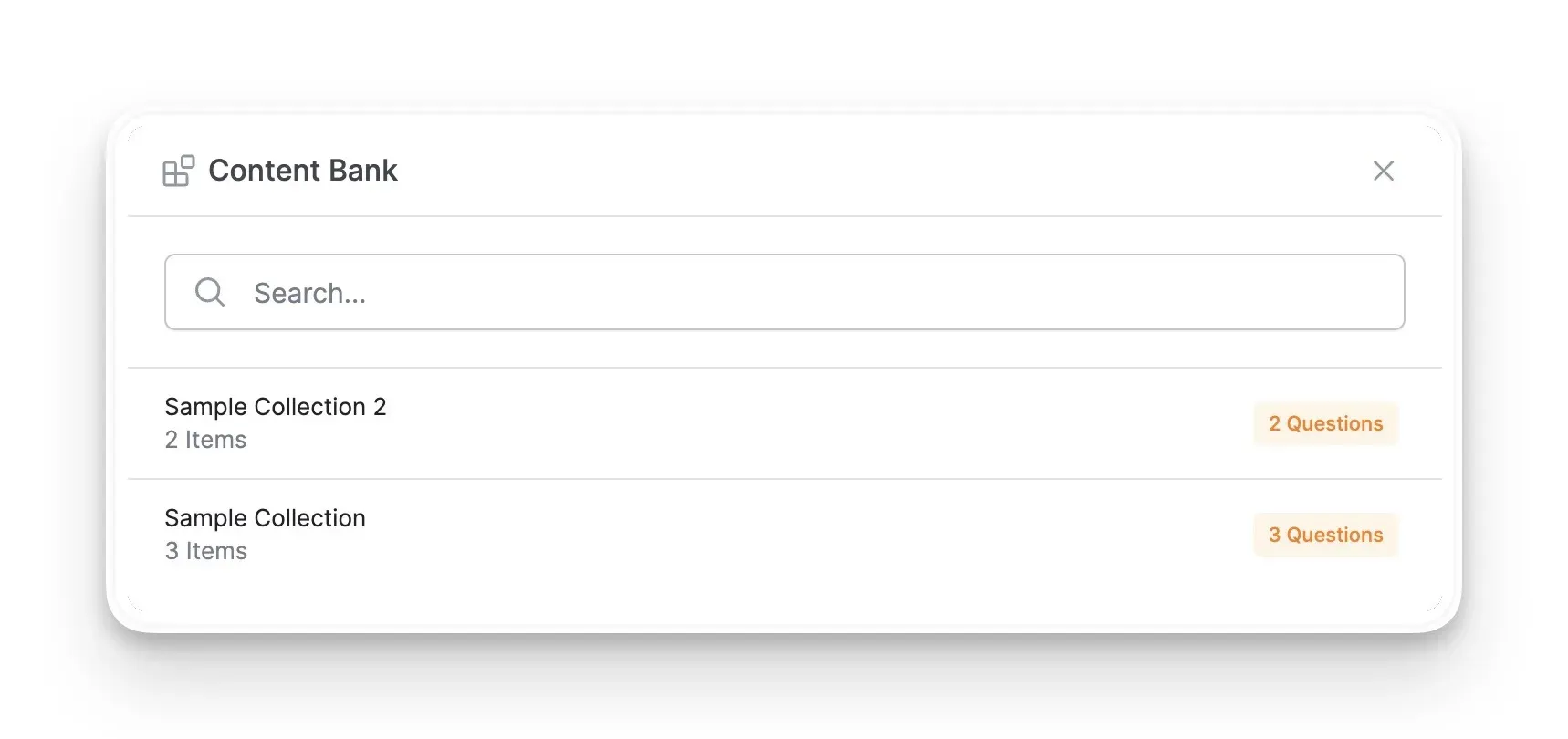
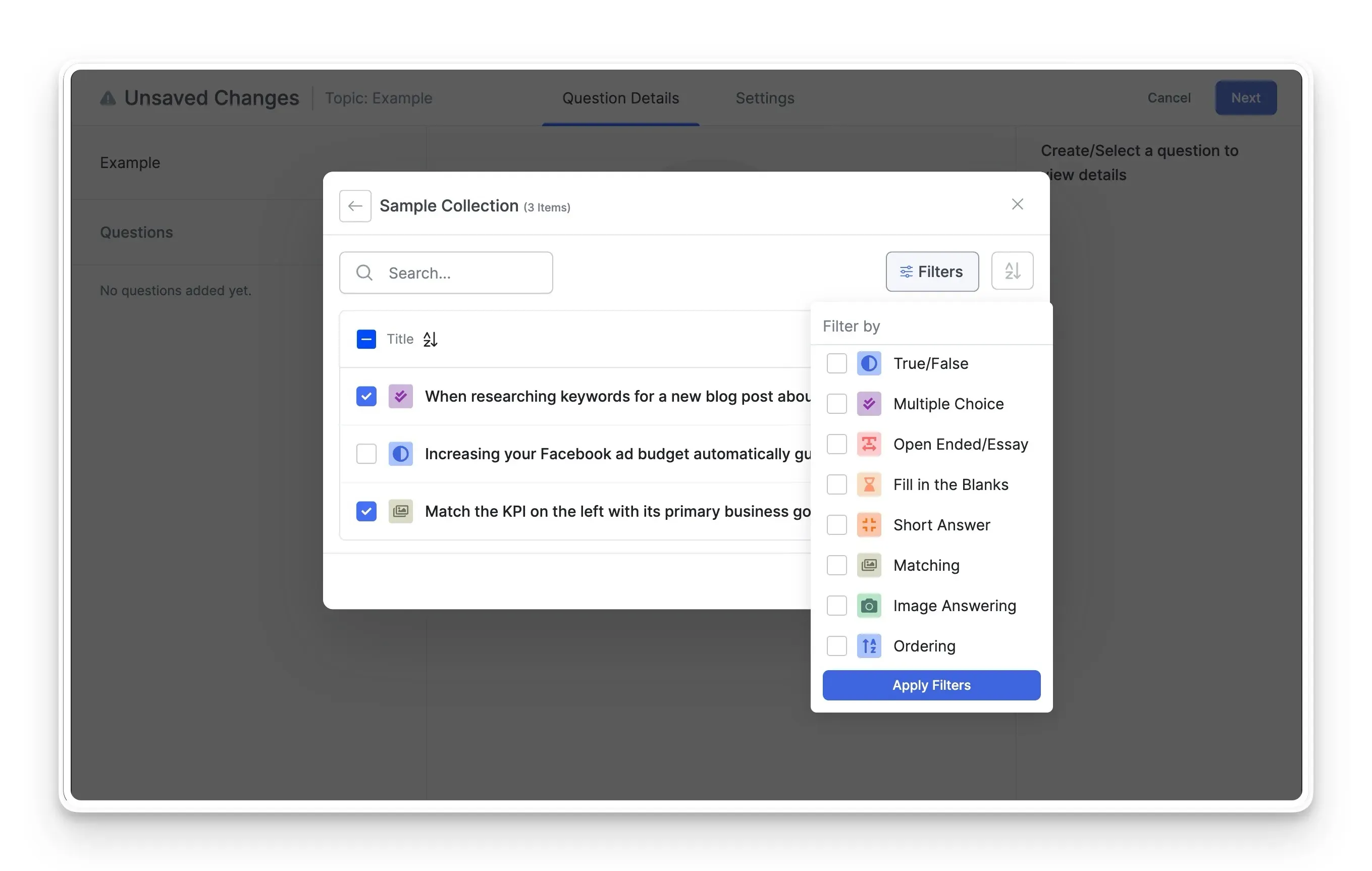
- Use the Search function or the Filters button to narrow down questions by type (e.g., True/False, Multiple Choice).
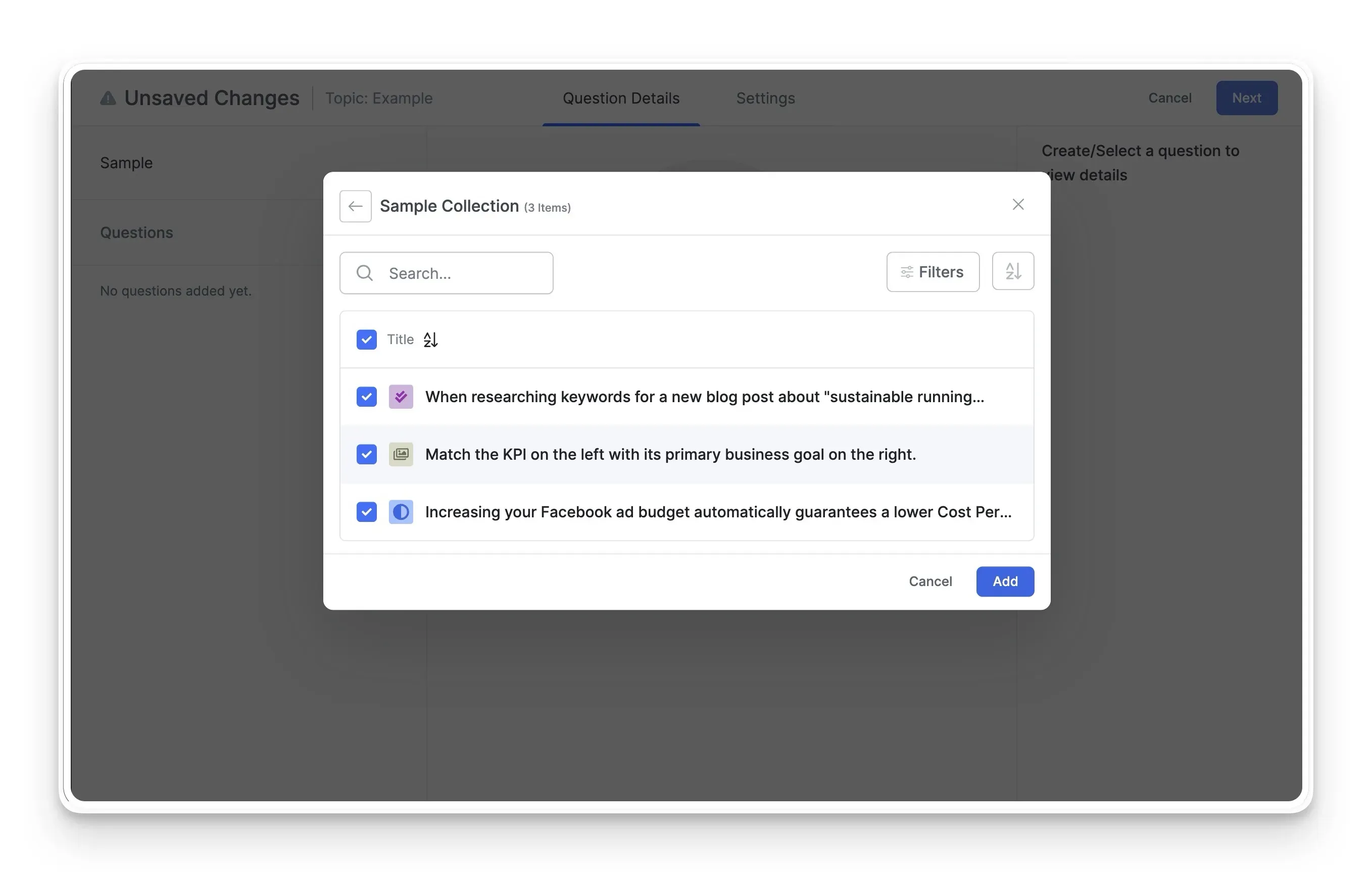
- Use the checkboxes to select the questions you want to add, and save your quiz.
Advanced Management: Import and Export Collections
If you manage multiple LMS sites, or simply want to back up your hard work, the Content Bank allows you to easily transfer data using .json files.
Exporting a Collection
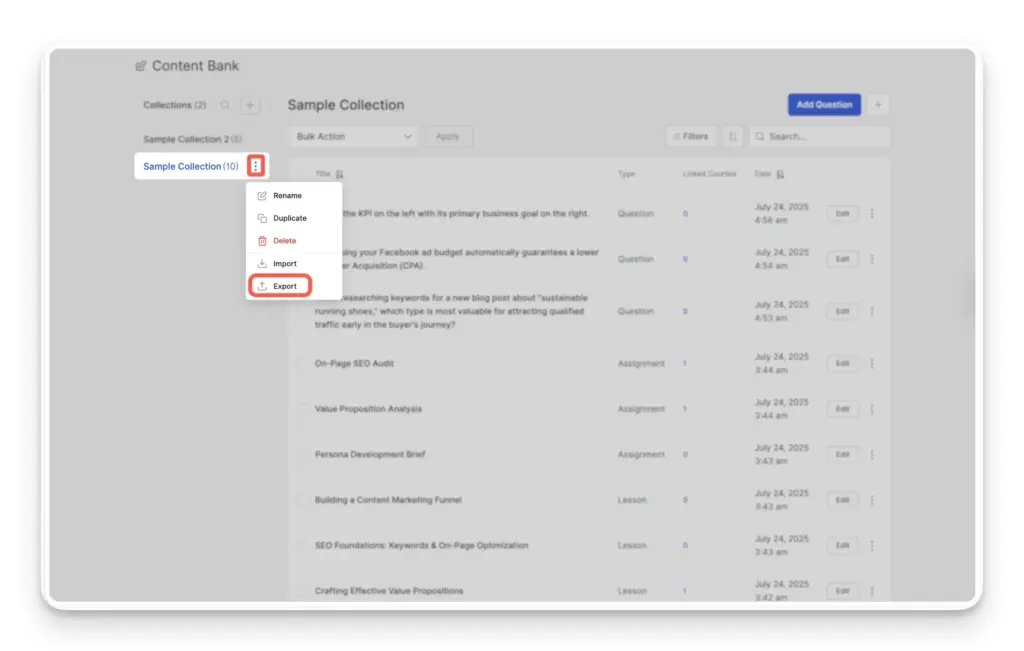
- Go to your main Content Bank page showing all your Collections.
- Click the three-dot menu icon next to the Collection you wish to save and select Export.
- In the Exporter window, ensure “Content Bank” is selected. You can click Edit Selected Content Bank Items to use checkboxes if you only want to export specific items rather than the whole batch.
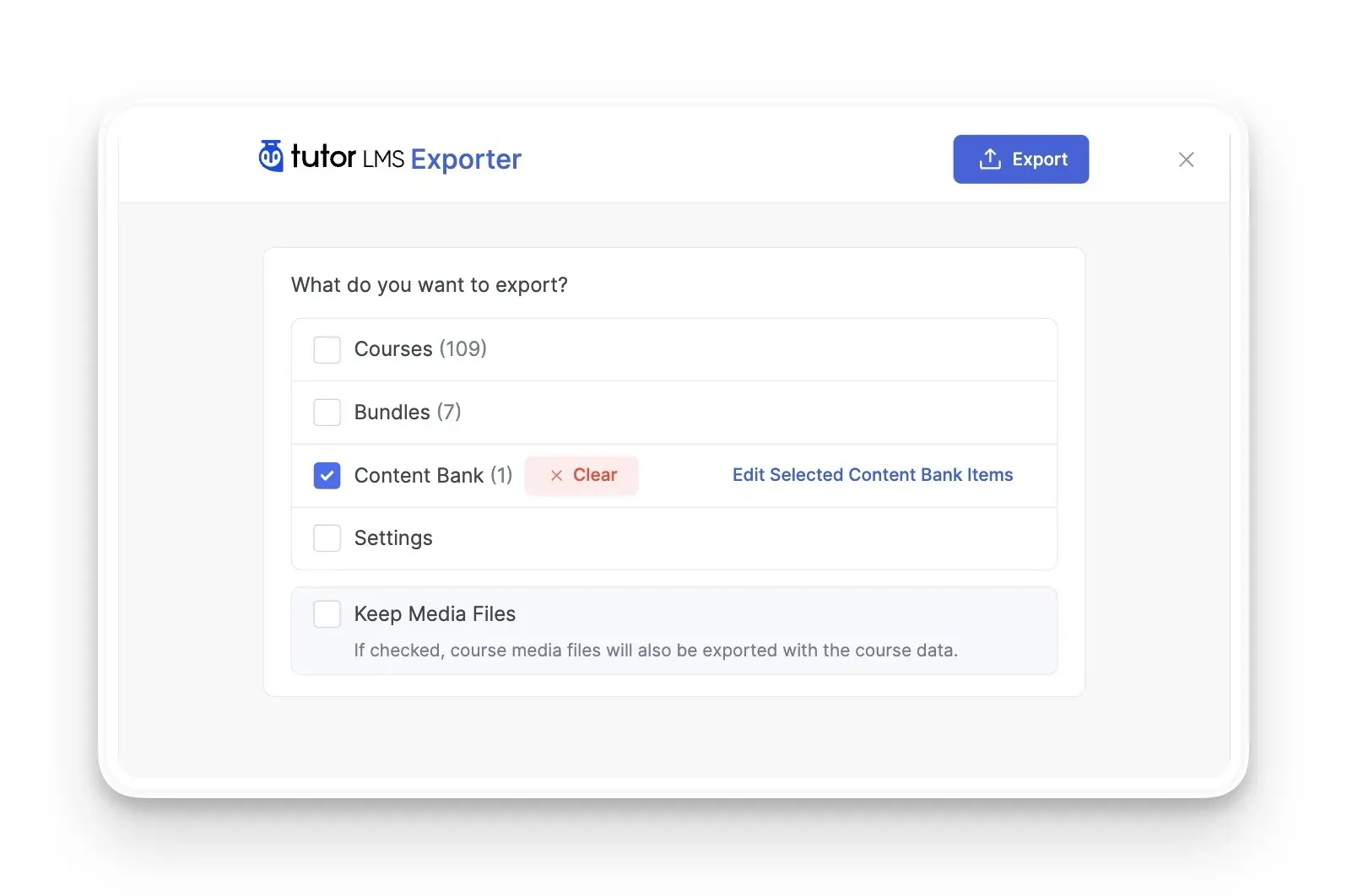
- Click Export to download the
.jsonfile to your computer.
Importing a Collection
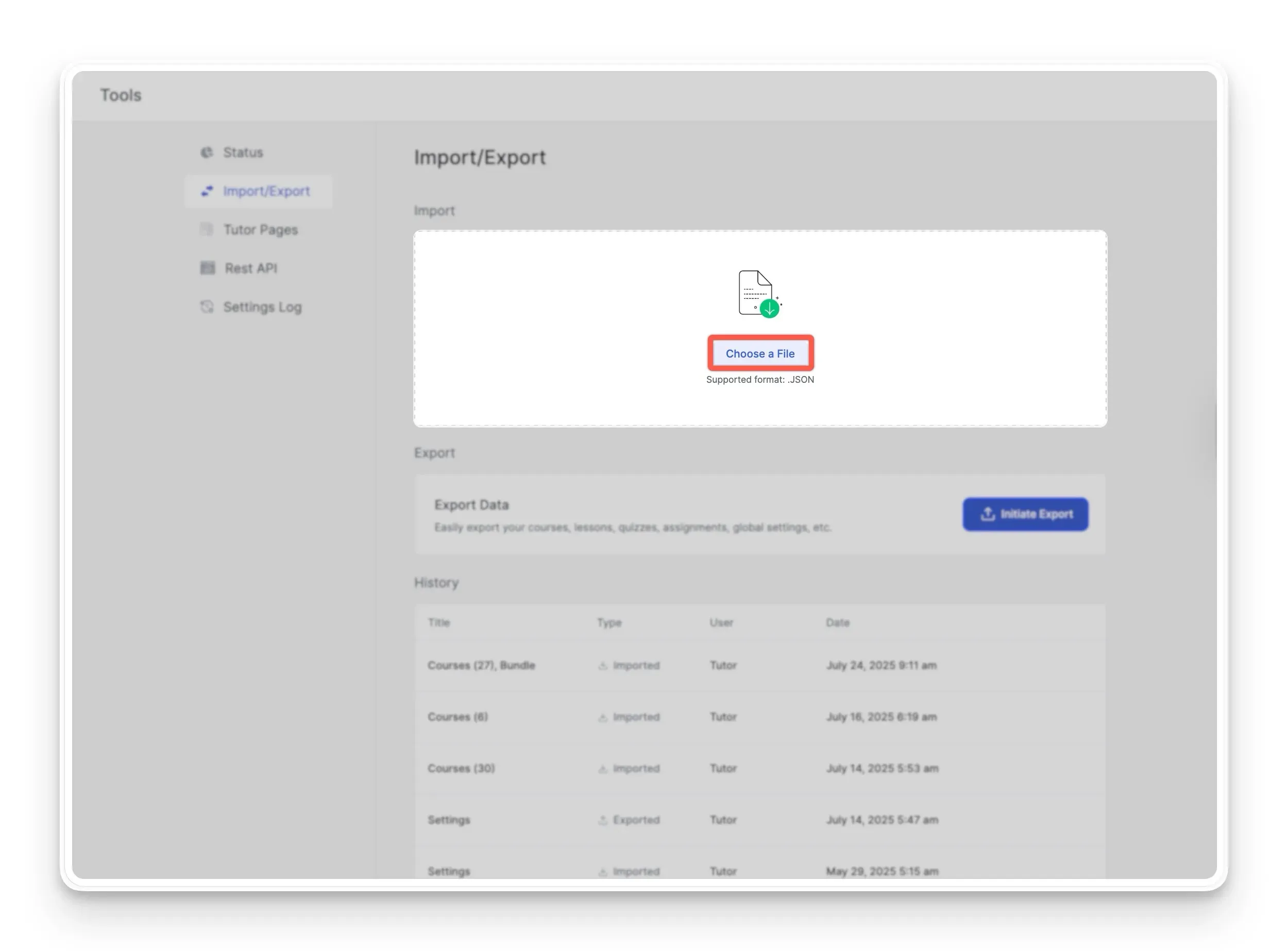
To restore a backup or transfer a Collection from another site, click the Import button on the main Content Bank page. Upload your .json file, and Tutor LMS will automatically rebuild the Collection, complete with all associated lessons, assignments, and questions.