Adding the Dedicated Cart Button
Tutor LMS includes a dedicated Cart Button for its native eCommerce system. It gives learners a quick way to open their cart and review selected courses before checkout.
The Cart Button is available only when Tutor LMS Native eCommerce is selected as the active eCommerce engine. To enable it, go to Tutor LMS > Settings > Monetization and select Native under Select eCommerce Engine. Make sure a Cart Page and Checkout Page are also configured.
Note: When another monetization method is active, the Cart Button does not output.
For Block Themes (Full-Site Editing / Gutenberg)
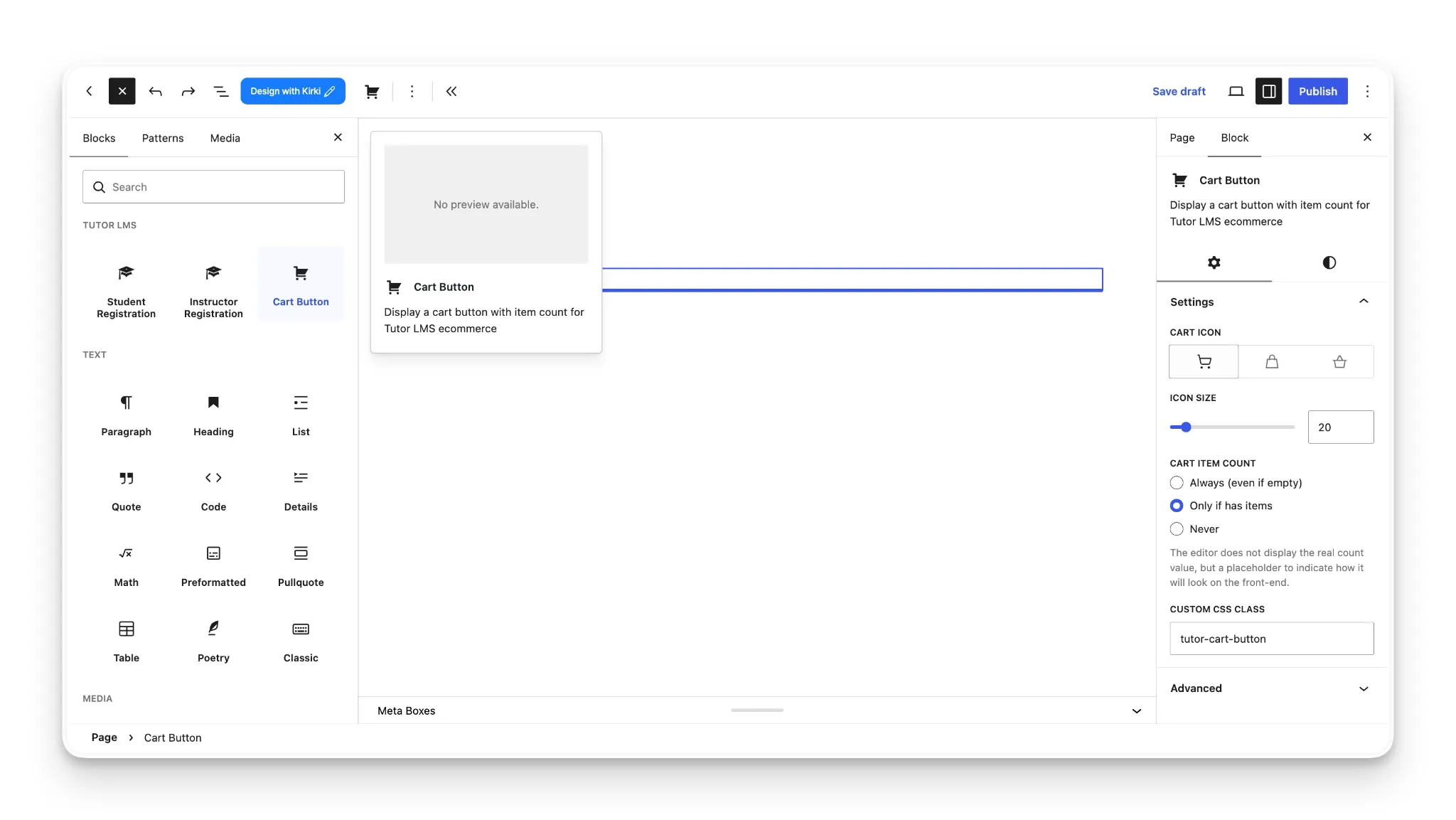
If your website uses a block-based theme, you can use the WordPress Site Editor to add the Cart Button block directly to your global header.
- Navigate to Appearance > Editor in your WordPress dashboard.
- In the Site Editor menu, click on Patterns.
- Locate and select your Header pattern, then click the pencil icon to open it in the editor.
- Click the + (Toggle block inserter) icon at the top left.
- Search for “Cart Button” (or scroll down to the Tutor LMS block category) and click the Cart Button block to insert it into your header.
- Drag the block or use the block toolbar arrows to position the cart button exactly where you want it within your header layout.
- Click Save at the top right to publish your updated header across your site.
Cart Button Block Settings
| Setting | Description |
|---|---|
| Cart Icon | Choose between Cart, Bag, or Basket. |
| Icon Size | Set the icon size. |
| Cart Item Count | Choose whether the item count is shown Always (even if empty), Only if has items, or Never. |
| Custom CSS Class | Add a custom CSS class to the block wrapper. |
For Classic Themes
Classic themes can display the Cart Button using either a shortcode or a PHP function.
The shortcode is convenient for content areas, text widgets, and compatible page builders. The PHP function is better suited to developers adding the button directly to a theme template or custom header.
Shortcode
Use the following shortcode to display the default Cart Button:
[tutor_cart_button]
Supported Attributes
| Attribute | Default | |
|---|---|---|
| class | tutor-cart-button | Adds a custom CSS class to the button. |
| title | View your shopping cart | Sets the link’s title attribute. |
| show_count | if_has_items | Controls when the cart item count is displayed. Supported values: always, if_has_items, and never. |
| cart_icon | cart | Sets the icon displayed by the button. Supported values: cart, bag, and basket. |
For example:
[tutor_cart_button class=”header-cart” cart_icon=”bag” show_count=”always”]
This example adds the header-cart CSS class, uses the bag icon, and always displays the cart item count.
PHP Function
Developers can render the Cart Button directly from a theme template using:
<?php
tutor_ecommerce_cart_button();
?>
For custom themes, a function_exists() check can prevent errors if Tutor LMS is inactive:
<?php
if ( function_exists( 'tutor_ecommerce_cart_button' ) ) {
	tutor_ecommerce_cart_button();
}
?>
PHP Parameters
The function accepts an array of parameters for further customization:
| Parameter | Default | Description |
|---|---|---|
| class | tutor-cart-button | Custom CSS class. |
| title | View your shopping cart | Title attribute for the cart link. |
| show_count | if_has_items | Controls cart count visibility. |
| cart_icon | cart | Sets the cart icon. |
| icon_svg | ” | Supplies custom SVG markup for the icon. |
For example, the following displays the basket icon and always shows the cart count:
<?php
tutor_ecommerce_cart_button(
	array(
		'cart_icon'  => 'basket',
		'show_count' => 'always',
	)
);
?>
Helper Functions
Developers building a fully custom cart interface can retrieve individual pieces of cart data instead of rendering the complete button.
Get the Cart Item Count:
$count = tutor_ecommerce_get_cart_count();
This returns the current number of items in the cart.
Get the Cart Icon SVG:
$svg = tutor_ecommerce_get_cart_icon_svg( ‘bag’ );
The function returns the SVG markup for the specified icon. Supported icon names include cart, bag, and basket.
Customize the Cart Button with Filters
Tutor LMS provides WordPress filters for developers who need site-wide customization.
Change the Default Button Arguments
The tutor_ecommerce_cart_button_args filter can modify the default arguments passed to the Cart Button:
add_filter( 'tutor_ecommerce_cart_button_args', function( $args ) {
	$args['cart_icon'] = 'bag';
	$args['class']     = 'my-header-cart';

	return $args;
} );
Customize the Cart Icon SVG
The tutor_ecommerce_cart_icon_svg filter can modify or replace the SVG markup returned for an icon:
add_filter( 'tutor_ecommerce_cart_icon_svg', function( $svg, $icon ) {
	if ( 'custom' === $icon ) {
		return '<svg ...>...</svg>';
	}

	return $svg;
}, 10, 2 );
Styling the Cart Button
The Cart Button supports CSS variables that can be used to adjust its appearance without replacing the button markup.
For example:
.tutor-cart-button {
	--tutor-cart-icon-size: 24px;
	--tutor-cart-icon-color: #2c3e50;
	--tutor-cart-badge-bg: #0c111d;
	--tutor-cart-badge-color: #ffffff;
}
These variables control the icon size, icon color, badge background, and badge text color. The values shown above are example customizations.