If you want to migrate from LearnPress to Tutor LMS seamlessly, look no further and use our Tutor LMS Migration Tool extension plugin!
Not only will this transfer all your Courses, but also transfer all your Sales Data, hard-earned Reviews, and more!
Please Note!
Before initiating any migration process, we recommend you back up your site. It is also recommended you first run the migration on a staging site. This will ensure that the final migration process won’t break anything in your live site. Moreover, for all your data to be properly transferred, you must install and set up all of the necessary Tutor LMS add-ons and settings beforehand.
Prerequisites
To use the Tutor LMS Migration tool, you first need to have the following plugins installed and activated beforehand.
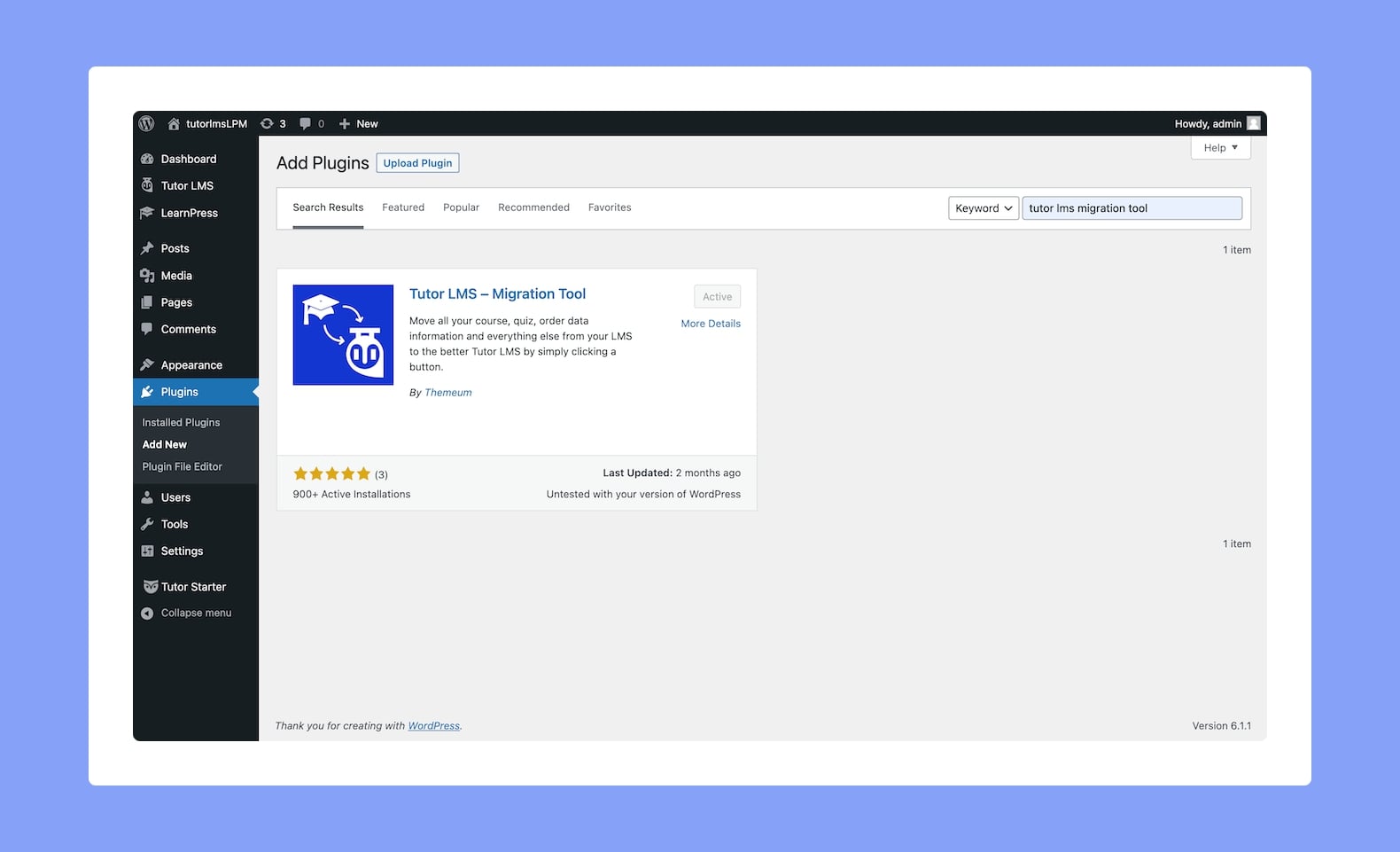
Once you’ve installed and activated the prerequisite plugins, navigate to WP Admin > Plugins > Add New and search for Tutor LMS Migration Tool. Then, click on Install and Activate.
LearnPress Migration
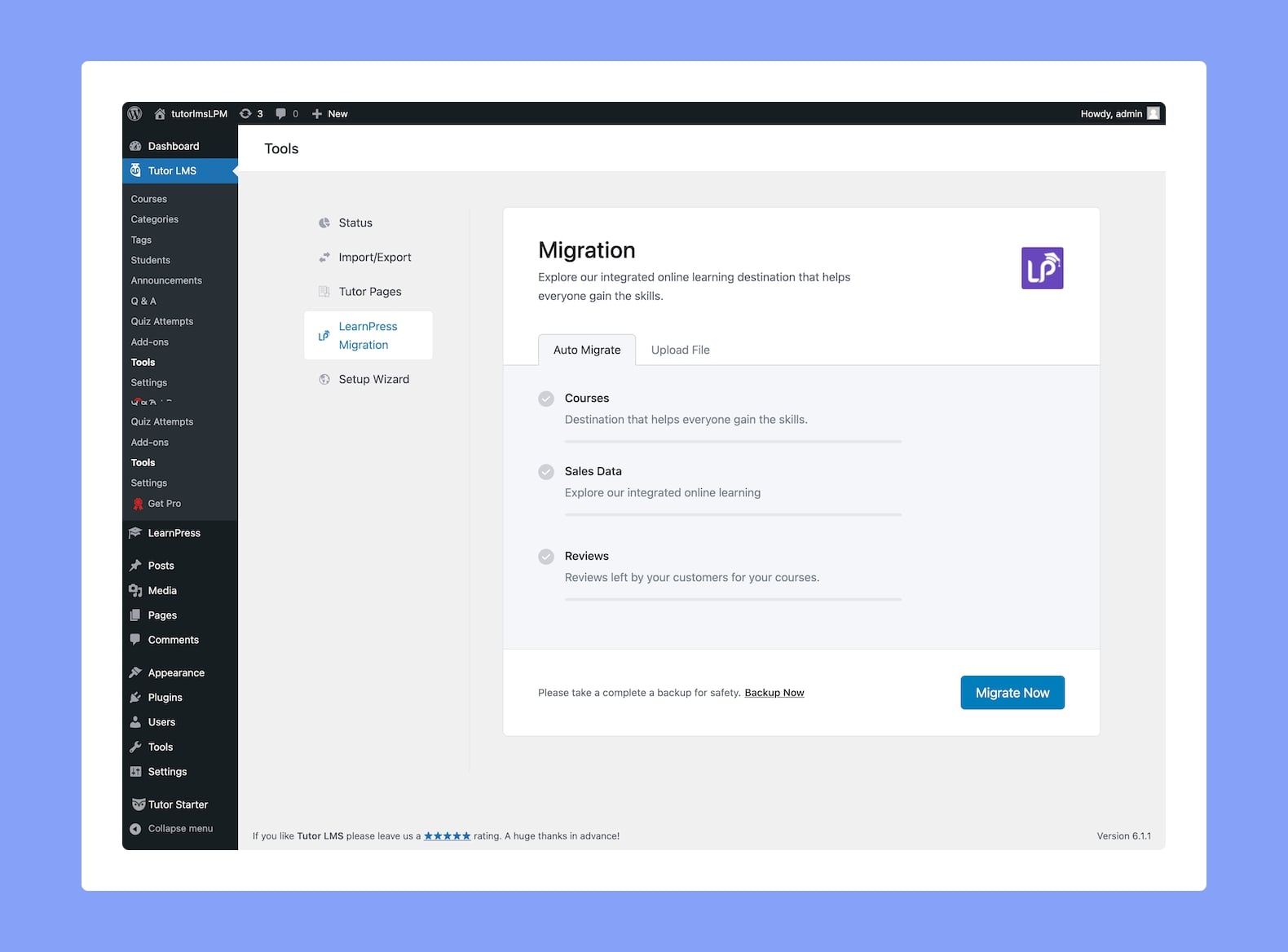
After installing the Tutor LMS Migration tool, you will find all its available features in the Tools section of Tutor LMS. Go to WP Admin > TutorLMS > Tools > LearnPress Migration.
Here is where you’ll find all of the Migration Settings. Now before going any further, let us discuss what types of data you can expect to be transferred from LearnPress to Tutor LMS with the help of this tool:
Courses: LearnPress Courses and all that entailed will be transferred to Tutor LMS. This also includes Lessons, Quizzes, etc.
Users: All Student and Instructor data will be transferred to Tutor LMS.
Sales Data: All Sales Data of your Courses will be transferred to Tutor LMS.
Order Data: All Order Data of your Courses will be transferred to Tutor LMS.
Course Enrollment Records: All Course Enrollment Records will be transferred to Tutor LMS
eCommerce Products: All eCommerce Products and related data will be transferred to Tutor LMS
Reviews: All Course Reviews and related info will be transferred to Tutor LMS.
Migrating eCommerce Data
As mentioned earlier, you can migrate all your eCommerce Data using this tool. But in order for this to work seamlessly, you’ll have to make sure that your eCommerce plugin is properly set up for Tutor LMS before you migrate.
For instance, if you’re using WooCommerce as your LearnPress eCommerce engine, make sure you follow the following steps for a seamless migration.
Install and Activate Tutor LMS
Install and Activate Tutor LMS Migration Tool
Install and activate WooCommerce
Set WooCommerce as the Monetization option in the Tutor LMS Settings
Run the migration
Only then will the eCommerce Products and Sales Data be transferred without issues. The same goes if you’re using Easy Digital Downloads instead.
Certificates Will Be Auto-Generated
Another notable aspect of the Tutor LMS Migration Tool is the fact that it will auto-generate Certificates for the respective students if you have Tutor LMS’ Certificate add-on enabled and set up before migrating!
Migrate Now
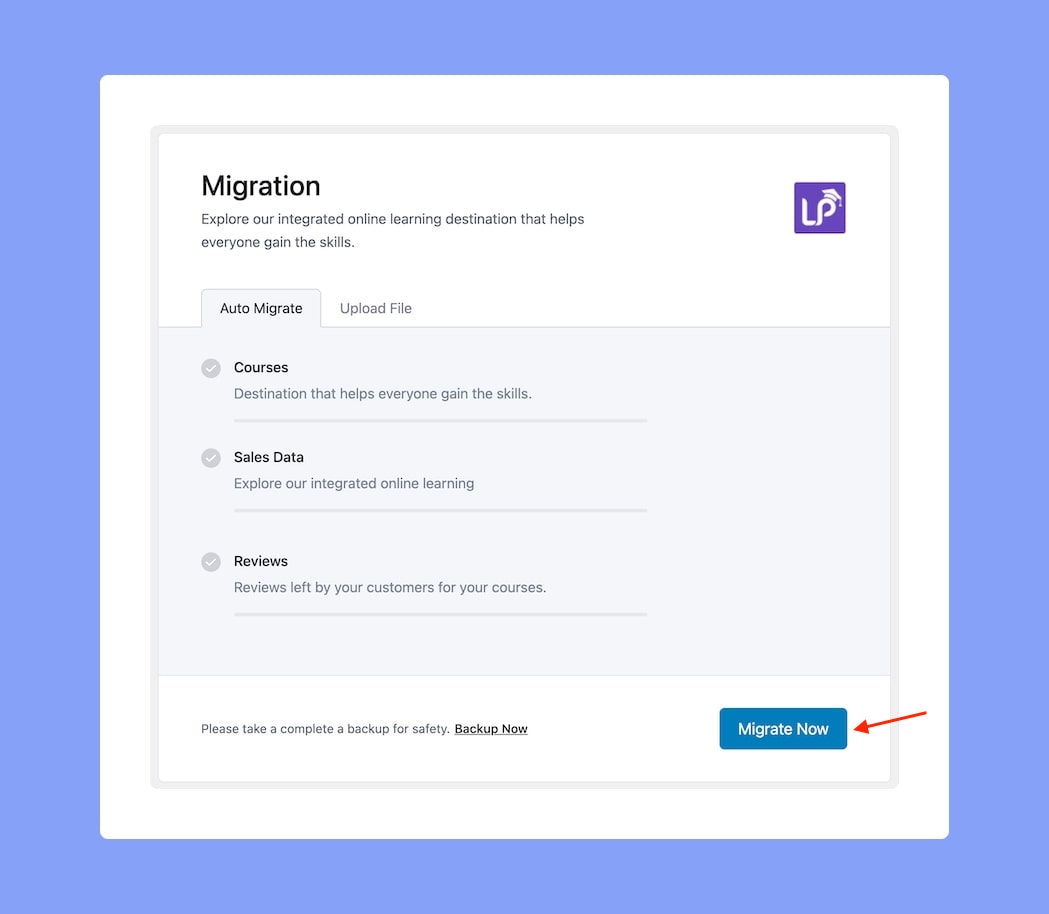
Below this section, you’ll find the Migrate Now button which can start the Migration process. Once you click on this button, you’ll be able to see the real-time progress of the Migration. When the Migration is successfully completed, you should see a success message pop up!
Now, if you head over to WP Admin > Tutor LMS > Courses, you’ll be able to see all of the courses that were transferred. Similarly, you can check Enrollments, Reviews, etc.
Note:After migrating your courses to Tutor LMS, all existing Learnpress courses will be deleted.
Alternative Method For Migration
If you are facing any problems or if you’re more comfortable exporting and importing your database XML file directly then the Migration tool also offers the option to manually migrate from LearnPress to Tutor LMS.
Exporting the Data
At the bottom of either of the tabs, you’ll find a prompt to Backup your LearnPress-powered site. You can use this Backup Now button not only to backup your data for safekeeping but also to manually Export this data.
Importing the Data
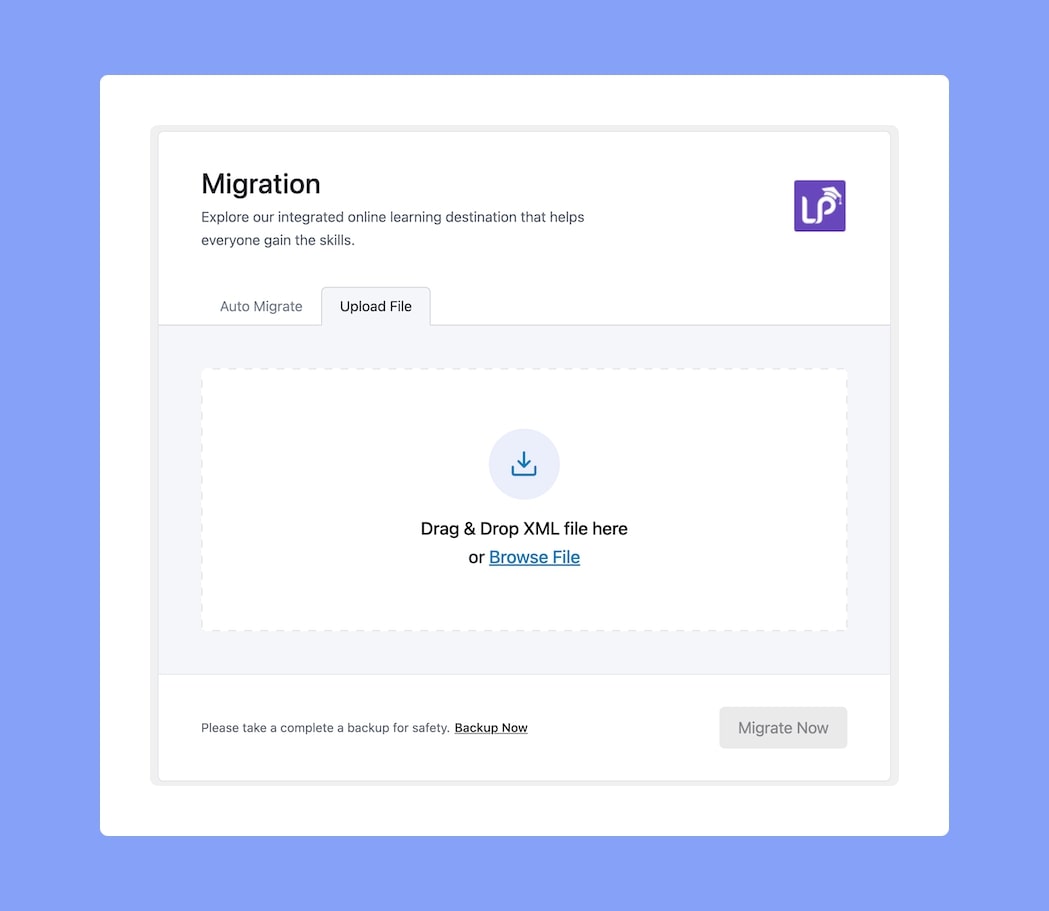
Then, head over to the Upload File tab and either drag & drop the exported XML file that you just downloaded into the area indicated or click on the Browse File button to locate it using your file manager.
Finally, click on the Migrate Now button which will take a couple of seconds and you should be all set!
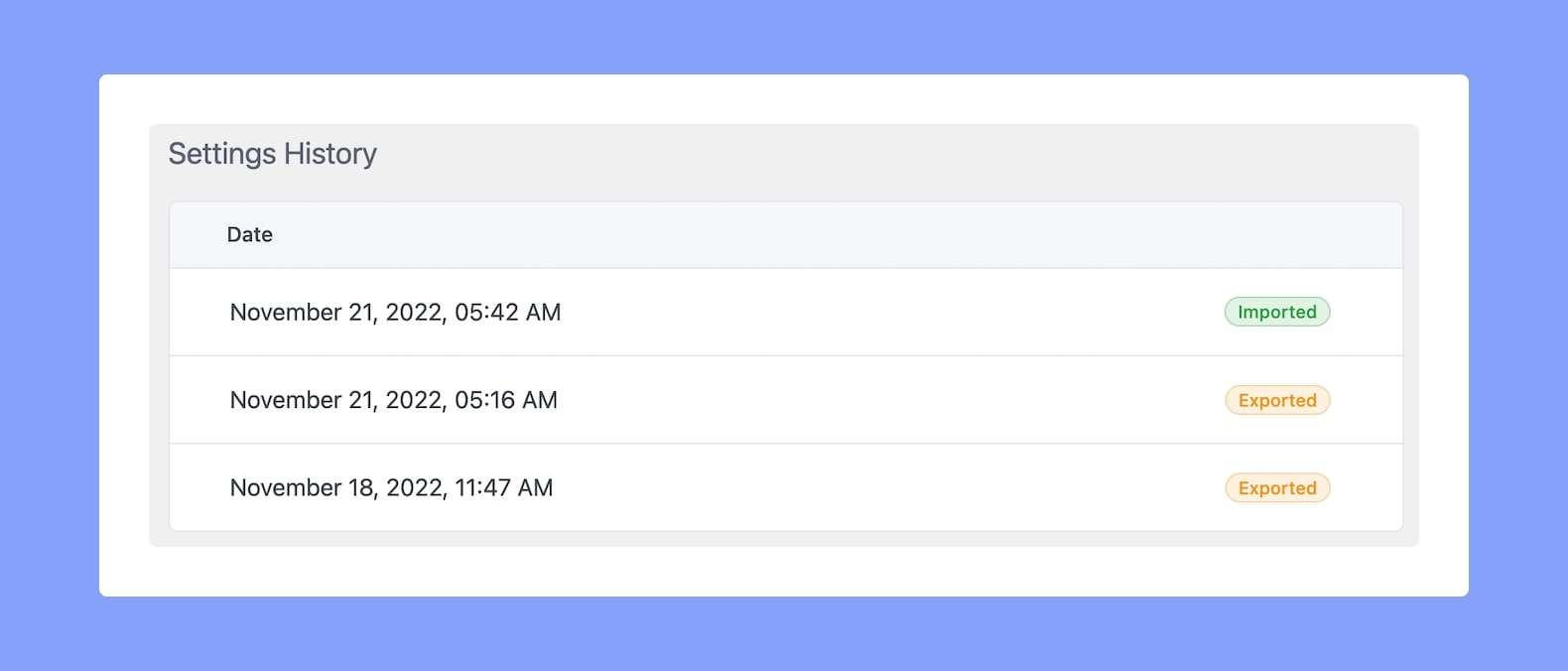
Settings History
Followed by the Migration section, you’ll find the Settings History which is basically a list of all your Exports and Imports generated automatically.
This will only appear after the first such event is triggered and the list will contain the Date & Time of the event and its type i.e whether the settings were exported or imported.



 HALLOWEEN SALEHALLOWEEN SALEHALLOWEEN