Courses
The Courses page is where you manage all of your course content. You can access it at any time by clicking Courses in the sidebar.
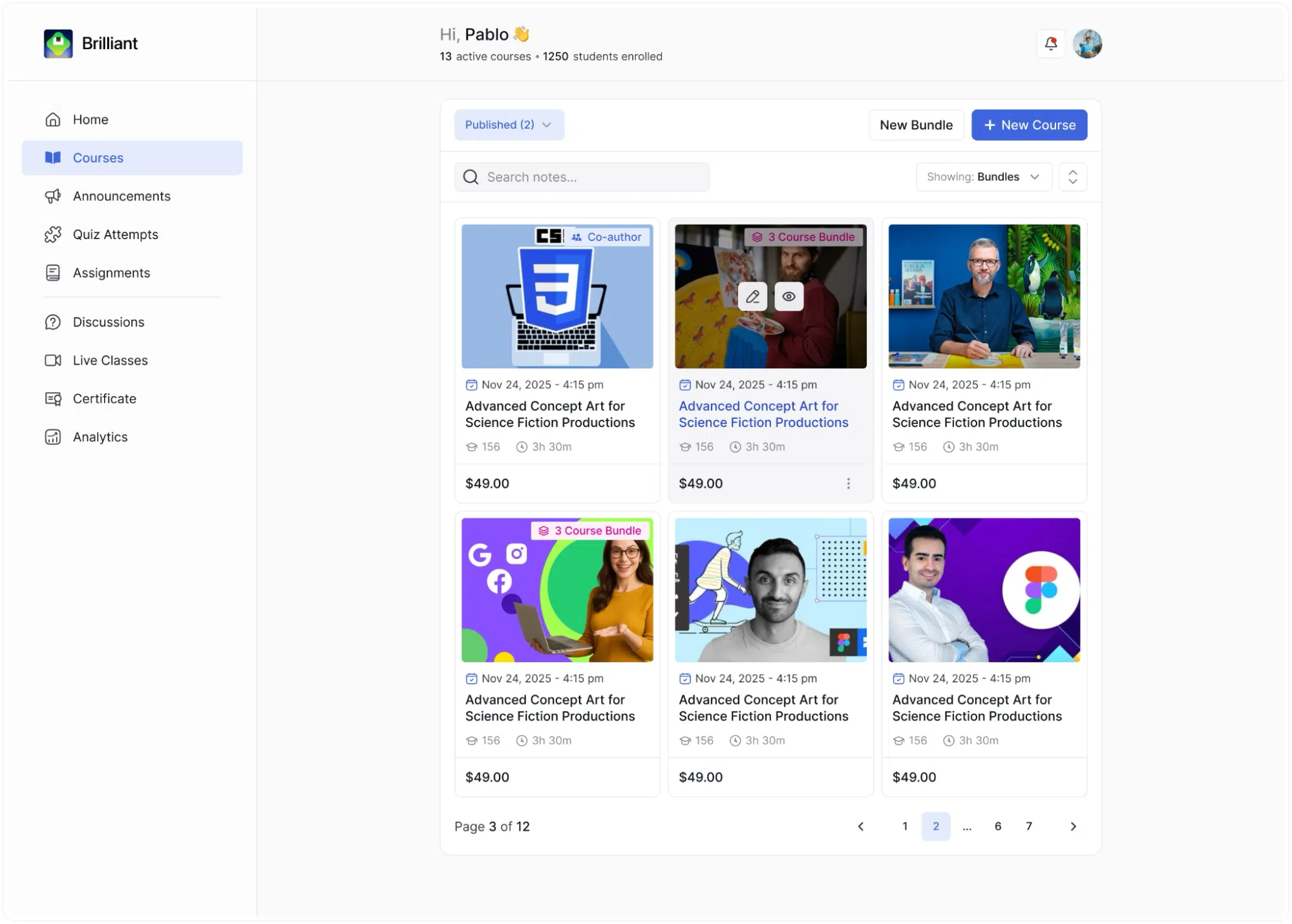
Here, you can view all your courses regardless of their current status, create new ones, search for a specific course, and take actions on individual courses such as publishing, duplicating, or deleting them.
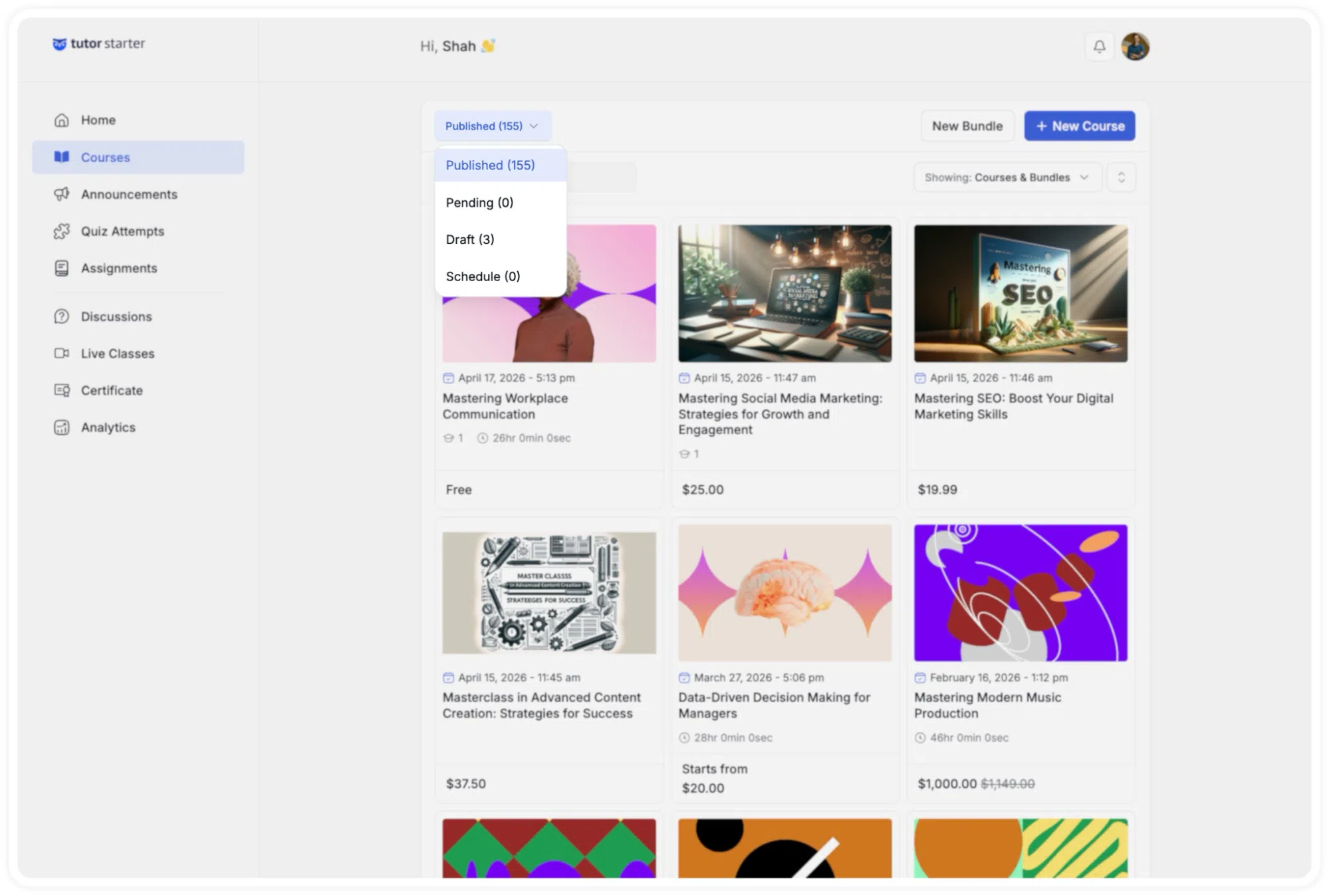
Course Status Tabs
At the top of the Courses page, your courses are divided into four status categories. The currently selected status is displayed as a button in the top-left area of the page, with the count of courses in that status shown in brackets next to the label. Clicking this button opens a dropdown that lets you switch between the following:
- Published: Courses that are live and currently visible to students on your platform.
- Pending: Courses you have submitted for admin review that have not yet been approved.
- Draft: Courses that are still being built and are not yet visible to students.
- Scheduled: Courses that have been set to publish automatically at a future date and time.
Switching between these tabs updates the course grid to show only the courses that belong to that status. This makes it easy to separate your live content from content that is still in progress or awaiting review.
Course List View
Courses are displayed in a grid layout, with each course represented as a card. Each card shows the following information:
- The course thumbnail image.
- The course title.
- The date and time the course was created or last modified.
- The course duration.
- The student count shows, the number of students currently enrolled.
- The course price, including any original price if a discount has been applied.
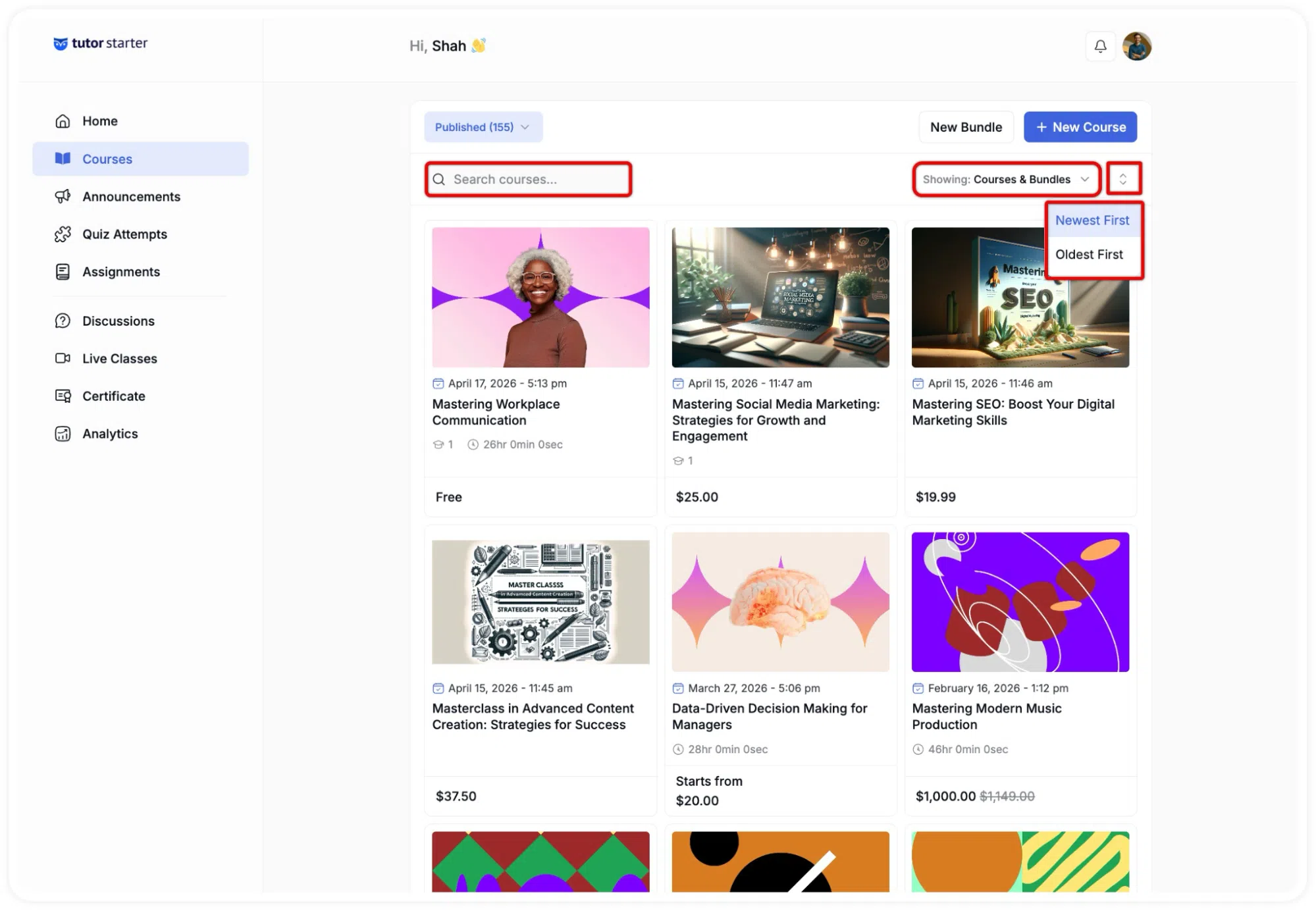
At the top of the course grid, a search bar is available. Typing into this field filters the visible courses in real time, allowing you to quickly locate a specific course by name.
To the right of the search bar, a Showing dropdown lets you control which type of content is displayed in the grid. The available options are:
- Courses & Bundles: shows both individual courses and course bundles together.
- Courses: shows individual courses only.
- Bundles: shows course bundles only.
In the top-right corner of the page, two buttons are always present: New Bundle and + New Course. Clicking + New Course takes you into the course builder to start creating a new course from scratch. Clicking New Bundle opens the bundle creation flow, where you can group multiple courses together into a single offering.
Course Actions
Each course card has a ⋯ (three-dot) menu icon that becomes visible when you hover over the card. Clicking this icon opens a small dropdown menu with the following actions:
- Publish: Submits the course for admin approval, or publishes it directly if your account has permission to do so without review.
- Cancel Submission: Withdraws a course that has been submitted for review and returns it to draft status.
- Duplicate: Creates an exact copy of the course, which will appear in your drafts for you to edit and publish separately.
- Move to Draft: Returns a published or pending course to draft status, making it no longer visible to students.
- Delete: Permanently removes the course from your account.
When you select Delete, a confirmation modal appears in the centre of the screen before anything is removed.
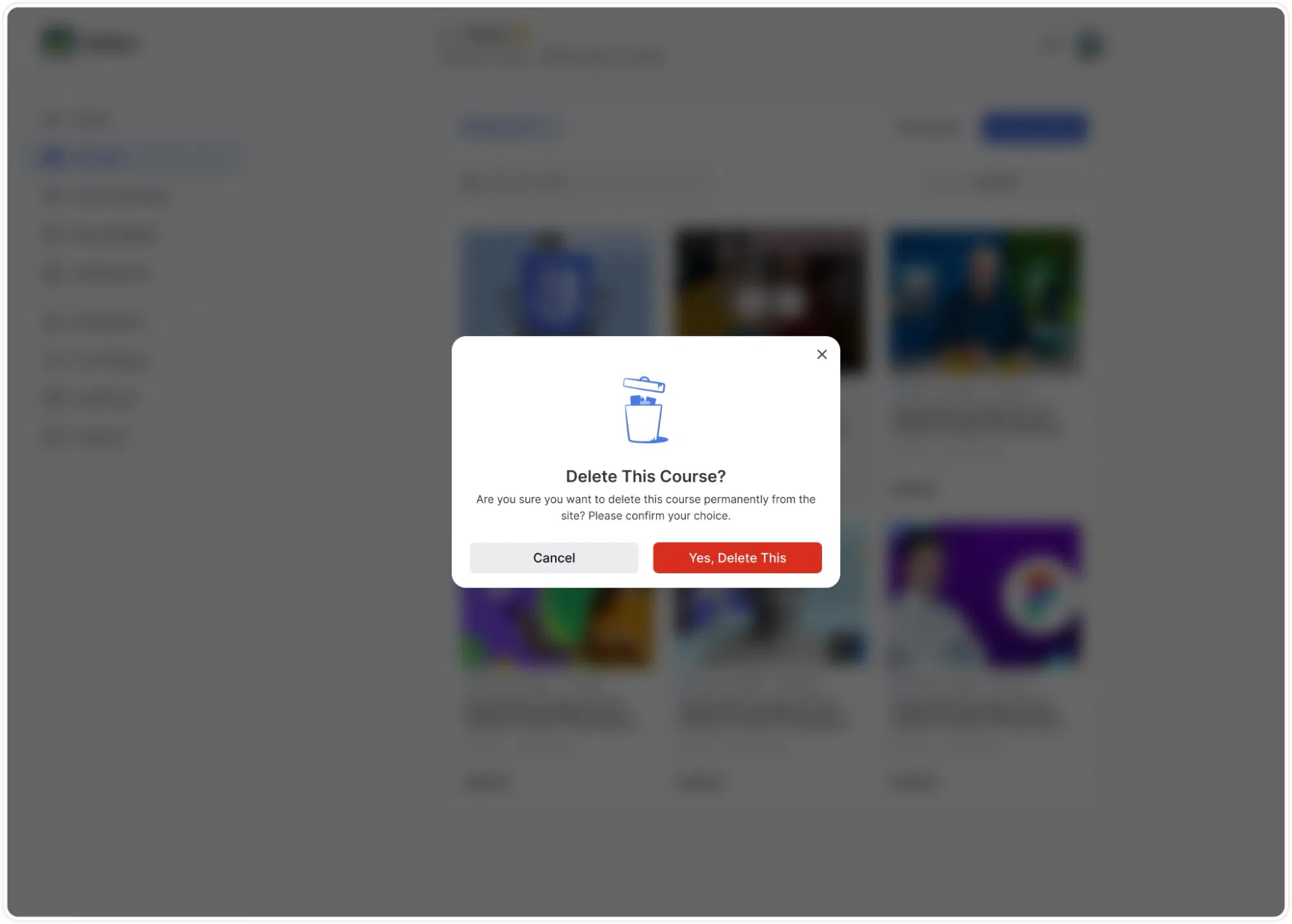
⚠️ Important: Deleting a course is permanent. Once a course has been deleted, it cannot be recovered. If you want to remove a course from student view without losing the content, use Move to Draft instead. A draft course remains saved in your account and can be published again at any time.
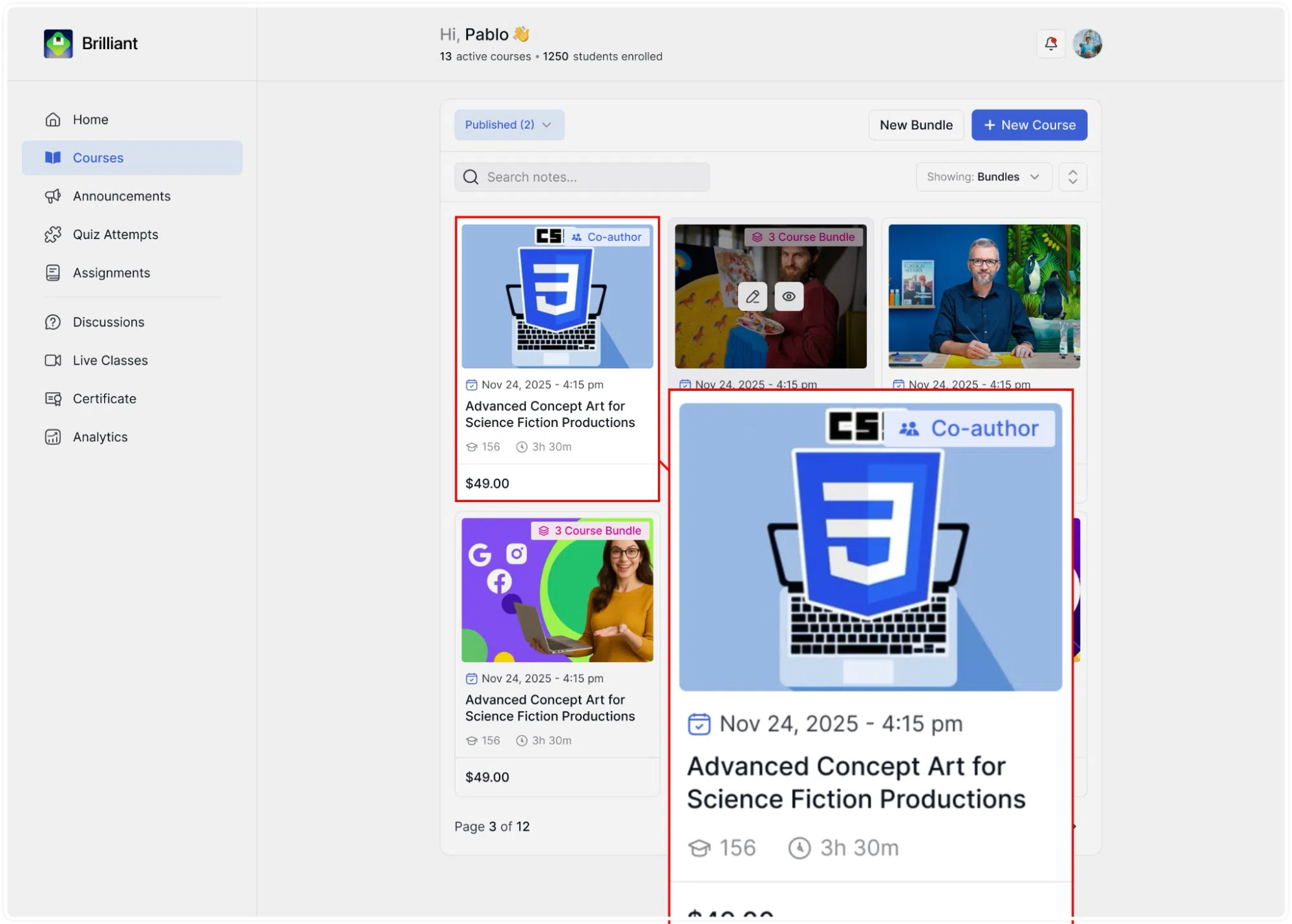
Co-Author Badge
If you have been added as a co-author on a course that was originally created by another instructor, that course will appear in your Courses list with a Co-author badge displayed on its thumbnail in the top-right corner. This badge visually distinguishes courses you co-own from courses you created yourself.