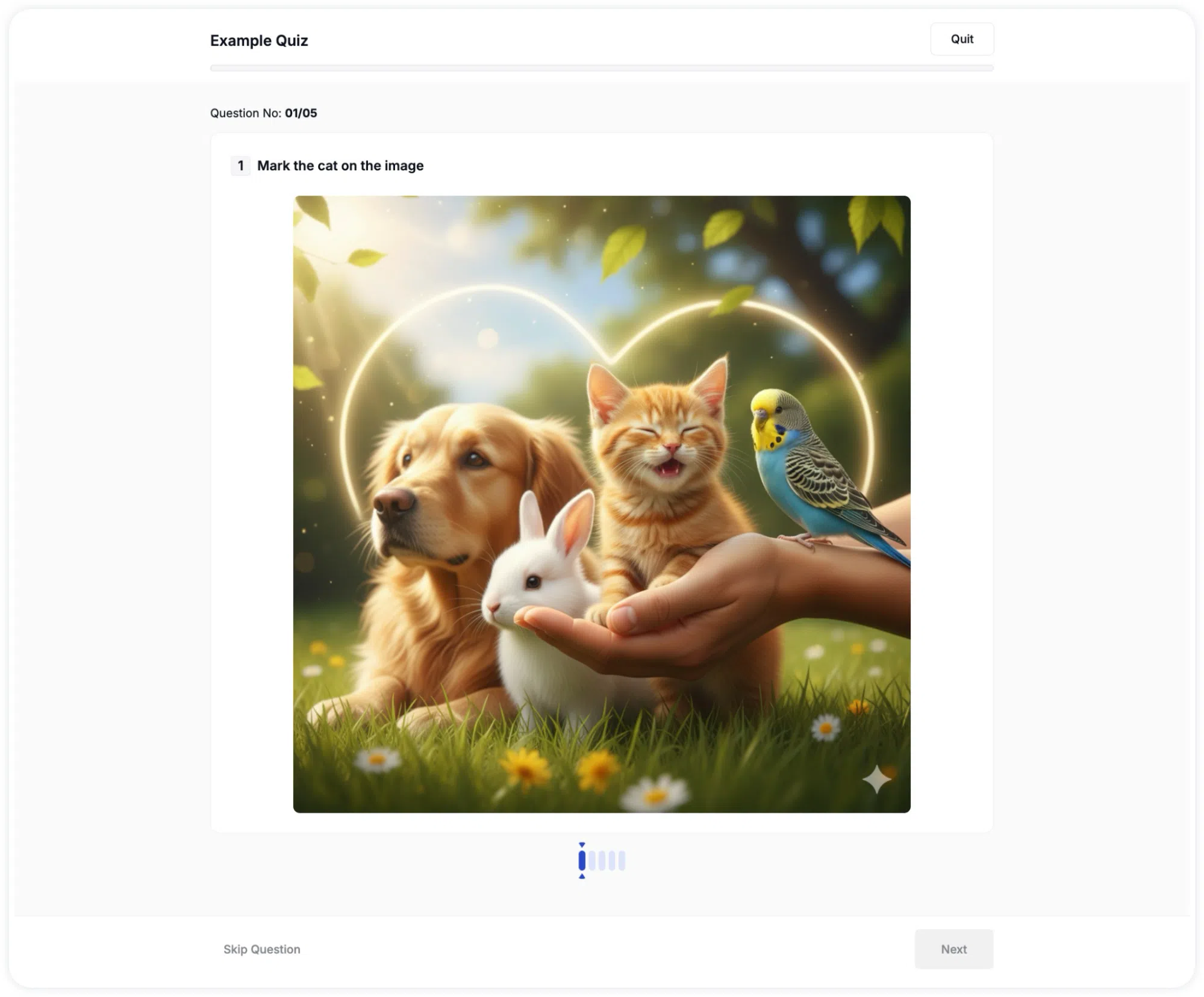
Mark in the Image
Mark in the Image
In Mark in the Image questions, the student is shown an image and asked to click on or draw around a specific area of that image. You define a correct region on the image in advance, and the student’s answer is graded based on how closely their selection overlaps with that region.
This question type works well for visual identification tasks, for example, “Circle the mitochondria in this cell diagram,” or “Mark the cat in this photo.”
How to set it up
- Select Mark in the Image as the question type.
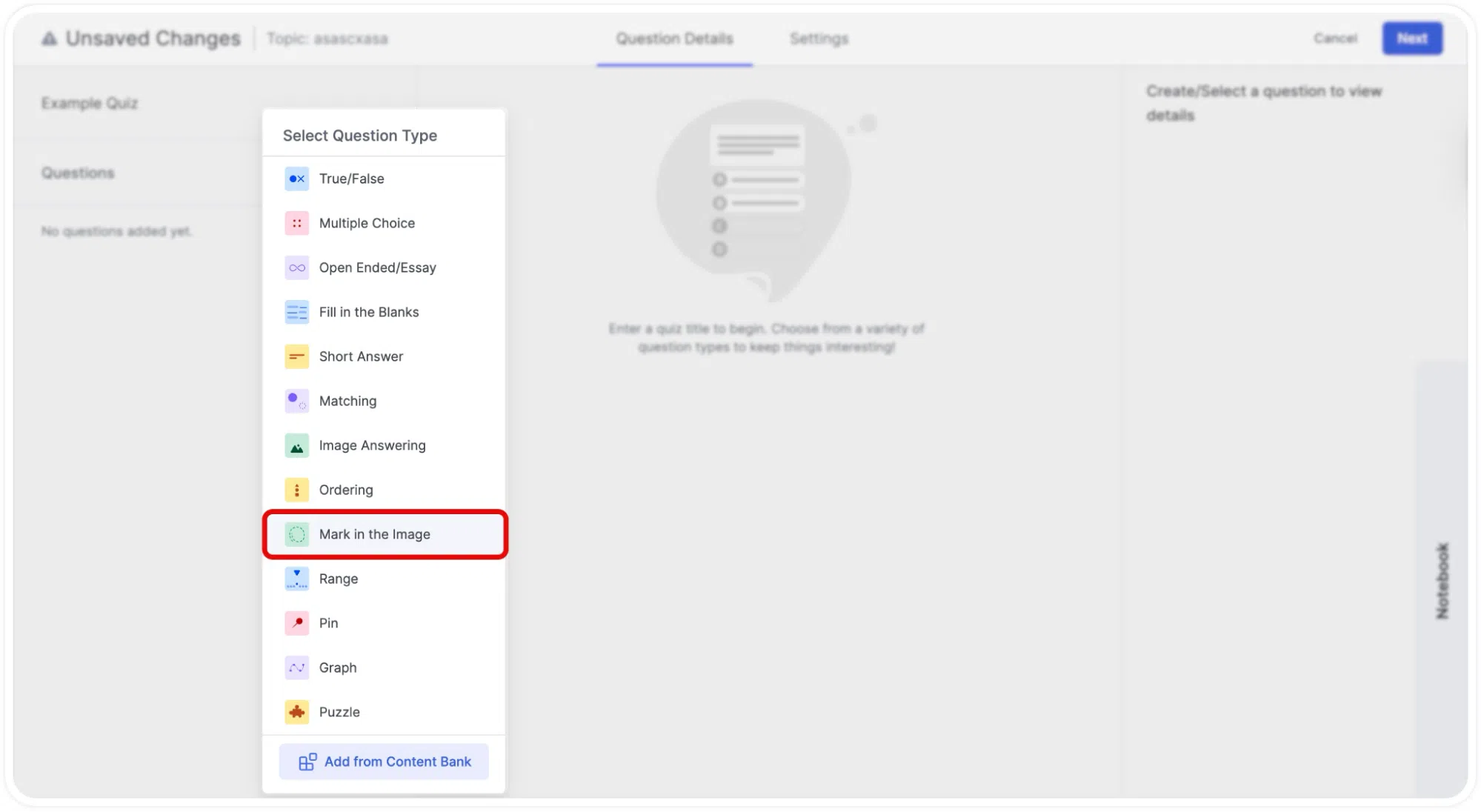
- Type your question in the question field at the top. For example: “Mark the cat in the image.”
- An image upload area will appear below the question. Click it to upload your image from the media library. Choose a clear image where a specific element can be identified.
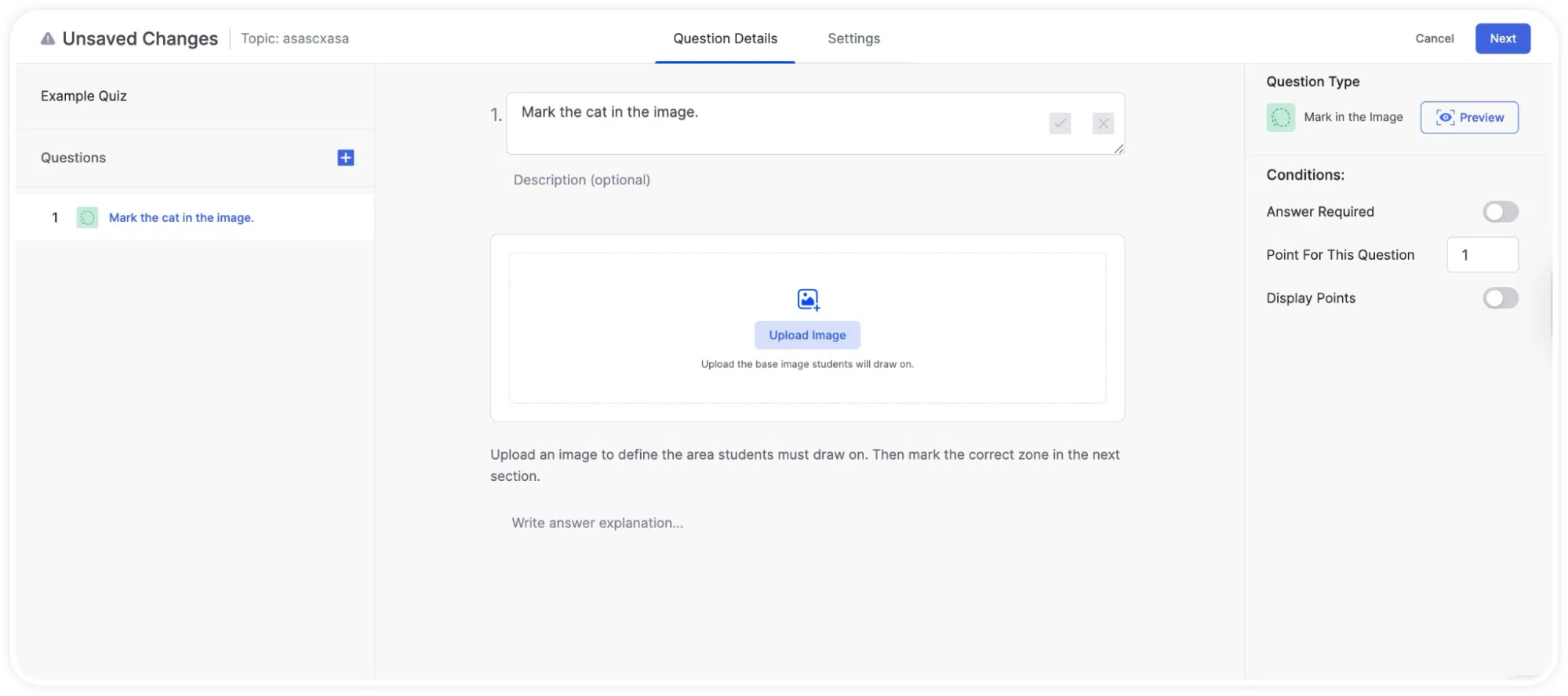
- Once the image is uploaded, a “Mark the correct area” section appears below it. Click or draw directly on the image to define the correct region. This is the area that students’ answers will be compared against. You can click Clear at any time to reset your selection and try again.
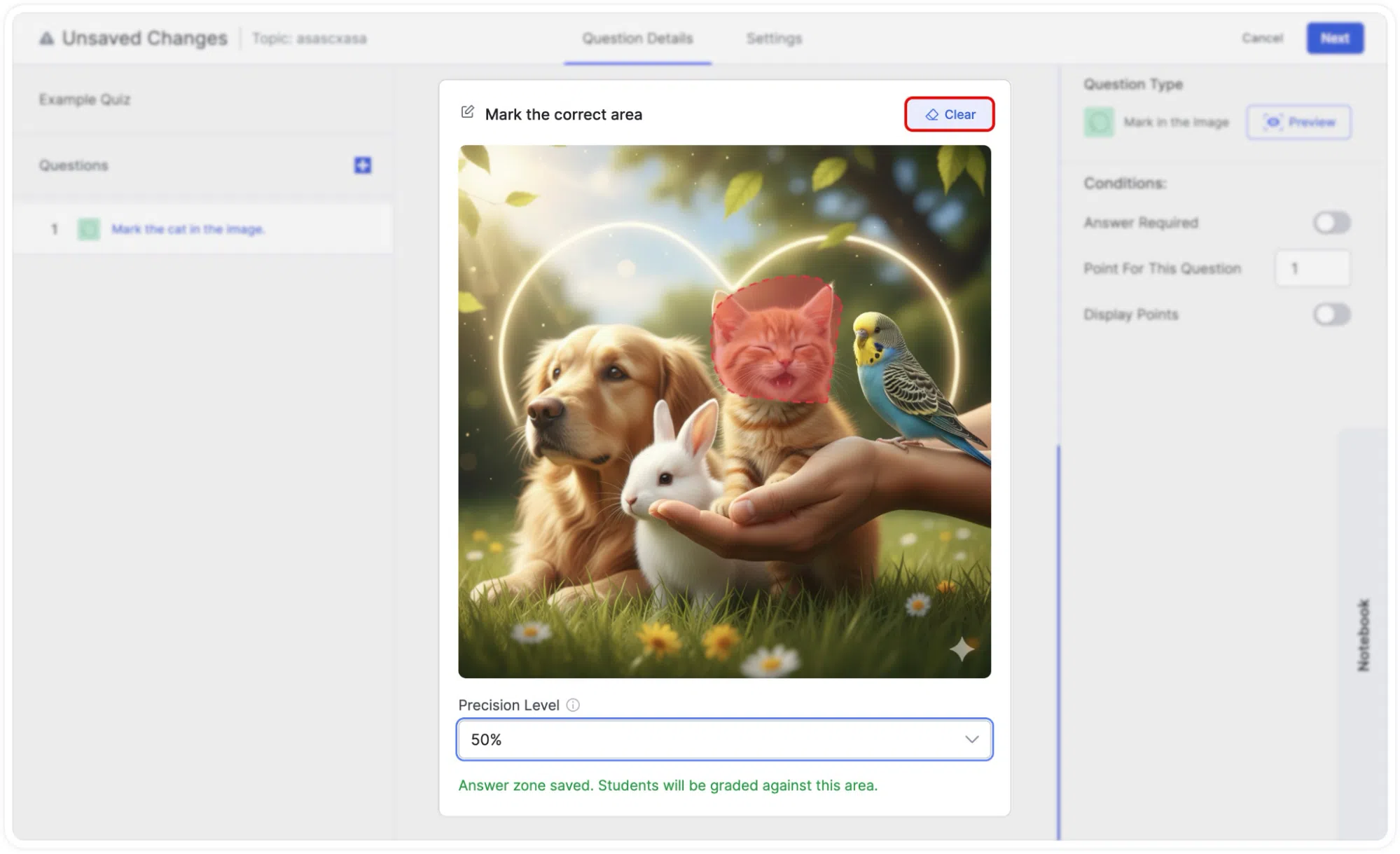
- Set the Precision Level using the dropdown. This controls how accurate the student’s selection needs to be in order to be marked correct. For example, a precision level of 70% means the student’s marked area must overlap with at least 70% of the correct region. A higher precision level makes the question harder; a lower one gives students more margin for error.
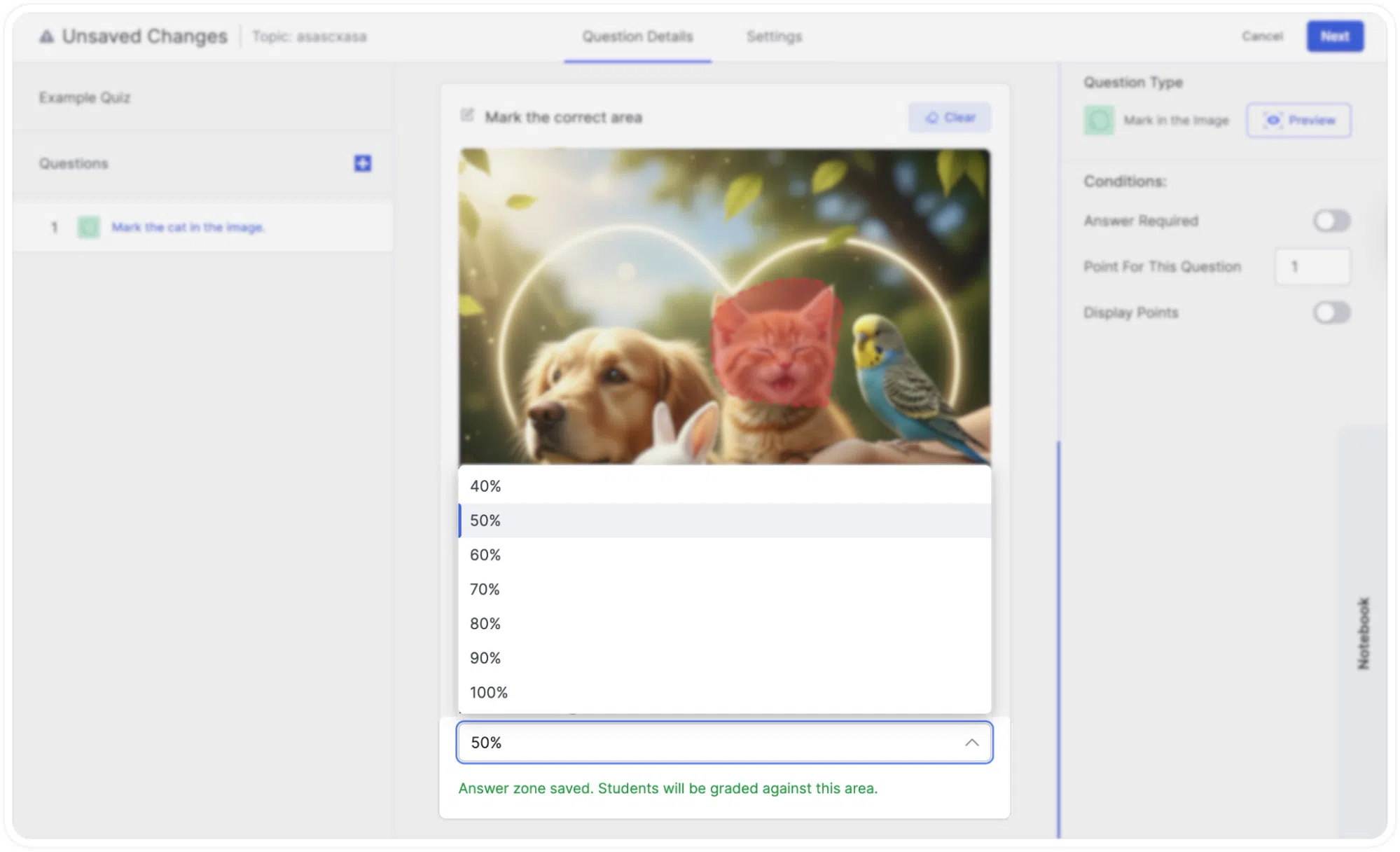
Tip: Use a precision level that matches the difficulty of your question. If your image contains a large subject (like an entire animal), a higher precision level is appropriate. If you are asking students to mark a small or specific detail, consider using a slightly lower precision level to account for minor inaccuracies in clicking or drawing.
Mark in the Image Quiz Question: Learner POV
The image is displayed, and the student clicks or draws on it to mark their answer. After the quiz is submitted, learner results are shown as correct or incorrect based on the overlap with your defined region.