Range
Range
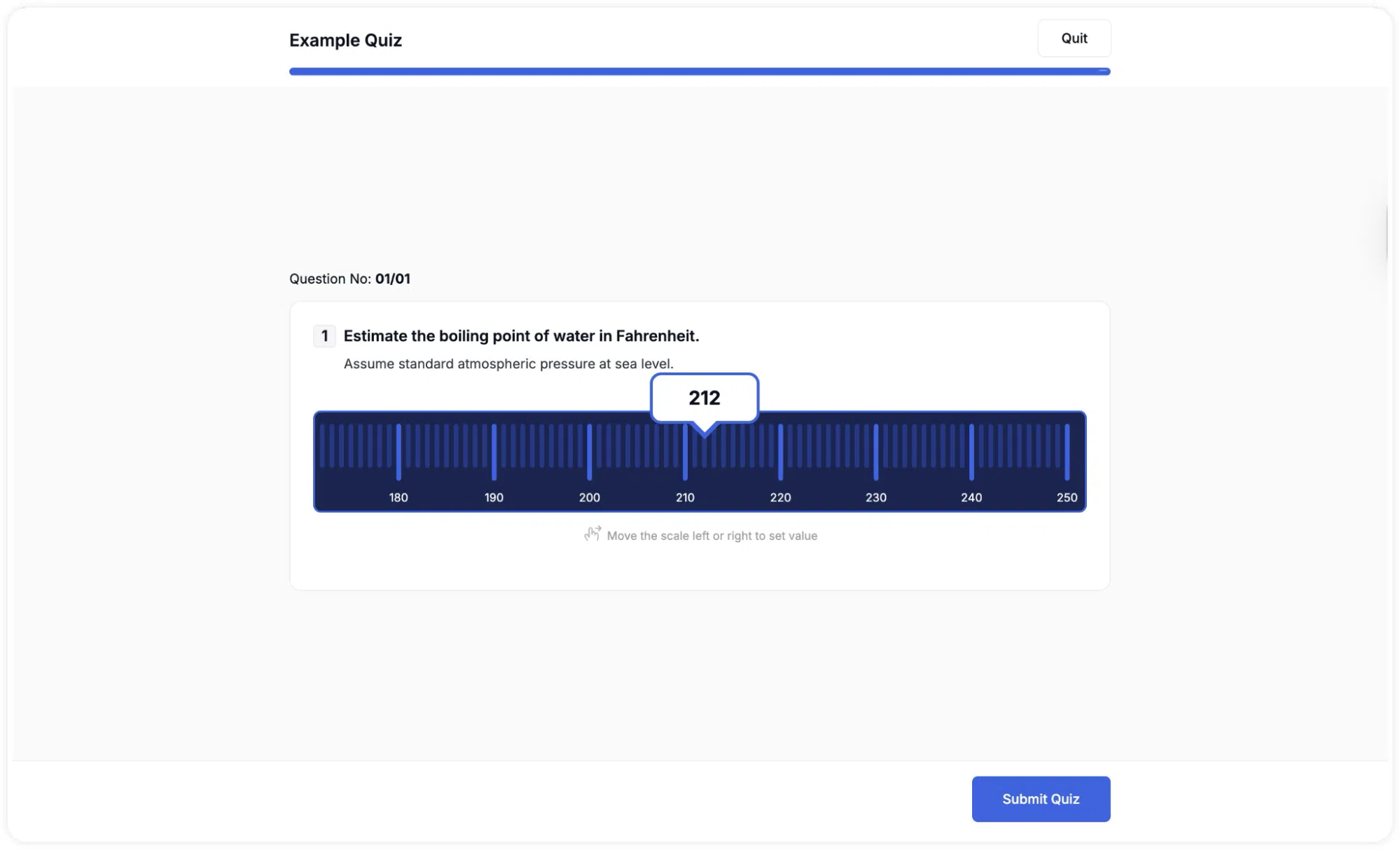
In a Range question, the student is presented with a slider along a numerical scale and asked to drag it to the correct value. You define the minimum and maximum values of the scale, how the labels are spaced, and what the correct value is.
This question type is useful when testing knowledge of numerical values, for example, “What is the approximate pH of pure water?” or “Estimate the boiling point of water in Celsius.”
How to set it up
- Select Range as the question type.
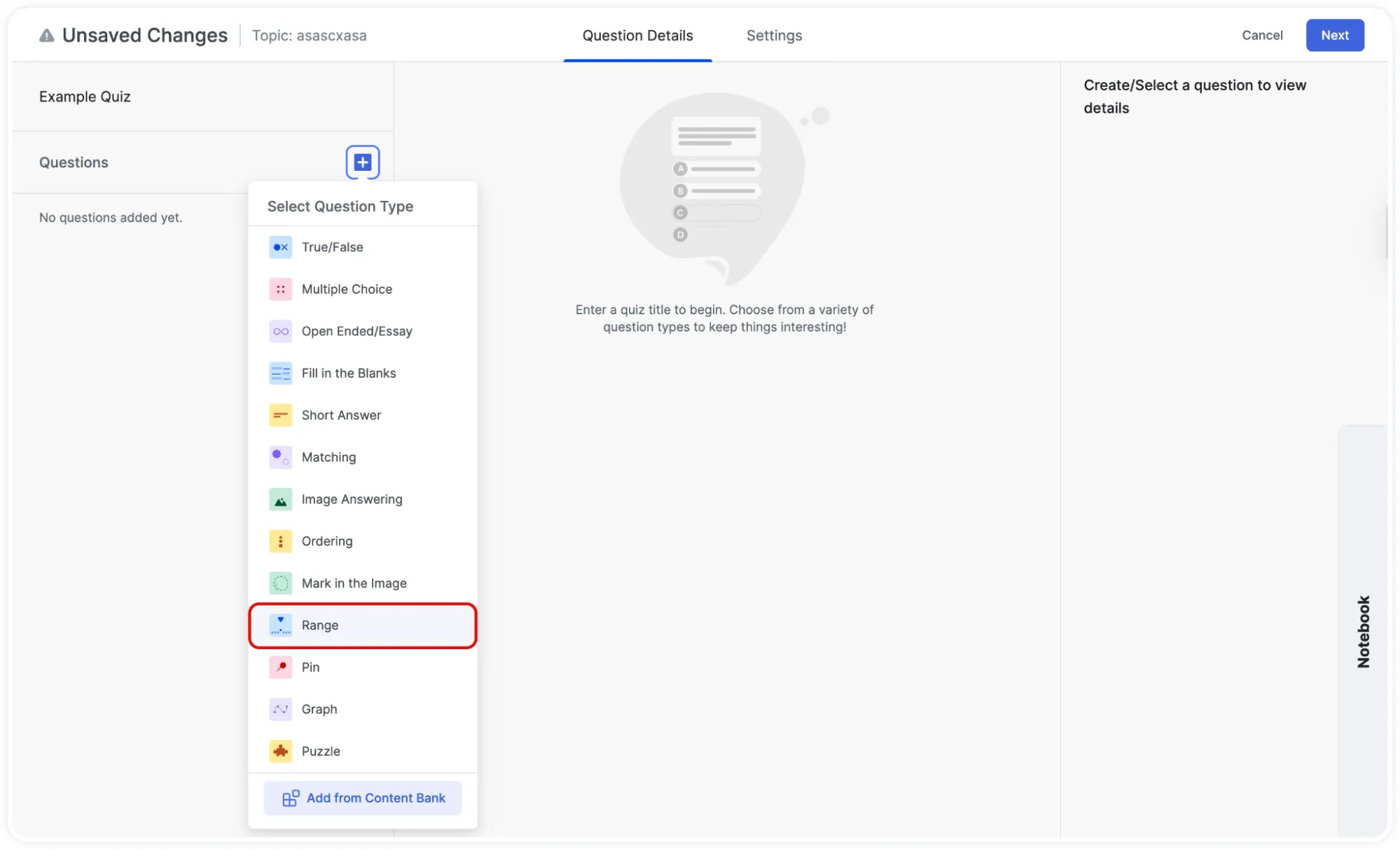
- Type your question in the question field.
- Fill in the Scale range section:
- Min value: The lowest number on the slider scale. For example, 0.
- Max value: The highest number on the slider scale. For example, 14. The max value must be greater than the min value, or an error will appear.
- Label entry: This controls how frequently tick mark labels appear on the scale. For example, entering 2 means a label appears every 2 units. Keep this number reasonable relative to your scale range so the slider is easy to read.
- Enter the Correct Value: the specific number the student must reach on the slider to be marked correct. This value must fall within your defined min and max range.
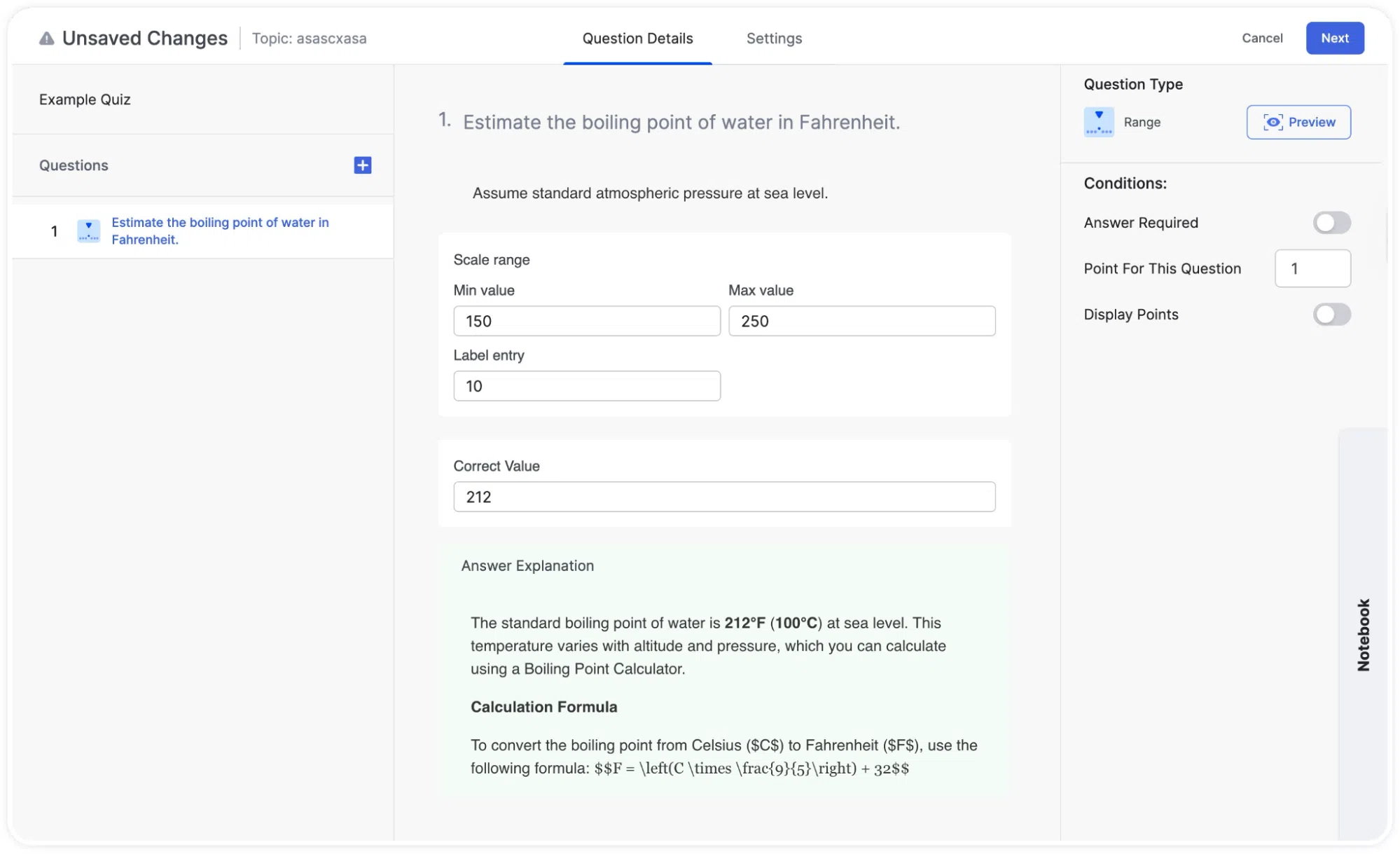
- Optionally, add an Answer Explanation using the text editor below. This is shown to students after they submit the quiz.
Tip: Set the min and max values to a range that is meaningful for the topic. If you are asking about pH, a range of 0 to 14 makes sense. If you are asking about temperature, a range of, say, 0 to 200 with a label entry of 10 keeps the scale readable. Avoid making the range too wide or the label intervals too small, as this can make the slider difficult to use accurately.
Range Quiz Question: Learner POV
A horizontal slider bar with tick marks and a numerical label that updates as they drag. The current selected value is displayed in a tooltip above the slider. A prompt below the slider reads: “Move the scale left or right to set value.” The student drags the slider to their chosen answer and then moves to the next question.