Image Answering
Image Answering
The Image Answering quiz type in Tutor LMS allows you to create interactive questions where students select or identify answers associated with images. This type of question is ideal for visual-based assessments, such as identifying objects, locations, or matching visual content with text descriptions.
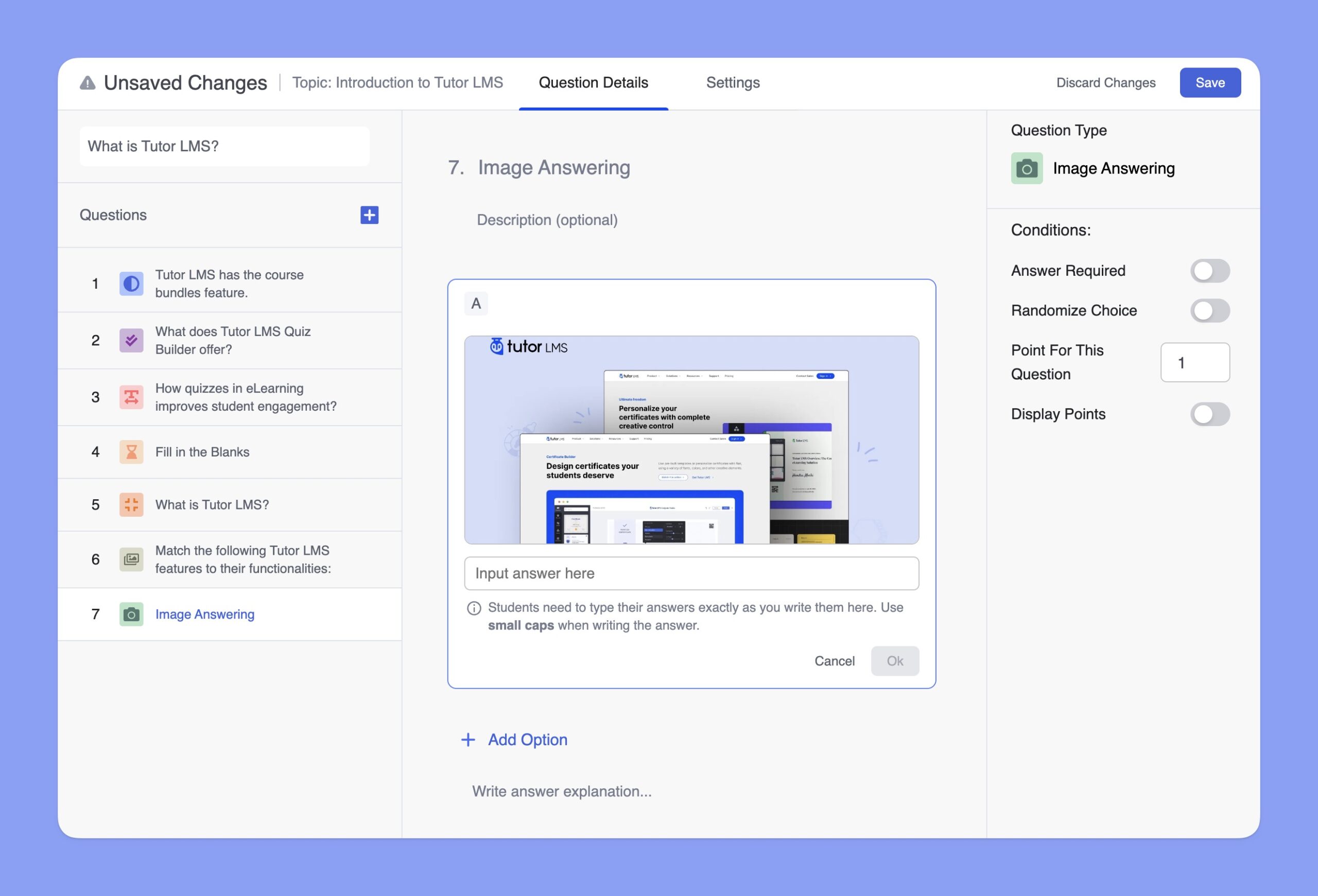
You can start by entering the question title in the Question field. Optionally, you can include a description to provide additional context or instructions for the learners.
After that, click on the Add Image button to upload an image for the question. For optimal visibility, ensure the image resolution is 700×430 pixels. Below the image field, use the Write option text box to add a description or label that corresponds to the image.
To include more answer options, click the + Add Option button. For each option, repeat the process of uploading an image and providing a label or description.
Once you’ve added all the necessary images and options, click the Ok button to confirm the options. Then, click the Save button at the top-right corner to finalize your question.
You can also provide an explanation for the correct answer in the Write answer explanation field. This helps learners understand the reasoning behind the correct response after the quiz.