How to Embed PDF Documents in Tutor LMS Lessons
How to Embed PDF Documents in Tutor LMS Lessons
Embedding PDF documents in Tutor LMS lessons streamlines access to course materials, reference documents, eBooks, etc. This feature allows students to view important files, such as course notes and PDF guides, without leaving the lesson page. In this documentation, we’ll show you the step-by-step process to embed PDF files in Tutor LMS Lessons.
Prerequisites
Before you begin embedding a PDF document into a Tutor LMS lesson, ensure that you’ve installed the following plugins:
Steps to Embed PDF Documents in a Lesson
Let’s explore the step-by-step guide to embed PDF documents on Tutor LMS Lessons.
Step 1: Access Tutor LMS Course
Begin by navigating to the Tutor LMS section in your WordPress dashboard. From the left-hand menu, click on “Tutor LMS” and select “Courses.” This will bring up a list of all your courses. Choose the course where you want to embed the PDF document and click on it to access the course details.
Step 2: Add a New Lesson
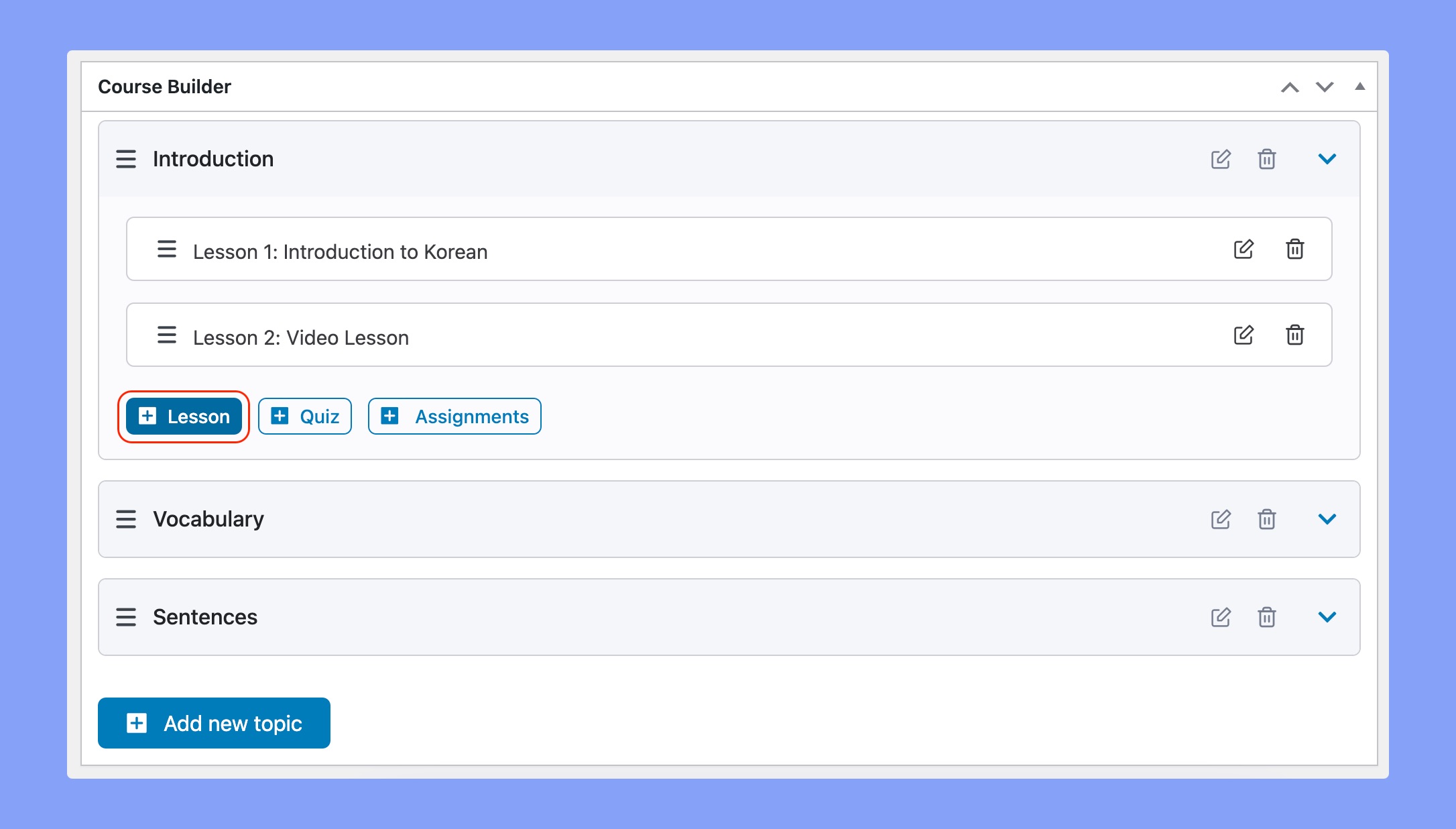
Once you’re inside the course, you’ll need to add a new lesson to include the PDF. Go to the Course Builder section and create the topics you want to include in your course. You’ll get a Lesson button to add new lessons.
Here, you can give your lesson a title and write the course description.
Step 3: Add the PDF file
In the lesson editor, you’ll see an option to add media content. Click on “Add Media” to open the WordPress media library.
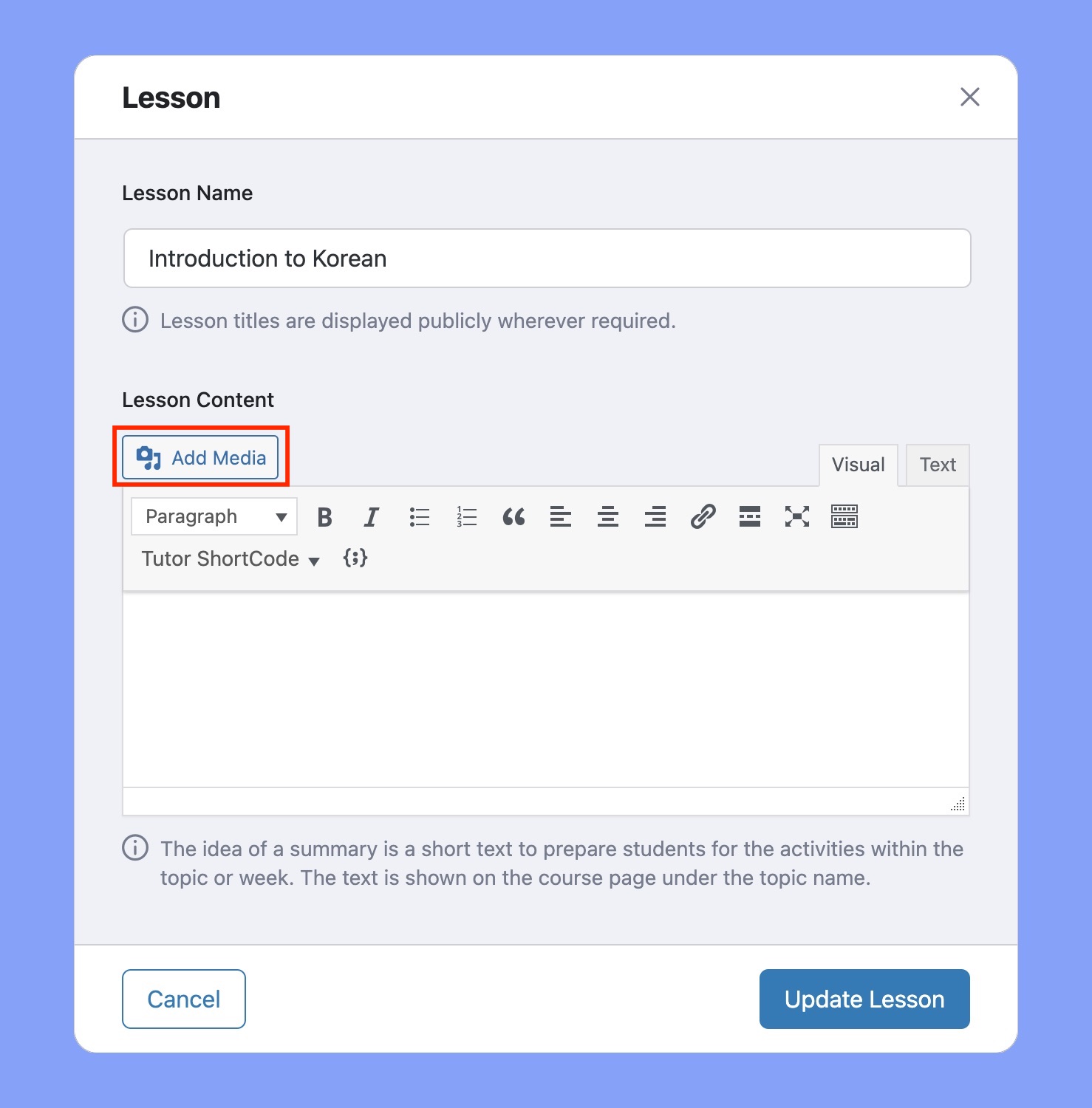
If your PDF has already been uploaded, select it from the library. If not, you can upload it directly from your computer. Once the PDF is uploaded or selected, click on the “Insert into post” button to embed the PDF in your lesson.
Once the PDF is attached to your lesson, the shortcode will be automatically added to the lesson content section.
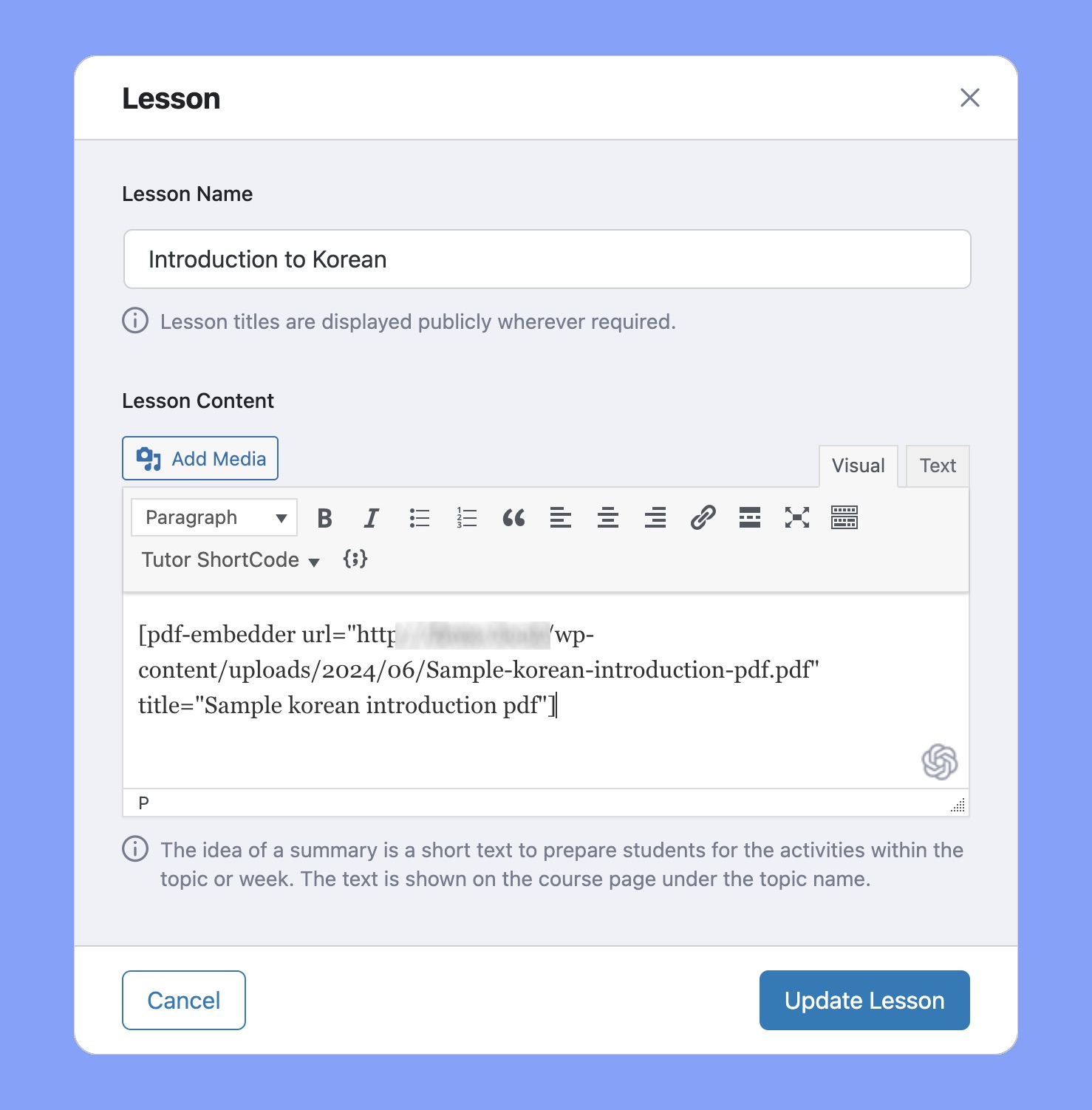
Finally, click on the Update Lesson button, and the PDF embedding process will be complete.
Step 4: Preview the PDF
Before publishing the lesson, it’s a good idea to preview how the PDF will appear to your students. Click on the “Preview Changes” button in the lesson editor to see a live view of the lesson. If everything looks good, you can proceed to publish or update the lesson.
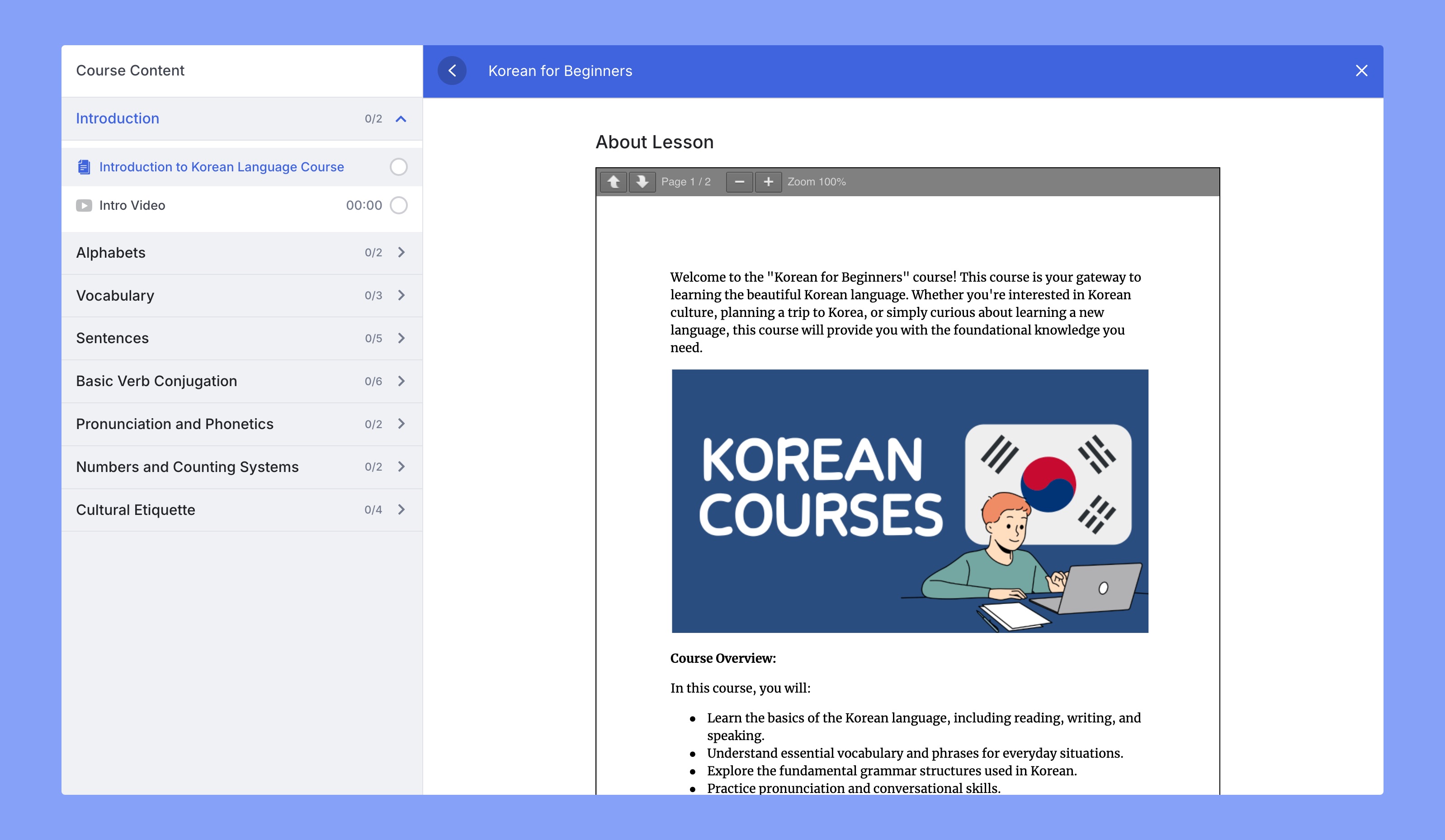
Here’s the preview of the PDF lesson: