Notifications
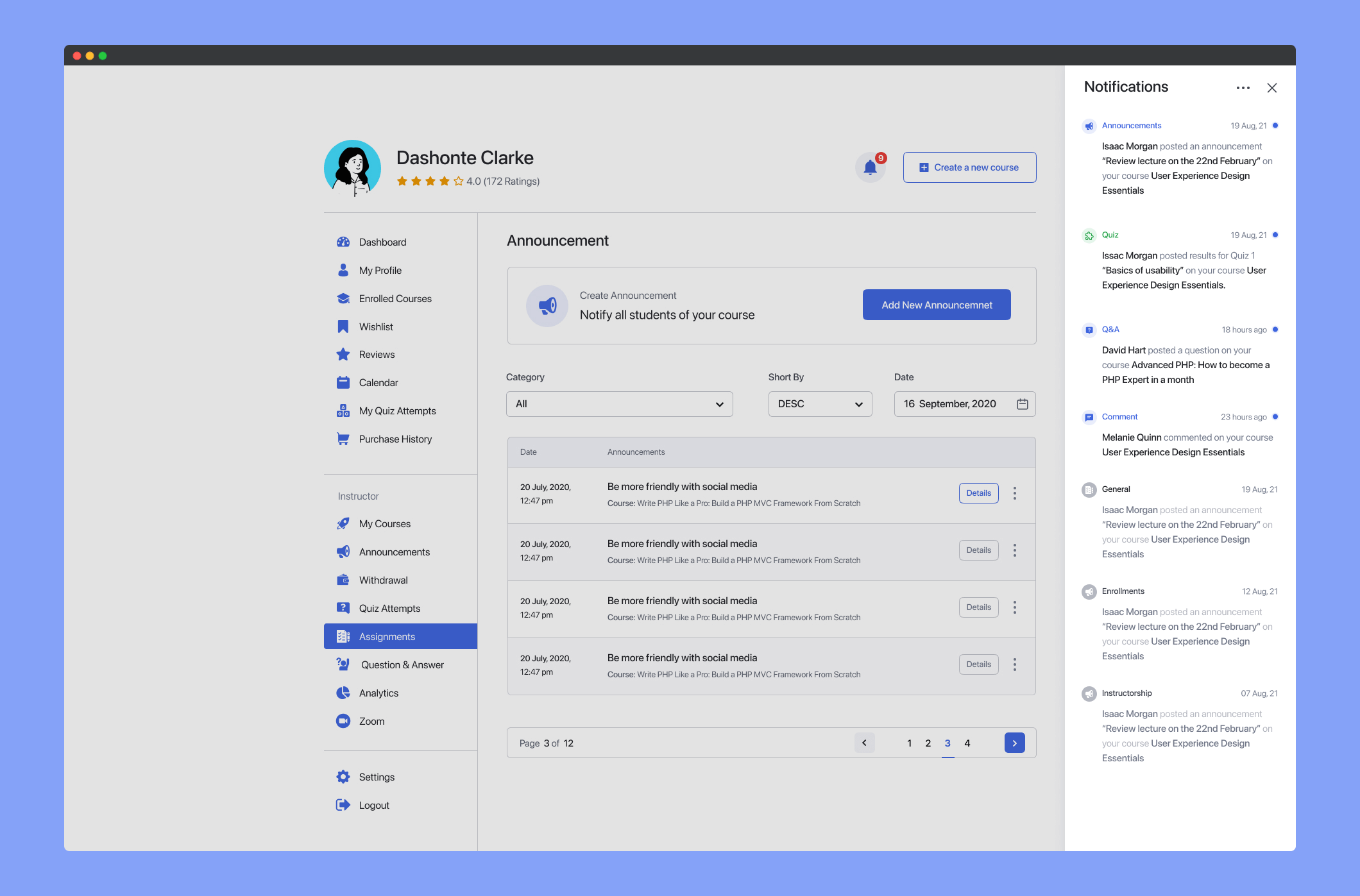
The Notification addon allows your eLearning website to send out both On-Site and Browser Push Notifications to all kinds of users of your website. This includes Admins, Instructors, and Students.
There are several kinds of notifications that cover all kinds of site activities and help keep users in the loop. Moreover, each Notification is tailored to match each user type’s requirements.
For this feature to work, you need to fulfill the following prerequisites:
- Tutor LMS v3.1.0
- Tutor LMS Pro v3.1.0
- PHP extensions: cURL, GMP, Mbstring, OpenSSL
- PHP version: 7.2.5 or later (required)
- SSL Certificate (required)
If you do not have the PHP extensions installed, please contact your hosting administrator for assistance.
Enable Notification Addon
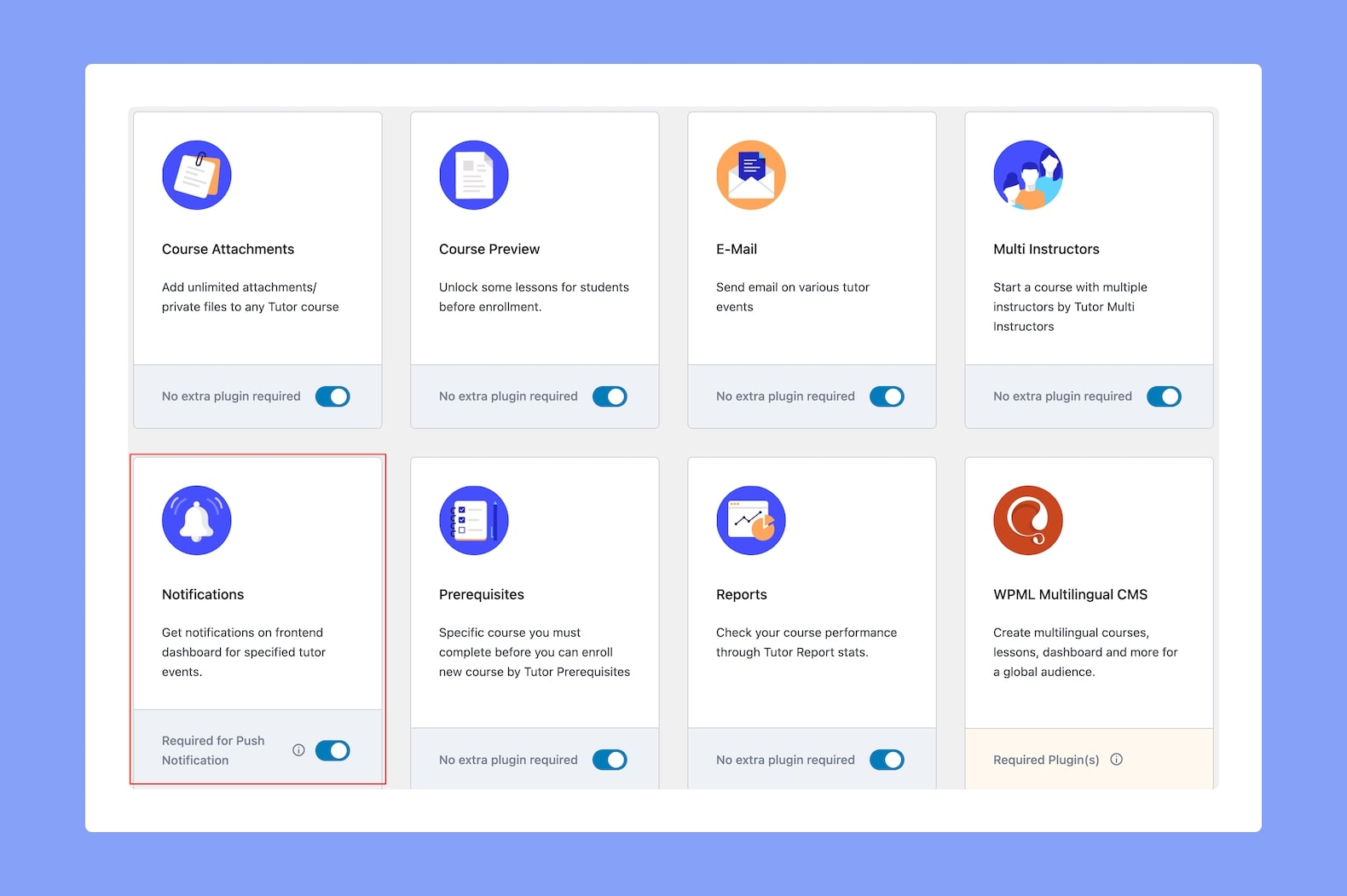
Once you have all of the necessary components installed and activated, go to WP Admin > Tutor LMS Pro > Addons and enable Notifications.
Configure Notification Settings
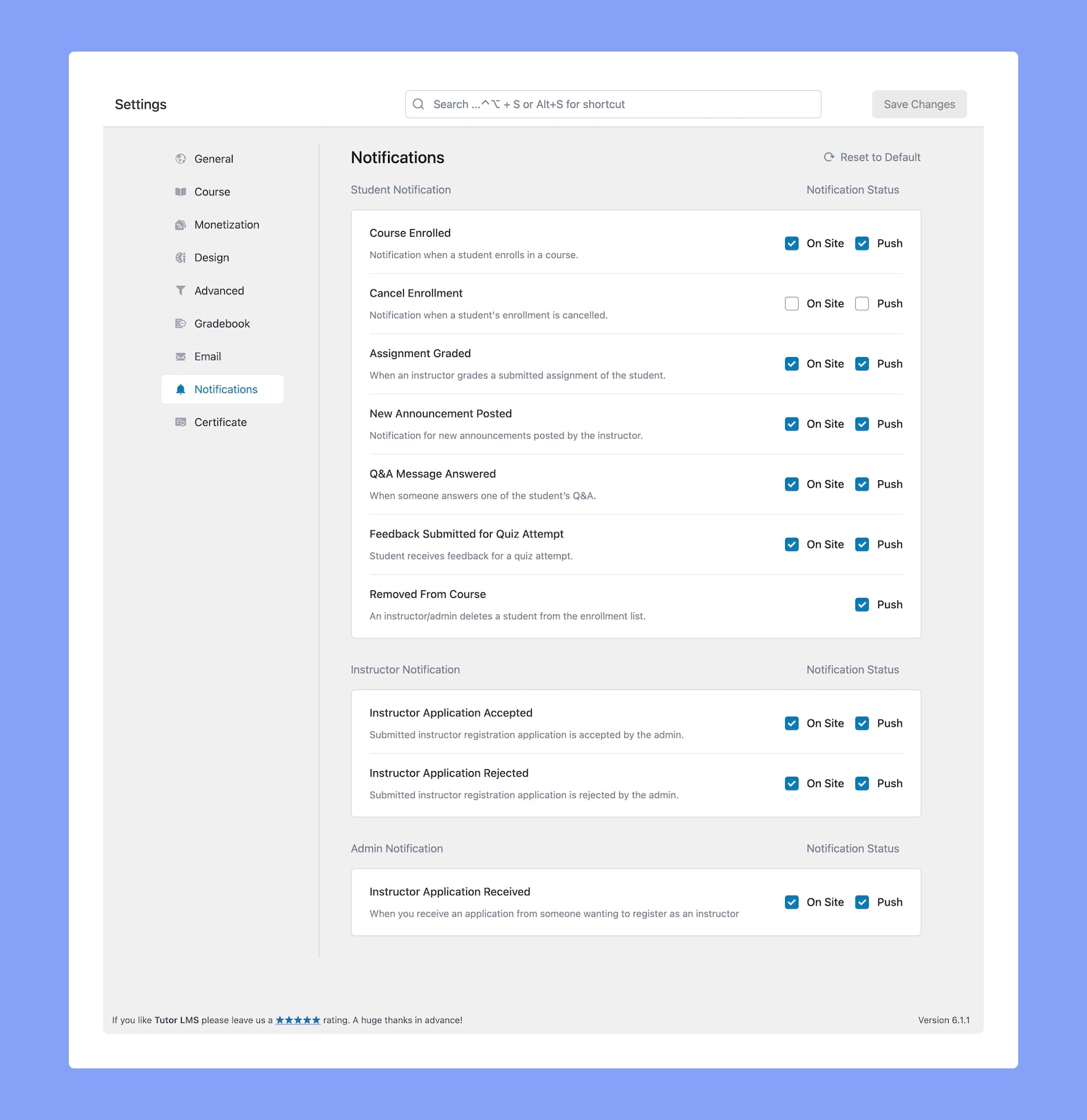
Now that the addon is activated, head over to WP Admin > Tutor LMS Pro > Settings > Notifications to select which Notifications you want enabled for your site.
Each notification here can be enabled or disabled using the toggles on the right side of the panel and you can set if they’ll receive an onsite bell notification, a toast push notification, or both.
So now let us go over what Notification options we have available:
Student Notification
Course Enrolled: Notification triggered when a student enrolls in a course.
Cancel Enrollment: Notification triggered when a student’s enrollment is canceled.
Assignment Graded: Notification triggered when an instructor grades an assignment submitted by a student.
New Announcement Posted: Notification triggered when a new announcement is posted by the instructor.
Q&A Message Answered: Notification triggered when someone answers one of the students’ Q&A.
Feedback Submitted for Quiz Attempt: Notification triggered when a student receives feedback for a quiz attempt.
Removed From Course: Notification triggered when an instructor/admin deletes a student from the enrollment list.
Instructor Notification
Instructor Application Accepted: Notification triggered when a submitted instructor registration application is accepted by the admin.
Instructor Application Rejected: Notification triggered when a submitted instructor registration application is rejected by the admin.
Admin Notification
Instructor Application Received: Notification triggered when admin receives an application from someone wanting to register as an instructor.
Keep in mind that users will also receive a notification initially that will ask whether they want to be notified using push notifications or not.
Frontend Preview
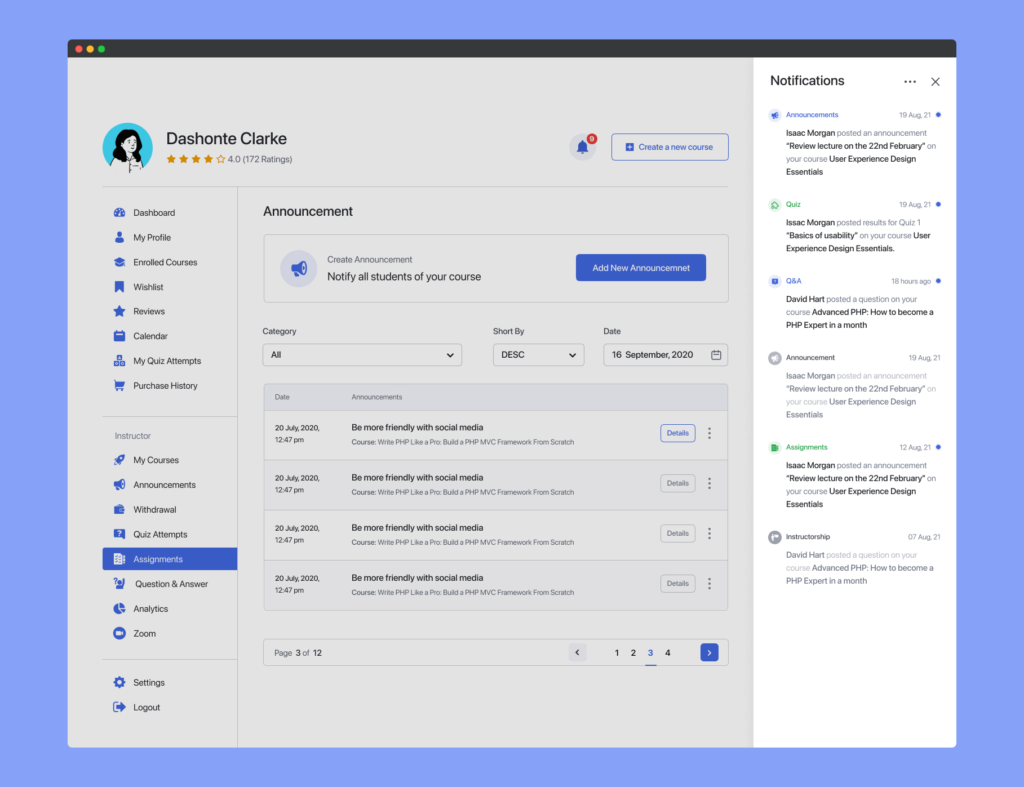
On the frontend dashboard, you should see a bell icon at the top right corner which will be numbered in red to let you know whenever you have unread notifications.
Clicking on this will open the side panel that holds all of your Notifications (based on the ones you have enabled from the Tutor LMS notification settings).
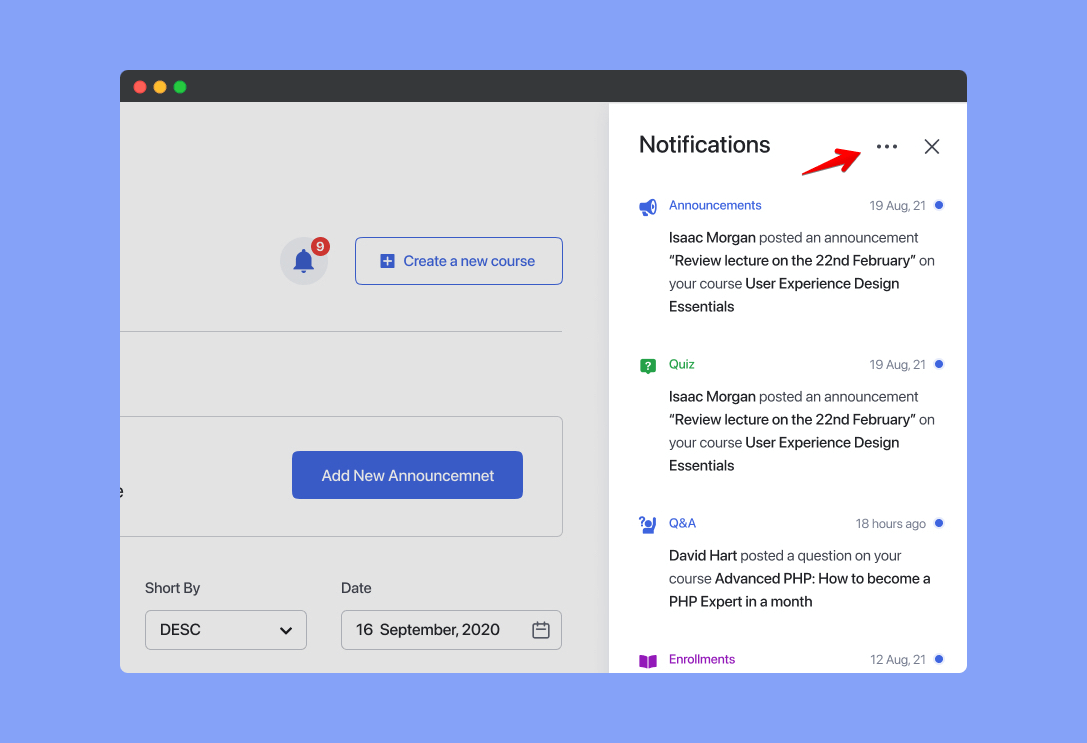
You can click on the three dots at the top of the panel to access the following options:
- Mark everything as read
- Mark everything as unread.
If you click on a notification, it will automatically be marked as read and will redirect you to the specific section of your website where the event occurred.