Editing The Tutor Dashboard
To edit the required fields on the profile completion status on the dashboard, you can use this piece of code in the theme’s function.php file:
add_filter('tutor_profile_required_fields', 'add_some_new_field');
function add_some_new_field($fields) {
	$fields['user_meta_key'] = __('User Meta Title', 'tutor');
	return $fields;
}
Removing Links
To remove general links from the Tutor dashboard, we can use this piece of code. Here, we’re removing reviews and wishlist as an example:
add_filter('tutor_dashboard/nav_items', 'remove_some_links_dashboard');
function remove_some_links_dashboard($links){
	unset($links['reviews']);
	unset($links['wishlist']);
	return $links;
}
To remove instructor links from the Tutor dashboard, we can use this piece of code. Here, we’re removing assignments as an example:
add_filter('tutor_dashboard/instructor_nav_items', 'remove_some_links');
function remove_some_links($links) {
	unset($links['assignments']);
	return $links;
}
Removing Sub Menu Items
If you want to remove subheadings from the dashboard menu items, please add these pieces of code to the functions.php file in your theme:
add_filter('tutor_dashboard/nav_items/settings/nav_items', function($nav) {
        unset($nav['withdrawal']);
        return $nav;
});
Adding New Link
There are three groups of links in Tutor Dashboard, the general links, instructor links, and the bottom two links for Settings and log out. To add new links to each group, you must use their corresponding filter.
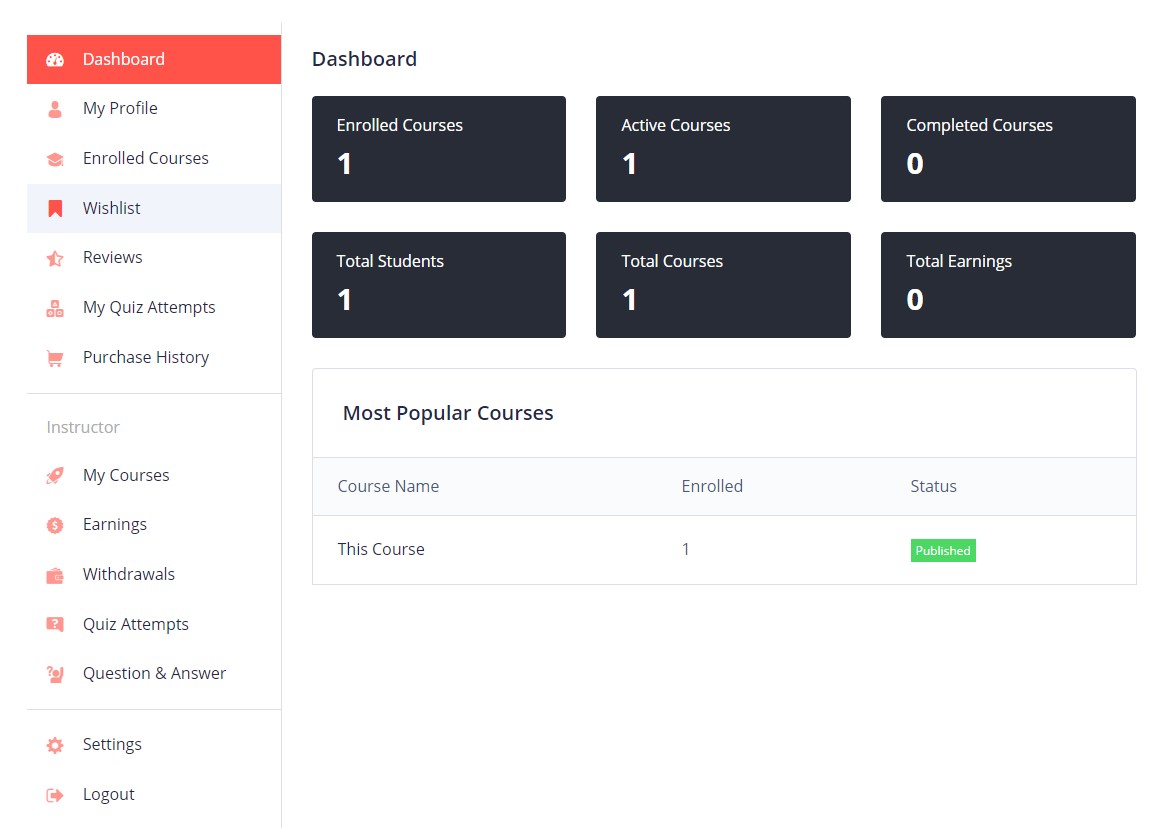
To add items to the first group of general links (Enrolled Courses, My Profile, etc), use this code:
add_filter('tutor_dashboard/nav_items', 'add_some_links_dashboard');
function add_some_links_dashboard($links){
	$links['custom_link'] = [
		"title" =>	__('Custom Link', 'tutor'),
		"url" => "//youtube.com",
		"icon" => "tutor-icon-calender-line",
	];
	return $links;
}
To add items to the second group of Instructor links (My courses, Earnings, etc), use this code:
add_filter('tutor_dashboard/instructor_nav_items', 'add_some_links_dashboard');
function add_some_links_dashboard($links){
	$links['custom_link'] = array('title' => __('Custom Link', 'tutor'), 'auth_cap' => tutor()->instructor_role);
	return $links;
}
To add links to the bottom, use this code:
add_filter('tutor_dashboard/bottom_nav_items', 'add_some_links_dashboard');
function add_some_links_dashboard($links){
	$links['custom_link']          = __('Custom Link', 'tutor');
	return $links;
}
PS: If you add links to the Dashboard, you must add new view files to the tutor/templates/dashboard/ folder. The file should be named the same as the index (“custom_link” in the example code).
To add new separators to the dashboard, you have to use this piece of code.:
'new-separator' => array('title' => __('New Separator', 'tutor'), 'type' => 'separator')Use this code to add custom third-party links to the dashboard. Be sure to change the custom URLs yourself:
$links['custom-link'] = array('title' => __('Custom link', 'tutor'), 'url' => 'custom URL');If you have any questions or need help with any integration, please feel free to use the contact us.