How to Sell Bundle Course as a Subscription
Tutor LMS works seamlessly with popular membership plugins such as Paid Membership Pro, WooCommerce Subscription, Restrict Content Pro, etc. You can sell eLearning courses using these plugins. However, it is recommended to use the WooCommerce Subscription plugin to sell the bundle courses.
Prerequisites
Before starting the process, make sure you’ve installed and activated the following plugins on your website:
- Tutor LMS
- Tutor LMS Pro
- WooCommerce
- WooCommerce Subscription
How to Sell Bundle Courses as a Subscription
Here is the step-by-step process of selling bundle courses as a subscription.
Step 1: Enable WooCommerce Monetization
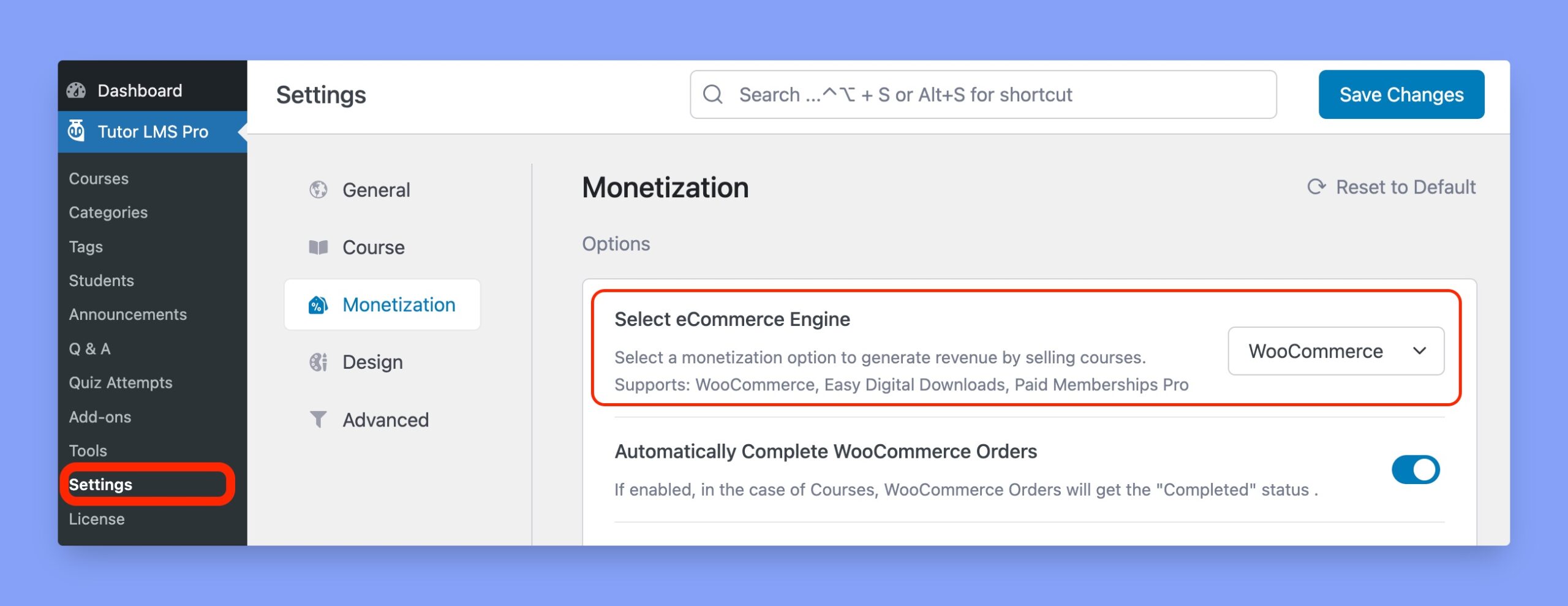
Tutor LMS course bundle can be sold only by WooCommerce. So, before selling bundle courses, make sure that you have selected WooCommerce as your eCommerce engine. You can access it from Tutor LMS Pro > Settings > Monetization.
Step 2: Enable WooCommerce Subscriptions Addon
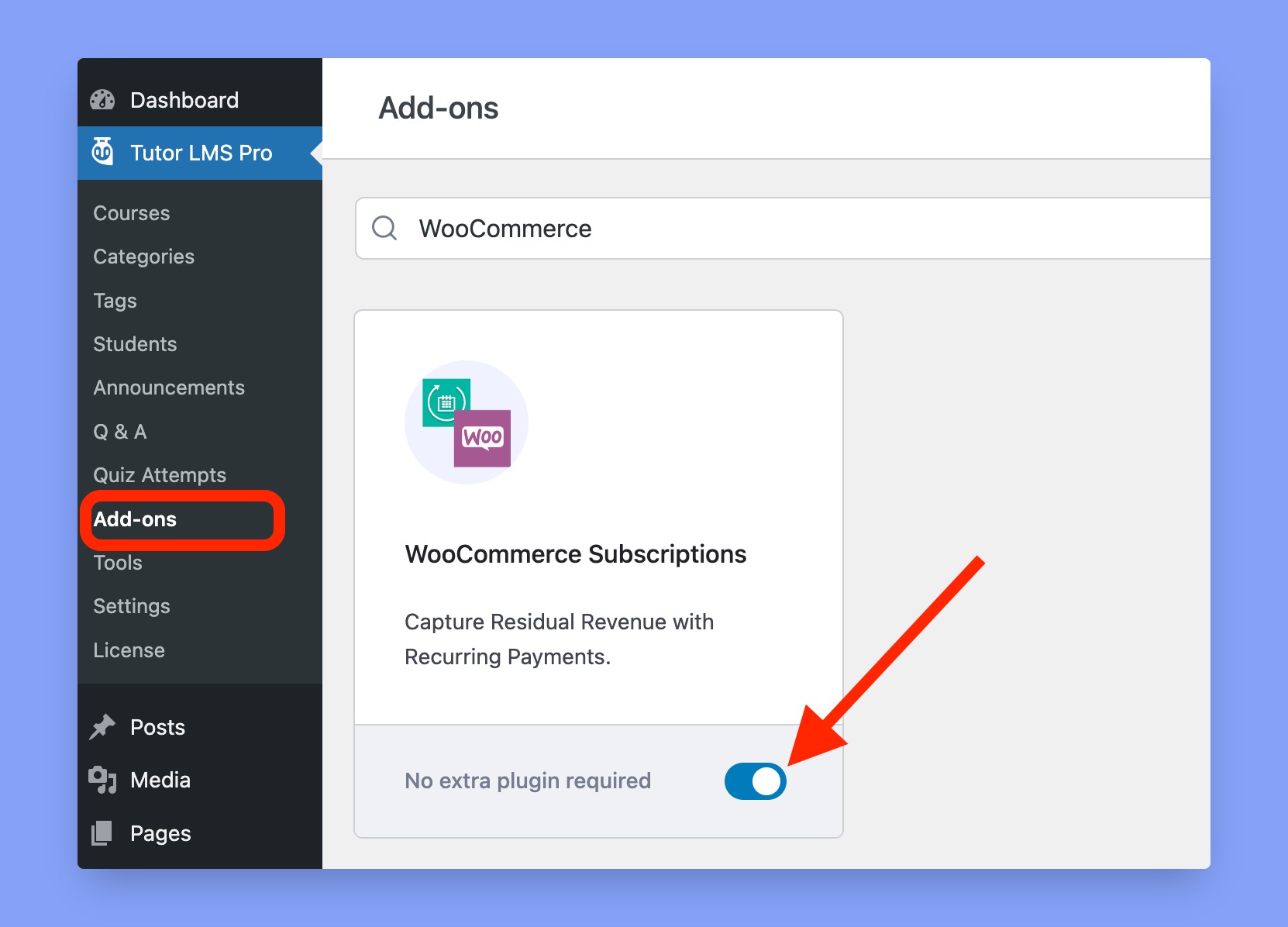
We will use the WooCommerce Subscriptions plugin to sell subscription-based Tutor LMS course bundles. So, make sure you’ve installed WooCommerce and WooCommerce Subscriptions plugins. Then, activate the WooCommerce Subscriptions addon. You can access it from WP Dashboard > Tutor LMS Pro > Add-ons.
That’s the end of the WooCommerce setup process. Now, we will create a bundle course and then apply the subscription model to that course bundle. Let’s create a bundle course now.
Step 3: Create a Bundle Course
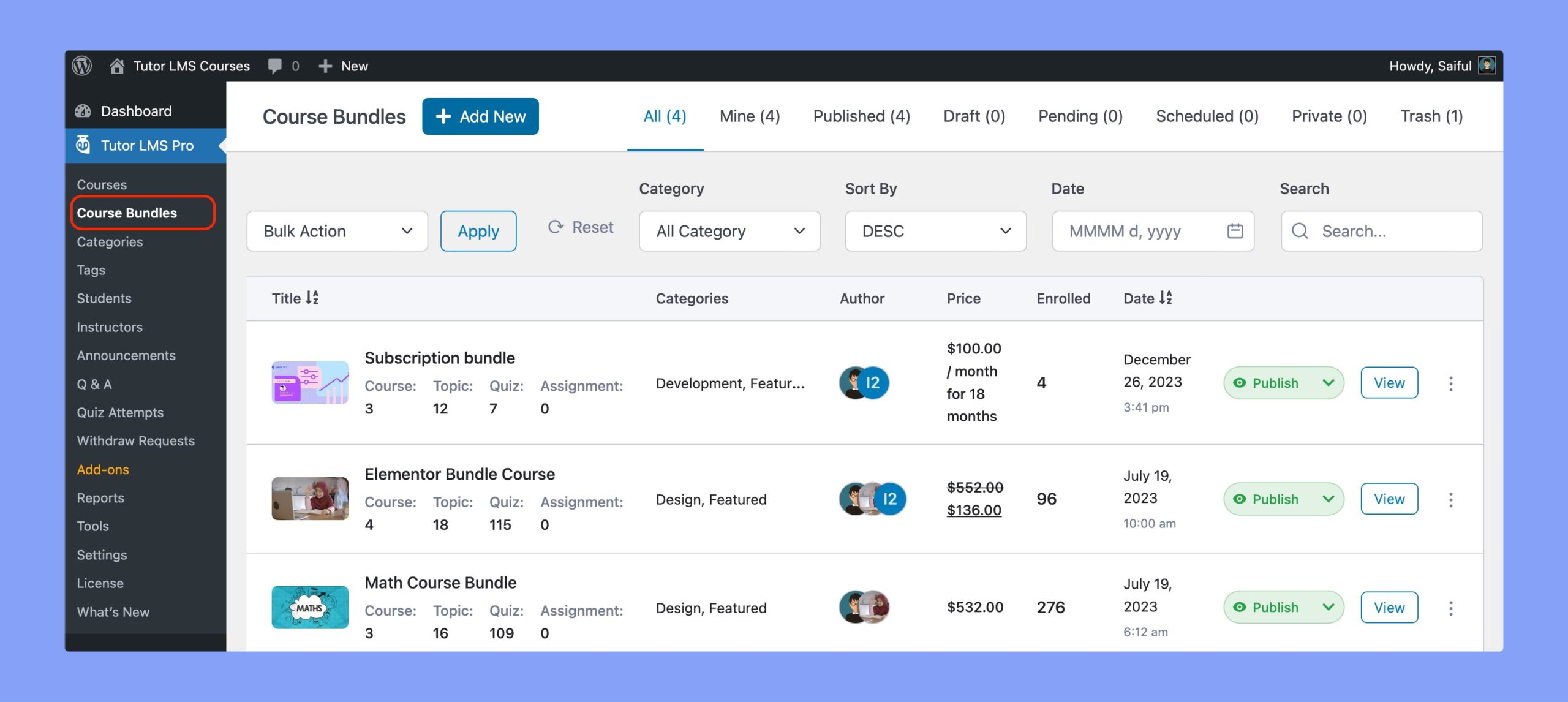
To create a bundle course, go to Tutor LMS Pro > Course Bundles and click the ‘Add New’ button on the topbar. Set up the necessary information there to customize your course and publish it.
If you need any help with creating the bundle courses, follow our bundle course creation blog post.
Step 4: Update the WooCommerce Product
After publishing your bundle course, Tutor LMS will automatically generate a corresponding WooCommerce product. Locate this product at WP Dashboard > Products > All Products and follow these steps:
- Select Simple subscription as product data
- Check the boxes for ‘Virtual’ and ‘Tutor’ options
- Specify subscription price, frequency, and expiry time
- Define sign-up fees and trial period (optional)
- Set the sale price and schedule the sale period (optional)
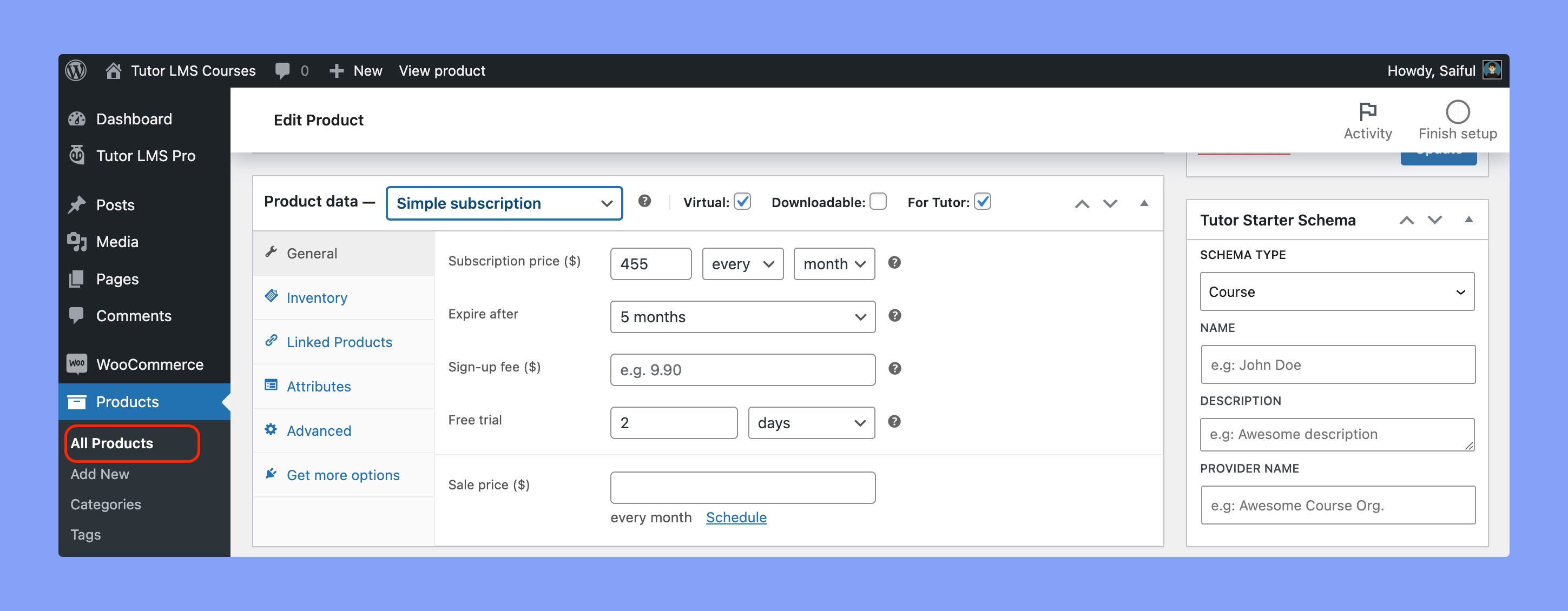
After setting up your course price, update the product.
Step 5: Enable Manual Renewals for Subscriptions
Students have to make recurring payments to access the subscription-based courses. Thus, you MUST use a payment gateway that supports automatic recurring transactions. The eligible payment gateways are listed in the WooCommerce recurring payment gateway documentation.
If you don’t have one, you have to enable the ‘Accept Manual Renewals’ option from WooCommerce. This option is available at WP Dashboard > WooCommerce > Settings > Subscriptions tab.
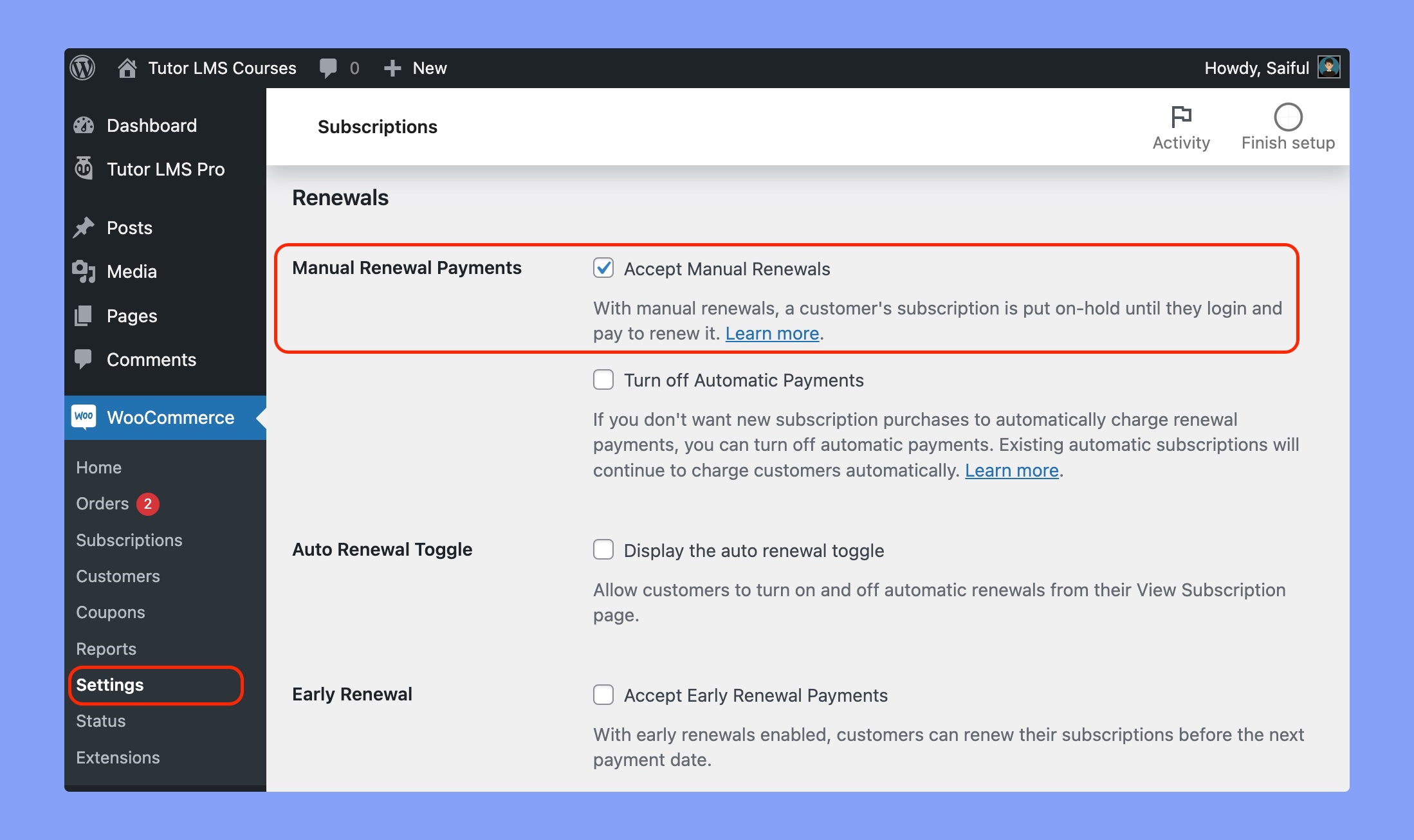
That’s the overall process of selling Tutor LMS bundle courses using the subscription-based models.
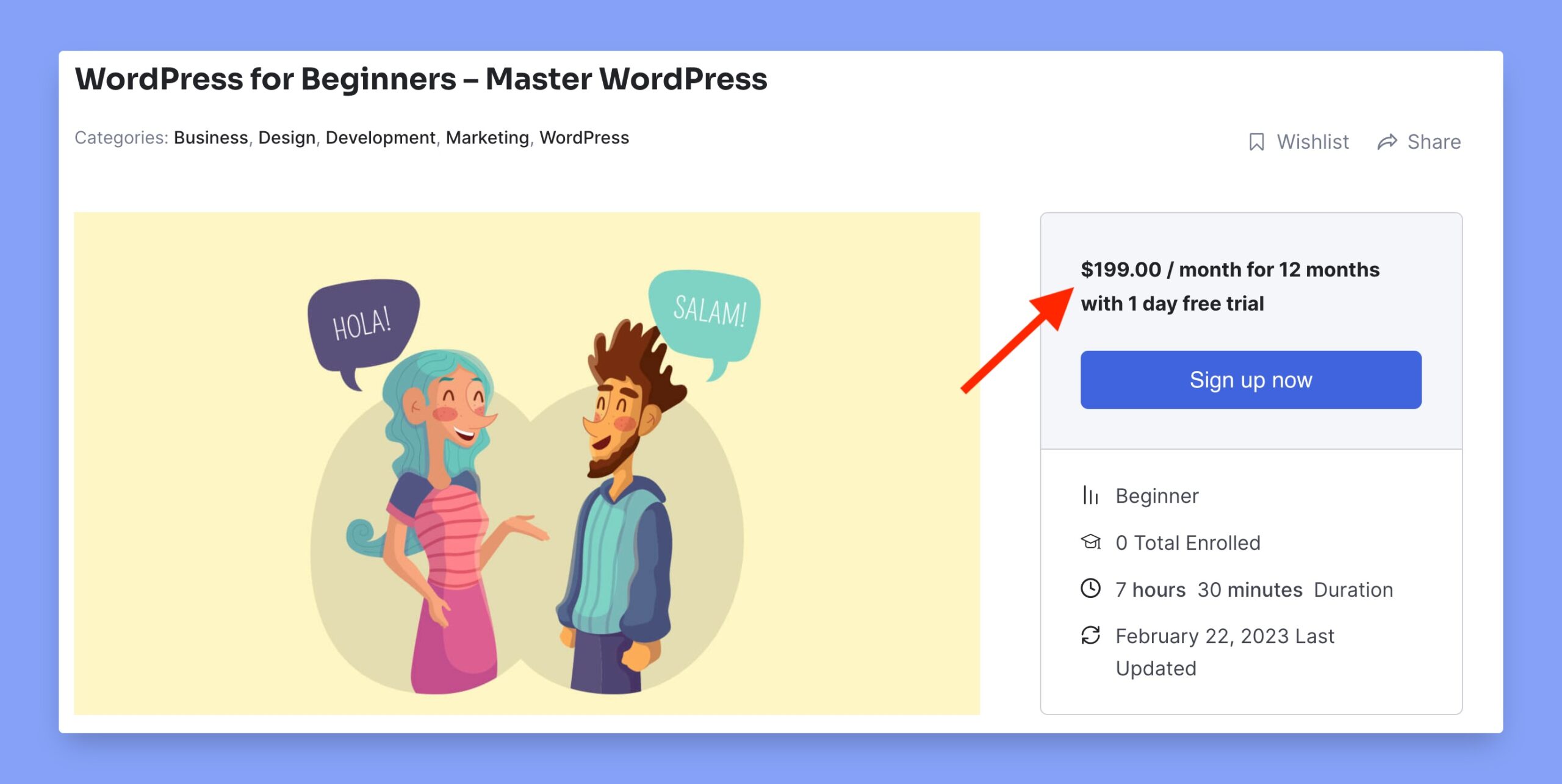
Subscription Pricing Preview
Here’s the frontend overview after adding the subscription product to your course: