Getting Started
Course Builder
Quiz Question Types
Student Learning Experience
Learner Dashboard
Instructor Dashboard
Native eCommerce
Payment Gateways
Admin Panel
Tutor LMS Settings
Tutor LMS Addons
Content Drip
Google Meet Integration
Google Classroom Integration
Enrollment
Assignments
H5P
Email
Social Login
Course Attachments
Course Prerequisites
Course Preview
Multi Instructors
Reports
Calendar
Notifications
Gradebook
Certificate
WPML Multilingual CMS
BuddyPress Integration
Elements
Zoom Integration
Certificate Builder
Integrations
Elementor Integration
Getting Started
Course Rating
Course Title
Course Author
Course Level
Course Social Share
Course Categories
Course Duration
Course Total Enrolled
Course Last Updated
Course Status
Course Thumbnail
Course Price
Course Enrolment Box
Course Purchase
Course Materials
Course Requirements
Course Tags
Course Target Audience
Course About
Course Description
Course Benefits
Course Curriculum
Course Instructors
Course Content
Course Reviews
Course Carousel
Course List
Course Wishlist
Bundle Title
Bundle Thumbnail
Bundle Categories
Bundle Overview
Bundle Tags
Bundle Author
Bundle Courses
Bundle Benefits
Elementor Templates for Tutor LMS Single Course Page
Divi Integration
Introduction
Create a Divi Template for Tutor LMS Course
Course About
Course Author
Course Benefits
Course Carousel
Course Categories
Course Content
Course Curriculum
Course Duration
Course Enrollment
Course Instructor
Course Last Update
Course Level
Course List
Course Materials
Course Price
Course Purchase
Course Rating
Course Requirement
Course Reviews
Course Share
Course Status
Course Tags
Course Target Audience
Course Thumbnail
Course Title
Course Total Enrollment
Course Wishlist
Oxygen Builder Integration
Tutorials
Frontend Course Creation
Enabling Q&A
Translating Tutor LMS
Instructor Signup
Student Signup
Guest Purchase
Importing Demo Data
Images in Questions
List of Tutor LMS Email Placeholders
Using CartFlows Landing Page With Tutor LMS & WooCommerce
Regenerate Pages
How to Create reCAPTCHA Keys
Edit Lessons With Page Builder
Custom Notification Email
Change Primary/Main Author of a Course
Give Feedback as an Instructor
Editing Instructor Profile using Frontend Dashboard
Limit one course per user
Installing Tutor LMS Beta Version
How to add Video Captions
Generate Login Page
Get YouTube API Key
How to Get Google Client ID
How to Get a Facebook App ID
How to Get Twitter API Key
How to Migrate From Zoom JWT App to Server-To-Server OAuth App
Make Sidebar Sticky for Course Details Page
How to Approve and Manage Course Reviews in Tutor LMS
How to Add Math Equations in Tutor LMS using LaTex
How to Sell Bundle Course as a Subscription
How to Embed PDF Documents in Tutor LMS Lessons
How to Make Passing a Quiz Mandatory to Access Next Course Content
How to Import and Export Tutor LMS Courses
Migration
Tutor LMS Shortcodes
Advanced Customization
Troubleshooting
Override Tutor LMS Templates
Override Tutor LMS Templates
If you are using Tutor LMS themes, please be careful as the themes have plugin specific features. Replacing plugin templates might break the theme features.
Be careful about the course-archive.php page.
Be careful about the course-archive.php page.
If you open the plugin folder of Tutor LMS (the folder you downloaded from WordPress.org), you will see there is a folder named templates. This is the folder that contains all the pages for Tutor LMS. The exact location for the folder is wp-content/plugins/tutor/templates
How to Override The Plugin Files of Tutor LMS
- Copy the templates folder inside your child theme.
- Rename it to tutor.
- So the final folder for you will be
wp-content/themes/yourthemename-child/tutor
From here you can edit anything you want. For example, let’s say we want to change the text Course Level. So, I will search for the text “course level” inside the tutor folder that I just copied into my theme.
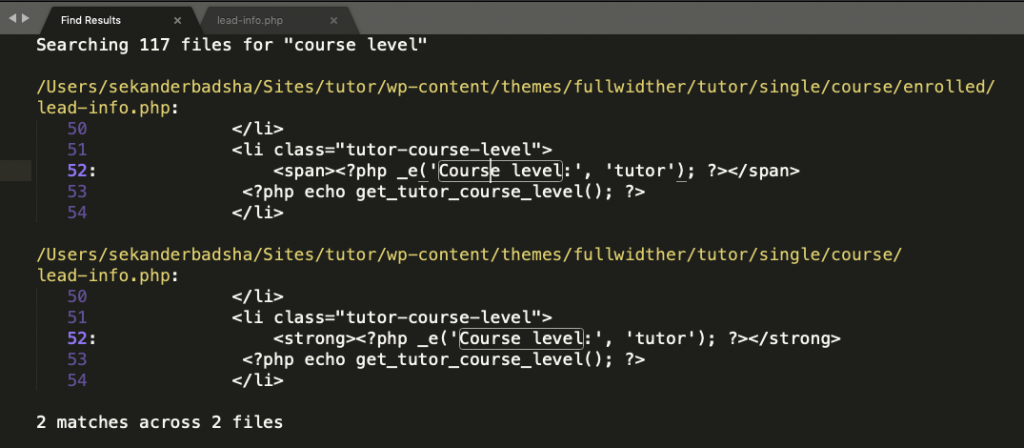
I have found the file name and the line number the text is located- that is /tutor/single/course/enrolled/lead-info.php
After editing and saving the file, I can see the change in my browser. Here is a video showing how to do it-