Assignments
The Assignments page in the Instructor Dashboard gives you a centralised view of every assignment submission from students across all your courses. You can review what has been submitted, track the status of each submission, and evaluate student work directly from this page. To access it, click Assignments in the left-hand sidebar.
The Assignments List
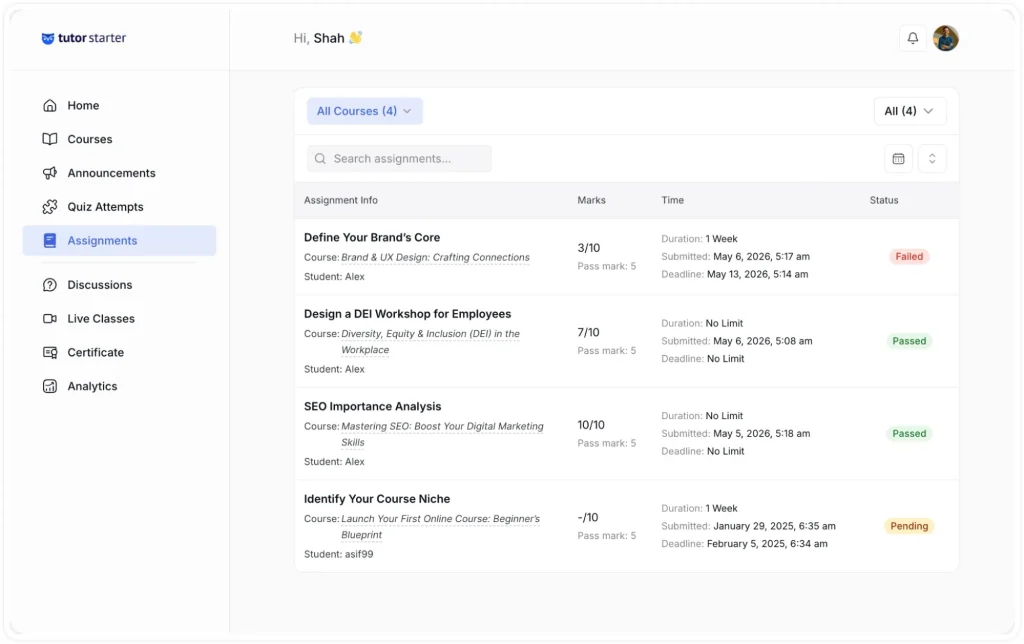
The main list displays all submissions in a table with four columns: Assignment Info, Marks, Time, and Status:
- Assignment Info shows the assignment name, the name of the course it belongs to, and the student’s name beneath that. This gives you a clear picture of which student submitted which assignment and in which course.
- Marks show two pieces of information, the score that has been awarded and the pass mark required. If a submission has not yet been evaluated, the score is shown as “-” to indicate it is still pending.
- Time shows three time-related details for each submission. The Duration (the time window given to complete the assignment, such as “1 Week” or “No Limit”), the Submitted date and time (when the student submitted their work), and the Deadline (the due date, or “No Limit” if no deadline was set).
- Status shows a coloured badge indicating the current state of the submission. There are three possible statuses:
- Pending shown in orange. The submission has been received but has not yet been evaluated by the instructor.
- Passed shown in green. The submission has been evaluated, and the student’s score met or exceeded the pass mark.
- Failed shown in red. The submission has been evaluated, but the student’s score did not meet the pass mark.
Filtering and Searching Assignments
Several controls at the top of the list let you narrow down what you are looking at.
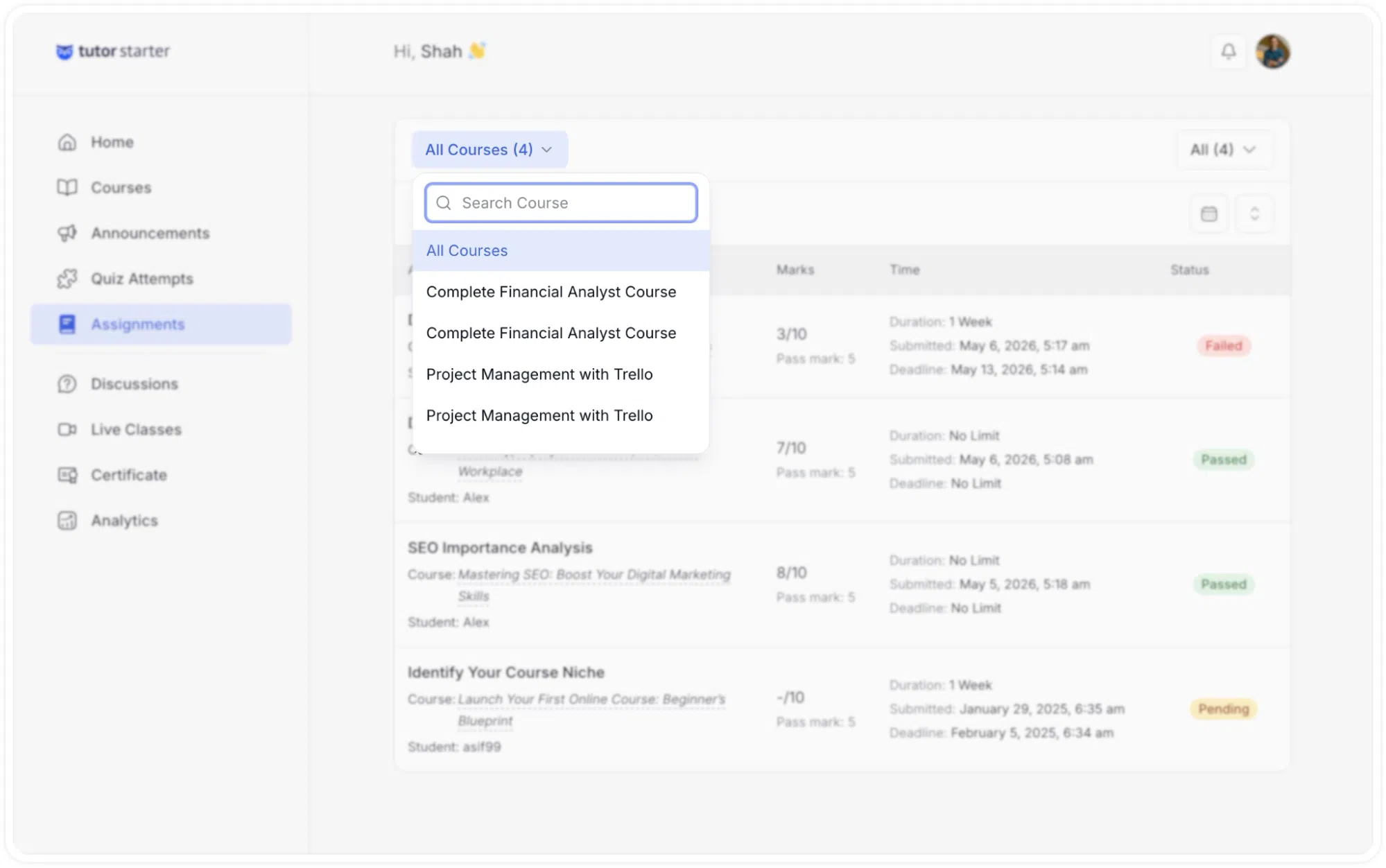
Course filter: In the top-left, a dropdown labelled “All Courses (#)” (with the number in brackets reflecting the total number of assignments) allows you to filter the list by a specific course. Clicking the dropdown opens a searchable list of all your courses. You can type a course name in the search field to find it quickly, then click it to show only assignments from that course.
Search bar: A search field labelled “Search assignments…” sits below the course filter. You can type any part of an assignment name to find it across all courses.
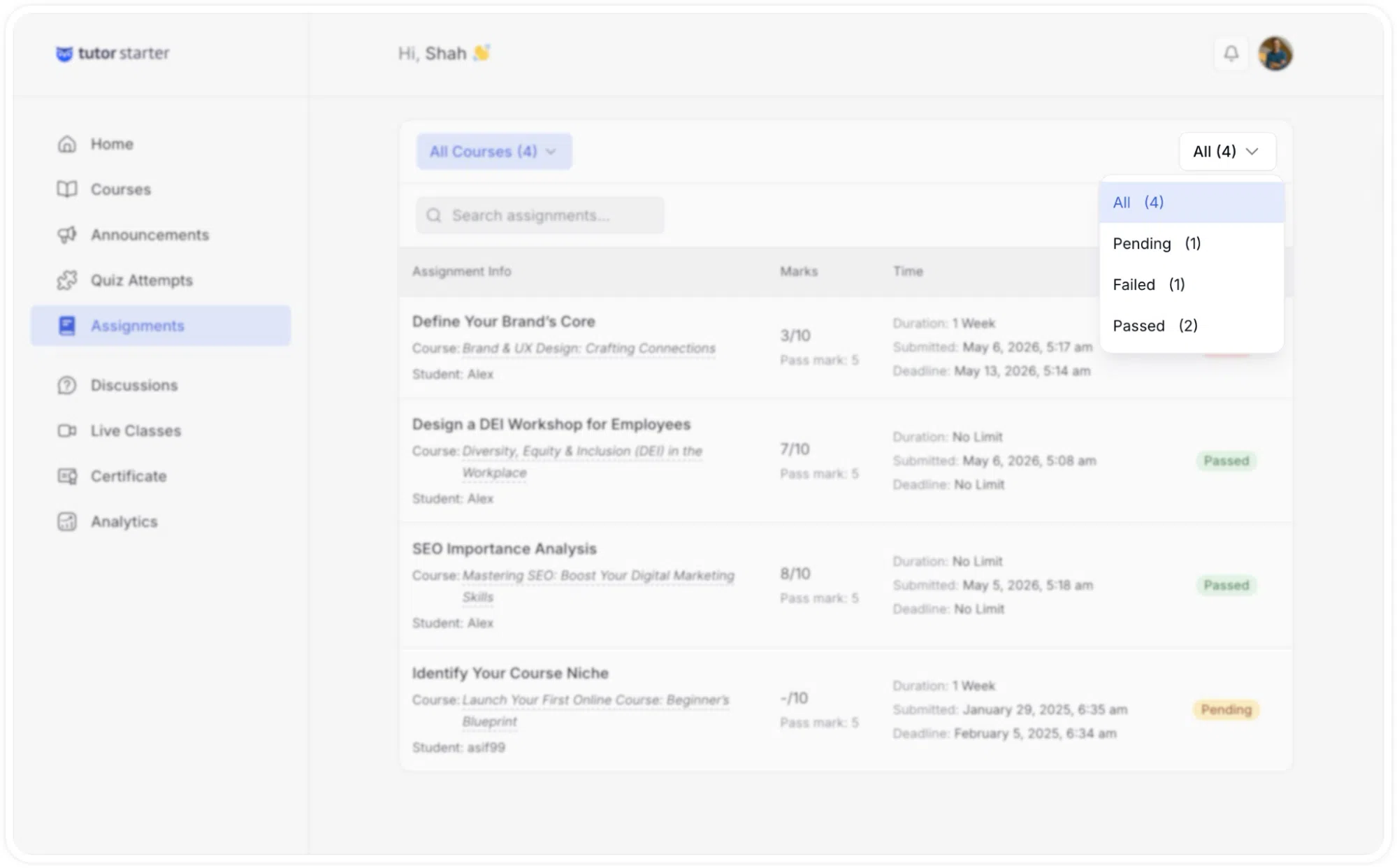
Status filter: In the top-right corner, a dropdown window lets you filter submissions by their current status. The options are:
- All (shows every submission regardless of status)
- Pending (shows only unevaluated submissions)
- Failed (shows only submissions that did not meet the pass mark)
- Passed (shows only submissions that passed).
Each option shows a count in brackets so you can see at a glance how many submissions fall into each category.
Date filter: A calendar icon next to the status filter opens a date picker, allowing you to filter submissions by a specific time period.
Sort control: An arrow icon next to the date filter lets you change the sort order of the list.
Evaluating an Assignment
To evaluate a submission, click the three-dot menu icon (⋮) on the right side of any Pending submission row and select Details. This opens the individual submission review and evaluation page.
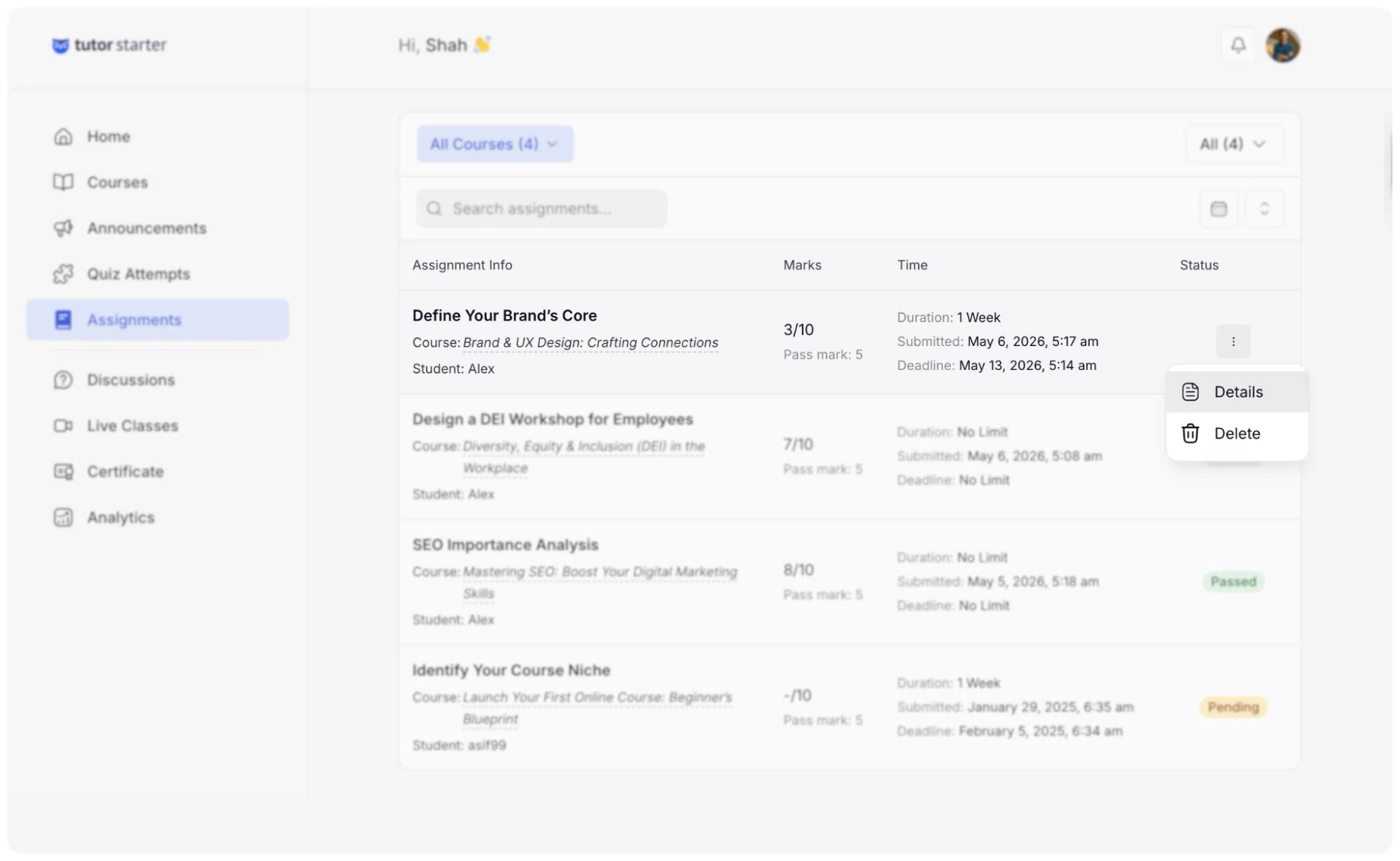
Note: Selecting Details on an already evaluated assignment opens the same page, allowing you to update the score, the feedback, or both. This means you can revisit and revise your assessment at any time after the initial evaluation.
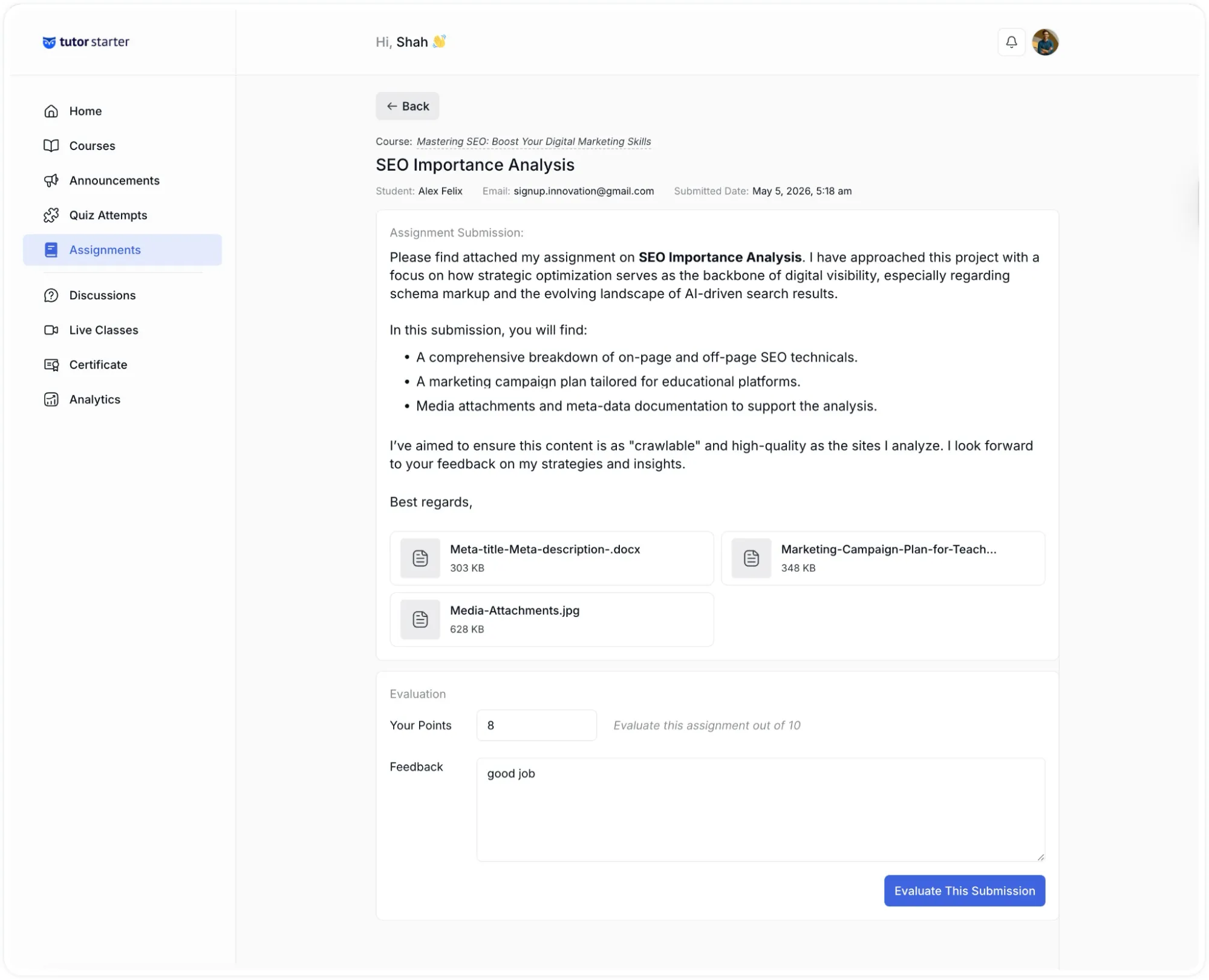
At the top of this page, the Back button returns you to the main assignments list at any time.
Below the back button, the page displays the course name, the assignment title in large text, and three pieces of student information on the same line: the student’s name, their email address, and the date and time they submitted.
The Assignment Submission section shows the full content of what the student submitted. Their written response appears as body text. If the student attached files to their submission, those files are listed below the written response as downloadable cards, each showing the file name and size. You can click on any file to open or download it for review.
Below the submission content, the Evaluation section is where you record your assessment. It contains two fields:
- Your Points section is a number input field where you enter the score you are awarding the student. A hint to the right of the field reminds you of the maximum score (for example, “Evaluate this assignment out of 10”). If you enter a number that exceeds the maximum, an error message appears below the field reading “Maximum value is #,” and the evaluation cannot be submitted until a valid number is entered.
- Feedback is a large text area where you can write a personalised message to the student. This feedback is visible to the student after evaluation.
Once you have entered or updated a score and any feedback, click the Evaluate This Submission button in the bottom-right corner of the page. A green success notification appears at the bottom of the screen confirming “Assignment evaluated.” When you return to the main list, the submission’s status badge will reflect the updated score, changing to Passed or Failed depending on whether the new score meets the pass mark.
What the Student Sees After Evaluation
Once you have evaluated a student’s assignment, the student can see the result the next time they visit that assignment in the course window.
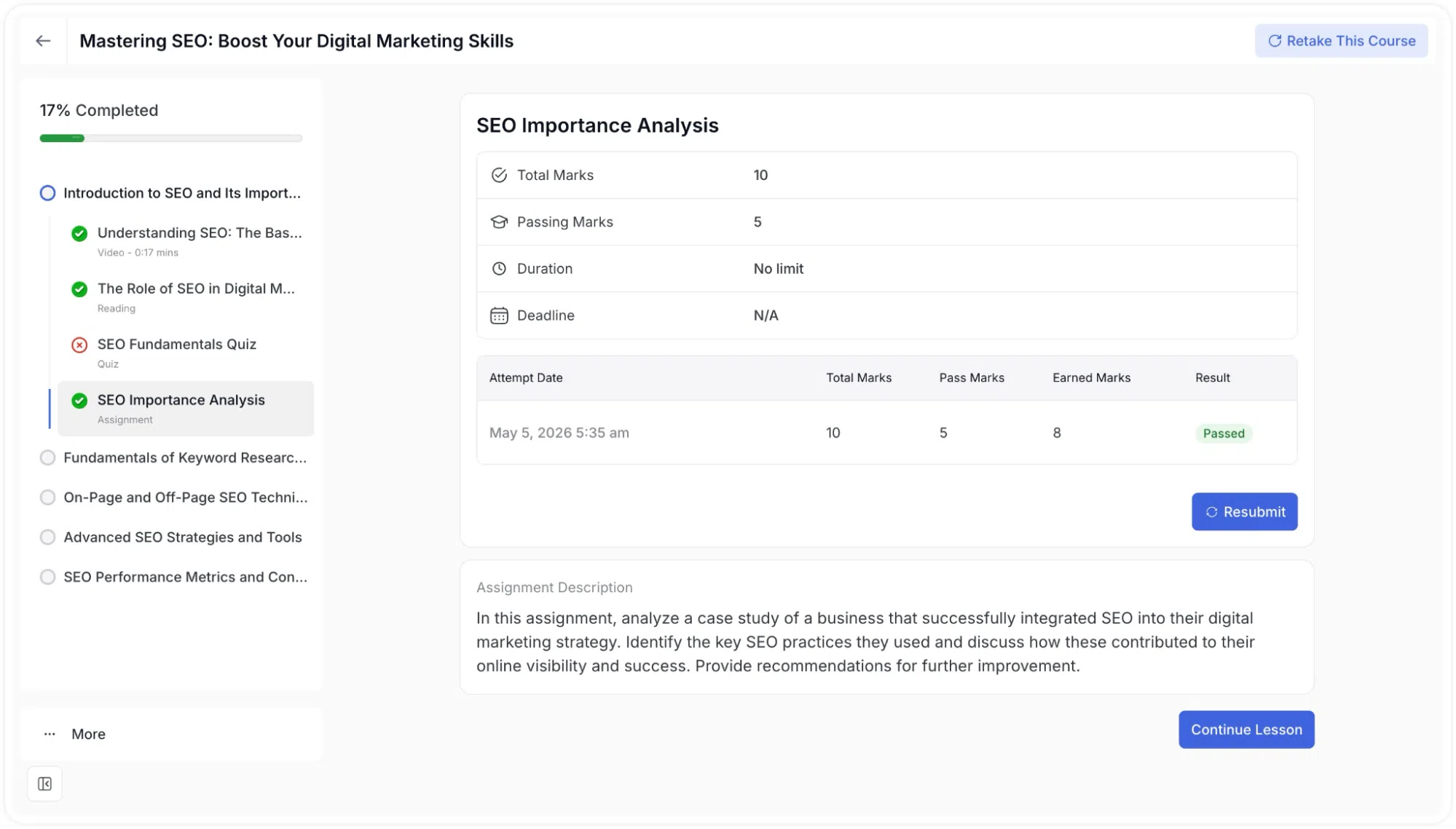
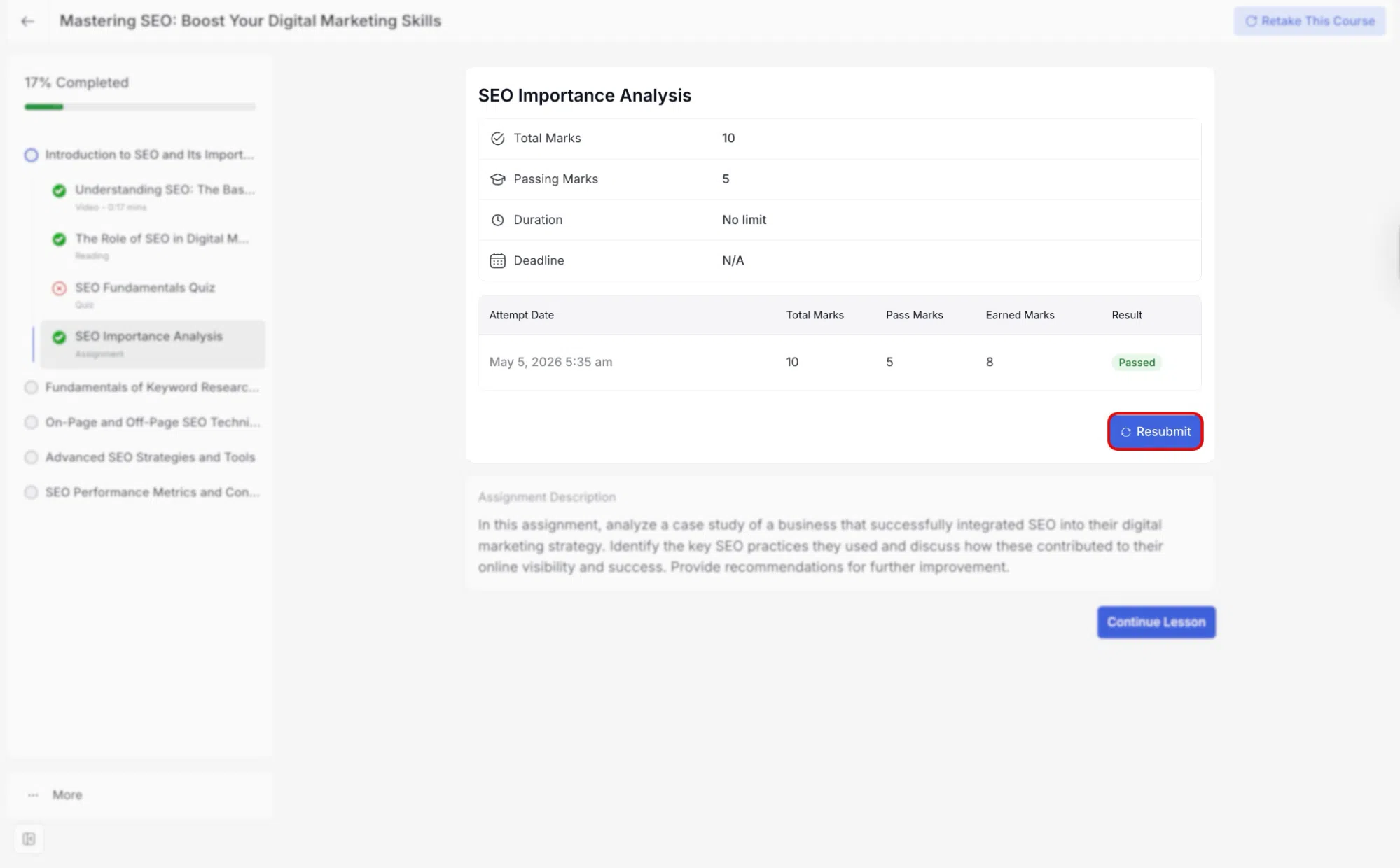
Inside the course, the assignment appears in the curriculum sidebar with a green checkmark or a red cross when it has been graded. When the student opens the assignment page, they see a summary table showing their attempt record with the following columns:
- Attempt Date
- Total Marks
- Pass Marks
- Earned Marks
- Result
The Result column shows either a green Passed badge or a red Failed badge.
Students can click the three-dot menu icon on their attempt row to expand the full details of their submission. This detailed view shows the assignment name at the top, the same attempt summary table, their original submission text under Your Submission, and the feedback you wrote under Instructor Feedback.
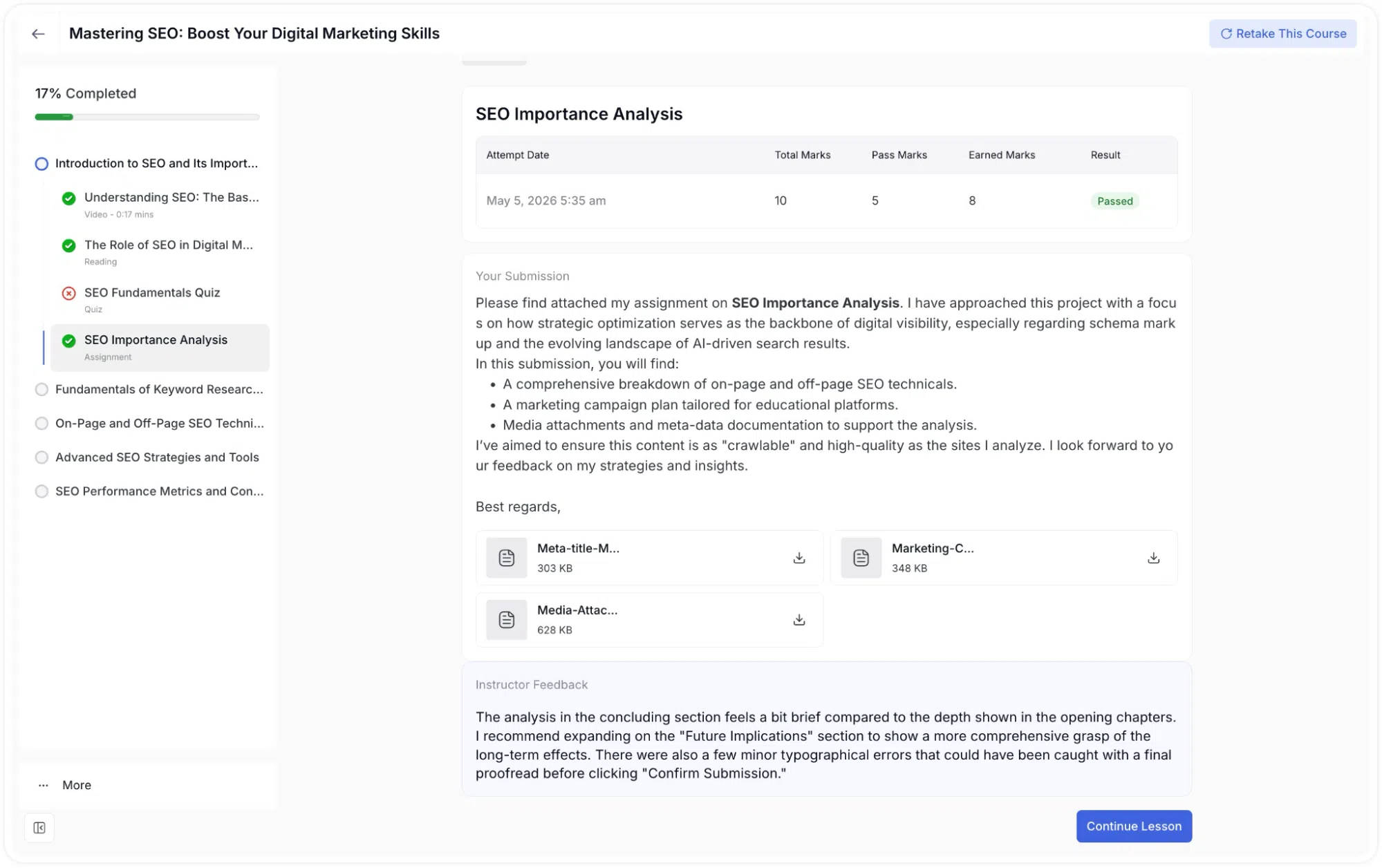
If the retry option is enabled for the course assignment, a Resubmit button appears on the assignment page, allowing them to submit a new response.